Log In
Free gifts available with your purchase
AAS sound designer newcomer Emeric Zubar a.k.a. BLAKE presents Turmoil District—a collection of 101 presets exhibiting the emotional and ominous side of Chromaphone 3. Turmoil District gets you everything you need to explore the dark and sad atmosphere of Trap, Cloud Trap, RnB, Hip Hop, and even ambient music. While being sonically rich-sounding, this sound pack highlights the dreamy and haunting vibe needed for those genres. With its vast selection of kicks, snares, basses, hi-hats, pads, and keys, Turmoil District's presets are specifically designed to create vibrant beats and take your music to its climax.
Who’s Emeric Zubar?
Paris-based French producer and sound designer Emeric Zubar a.k.a. BLAKE creates sounds and/or music for Native Instruments, Arturia, Loopmasters, Niche Audio, AAS, IZO, and Redbull, just to name a few. His infinite interest in sound design, synthesis, and new technologies led him to create his own sound design company—DRIVENSOUNDS.
Features
- 101 Presets
What's included with my purchase?
- Preset bank for Chromaphone 3
- AAS Player plug-in (VST, AU, AAX, RTAS)
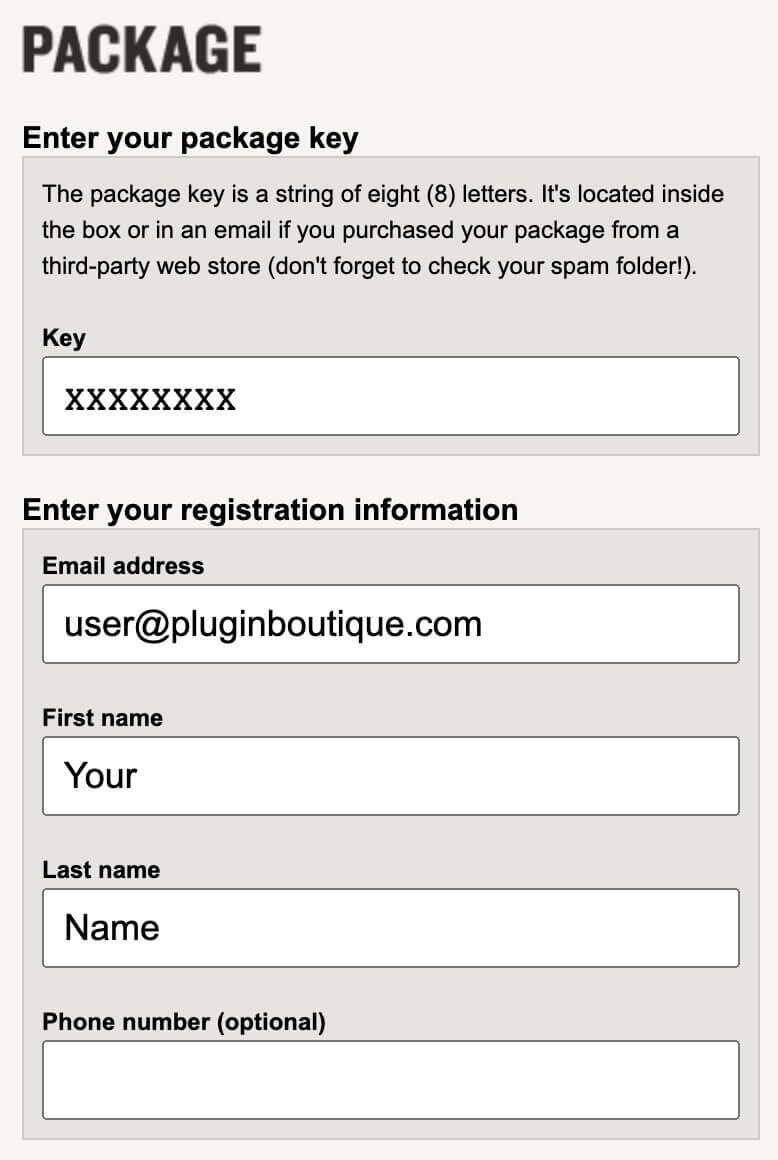
- Serial number
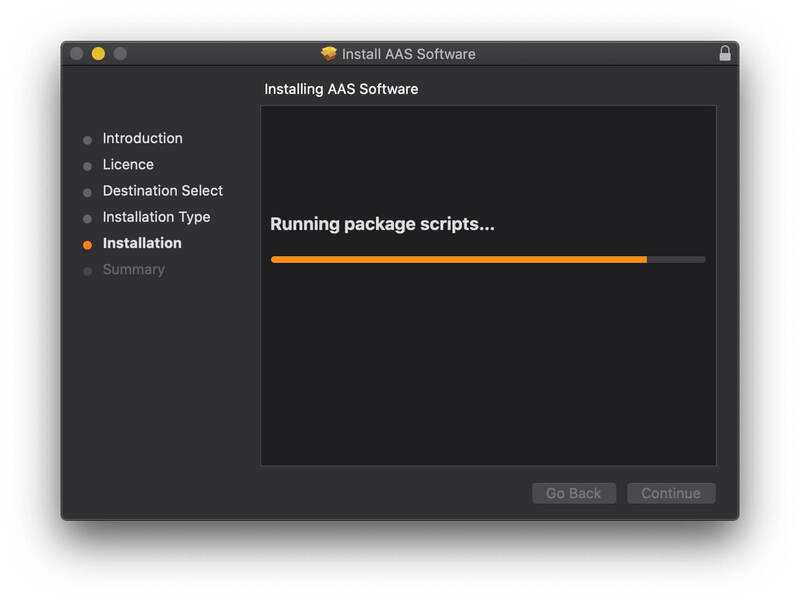
- Installation instructions
System Requirements
This preset collection can be used with the free AAS Player plug-in as well as the Chromaphone 3 analogue synthesizer.
After you have installed the sound bank, there are two options to use it:
- A. Chromaphone 3 - Octagon will automatically be added to Chromaphone 3 if it is installed on your computer.
- B. AAS Player - If you don't own Chromaphone 3, you will be able to play Octagon from the AAS Player plug-in or standalone application.