


Buy Transmutation Chromaphone 3 Sound Bank, get a free gift with purchase:
AAS newcomer Michel Basque presents Transmutation—a 101-preset sound collection for Chromaphone 3. Basque approaches sounds as instruments by themselves with great attention to details, playability, and balance.
Real instruments are evoked with fresh creative twists—crystalline mallets and bells, futuristic neo-classical keys, exotic and hybrid acoustic strings, filmic guitars, and gritty mutant pads abound. From all times and places—exotic, traditional, electronic—this miscellanea balances real and surreal textures with a strong lively quality that captures the prominent essence of Chromaphone 3.
While ideal for cinematic climaxes or otherworldly soundscapes production, more conventional creations benefit from a very organic boost of intensity and emotion. Transmutation sonically reflects on a world in the throes of profound changes, a rapidly mutating ecosystem transforming us all.
Who is Michel Basque?
Michel Basque is a Canadian artist, music composer and sound designer since the beginning of the 80’s, going from lead singer and composer for an underground rock music band to film and TV music composer and multimedia electronic music composer. In 2007, he joined Sonarte, a sample-based sound design company, and as such is collaborating as sound designer with Ableton to their flagship DAW, Live, creating packs and some of the main sound banks for Live. He has been around AAS since 2019 as sound designer as well.
Features
- 102 Presets for Chromaphone 3
System Requirements
This preset collection can be used with the free AAS Player plug-in as well as the Chromaphone 3 analogue synthesizer.
After you have installed the sound bank, there are two options to use it:
- A. Chromaphone 3 - Reverence will automatically be added to Chromaphone 3 if it is installed on your computer.
- B. AAS Player - If you don't own Chromaphone 3, you will be able to play Reverence from the AAS Player plug-in or standalone application.
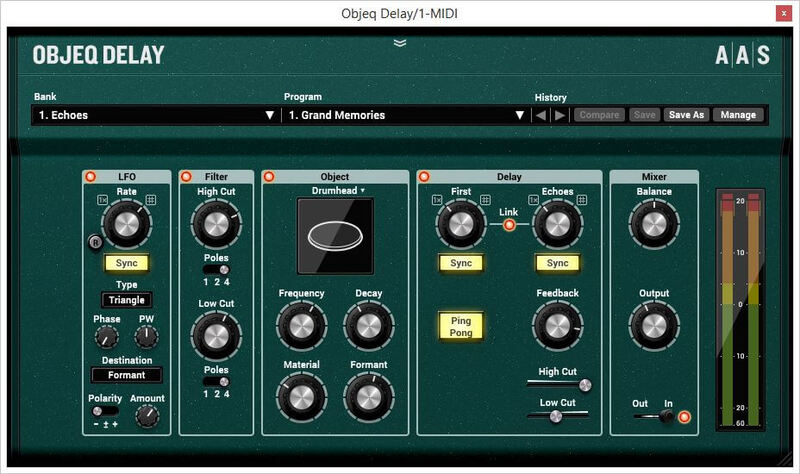
Please note: Objeq Delay is used as an example as the installation process is the same for all Applied Acoustics Systems products.
Registration
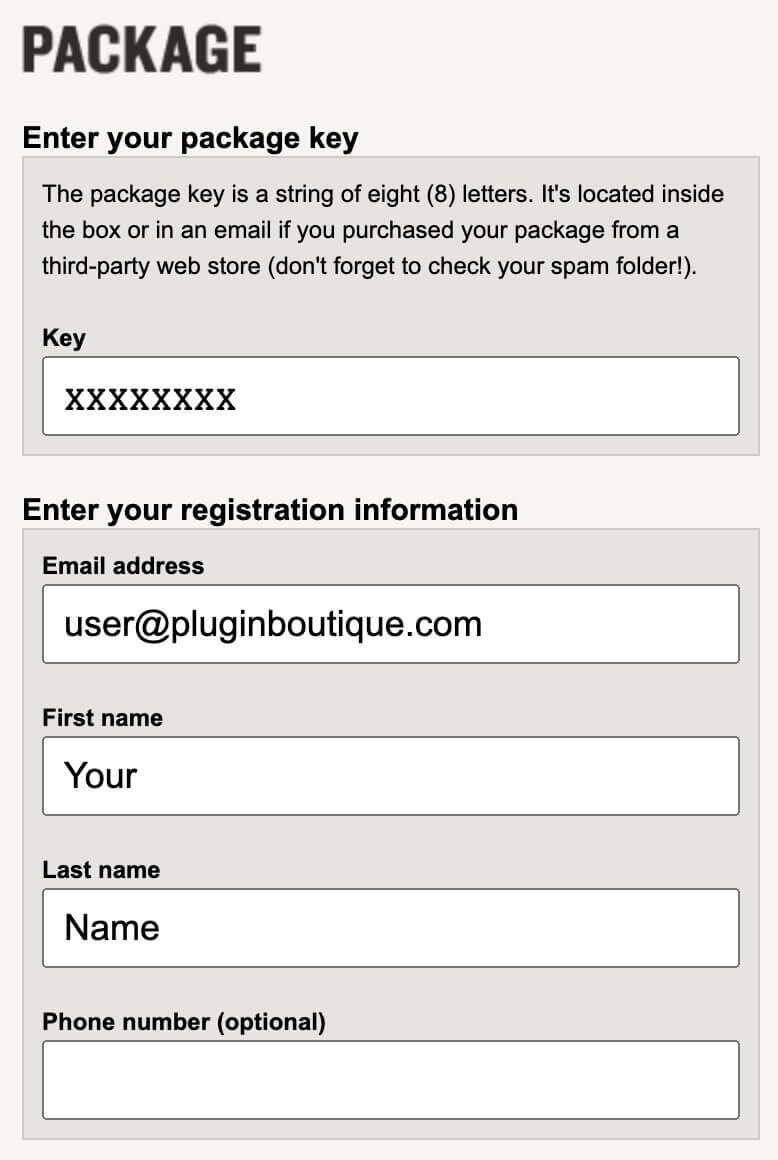
1. Copy and paste the URL which is listed as the ‘Serial Number’ in your account into your browser search bar and click enter.

2. Enter your email address and name (the key will have been automatically entered).
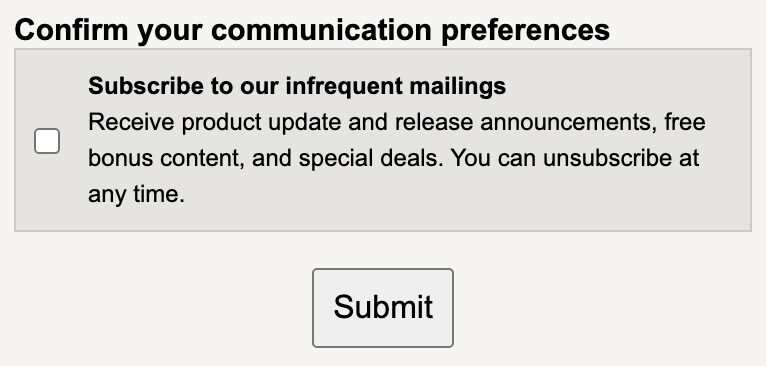
3. Choose your communication preferences > Click 'Submit'.
Mac Installation
1. Download the Mac Installer.

2. Open the ZIP folder you’ve just downloaded > Double click the PKG installer file.
3. You may see this message - if so, please click 'Open'.

4. Click 'Continue'.

5. Read the Software License Agreement > Click 'Continue'.

6. Click 'Agree'.

7. Click 'Install'.

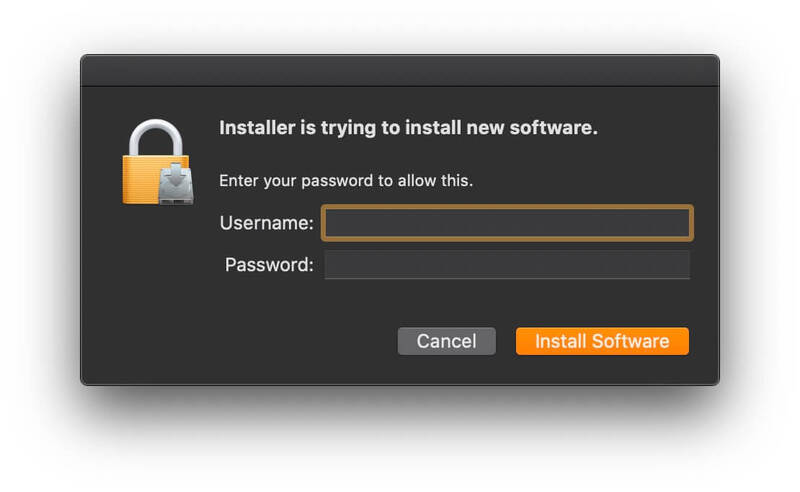
8. Tap your fingerprint or enter your password.
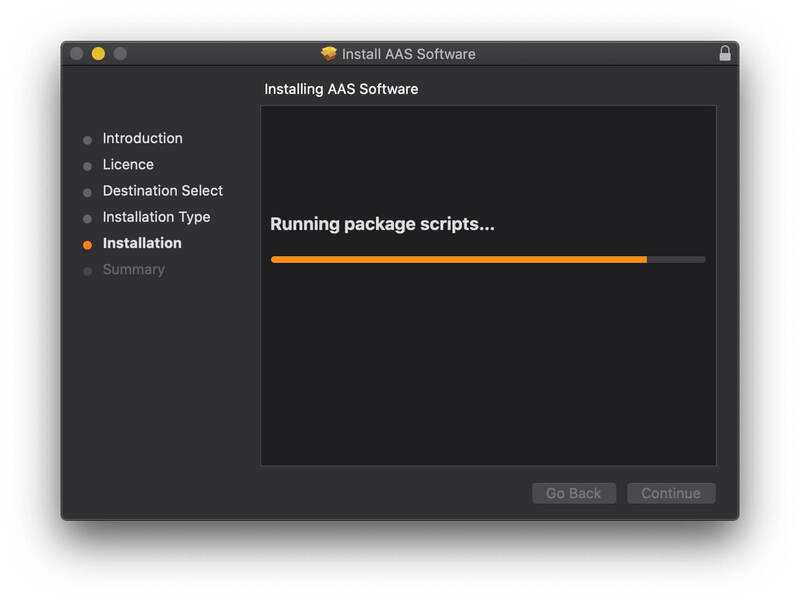
9. Your software will now install.
10. Open your new software in your DAW (you may need to restart your Mac and/or rescan your plugins).

Your software is now ready to use within your DAW!
Windows Installation
1. Download the Windows Installer.
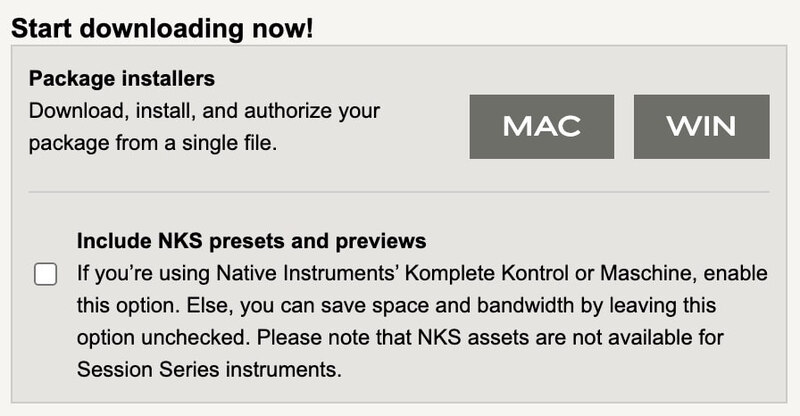
2. Open the ZIP file you’ve just downloaded > Double click the Setup file.
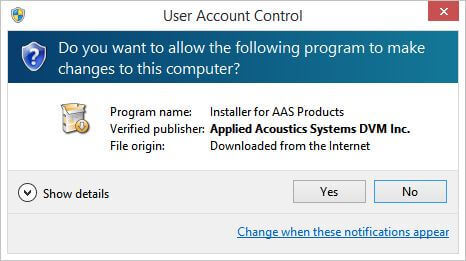
3. Click 'Yes' to allow the installation to run.
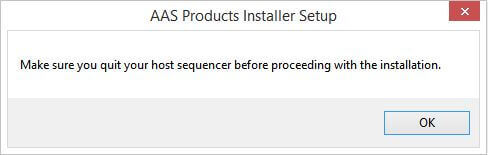
4. Close your DAW if it’s open > Click 'OK'.
5. Read the License Agreement > Click ‘I Agree’.

6. Choose the install location (we recommend leaving it as the default).

7. Your software will now install.
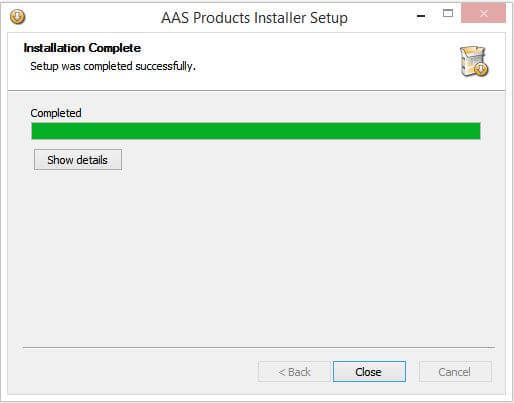
8. The installation is now complete > Click 'Close'.
9. Open your new software in your DAW (you may need to restart your Mac and/or rescan your plugins).
Your software is now ready to use within your DAW!


