Buy MiniBrute V, get a free gift with purchase:
MiniBrute V not only recreates the distinctive analog grit of its hardware predecessor but elevates it with modern flexibility, expanded polyphony and a built-in FX rack.
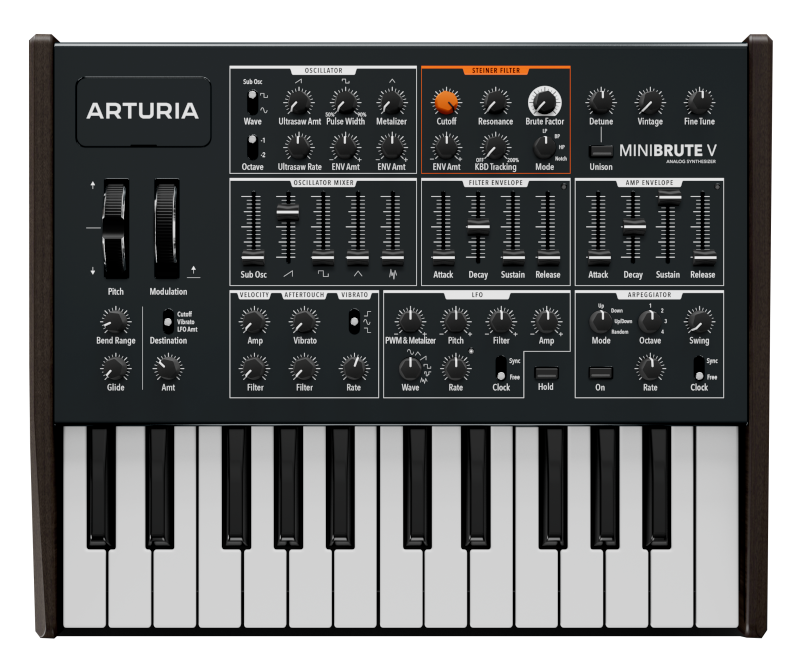
Arturia have ensured that MiniBrute V doesn't just emulate; it innovates, providing a sonic experience that goes above and beyond its hardware counterpart. From state-of-the-art circuit modeling and innovative digital enhancements to adjustable polyphony and iconic features like the Steiner-Parker filter - it's all there.
Raw analog power
Harness the Brute force of the original MiniBrute with added polyphony. MiniBrute V offers the same uncompromising analog sound, now capable of complex chord voicings and layered textures that go beyond its monosynth DNA.
Intuitive interface
Feel the immediacy and depth of analog synthesis through MiniBrute V’s streamlined signal path, making it incredibly easy to play and program - ensuring all users from beginners to pros can unleash their creativity without barriers.
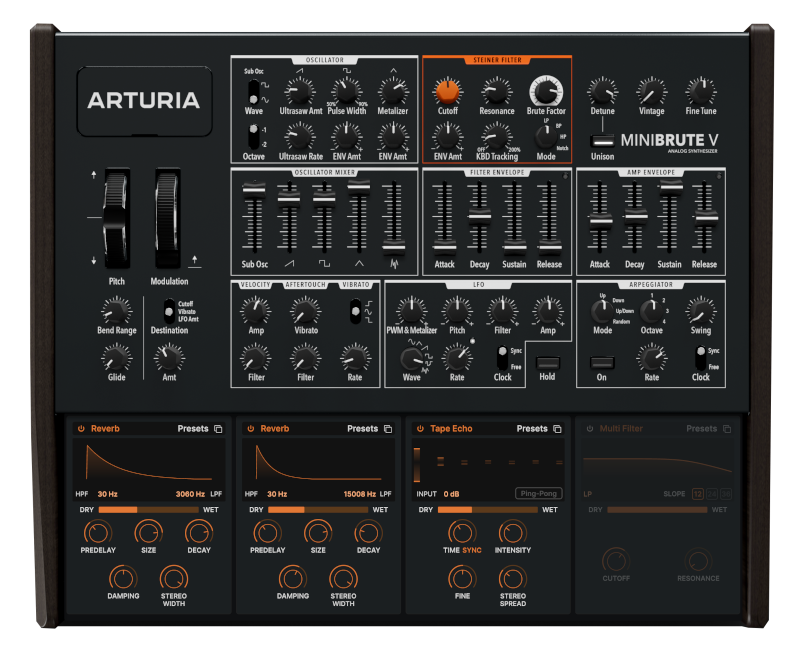
Built-in FX
Twist and transform MiniBrute V’s analog energy with an all-in-one FX rack. It features 4 FX slots and 17 FX types to further shape and enhance your sound. From subtle reverb to stacked distortion, go from clean to downright mean.
World class presets
MiniBrute V’s factory library has been designed by esteemed synthesists and analog pros alike, staying faithful to the original while pushing the envelope of what’s possible - from high voltage basses and leads to soaring pads and metallic effects.
Features
- Enhanced software emulation of the Arturia MiniBrute
- 8 voices of adjustable polyphony
- Steiner-Parker Multimode Filter
- Voltage Controlled Oscillator with Sub-Osc
- LFO1 with 6 waveforms and bi-polar modulation destinations
- LFO2 with 3 vibrato modes
- Brute FactorTM delivering saturation and rich harmonics
- Ultrasaw generating shimmering sawtooth waveforms
- Metalizer bringing extreme triangle harmonics
- Two ADSR Envelope Generators
- 168 presets
- Arpeggiator:
- 4 Modes of Arpeggiation
- 4 Octave Range Control
- 8 Time Divisions, with straight, triplets and dotted modes
- Swing Control
- 25-note virtual keyboard
- Built-in tutorials
System Requirements
- Works in Standalone, VST, AAX, Audio Unit, NKS (64-bit DAWs only).
Mac
- Mac OS 11+
- 4 GB RAM
- 4 cores CPU, 3.4 GHz (4.0 GHz Turbo-boost) or Apple Silicon CPU
- 3GB free hard disk space
- OpenGL 2.0 compatible GPU
Windows
- Win 10+ (64bit)
- 4 GB RAM
- 4 cores CPU, 3.4 GHz (4.0 GHz Turbo-boost)
- 3GB free hard disk space
- OpenGL 2.0 compatible GPU
- ARM processors not supported on Windows
Protection
All Arturia software is protected by the Arturia Software Center.
Registration
1. Go to the Arturia login page. You will be prompted to create an account or log in (if you already have an Arturia account, please log in and skip to Step 4 of the registration process).

2. Click 'Create an account'.

3. Enter your details and click 'I'm not a robot'. Choose your marketing preferences and then click 'Create'.

4. You should have received an email to activate your account. Click the link that has been sent to you and login into your account by entering your personal details.

5. You will be redirected to your Arturia account area, where you can click the 'Register New Product' option.

6. Enter the Serial Number from your Plugin Boutique account (the 16-digit code that consists of 16 numbers), e.g. 1234-5678-9012-0000 and then enter your Unlock Code (the 8-digit code that consists of letters and numbers), e.g. C5GM00N9 > Click 'Register'.

Please note: Your Arturia codes will either be separated by a comma, e.g. 1234-5678-9012-0000,C5GM00N9 or by the letters 'Uc:', e.g. 1234-5678-9012-0000 Uc:C5GM00N9.
Your product is now registered!

Mac Installation
Note: Pigments is used as an example.
1. Go to https://www.arturia.com/support/downloads&manuals > Click the download icon to download the installer for the Arturia Software Center.

2. Open the installer for the Arturia Software Center > then click 'Continue'.

3. Click 'Continue'.

4. Read the software licence agreement > then click 'Continue'.

5. If you are happy with the terms of the software licence agreement click 'Agree'.

6. Click 'Install'.

7. Enter your login credentials and click 'Install Software' (or tap your fingerprint) to install the Arturia Software Center.

8. The Arturia Software Center is now installed > click 'Close'.

9. Open the Arturia Software Center and log into your Arturia account.

10. Your purchase will now be in your account > click 'Activate' to authorise the product on your system.

11. Click 'Install' to download and install the software onto your computer system.

Your software is now activated and ready to use in your DAW.

Windows Installation
Note: Pigments is used as an example.
1. Go to https://www.arturia.com/support/downloads&manuals > Click the download icon to download the installer for the Arturia Software Center.

2. Open the installer for the Arturia Software Center > then click 'Yes'.

3. Click 'Next'.

4. Click 'Next'.

5. Click 'Install'.

6. Click 'Finish'.

7. Open the Arturia Software Center > click 'Yes'.

8. Sign in to your Arturia account.

9. Click 'Next'.

10. Click 'Next' or install the software to your preferred custom VST folder(s).

11. If you are asked about sharing your anonymous data with Arturia's team, click 'Yes, I agree' or 'No, thanks' to proceed.
12. The software will now be in your Arturia account > click 'Activate' to authorise the product on your computer system.

13. Click 'Install'.

14. Your software will now download and install.

Your software is now activated and ready to use in your DAW.