/ Synth / RAW-2
Rob Papen

RAW-2

4.7 (3 Reviews)
$99.00
RAW-2
RAW-2
RAW-2
Buy Now
Product information

It is time now, to evolve and use more sandpaper and to rub the edges of RAW. So please dust yourself off and welcome a grittier RAW-2!

At the Dutch Dancefair 2014, DJ Promo (aka producer Sebastian Hoff) and DJ Free-K (aka producer Freek Vergoossen) approached Rob Papen with the idea of a synthesizer that focused more on 'distorted' sounds with an easy-to-use layout. The idea for RAW was born and developed together with creative input by the two producers mentioned above.

Now, after almost 10 years, RAW is a well-established virtual synthesizer and its edgy sound appears in many of today’s Hardcore, Hardstyle, and even used in many other styles of productions!

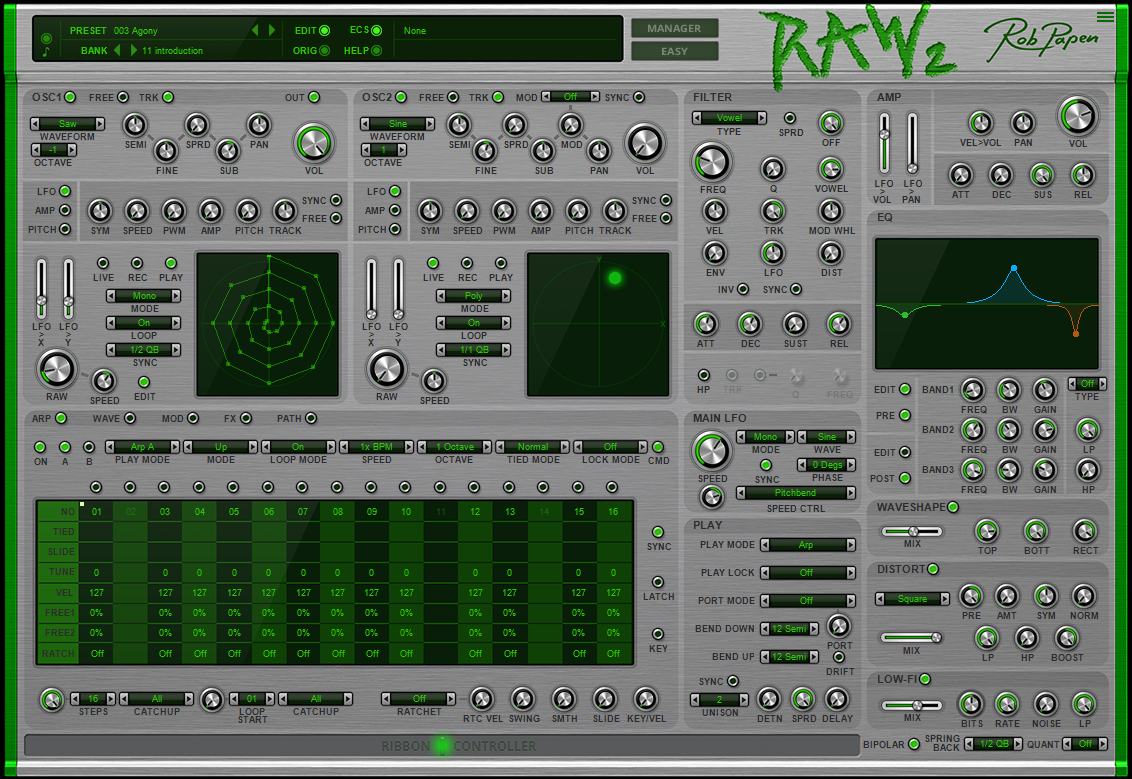
RAW-2 has two oscillators each with an X/Y field, to distort the waveforms by using Phase Distortion. But that's not all, you can also draw two of your own 'waveforms' and use them as LFO waveforms enabling the creation of unique 'wobble' movements.

RAW-2 now features the ‘Ribbon Controller’ carried over from BIT-2(and other plugins) which allows you to dynamically change the sound with its superb tempo-based spring-back feature.

RAW-2 has all the great Rob Papen filters to shape your sound further, but in a refreshing twist, 'EQ', ‘Waveshaper', 'Distortion' and 'LoFi' have also been added on a per voice synthesis level. Other FX such as Chorus, Phaser, Flanger, Stereo delay and the amazing HQ Reverb of Rob Papen can all be added to your sound, and of course a cool 32-step Arpeggiator/Sequencer, and finally the preset bank manager have all been included as standard.

In true Rob Papen style, RAW-2 comes with many great new presets, and the original RAW presets with contributions from several well-known DJs and Producers for instant user inspiration!

Promo, Ophidian, Mad Dog, Deathmachine, D-Passion, Rob Fabrie, DJ Thera, N-Vitral, Tha Playah, DJ Hidden, The Viper, Warface, Stephan Jacobs,  Amnesys, and many more...

Features

  • Hybrid Synthesizer: 16-voice phase-distortion synth with user waveform drawing.
  • Massive Preset Library: 3000+ artist-created presets with a quick browser, favorites, and star system.
  • Oscillators: Two phase-distortion oscillators with XY control, dedicated LFOs, envelopes, and tempo-based recording.
  • Filters: Analog-modeled filters with 37 modes, including Comb, Ring Mod, and AMP Mod.
  • LFO & Modulation: Tempo-based LFOs, 16-slot modulation matrix with 2 envelopes and 2 LFOs.
  • Amplifier & Play Modes: Volume, envelopes, and LFOs for volume/pan; poly, mono, legato, and ARP modes.
  • Arpeggiator: 32-step arpeggiator with tune-per-step, modulation rows, and ratcheting.
  • EQ & Distortion: 3-band pre/post EQ, waveshaper, distortion, and LoFi effects.
  • FX Section: Distortion, chorus, phaser, ensemble, flanger, delay, reverb, and gater.
  • Routing Control: Flexible paths for oscillators and FX.
  • MIDI & Control: ECS (External MIDI Control), ribbon controller, and global settings menu.
  • Preset Management: Bank manager with search, category, and set options.
  • Back Panel: Global controls, including MIDI settings affecting all instances.

System Requirements

  • PC: 64-bit VST3, AAX, & VST for Windows 7 or higher. (Note: PC AAX for PT 12 or higher)
  • Mac: 64-bit AU, VST3, AAX & VST, for OS-10.15 or higher.
  • ARM processor compatible.
  • Serial/license system with activation while registering the product
  • The activation system is online or offline,
  • (offline meaning there is no direct connection between the plugin and the robpapen.com homepage)
  • The software can be installed on 2 of your computer systems.

Installation Instructions

(SubBoomBass is used as the example).

Mac

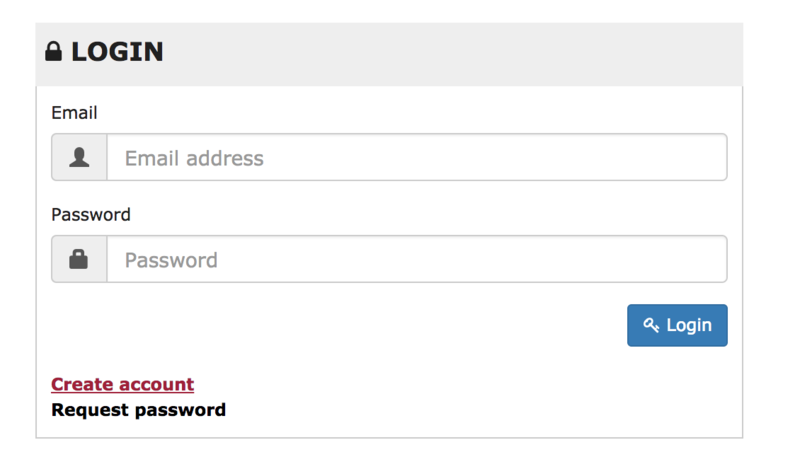
1. Visit Rob Papen and create an account by selecting 'Create Account'.

Note: If you already have an account set up with Ron Papen, 'Login' to your account and skip to step 4. of the installation process.

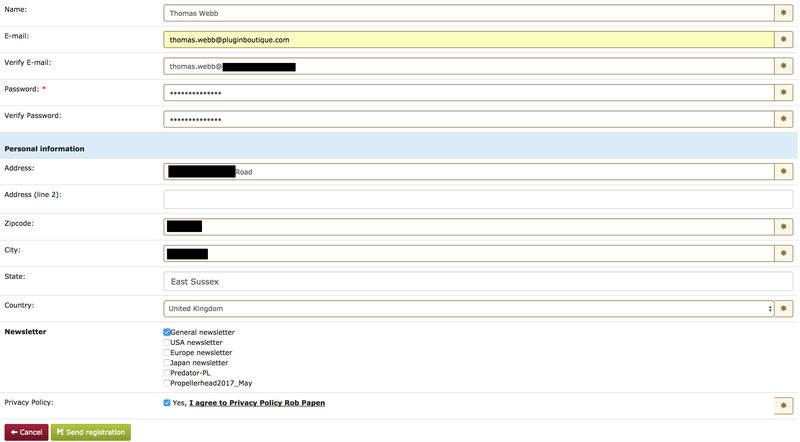
2. Enter your personal details, and once completed check the tick box that reads 'Yes, I agree to Privacy Policy Rob Papen' before clicking 'Send Registration'.

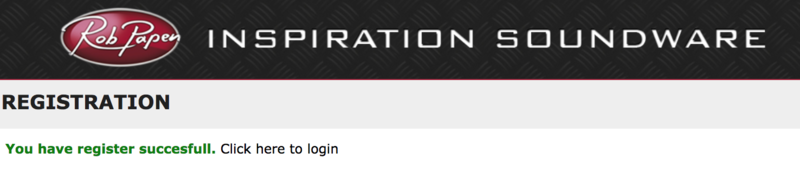
3. The registration of your account has successfully been completed > select 'click here to login' to access your account area.

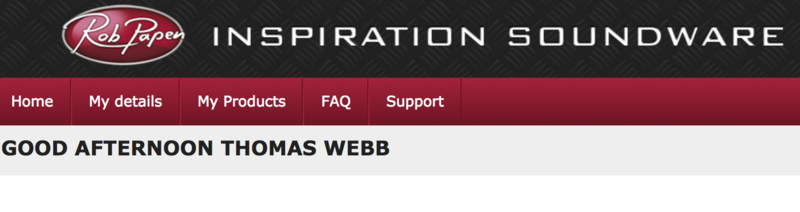
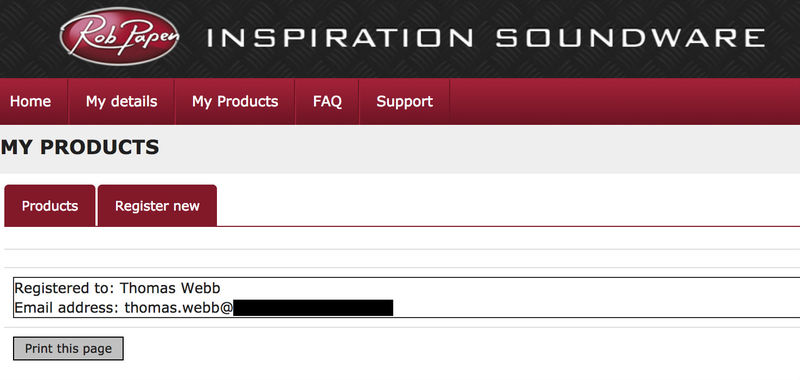
4. Select the 'My Products' tab, which is located at the top-left corner of your account area.

5. Click the 'Register New' option.

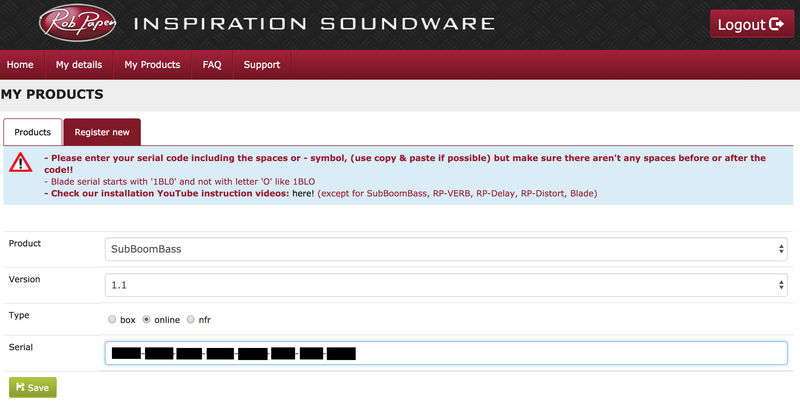
6. Select the product that you have purchased, as well as the most recent version number (which in this instance is 'Online'), before manually entering/copying and pasting the 32-digit Serial Number that is provided within your User Account > once completed, click the 'Save' tab to register your software.

Note: Ensure that you select the correct 'Product' and 'Type', as well as checking that there are no spaces/mistakes when entering your Serial Number > if you receive a code error message of any kind, refresh the web page and manually enter the digits (including the '-' hyphens) before re-clicking the 'Save' option.

7. The registration of your software has successfully completed > select the 'Download latest version: SubBoomBass' hyperlink to navigate to the software download area.

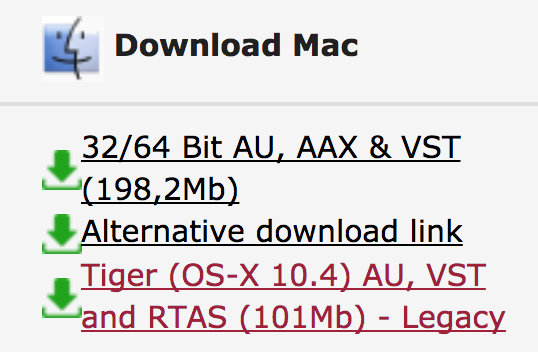
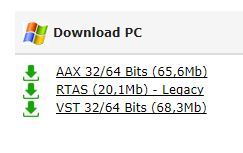
8. Select the relevant format installer download (s) in accordance with your DAW's compability specifications, to inititiate the downloading of your purchased software.

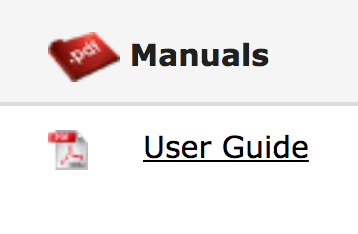
Note: The product user manual is also obtainable from this location.

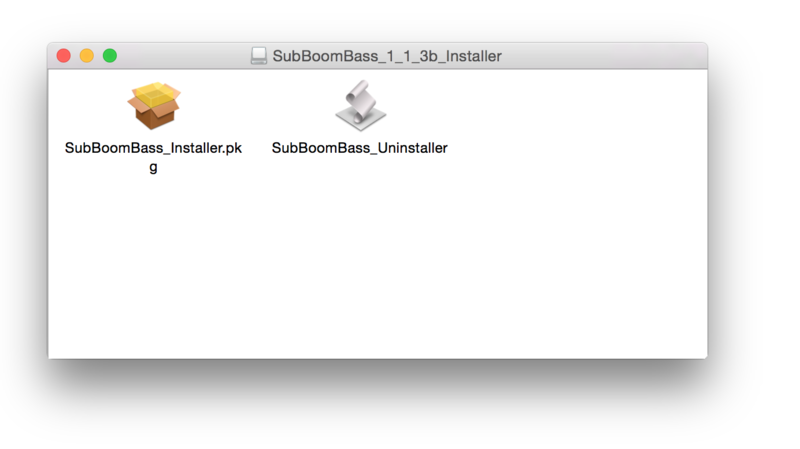
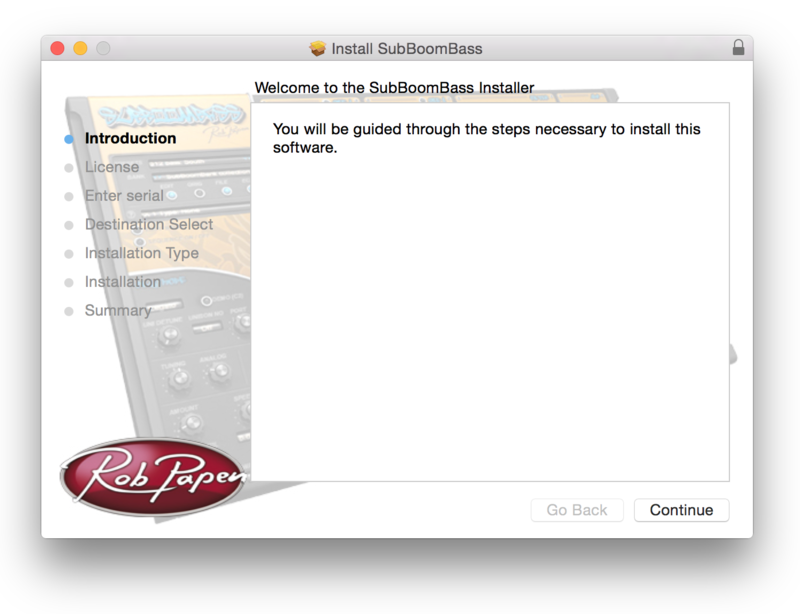
9. Once the software installer file has finished downloading, click the file entitled 'SubBoomBass_Installer.dmg' to launch the application installer application.

10. Double-click the 'SubBoomBass_Installer.pkg' application icon begin the installation process.

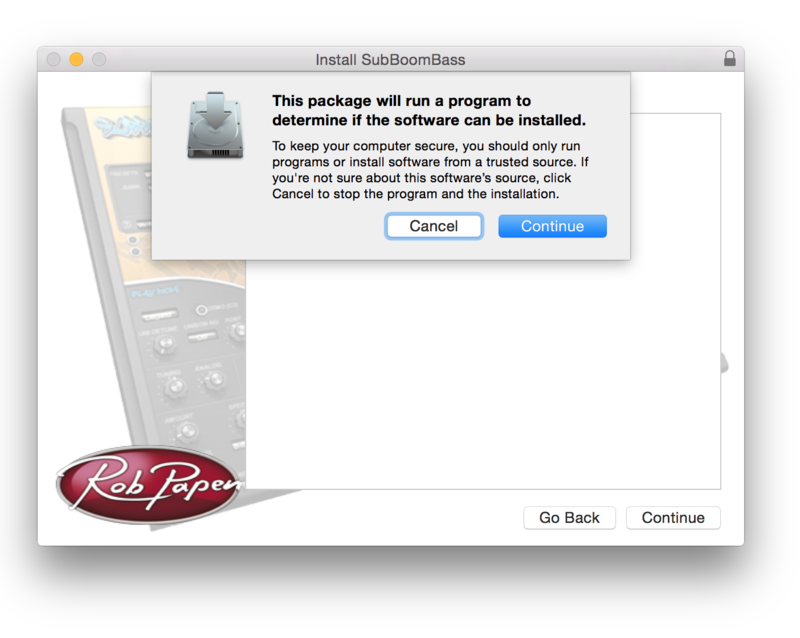
11. Click 'Continue' to verify the installation, if prompted to do so.

12. Click 'Continue' once again.

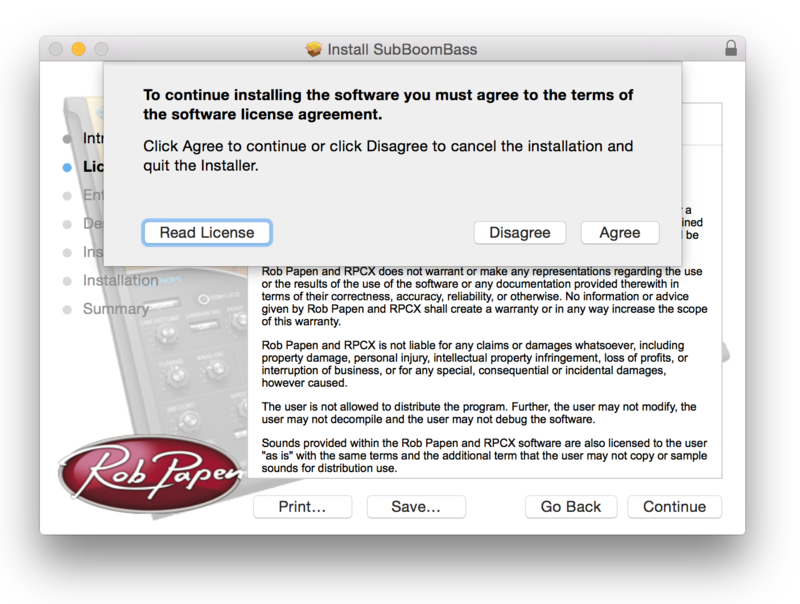
13. Read through the Licence Agreement > click 'Continue' then 'Agree'.

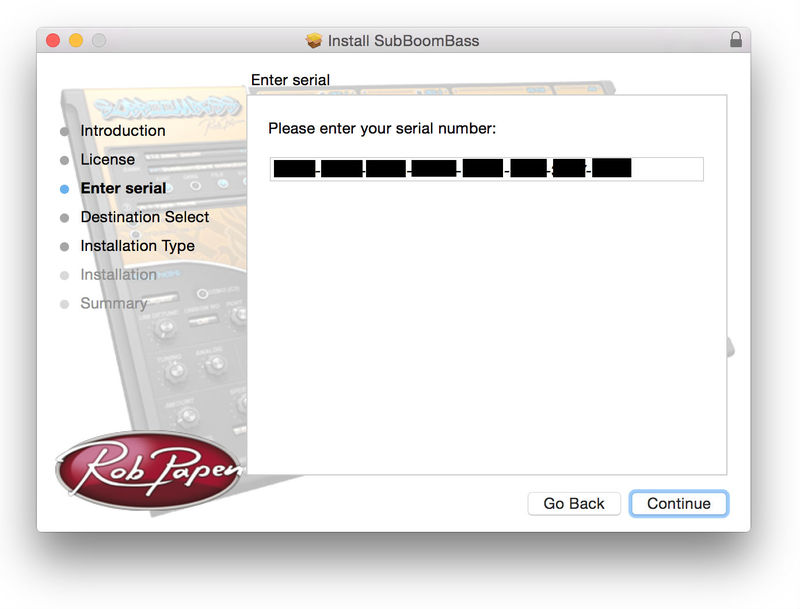
14. Manually enter/copy and paste the original 32-digit Serial Number that you were provided with, before clicking 'Continue' (the Serial Number is located in both your Plugin Boutique and Rob Papen User Accounts).

Note: Ensure that you select the correct 'Product' and 'Type', as well as checkingt that there are no spaces/mistakes when entering your Serial Number > if you receive a code error message of any kind, manually enter the digits (including the '-' hyphens) before re-clicking the 'Continue' option.

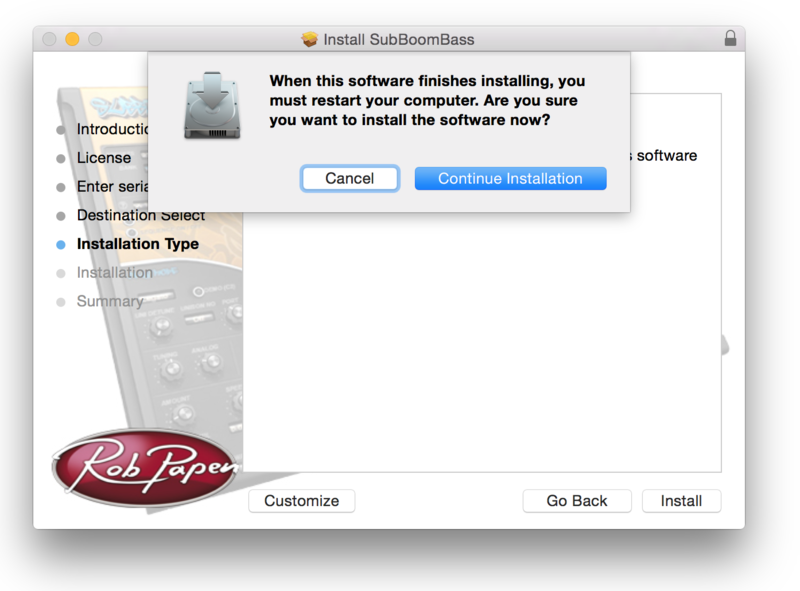
15. Review the installation before clicking 'Install', and then 'Continue Installation'.

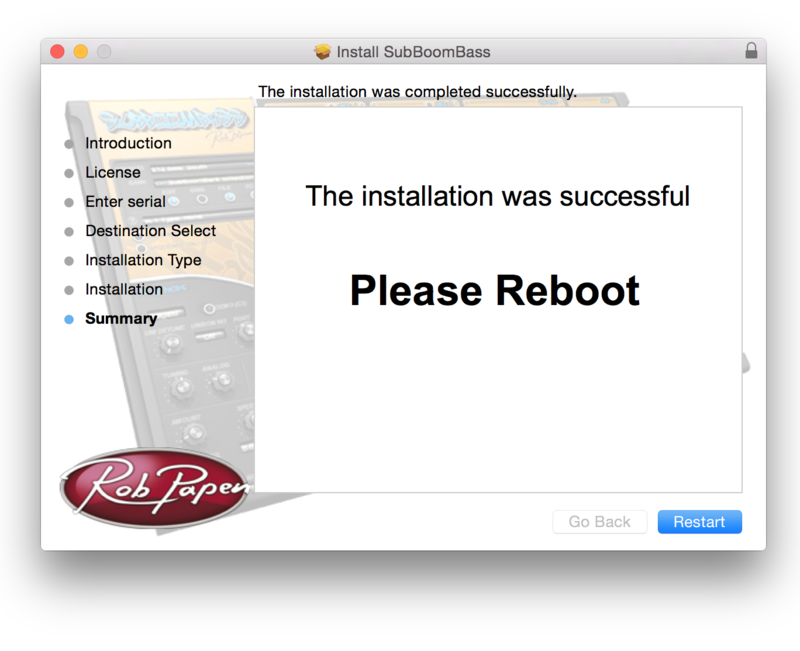
16. The installation of your software has successfully completed > click 'Restart' to reboot your computer.

Note: Ensure that you have saved any important work that may be open within the applications you currently have open, before selecting the 'Restart' option.

17. After your computer has successfully restarted, open your DAW and locate/open your newly installed/activated software VST.

Note: If the software fails to appear, rescan your DAW's Plug-in selection.

The Software is now Activated and Ready for Use Within Your DAW!

Windows

1. Visit Rob Papen and create an account by selecting 'Create Account'.

Note: If you already have an account set up with Ron Papen, 'Login' to your account and skip to step 4. of the installation process.

2. Enter your personal details, and once completed check the tick box that reads 'Yes, I agree to Privacy Policy Rob Papen' before clicking 'Send Registration'.

3. The registration of your account has successfully been completed > select 'click here to login' to access your account area.

4. Select the 'My Products' tab, which is located at the top-left corner of your account area.

5. Click the 'Register New' option.

6. Select the product that you have purchased, as well as the most recent version number (which in this instance is 'Online'), before manually entering/copying and pasting the 32-digit Serial Number that is provided within your User Account > once completed, click the 'Save' tab to register your software.

Note: Ensure that you select the correct 'Product' and 'Type', as well as checking that there are no spaces/mistakes when entering your Serial Number > if you receive a code error message of any kind, refresh the web page and manually enter the digits (including the '-' hyphens) before re-clicking the 'Save' option.

7. The registration of your software has successfully completed > select the 'Download latest version: SubBoomBass' hyperlink to navigate to the software download area.

8. Select the relevant format installer download (s) in accordance with your DAW's compability specifications, to inititiate the downloading of your purchased software.

Note: The product user manual is also obtainable from this location.

9. After the software installer file has finished downloading, double-click the file entitled 'SubBoomBass_Installer' .zip folder to extract the .exe installer file.

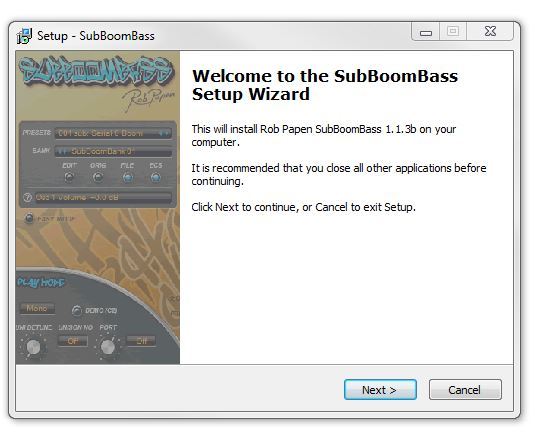
10. Once extracted, double-click the .exe installer file to begin the installation process > click 'Next'.

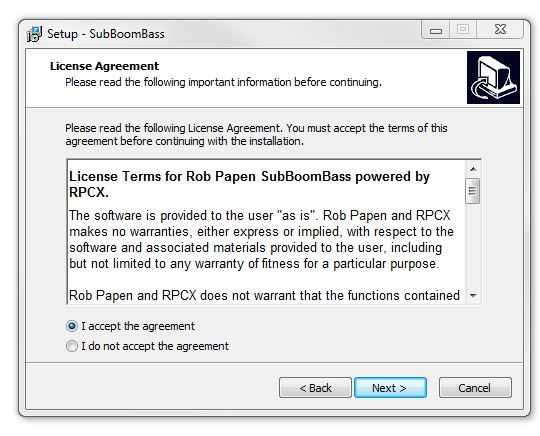
11. Read through the Licence Agreement and select 'I accept the agreement' > click 'Next'.

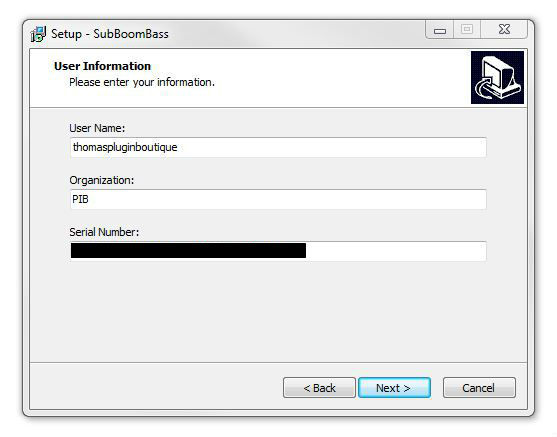
12. Type in your preferred User Name, Organization and manually enter/copy and paste the original Serial Number that you were provided with, before clicking 'Continue' (the Serial Number is located in both your Plugin Boutique and Rob Papen User Accounts).

Note: Ensure that you select the correct 'Product' and 'Type', as well as checking that there are no spaces/mistakes when entering your Serial Number > if you receive a code error message of any kind, manually enter the digits (including the '-' hyphens) before re-clicking the 'Next' option.

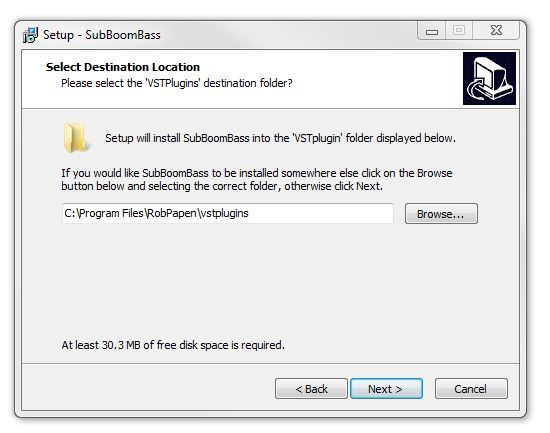
13. Select a computer VST Plug-ins folder destination in which to install/save your software to > click 'Next'.

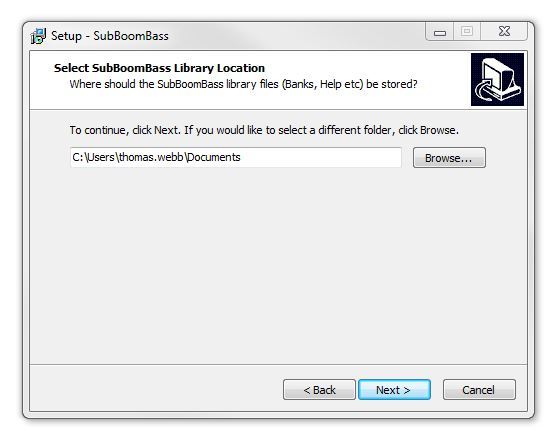
14. Select a computer Library location in which to install/save your software to > click 'Next'.

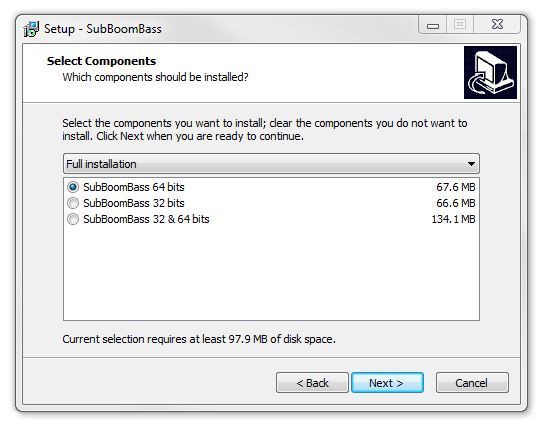
15. Select the software format (s) that you wish to install > click 'Next'.

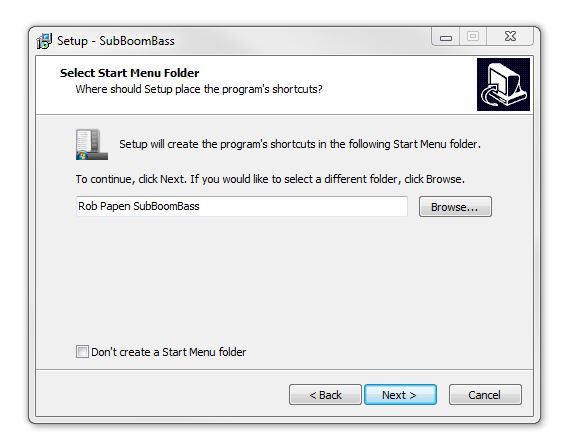
16. Select a Start Menu Folder to create a shortcut to your new software installation > click 'Next'.

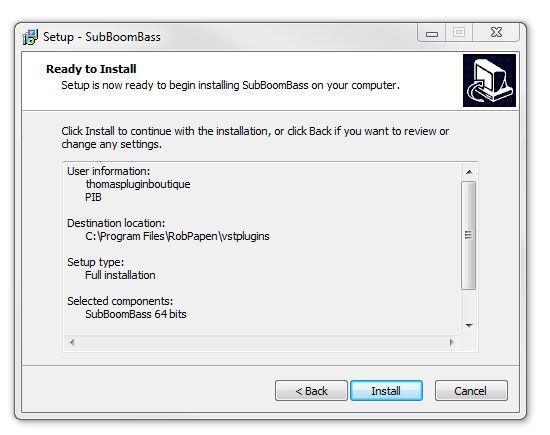
17. Review the installation and click 'Install'.

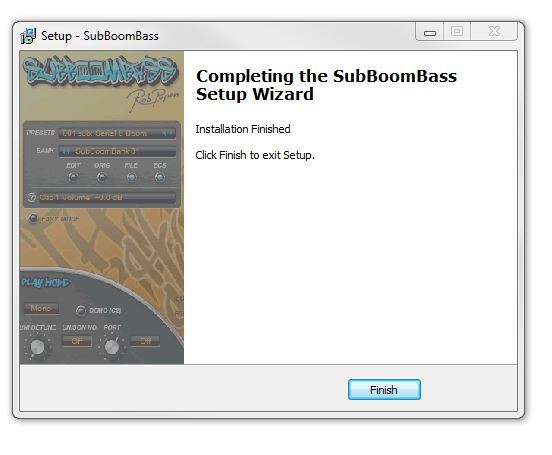
18. The installation of your software has successfully completed > click 'Finish'.

19. After your computer has successfully restarted, open your DAW and locate/open your newly installed/activated software VST.

Note: If the software fails to appear, rescan your DAW's Plug-in selection.

The Software is now Activated and Ready for Use Within Your DAW!

Plugin Boutique Rewards

Discover the most rewarding loyalty programme among all plugin retailers.

  • Free Loopmasters Samplepacks
  • Discounts on products and courses
  • Extra Virtual Cash claimed immediately at checkout
Find out more

Follow us:

X (Twitter) Facebook YouTube Instagram
Logo Logo

Plugin Boutique Limited, Part of the Beatport Group LLC.

Copyright © 2011-2025 Plugin Boutique. All rights reserved