Buy Bass Recorder, get a free gift with purchase:
The Sound Of The Mandalorian And So Much More!
The bass recorder is a wind instrument belonging to the family of recorders, commonly used in Europe during the Middle Ages, Renaissance and Baroque periods. Brought back to popular culture during the twentieth century it became a very demanded instrument since then, beloved for its sweet and creamy sound, great playability and its wide sonic range allowing tons of articulations, tone colors and special effects.
Historically associated with birds and shepherds for its sonic clearness and sweetness, its wide variety of extended techniques inspired lots of Twentieth Century composers who use them in their avant-garde score and, most recently, film composers. It was recently used in the main theme of the beautiful score of The Mandalorian by Ludwig Göransson.
Incredibly versatile, it can be used for a variety of genres, from early and antique music, medieval melodies, epic scores up to songwriting, pop songs and Beatles-like arrangements up to contemporary classic scores. Have Audio really sampled all you need to get all you want from this instrument, providing total playability and lots of textures, special effects and useful embellishments.
Articulation List
- Sustain Non Vibrato
- Sustain Vibrato
- Staccato
- Half Tone Mordent UP
- Whole Tone Mordent UP
- Half Tone Mordent DOWN
- Whole Tone Mordent DOWN
- Frullati
- Triple Tonguing
- Quintuple Tonguing
- Key noises
- Multiphonics
- Special Effects
- Mixed Techniques
- Long Textures
- Short Textures
- Mouthpiece Effects
- Voice Effects
Features
- 854 samples in .ncw format
- Over 505MB uncompressed file size
- 1 NKI File
- Instrument Range: F2 to G4
System Requirements
- Requires full version of KONTAKT 5.6.8+ (not compatible with Free Kontakt Player).
Please note: this product will not work in Kontakt Player

![]()
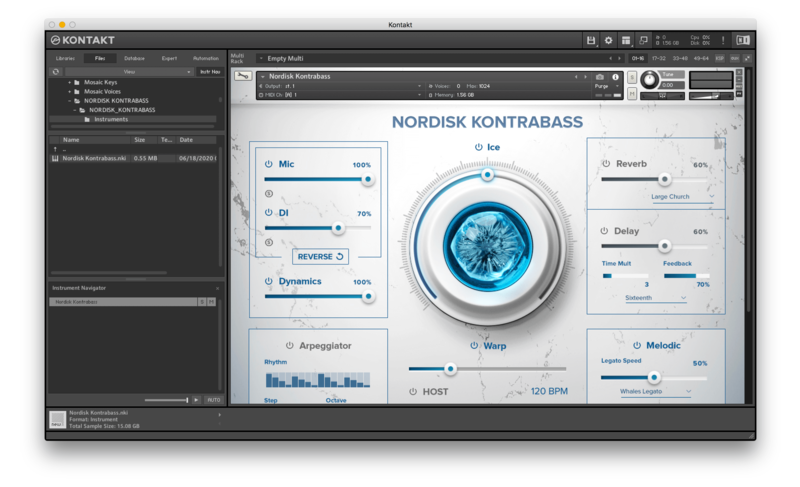
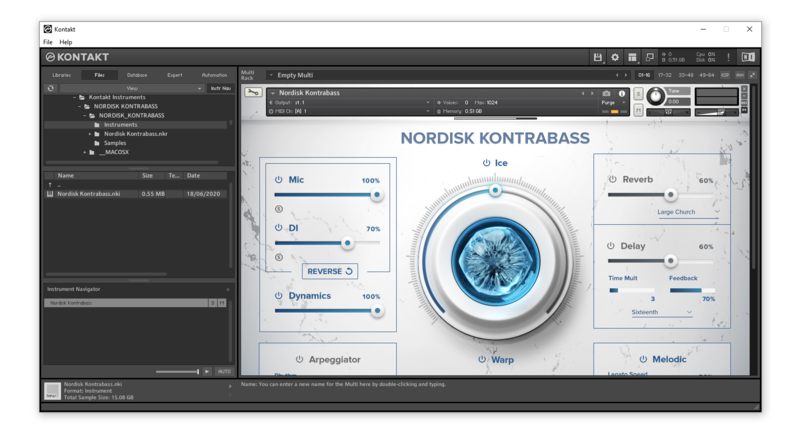
Please note: Nordisk Kontrabass is used as an example as the installation process is the same for all Have products.
Mac
Installation
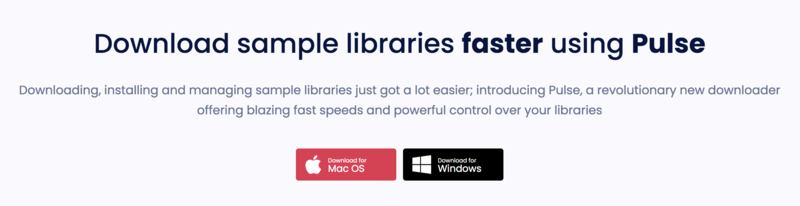
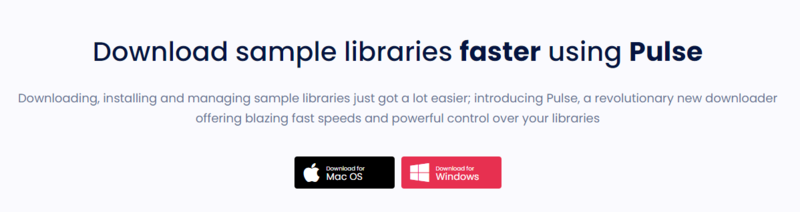
1. Go to https://pulsedownloader.com/ > Click 'Download for Mac OS' to download the Pulse application installer.

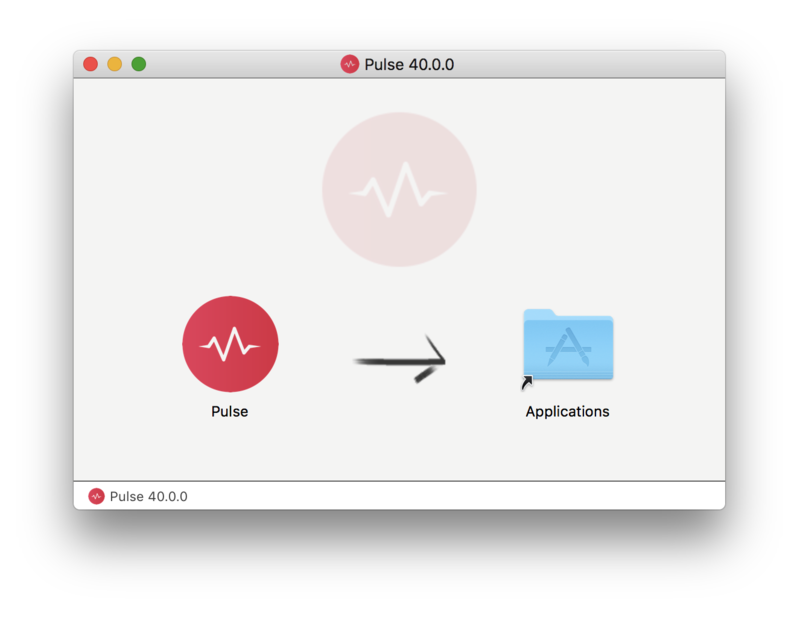
2. Open the .dmg file > Click and drag the application icon into the applications folder.

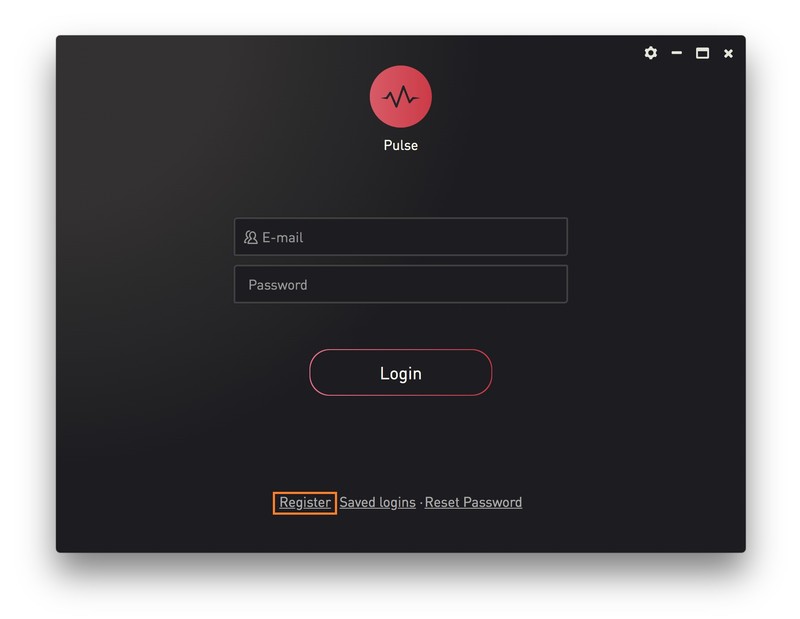
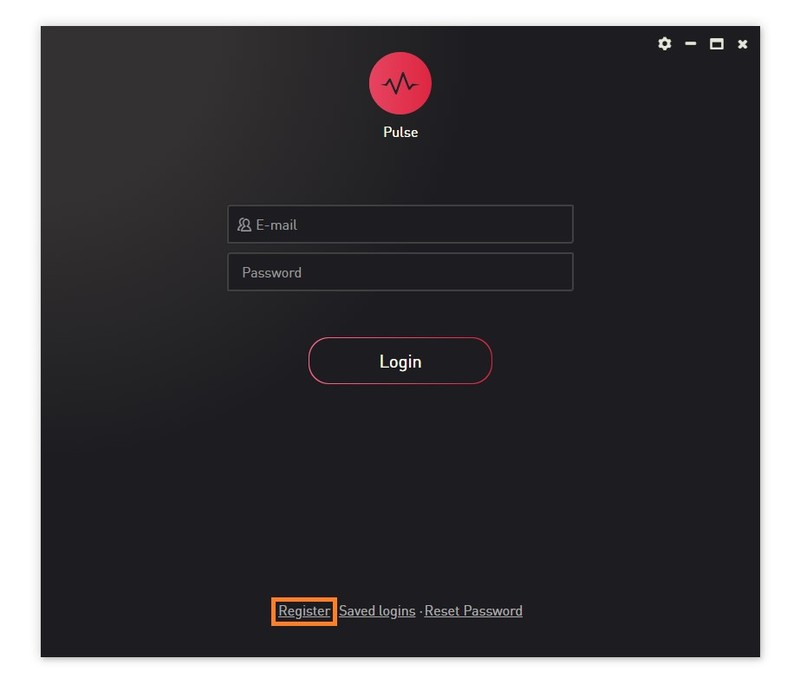
3. Open the Pulse application > Click 'Register'

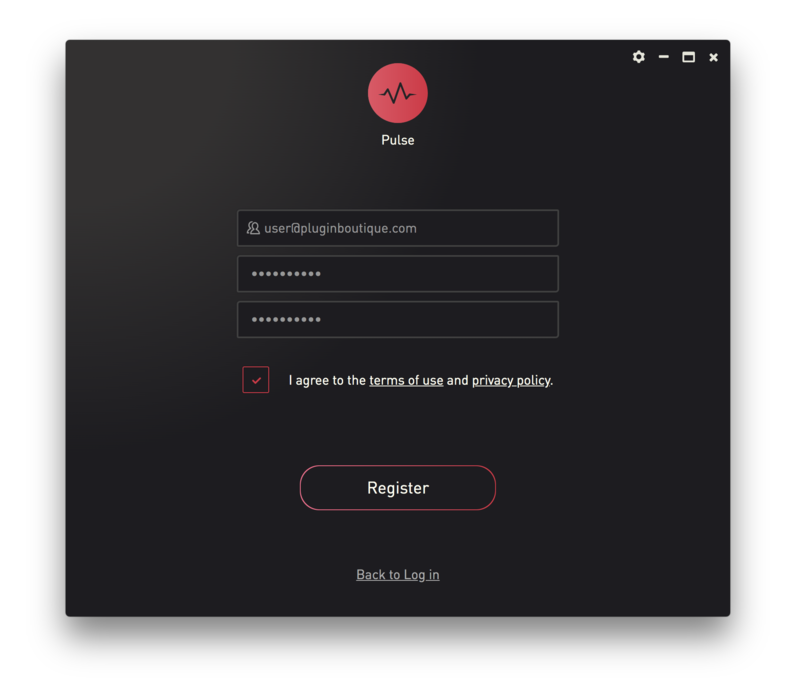
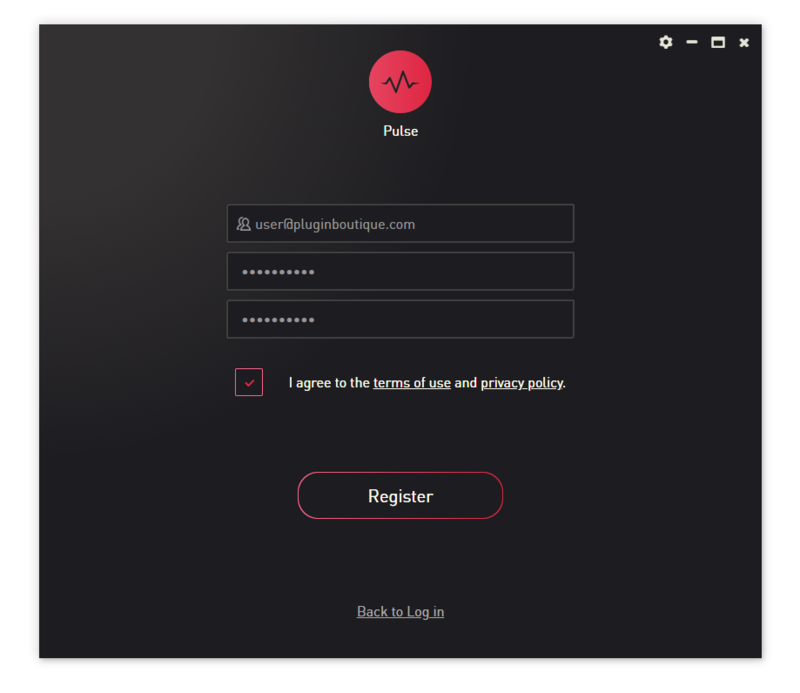
4. Enter your Email Address and Password > Check the box that states 'I agree to the terms of use and privacy policy' > Click 'Register'.

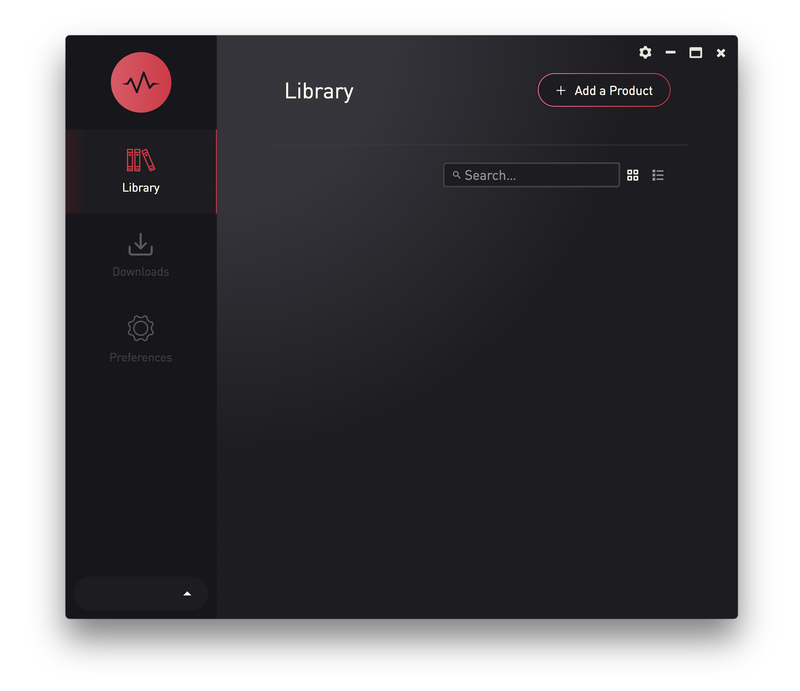
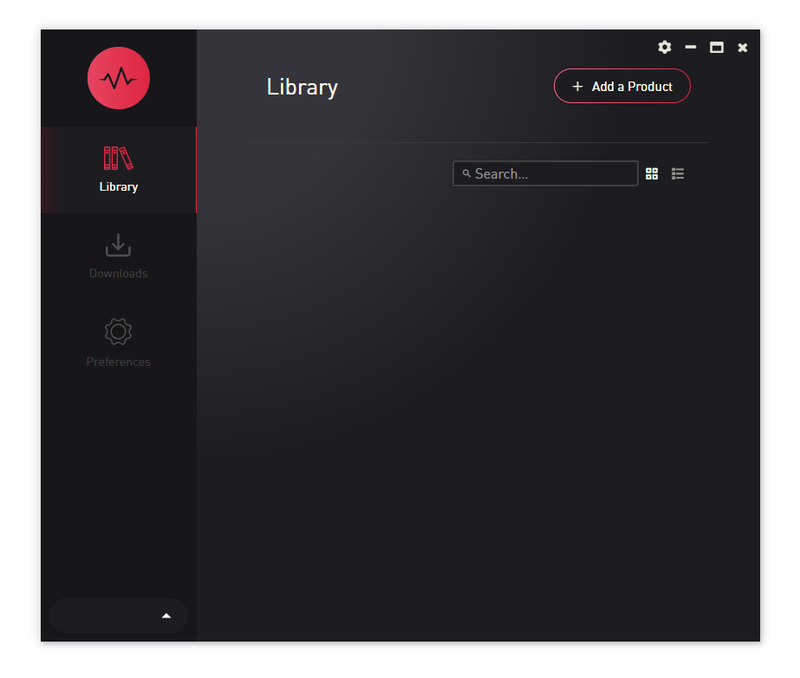
5. Click 'Add a Product'.

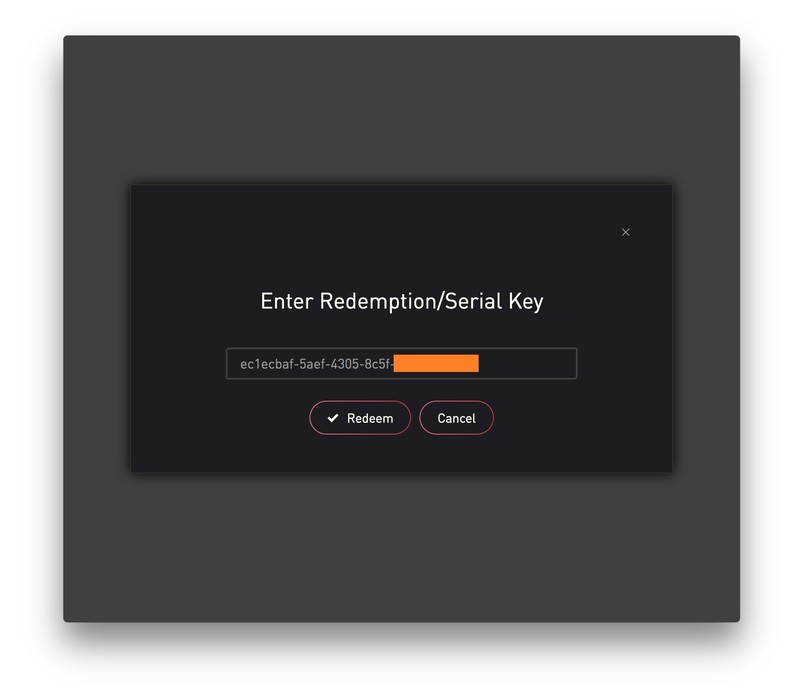
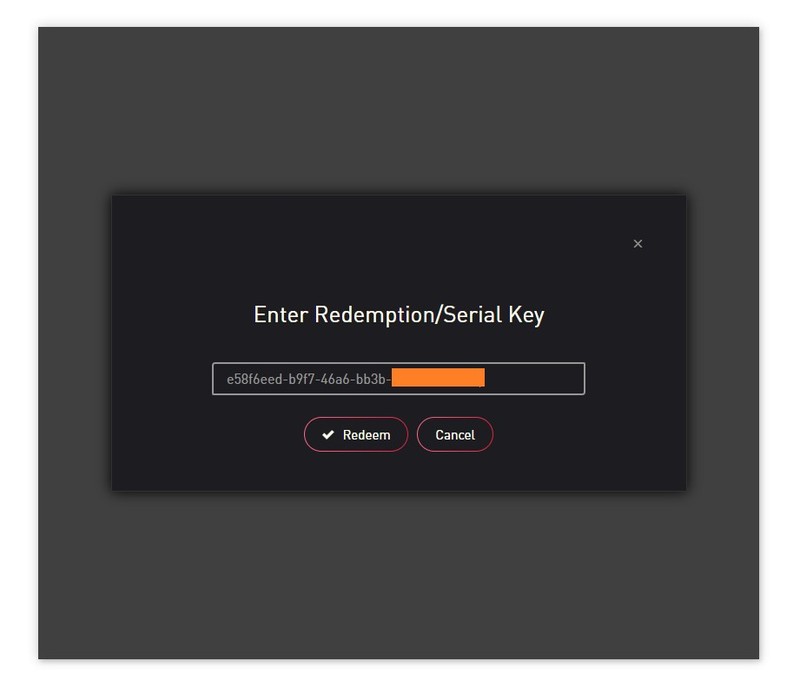
6. Enter your 32-digit serial key, found within the serial number section of your Plugin Boutique User Account > Click 'Redeem'.

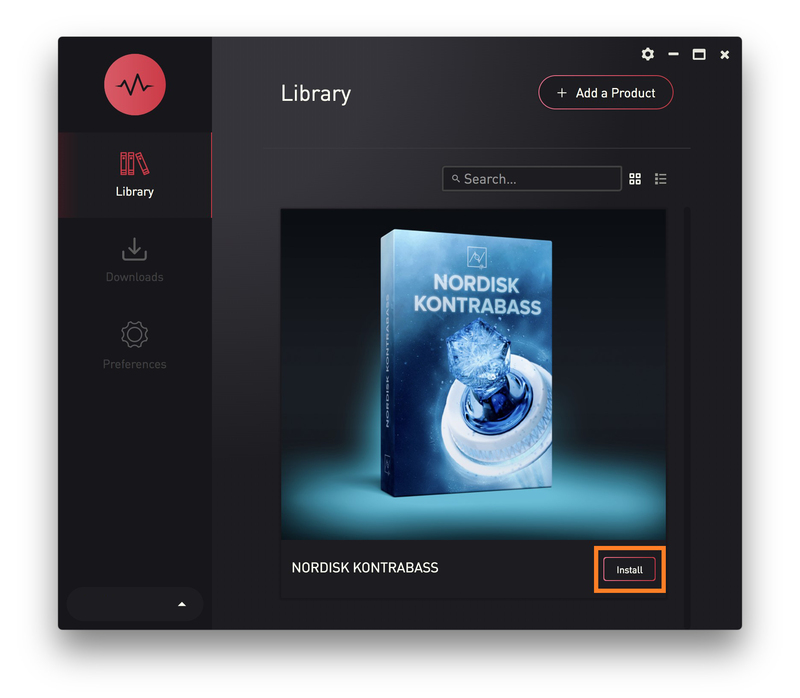
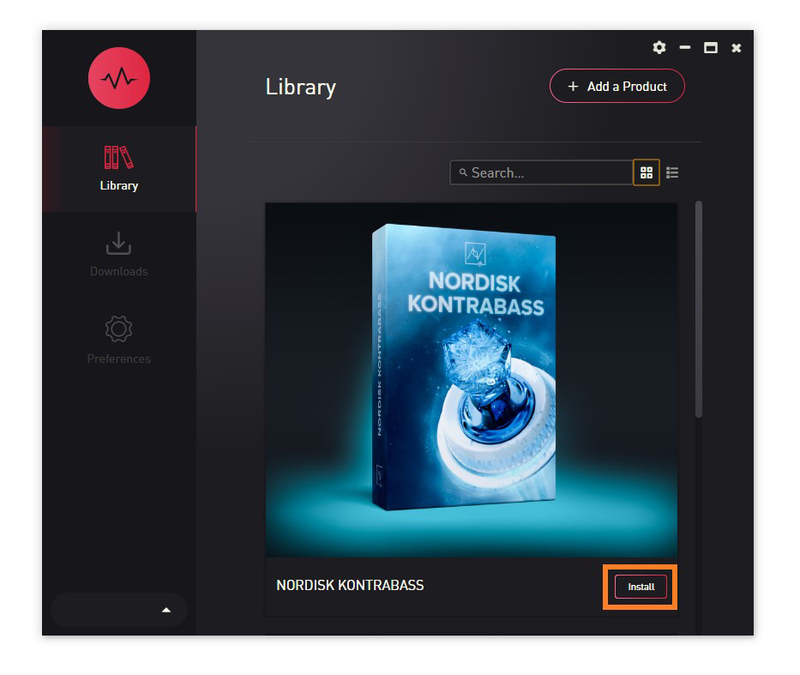
7. Click 'Install'.

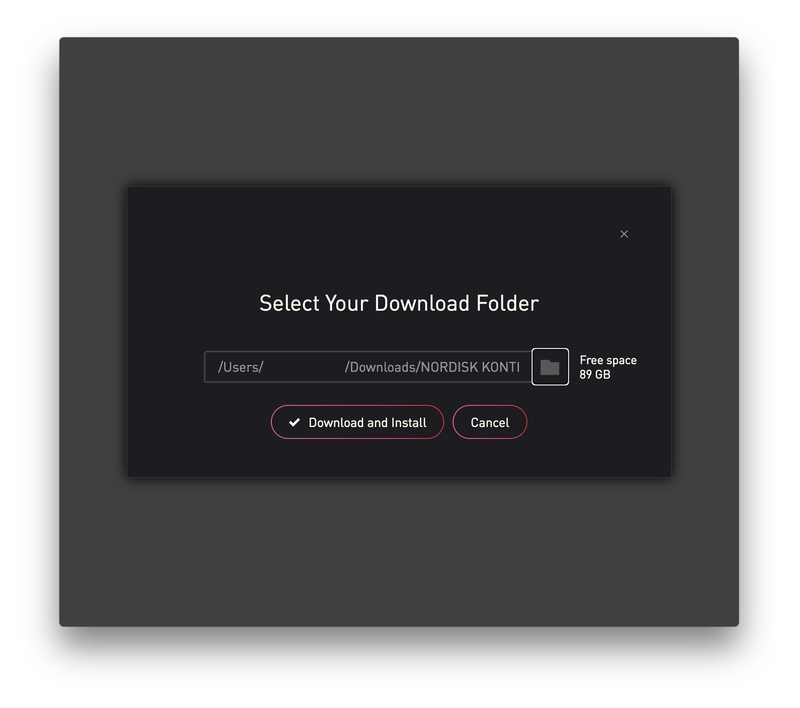
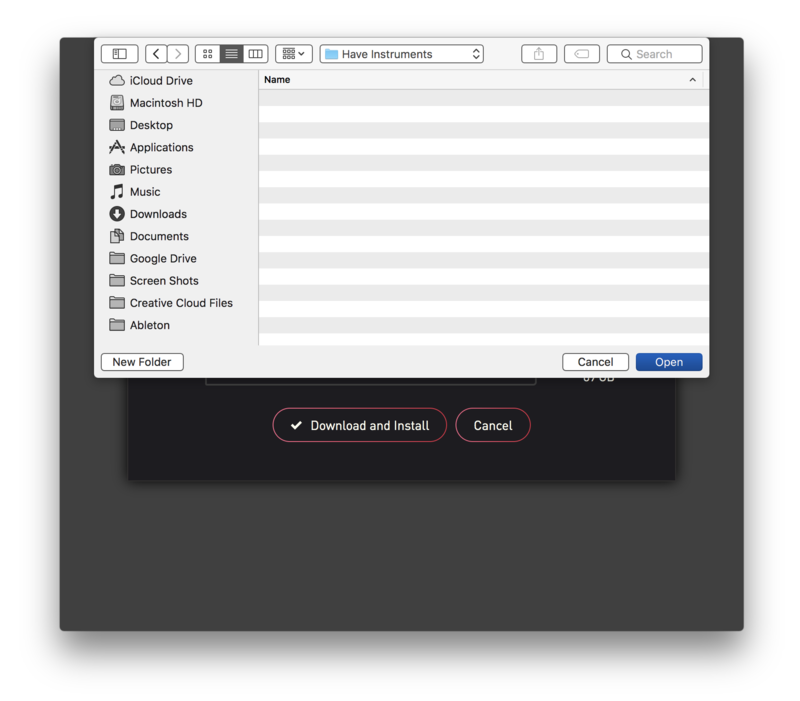
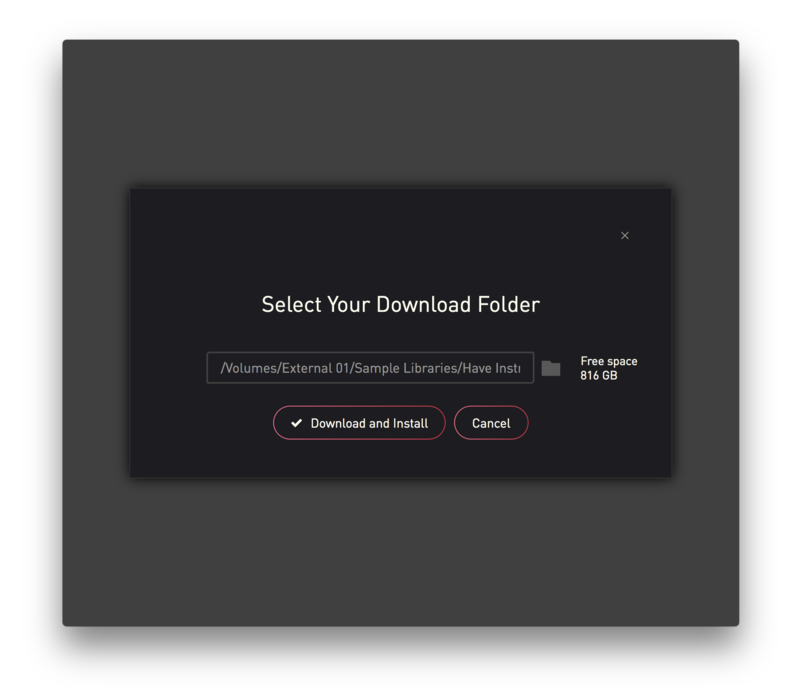
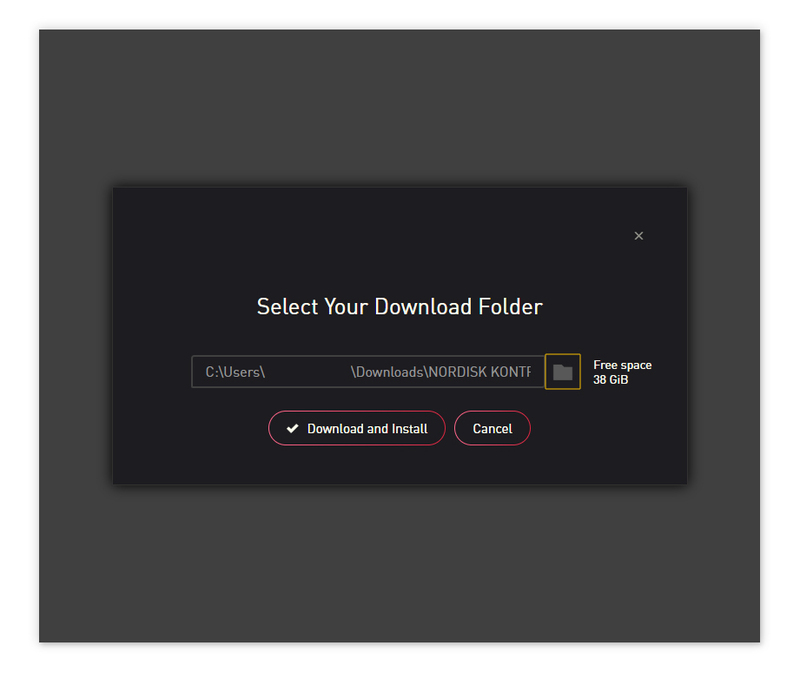
8. Click the folder icon to select the installation location for your library.

9. Choose your installation location > Click 'Open'.

10. Click 'Download and Install'.

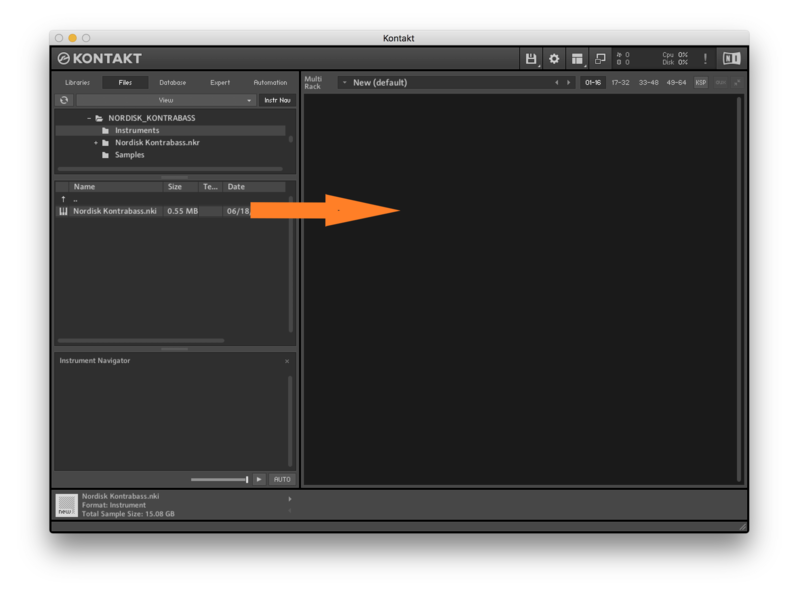
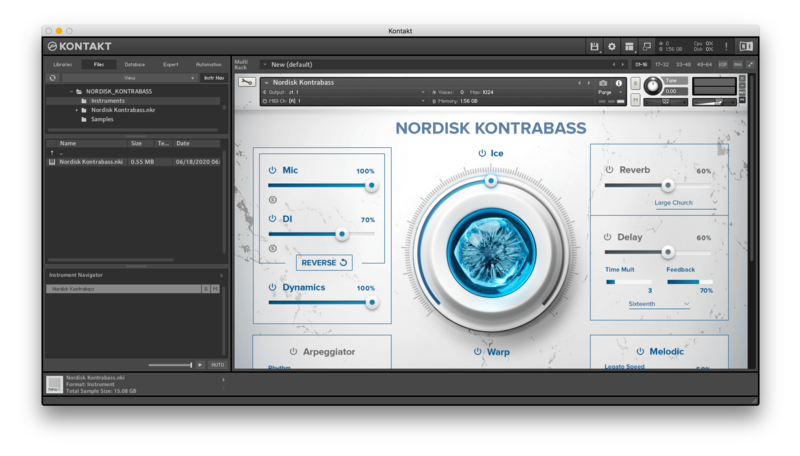
11. Open Kontakt > Select the 'Files' tab and navigate to your installed Kontakt library > Click and drag the .nki file into the empty window.

Your Kontakt Instrument is now installed and ready to use.

Batch Re-save Instructions
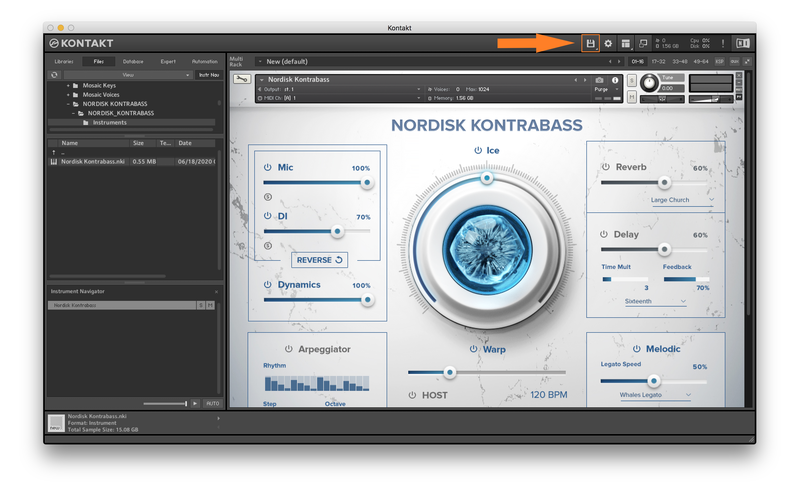
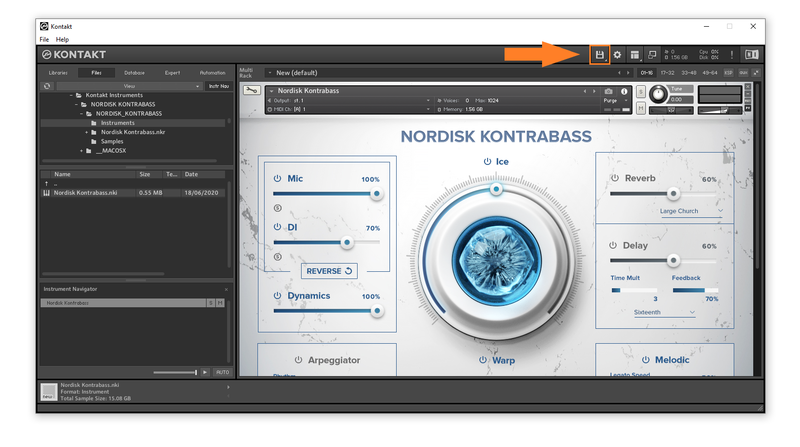
1. Within Kontakt, click the floppy disk icon.

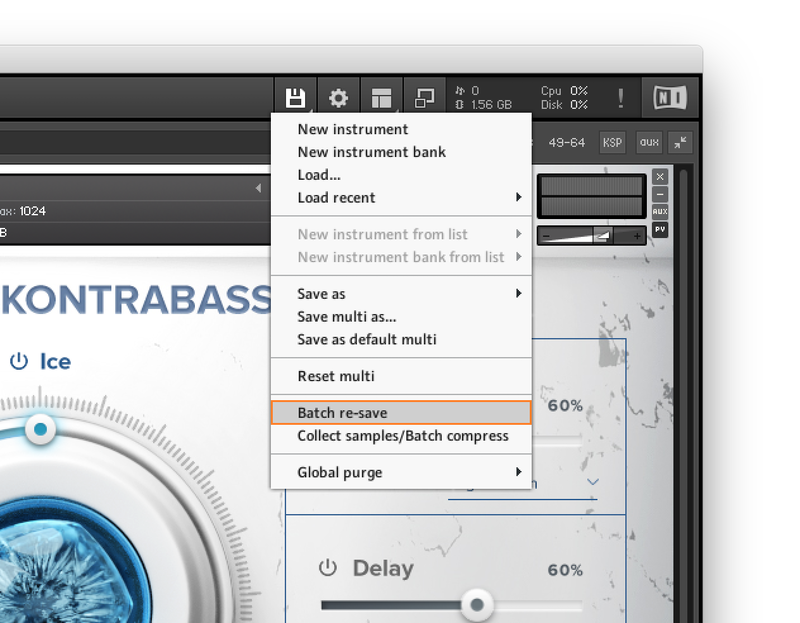
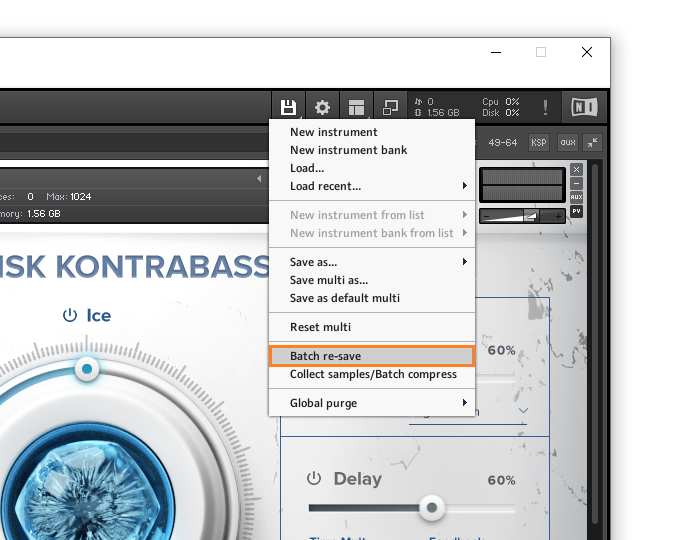
2. From the drop-down menu, click 'Batch re-save'.

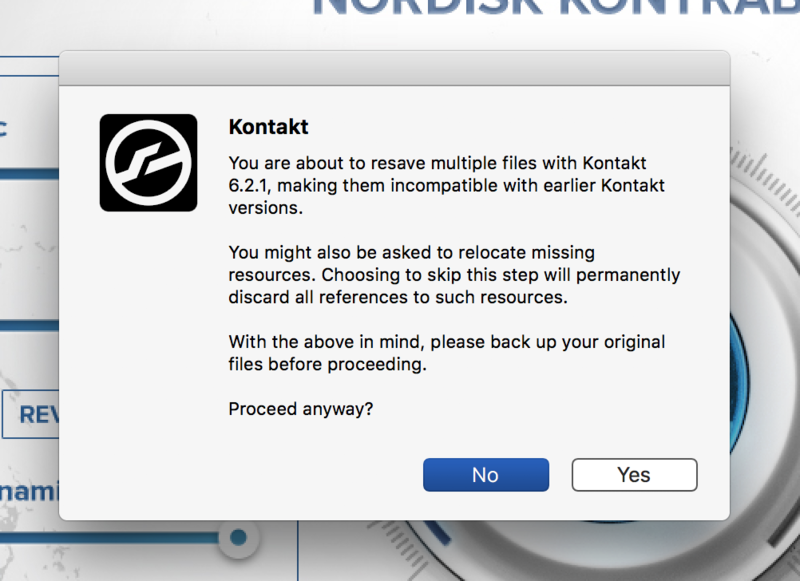
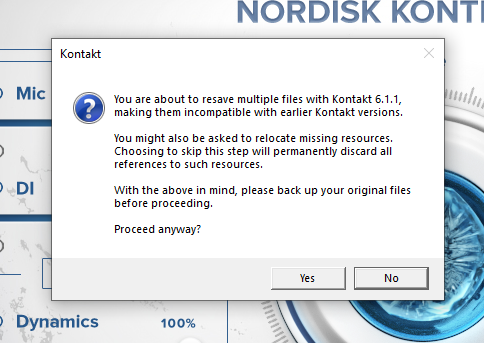
3. Click 'Yes'.

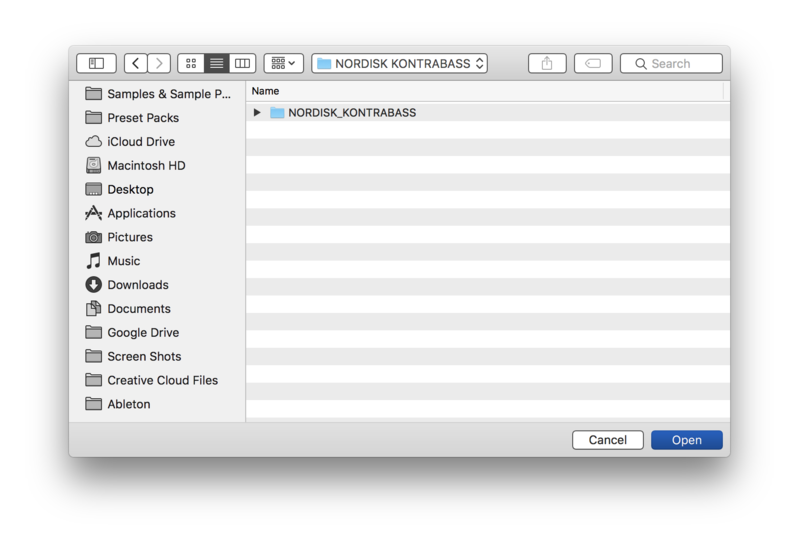
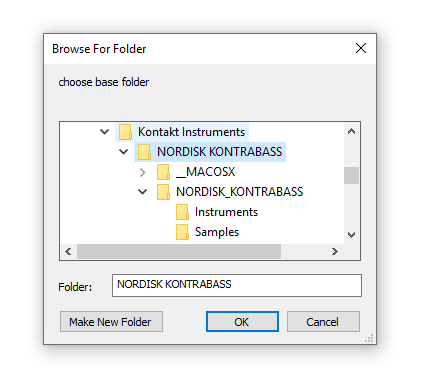
4. Navigate to the installation location for your Kontakt library > Click 'Open'.

Batch re-save is now complete and you can expect to see quicker loading times for your Kontakt Instrument.

Windows
Installation
1. Go to https://pulsedownloader.com/ > Click 'Download for Windows' to download the Pulse application installer.

2. Open the .exe file to install the Pulse application > Open Pulse and click 'Register'.

3. Enter your Email Address and Password > Check the box that states 'I agree to the terms of use and privacy policy' > Click 'Register'.

4. Click 'Add a Product'.

5. Enter your 32-digit serial key, found within the serial number section of your Plugin Boutique User Account > Click 'Redeem'.

6. Click 'Install'.

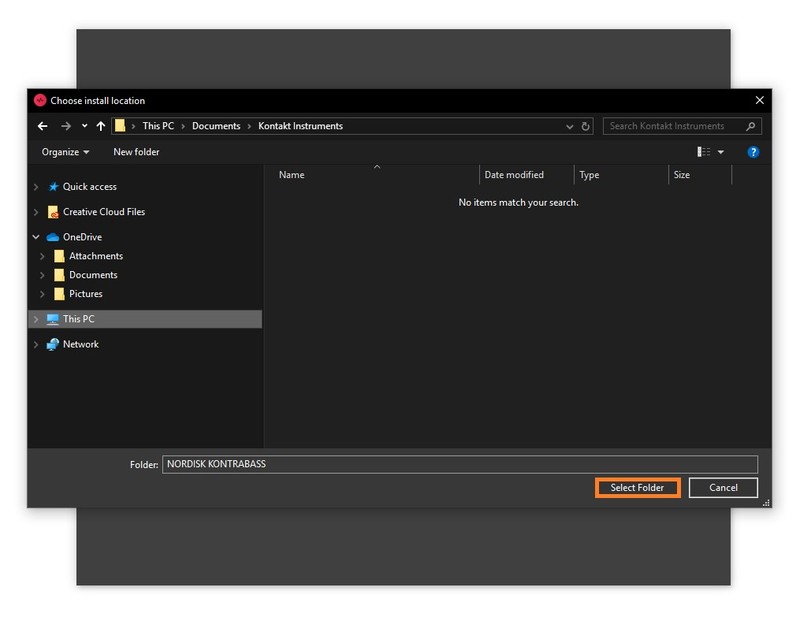
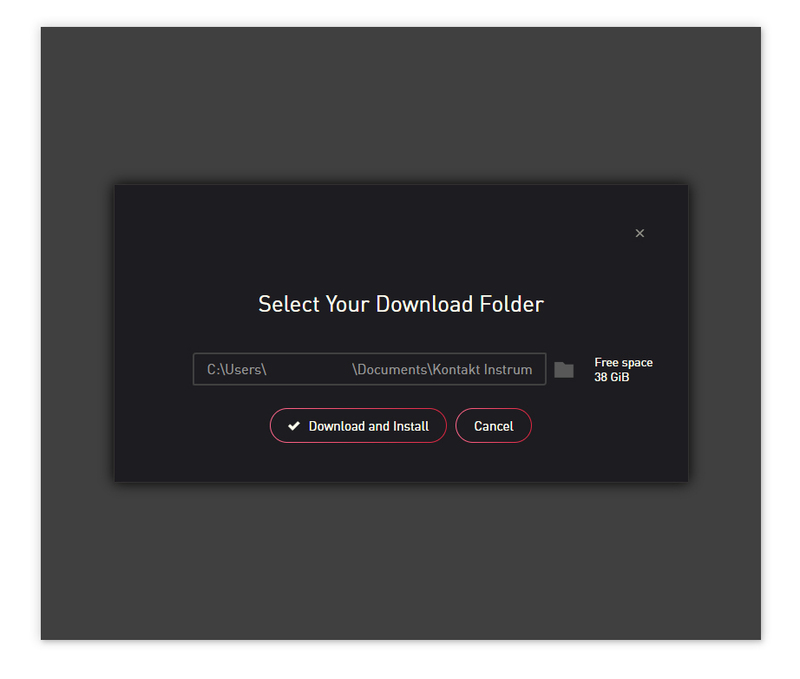
7. Click the folder icon to select the installation location for your library.

8. Choose your installation location > Click 'Select Folder'.

9. Click 'Download and Install'.

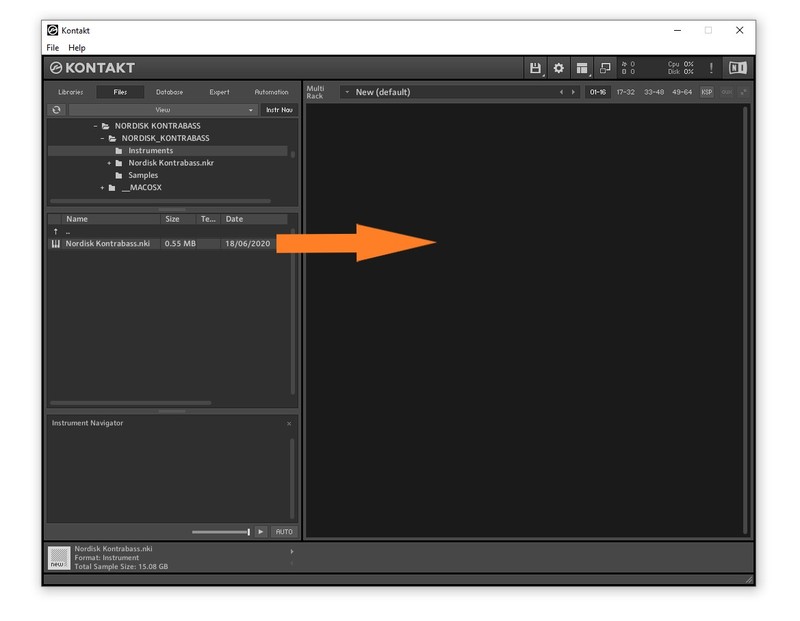
10. Open Kontakt > Select the 'Files' tab and navigate to your installed Kontakt library > Click and drag the .nki file into the empty window.

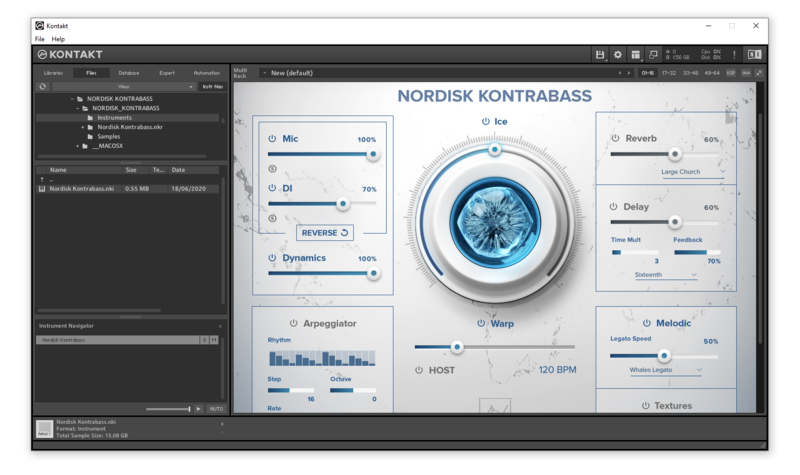
Your Kontakt Instrument is now installed and ready to use.

Batch Re-save Instructions
1. Within Kontakt, click the floppy disk icon.

2. From the drop-down menu, click 'Batch re-save'.

3. Click 'Yes'.

4. Navigate to the installation location for your Kontakt library > Click 'Ok'.

Batch re-save is now complete and you can expect to see quicker loading times for your Kontakt Instrument.