Have Audio

Rebec

4.3 (14 Reviews)
$8.70 $29.00

70% off until Dec 07

Have Audio Rebec
Have Audio Rebec
REBEC Patch Overview gallery thumbnail
Have Audio Rebec - GUI
Buy Now
Product information

From the mountains of Cantabria, Have Audio are bringing you the raw sound of medieval Taverns right in your DAW!

The rebec is a 1-to-5 bowed stringed instrument from the Medieval era and early Renaissance that was typically played by professional minstrels and musicians at feasts.

They sampled a unique-sounding "rabel" (a spanish rebec) built more than 30 years ago in a remote village over the mountains of Cantabria, according to 3 centuries of oral tradition and craftsman’s teachings.

There’s just a primal enchantment crafted into this 2-strings rebec: body made of raw wood, lamb skin that requires sun every now and then in order to sound properly and a bow made with horse hair. 

Thanks to the magic touch of argentinian cellist and multi-instrumentalist Víctor Gil Serafini they captured the primitive sound of this wonderful instrument and expanded its playability for you in the new Caffè Antico engine.

Articulation List

  • Long Vibrato
  • Intimate Long Vibrato
  • Strong Vibrato
  • Sustain Non Vibrato
  • Staccato
  • Stabs
  • Mordente #1
  • Mordente #2
  • Mordente #3
  • Organic Pizzicato
  • Raw Pizzicato
  • Tremolo
  • Special Effect
  • Body Percussions
  • Ominous Textures

Features

  • 375 samples in .ncw format
  • Over 295MB uncompressed file size
  • 1 NKI File
  • Instrument Range: (C2) F2 to A3 

System Requirements

  • Requires full version of KONTAKT 5.6.8+ (not compatible with Free Kontakt Player).

Please note: this product will not work in Kontakt Player

Installation Instructions

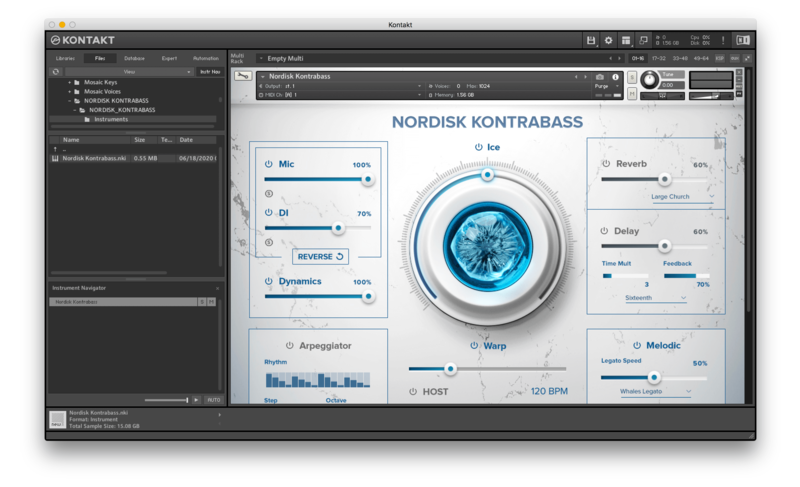
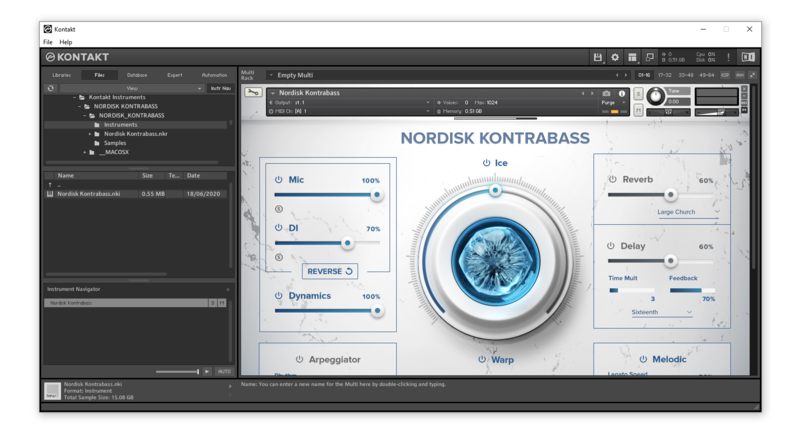
Please note: Nordisk Kontrabass is used as an example as the installation process is the same for all Have products.

Mac

Installation

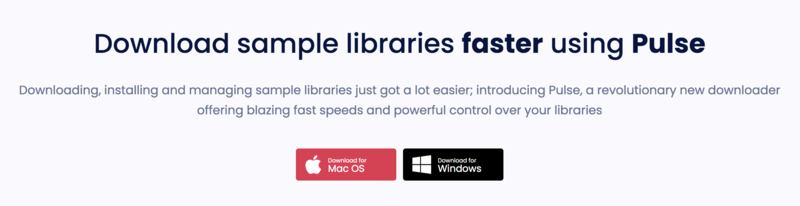
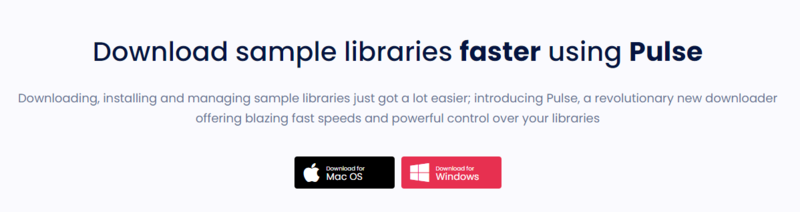
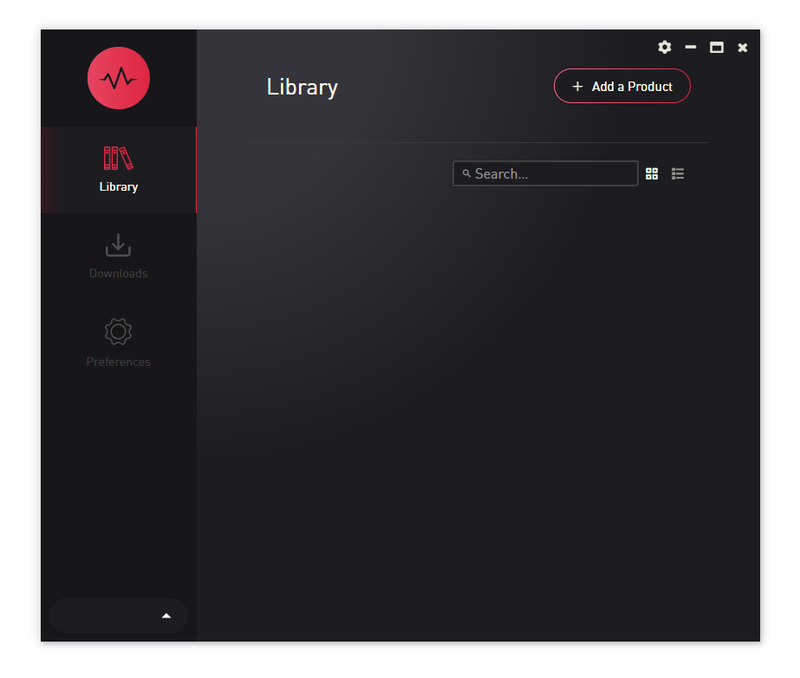
1. Go to https://pulsedownloader.com/ > Click 'Download for Mac OS' to download the Pulse application installer.

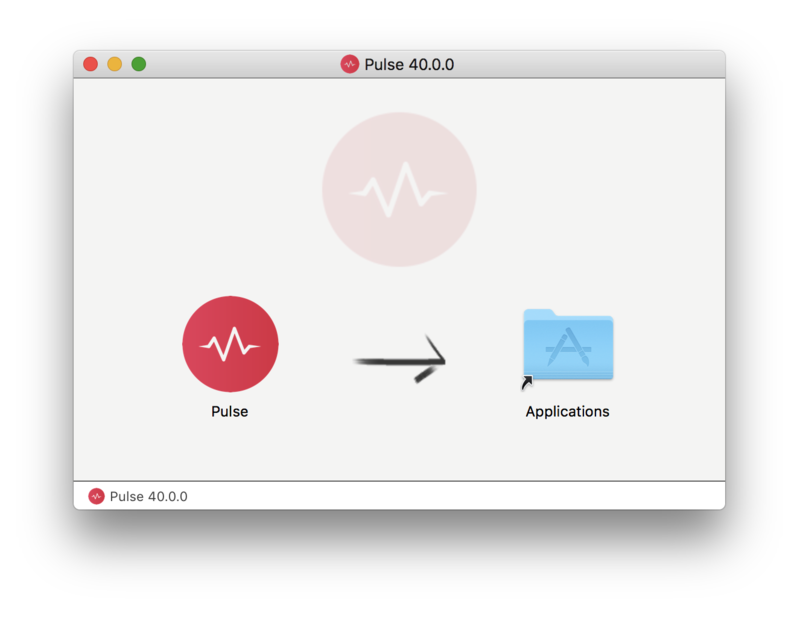
2. Open the .dmg file > Click and drag the application icon into the applications folder.

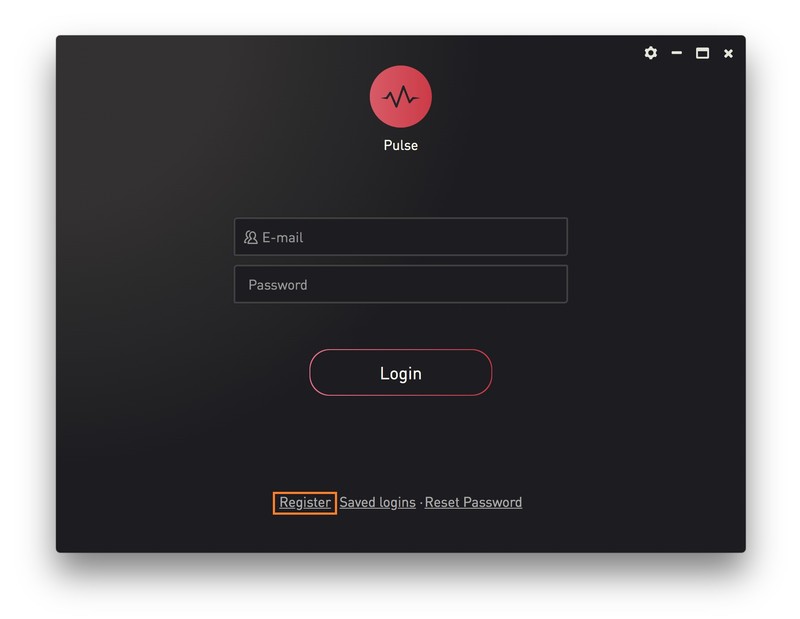
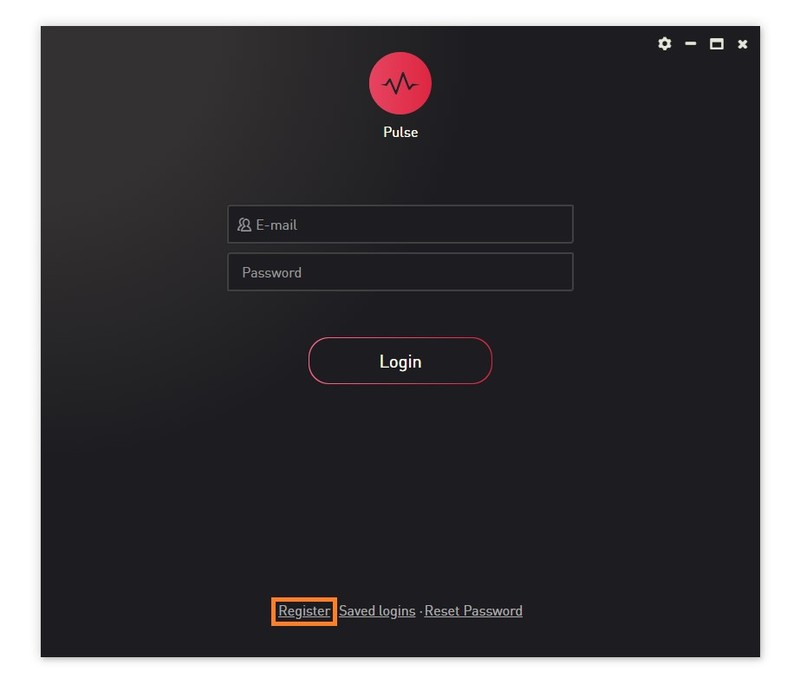
3. Open the Pulse application > Click 'Register'

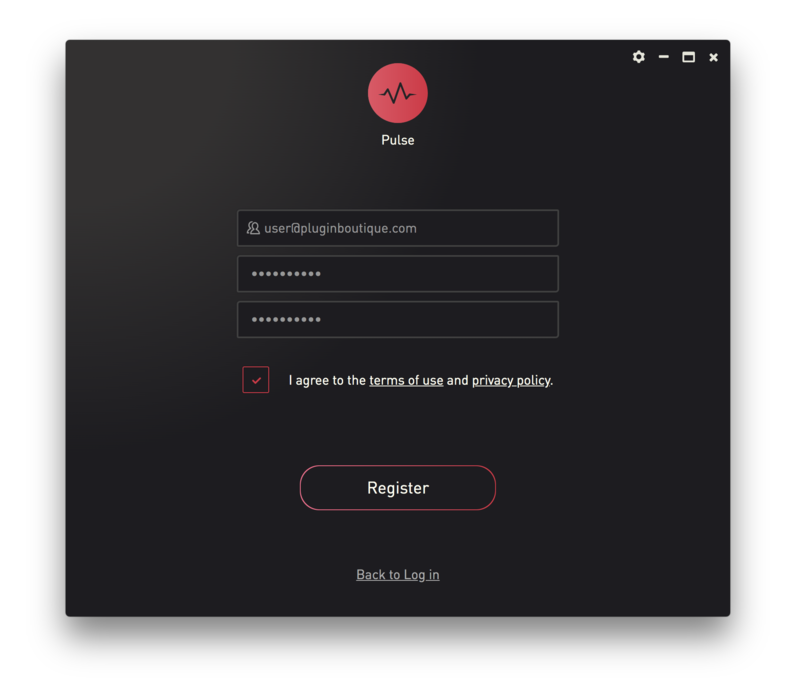
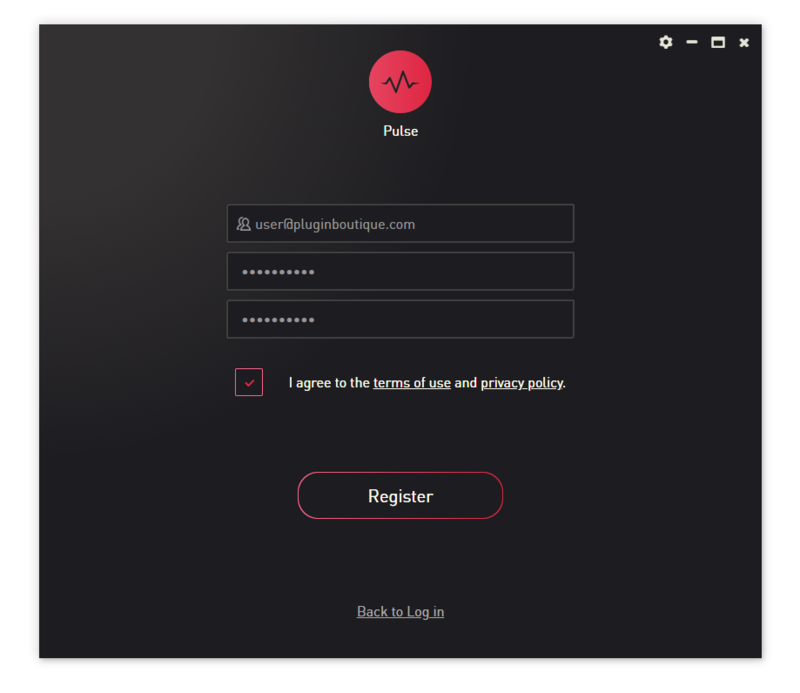
4. Enter your Email Address and Password > Check the box that states 'I agree to the terms of use and privacy policy' > Click 'Register'.

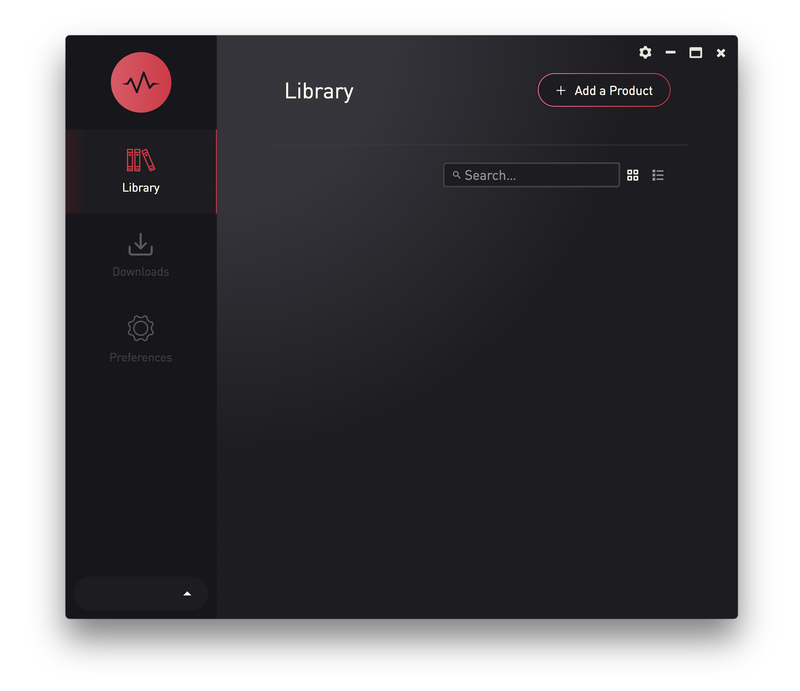
5. Click 'Add a Product'.

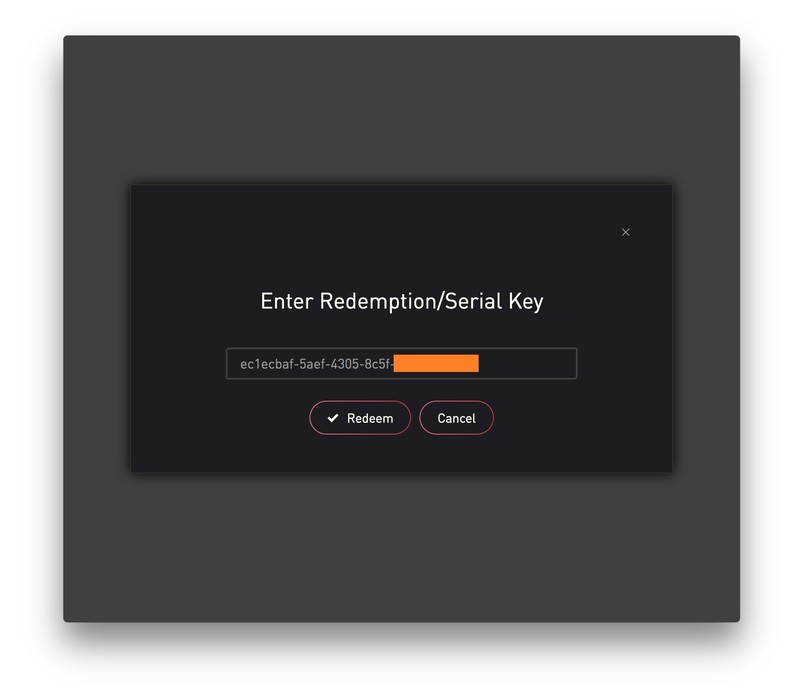
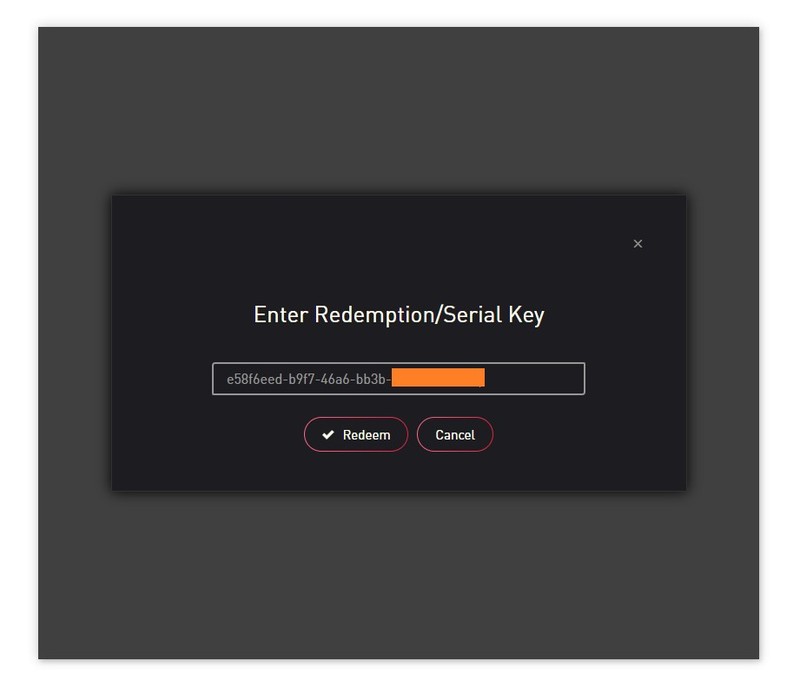
6. Enter your 32-digit serial key, found within the serial number section of your Plugin Boutique User Account > Click 'Redeem'.

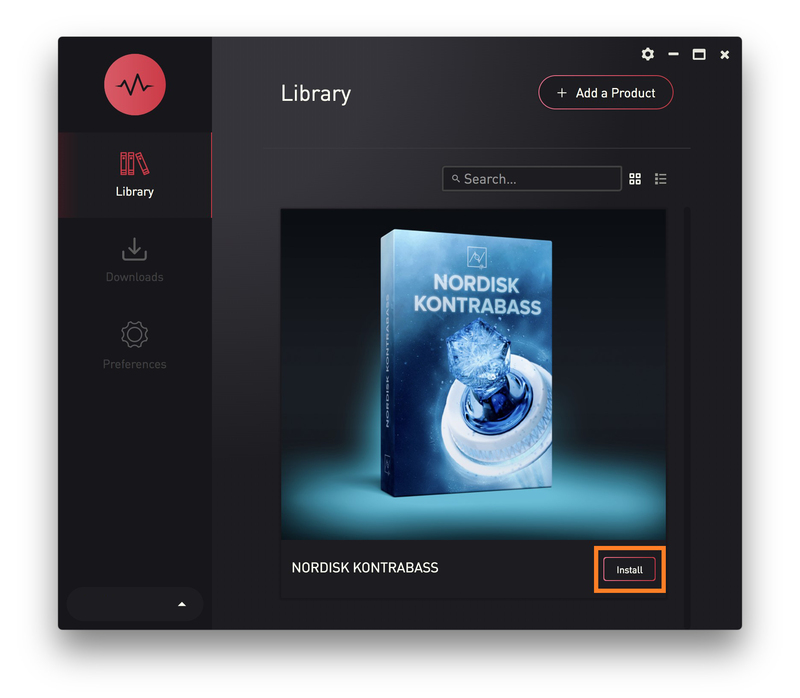
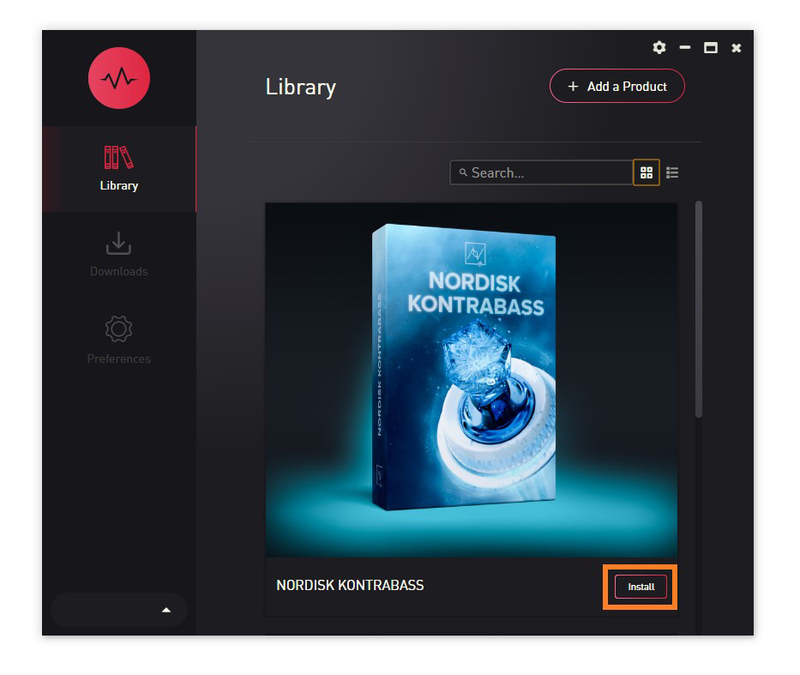
7. Click 'Install'.

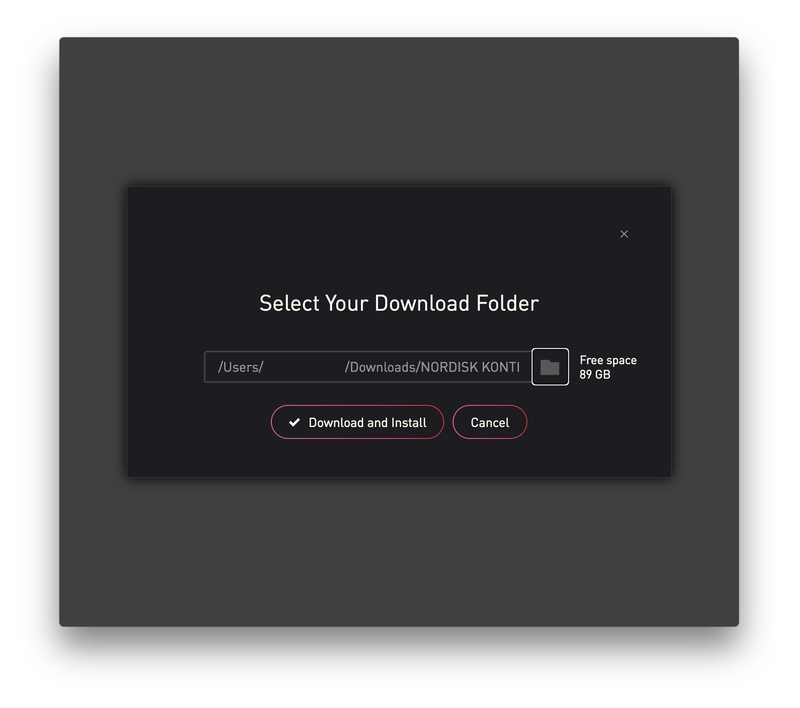
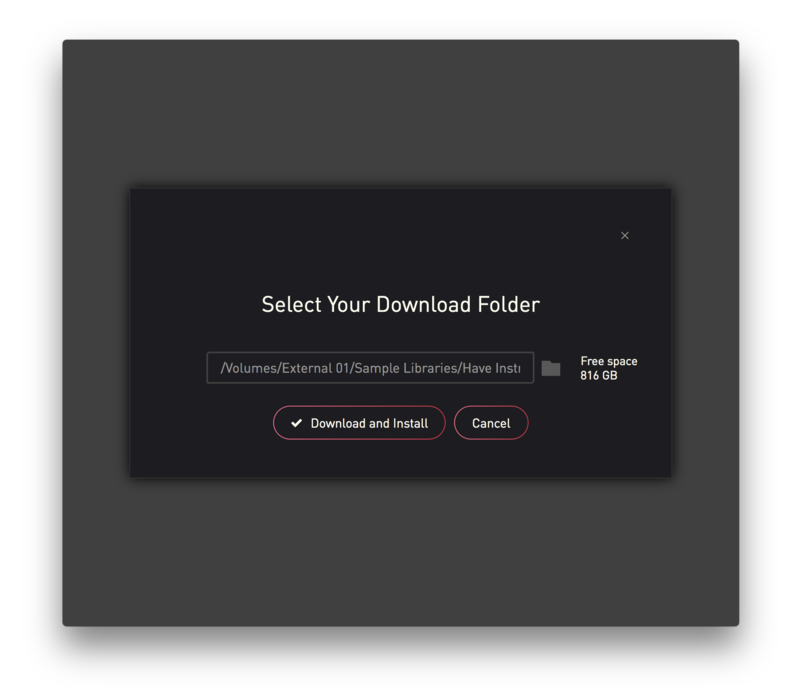
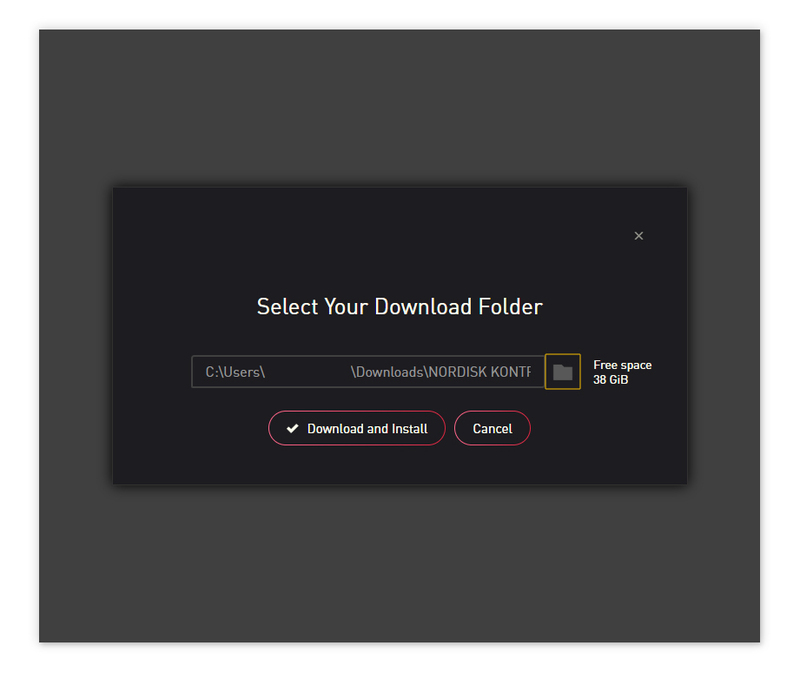
8. Click the folder icon to select the installation location for your library.

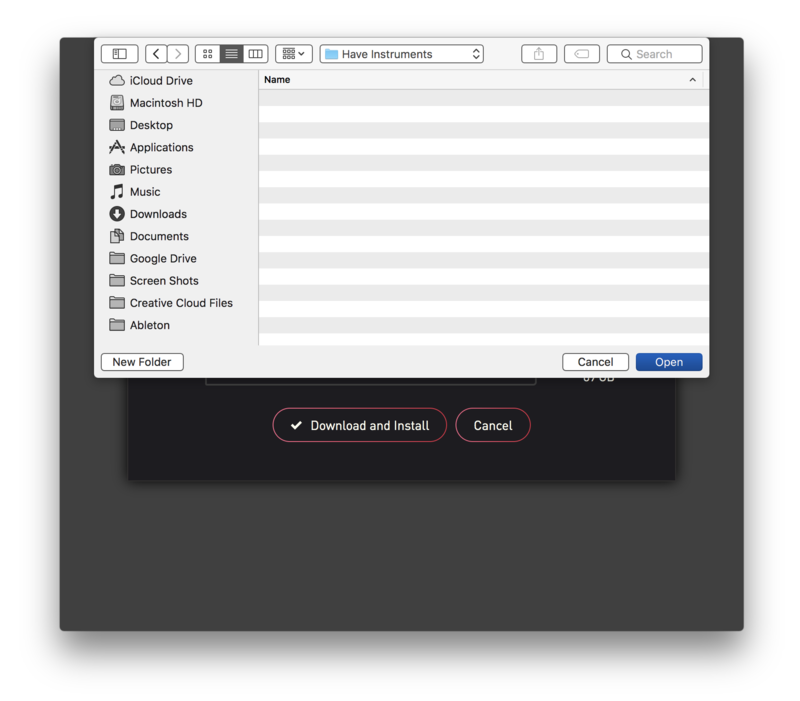
9. Choose your installation location > Click 'Open'.

10. Click 'Download and Install'.

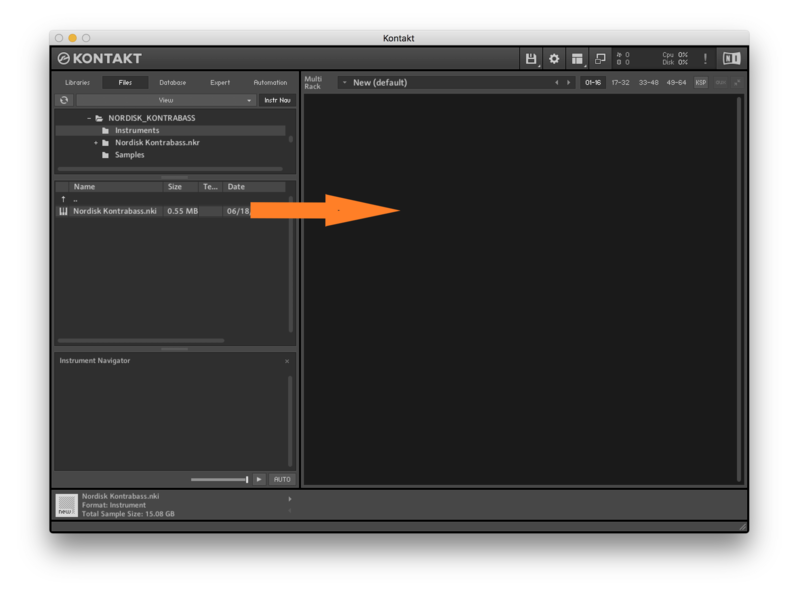
11. Open Kontakt > Select the 'Files' tab and navigate to your installed Kontakt library > Click and drag the .nki file into the empty window.

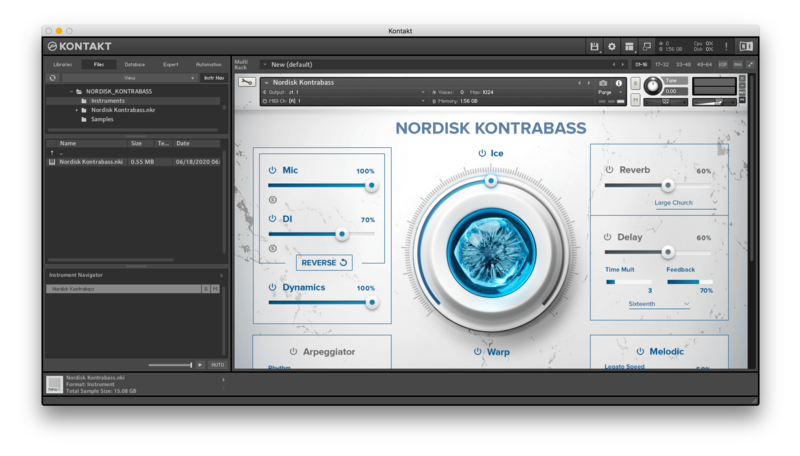
Your Kontakt Instrument is now installed and ready to use.

Batch Re-save Instructions

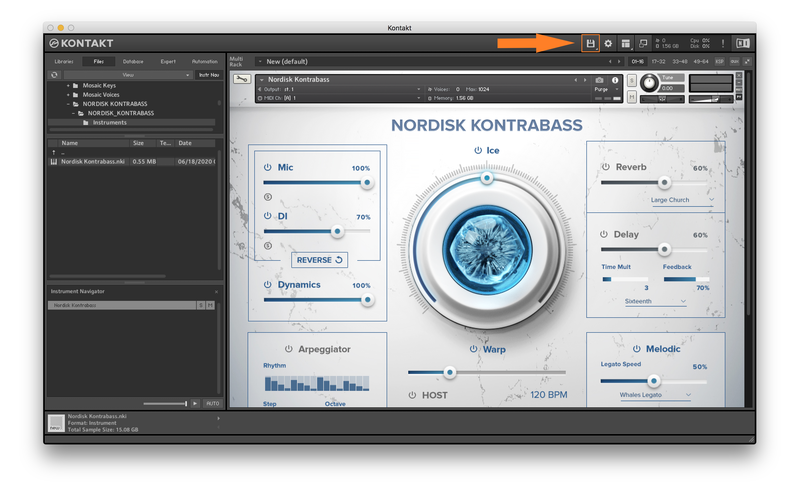
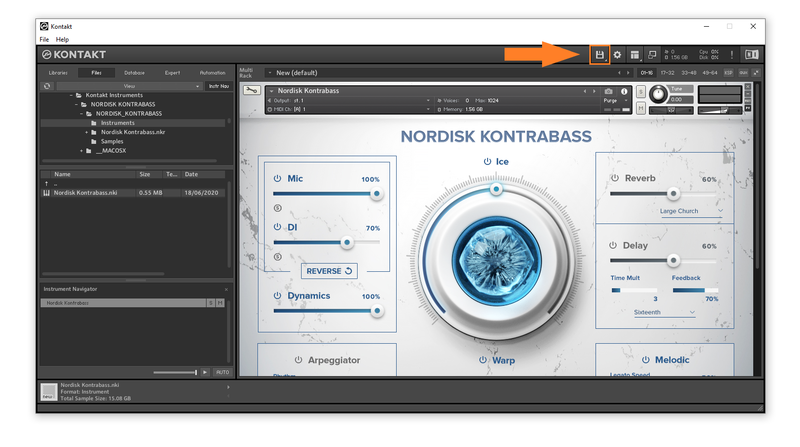
1. Within Kontakt, click the floppy disk icon.

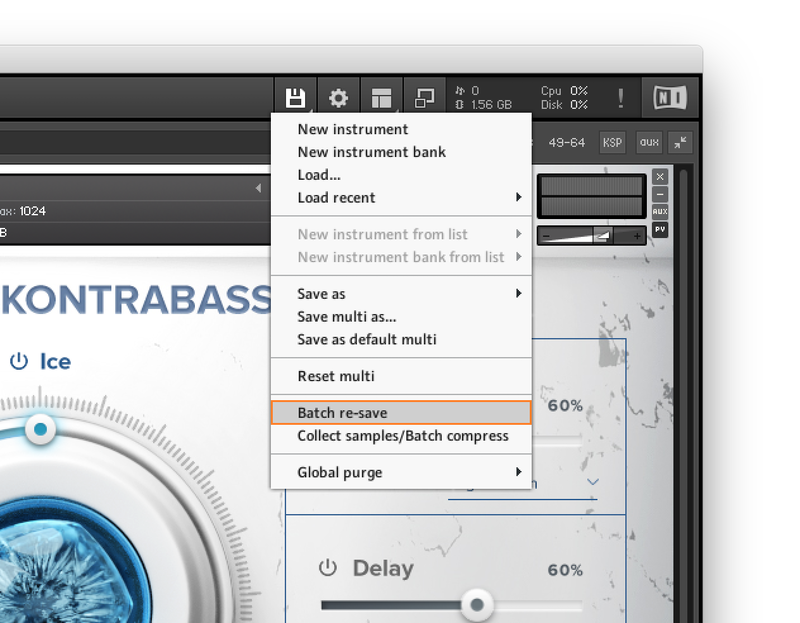
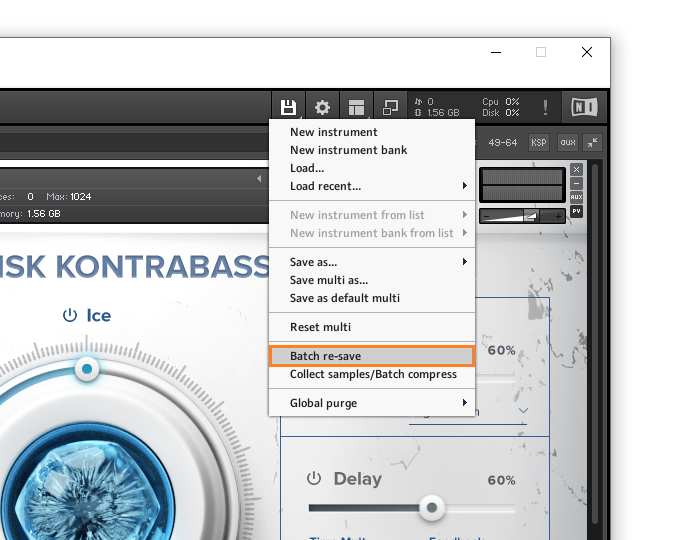
2. From the drop-down menu, click 'Batch re-save'.

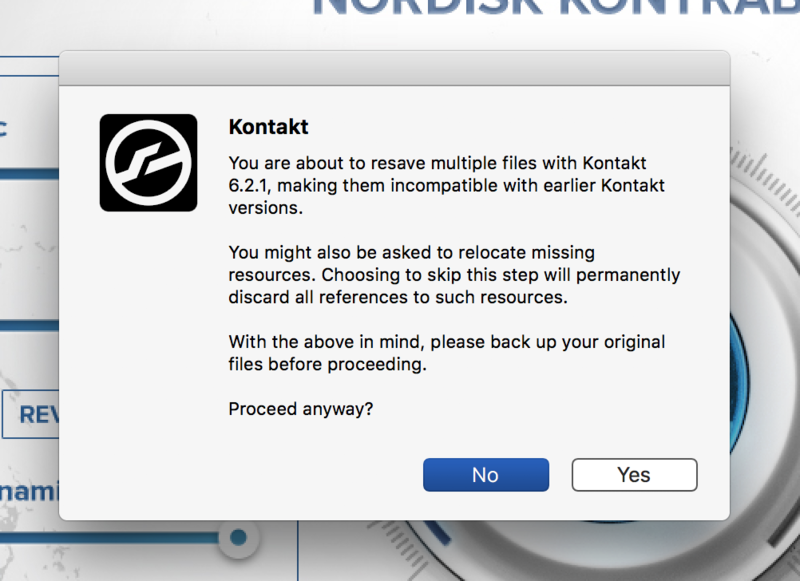
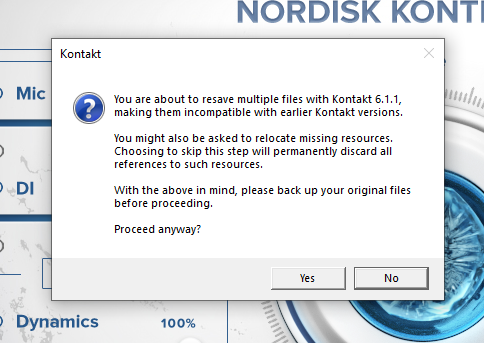
3. Click 'Yes'.

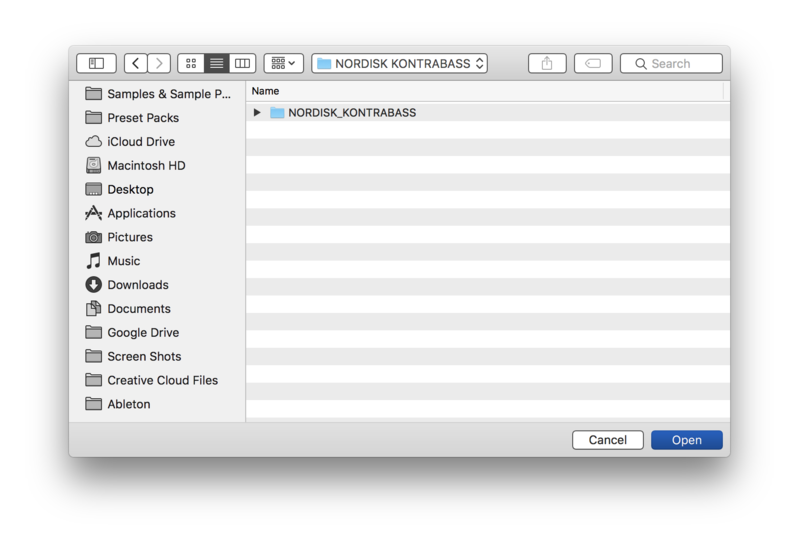
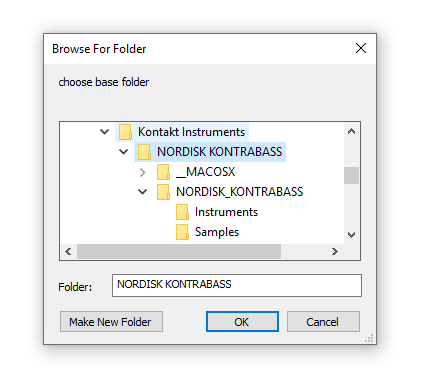
4. Navigate to the installation location for your Kontakt library > Click 'Open'.

Batch re-save is now complete and you can expect to see quicker loading times for your Kontakt Instrument.

Windows

Installation

1. Go to https://pulsedownloader.com/ > Click 'Download for Windows' to download the Pulse application installer.

2. Open the .exe file to install the Pulse application > Open Pulse and click 'Register'.

3. Enter your Email Address and Password > Check the box that states 'I agree to the terms of use and privacy policy' > Click 'Register'.

4. Click 'Add a Product'.

5. Enter your 32-digit serial key, found within the serial number section of your Plugin Boutique User Account > Click 'Redeem'.

6. Click 'Install'.

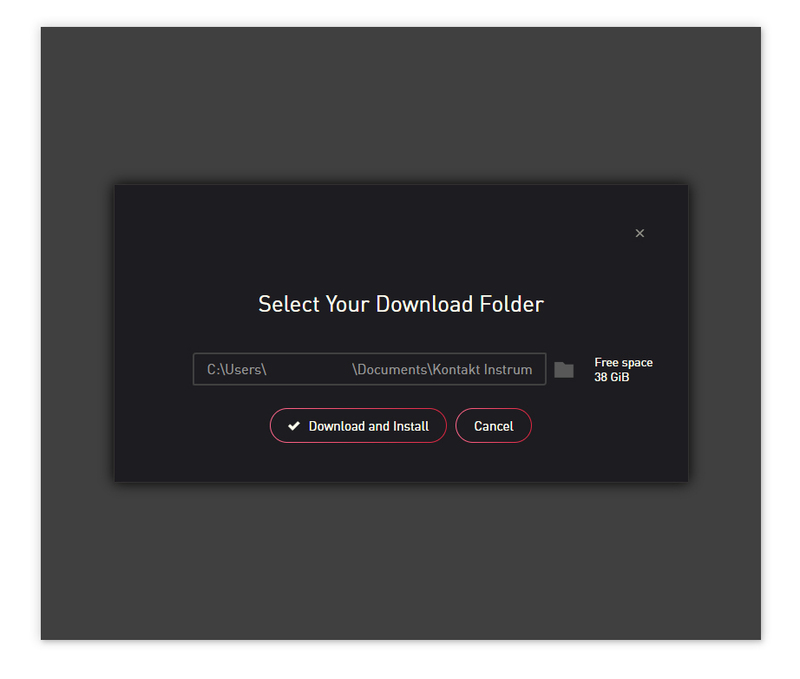
7. Click the folder icon to select the installation location for your library.

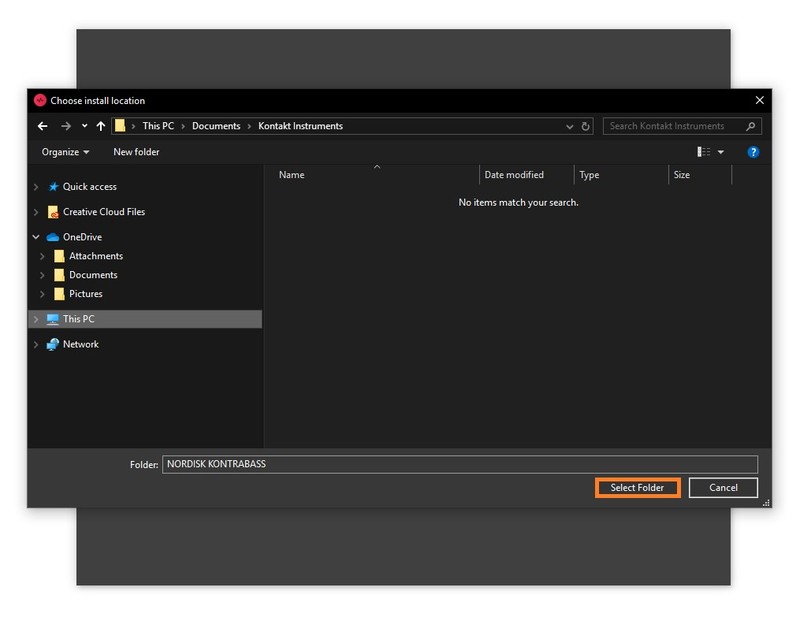
8. Choose your installation location > Click 'Select Folder'.

9. Click 'Download and Install'.

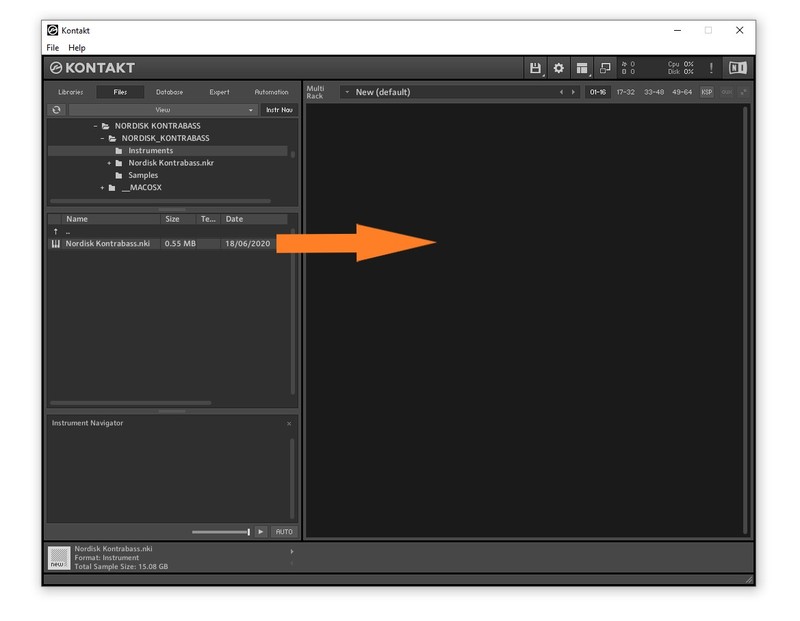
10. Open Kontakt > Select the 'Files' tab and navigate to your installed Kontakt library > Click and drag the .nki file into the empty window.

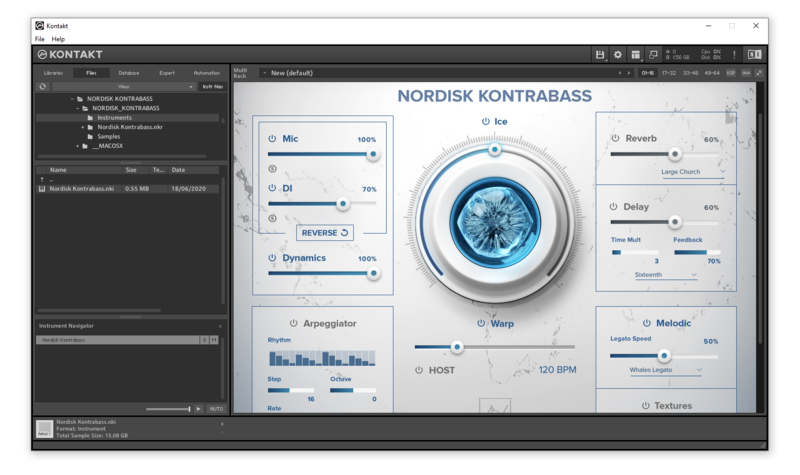
Your Kontakt Instrument is now installed and ready to use.

Batch Re-save Instructions

1. Within Kontakt, click the floppy disk icon.

2. From the drop-down menu, click 'Batch re-save'.

3. Click 'Yes'.

4. Navigate to the installation location for your Kontakt library > Click 'Ok'.

Batch re-save is now complete and you can expect to see quicker loading times for your Kontakt Instrument.

Plugin Boutique Rewards

Discover the most rewarding loyalty programme among all plugin retailers.

  • Free Loopmasters Samplepacks
  • Discounts on products and courses
  • Extra Virtual Cash claimed immediately at checkout
Find out more

Follow us:

X (Twitter) Facebook YouTube Instagram
Logo Logo

Plugin Boutique Limited, Part of the Beatport Group LLC.

Copyright © 2011-2025 Plugin Boutique. All rights reserved