/ Kontakt Instrument / CineBrass Pro
Cinesamples

CineBrass Pro

4.8 (4 Reviews)
$399.00
CineBrass Pro
CineBrass Pro
CineBrass PRO gallery thumbnail
CineBrass PRO UPDATE - The World's Most Composer-Friendly Brass Library... Just Got Better. gallery thumbnail
CineBrass PRO: FX and Post Production gallery thumbnail
CineBrass PRO Visualizer gallery thumbnail
Buy Now
Product information


Orchestral Brass Expansion recorded at the MGM Stage

CINESAMPLES’ ADAPTIVE LEGATO ENGINE
 
CineBrass PRO v1.7 has been rebuilt from the ground up to include the Cinesamples Adaptive Legato Engine featured in CineStrings SOLO, CineStrings CORE, and CineWinds CORE and PRO. It allows you to tailor the legato response to your own playing style, and is designed to respond musically to your performance. The engine detects your playing speed and intelligently adjusts the interval speed to match. This means you can play slow, expressive lines and fast runs in a single performance, without touching the speed dial. Additionally, the intensity parameter responds to velocity. 

PATCH CHANGE

The Horns Ensemble Stopped and Fluttered has been split into two different patches: Horn Ensemble Stopped and Horn Ensemble Fluttered
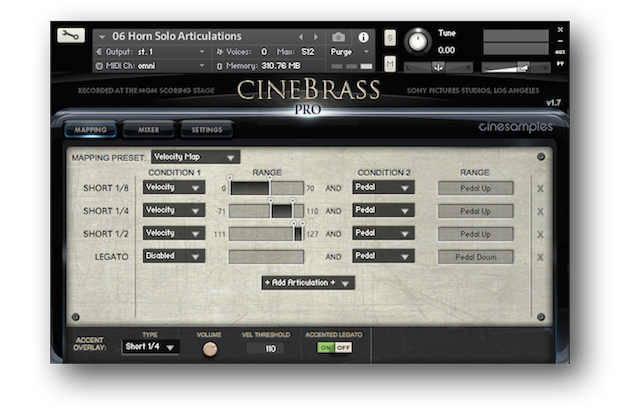
NEW MAPPING TAB

CineBrass PRO includes a brand new mapping area that allows for greater flexibility in customizing composer workflows.  The new mapping system allows for articulations to be blended together, using polyphonic keyswitching or overlapping velocity/CC ranges. This allows for even more flexibility for tailoring CineBrass PRO to your individual needs. You may add articulations using the + Add Articulation + button and subtract articulations using the X on the right. The ACCENTED LEGATO control layers an additional articulation (Marcato, Staccato, Spiccato) over legato transitions. 

System Requirements

  • Kontakt Player 5.8.1 or higher
  • Kontakt (Player) 5 supports: Stand-alone, VST®, Audio Units, RTAS® (Pro Tools® 8 and higher), DXi, ASIO, Core Audio®, DirectSound®, WASAPI
  • Native 64-bit support for stand-alone and plug-in versions on both Mac & PC
  • CineBrass PRO is compatible with all major DAWs and with music notation software.
  • 22gb of Harddrive Space
  • 3.2gb RAM (All instruments loaded, Full-Mix only)

This instrument requires the FREE or FULL version of Kontakt 5.8.1+

Installation Instructions

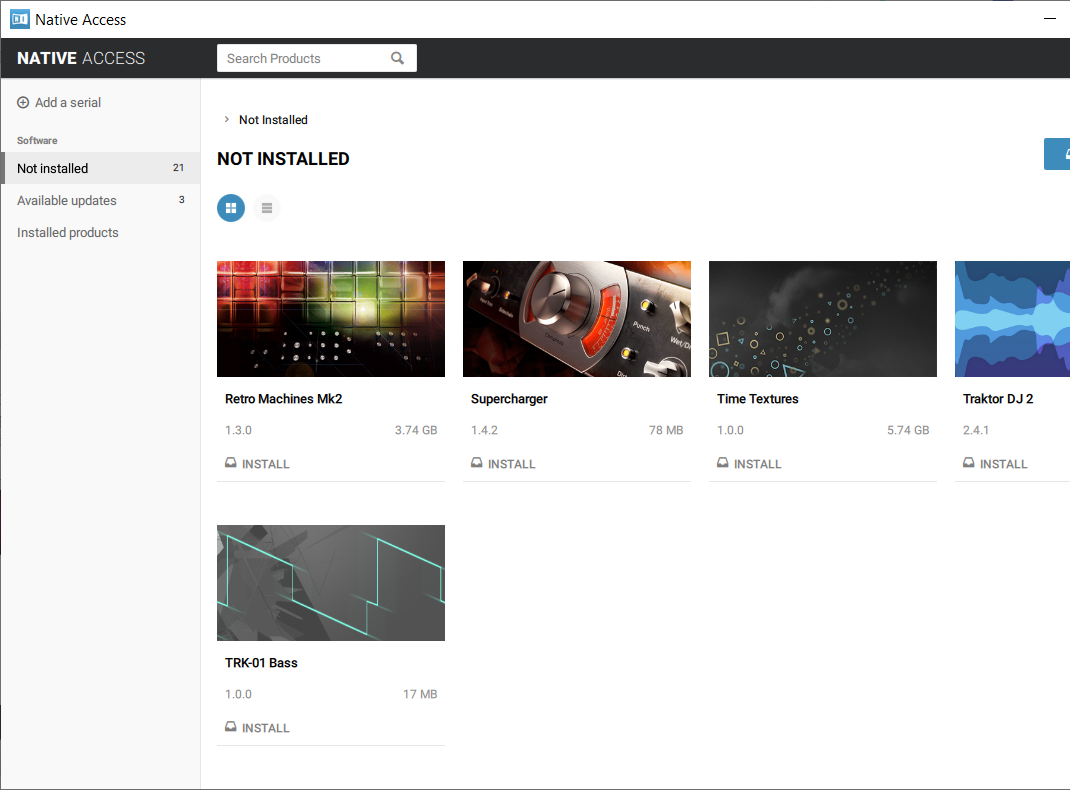
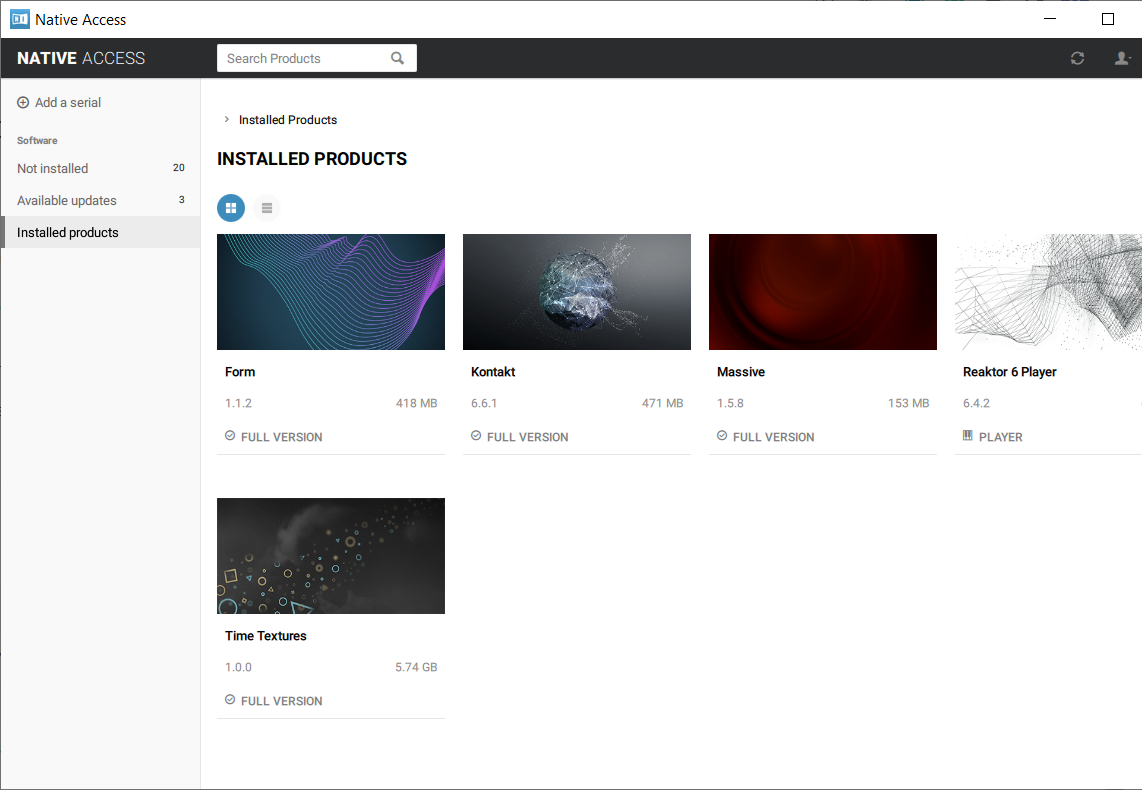
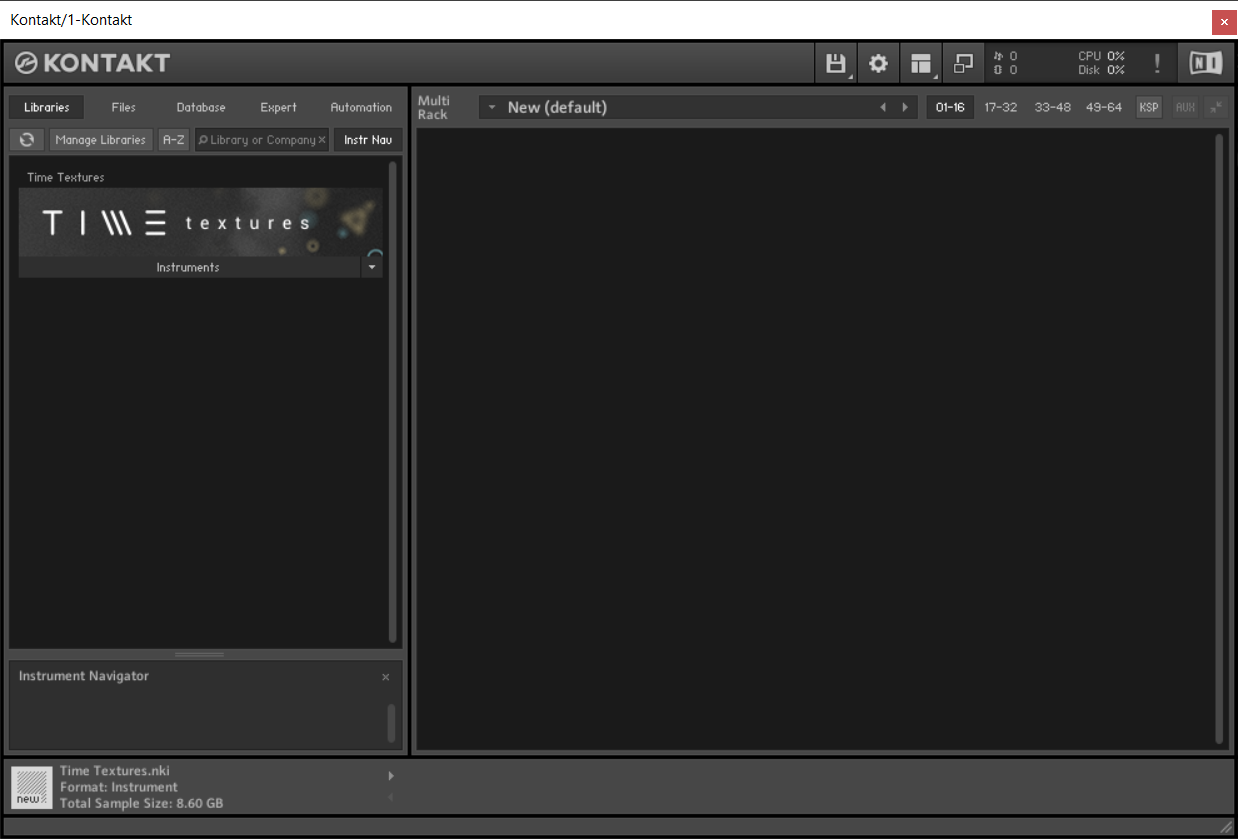
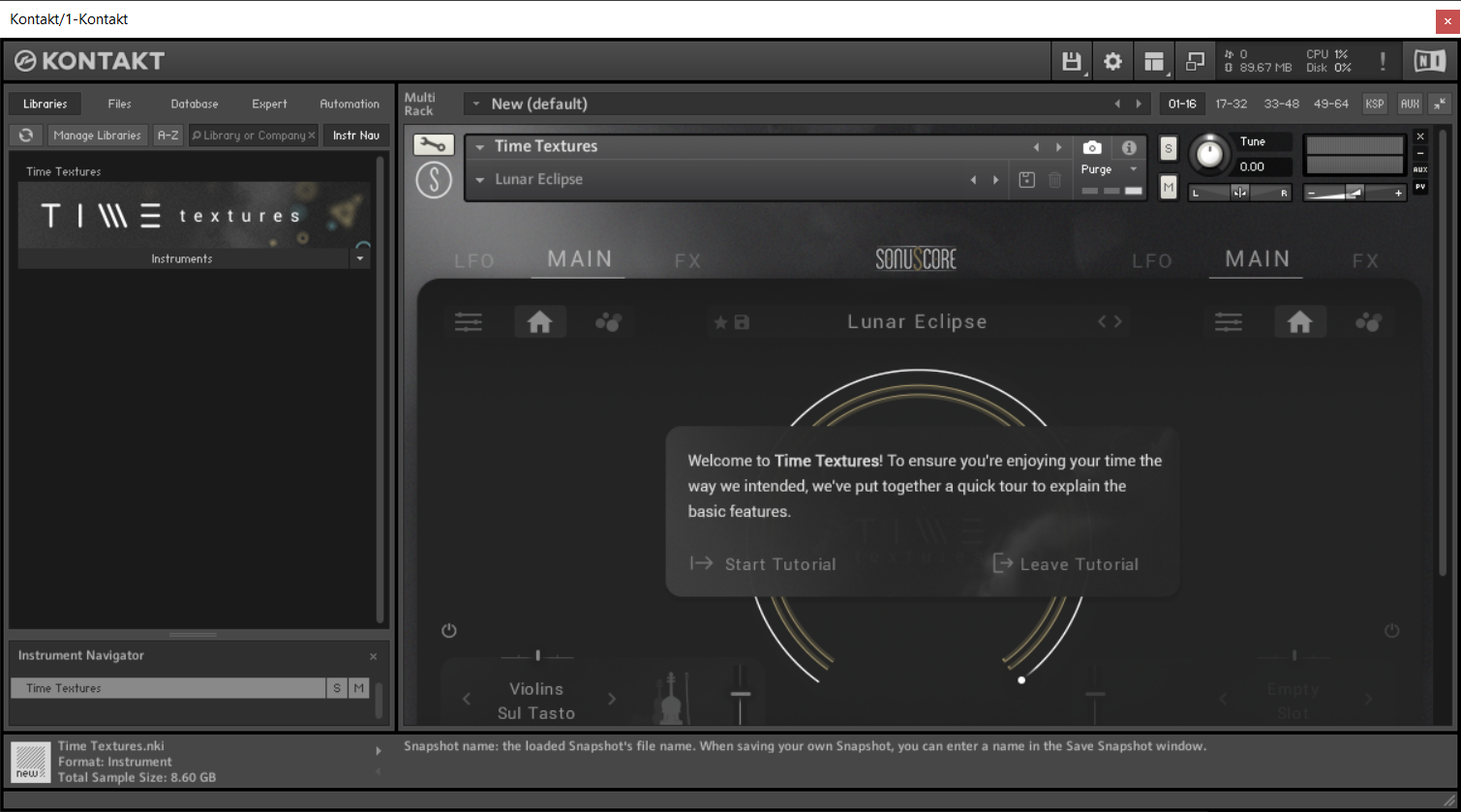
Important note: Sonuscore Time Textures is used as an example as the process is identical for this product.

Mac

1. Download the .dmg installer file from your Plugin Boutique account.

2. Double-click the .dmg file to install Native Access.

3. Open Native Access > Create a new Native ID if you do not have one already. If you do, skip ahead to step 5.

4. You will then receive an email with a confirmation link > Open the email and click 'CONFIRM EMAIL'.

5. Log in to Native Access with your Native ID.

6. Click 'Add a serial'

7. Enter your Serial Number found in your Plugin Boutique account > Click 'ADD SERIAL'.

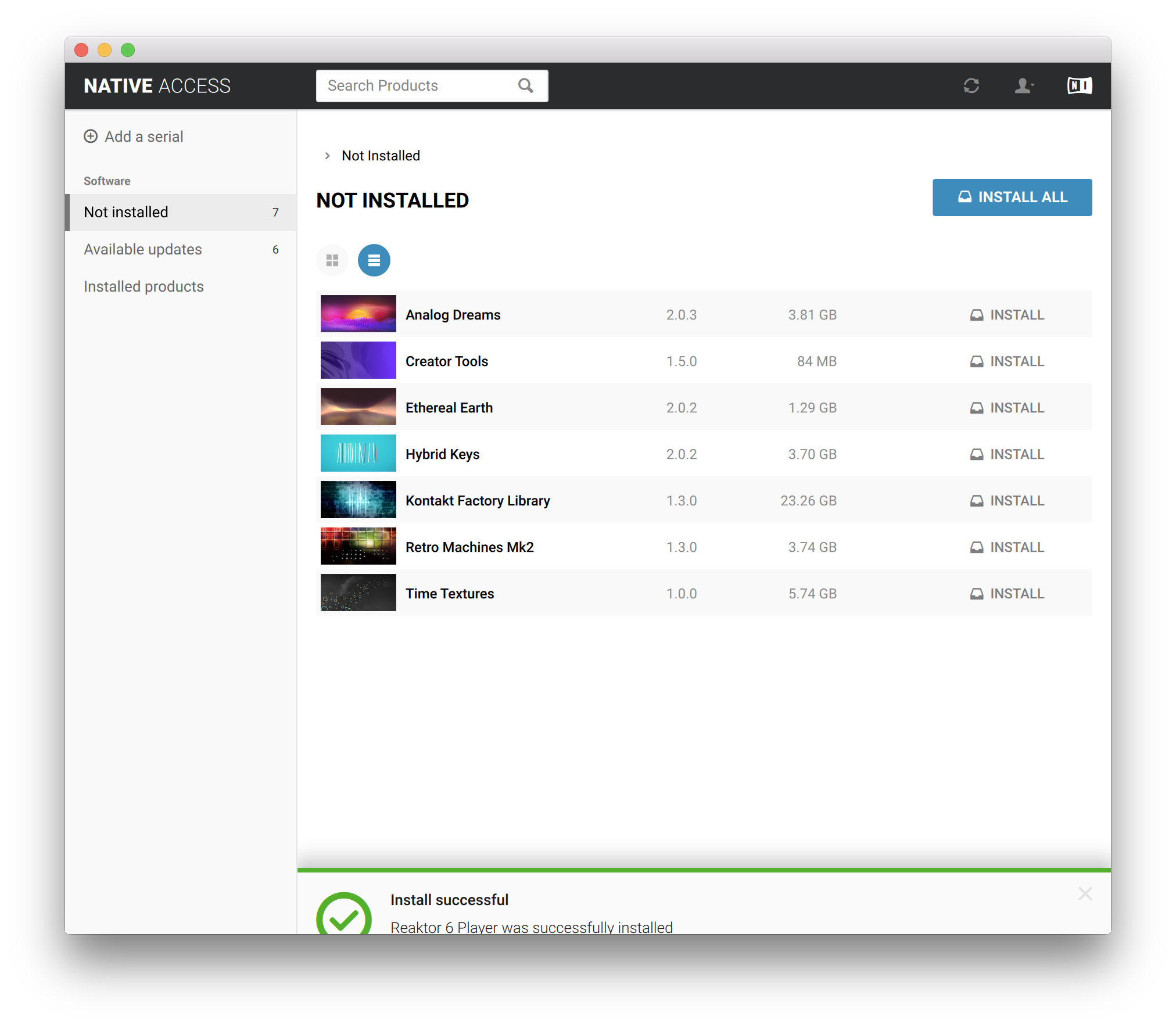
8. Click the 'Not installed' tab > Locate Time Textures > Click 'INSTALL'.

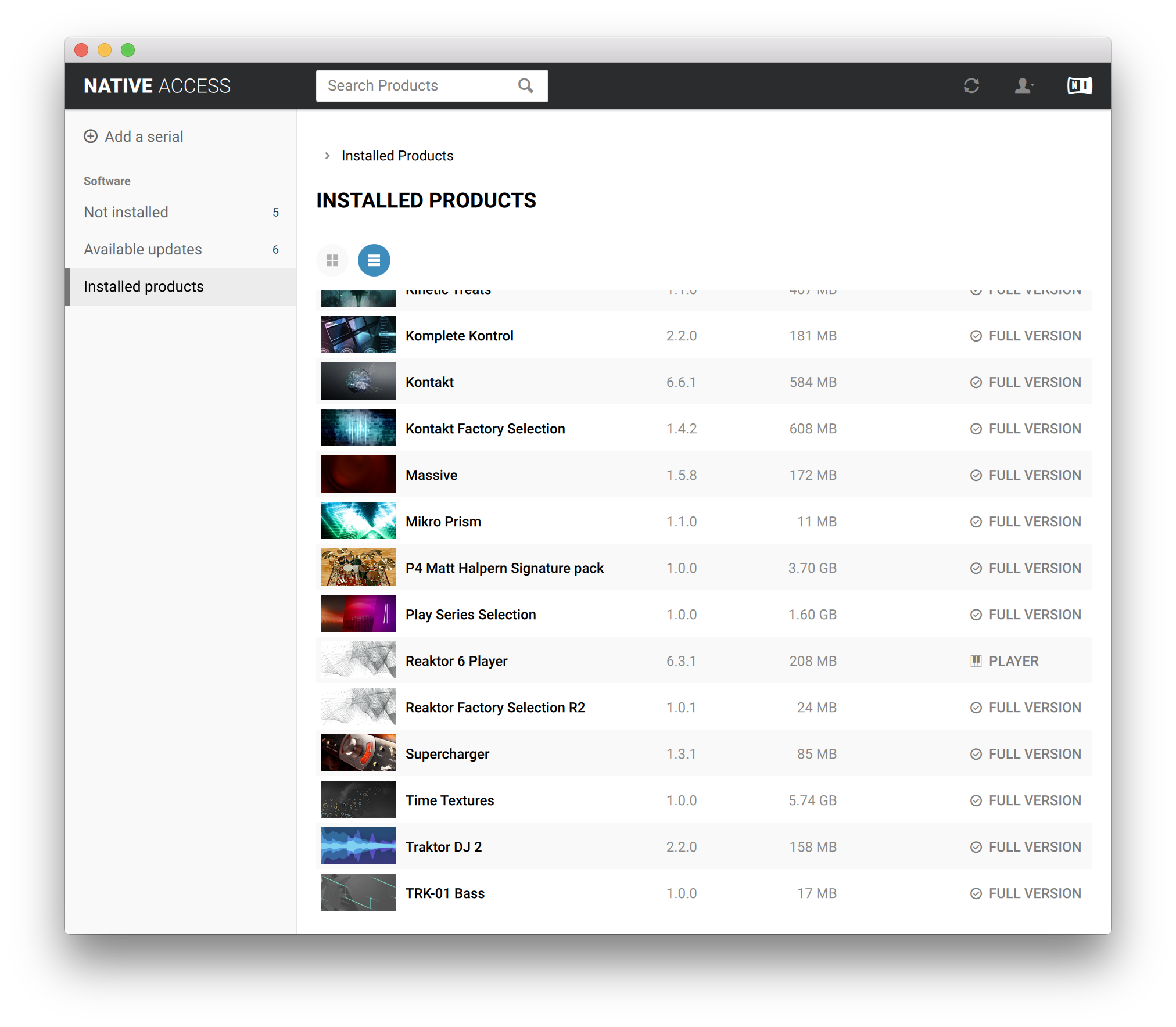
9. Time Textures is now installed on your system.

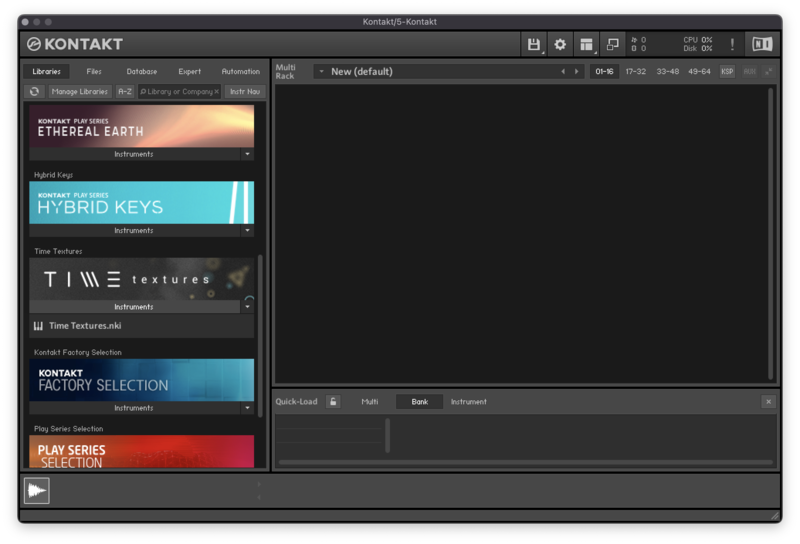
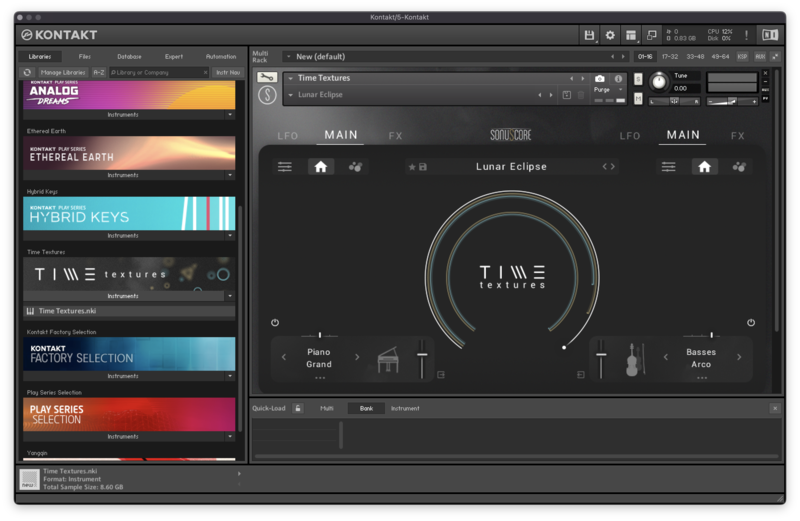
10. Open Kontakt in your DAW > You should see Time Textures on the left sidebar > Click the drop-down bar and drag the .nki file into the middle of the window.

Your software is now ready to use in your DAW!

Windows

1. Download the .zip installer file from your Plugin Boutique account.

2. Double-click the extracted .exe file to begin the installation process > click ‘Run’.

3. Read the welcome message > click 'Next'.

4. Click 'Next' to begin the installation.

5. Native Access has now been installed > Click 'Finish'.

6. Open Native Access > Create a new Native ID if you do not have one already. If you do, skip ahead to step 8.

7. You will then receive an email with a confirmation link > Open the email and click 'CONFIRM EMAIL'.

8. Log in to Native Access with your Native ID.

9. Click 'Add a serial'.

10. Enter your Serial Number found in your Plugin Boutique account > Click 'ADD SERIAL'.

11. Click the 'Not installed' tab > Locate Time Textures > Click 'INSTALL'.

12. Your new Kontakt Instrument is now installed on your system.

13. Open Kontakt in your DAW > You should see Time Textures on the left sidebar > Click the drop-down bar and drag the .nki file into the middle of the window.

Your software is now ready to use in your DAW!

Plugin Boutique Rewards

Discover the most rewarding loyalty programme among all plugin retailers.

  • Free Loopmasters Samplepacks
  • Discounts on products and courses
  • Extra Virtual Cash claimed immediately at checkout
Find out more

Follow us:

X (Twitter) Facebook YouTube Instagram
Logo Logo

Plugin Boutique Limited, Part of the Beatport Group LLC.

Copyright © 2011-2025 Plugin Boutique. All rights reserved