Buy CinePerc, get a free gift with purchase:
Best Orchestral Percussion Library
ORCHESTRAL ENSEMBLE PATCH
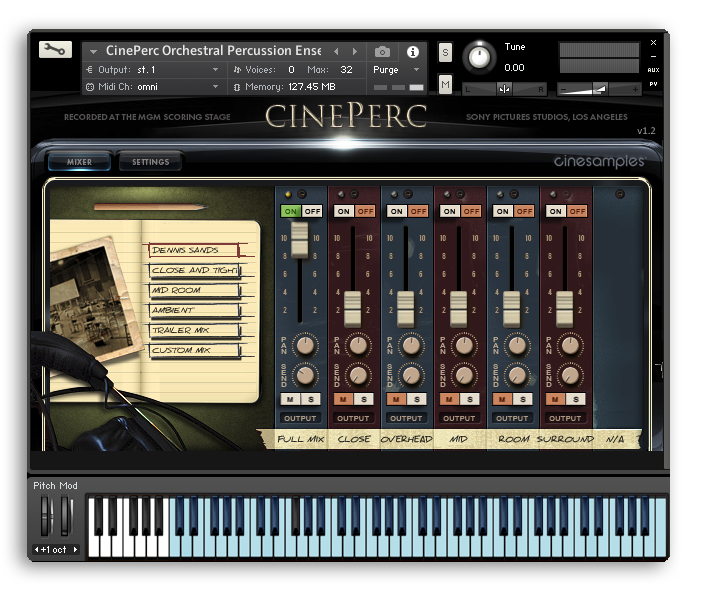
The brand new "CinePerc Orchestral Percussion Ensemble" patch is comprised largely of instruments from the '01 ORCHESTRAL' folder, giving the user a complete orchestral percussion pallet underneath their fingers. Intuitively mapped, this patch makes creating orchestral percussion mockups quick and easy.
RE-MAPPING
The entire line of CinePerc instruments have been remapped in order to create a consistent and intuitive layout for the user. Non-chromatic instruments have now been centered around middle C on the keyboard, so the user knows instantly where to begin upon loading a new instrument and playing. Other small tweaks have also been added for ease of use, such as several instruments being split out to their own patch for clarity sake (for instance different mallet types, different snare drums, etc., now each have their own patch).
Kontakt and NKS Integration
CinePerc v1.3 is scripted for Native Instruments' Native Kontrol Standard (NKS) format.
System Requirements
- Requires Kontakt 5.8.1 and above (Works with both the free Kontakt Player and the paid, full version of Kontakt)
- Requires a minimum of 200 GB free hard drive space during installation. Library size is approx. 100 GB after installation
- Minimum 4 GB RAM Recommended
- Kontakt 5.8.1 Minimum System Requirements
- Mac OS X 10.10 through 10.15, i5
- Windows 7, Windows 8, or Windows 10 (latest Service Pack, 32/64-bit) Intel Core 2 Duo or AMD Athlon 64 X2
- Kontakt 5.8.1 Supported Interfaces
- Mac OS X (64-bit only): Stand-alone, VST, AU, AAX
- Windows (32/64-bit): Stand-alone, VST, AAX
System Requirements
- Works with the free Kontakt Player 6.6.1+
- Installed directly through Native Access
- 3.45 GB disk space required*
This instrument requires the FREE or FULL version of Kontakt 5.8.1+


Important note: Sonuscore Time Textures is used as an example as the process is identical for this product.
Mac
1. Download the .dmg installer file from your Plugin Boutique account.
2. Double-click the .dmg file to install Native Access.
3. Open Native Access > Create a new Native ID if you do not have one already. If you do, skip ahead to step 5.

4. You will then receive an email with a confirmation link > Open the email and click 'CONFIRM EMAIL'.
5. Log in to Native Access with your Native ID.

6. Click 'Add a serial'

7. Enter your Serial Number found in your Plugin Boutique account > Click 'ADD SERIAL'.

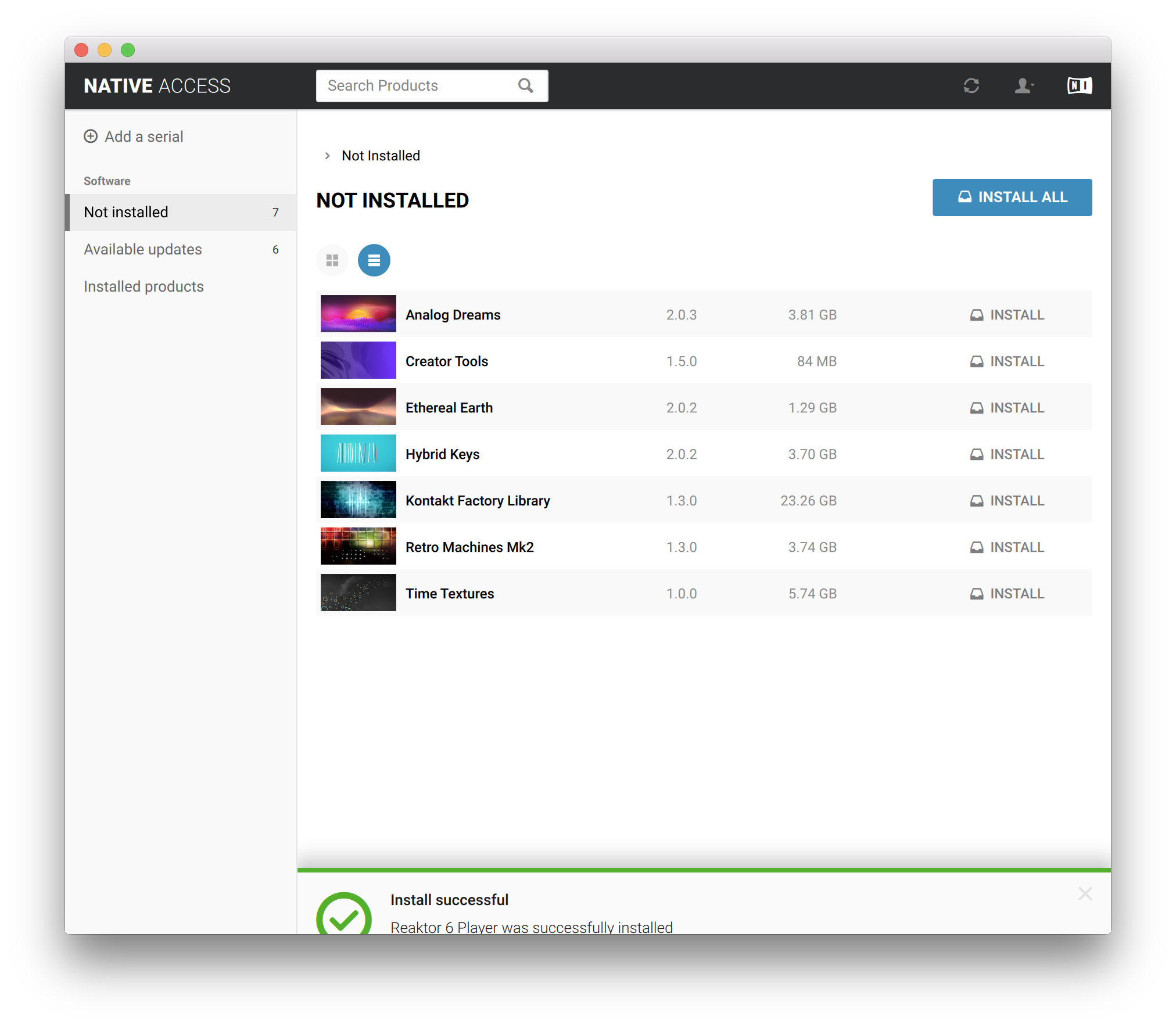
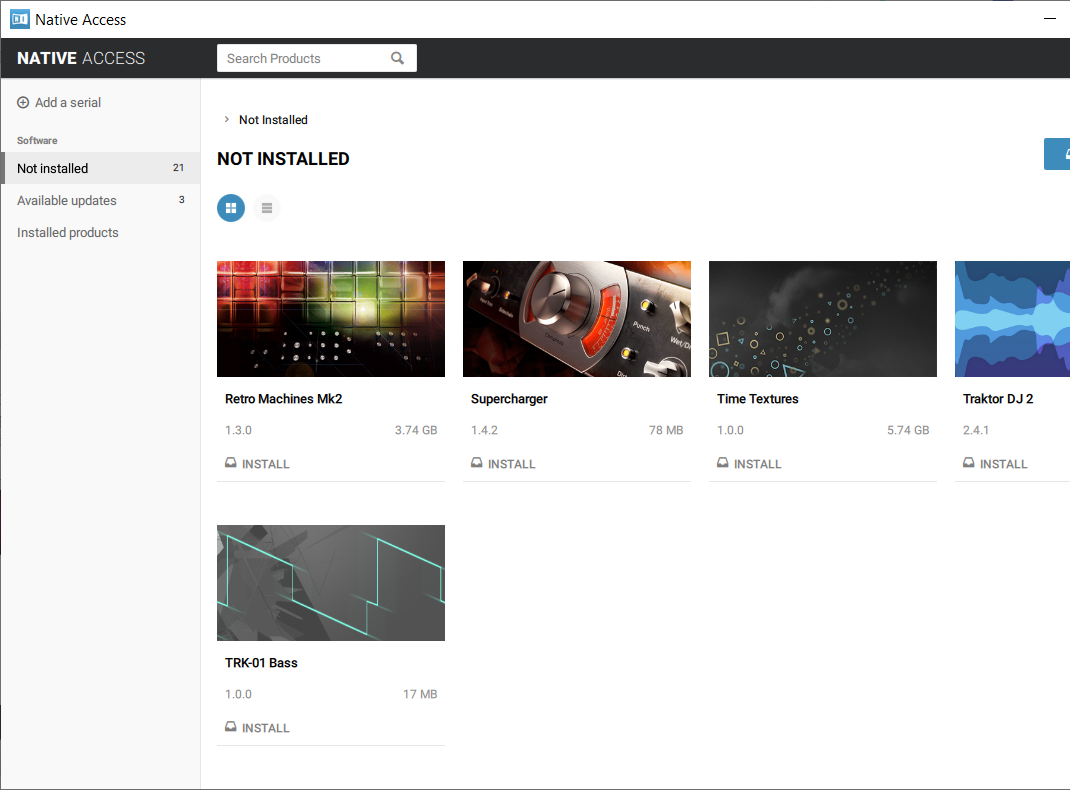
8. Click the 'Not installed' tab > Locate Time Textures > Click 'INSTALL'.

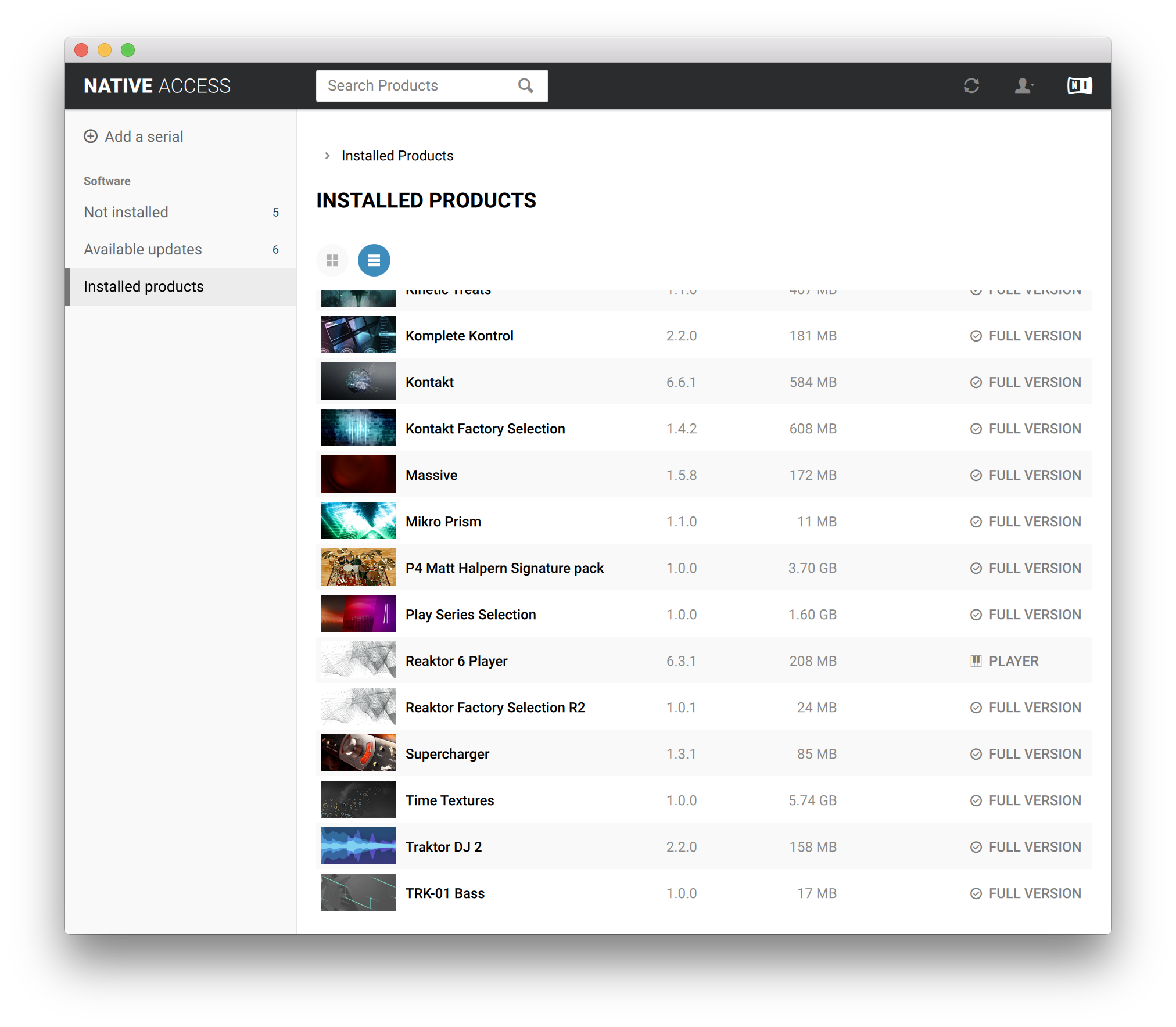
9. Time Textures is now installed on your system.

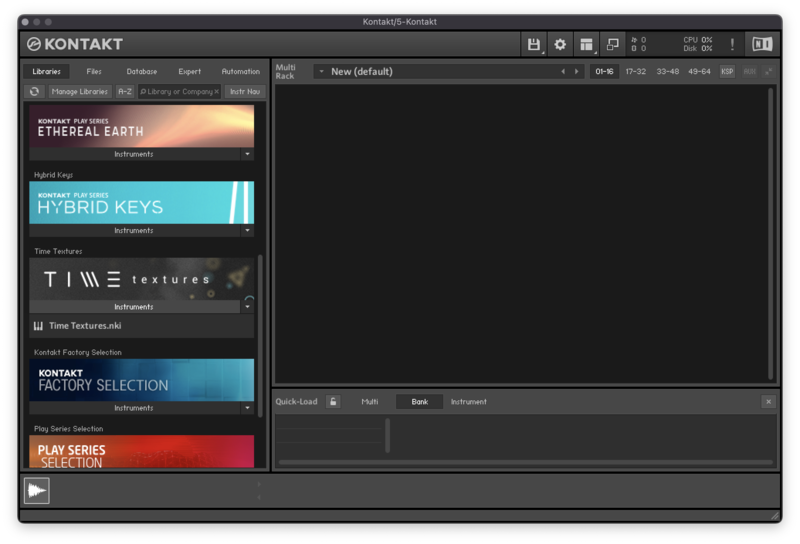
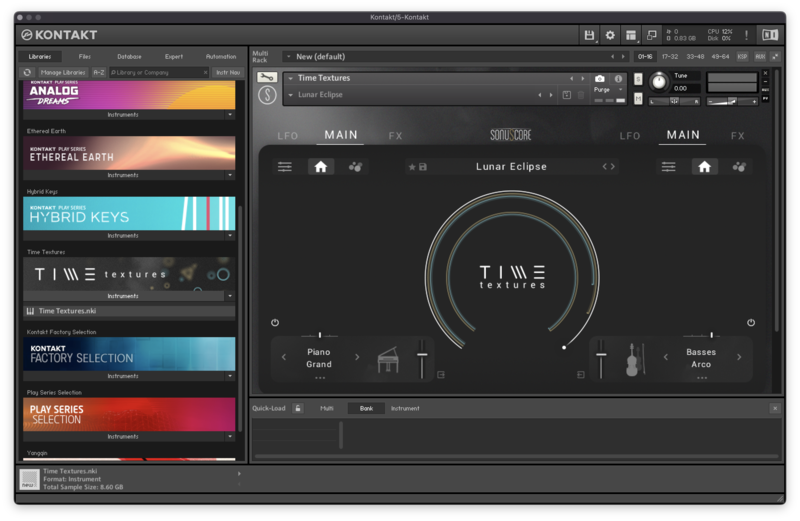
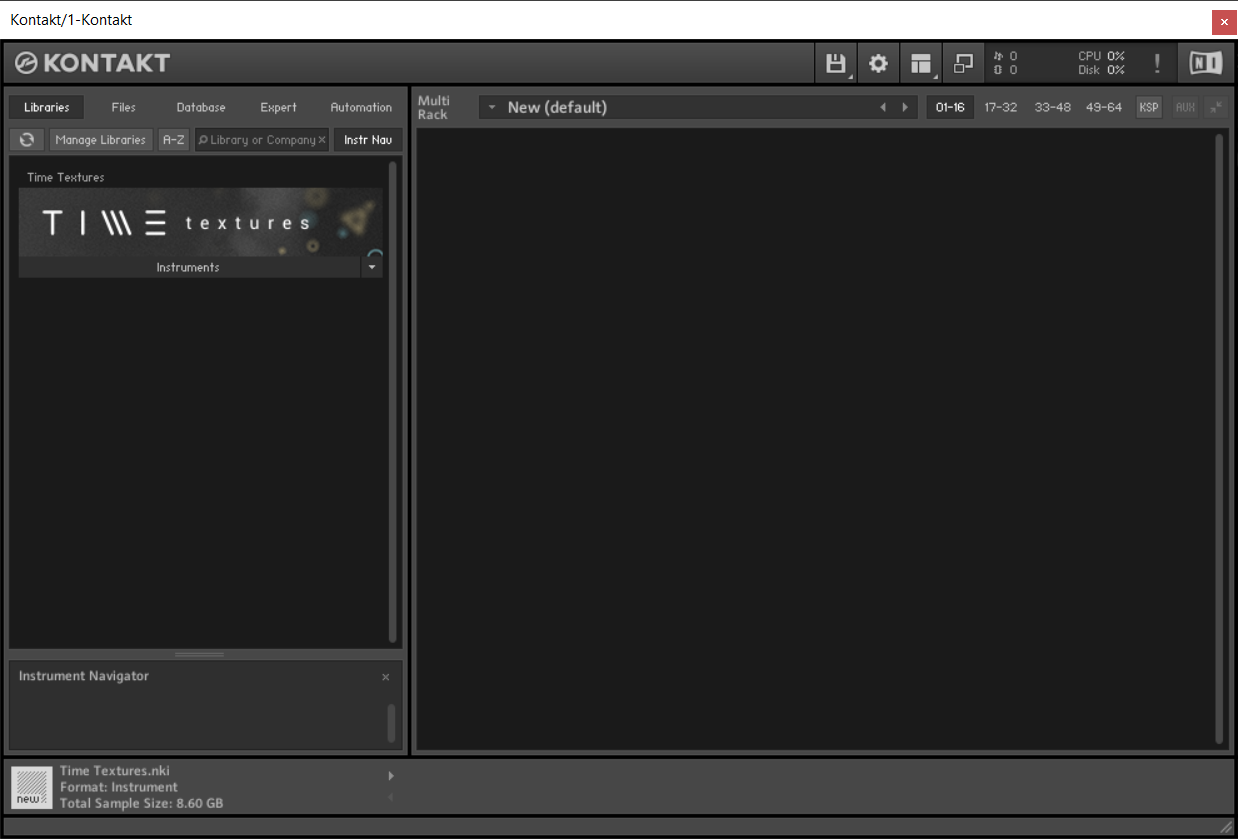
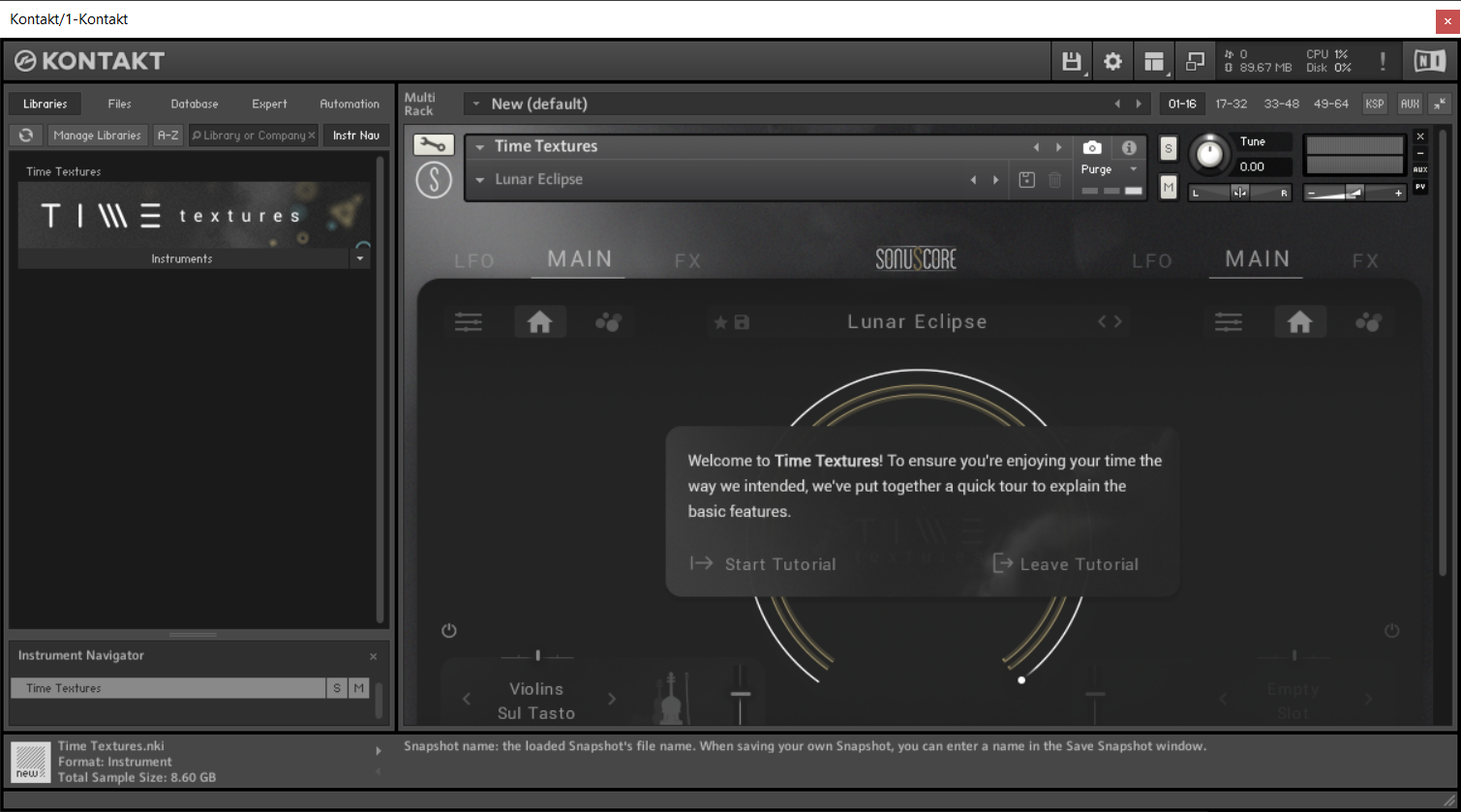
10. Open Kontakt in your DAW > You should see Time Textures on the left sidebar > Click the drop-down bar and drag the .nki file into the middle of the window.

Your software is now ready to use in your DAW!

Windows
1. Download the .zip installer file from your Plugin Boutique account.
2. Double-click the extracted .exe file to begin the installation process > click ‘Run’.
3. Read the welcome message > click 'Next'.

4. Click 'Next' to begin the installation.

5. Native Access has now been installed > Click 'Finish'.

6. Open Native Access > Create a new Native ID if you do not have one already. If you do, skip ahead to step 8.

7. You will then receive an email with a confirmation link > Open the email and click 'CONFIRM EMAIL'.
8. Log in to Native Access with your Native ID.

9. Click 'Add a serial'.

10. Enter your Serial Number found in your Plugin Boutique account > Click 'ADD SERIAL'.

11. Click the 'Not installed' tab > Locate Time Textures > Click 'INSTALL'.

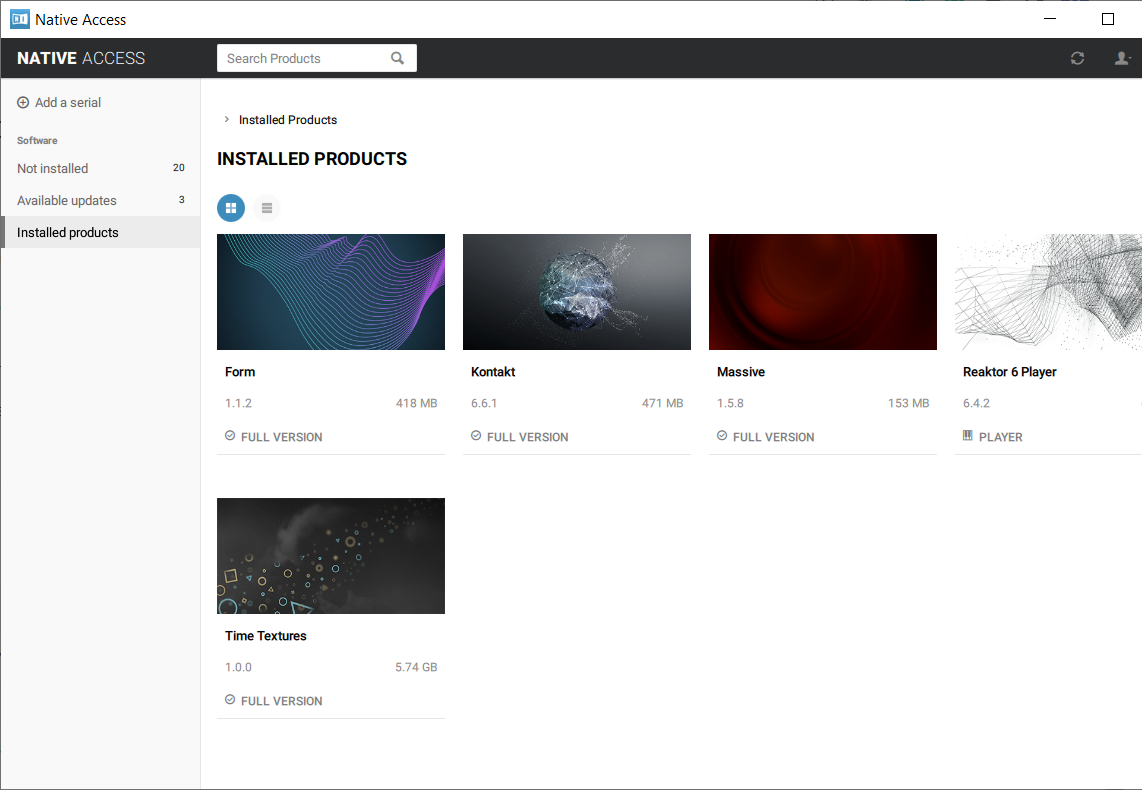
12. Your new Kontakt Instrument is now installed on your system.

13. Open Kontakt in your DAW > You should see Time Textures on the left sidebar > Click the drop-down bar and drag the .nki file into the middle of the window.

Your software is now ready to use in your DAW!