Buy CineSymphony Lite, get a free gift with purchase:
The Essential Symphonic Orchestra Library
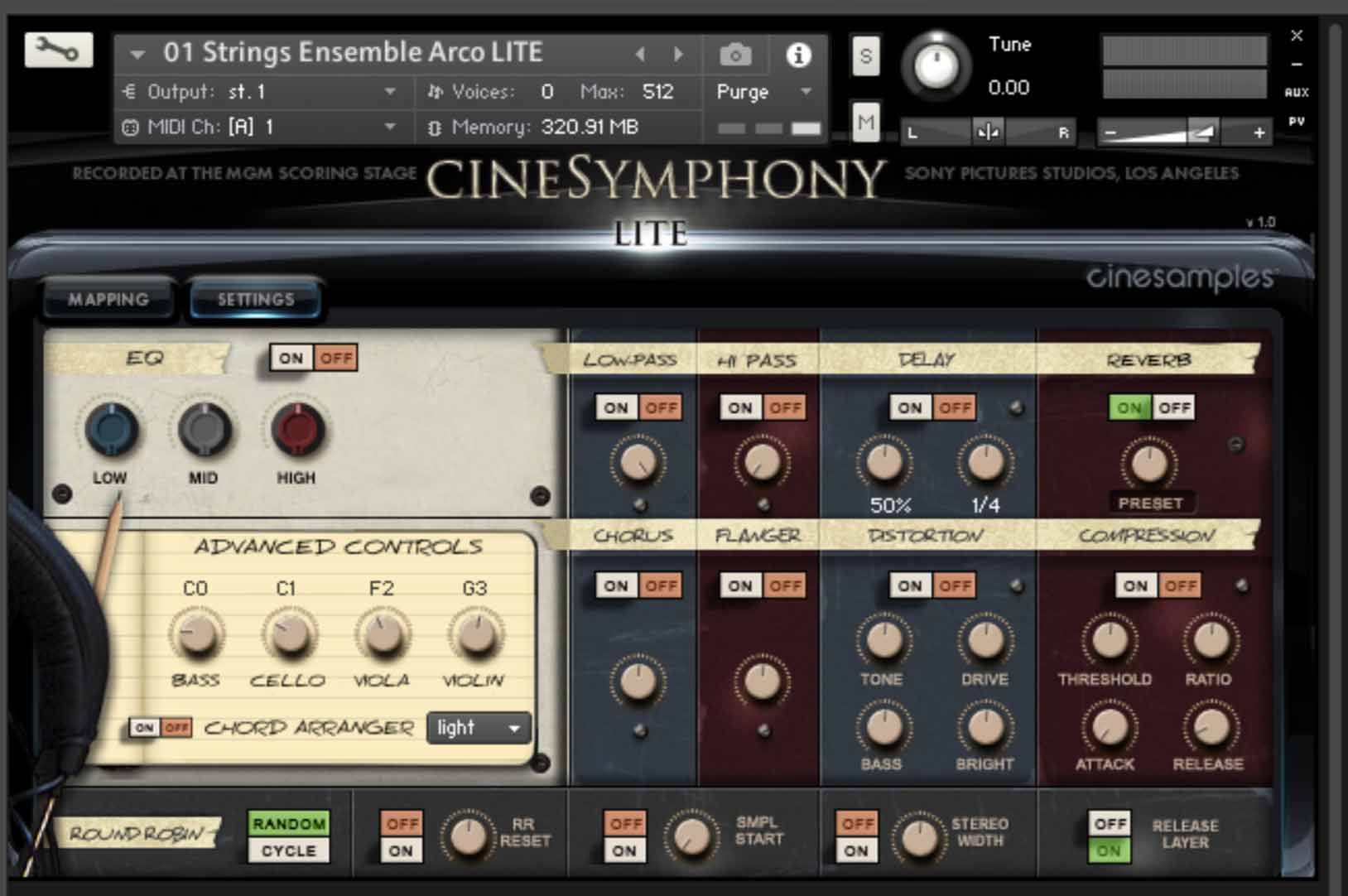
Everything you need to quickly score any scene. CineSymphony LITE symphonic orchestra is a comprehensive orchestral vst sketch tool recorded at the world-famous MGM Scoring Stage at Sony Pictures Studios in Los Angeles and recorded by industry veteran Dennis Sands.
CineSymphony LITE covers the essentials of all orchestral instrument sections and provides students and professional composers with a solid starting foundation in their music scoring palette.
CineSymphony LITE is revolutionary in its simplicity and ability to recreate the sound of the orchestra. The library was designed by composers, for composers, with direct feedback from the film community during its development. It was specifically designed to be a composer's sketch or travel kit, but also a learning kit for beginners. The result is a library that is easy to use, composer-friendly, and sounds professionally mixed right out of the box without being too demanding on hardware.
CineSymphony LITE does not require you to purchase any additional sample playback software, and is licensed to work with the Native Instrument’s free Kontakt Player.
While the aim of CineSymphony LITE is to give you a fully playable orchestra in a small set, to truly be able to program samples properly, it is highly recommended that you invest further in the CineSymphony line to get more articulations like harmonics, staccatos, legatos, mutes, trills, etc.
System Requirements
- Kontakt Player 6.6.1 or higher
- CineSymphony LITE is compatible with all major DAWs and with other music notation software
- About 2.05 GB of free hard drive space required
This instrument requires the FREE or FULL version of Kontakt 6.6.1+


Important note: Sonuscore Time Textures is used as an example as the process is identical for this product.
Mac
1. Download the .dmg installer file from your Plugin Boutique account.
2. Double-click the .dmg file to install Native Access.
3. Open Native Access > Create a new Native ID if you do not have one already. If you do, skip ahead to step 5.

4. You will then receive an email with a confirmation link > Open the email and click 'CONFIRM EMAIL'.
5. Log in to Native Access with your Native ID.

6. Click 'Add a serial'

7. Enter your Serial Number found in your Plugin Boutique account > Click 'ADD SERIAL'.

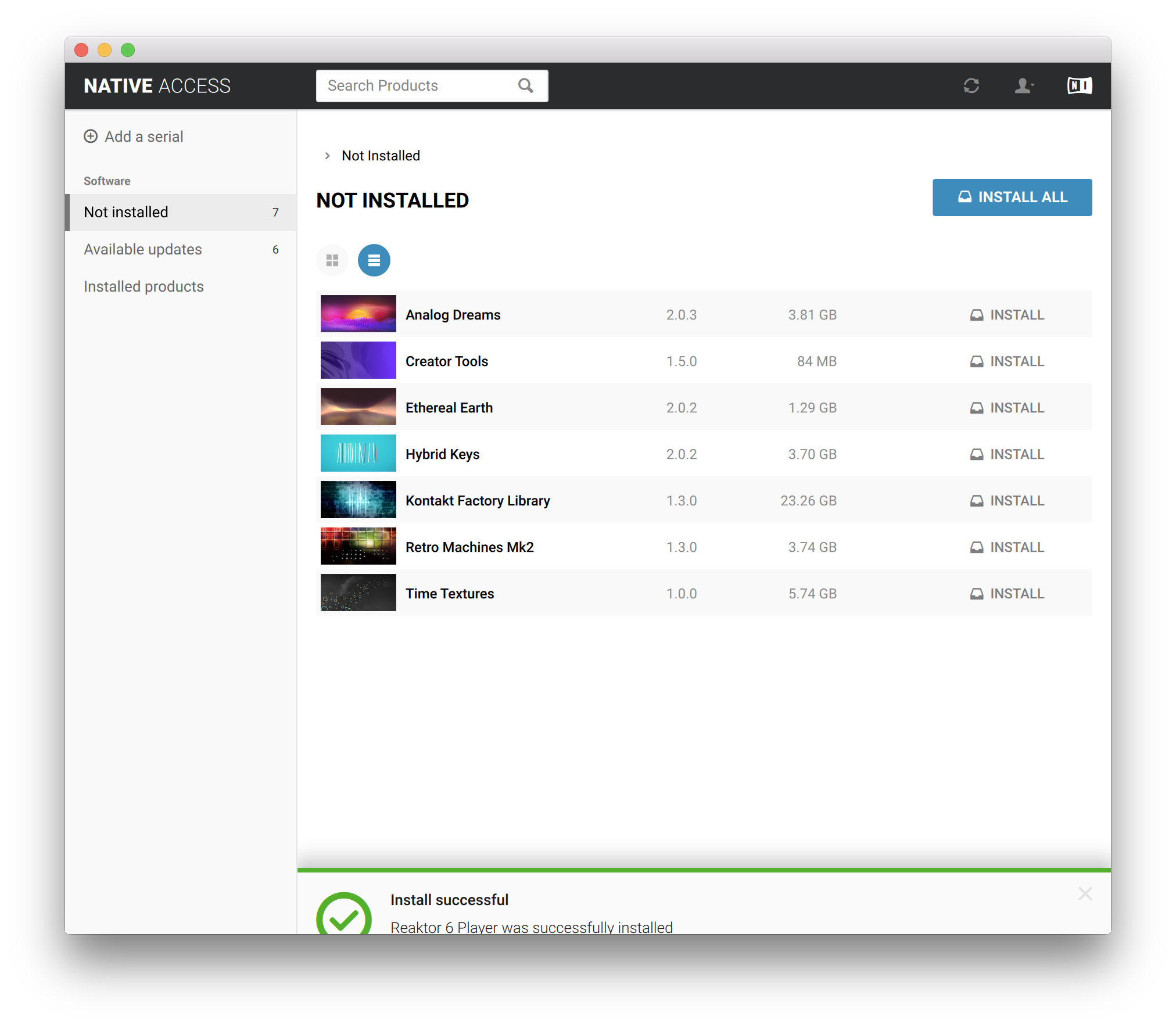
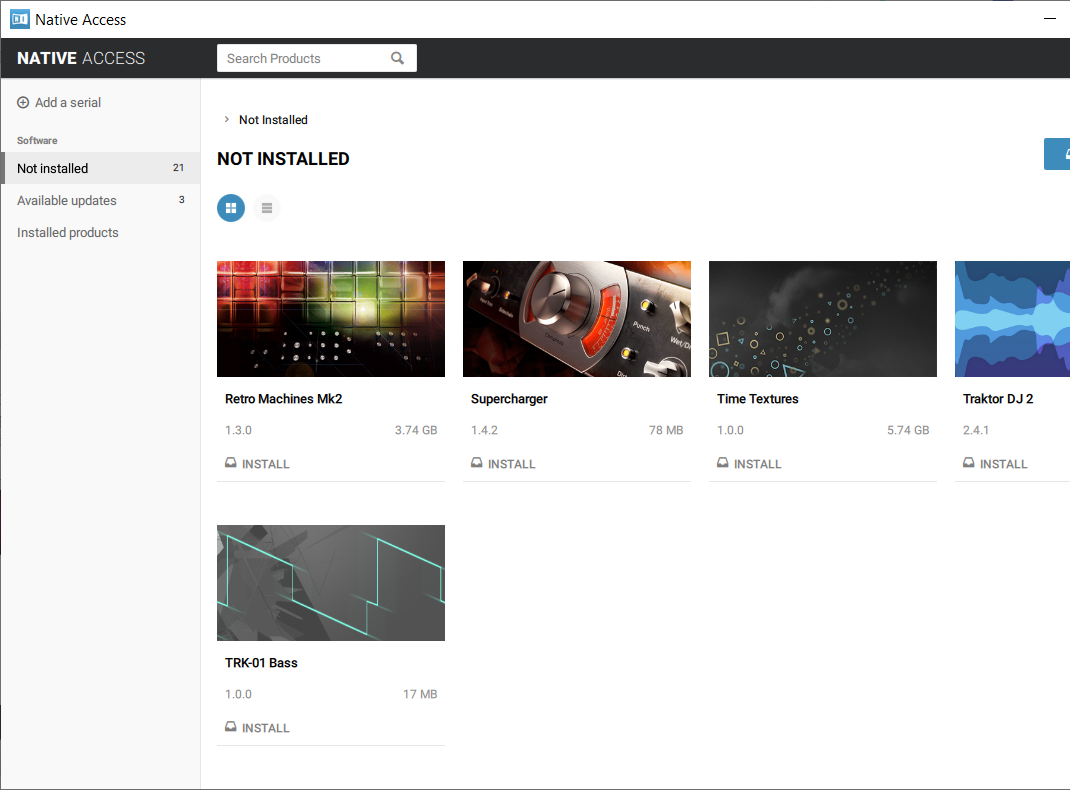
8. Click the 'Not installed' tab > Locate Time Textures > Click 'INSTALL'.

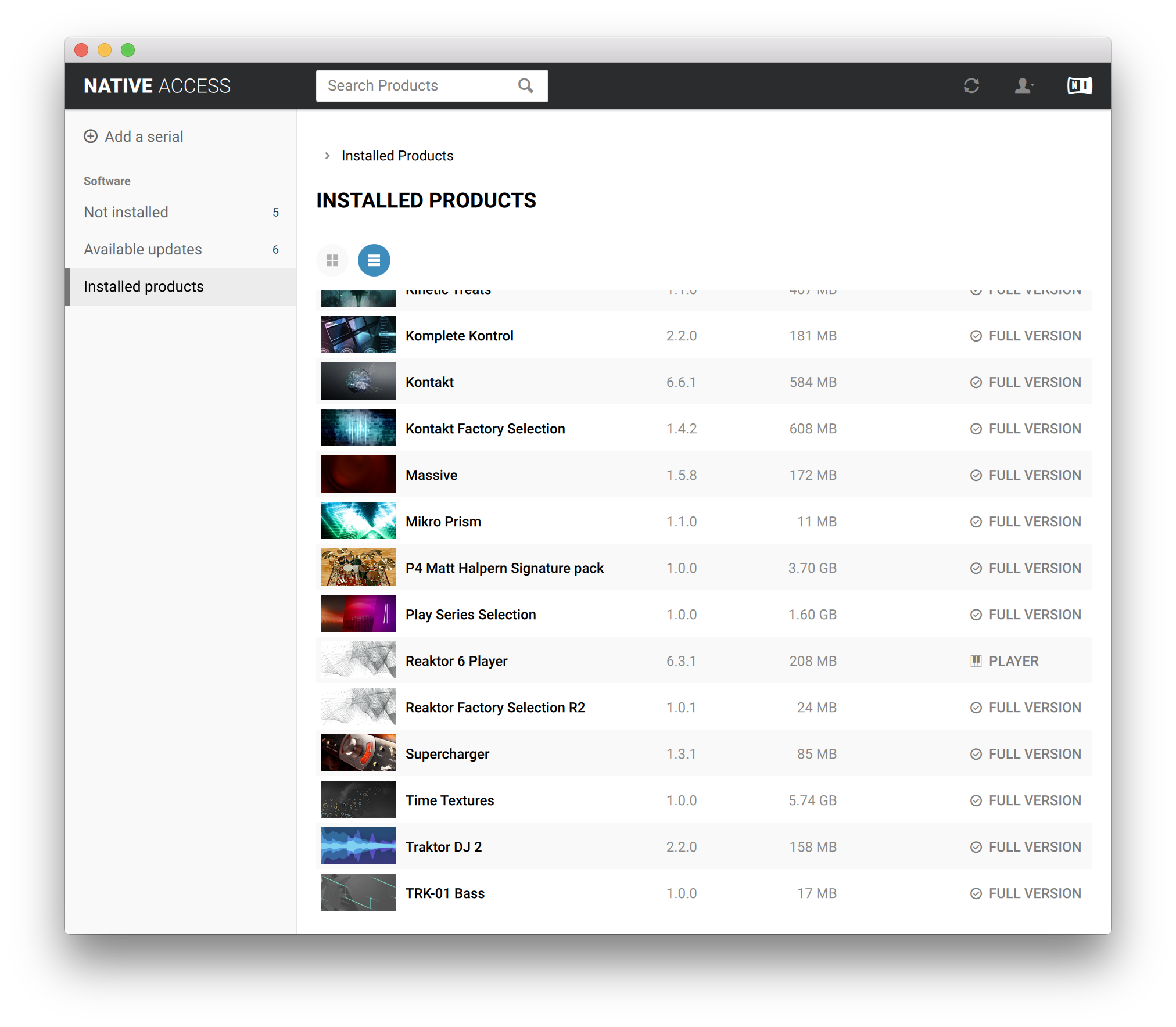
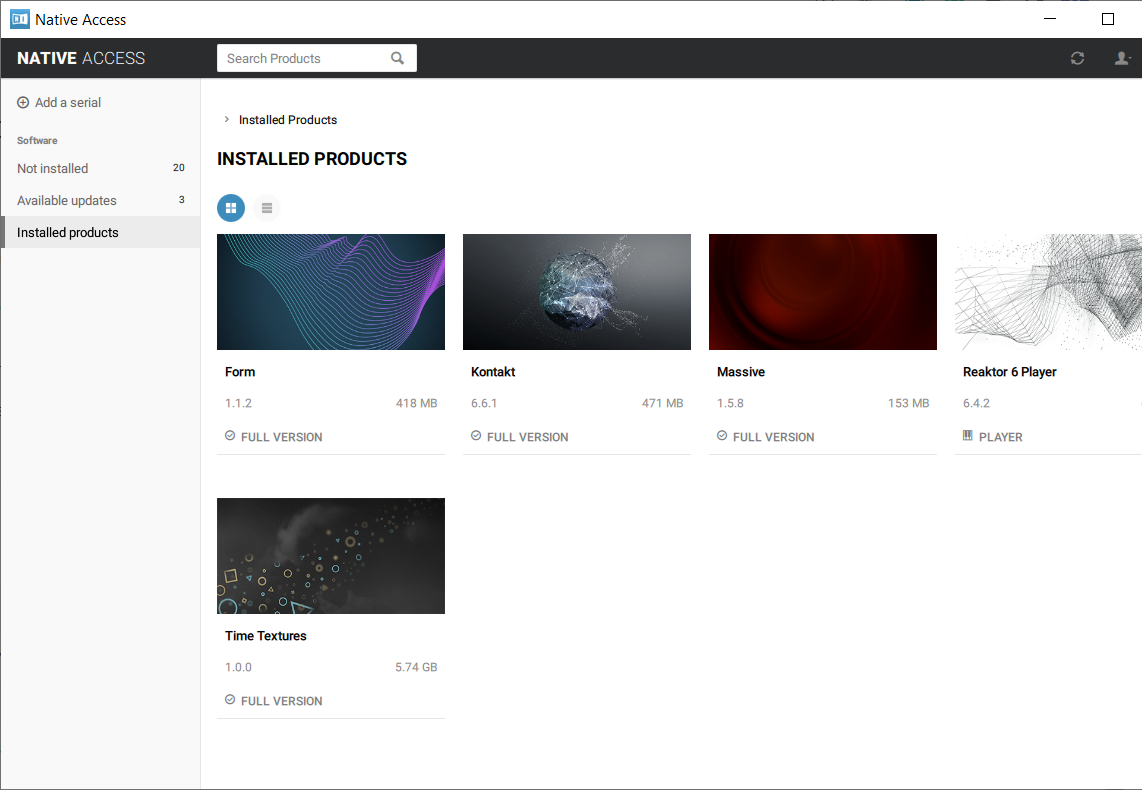
9. Time Textures is now installed on your system.

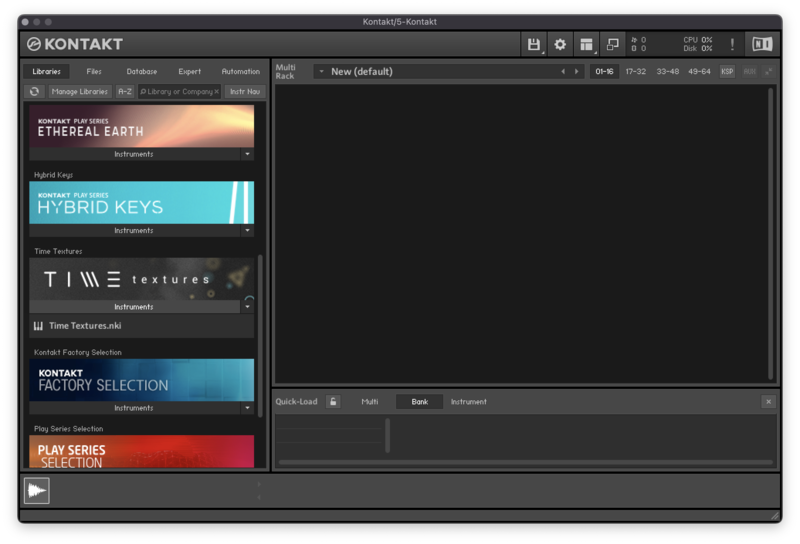
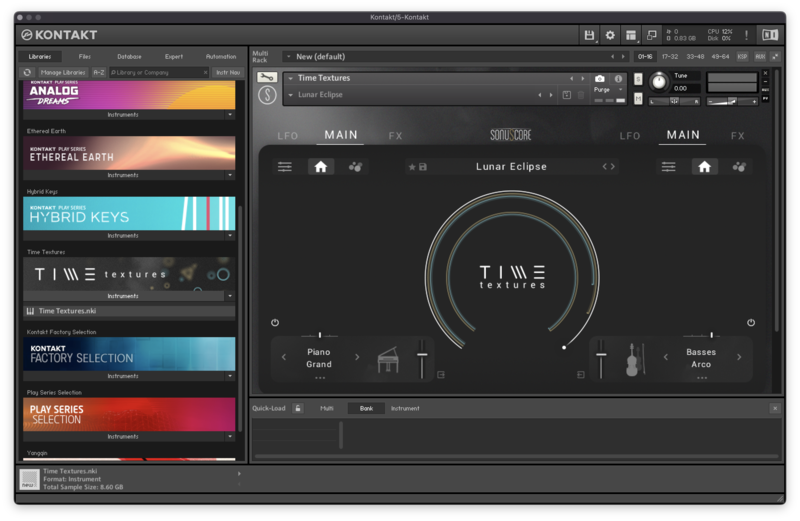
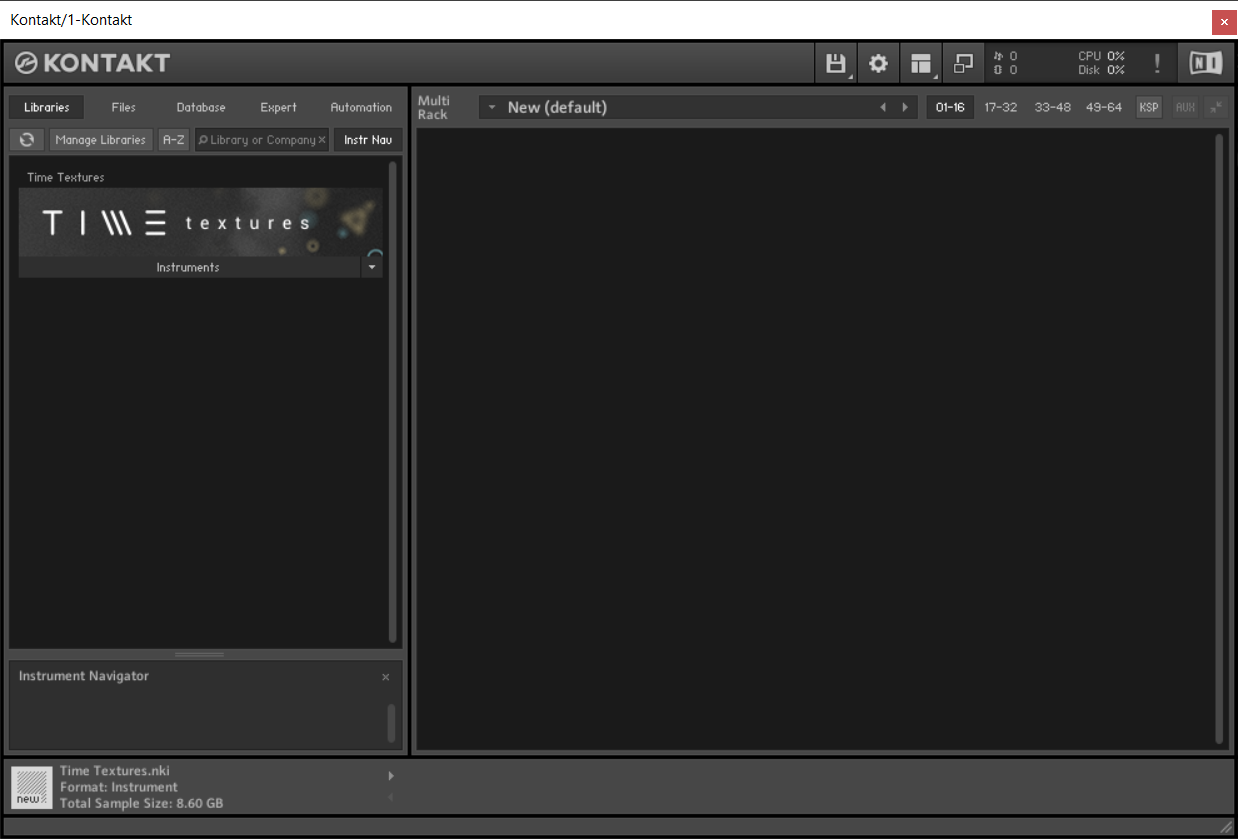
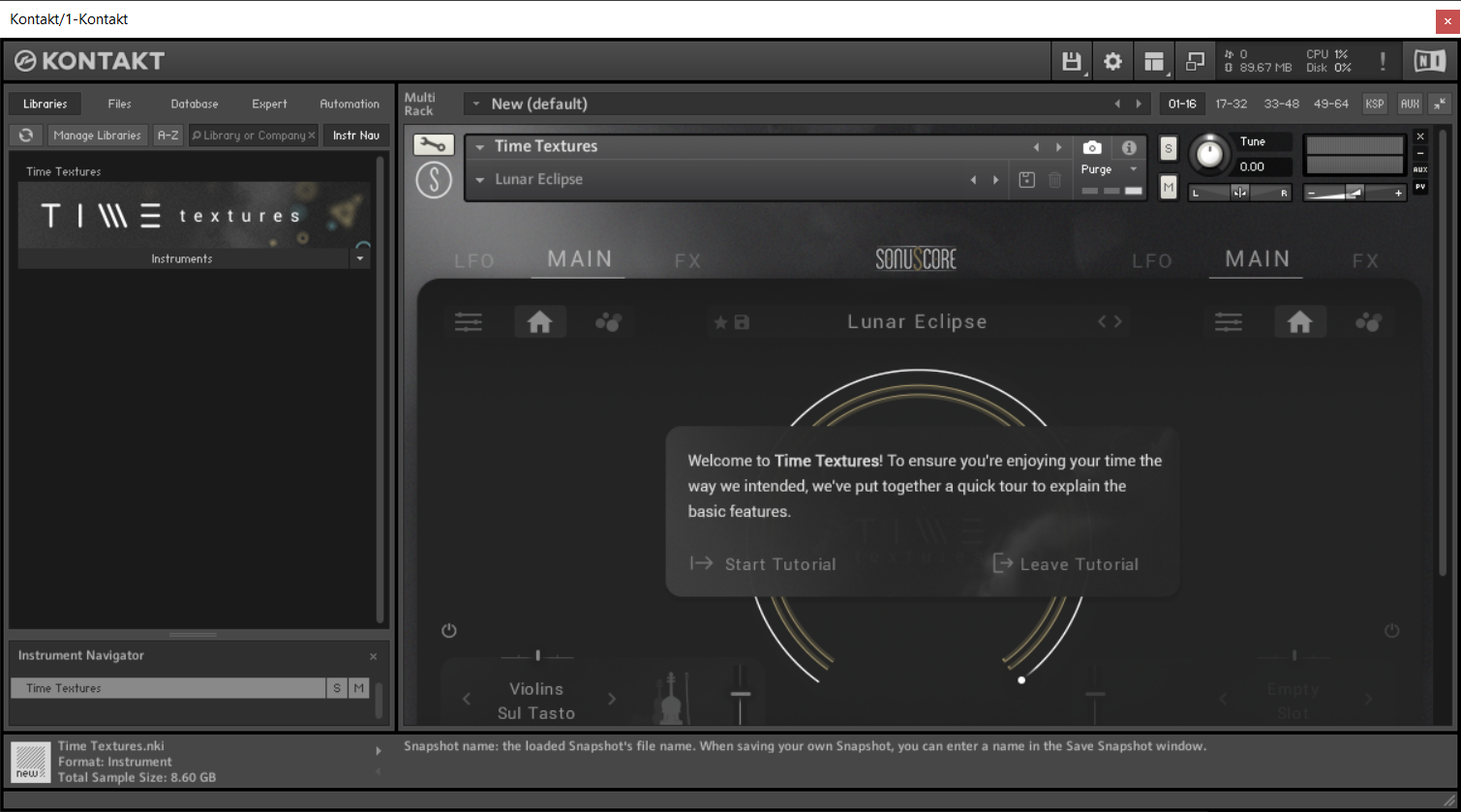
10. Open Kontakt in your DAW > You should see Time Textures on the left sidebar > Click the drop-down bar and drag the .nki file into the middle of the window.

Your software is now ready to use in your DAW!

Windows
1. Download the .zip installer file from your Plugin Boutique account.
2. Double-click the extracted .exe file to begin the installation process > click ‘Run’.
3. Read the welcome message > click 'Next'.

4. Click 'Next' to begin the installation.

5. Native Access has now been installed > Click 'Finish'.

6. Open Native Access > Create a new Native ID if you do not have one already. If you do, skip ahead to step 8.

7. You will then receive an email with a confirmation link > Open the email and click 'CONFIRM EMAIL'.
8. Log in to Native Access with your Native ID.

9. Click 'Add a serial'.

10. Enter your Serial Number found in your Plugin Boutique account > Click 'ADD SERIAL'.

11. Click the 'Not installed' tab > Locate Time Textures > Click 'INSTALL'.

12. Your new Kontakt Instrument is now installed on your system.

13. Open Kontakt in your DAW > You should see Time Textures on the left sidebar > Click the drop-down bar and drag the .nki file into the middle of the window.

Your software is now ready to use in your DAW!