Buy Cattaneo Upright Piano, get a free gift with purchase:
CATTANEO Upright Piano is an intimate, unique-sounding piano which is simply perfect for songwriting, indie/pop and introspective scoring. With its HUMAN layer, real samples of pedal-sustained notes that get engaged whenever you use your midi sustain pedal (together with press/release noises responding to it when activated), you’ll feel like you were playing the real instrument.
Additionally you can engage 2 sound design layers to add swells and analog distortion, and one extra color layer, created by sampling a vintage claviharp. Use them combined or solo to achieve unique, surprising results.
Engage the cassette tape noises and wobble FX to enter a lo-fi world, add rhythm and movement with the arpeggiator, top-class reverb algorithms, delay, and 3 built-in pedal FX with 6 different FX types to choose. All you need to create beautiful piano music and beyond.
Features
- 647 samples (NCW format)
5 mixable channels:
- PIANO: main sound
- HUMAN: human performance noises
- SWELL: swells
- RUST: distortion
- COLOR: claviharp
FX and controls:
- ATTACK: customize the attack to your taste
- REVERB: choose between 6 top-class algorithms
- DELAY chose your delay type (Normal/Ping-Pong), time subdivision menu and level.
- SUSTAIN PEDAL Volume: if you engage it, it reacts to your midi sustain pedal sounding like a real one.
- TAPE SECTION: turn your electric piano into a lo-fi gem
- Tape Noises: choose between 6 samples cassette tape hiss types
- Wobble: add wobbling to get those typical, random detuning effects
- ARPEGGIATOR
- 3 FX PEDALS with 6 FX types each to choose between Eq, Compression, Saturation, Chorus, Phaser and Leslie
System Requirements
- Requires Kontakt Full Version 6.6.1+ (not compatible with the free Kontakt Player)
- Size (Uncompressed): 10.13 GB
Note: Nordisk Kontrabass is used as the example.
Mac
Installation
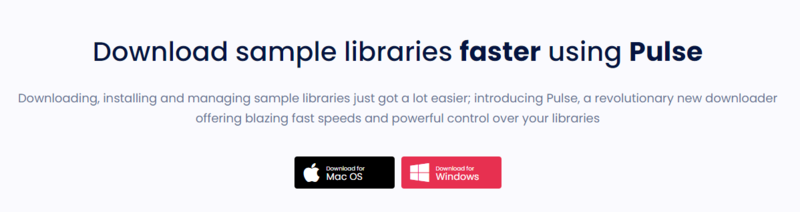
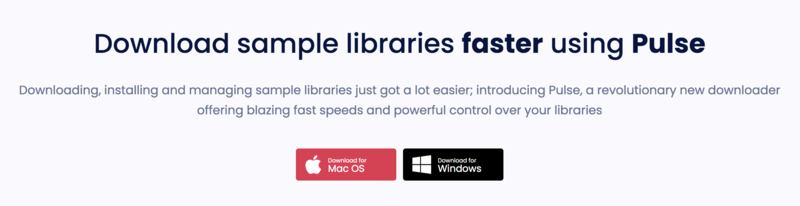
1. Go to https://pulsedownloader.com/ > Click 'Download for Mac OS' to download the Pulse application installer.

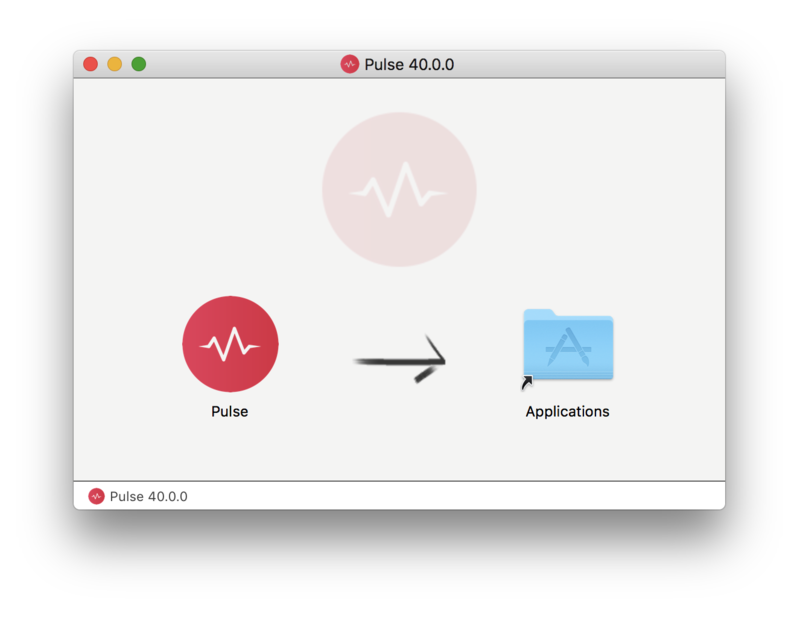
2. Open the .dmg file > Click and drag the application icon into the applications folder.

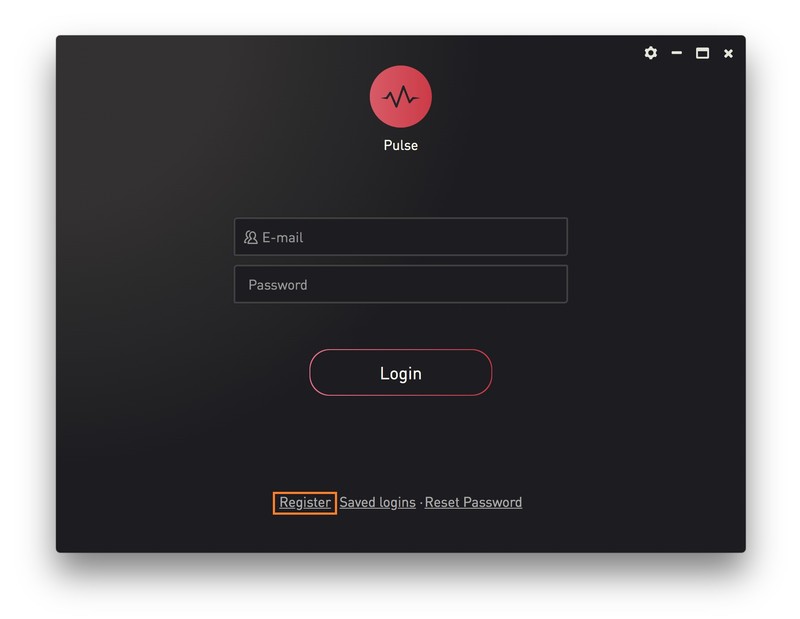
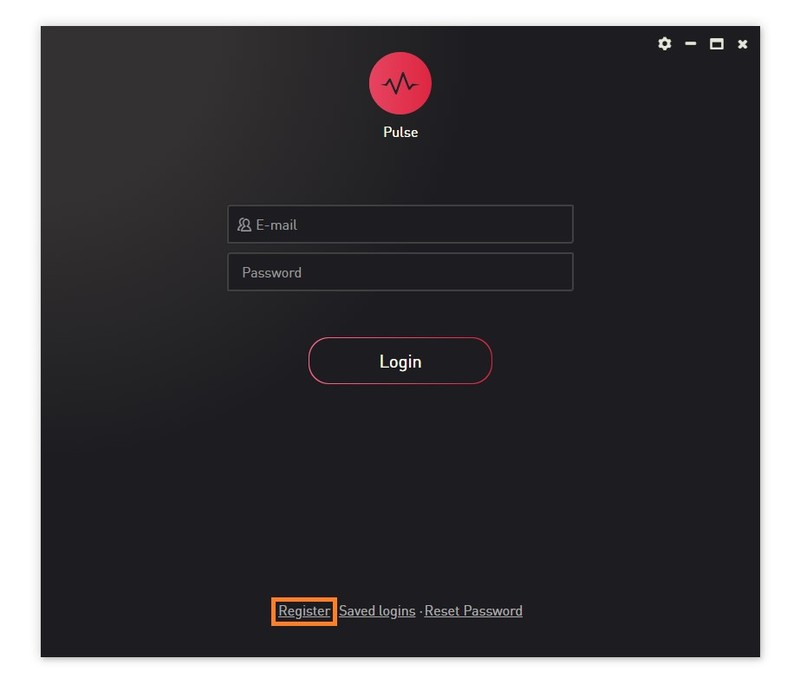
3. Open the Pulse application > Click 'Register'

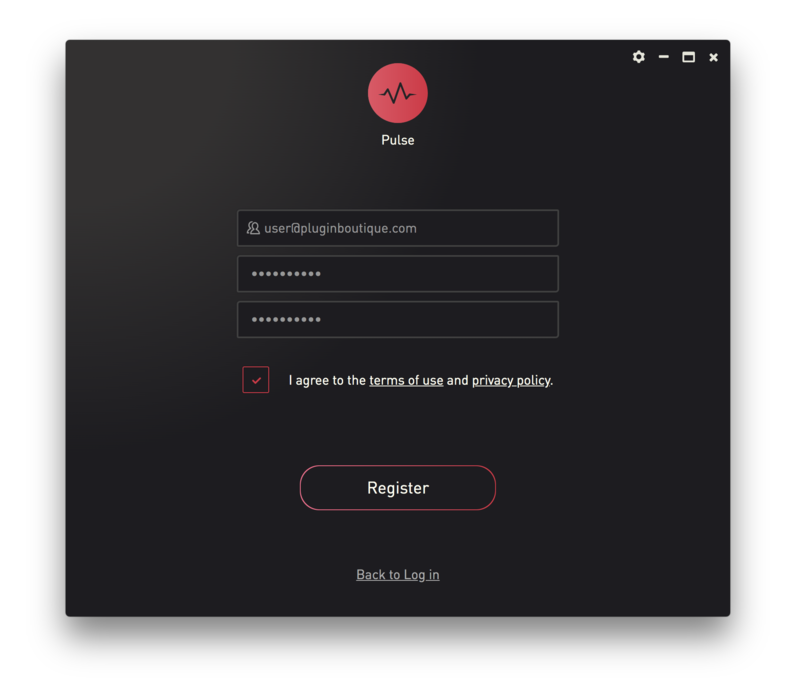
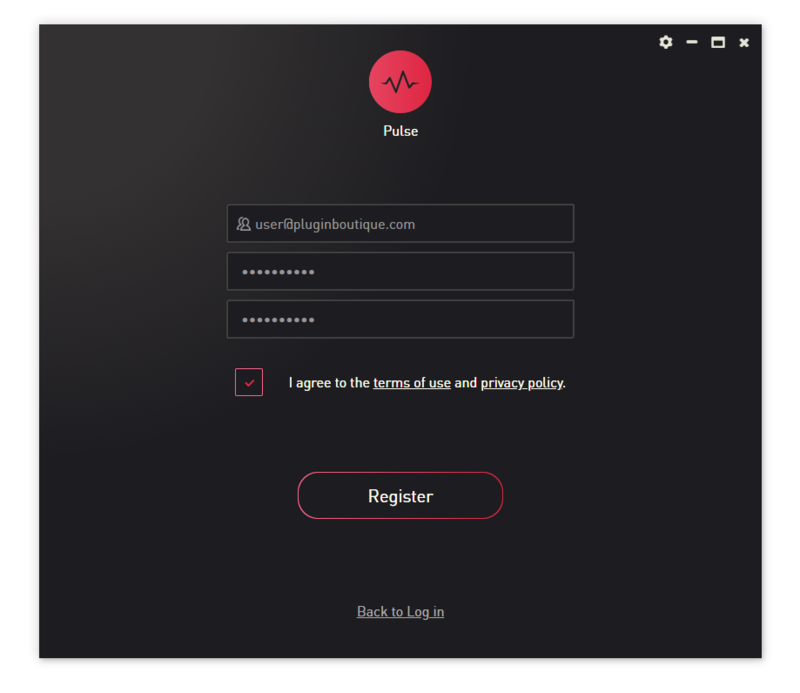
4. Enter your Email Address and Password > Check the box that states 'I agree to the terms of use and privacy policy' > Click 'Register'.

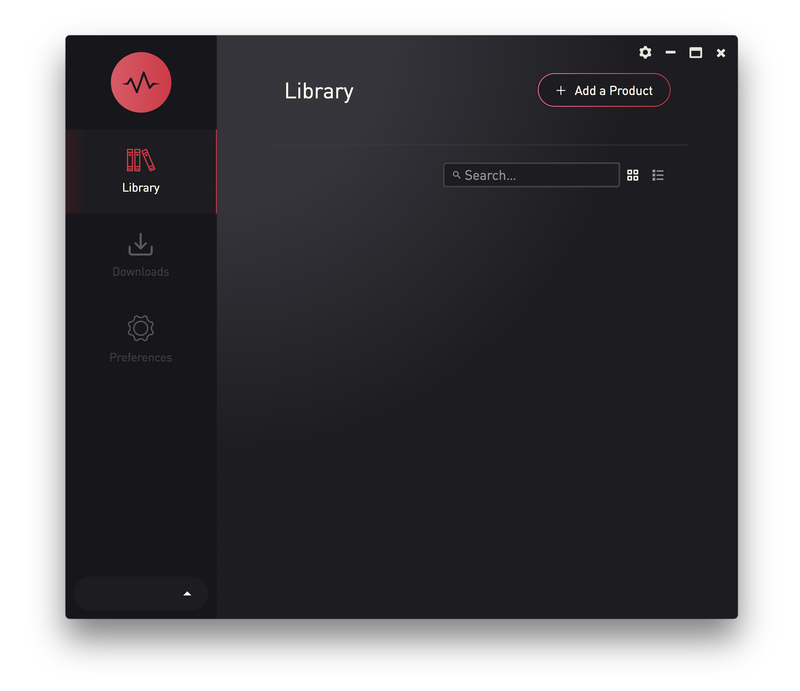
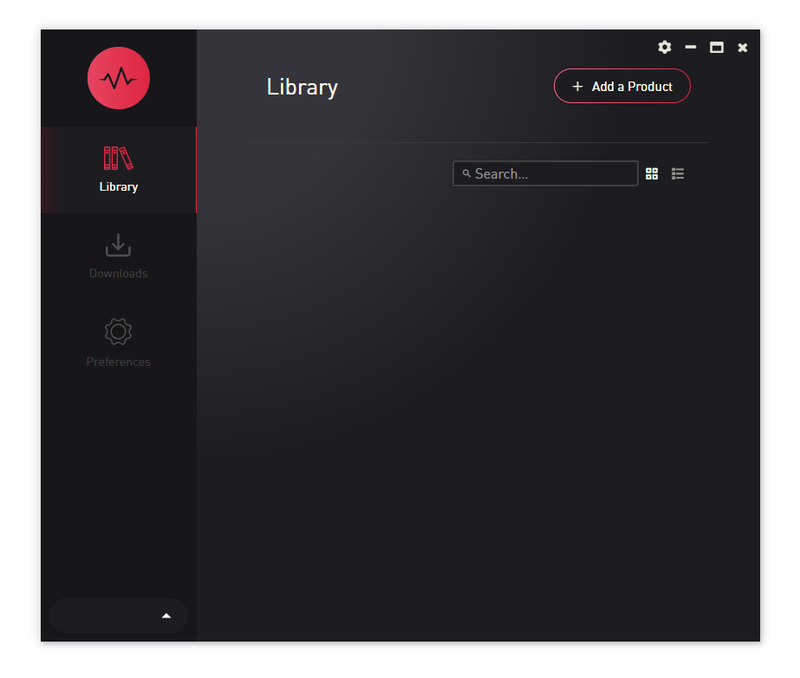
5. Click 'Add a Product'.

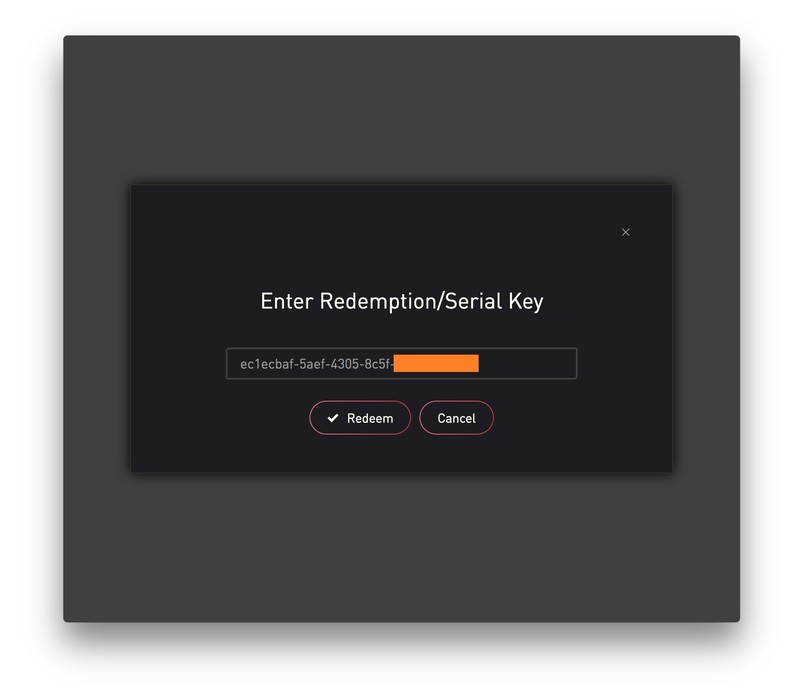
6. Enter your 32-digit serial key, found within the serial number section of your Plugin Boutique User Account > Click 'Redeem'.

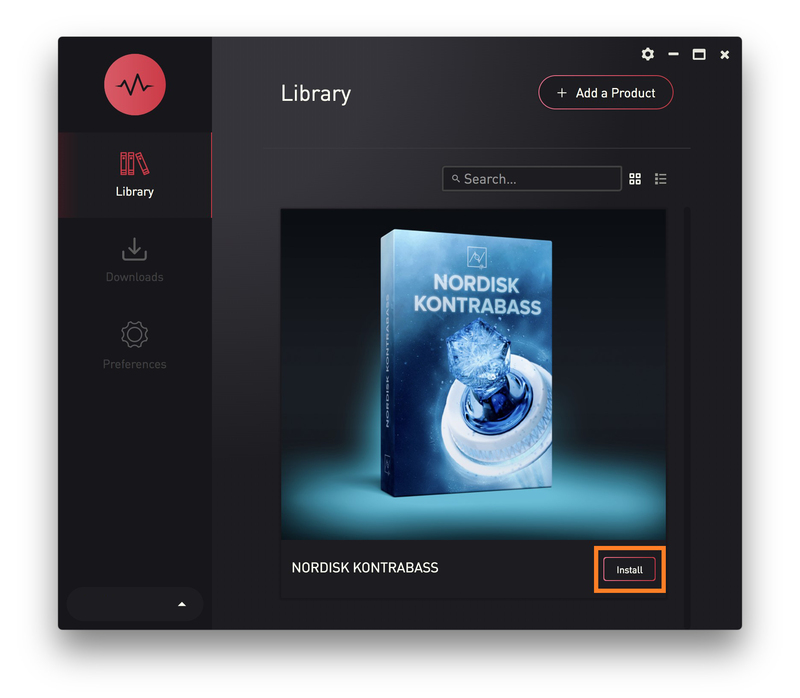
7. Click 'Install'.

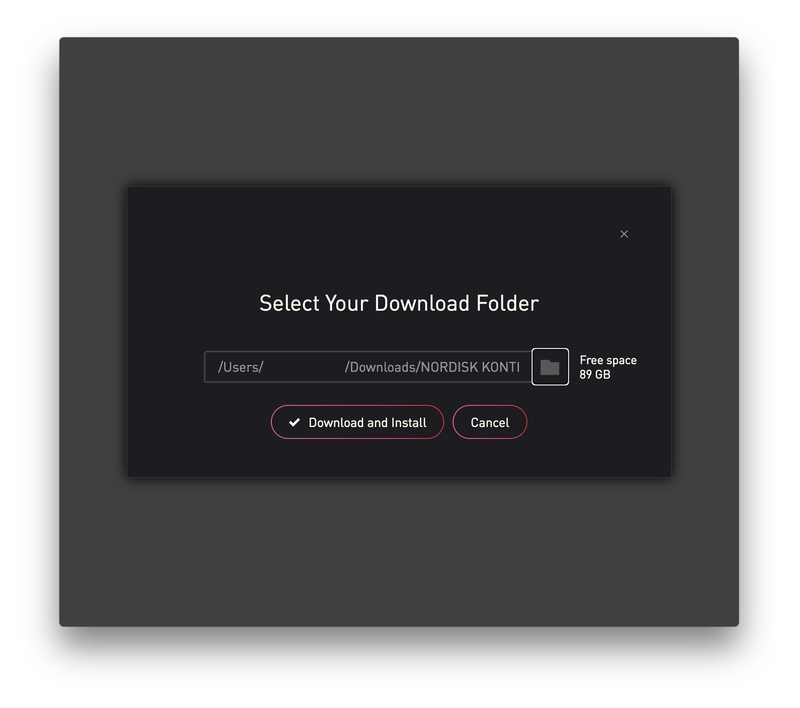
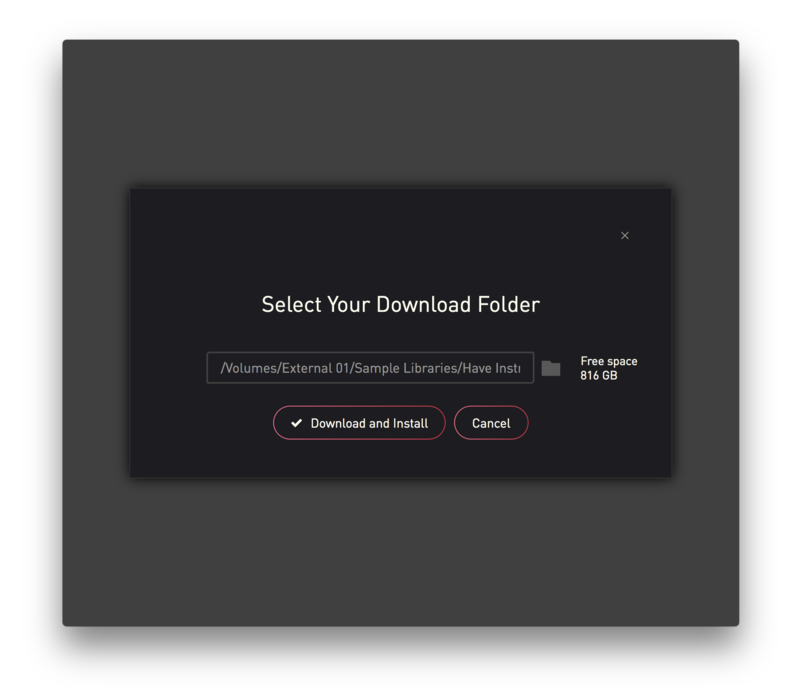
8. Click the folder icon to select the installation location for your library.

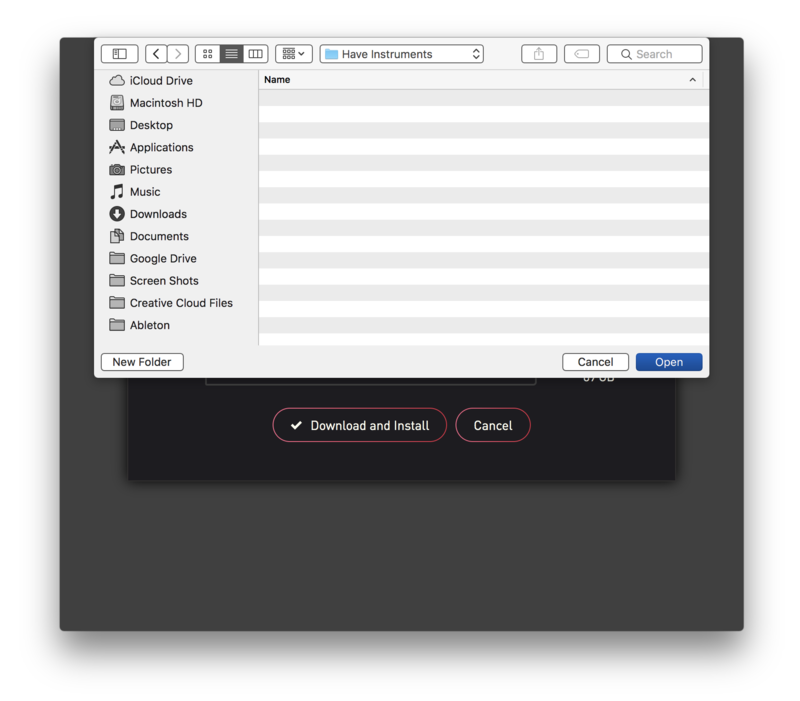
9. Choose your installation location > Click 'Open'.

10. Click 'Download and Install'.

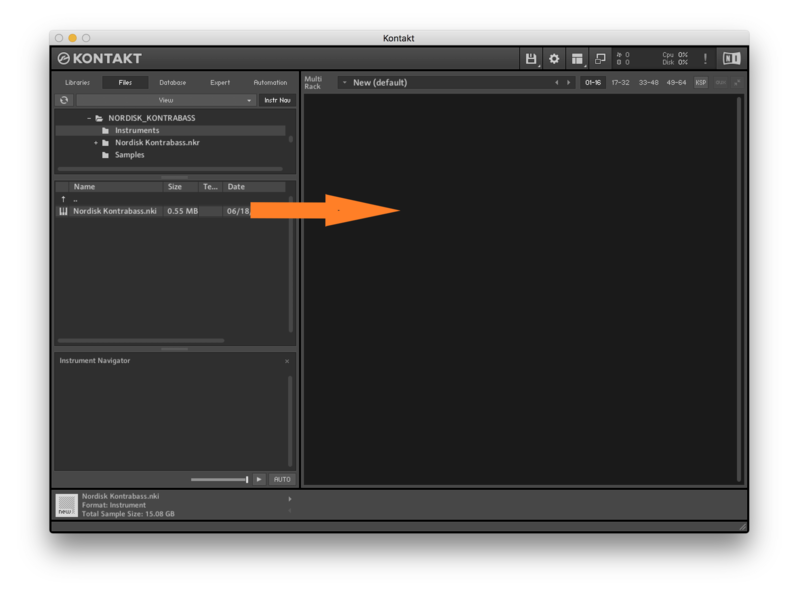
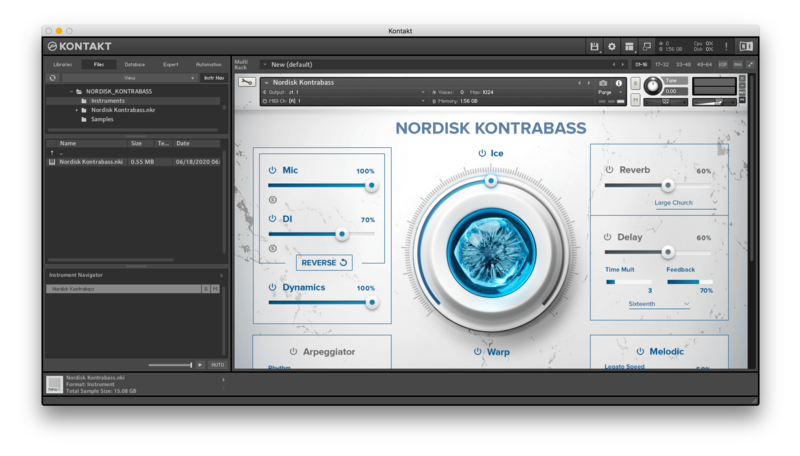
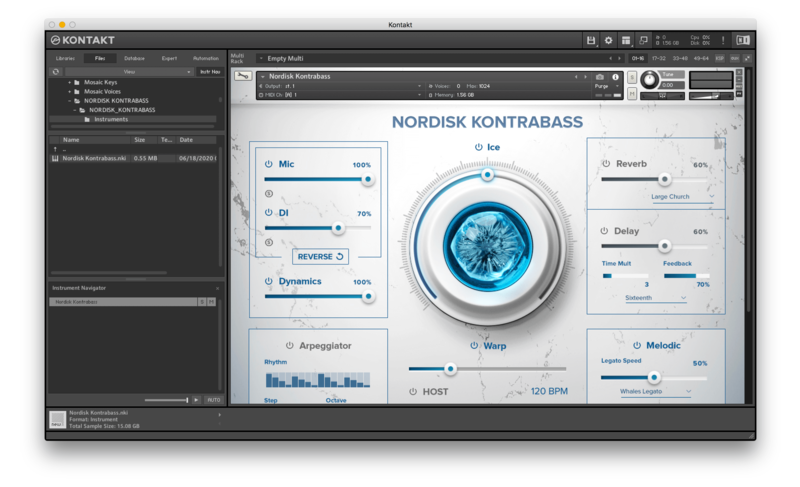
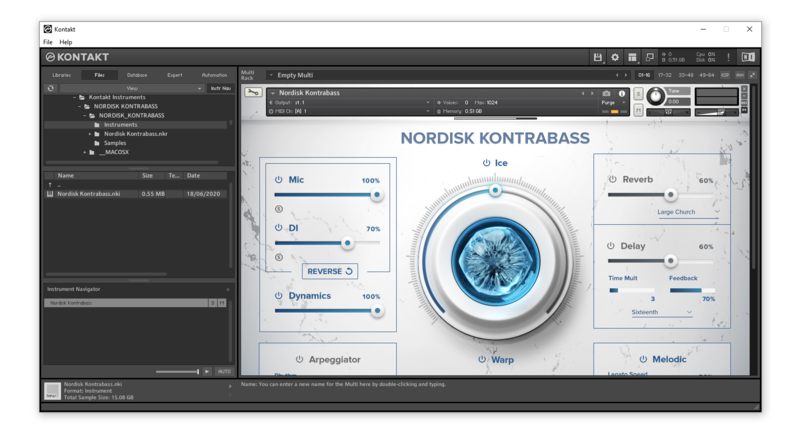
11. Open Kontakt > Select the 'Files' tab and navigate to your installed Kontakt library > Click and drag the .nki file into the empty window.

Your Kontakt Instrument is now installed and ready to use.

Batch Re-save Instructions
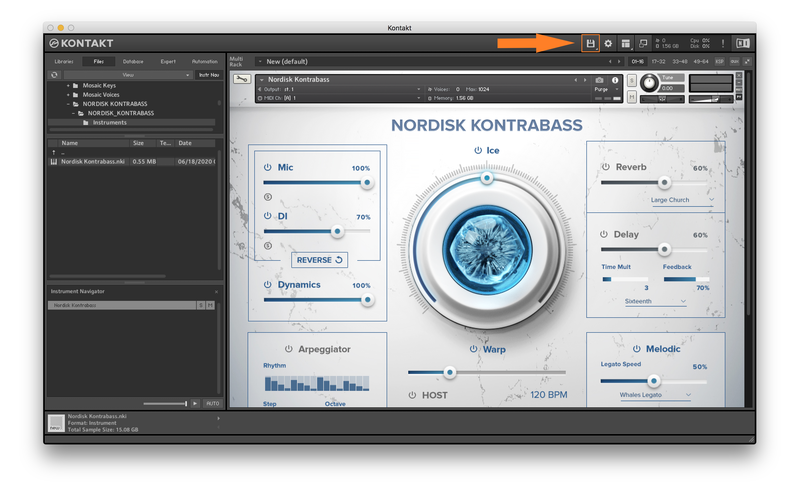
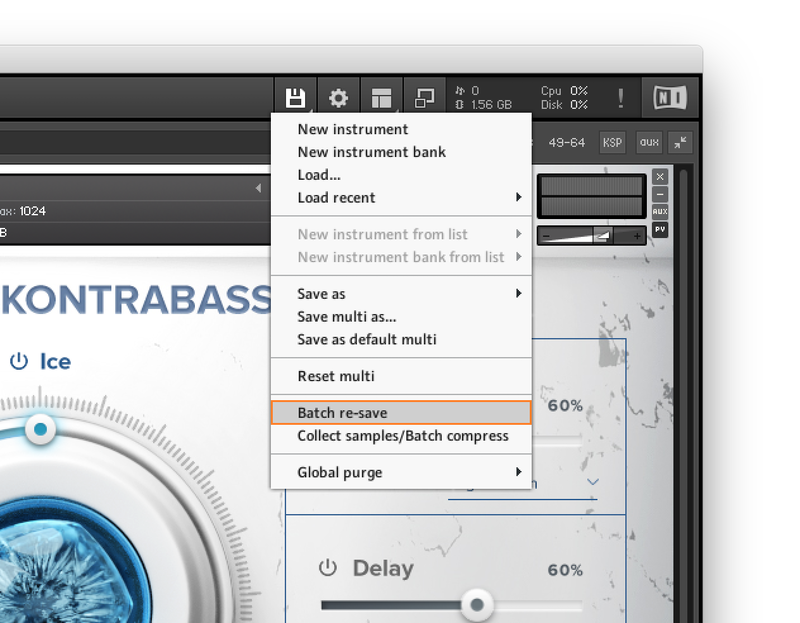
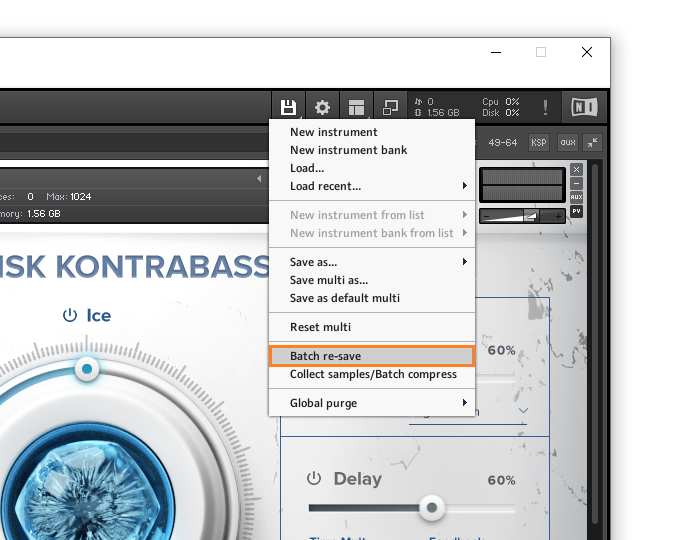
1. Within Kontakt, click the floppy disk icon.

2. From the drop-down menu, click 'Batch re-save'.

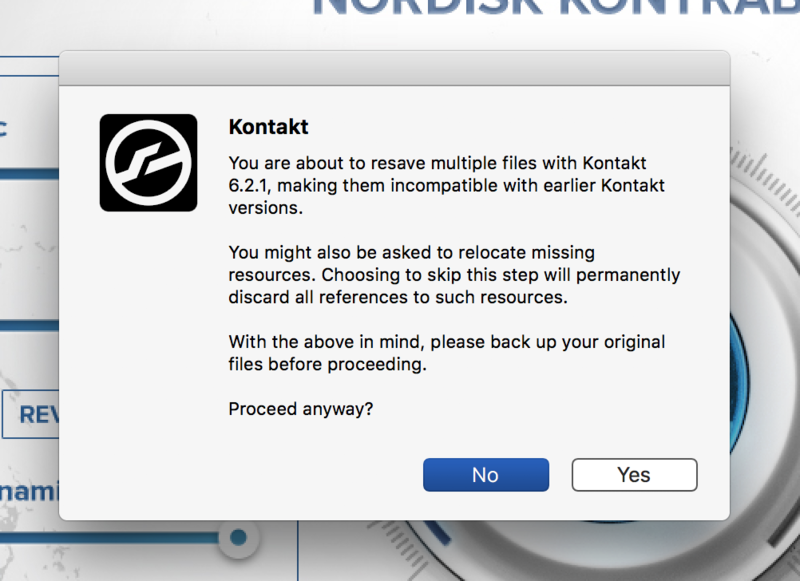
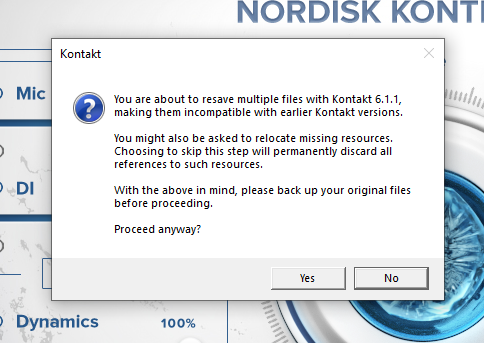
3. Click 'Yes'.

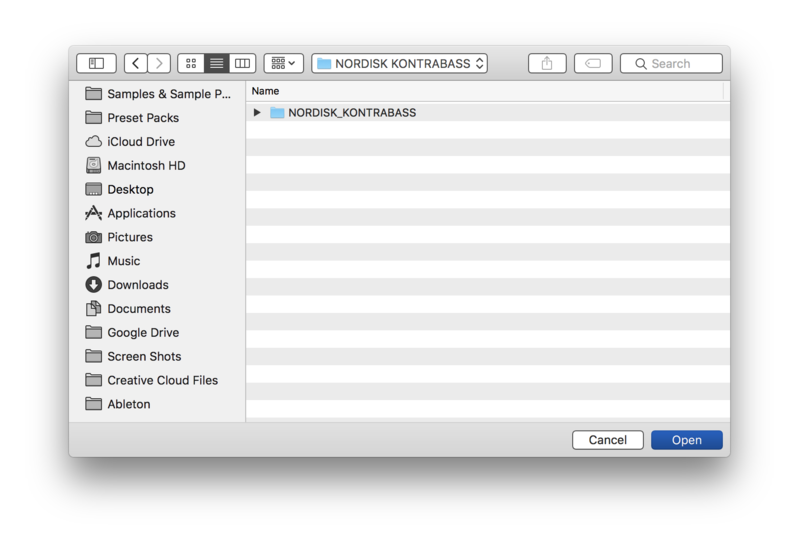
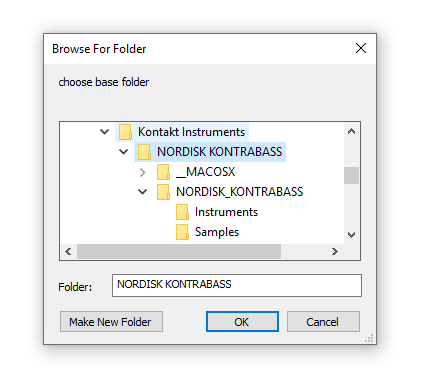
4. Navigate to the installation location for your Kontakt library > Click 'Open'.

Batch re-save is now complete and you can expect to see quicker loading times for your Kontakt Instrument.

Windows
Installation
1. Go to https://pulsedownloader.com/ > Click 'Download for Windows' to download the Pulse application installer.

2. Open the .exe file to install the Pulse application > Open Pulse and click 'Register'.

3. Enter your Email Address and Password > Check the box that states 'I agree to the terms of use and privacy policy' > Click 'Register'.

4. Click 'Add a Product'.

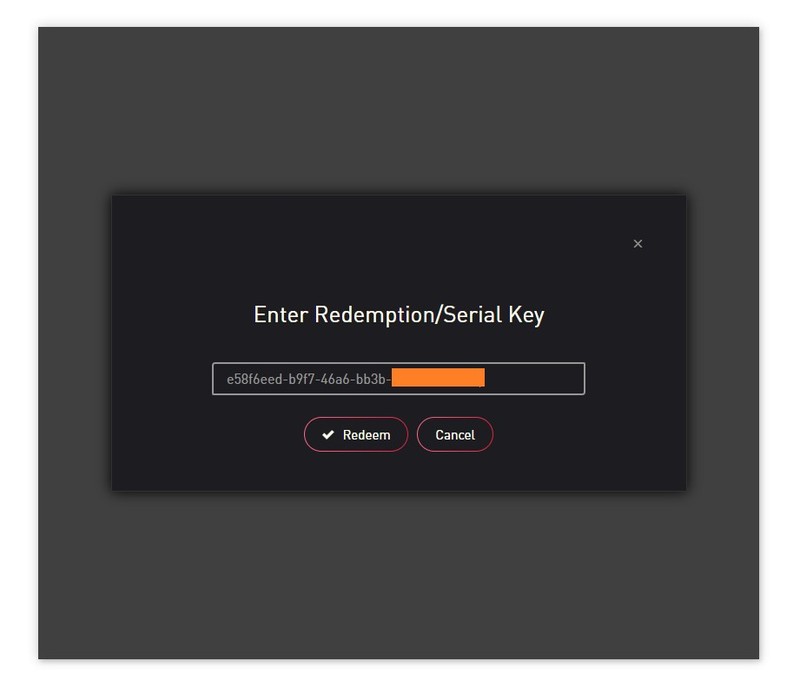
5. Enter your 32-digit serial key, found within the serial number section of your Plugin Boutique User Account > Click 'Redeem'.

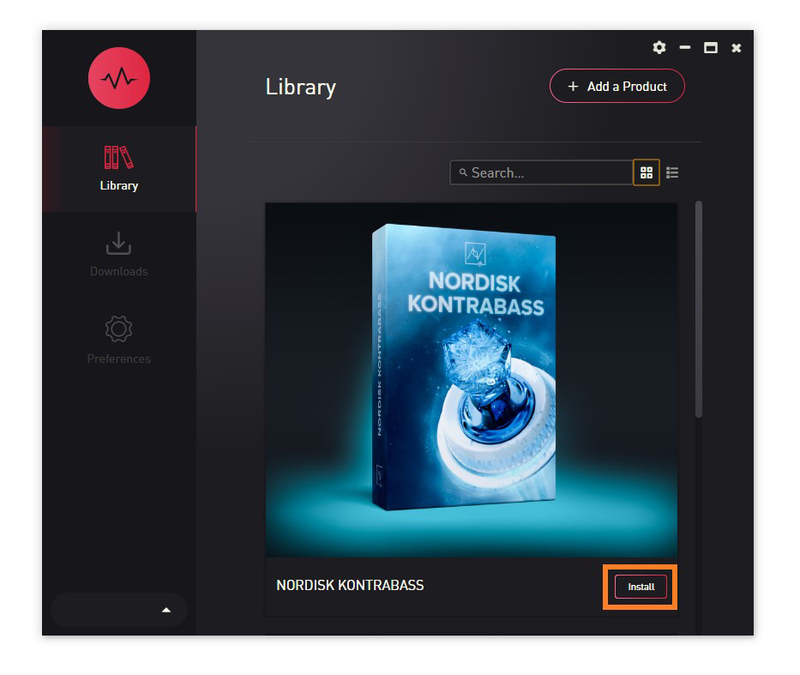
6. Click 'Install'.

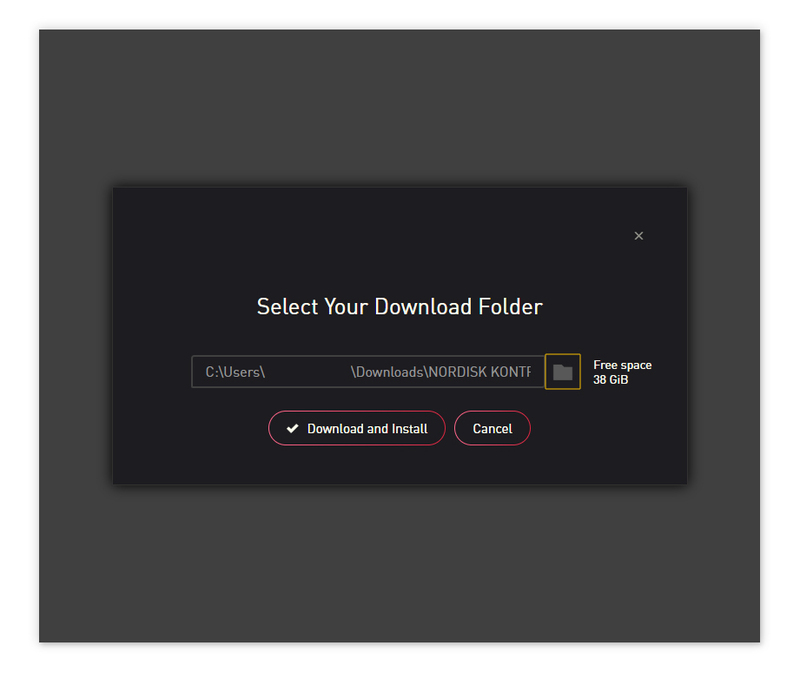
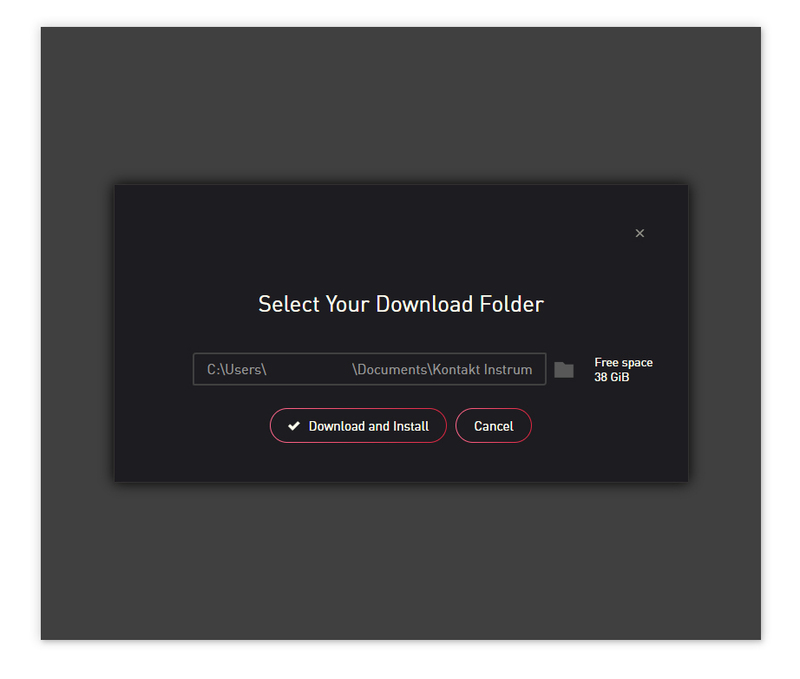
7. Click the folder icon to select the installation location for your library.

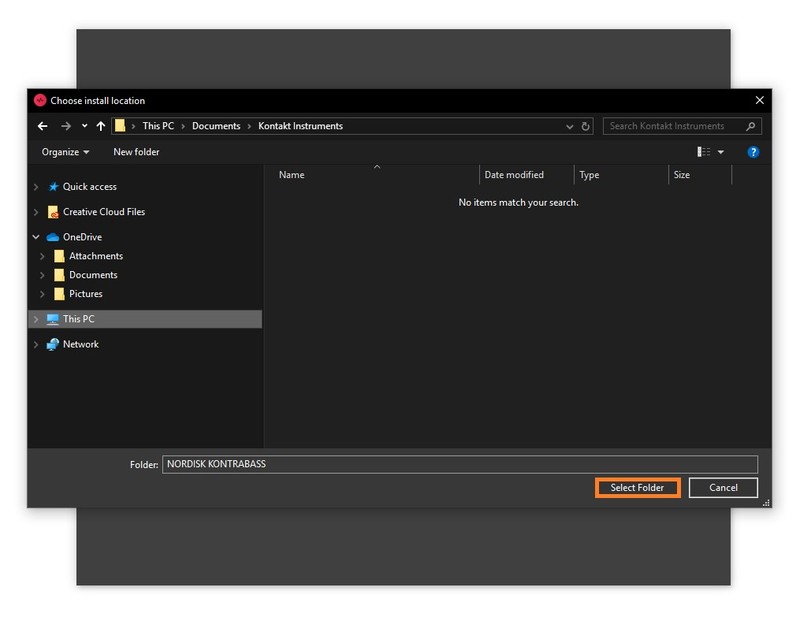
8. Choose your installation location > Click 'Select Folder'.

9. Click 'Download and Install'.

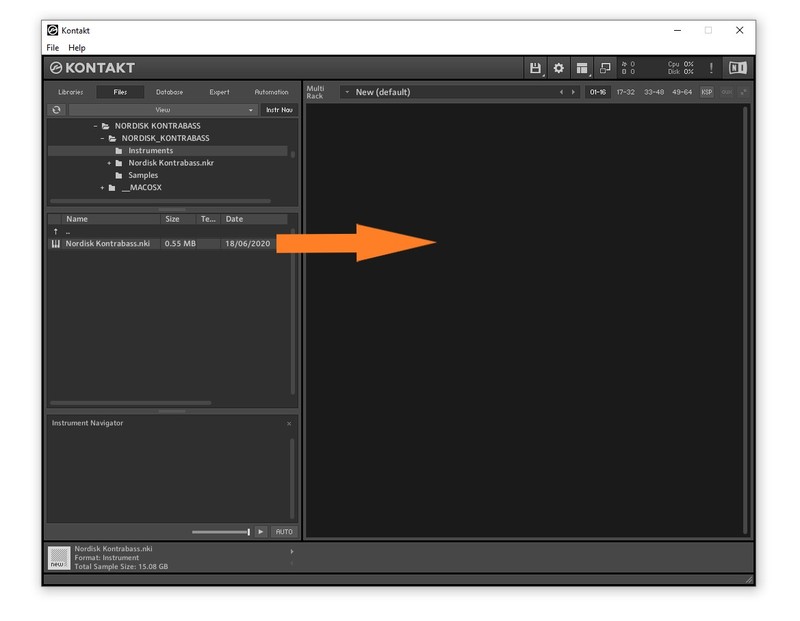
10. Open Kontakt > Select the 'Files' tab and navigate to your installed Kontakt library > Click and drag the .nki file into the empty window.

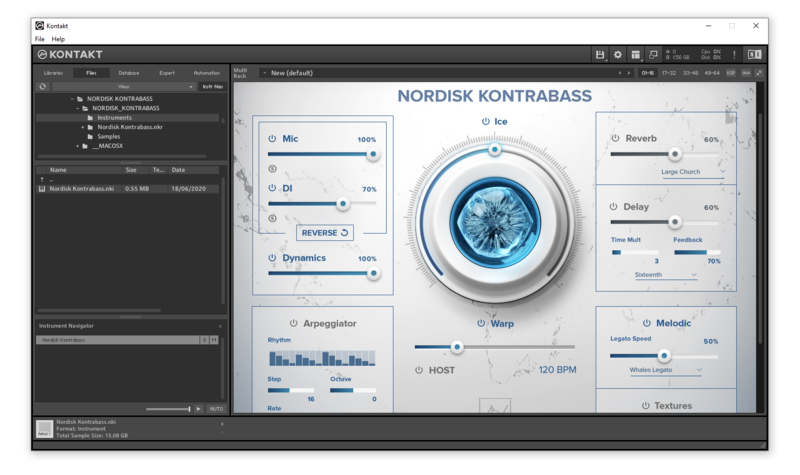
Your Kontakt Instrument is now installed and ready to use.

Batch Re-save Instructions
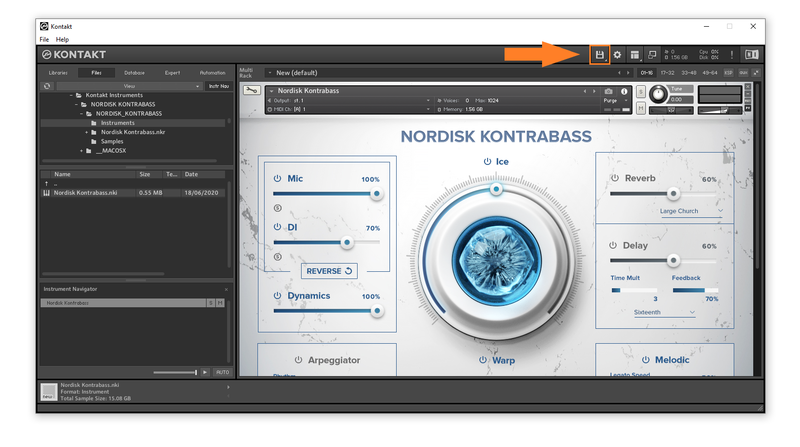
1. Within Kontakt, click the floppy disk icon.

2. From the drop-down menu, click 'Batch re-save'.

3. Click 'Yes'.

4. Navigate to the installation location for your Kontakt library > Click 'Ok'.

Batch re-save is now complete and you can expect to see quicker loading times for your Kontakt Instrument.