


 Log In
Free gifts available with your purchase
Dystopian sci-fi textures
- A collection of distorted guitars, futuristic synths, and warped sounds
- Blend smoothly between 16 hybrid sound layers, effects, and controls
- Stay in key with an extensive selection of scales and modes
- Part of the Scene series – smart and streamlined instruments for premium, cinematic sounds
Post-apocalyptic soundscapes
Enter a futuristic metropolis laid to waste. Scene: Bloodplant has all the ingredients you need to forge gritty, industrial textures for dark, dystopic science fiction soundtracks. Get started with 120 presets, layer up sound sources, and morph between textures and effects with the XY pad.
Morph seamlessly between textures, effects, and sound layers with the XY pad.
16 Sounds
Create expressive and evolving soundscapes by blending and layering 16 sound sources.
FX
Shape sounds with creative effects presets including reverbs, delays, and modulation.
Aftertouch
Experience hands-on control of parameters like volume, tuning, and motion with polyphonic aftertouch compatibility.
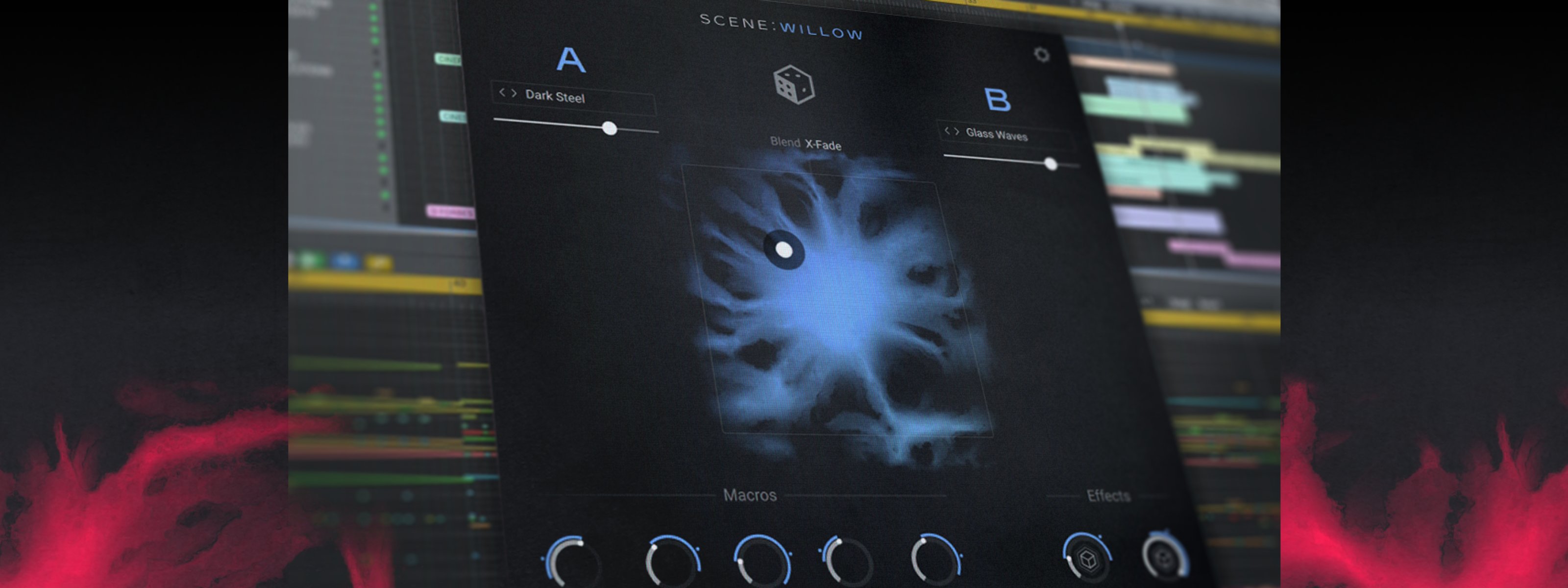
About the Scene series
Designed with media composers in mind, the Scene series offers premium cinematic sounds in a simple and easy-to-use interface. Centered around an XY pad, each instrument comes loaded with carefully-designed presets and streamlined controls, enabling you to quickly blend, layer, and shape the perfect sound for on-screen moments.
- Free Kontakt Player version 8.7.1 and higher, or Kontakt version 8.7.1 and higher.
Mac
- macOS 13, 14 or 15 (latest update)
- Intel Core i5/equivalent CPU or Apple Silicon
- 4 GB RAM (6 GB recommended)
- Supports Core Audio
- Graphics hardware support for Direct 3D 11.1 (Feature Level 11_0) or higher
Windows
- Windows 10 or 11 (64-bit, latest Service Pack) or Windows 11 (latest Service Pack)
- Intel Core i5 or equivalent CPU
- 4 GB RAM (6 GB recommended)
- Supports ASIO and WASAPI
- Graphics hardware support for Direct 3D 11.1 (Feature Level 11_0) or higher

Reviews Summary
While it aims to provide a helpful overview, it may not capture every perspective or detail. We encourage you to read individual reviews to make an informed decision.
Reviewers highly recommend this plugin for crafting dark, industrial, dystopian, sci-fi, and horror soundscapes. They highlight its strong customizable presets, powerful parameters and effects, and excellent value for money, finding it exceptionally well-suited for cinematic scoring.


