Mac
Registration
1. Visit https://heavyocity.com/my-account/ and fill out the account registration form > Click 'Register'.

Installation
1. Download the Heavyocity Product Portal Installer from within your Plugin Boutique User Account
2. Double-click the .pkg file to begin the installation > Click 'Continue'.
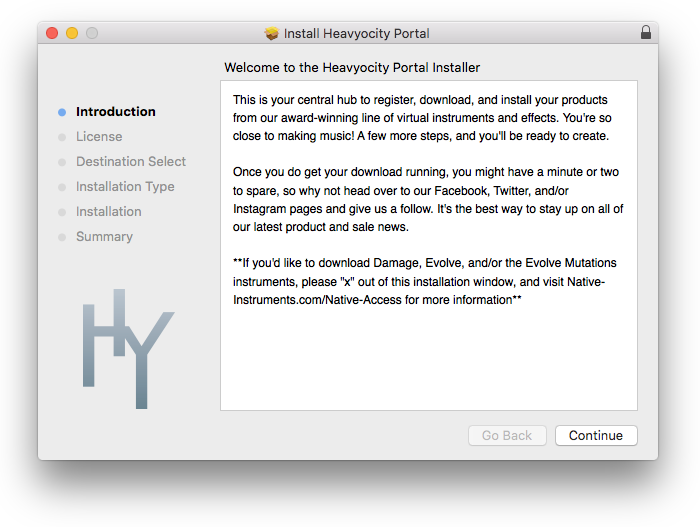
3. Click 'Continue'.
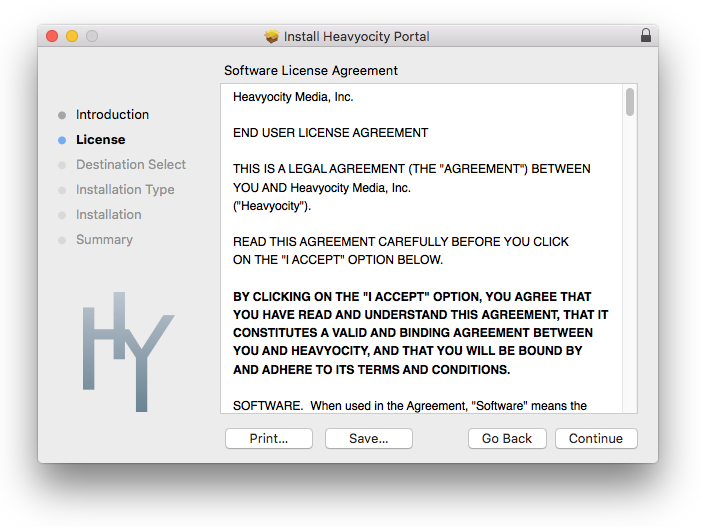
4. Click 'Agree'.
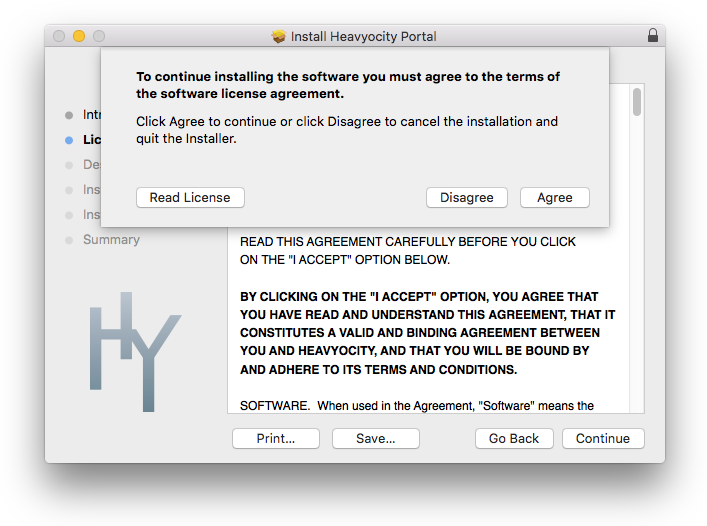
5. Click 'Install'.
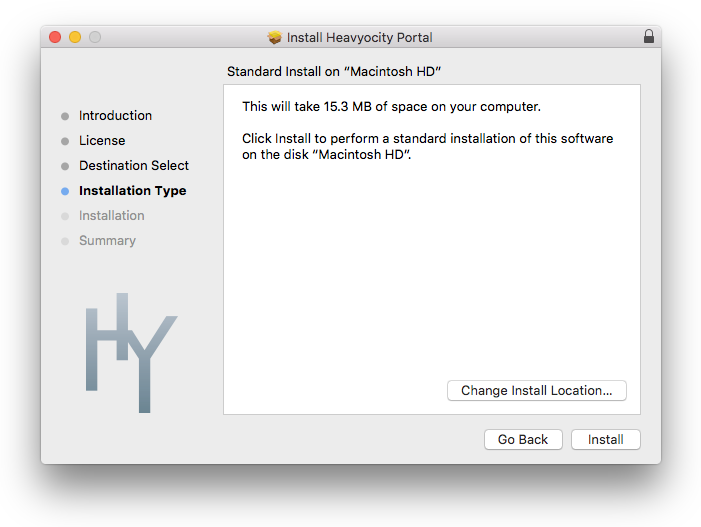
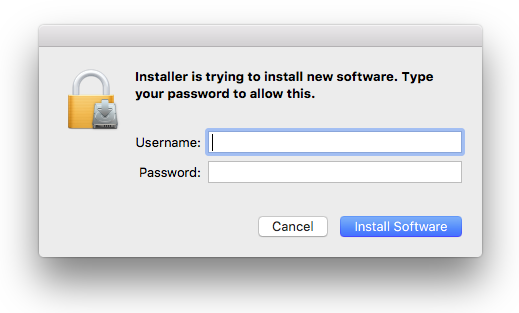
6. Enter your computer Username and Password > Click 'Install Software'.
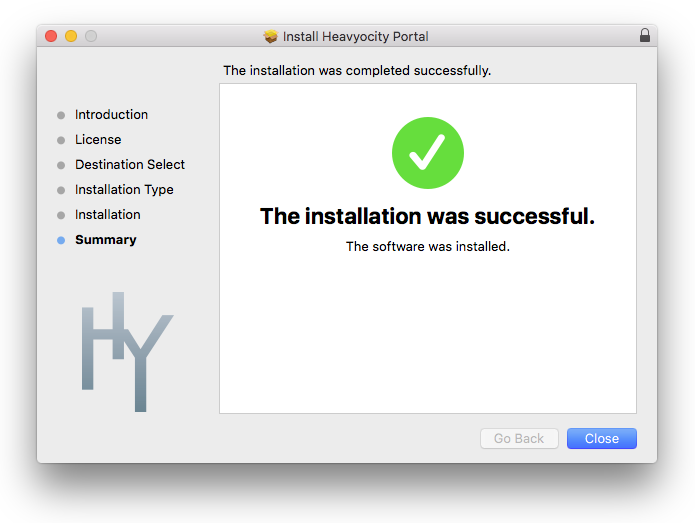
7. Click 'Close'.
8. Open the Heavyocity Portal and enter your Heavyocity-registered Username (Email Address) and Password > Click 'Login'.

9. Click 'Register Now', located at the bottom of the Product Portal.

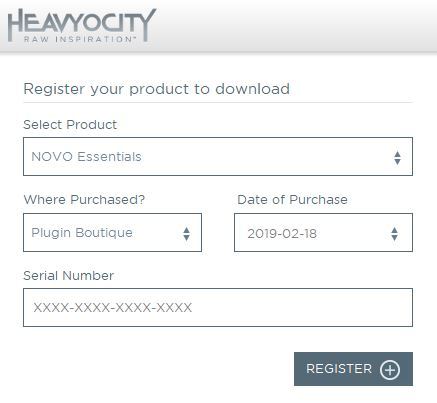
10. Complete the form and enter the serial number found in your Plugin Boutique User Account > Click 'Register'.
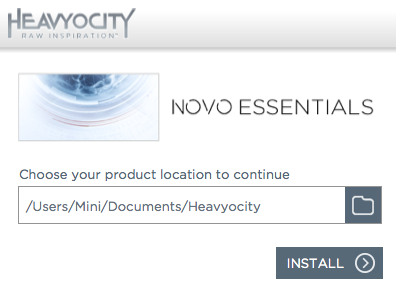
11. Click 'Install' on the far right of the portal.

12. Select an installation location for your Heavyocity product > Click 'Install'.
Activation
1. Log in to Native Access.

2. Click 'Add a serial' in the top left corner of Native Access.

3. Enter the serial number found in your Plugin Boutique User Account > Click 'Add Serial'.

4. Click 'Close'.

5. Click the 'Not Installed' tab on the left-hand side of Native Access.

6. Locate NOVO Essentials > Click 'Add Library'.

7. Click 'browse' and locate the recently installed product > Click 'Install'.

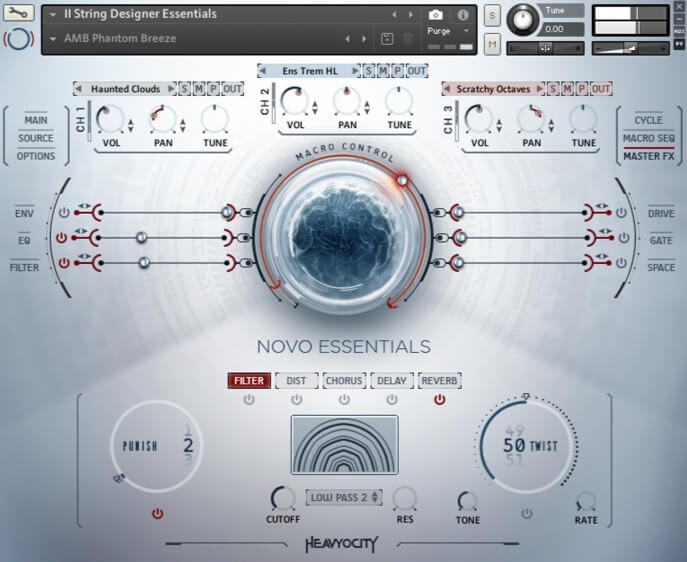
Your product is now activated and ready to use.
Windows
Registration
1. Visit https://heavyocity.com/my-account/ and fill out the account registration form > Click 'Register'.
Installation
1. Download the Heavyocity Product Portal Installer from within your Plugin Boutique User Account > Double-click the .zip file to extract the contents.
2. Double-click the .exe file to begin the installation > Click 'Next'.
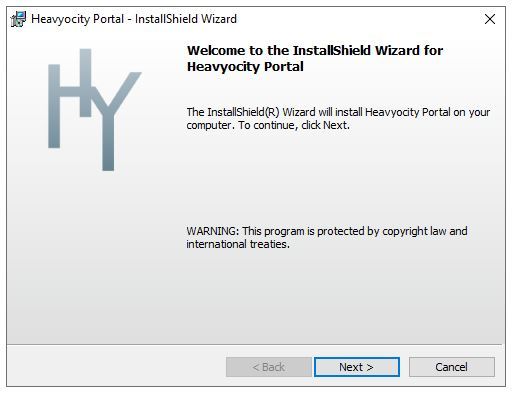
3. Select 'I accept the terms in the license agreement' > Click 'Next'.
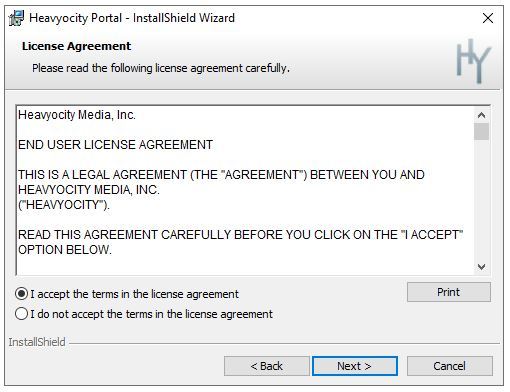
4. Click 'Next'.
5. Click 'Install'.

6. Click 'Finish'.
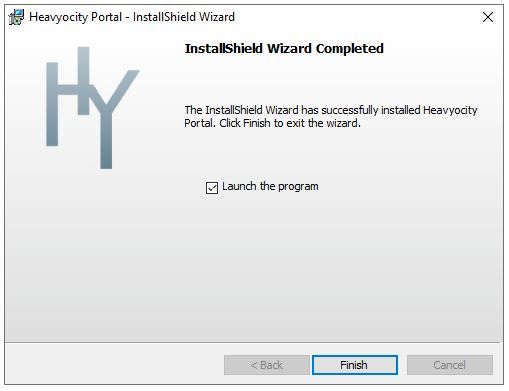
7. Enter your Heavyocity-registered Username (Email Address) and Password > Click 'Login'.
8. Click 'Register Now', located at the bottom of the Product Portal.
9. Complete the form and enter the serial number found in your Plugin Boutique User Account > Click 'Register'.
10. Click 'Install' on the far right of the portal.
11. Select the installation location for your Heavyocity product > Click 'Ok'.
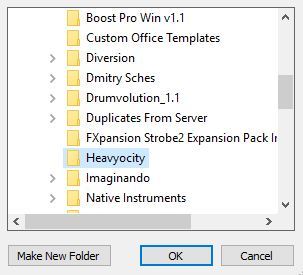
12. Click 'Install'.

Activation
1. Log in to Native Access.
2. Click 'Add a serial' in the top left corner of Native Access.
3. Enter the serial number found in your Plugin Boutique User Account > Click 'Add Serial'.
4. Click 'Close'.
5. Click the 'Not Installed' tab on the left-hand side of Native Access.
6. Locate NOVO Essentials > Click 'Add Library'.
7. Click 'browse' and locate the recently installed product > Click 'Install'.
Your product is now activated and ready to use.


 Log In


