Log In

Free gifts available with your purchase

Overview
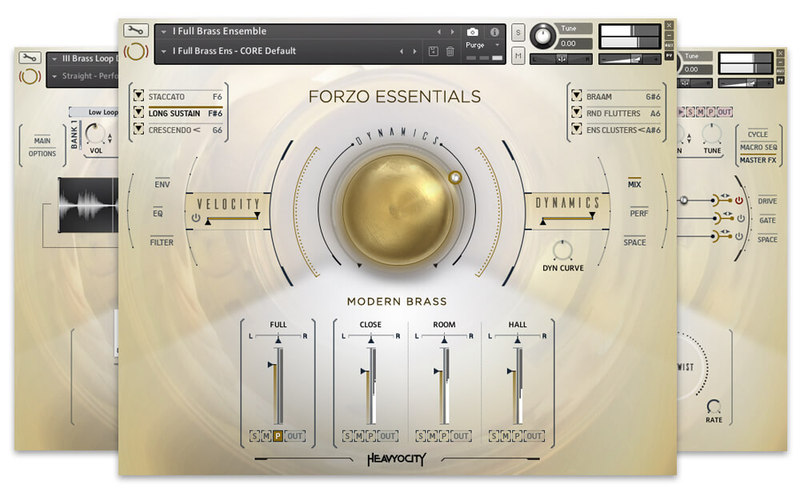
Introducing FORZO Essentials, a collection of core elements from Heavyocity's cinematic brass flagship, FORZO: Modern Brass. Recorded at the renowned Skywalker Sound in California, FORZO Essentials captures all of the orchestral brass power of the full FORZO instrument: explosive Traditional Brass, dynamic Hybrid Brass, and inspiring Brass Loops, but with a more-streamlined content set for composers of all budgets and levels of experience.
What's included?
- A curated selection of core orchestral brass content from FORZO: Modern Brass.
- Powerful traditional brass for quick composition.
- Cinematic hybrid brass for dynamic sound design.
- Inspiring rhythmic loops.
Traditional
Whether you’re a pro on a deadline, or a composer looking for an intro to production-ready cinematic brass, FORZO Essentials delivers the bombastic sound of 26 Hollywood brass players, performing at the same time in the same legendary room. That’s the sound of the FORZO Essentials Full Ensemble preset: 12 french horns, four trumpets, eight trombones, and two tubas performing six key articulations (Sustains, Staccatos, Crescendos, Braams, Random Flutters, Cluster Crescendos) at one of the world’s premier scoring stages.
Evolved
FORZO Essentials is the beyond-ordinary brass of FORZO, with an additional dose of Heavyocity’s signature sound design. Heavyocity's award-winning creative team has effected, tweaked, and treated these pristine brass samples into an all-new crop of hybrid cinematic elements: with 25 unique Hybrid snapshots and 36 Loops. Add in the full functionalities of the innovative FORZO engine, and composers of all budgets and styles now have access to this new benchmark in orchestral brass.
Content
Traditional (Clean Engine)
- I Full Brass Ensemble - 26 Players (Articulations: Staccato, Long Sustain, Crescendo, Bramm, Random Flutters, Ensemble Cluster Crescendo)
Evolved Content
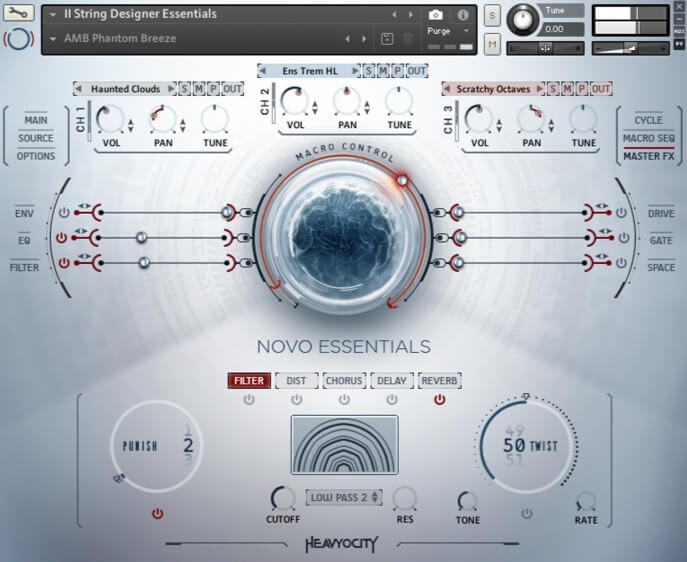
- II Brass Designer - 3 Channel Based Sound Browser (1 NKI, 44 Snapshots)
- III Brass Loop Designer - 3 Channel Based Loop Browser (1 NKI, 11 Snapshots)
Full Ensemble (24 Sources)
- Ens Staccato (Mix, Close, Room, and Hall)
- Ens Long Sustain (Mix, Close, Room, and Hall)
- Ens Crescendo (Mix, Close, Room, and Hall)
- Ens Bramm (Mix, Close, Room, and Hall)
- Ens Random Flutters (Mix, Close, Room, and Hall)
- Ens Cluster Crescendo (Mix, Close, Room, and Hall)
Straight Loops (36 Total)
- 12 Ambient (4 Low, 4 Mid, 4 High)
- 12 Motif (4 Low, 4 Mid, 4 High)
- 12 Rhythmic (4 Low, 4 Mid, 4 High)
Tech Specs
- 2.9 GB uncompressed (1.5 GB on Disk with NI lossless compression).
- Available as direct download only.
- 2,382 Samples.
- 54 All-New Snapshot Presets.
- 36 Rhythmic Loops.
- 3 NKIs:
- One Full Ensemble Preset featuring 6 Core Articulations (Sustain, Staccato, Crescendo, Braam, Random Flutter, Cluster Crescendo).
- Brass Designer.
- Brass Loop Designer.
- Intuitive Sample Browser.
- CYCLE page for advanced granular & rhythmic playback.
- MACRO knob for dynamic multi-parameter control.
- Stand-alone, VST, AU, AAX.
- Komplete Kontrol integrated (NKS-ready).
System Requirements
- Mac: macOS 10.12, 10.13, 10.14 or 10.15 (latest update), i5, 4 GB RAM.
- PC: Windows 7, Windows 8, or Windows 10 (latest Service Pack), Intel Core i5 or equivalent CPU, 2 GB RAM.
- Powered by the Kontakt 6 Engine
- Kontakt 6.2 (Player) or later
- Komplete Kontrol integrated (NKS-ready)