Log In

Free gifts available with your purchase

Overview
Like its string and brass Essential predecessors, VENTO Essentials is Heavyocity's answer to the rational; in this case, delivering a fresh and original take on what woodwinds are capable of in modern scores. A seamless Full Ensemble preset places the unique character of a 12-piece woodwinds orchestra at your fingertips. Add in 25 all-new Hybrid snapshots and 36 Loops, and VENTO Essentials brims with musical possible, delivering an inspiring woodwinds experience for composers of all budgets and levels of experience.
What's Included?
- A collection of Core Elements from Vento: Modern Woodwinds.
- A 12-piece Full Woodwinds Ensemble with six articulations.
- Contemporary woodwinds designer transforms the traditional.
- Inspiring woodwind loops inject instant character into your score.
Traditional
VENTO Essentials Traditional Woodwinds preset is anything but. Determined to push woodwinds beyond the conventional, Heavyocity sought to carve out a new niche - combining unique articulations to create a palette of expressive woodwinds content destined for modern scores. VENTO Essentials provides a great sample of that initial mission, featuring seven sections (Flutes, Oboes, Clarinets, Contra Bass Clarinet, Bassoon and Contra Basson) and six articulations (Sustains, Staccatos, Crescendos, Subtle Pulses, Random Vibratos and Cluster Crescendos).
Evolved
VENTO Essentials is the sonic potential of a 12-piece woodwind orchestra, plus Heavyocity's signature sound-design techniques: tweaking, processing, mangling, and mashing up these meticulously-recorded sources into an all-new crop of hybrid cinematic elements. Featuring 25 all-new Hybrid snapshots and VENTO Essentials delivers a fresh crop of signature sounds straight into the hands of the modern composer.
Content
Traditional (Clean Engine)
- I Full Woodwind Ensemble Section (1 NKIs, 4 Snapshots)
- 12 Players (Articulations: Long Sustain, Staccato, Crescendo, Subtle Pulses, Random Vibrato, Cluster Crescendo)
Evolved Content
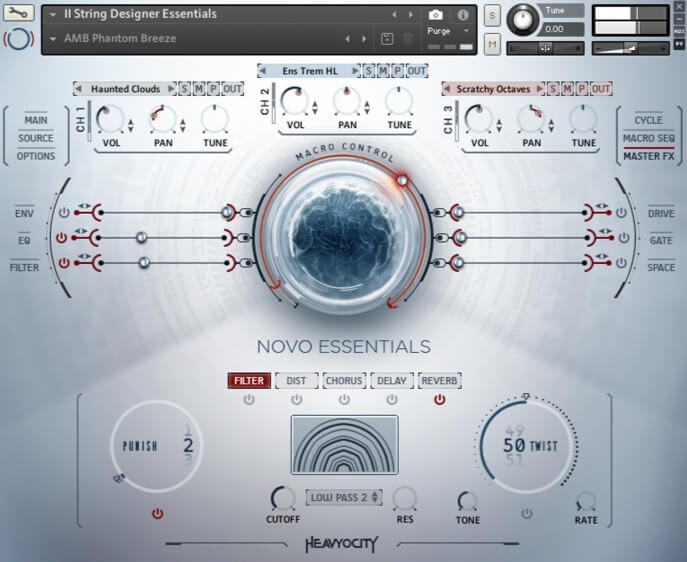
- II Woodwind Designer Essentials - 3 Channel Based Sound Browser (1 NKI, 39 Snapshots)
- III WW Loop Designer Essentials - 3 Channel Based Loop Browser (1 NKI, 12 Snapshots)
Full Ensemble (60 Sources)
- Low Long Sustain (Mix, Close, Room, and Hall)
- Low Staccato (Mix, Close, Room, and Hall)
- Low Crescendo (Mix, Close, Room, and Hall)
- Low Subtle Pulses (Mix, Close, Room, and Hall)
- Low Random Vibrato (Mix, Close, Room, and Hall)
- Low Cluster Crescendo (Mix, Close, Room, and Hall)
Straight Loops (36 Total)
- 12 Ambient (4 Low, 4 Mid, 4 High)
- 12 Motif (4 Low, 4 Mid, 4 High)
- 12 Rhythmic (4 Low, 4 Mid, 4 High)
Tech Specs
- 3.86 GB uncompressed (2.3 GB on Disk with NI lossless compression).
- Available as direct download only.
- 2,235 Samples.
- 55 All-New Snapshot Presets.
- 36 Woodwinds Loops.
- 3 NKIs:
- One Full Ensemble Preset featuring six Core Articulations (Sustains, Staccatos, Crescendos, Subtle Pulses, Random Vibratos, Cluster Crescendos).
- Woodwinds Designer.
- Woodwinds Loop Designer.
- Intuitive Sample Browser.
- CYCLE page for advanced granular & rhythmic playback.
- MACRO knob for dynamic multi-parameter control.
- Stand-alone, VST, AU, AAX.
- Komplete Kontrol integrated (NKS-ready).
System Requirements
- Mac: macOS 10.13, 10.14 or 10.15 (latest update), i5, 4 GB RAM.
- PC: Windows 7, Windows 8, or Windows 10 (latest Service Pack), Intel Core i5 or equivalent CPU, 4 GB RAM.
- Powered by the Kontakt 6 Engine
- Kontakt 6.5.2 (Player) or later
- Komplete Kontrol integrated (NKS-ready)