Buy Pathfinder Cello, get a free gift with purchase:
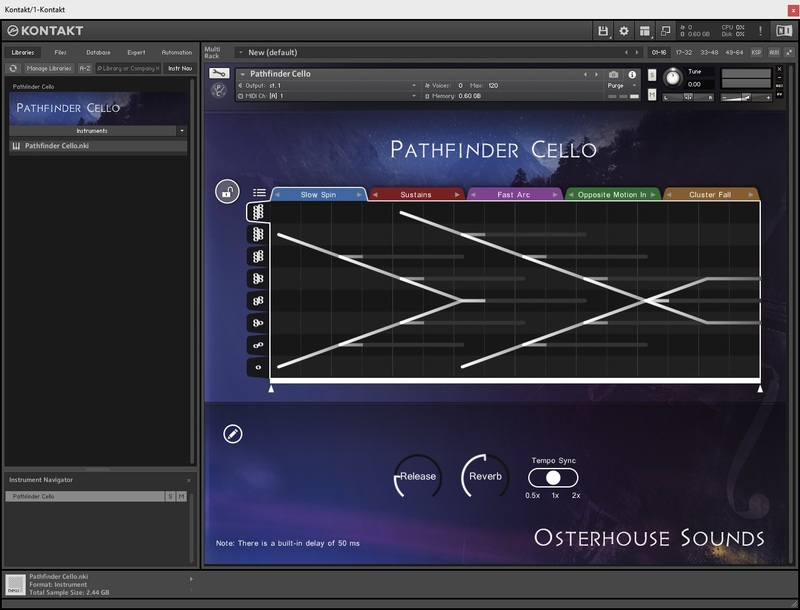
Pathfinder Cello is a rhythmic legato library, ideal for creating expressive phrases and ostinatos.
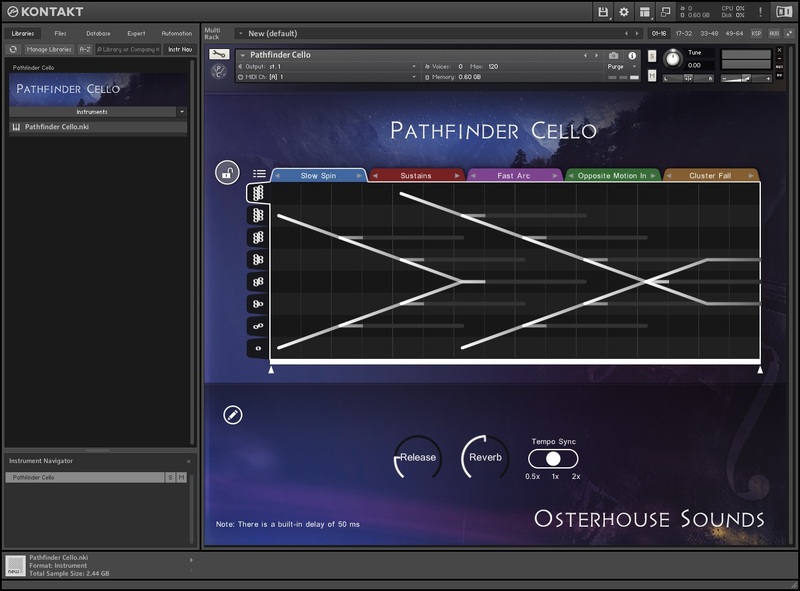
Feed it a chord, and it will play phrases based upon the notes of the chord.
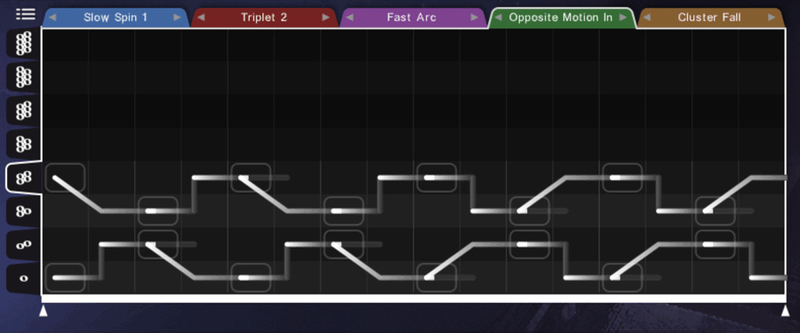
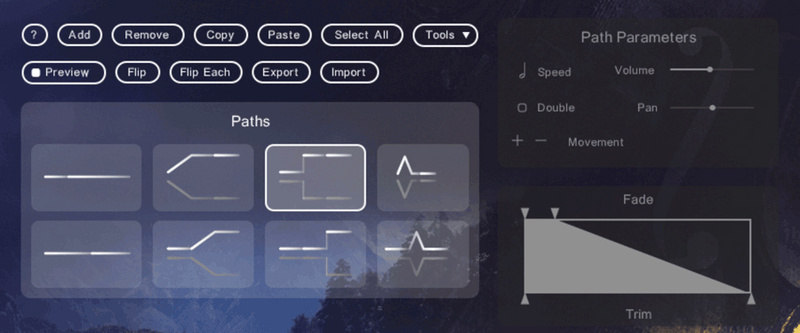
These phrases are determined by a graphic notation consisting of “paths”.
Features
- Microphrases tempo-sync to your DAW’s bpm, using Kontakt’s TMpro
- Tempo Sync multiplier provides greater control over how the samples are stretched by your project bpm
- Built-in preset browser contains 108 presets
- Drag and drop interface allows unlimited customization of the presets
- Compatible with the free Kontakt Player, with activation through Native Access. Download Kontakt Player from the Native Instruments website
- 2.4 GB (compressed)
- 9082 samples (each sample is a 2-4 second microphrase)
System Requirements
- Kontakt Player 6.6.1 and above
- Windows 7/8/10 (Windows 11 should work, but it’s not officially supported until the release of Kontakt 6.7)
- macOS 10.13 and above
- This library will take a substantial chunk of CPU and memory. It's recommended that you have at least 8GB of RAM

Note: This product is compatible with the FREE Kontakt Player 6.6.1 or later.
Pros Fantastic Kontakt scripting and interface Large collection of presets Beautiful cello samples Easily create your own custom cello performances Cons None Pathfinder Cello combines simple and organic live cello phrases with an innovative Kontakt Player interface all...
Read MoreMac
1. Download the .dmg installer file from your Plugin Boutique account.
2. Double-click the .dmg file to install Native Access.
3. Open Native Access > Create a new Native ID if you do not have one already. If you do, skip ahead to step 5.

4. You will then receive an email with a confirmation link > Open the email and click 'CONFIRM EMAIL'.
5. Log in to Native Access with your Native ID.

6. Click 'Add a serial'

7. Enter your Serial Number found in your Plugin Boutique account > Click 'ADD SERIAL'.

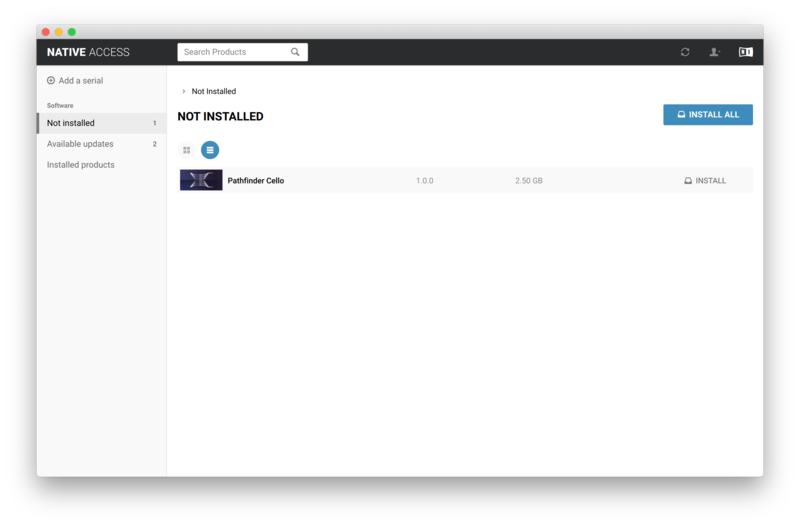
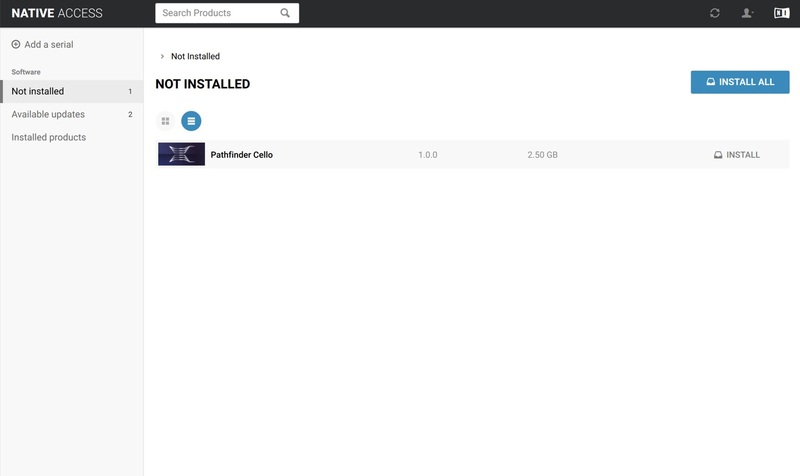
8. Click the 'Not installed' tab > Locate Pathfinder Cello > Click 'INSTALL'.

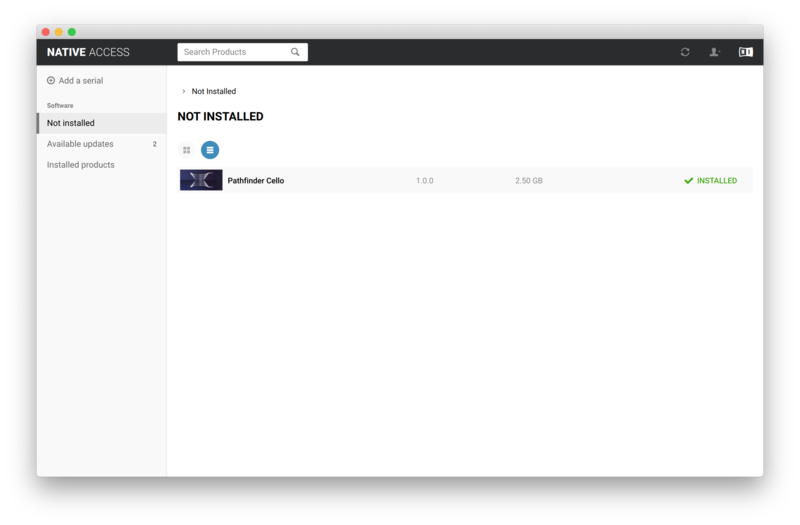
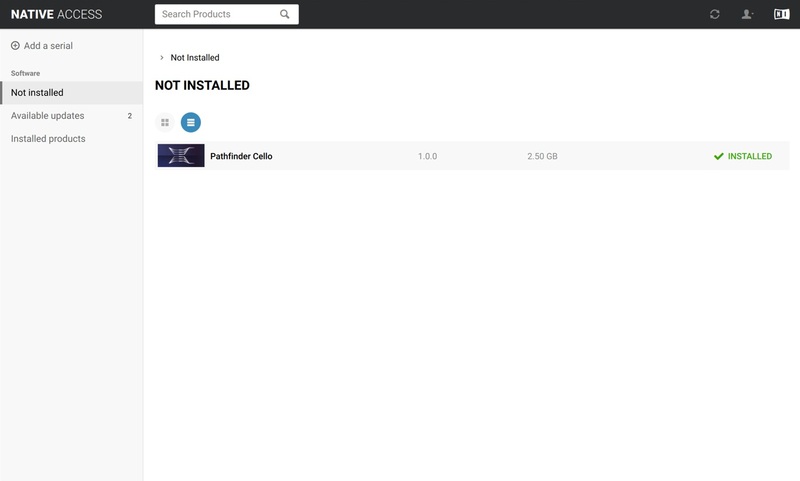
9. Pathfinder Cello is now installed on your system.

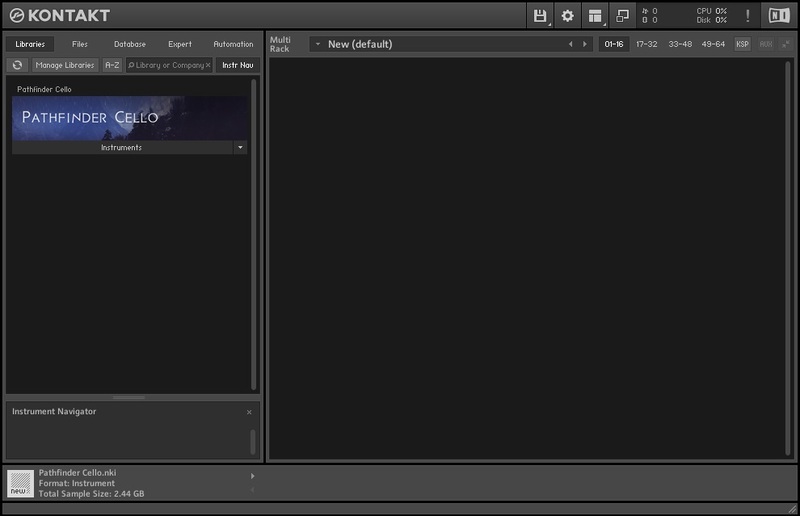
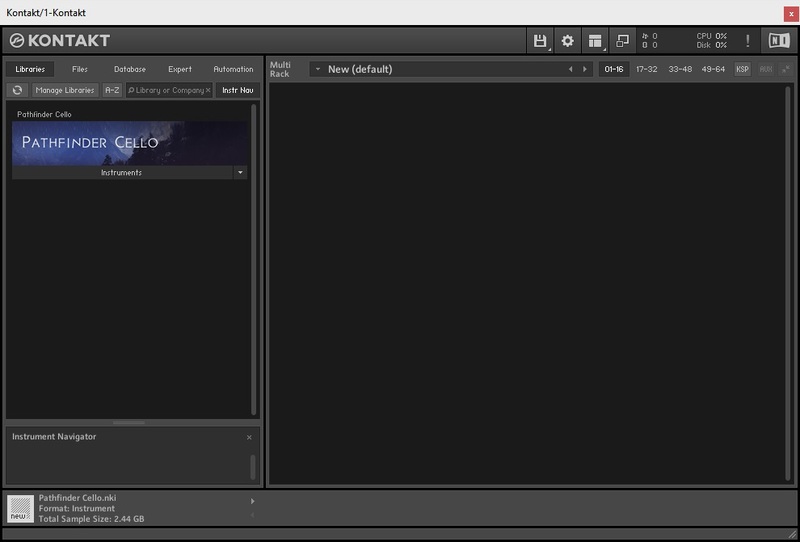
10. Open Kontakt in your DAW > You should see Pathfinder Cello on the left sidebar > Click the drop-down bar and drag the .nki file into the middle of the window.

Your software is now ready to use in your DAW!

Windows
1. Download the .zip installer file from your Plugin Boutique account.
2. Double-click the extracted .exe file to begin the installation process > click ‘Run’.
3. Read the welcome message > click 'Next'.

4. Click 'Next' to begin the installation.

5. Native Access has now been installed > Click 'Finish'.

6. Open Native Access > Create a new Native ID if you do not have one already. If you do, skip ahead to step 8.

7. You will then receive an email with a confirmation link > Open the email and click 'CONFIRM EMAIL'.
8. Log in to Native Access with your Native ID.

9. Click 'Add a serial'.

10. Enter your Serial Number found in your Plugin Boutique account > Click 'ADD SERIAL'.

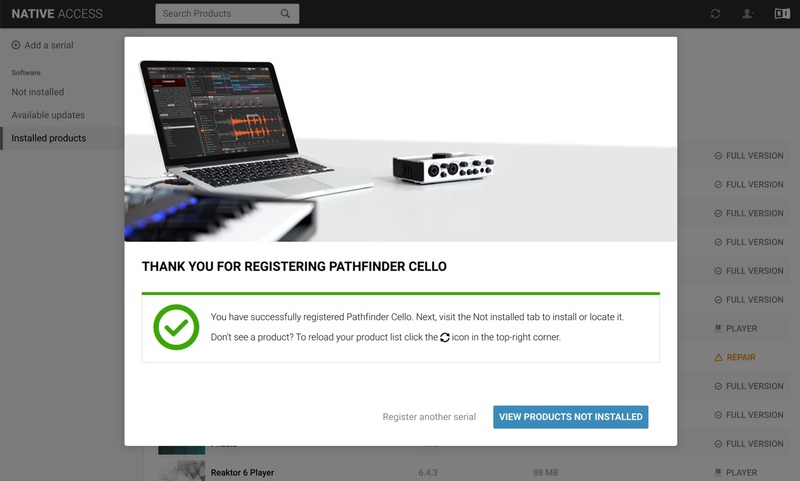
11. Once your serial has been registered, click 'VIEW PRODUCTS NOT INSTALLED'.

12. Click the 'Not installed' tab > Locate Pathfinder Cello > Click 'INSTALL'.

13. Your new Kontakt Instrument is now installed on your system.

14. Open Kontakt in your DAW > You should see Pathfinder Cello on the left sidebar > Click the drop-down bar and drag the .nki file into the middle of the window.

Your software is now ready to use in your DAW!