Buy Mosaic Pads, get a free gift with purchase:
Re-Imagining Textures
Mosaic Pads transforms a myriad of hand-crafted, synthesized sounds into a wide range of cinematic possibilities — delivering a dynamic collection of otherworldly, ambient, and atmospheric textures guaranteed to elevate your sonic palette.
Textures Tell Stories
Ranging from mellow to eerie, unnerving to gritty, Mosaic Pads provides compelling textures capable of creating your sonic story.
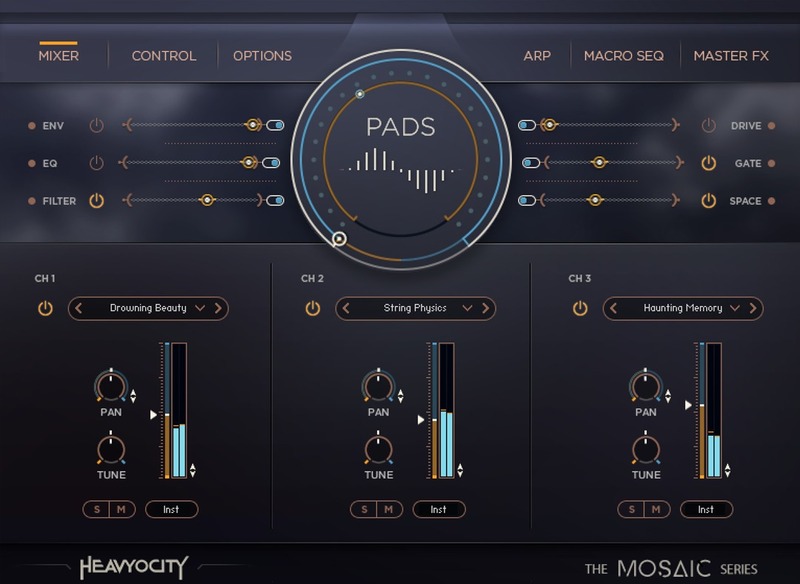
Layered Creations
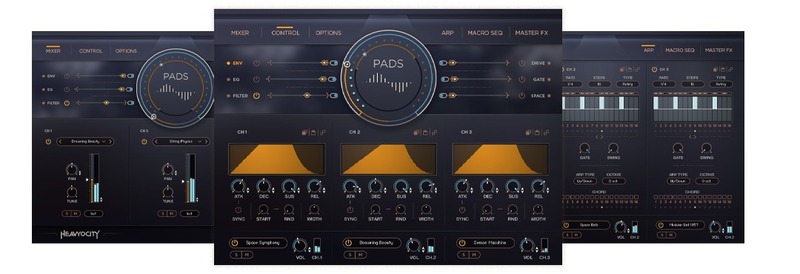
Alter the three individually-adjustable layers to create everchanging ambiances that move and shape as you see fit.
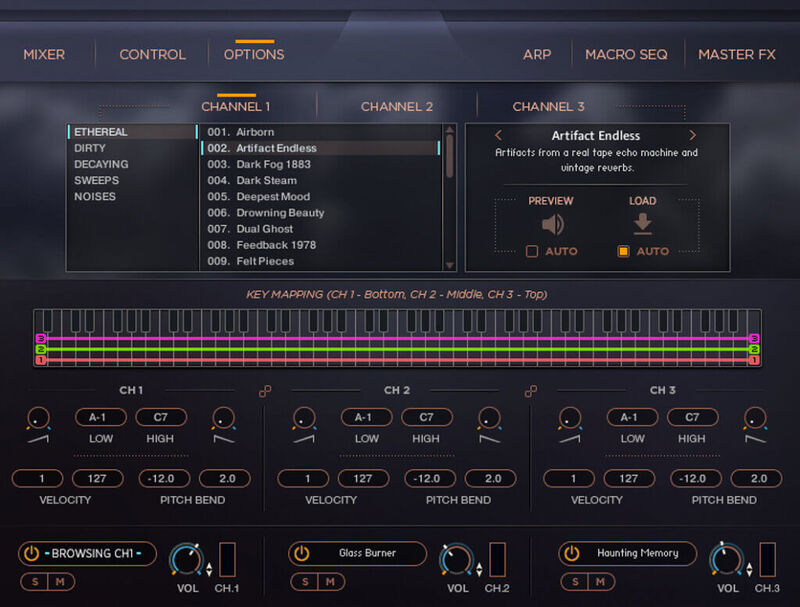
Inspiring Starts
Over 100 meticulously-crafted snapshot presets present perfect starting points for the creative composer.

Atmospheric Ambience
Brimming with inspiration and intangible movement, these obscure soundscapes, eerie tones, and unearthly textures were designed to enhance any score — setting an instant mood and evoking an entirely new level of creativity.
Mosaic Engine
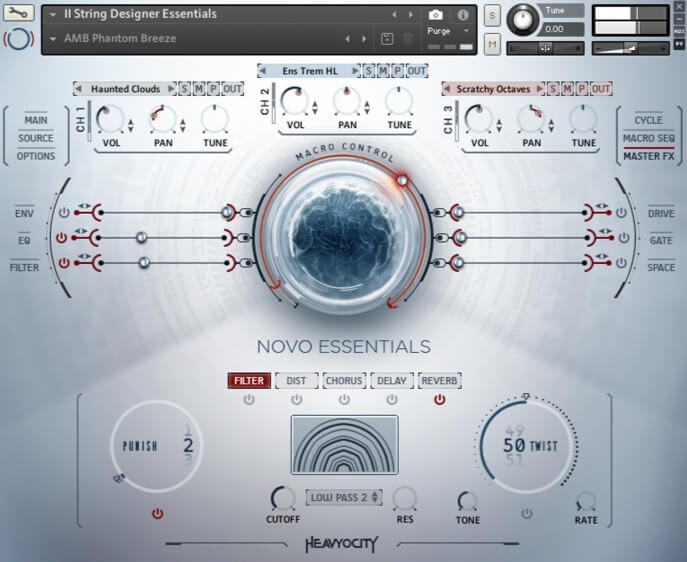
Mosaic Pads’ inspiring content elevates these synthesized sound sources, but its real power lies in the thrilling combinations created when they're layered across the dynamic Mosaic Engine’s three channels.
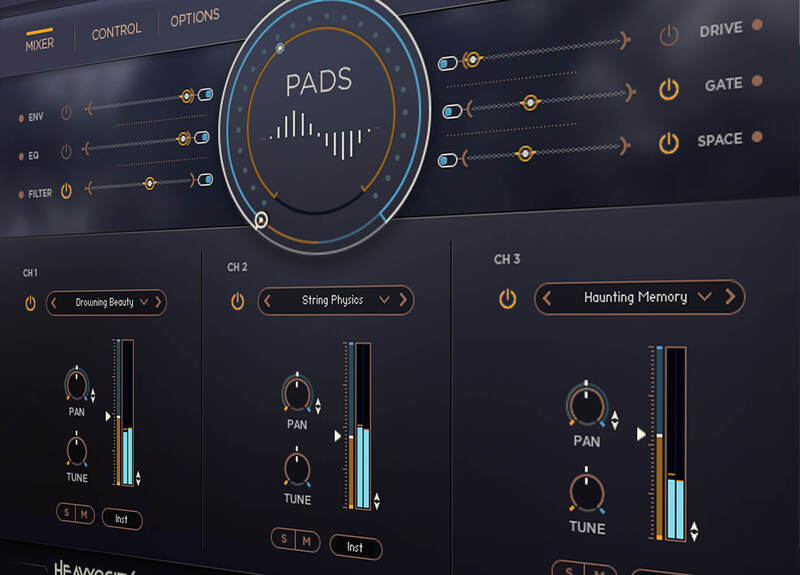
The Mosaic Series
Conceived to keep composers creative, each instrument in the Mosaic Series features a unique set of foundational elements, designed for custom layering and combination.
Features
- 6.96 GB uncompressed (5.1 GB on Disk with NI lossless compression)
- 1,699 Samples
- 80 Unique Sources:
- 21 Ethereal
- 27 Dirty
- 10 Decaying
- 10 Sweeps
- 12 Noise Layers
- 101 Custom Presets
- Intuitive Sample Browser
- ARP for building complex, rhythmic arpeggios
- MACRO knob for dynamic multi-parameter control
- Komplete Kontrol integrated (NKS-ready)
- Stand-alone, VST, AU, AAX
System Requirements
Mac
- macOS 10.14, 10.15, 11 or 12 (latest update)
- Kontakt 6.7.1 (Player) or later
- Graphics hardware support for OpenGL 2.1 or higher
- 4 GB RAM (6 GB recommended for large KONTAKT Instruments)

Windows
- Windows 10 or 11 (latest Service Pack), Intel Core i5 or equivalent CPU, 2 GB RAM
- Kontakt 6.7.1 (Player) or later
- Graphics hardware support for OpenGL 2.1 or higher
- 4 GB RAM (6 GB recommended for large KONTAKT Instruments)

Notes:
- This product requires a Native Instruments Account and a free copy of Native Instruments Kontakt Player, which you can download here.
- NOVO Essentials is used as the example.
Mac
Registration
1. Visit https://heavyocity.com/my-account/ and fill out the account registration form > Click 'Register'.

Installation
1. Download the Heavyocity Product Portal Installer from within your Plugin Boutique User Account
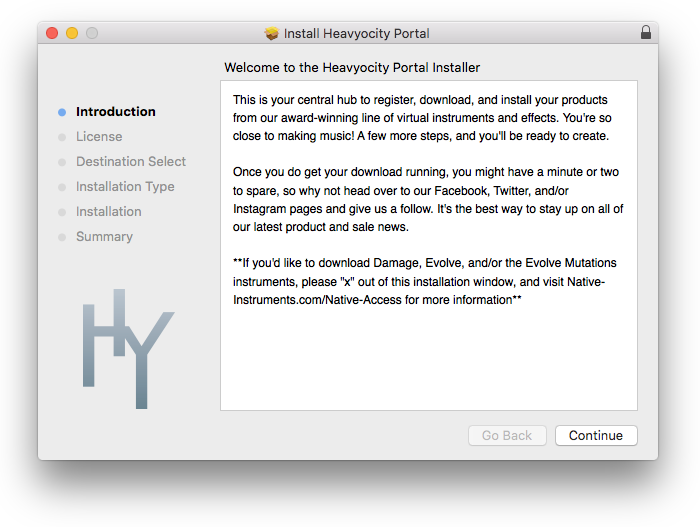
2. Double-click the .pkg file to begin the installation > Click 'Continue'.

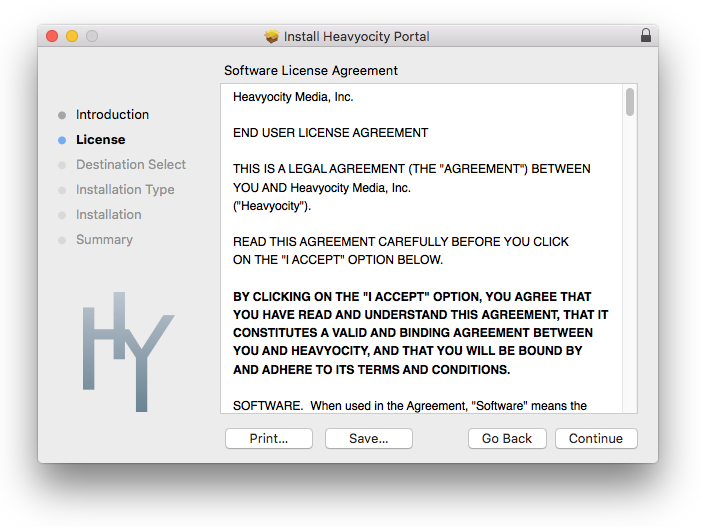
3. Click 'Continue'.

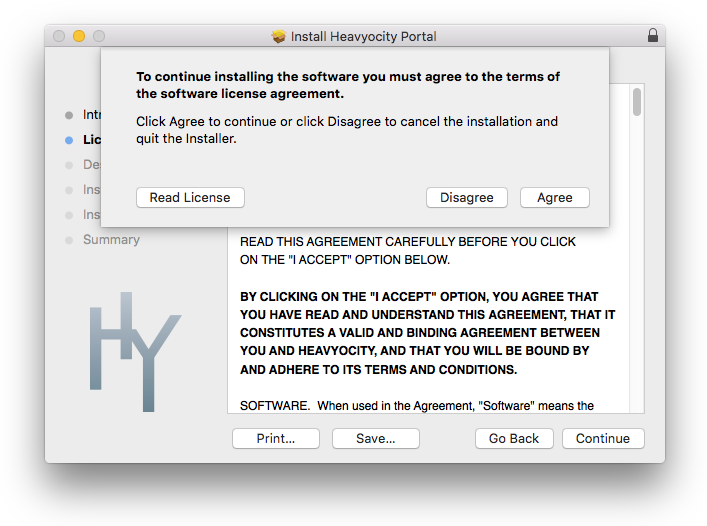
4. Click 'Agree'.

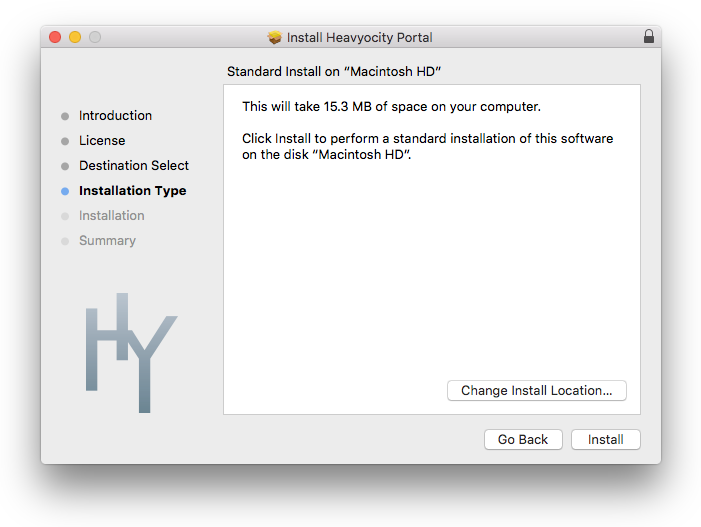
5. Click 'Install'.

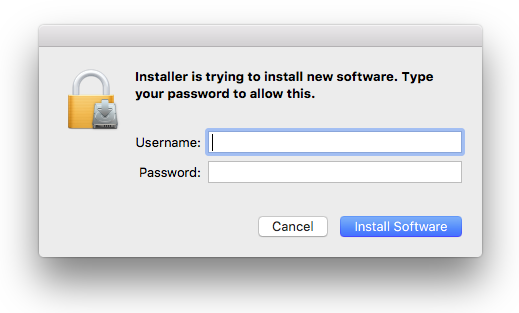
6. Enter your computer Username and Password > Click 'Install Software'.

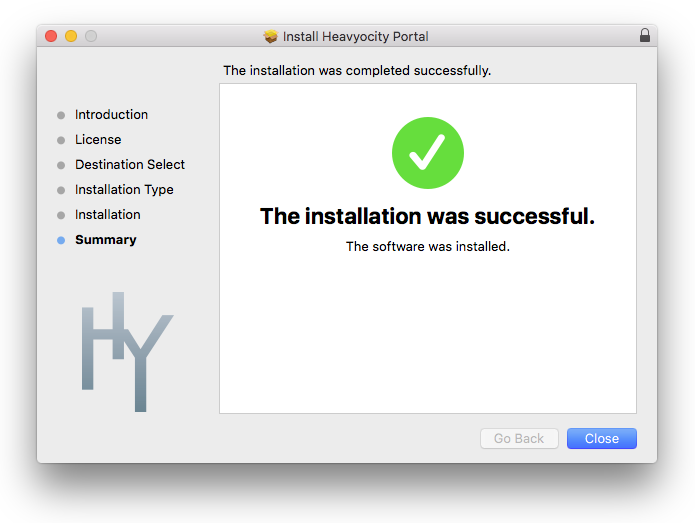
7. Click 'Close'.

8. Open the Heavyocity Portal and enter your Heavyocity-registered Username (Email Address) and Password > Click 'Login'.

9. Click 'Register Now', located at the bottom of the Product Portal.

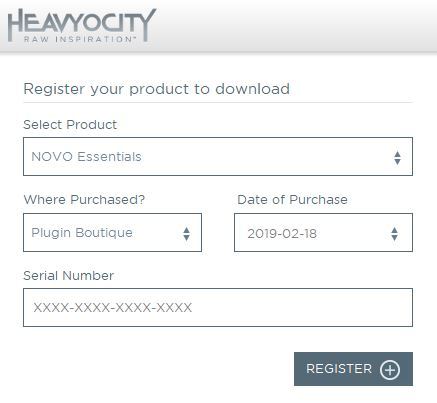
10. Complete the form and enter the serial number found in your Plugin Boutique User Account > Click 'Register'.

11. Click 'Install' on the far right of the portal.

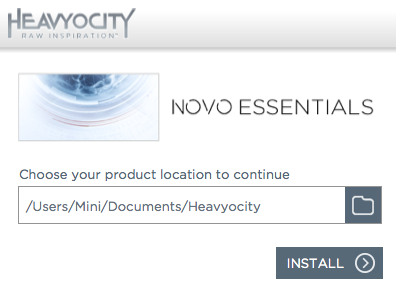
12. Select an installation location for your Heavyocity product > Click 'Install'.

Activation
1. Log in to Native Access.

2. Click 'Add a serial' in the top left corner of Native Access.

3. Enter the serial number found in your Plugin Boutique User Account > Click 'Add Serial'.

4. Click 'Close'.

5. Click the 'Not Installed' tab on the left-hand side of Native Access.

6. Locate NOVO Essentials > Click 'Add Library'.

7. Click 'browse' and locate the recently installed product > Click 'Install'.

Your product is now activated and ready to use.

Windows
Registration
1. Visit https://heavyocity.com/my-account/ and fill out the account registration form > Click 'Register'.

Installation
1. Download the Heavyocity Product Portal Installer from within your Plugin Boutique User Account > Double-click the .zip file to extract the contents.
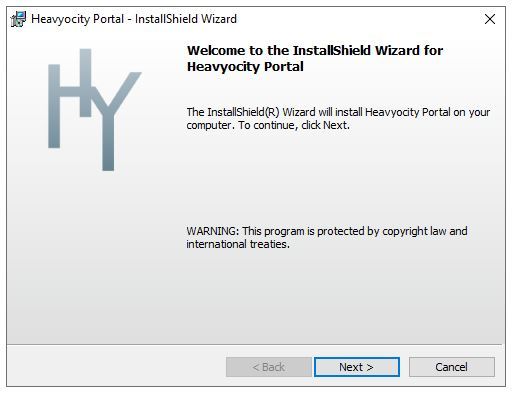
2. Double-click the .exe file to begin the installation > Click 'Next'.

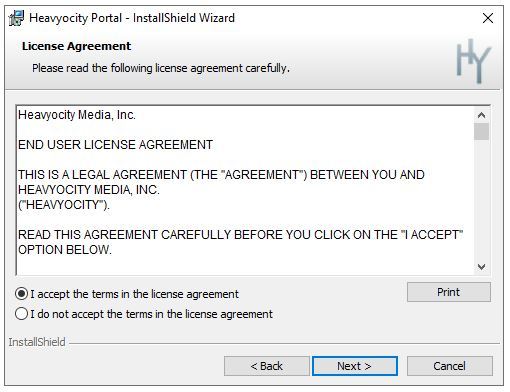
3. Select 'I accept the terms in the license agreement' > Click 'Next'.

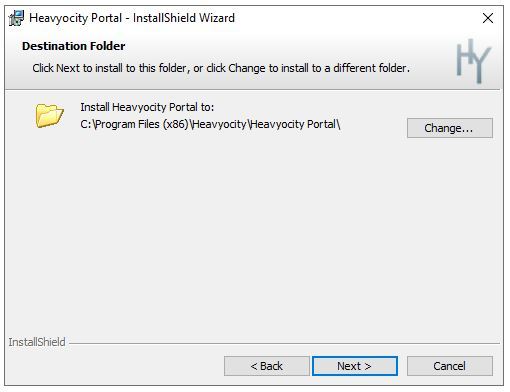
4. Click 'Next'.

5. Click 'Install'.

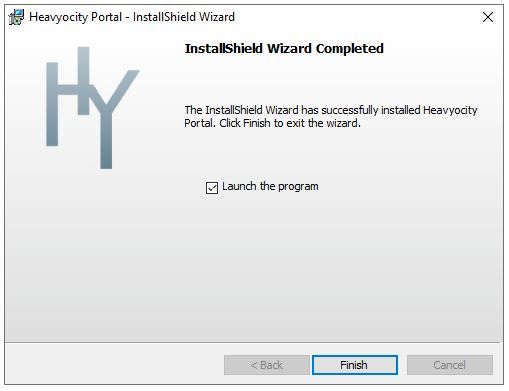
6. Click 'Finish'.

7. Enter your Heavyocity-registered Username (Email Address) and Password > Click 'Login'.

8. Click 'Register Now', located at the bottom of the Product Portal.

9. Complete the form and enter the serial number found in your Plugin Boutique User Account > Click 'Register'.

10. Click 'Install' on the far right of the portal.

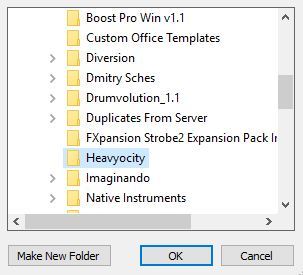
11. Select the installation location for your Heavyocity product > Click 'Ok'.

12. Click 'Install'.

Activation
1. Log in to Native Access.

2. Click 'Add a serial' in the top left corner of Native Access.

3. Enter the serial number found in your Plugin Boutique User Account > Click 'Add Serial'.

4. Click 'Close'.

5. Click the 'Not Installed' tab on the left-hand side of Native Access.

6. Locate NOVO Essentials > Click 'Add Library'.

7. Click 'browse' and locate the recently installed product > Click 'Install'.

Your product is now activated and ready to use.