Buy GRID II, get a free gift with purchase:
GRID II

GRID II
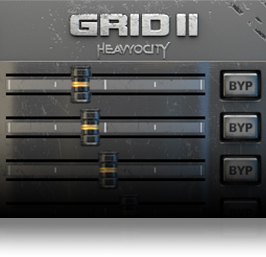
GRID II is a sound sequencer.
Most sequenced instruments are either based on triggering individual sounds (drum machines), or triggering different notes from one sound source (like a sequenced synthesizer). But GRID II takes a hybrid approach: its two main modes enable it to be used as both a sequenced instrument and a played synth, though it is neither directly designed for percussion, nor melody. The instrument was designed for discovery, for experimentation, and for creativity.
This was the fundamental concept behind GRID II - that it can be whatever you make of it.
Using GRID II
GRID II uses 8 voices to produce its sound, but direct control over these voices was purposefully kept to a minimum. Instead, you control the relationship between the voices to sculpt the output; ranging from synthetic percussion to morphing synths, from glitched noise to pulsing drones.
Because of this, controlling GRID II can sometimes feel like an abstract experience, though it is not random. The minimalistic controls require that you collaborate with the instrument, rather than use it as a tool to get a job done, opening up new sonic landscapes with each patch, each pattern, each preset.
Flexibility
The sound sources of GRID II are best suited for minimal and electronic music, but the instrument also has a nasty, glitchy side for those who love noise. Fill the grid to start your sequence, feed the signal back on itself to transform the sound into something completely different. Complex patterns. Rhythmic synth beds. Abstract Percussion. The heart of GRID II is experimentation, so it will find a place in any genre... if you touch it the right way.
Features
- **Requires the Full version of Reaktor 5 (version 5.9.3 or later)
- Size: 21.4 MB (on disk)
- Available as direct download only
- 108 preset snapshots
System Requirements
- Powered by the Reaktor Engine
- Reaktor or Reaktor Player (version 6.2 or later) required.
Minimum System Requirements
- Mac: OS X 10.10, 10.11 or macOS 10.12 (latest update), Intel Core 2 Duo
- PC: Windows 7, Windows 8, or Windows 10 (latest Service Pack, 32/64-bit) Intel Core 2 Duo or AMD Athlon 64 X2
Notes:
- This product requires a Native Instruments Account and a free copy of Native Instruments Kontakt Player, which you can download here.
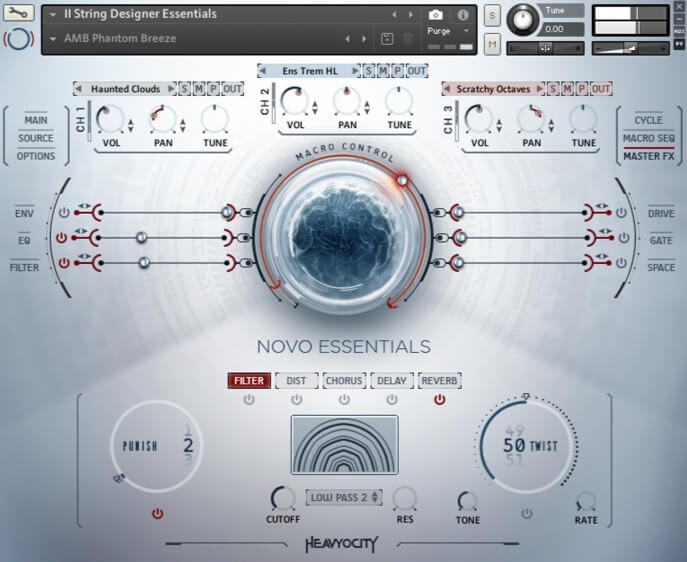
- NOVO Essentials is used as the example.
Mac
Registration
1. Visit https://heavyocity.com/my-account/ and fill out the account registration form > Click 'Register'.

Installation
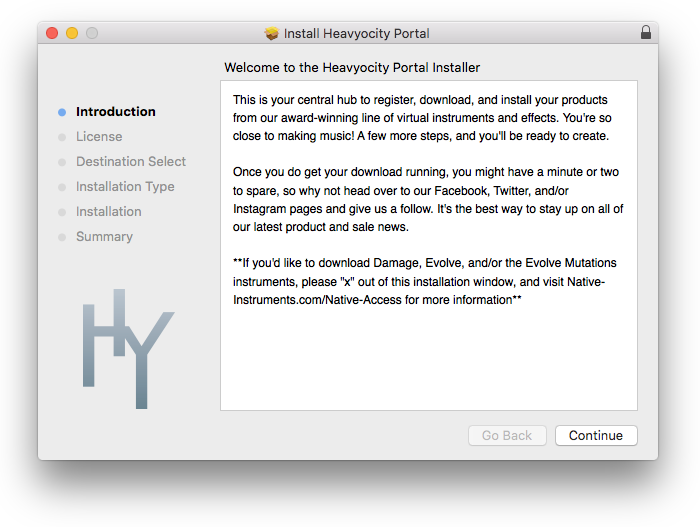
1. Download the Heavyocity Product Portal Installer from within your Plugin Boutique User Account
2. Double-click the .pkg file to begin the installation > Click 'Continue'.

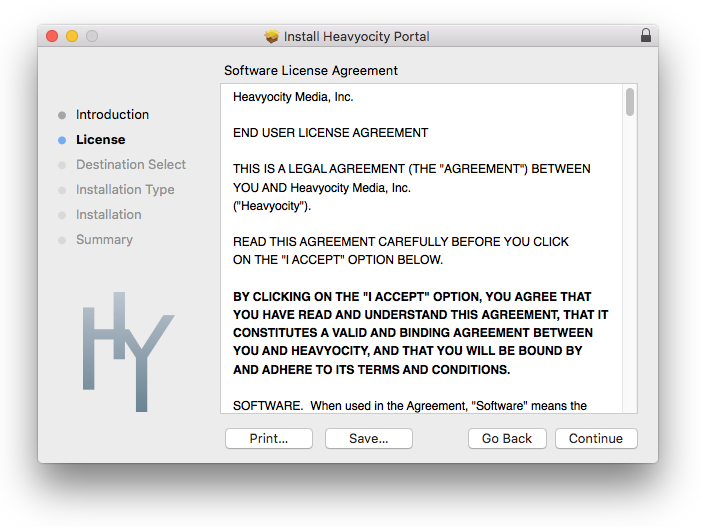
3. Click 'Continue'.

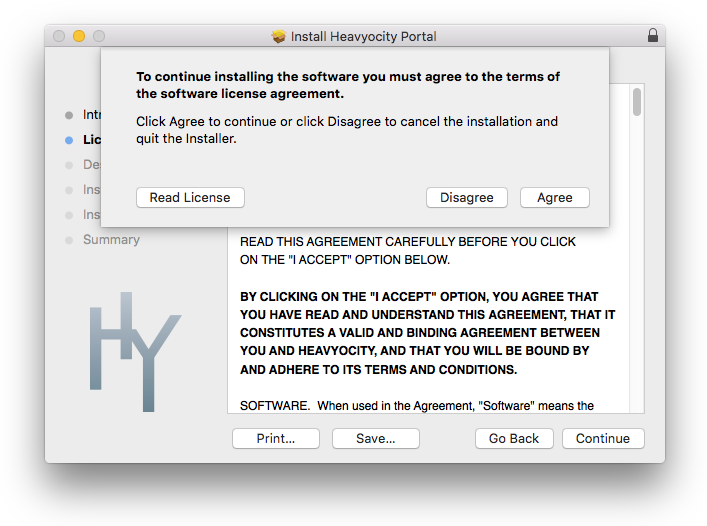
4. Click 'Agree'.

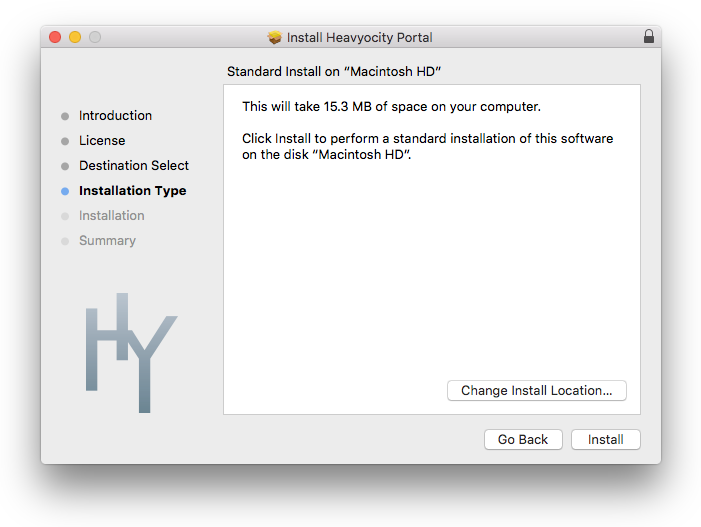
5. Click 'Install'.

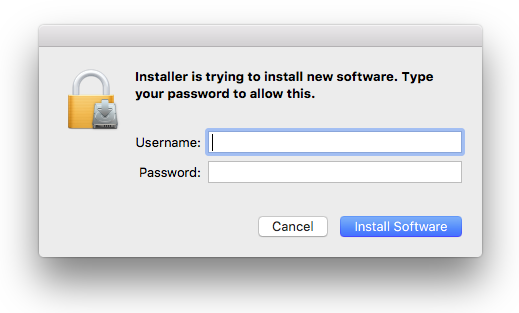
6. Enter your computer Username and Password > Click 'Install Software'.

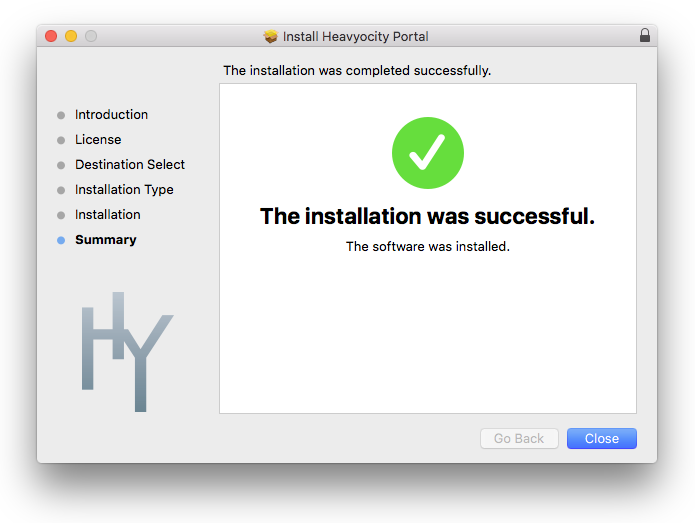
7. Click 'Close'.

8. Open the Heavyocity Portal and enter your Heavyocity-registered Username (Email Address) and Password > Click 'Login'.

9. Click 'Register Now', located at the bottom of the Product Portal.

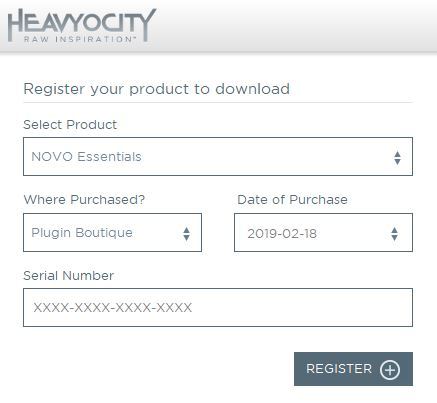
10. Complete the form and enter the serial number found in your Plugin Boutique User Account > Click 'Register'.

11. Click 'Install' on the far right of the portal.

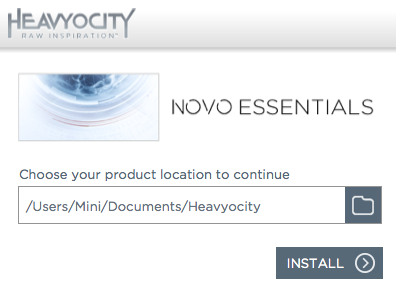
12. Select an installation location for your Heavyocity product > Click 'Install'.

Activation
1. Log in to Native Access.

2. Click 'Add a serial' in the top left corner of Native Access.

3. Enter the serial number found in your Plugin Boutique User Account > Click 'Add Serial'.

4. Click 'Close'.

5. Click the 'Not Installed' tab on the left-hand side of Native Access.

6. Locate NOVO Essentials > Click 'Add Library'.

7. Click 'browse' and locate the recently installed product > Click 'Install'.

Your product is now activated and ready to use.

Windows
Registration
1. Visit https://heavyocity.com/my-account/ and fill out the account registration form > Click 'Register'.

Installation
1. Download the Heavyocity Product Portal Installer from within your Plugin Boutique User Account > Double-click the .zip file to extract the contents.
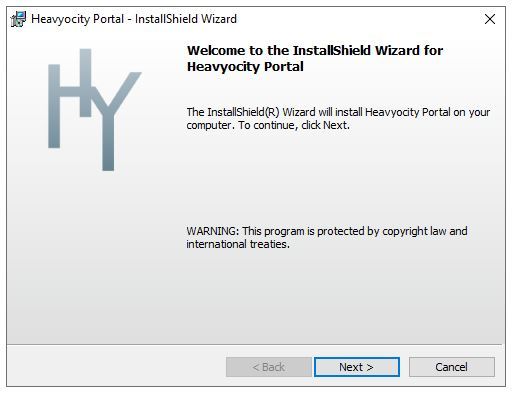
2. Double-click the .exe file to begin the installation > Click 'Next'.

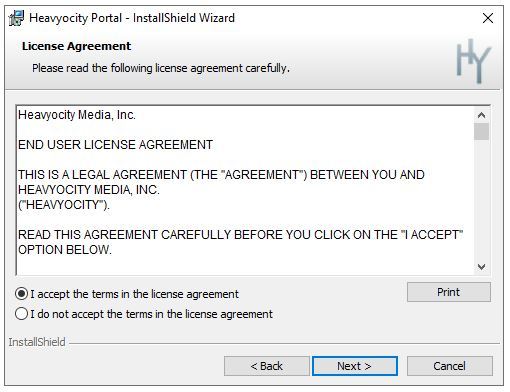
3. Select 'I accept the terms in the license agreement' > Click 'Next'.

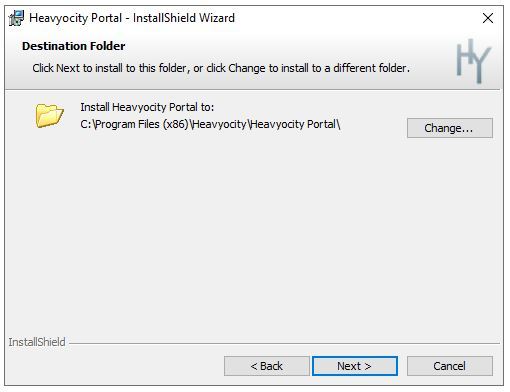
4. Click 'Next'.

5. Click 'Install'.

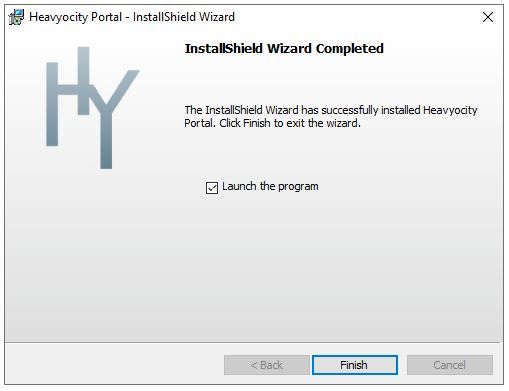
6. Click 'Finish'.

7. Enter your Heavyocity-registered Username (Email Address) and Password > Click 'Login'.

8. Click 'Register Now', located at the bottom of the Product Portal.

9. Complete the form and enter the serial number found in your Plugin Boutique User Account > Click 'Register'.

10. Click 'Install' on the far right of the portal.

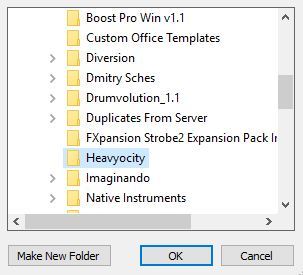
11. Select the installation location for your Heavyocity product > Click 'Ok'.

12. Click 'Install'.

Activation
1. Log in to Native Access.

2. Click 'Add a serial' in the top left corner of Native Access.

3. Enter the serial number found in your Plugin Boutique User Account > Click 'Add Serial'.

4. Click 'Close'.

5. Click the 'Not Installed' tab on the left-hand side of Native Access.

6. Locate NOVO Essentials > Click 'Add Library'.

7. Click 'browse' and locate the recently installed product > Click 'Install'.

Your product is now activated and ready to use.