Buy BitRate II & Monoboy, get a free gift with purchase:
BitRate II & Monoboy

BitRate II
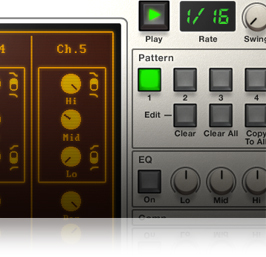
BitRate II uses multiple methods of retro digital synthesis and sampling to produce charismatic and nostalgic drum sounds. The included sound engines cover chipsounds, FM synthesis, lofi sampling, and glitchy circuit bending.
On top of these unique sound engines, BitRate II also offers a 5-track mixer and a master fx section that includes an analogue modelled EQ, bus compressor, and speaker simulator for added lo-fi effect.
The drums can be triggered via MIDI or from the internal sequencer. The sequencer provides two modulation sequences per drum, which can be routed to virtually any combination of sound parameters in any amount.
Monoboy
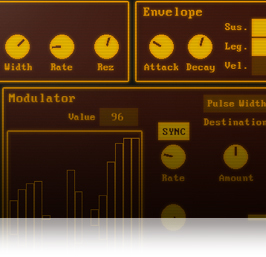
BitRate II also comes bundled with the MonoBoy instrument, a melodic counterpart for BitRate II. MonoBoy uses similar sound engines, but in an interface more suited to melodic playing.
MonoBoy's key features include 3 sound generator modes (a unique DM sampler, easy-to-use arpeggiator, and Voice Controls), 2 Modulation sequences, and a master FX section that includes the one-of-a-kind Bit Delay effect.
Icebreaker Audio
BitRate II & Monoboy were created by Icebreaker Audio, the brainchild of Adam Hanley, whose name appears in the credits of many high-profile Kontakt and Reaktor products, working on anything from African drums to additive synthesis. He is also responsible for the Kontakt scripting here at Heavyocity, pushing the platform to the limit in order to bring even the craziest of ideas to life.
Features
- **Requires the Full version of Reaktor 5 (version 5.9.0 or later)
- Size: 112 MB (on disk)
- Available as direct download only
- 140 preset snapshots
System Requirements
- Powered by the Reaktor Engine
- Reaktor or Reaktor Player (version 6.2 or later) required.
Minimum System Requirements
- Mac: OS X 10.10, 10.11 or macOS 10.12 (latest update), Intel Core 2 Duo
- PC: Windows 7, Windows 8, or Windows 10 (latest Service Pack, 32/64-bit) Intel Core 2 Duo or AMD Athlon 64 X2
Notes:
- This product requires a Native Instruments Account and a free copy of Native Instruments Kontakt Player, which you can download here.
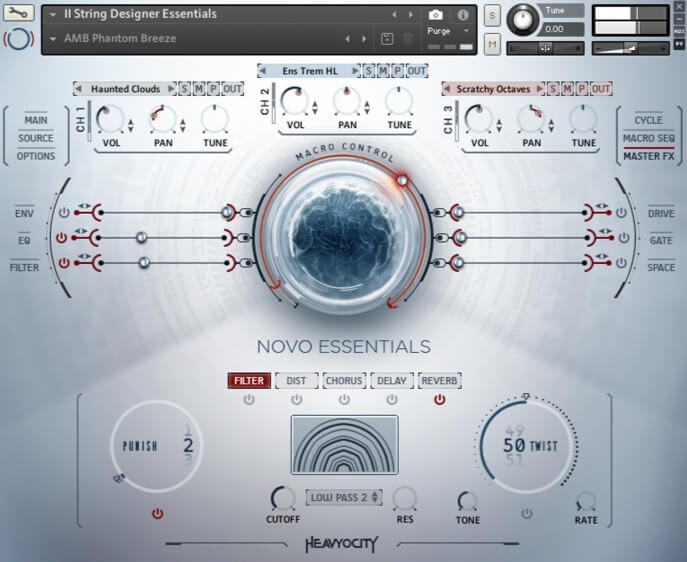
- NOVO Essentials is used as the example.
Mac
Registration
1. Visit https://heavyocity.com/my-account/ and fill out the account registration form > Click 'Register'.

Installation
1. Download the Heavyocity Product Portal Installer from within your Plugin Boutique User Account
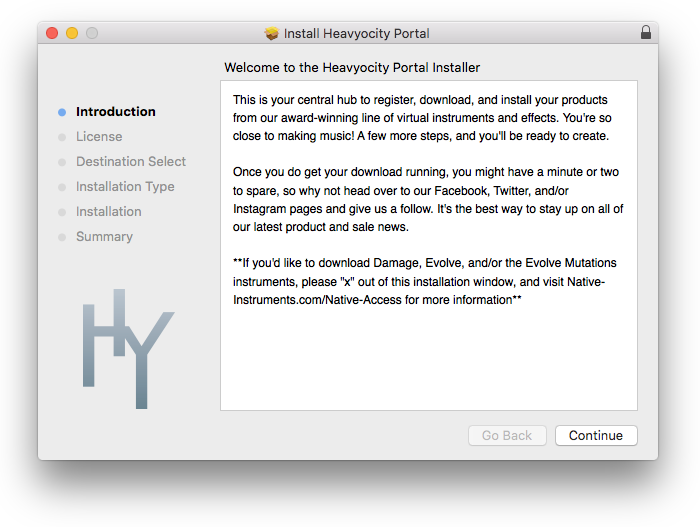
2. Double-click the .pkg file to begin the installation > Click 'Continue'.

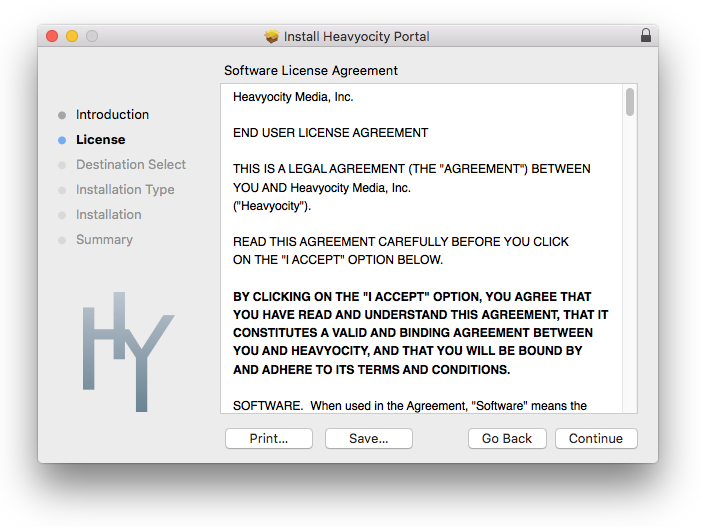
3. Click 'Continue'.

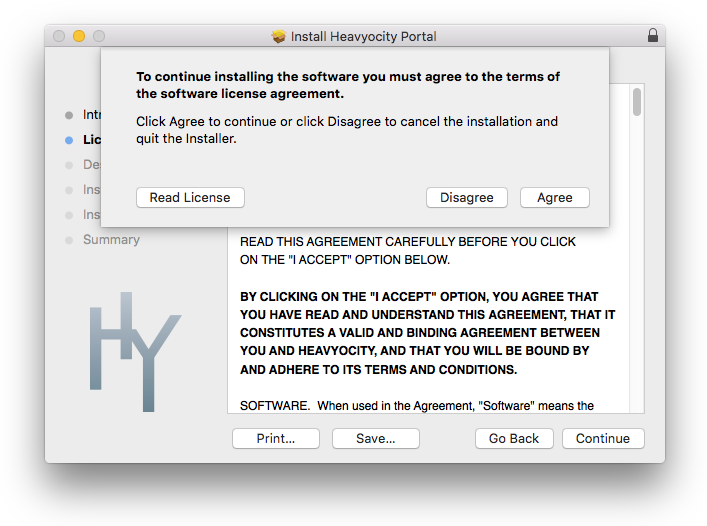
4. Click 'Agree'.

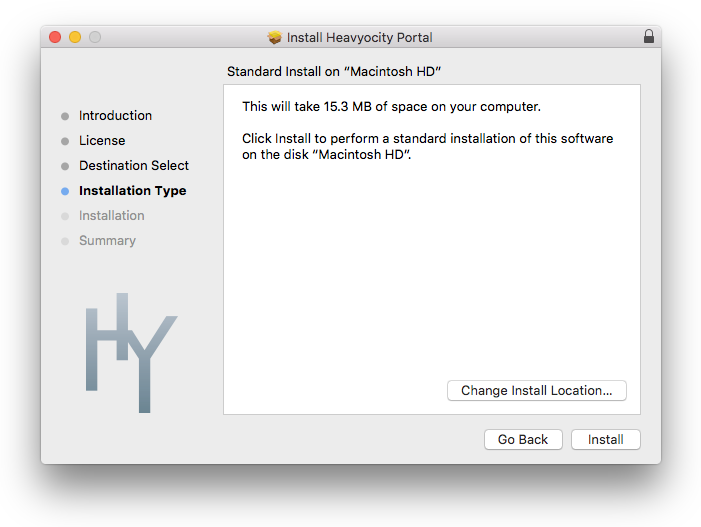
5. Click 'Install'.

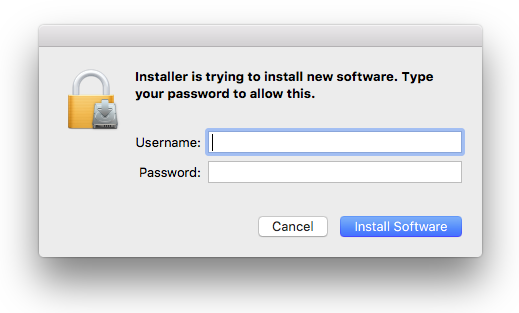
6. Enter your computer Username and Password > Click 'Install Software'.

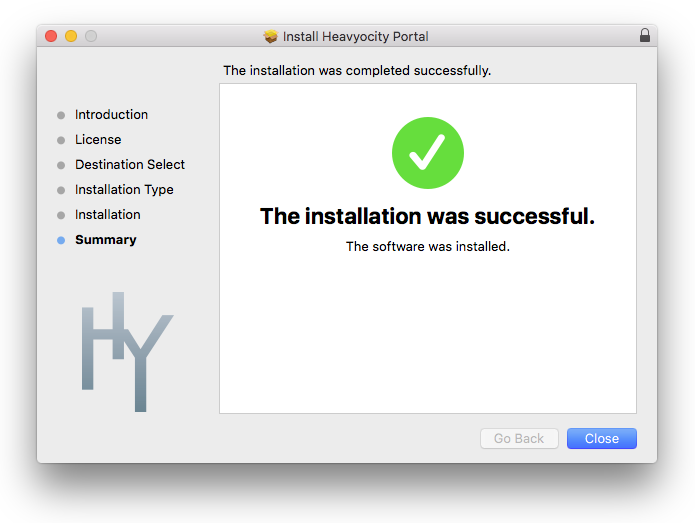
7. Click 'Close'.

8. Open the Heavyocity Portal and enter your Heavyocity-registered Username (Email Address) and Password > Click 'Login'.

9. Click 'Register Now', located at the bottom of the Product Portal.

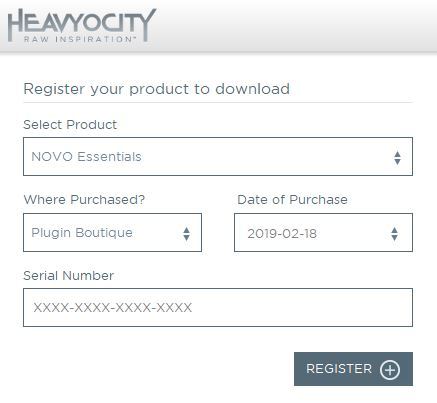
10. Complete the form and enter the serial number found in your Plugin Boutique User Account > Click 'Register'.

11. Click 'Install' on the far right of the portal.

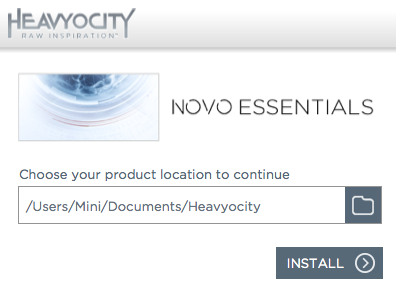
12. Select an installation location for your Heavyocity product > Click 'Install'.

Activation
1. Log in to Native Access.

2. Click 'Add a serial' in the top left corner of Native Access.

3. Enter the serial number found in your Plugin Boutique User Account > Click 'Add Serial'.

4. Click 'Close'.

5. Click the 'Not Installed' tab on the left-hand side of Native Access.

6. Locate NOVO Essentials > Click 'Add Library'.

7. Click 'browse' and locate the recently installed product > Click 'Install'.

Your product is now activated and ready to use.

Windows
Registration
1. Visit https://heavyocity.com/my-account/ and fill out the account registration form > Click 'Register'.

Installation
1. Download the Heavyocity Product Portal Installer from within your Plugin Boutique User Account > Double-click the .zip file to extract the contents.
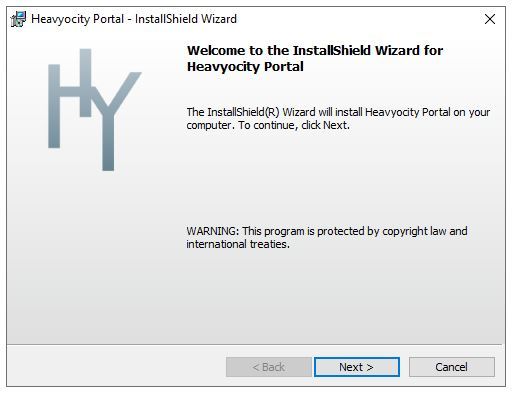
2. Double-click the .exe file to begin the installation > Click 'Next'.

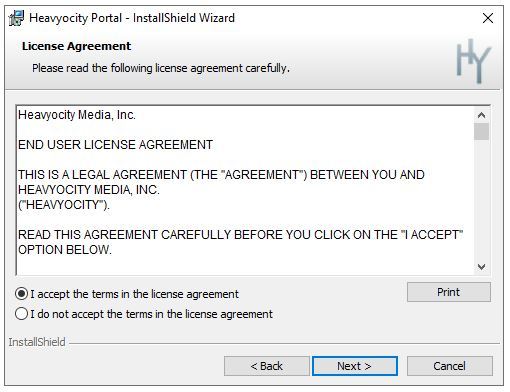
3. Select 'I accept the terms in the license agreement' > Click 'Next'.

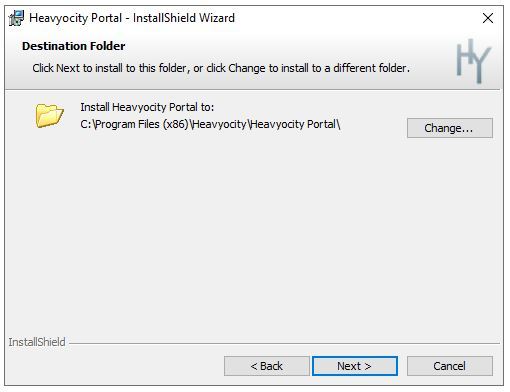
4. Click 'Next'.

5. Click 'Install'.

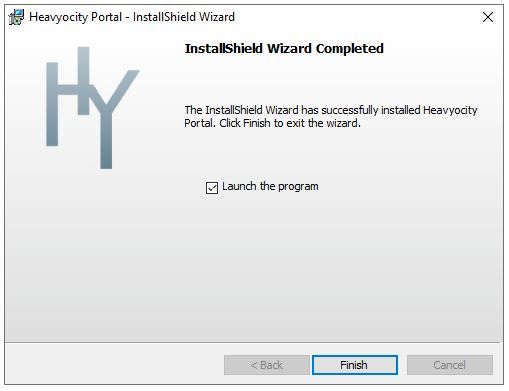
6. Click 'Finish'.

7. Enter your Heavyocity-registered Username (Email Address) and Password > Click 'Login'.

8. Click 'Register Now', located at the bottom of the Product Portal.

9. Complete the form and enter the serial number found in your Plugin Boutique User Account > Click 'Register'.

10. Click 'Install' on the far right of the portal.

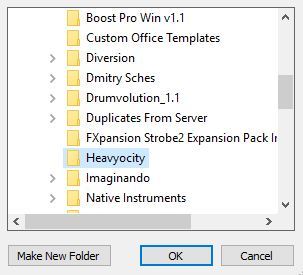
11. Select the installation location for your Heavyocity product > Click 'Ok'.

12. Click 'Install'.

Activation
1. Log in to Native Access.

2. Click 'Add a serial' in the top left corner of Native Access.

3. Enter the serial number found in your Plugin Boutique User Account > Click 'Add Serial'.

4. Click 'Close'.

5. Click the 'Not Installed' tab on the left-hand side of Native Access.

6. Locate NOVO Essentials > Click 'Add Library'.

7. Click 'browse' and locate the recently installed product > Click 'Install'.

Your product is now activated and ready to use.