


 Log In
_(1).jpg)
Free gifts available with your purchase
Decades Of Soul, At Your Fingertips
Now compatible with any soundcard on Mac and PC
Waterfall B3 Organ is the world's most thorough emulation of the classic Hammond B3 organ and its companion Leslie 147 rotary speaker cabinet,* giving your music the same rich tone and three‑dimensional sound heard on decades of legendary albums.
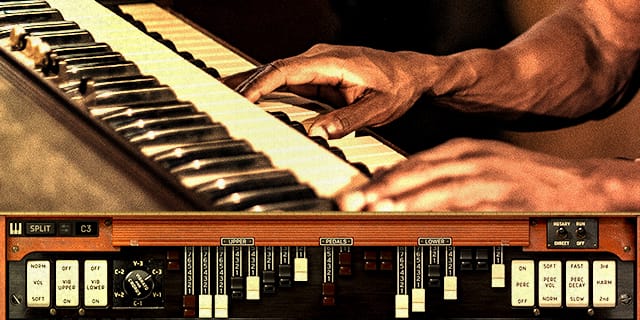
Get the Sound of an Authentic Organ, in your DAW
By emulating every last detail of this classic organ — including tube power amp saturation, transformer "pumping," and rich, upper-harmonic drawbar interactions — Waterfall B3 gives you album-ready sounds heard on countless R&B, soul, rock, hip-hop, and gospel hits.
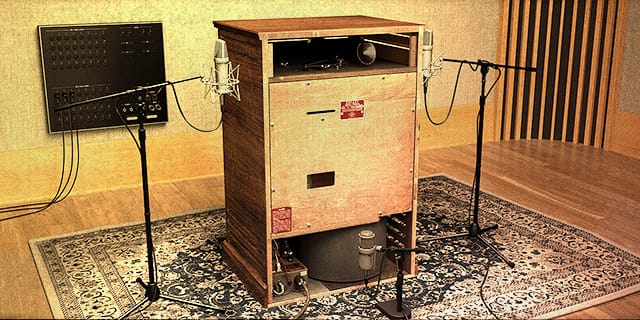
Experience Immersive Rotary Speaker Sounds
Only Waterfall B3 gives you the three‑dimensional movement, speaker breakup, and full tonal range of the legendary "Type 147" rotary speaker cabinet, captured in all its glory using expertly placed vintage mic setups.
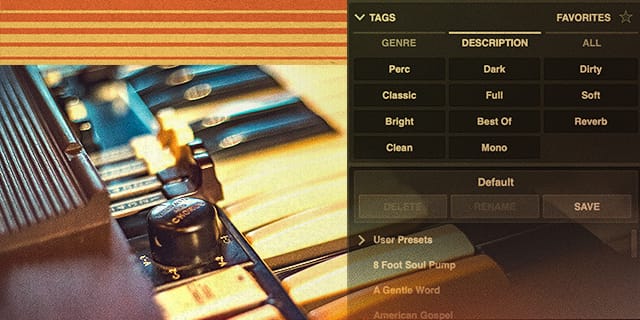
Get Hit-Making Organ Sounds Fast, with Presets
Waterfall B3 is the most "record-ready" organ emulation ever put into a DAW, giving you over 70 hand-crafted presets for album-ready results across every genre.
Features
- Get the sound of a legendary 1958 tonewheel organ as heard on countless R&B, soul, rock, hip‑hop, and gospel hits
- Experience the rich, three-dimensional whirl of a vintage 1974 rotary speaker cabinet
- Tap into dreamy spring reverb and perfectly-placed vintage microphone setups
- Stay inspired with over 70 expertly crafted presets giving you legendary organ sounds, instantly
Versions Included with your Purchase
- UAD Native: Runs on your Mac or PC without any UA hardware
- macOS Big Sur 11, Monterey 12, Ventura 13, Sonoma 14, Sequoia 15 and Tahoe 26
- Windows 10 or Windows 11 (64-bit editions)
- Intel, AMD, or Apple silicon processor
- Internet connection to download software and authorize UAD Native plug-ins (UADx)
- Free iLok account
- Compatible with iLok USB (2nd generation or higher) but not required
- Free UA Connect application for managing UAD Native plug-ins (UADx)
- A supported DAW compatible with VST3, AU, or AAX plug-in file formats.
Reviews Summary
While it aims to provide a helpful overview, it may not capture every perspective or detail. We encourage you to read individual reviews to make an informed decision.
Users overwhelmingly praise the Waterfall B3 organ for its authentic, warm, and realistic sound quality, noting its excellent rotary speaker simulation and classic feel. Reviewers appreciate its intuitive interface, stable performance, low resource usage, and versatility across genres such as blues, rock, gospel, and soul, with only a minor mention of a click sound during pitch bend.


