Log In

Free gifts available with your purchase

Turn Any Object Into A Percussion Instrument
Make everyday objects (such as a jar, a plate or anything you want) sound like a conga, a djembe or any other percussion instrument.
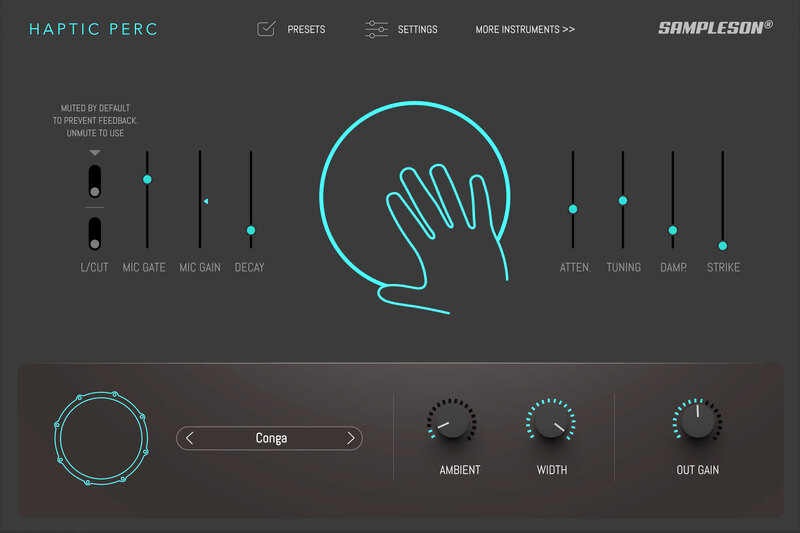
Haptic Perc is a cutting-edge plug-in that uses microphone input to excite physical percussion models. Creating a hands-on sensation closely resembling the authentic touch of real instruments.
Haptic Perc comes in two flavors: as Effect Plug-in and as Midi Synth Plug-in. Both are included in your purchase.
Everything Is Possible
With Haptic Perc, you can turn everyday objects into percussion instruments. It's equipped with six parameters that allow you to tweak the underlying physical models to create the surface, resonance, and size you want for your new instrument.
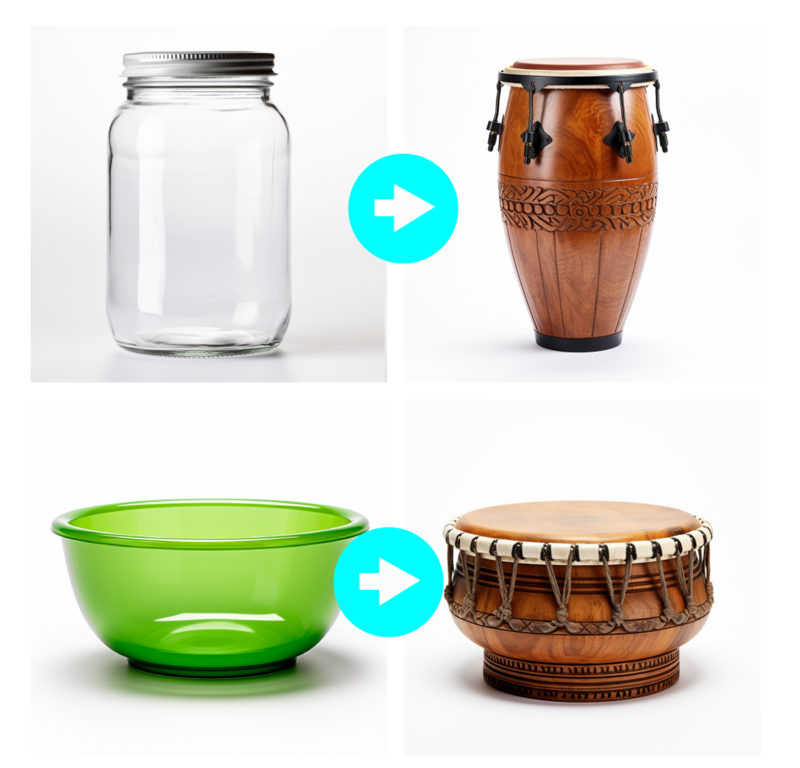
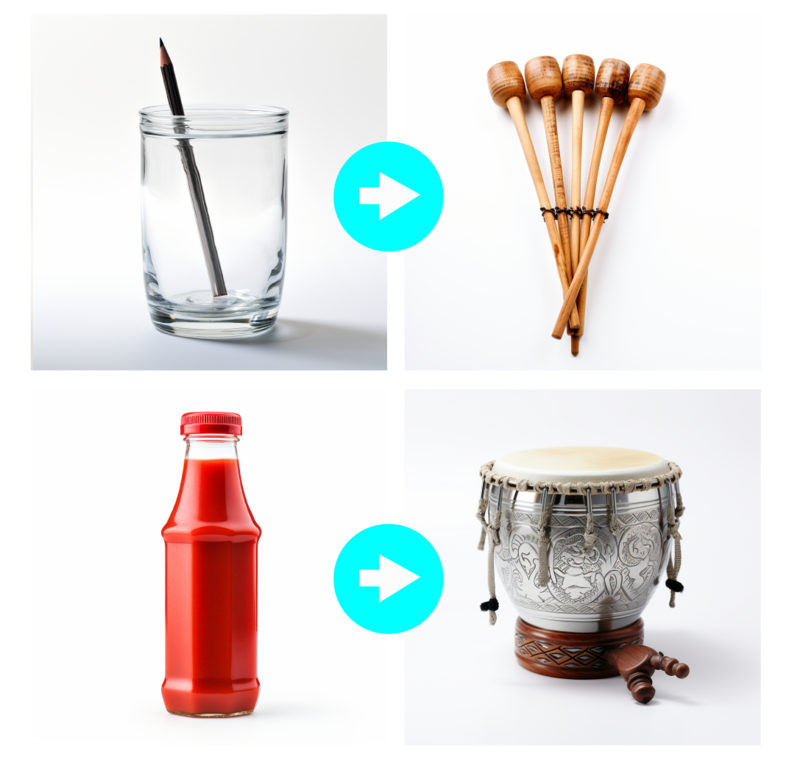
Use Any Mic, Even The One On Your Laptop
Presets Included
These presets are included by default. You can create an unlimited number of them by adjusting the physical model parameters to achieve the surface, resonance, and size you desire.
- Conga
- Hi Bongo
- Cuban Bongo
- Repique
- Surdo
- Large Pot
- Orchestral Triangle
- Old Phone
- Glass Bar
- Metal Click
- Tic Toc
Two Flavors - FX And Midi Synth

Haptic Perc as FX Plug-in:
You can use Haptic Perc as an FX plug-in on any audio channel. Connect a mic and voilà! Any microphone will be enough. Even the one that is built-in your laptop. Despite this, we recommend to use a studio-grade mic or any piezoelectric or contact mic for more sound quality.

Haptic Perc as Virtual Instrument Plug-in:
You can also use it as a virtual instrument. Load it on any midi track and control it with midi controller (a keyboard or a midi controller od a midi multi pad interface).
Features
- Physical modeled percussion
- Two flavors: VST Effect and VSTi Instrument.
- Compatible with your regular built-in laptop microphone.
- Only 35 MB.
- Automatable parameters in your DAW.
Controls / FX
- Built-in ambient HQ reverb.
- Six parameters to fine-tune the physical model details.
MacOS
- macOS 10.7 or later
- VSTi or AU plugin host required
- 70 MB disk space
- 4 GB RAM
- Note: Pro Tools is not supported.
Windows
- Windows 7 or later
- VSTi plugin host required
- 70 MB disk space
- 4 GB RAM
- Note: Pro Tools is not supported.