Log In

Free gifts available with your purchase

The First Ever-Changing Modelled Electric Piano
Reed106 is the first modelled piano that is always changing. Every note, every day, every month. Reed106 creates small variations of itself every time you play it (reproducing temperature, humidity, power supply fluctuations in real life) This eliminates one of the most frustrating things in a VST. The boring effect that a virtual instrument generates over time.
Hear It In Action
Reed106 is pure and realistic. Because it's based on real samples and rebuilt by spectral modelling. Demos were recorded on Apple's Logic Pro with the factory reverb and built-in FXs included in Reed106.
It's perfect as a raw sound source, ready to be enhaNced with the built-in effect or any other 3rd party sound processor you like.
You'll Have A New Electric Piano Every Day
Every electric piano has a unique sound. Even if it's the same model, same manufacturer and same year! This is why real pianos and electric pianos can never be emulated by software... until today! Reed106 introduces a proprietary Sampleson's software that turns static VST instruments into living ones.
Infinite Round-Robins
Sampled instruments use to add round-robins (Round-robin sampling is a method of sample playback which allows you to play different sampled versions of the same sound to avoid the "machine-gun" effect). Reed106's spectral model is capable to create infinite natural variations for every note and velocity. Something is not possible with sampling methods.
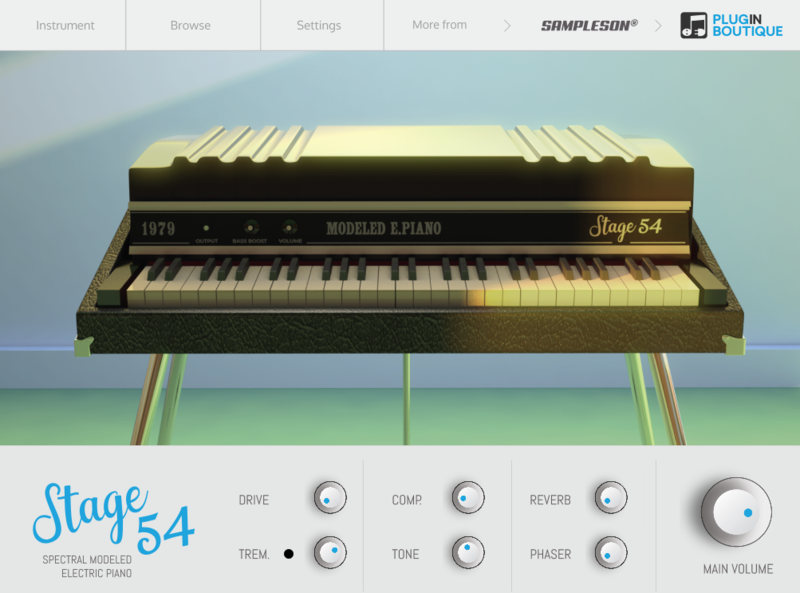
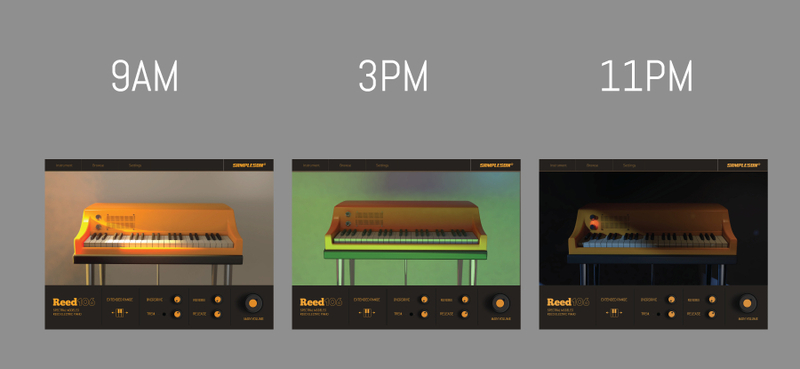
Daylight Based User Interface
Features
- Spectral modelled Reed-based Electric Piano.
- Extended range (64 keys).
- Just 45MB.
- No velocity-switching.
- Reverb, Tremolo and Drive FX
- Scalable HD interface.
- macOS Catalina and Big Sur Ready.
- No extra purchases are needed (like Kontakt, UVI, etc) or any other 3rd. party player.
- Ready to be loaded into major DAWs (Cubase, Logic Pro, GarageBand, Cakewalk, Reaper, BitWig, Nuendo, FL Studio, etc)
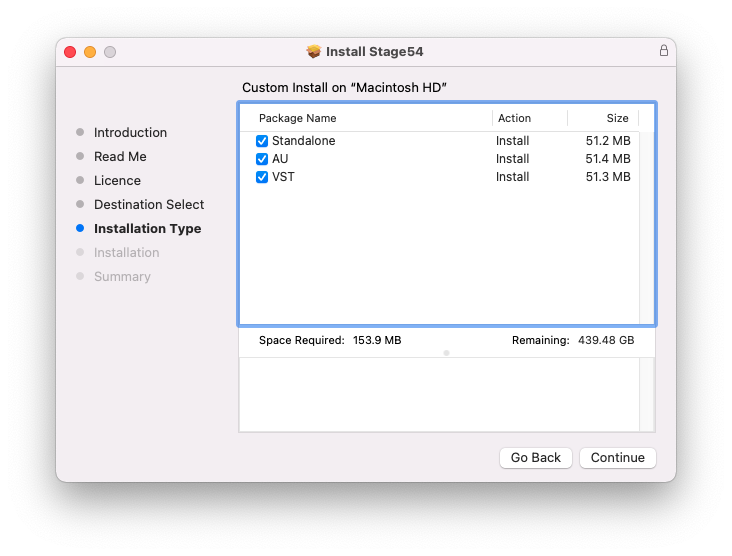
- Win 32 & 64 bits VST/Standalone. Mac VST/AU/Standalone versions (No AAX version)
- No online activation is required
MacOS
- macOS 10.7 or later
- VSTi or AU plugin host required
- 70 MB disk space
- 4 GB RAM
- Note: Pro Tools is not supported.
Windows
- Windows 7 or later
- VSTi plugin host required
- 70 MB disk space
- 4 GB RAM
- Note: Pro Tools is not supported.