Buy Wursy, get a free gift with purchase:
Synthesized Reed Electric Piano
Before samplers, before huge computers, emulations were made with old and good synthesis. Wursy is the recreation of (what we think) the best way to achieve a Reed Electric Piano via synthesis.
The result? A super-expressive electric piano. With tons of harmonics and variations over the octaves, and a NON-STATIC sound.
Wursy has a tremolo with intensity and frequency modulators and a reverb FX. And it's only 40 MB with extremely low CPU usage.
System Requirements
macOS
- Standalone App, VST3 and AU included.
- OSX 10.7 or later (Catalina, Big Sur and Monterey supported).
- Host must support VSTi or AU plugins.
- 70 MB HDD.
- 4GB RAM.
Windows
- Standalone 64 bits App and VST3 included.
- Windows 7 or later.
- Host must support VSTi plugins.
- 70 MB HDD.
- 4GB RAM.
Important Note: Pro Tools is not supported.
Please Note: Stage54 is used as an example.
Mac
Download Installer
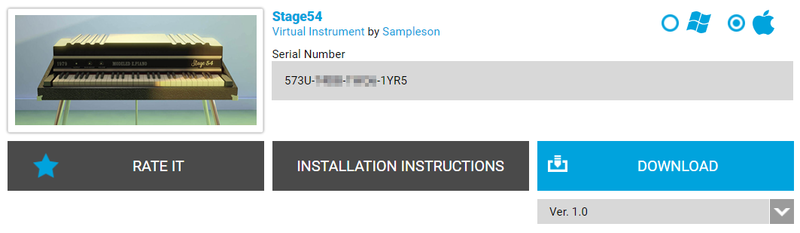
1. Navigate to your Plugin Boutique User Account and locate Stage54 > Click the blue 'DOWNLOAD' button.
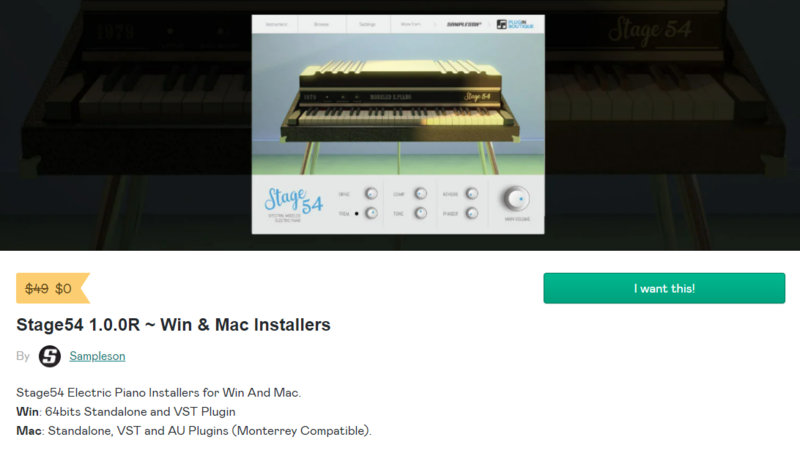
2. Click 'I want this!'.
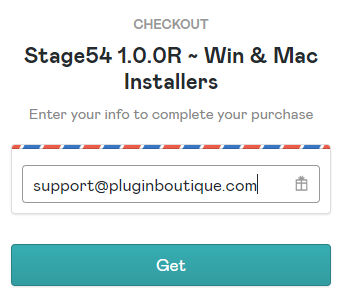
3. Enter your email address > Click 'Get'.
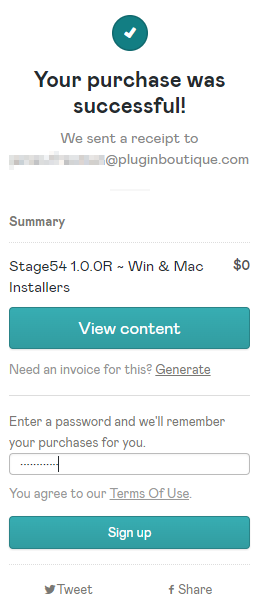
4. Click 'View content' to proceed straight to your downloads > Alternatively, enter a password to create an account for future access to your download > Click 'Sign Up'.
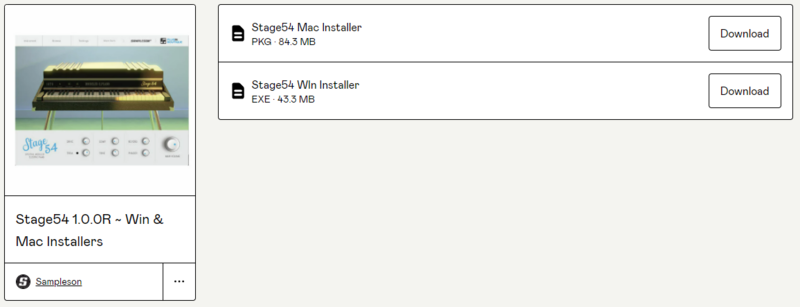
5. Locate the 'Stage54 Mac Installer' > Click 'Download'.
Installation
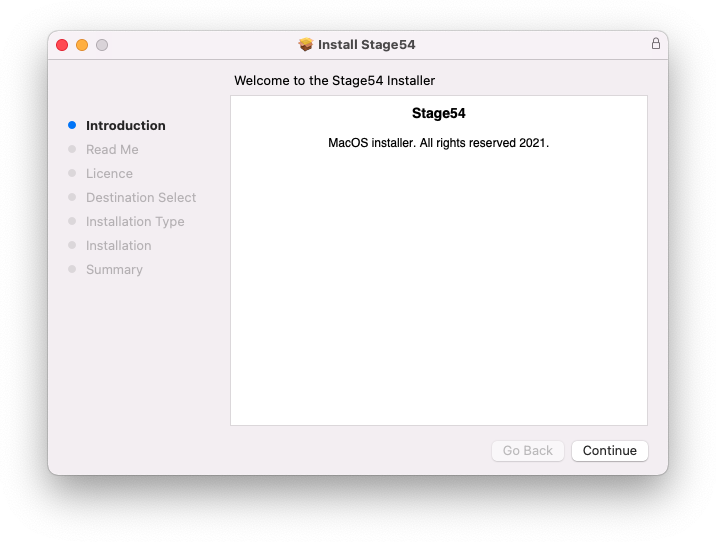
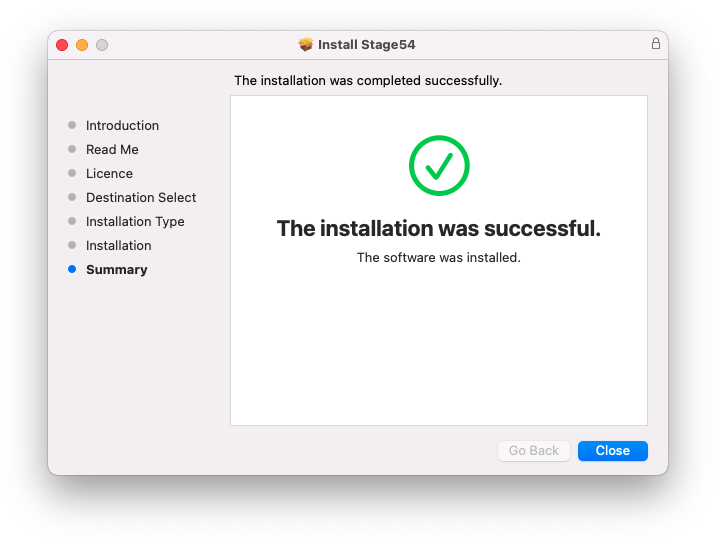
1. Navigate to your Downloads folder and locate the 'Stage54 Mac Installer.pkg' > Launch the installer.
2. Click 'Continue'.
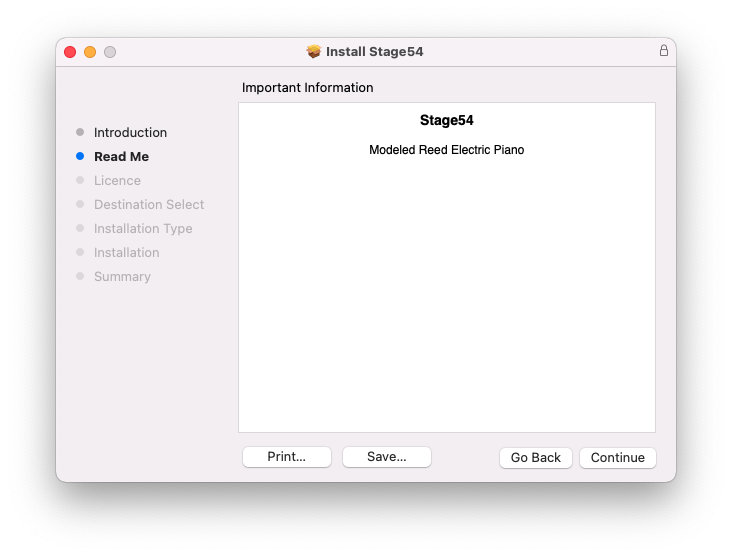
3. Click 'Continue'.
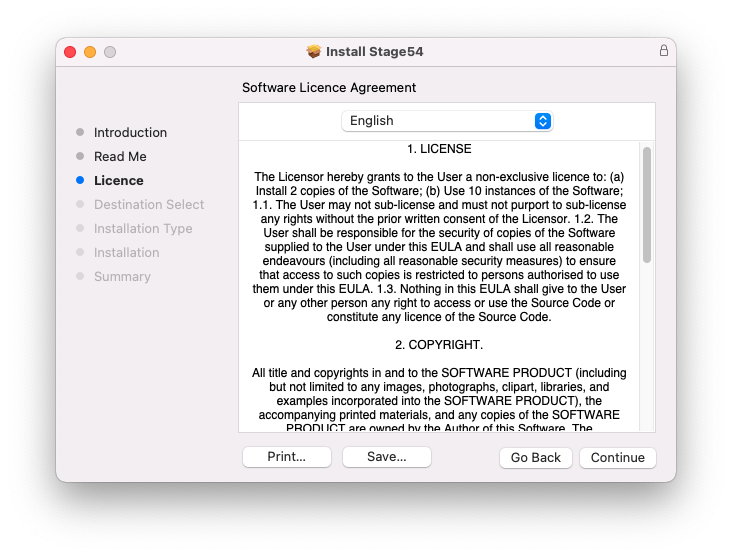
4. Click 'Continue'.
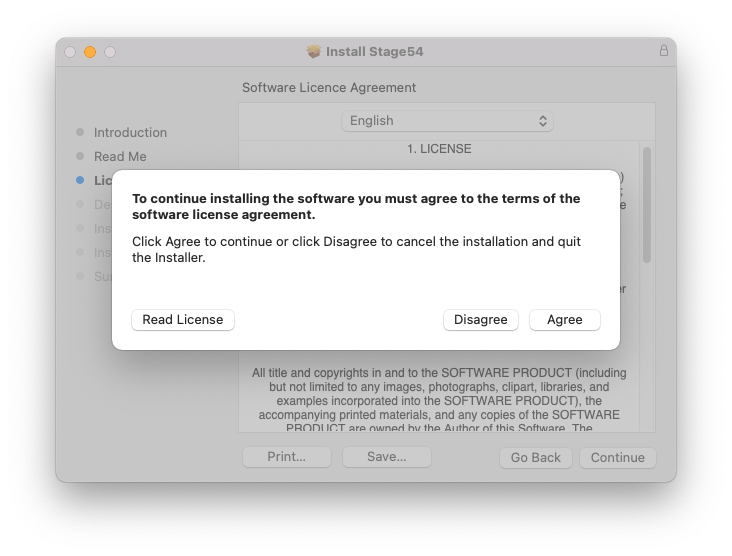
5. Click 'Agree'.
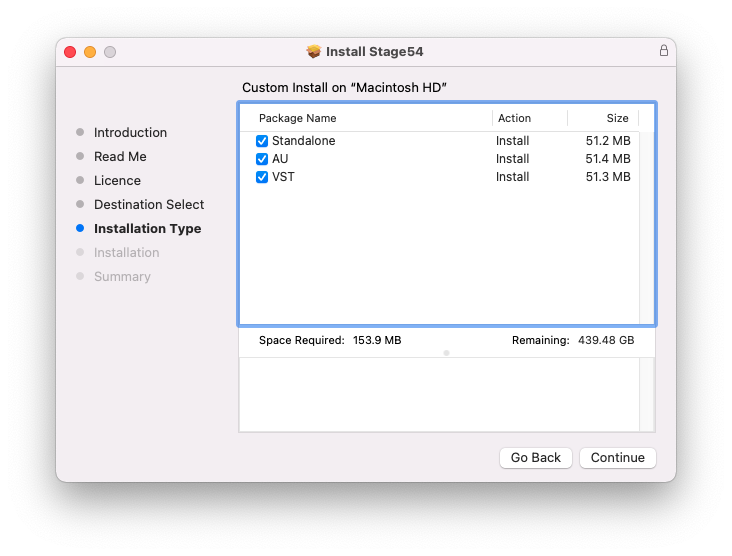
6. Click 'Continue'.
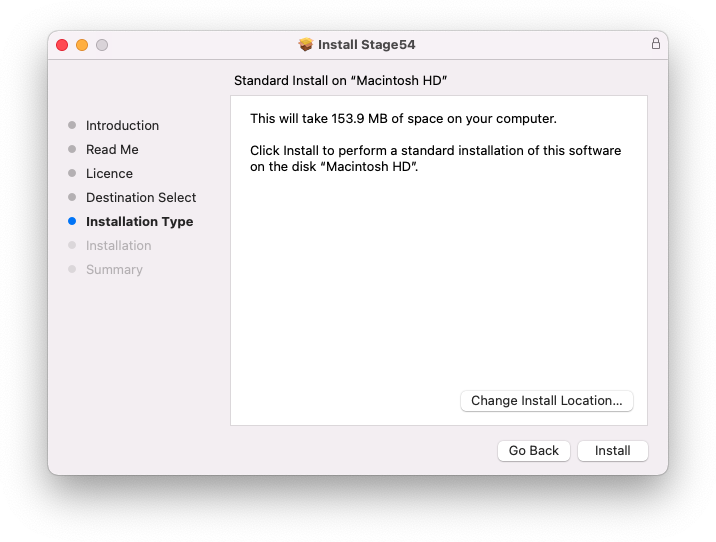
7. Click 'Install'.
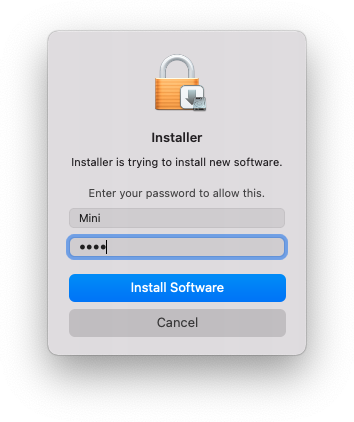
8. Enter your system password > Click 'Install Software'.
9. Click 'Close'.
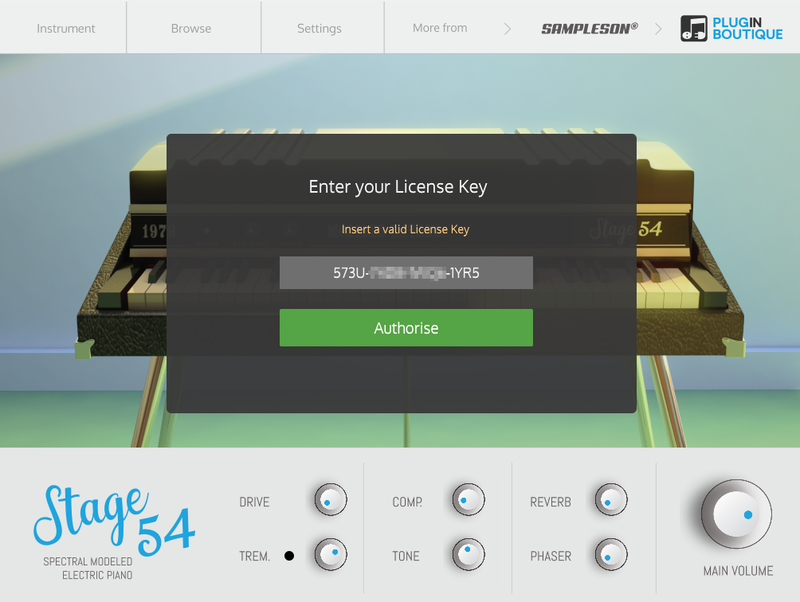
10. Launch your DAW > Create a new Virtual Instrument track > Insert Stage54 onto the channel > Paste your 16 digit serial number found within your Plugin Boutique User Account into the box > Click 'Authorise'.
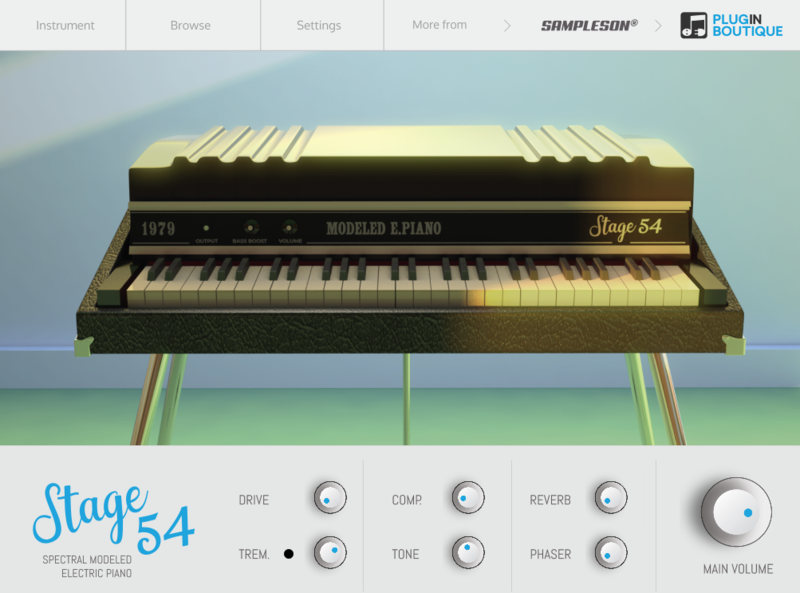
Stage54 is now installed, activated, and ready to use within your DAW.
Windows
Download Installer
1. Navigate to your Plugin Boutique User Account and locate Stage54 > Click the blue 'DOWNLOAD' button.
2. Click 'I want this!'.
3. Enter your email address > Click 'Get'.
4. Click 'View content' to proceed straight to your downloads > Alternatively, enter a password to create an account for future access to your download > Click 'Sign Up'.
5. Locate the 'Stage54 Win Installer' > Click 'Download'.
Installation
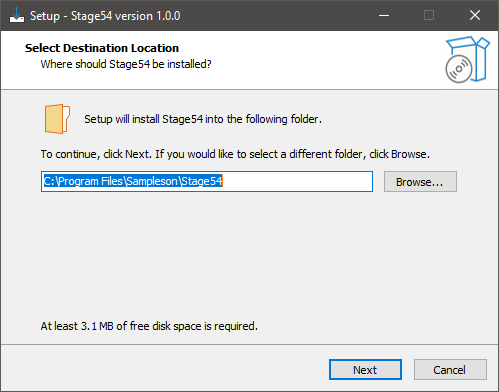
1. Navigate to your Downloads folder and locate the 'Stage54 Win Installer.exe' > Launch the installer.
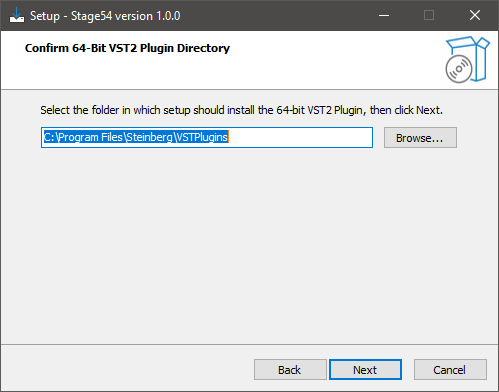
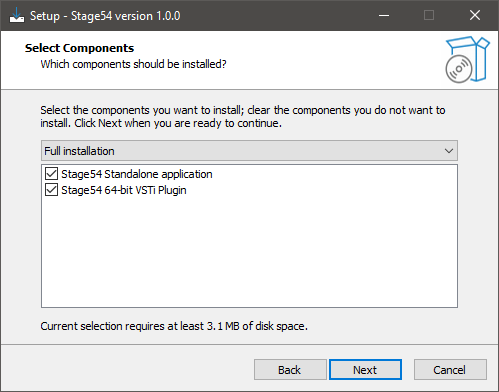
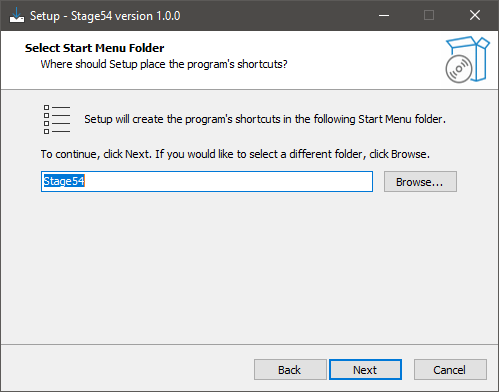
2. Click 'Next'.
3. Click 'Next'.
4. Click 'Next'.
5. Click 'Next'.
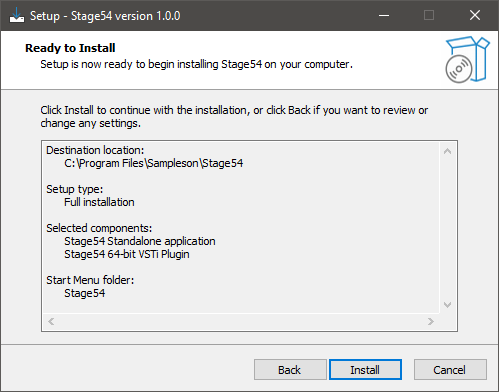
6. Click 'Install'.
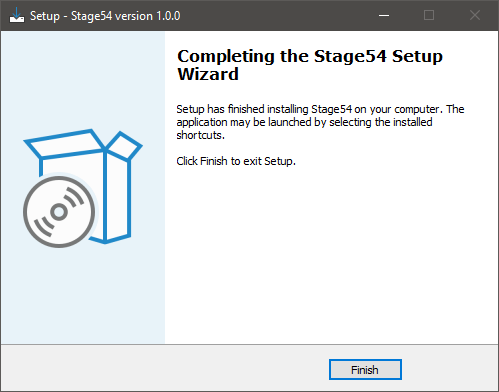
7. Click 'Finish'.
8. Launch your DAW > Create a new Virtual Instrument track > Insert Stage54 onto the channel > Paste your 16 digit serial number found within your Plugin Boutique User Account into the box > Click 'Authorise'.
Stage54 is now installed, activated, and ready to use within your DAW.