MNTRA Instruments

Klavir

4.4 (121 Reviews)
FREE
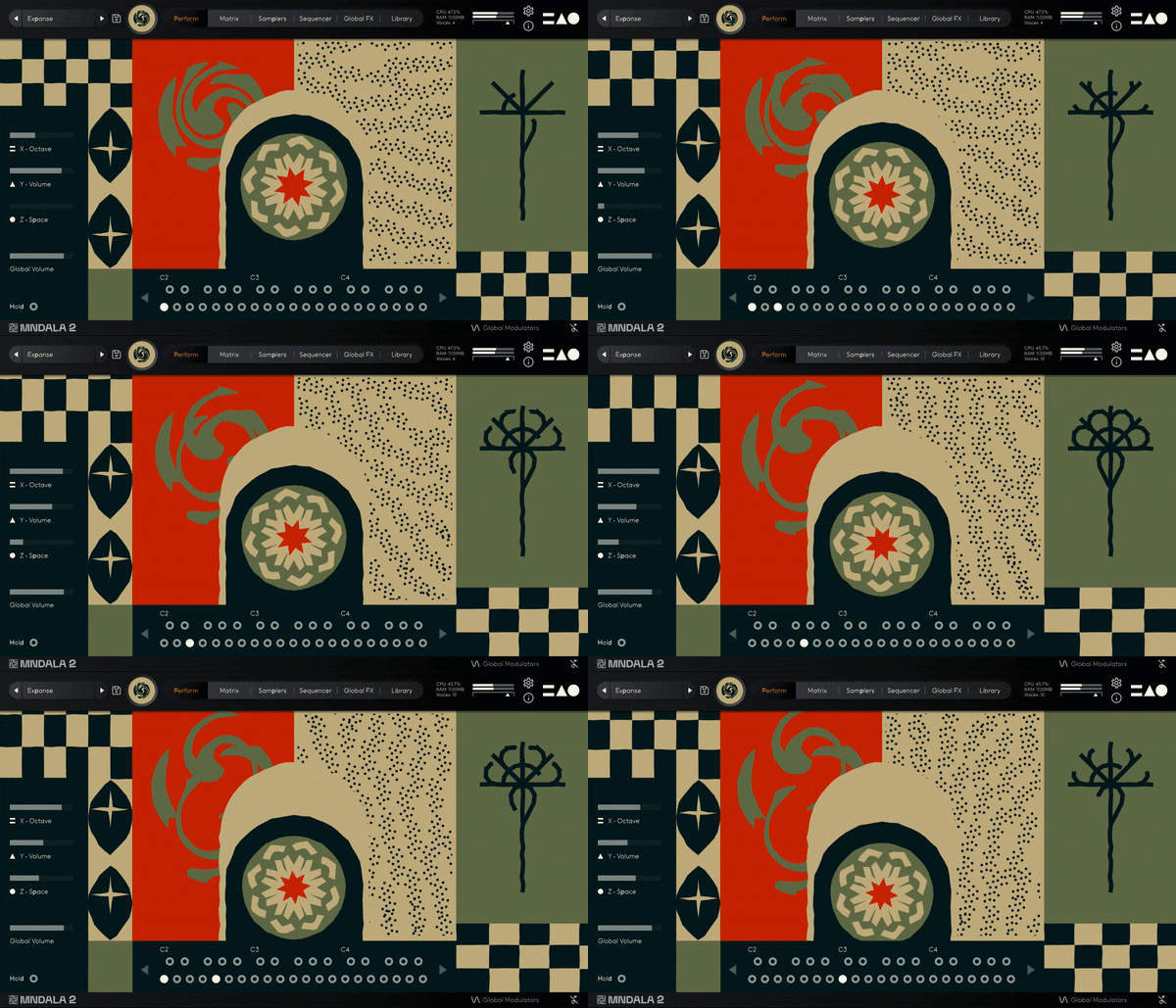
MNTRA Instruments Klavir - GUI
MNTRA Instruments Klavir - Presets Video gallery thumbnail
MNTRA Instruments Klavir - Global FX
MNTRA Instruments Klavir - Matrix
MNTRA Instruments Klavir - Samplers 1
MNTRA Instruments Klavir - Samplers 2
MNTRA Instruments Klavir - Sequencer
Product information

Your New Go-To Piano

 Meet Klavir, a beautifully recorded Petrof upright piano offered to you for free. This already incredibly versatile piano truly comes into its own within MNTRA's MNDALA 2 engine, where you can sculpt the source recordings into whatever shape you desire. Nostalgic keys, ambient pads, noisy drones, distorted synth-like sequences... you name it.
Klavir was born out of the MNTRA team's desire to create the piano that they always wanted. Balanced in darkness and brightness, intimacy and ambience; this piano could suit nearly any genre. They sampled it with pristine ultra-modern ultrasonic microphones, as well as a vintage figure-eight ribbon mic, allowing you to find your own sound.

To get you going, they've created 15 presets, ranging from gentle pianos to monolithic soundscapes, so that you can get to making music without worrying about what's going on behind the hood. But for the sound designer inside you, MNTRA's engine MNDALA 2 encourages you to explore as much as you want. Intuitive controls let you quickly shape the sound, while the XYZ matrices allow you to build a complex performance.

Instrument Descriptions

  • Piano Close - Close perspective of a Petrof upright piano with ultra-modern microphones.
  • Piano Far - Far perspective of a Petrof upright piano with vintage ribbon microphones.

Features

  • Recorded at extreme definition 32-bit 384kHz ultrasonic resolution
  • CPU-efficient in-engine playback at industry-leading 24-bit 96kHz resolution
  • 64-bit VST3/AU plugin for Windows & Mac OS (10.11+) including full M1 Chip support
  • No fuss copy protection, simply install and the instrument is uniquely encrypted to be used within your system.
  • Seamless download, updates, and installation within MNDALA 2 with a registered MNTRA account

System Requirements

Mac

  • MacOS 10.11+ (64-bit only) (Silicon processor supported)
  • VST3/AU/AAX formats
  • 793 MB installed, 2.5 GB recommended free disk space for setup

  • Minimum 8GB of RAM

Windows

  • Minimum 8GB of RAM and an i5 or better CPU required, SSD drive recommended
  • VST3/AU/AAX formats
  • 793 MB installed, 2.5 GB recommended free disk space for setup
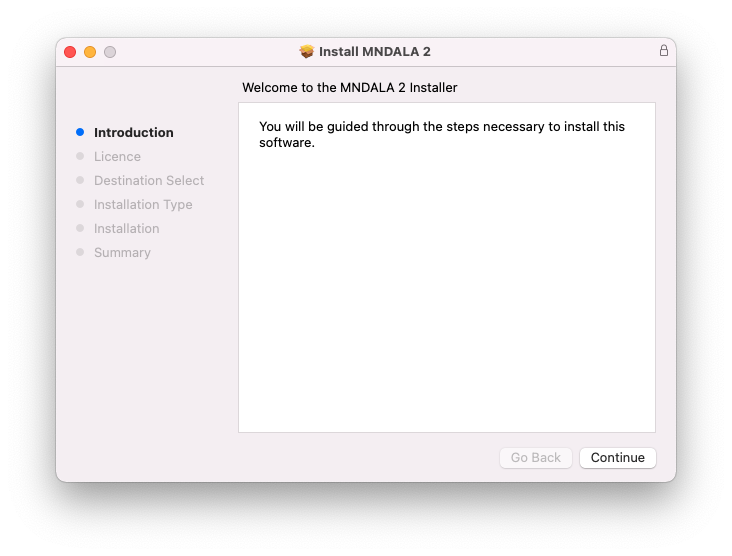
Installation Instructions

Note: Huracan is used as an example.

Mac

1. Download the MNDALA 2 Engine installer from your Plugin Boutique User Account > Extract the .zip archive > Launch the .pkg installer.

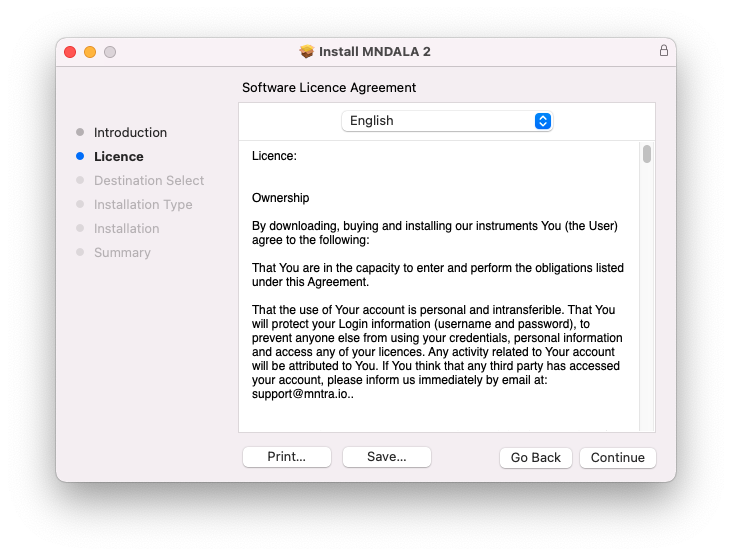
2. Click 'Continue'.

3. Click 'Continue'.

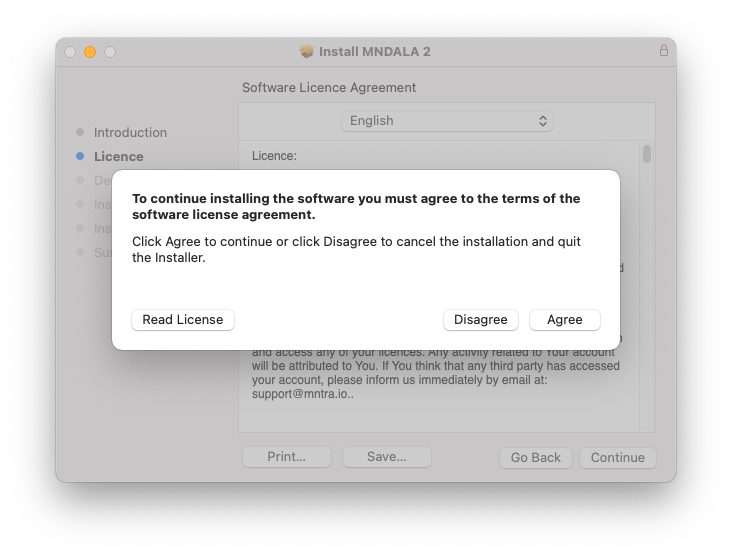
4. Click 'Agree'.

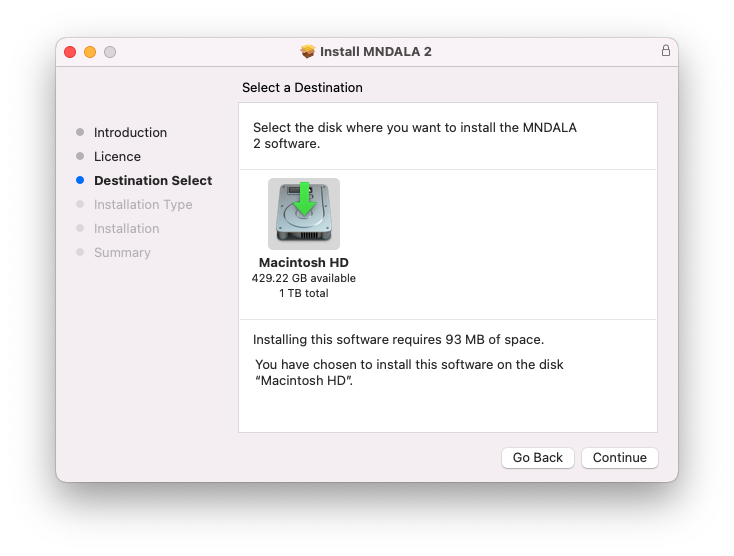
5. Click 'Continue'.

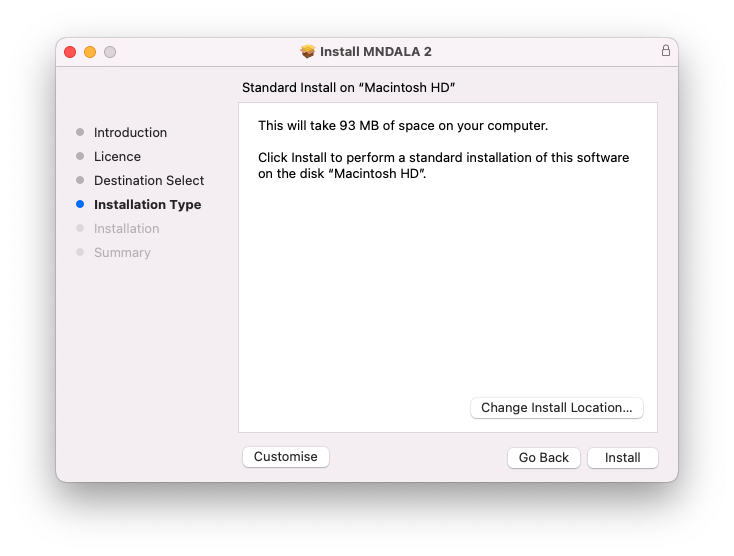
6. Click 'Install'.

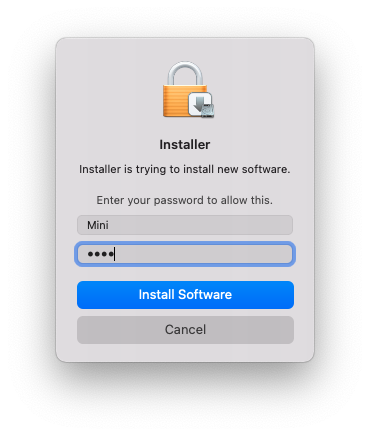
7. Click 'Install Software'.

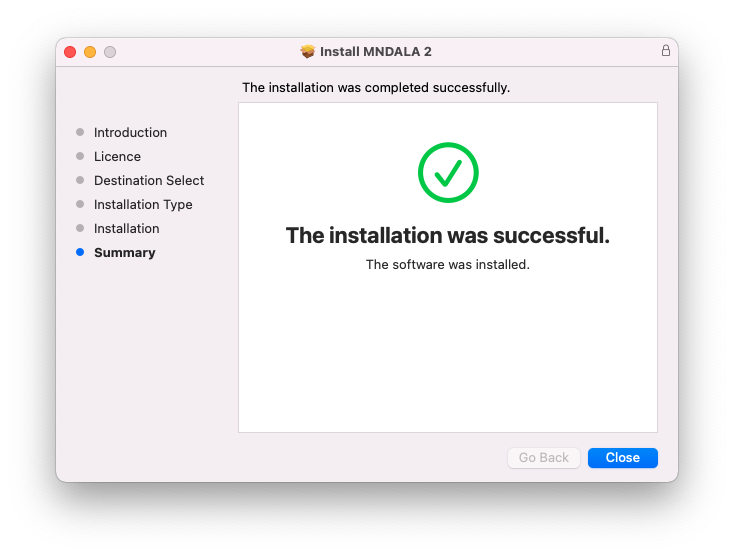
8. Click 'Close'.

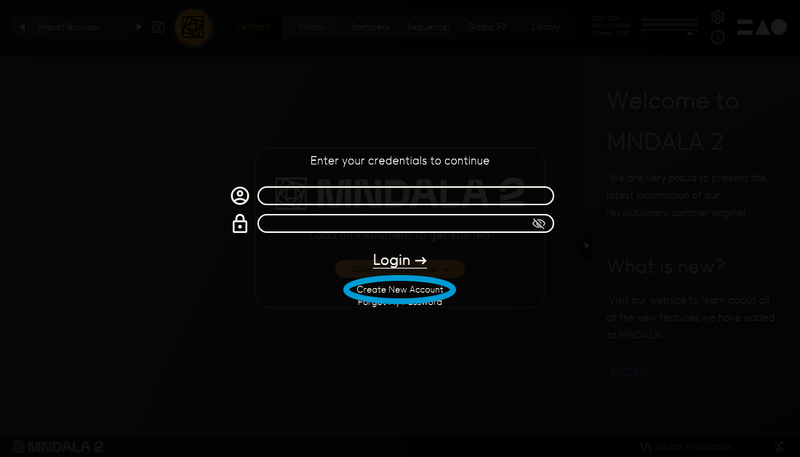
9. Launch your DAW > Insert MNDALA 2 on a new instrument track > Click 'Create New Account' (If you have an existing MNTRA Instruments log in and skip to step 15).

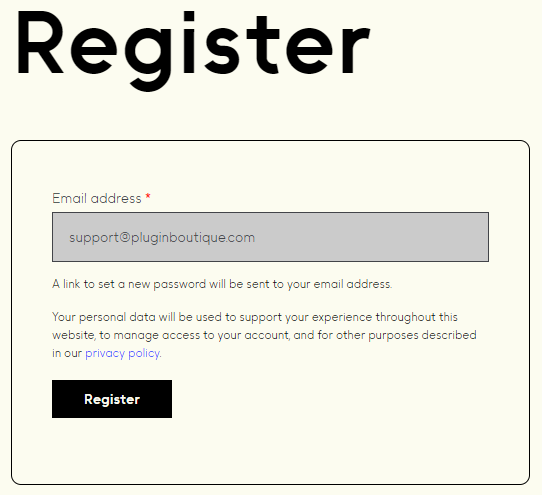
10. Enter your email address and click 'Register'.

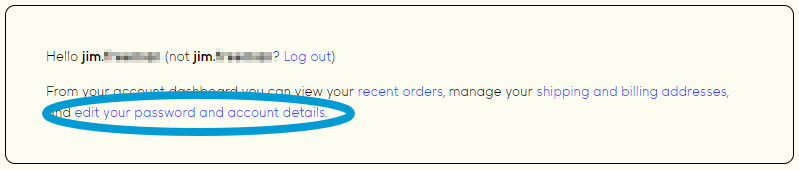
11. A MNTRA account has now been created > Click 'edit your password and account details' to create a password for your MNTRA account.

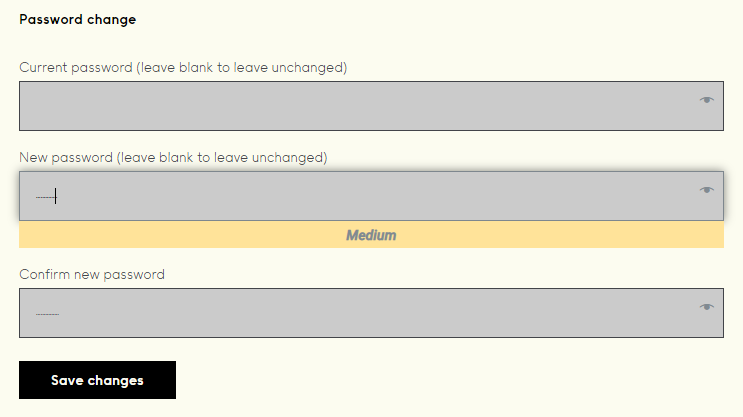
12. Enter your chosen password into the 'New password' box > Enter your password again into the 'Confirm new password' box > Click 'Save changes'.

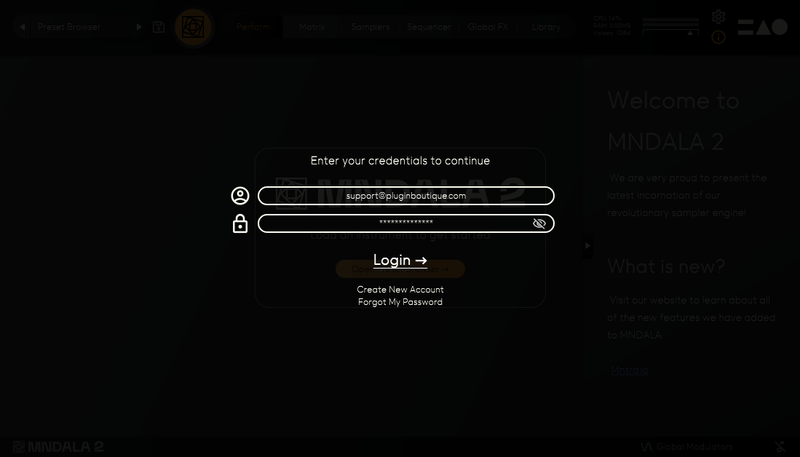
13. Enter your MNTRA account details > Click 'Login'.

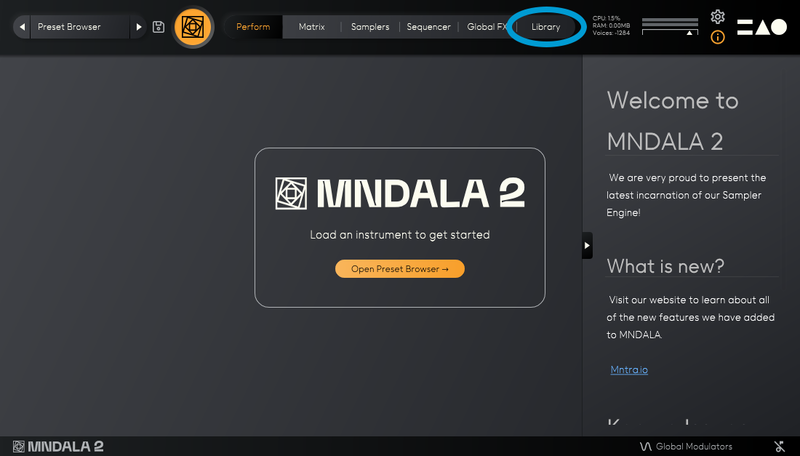
14. You are now logged into the MNDALA 2 Engine > Click 'Library' to continue to activate Huracan.

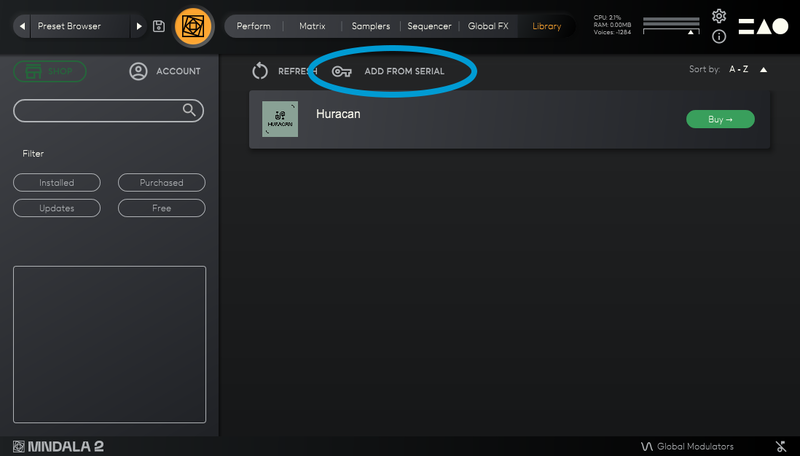
15. Click 'Add From Serial'.

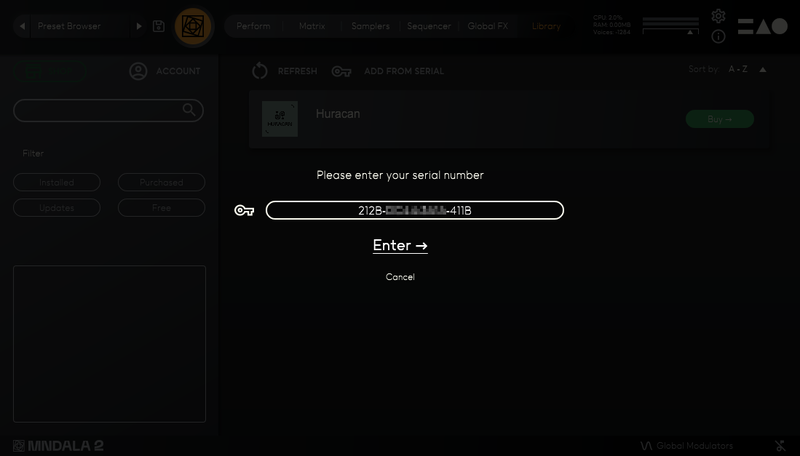
16. Enter your serial number found within your Plugin Boutique User Account > Click 'Enter'.

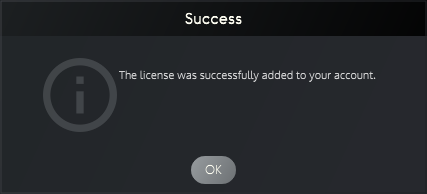
17. Click 'OK'.

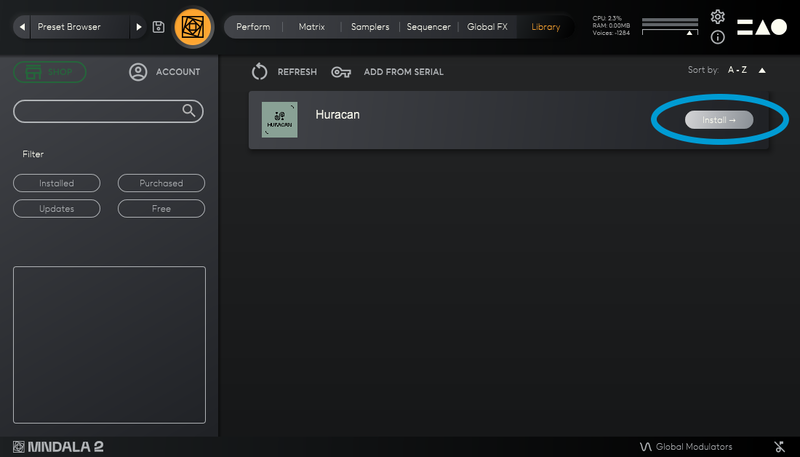
18. Click 'Install'.

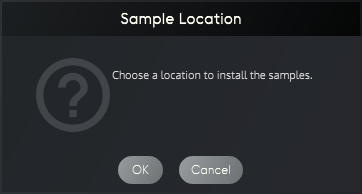
19. Click 'OK' > Choose a location to store the instruments samples.

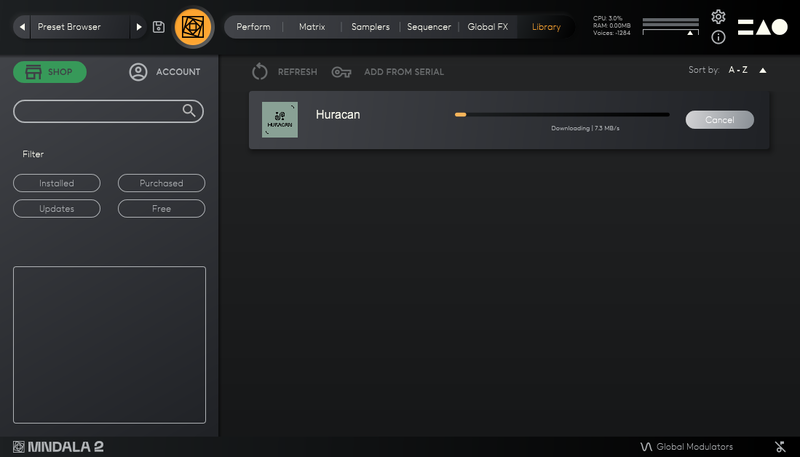
20. Huracan is now downloading (this may take a few minutes).

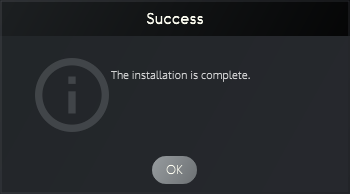
21. Click 'OK'.

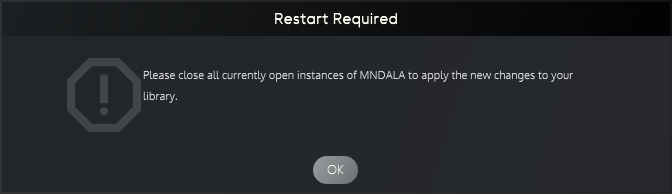
22. Click 'OK' > Close and relaunch your DAW.

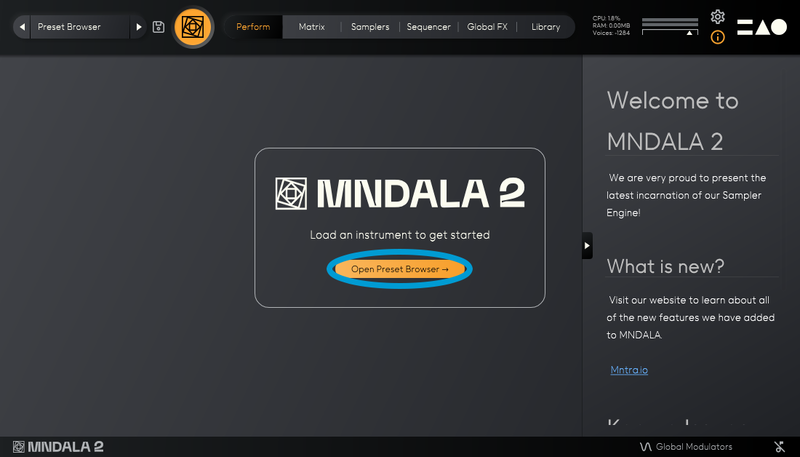
23. Insert MNDALA 2 on a new instrument track > Click 'Open Preset Browser'.

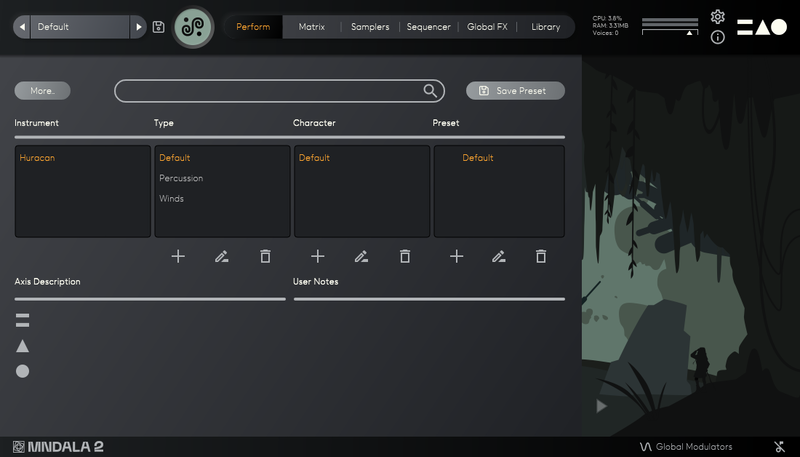
24. Select 'Huracan' then choose a preset.

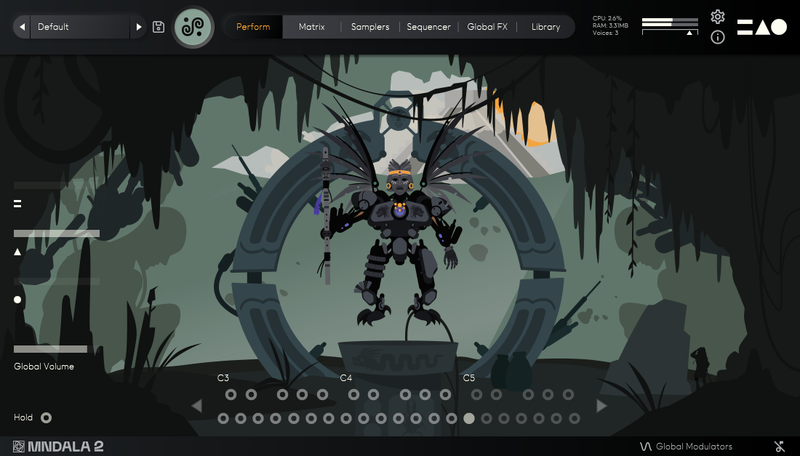
Huracan is now installed, activated, and ready to use.

Windows

1. Download the MNDALA 2 Engine installer from your Plugin Boutique User Account > Extract the .zip archive > Launch the .exe installer.

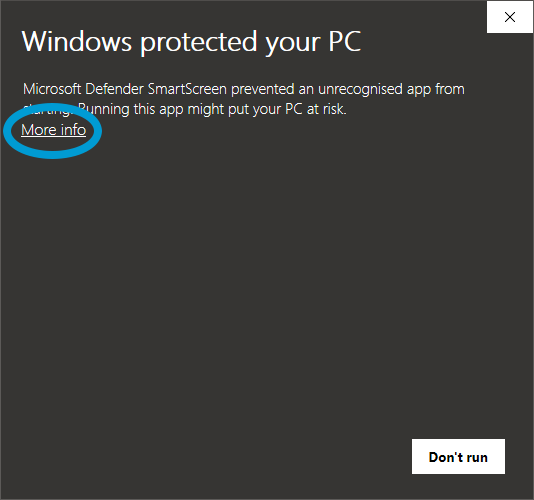
2. Click 'More info'.

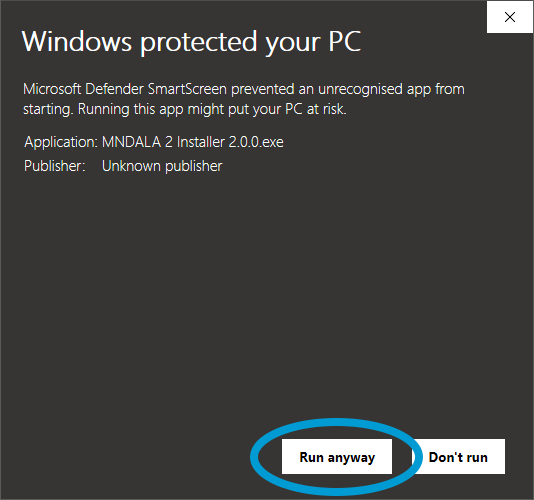
3. Click 'Run anyway'.

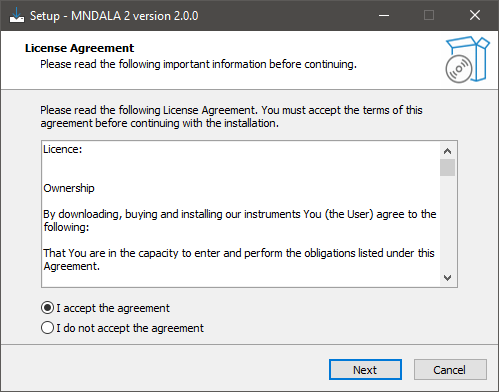
4. Accept the license agreement > Click 'Next'.

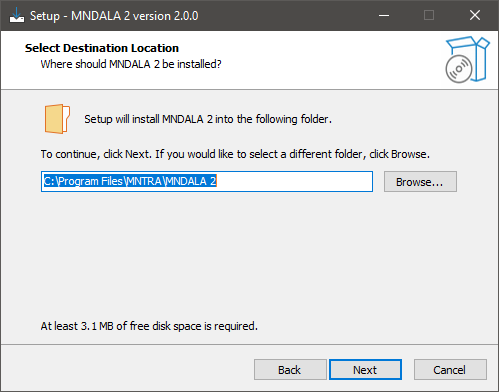
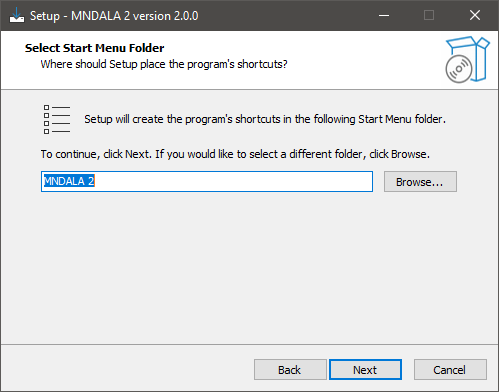
5. Click 'Next'.

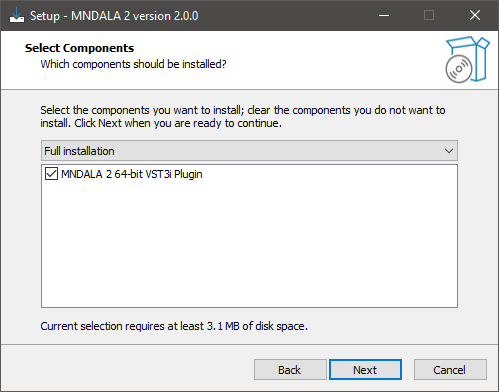
6. Click 'Next'.

7. Click 'Next'.

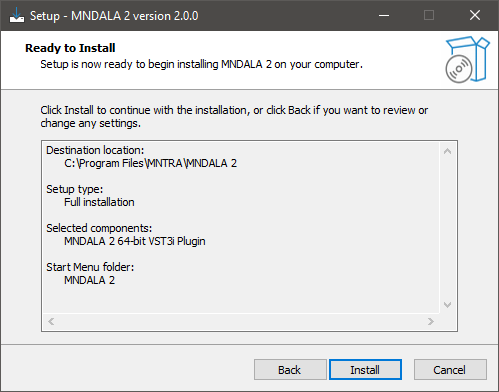
8. Click 'Install'.

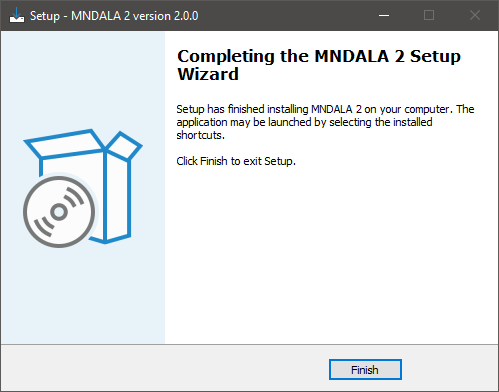
9. Click 'Finish'.

10. Launch your DAW > Insert MNDALA 2 on a new instrument track > Click 'Create New Account' (If you have an existing MNTRA Instruments log in and skip to step 15).

11. Enter your email address and click 'Register'.

12. A MNTRA account has now been created > Click 'edit your password and account details' to create a password for your MNTRA account.

13. Enter your chosen password into the 'New password' box > Enter your password again into the 'Confirm new password' box > Click 'Save changes'.

14. Enter your MNTRA account details > Click 'Login'.

15. You are now logged into the MNDALA 2 Engine > Click 'Library' to continue to activate Huracan.

16. Click 'Add From Serial'.

17. Enter your serial number found within your Plugin Boutique User Account > Click 'Enter'.

18. Click 'OK'.

19. Click 'Install'.

20. Click 'OK' > Choose a location to store the instruments samples.

21. Huracan is now downloading (this may take a few minutes).

22. Click 'OK'.

23. Click 'OK' > Close and relaunch your DAW.

24. Insert MNDALA 2 on a new instrument track > Click 'Open Preset Browser'.

25. Select 'Huracan' then choose a preset.

Huracan is now installed, activated, and ready to use.

Plugin Boutique Rewards

Discover the most rewarding loyalty programme among all plugin retailers.

  • Free Loopmasters Samplepacks
  • Discounts on products and courses
  • Extra Virtual Cash claimed immediately at checkout
Find out more

Follow us:

X (Twitter) Facebook YouTube Instagram
Logo Logo

Plugin Boutique Limited, Part of the Beatport Group LLC.

Copyright © 2011-2025 Plugin Boutique. All rights reserved