Log In

Free gifts available with your purchase

Cosmic Digital Dust
Galactron is an assembly of electronic sounds that reminisce on neo-psychedelic aesthetics, inspired by the explosion of FM Synthesis, daring stereo movement, gigantic reverbs and ambience pads. Through MNTRA's sampling engine, MNDALA 2, the sounds of the synthesisers that the MNTRA team have used and loved for a long time, have grown to become a new kaleidoscopic creation, always colourful and always different.
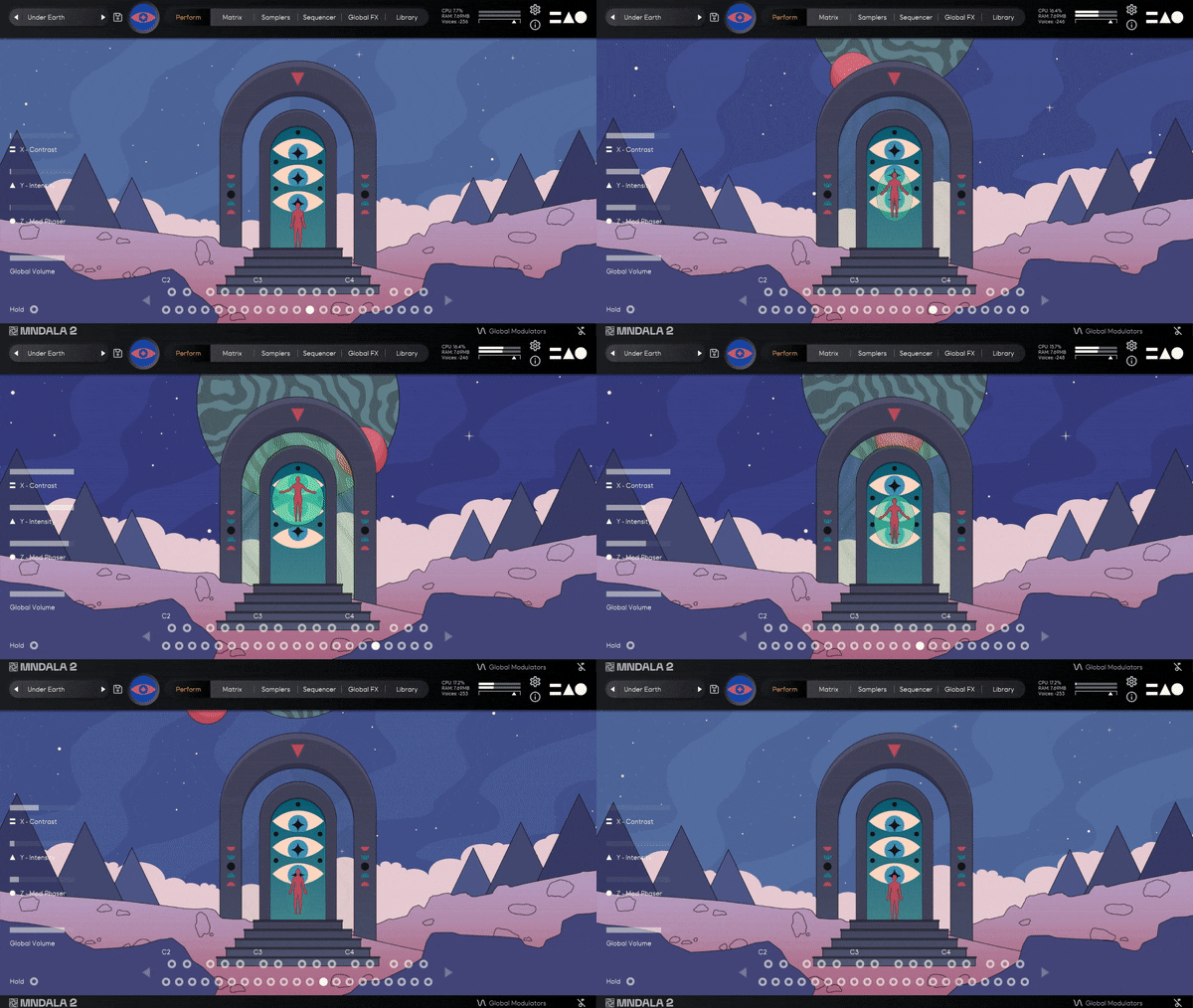
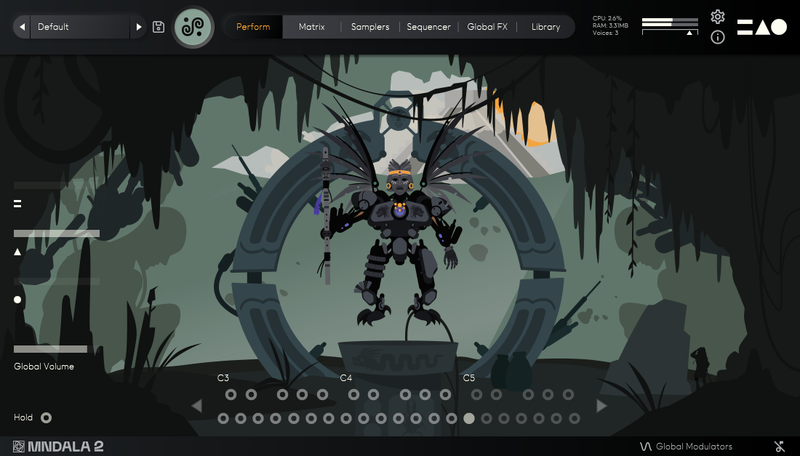
Galactron complements MNTRA's ever-growing collection of instruments with a retro-modern approach to keys, pads and otherworldly atmospheres. Sampling a collection of 80s digital (or digitally controlled) synthesisers, these already characterful sounds are brought to the next level within MNDALA 2's deep sound shaping network of effects and modulation. Through the 3-axes (XYZ) global controls, these sounds come to life in a way that was unthinkable before, morphing and breathing as you play them.
Keys
- E-Piano - Cheesy 80s FM piano.
- Crystal Pluck - Lofi crystalline marimba-like pluck.
- String Thing - Bright harpsichord-like long pluck.
- Scorched Keys - Buzzy FM string-like keys.
- Dusty Bells - Lofi metallic tines with an age of wear.
- Marimbaphonic - Synthetic wooden mallet sound with lofi aliasing
- Membrane - Synthetic membrane with clicky transient.
- Bellish - Noisey FM bell.
- Dreamer Keys - Noisy retro analog keys.
- Reverser - Sliding bass into brassy keys.
- Analog Harpsichord - Synthetic hammered string
Bass
- Jetson Bass - Thick phase-distorted bass. Play high or low.
- Swoop Bass - Squelchy acid bass with sub octave tail.
- Submarine - Deep bass with 80s vibes.
- Short Sub - Short mellow sub bass.
- Burnt Bass - Thick dirty bass.
Stab
- Brass Pluck - Short brassy pluck with noisy decay.
- Bright Stab - Sharp brassy stab.
Lead
- Laser - Piercing FM lead.
- Astro Lead - Bright buzzy lead.
Pad
- Mothership Organ - A brassy pad with soft octave harmonics.
- Digi Pad - Soft pad with digital artefacts.
- Brass Pad - Brassy FM pad.
- Reedy - Woodwind-like synth with evolving timbre.
- Neon - Bright nostalgic pad.
- Air - Floating buzzy pad with lots of motion.
- Hollow - Phasey harmonic pad with lots of treble bite to cut through a mix.
- Unstable Organ - Warbly home organ.
- Angelo - Lofi mellow midrange pad.
- Atomic - Massive chorused pad.
- Voyager - Warm pad with a percussive transient.
- E.T. Flute - Soft and pure flute sound with a touch of digital degradation.
- Starlost - Warm VHS pad.
- Flanged - Buzzy pad with flanging.
- Lush Pad - Big lush analog pad.
- Rover - Bright analog pad with swell.
- Pulsar - Bright pulsing analog pad.
- Mellow Pad - Low-key warm analog pad.
- Sonar - High pulsing tone with subharmonics.
- Plucked Pad - Analog pluck into a soft pad.
Features
- 133 Presets
- 40 Instrument Sample Maps
- Recorded at 24-bit 48kHz
- No fuss copy protection, simply install and the instrument is uniquely encrypted to be used within your system.
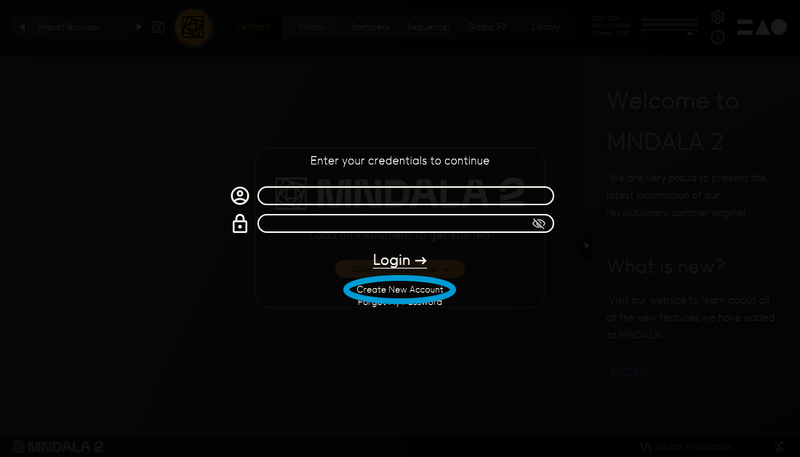
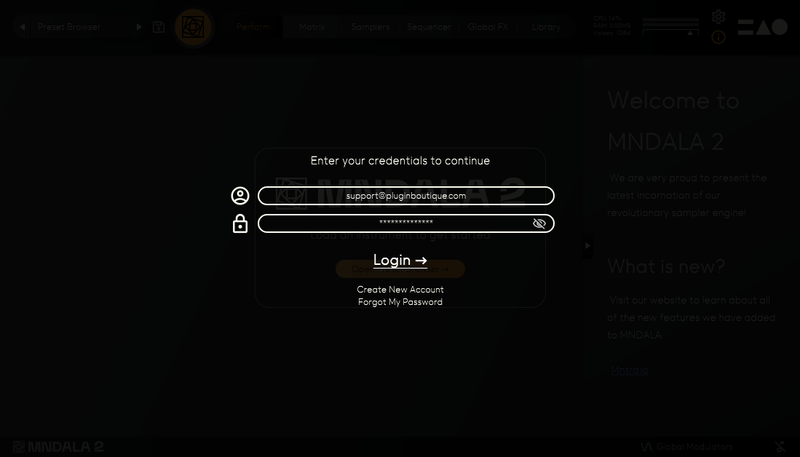
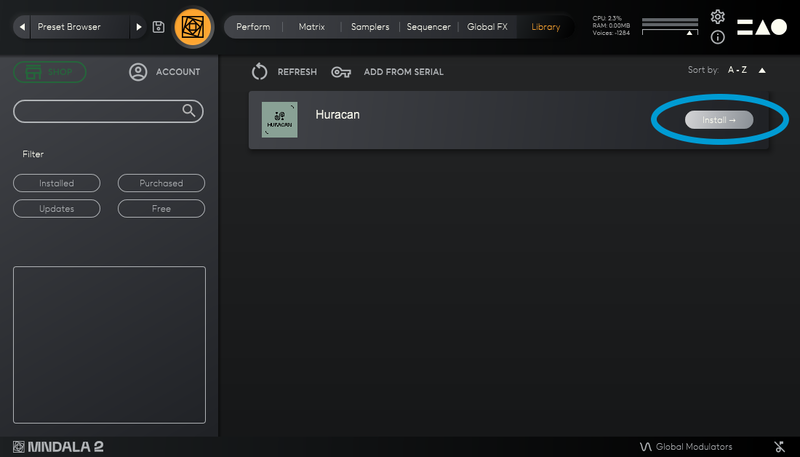
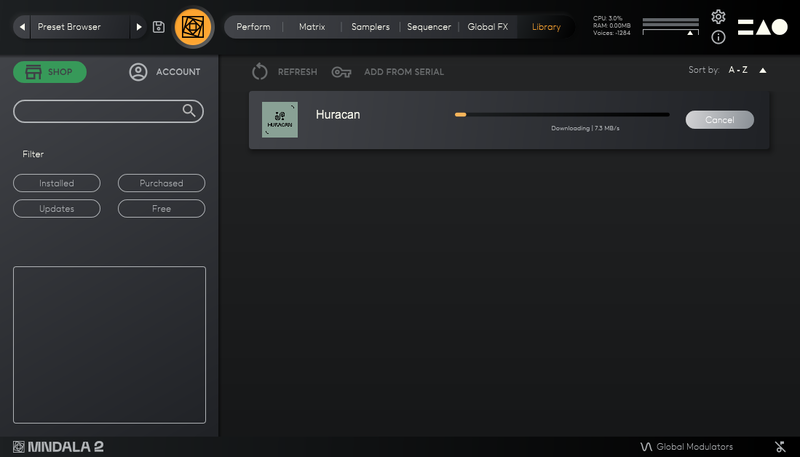
- Seamless download, updates, and installation within MNDALA 2 with a registered MNTRA account
- 40 sample maps
System Requirements
- 64-bit VST3/AU/AAX plugin for Windows & Mac OS (10.11+) including full M1 Chip support
- 6 GB installed, 12 GB recommended for setup
- Minimum 8GB of RAM and an i5 or better CPU required, SSD drive recommended
- Supported by all popular VST/AU/AAX compatible DAW’s