Log In

Free gifts available with your purchase

Multidimensional Dark Sounds Suite
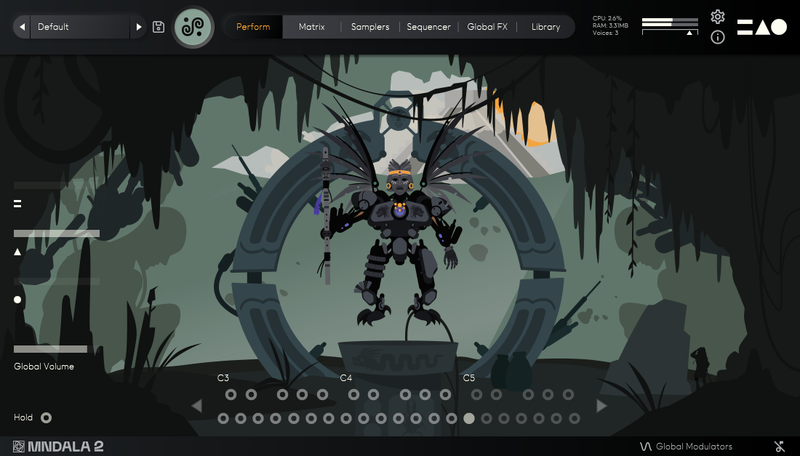
Orakle is inspired by desolate landscapes and ancient aesthetics, by combining arcane instruments and techniques from medieval, nordic, and pan-Asian musical cultures. Our curated suite of strings, percussion, voices, and more blend together to forge a vast unique cinematic soundscape - enhanced by our multidimensional Sound Sculpture audio engine MNDALA 2.
Performed by award-winning multi-instrumentalist composer Brian D'Oliveira, and drawing from decades of experience gained during our award-winning film and video-game productions, Orakle features Medieval & Eastern-inspired performance methods as well as unconventional extended techniques. Each note is a unique performance brought to life within Orakle, ready for you to sculpt.
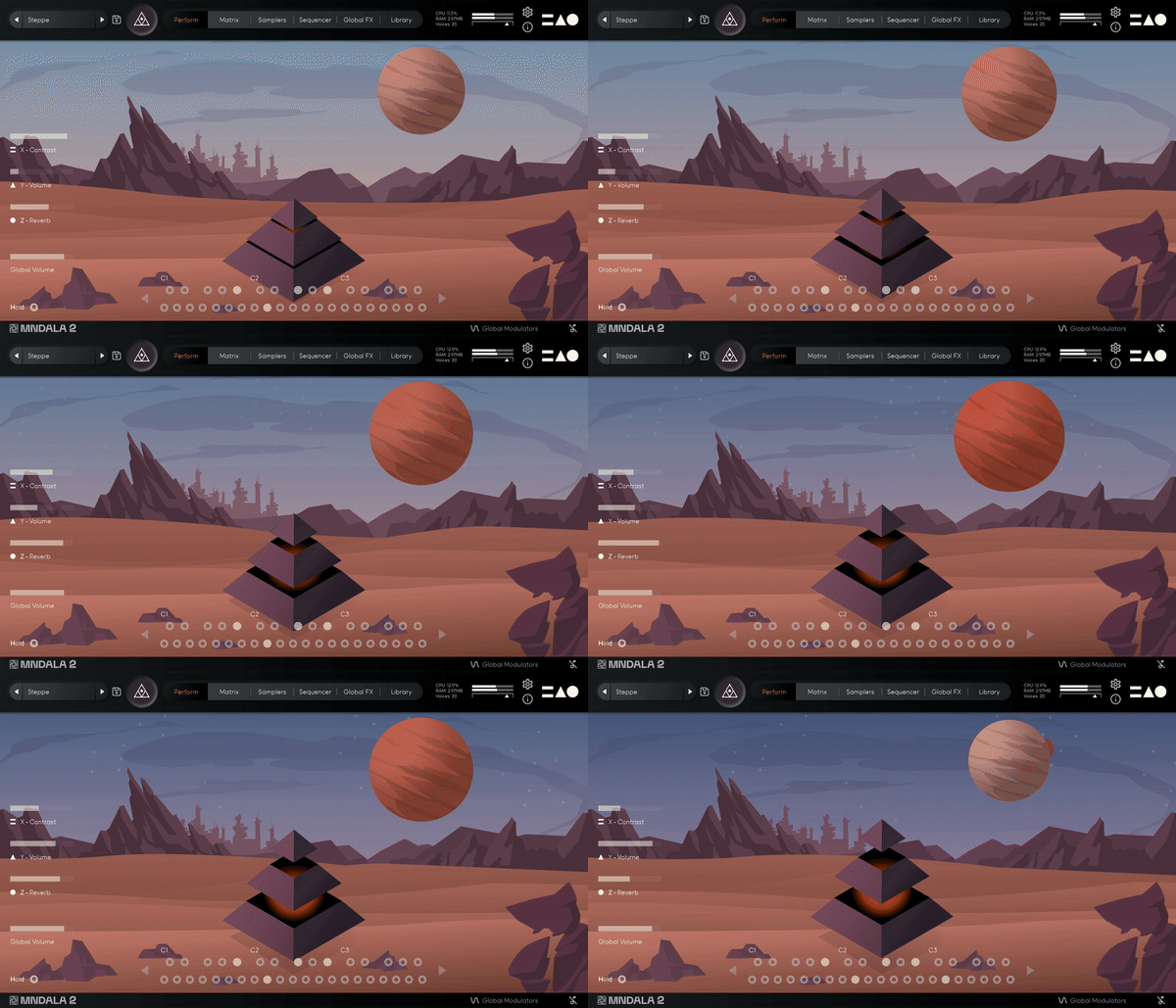
Ranging from our powerful Tibetan Horns and Giant Concert Bass Drum to the grating wails of the Turkish Kabak Kemane and Treble Viola Da Gambas, Orakle creates a distinctly dark atmosphere.
Our sampling approach comes from our desire to share something unconventionally interesting. Enhanced and transformed within our MNDALA Engine, allows you to explore countless sonic pathways of dynamic sound design with these rare instruments.
List Of Instruments
- Low Tibetan Horn Long
- Low Tibetan Horn Short
- High Tibetan Horn Short
- Cymbal Bowed F
- Cymbal Bowed MF
- Cymbal Bowed P
- Bass Drum Strike F
- Bass Drum Strike MF
- Bass Drum Roll
- Repinique Drum Hit 1
- Repinique Drum Hit 2
- Frame Drum Mallet Strike F
- Frame Drum Mallet Strike MF
- Frame Drum Mallet Strike P
- Clapping Sticks 1
- Clapping Sticks 2
- Voice Long F
- Voice Long MF
- Voice Long P
- Voice Short F
- Voice Short MF
- Voice Short P
- Baroque Cello Harmonics Long 1
- Baroque Cello Harmonics Long 2
- Baroque Cello Harmonic Short 1
- Baroque Cello Harmonics Short 2
- Kabak Long
- Kabak Flick
- Treble Gamba Long Left
- Treble Gamba Long Right
- Treble Gamba Pizz
Features
- 31 Sample Maps
- 46 Presets
- Up to 59 Round Robins
- Recorded at leading-edge 32-bit 384khz resolution
- CPU-friendly playback at 24-bit 96khz resolution
System Requirements
- VST/AU/AAX plugin for Windows & Mac OS (10.11+) including Apple Silicon support
- Plugin app and samples watermarked to you
- Easy downloads and updates via Pulse Downloader
- 11 GB installed, 16 GB required for setup
- Minimum 8GB of RAM and an i5 or better CPU required
- Supported by all VST/AU/AAX compatible DAWs
Chris Dudley
Film Composer, Multi-Instrumentalist for Underoath
“I own every MNTRA instrument and I can honestly say they’re all pushing a limit and filling a niche I didn’t even know was there.”
Panic Girl
Producer, Artist, Synthesist
“If you need some fresh and unusual sounds for your compositions or want to work with an easy yet powerful user interface, then you should definitely check it out.”
Ryan Elder
Rick and Morty, The Boss Baby: Back in Business
“In a sea of virtual instruments and sound libraries MNTRA's Instruments really stand out as creative and inspirational tools.”