/ Generator / Punch-BD
Rob Papen

Punch-BD

4.6 (137 Reviews)
$49.00
Punch BD User Interface
RP Punch-BD Introduction gallery thumbnail
Punch BD User Interface
Punch and Punch-BD with NI NKS support gallery thumbnail
Buy Now
Product information

For a limited time, receive PRISMA (instrument layering plugin) and RP-AMOD (multi-effect) plugins FREE!

Based around the BD module of the multi award winning Punch virtual drum synth, Rob Papen delivers a creative module to help you to produce the fattest sounding bass drums for your music.

Stacking bass drums is a popular technique used by today's music producers and Punch-BD gives you the ability to stack up to 6 in total. Divide the 6 BD pads over the keyboard or use them 'stacked' in tuned mode to produce creative new BD sounds for all styles of contemporary music.

Punch-BD delivers synthesized drums in the finest audio quality or you can choose to load in your own samples for complete flexibility. Each pad has its own distortion module with several distortion types as well as its own 3 band graphic EQ. What's more, each individual pad also has its own preset section next to the overall 'BD kit'.

Like its big brother, Punch-BD features four FX units each with many 31 types of top quality FX plus further filters, envelopes, modulation routings and more for crafting your own unique sound.

From Electronic Dance and Hip Hop to Soundtrack projects, Punch-BD provides a solid speaker-busting sound for your productions.

Features

Main:

  • Punch-BD is a bass drum synthesizer and sample player. With up to 6 pads that can be combined / stacked in several ways including tuned keyboard playing

6 Drum-Pads Offering Each:

  • Each pad can be used in drum synthesis or sample mode
  • 4 different synthesis models and built in 4 classic electronic BD samples and 31 punch samples
  • Dual Sample slot, each with there their own amp / pitch envelopes & filter and filter envelope
  • Each drum has it's own 'easy controls', distortion (20 different models)and output destination (to dry or any of the 4 fx channels)
  • 3 bank graphic EQ per pad with frequency, bandwidth and gain control
  • Tune bypass button per pad to avoid keyboard tuning response in 'Tuned Stack' or 'Tuned Seq' mode
  • Easy bypass button per pad to avoid response of the sound in the EasyPage
  • Each drum can be previewed and selected by clicking in the Drum Preview Pad
  • Each drum pad has solo and mute
  • Each drum pad has right mouse menu command functions

Play Mode:

  • Stack mode: stacking up to 6 BD pads
  • Tuned Stack mode:  stacking up to 6 BD pads responding to keyboard notes played
  • 6 notes mode: from the central note 6 separate notes representing each one BD pad
  • Seq mode:  Up to 6 pads play in sequential order
  • Tuned Seq: Up to 6 pads play in sequential order, responding to keyboard notes played
  • Central note: for selecting the central note. Default is C3
  • Fine-tuning control for the whole preset
  • Semi-tuning control for the whole preset

Modulators:

  • Punch has 2 envelopes, 2 LFO's and 8 modulation slots , which allow you to use a wide variety of modulation sources to control Punch-BD's parameters

Mixer:

  • A full screen shows the volume & panning of all the controls , plus the FX mix & panning, allows you to easily mix the drum sounds.

EasyPage:

  • EasyPage, which uses sliders to allow altering of the main controls on the fly during use.
  • All are available for Midi-latching with your MIDI controller.

FX Section:

  • 4 FX, each with 32 different type of FX.
  • Mono Delay, Stereo Delay, Comb Filter, Reverb, HQ Reverb, Chorus, Chorus/Delay, Flanger, Phaser, WahWah Delay, Distort, Low Fi, Amp Sim, Waveshaper, Widener, AutoPan, Gator, Ring-Mod, Filter, Equalizer, Compressor, Noise-Gate, Ensemble, Cabinet, Multi Distort, AutoWah, Tape delay, Tape flanger, Analogue phaser, Clipper, Parametric EQ
  • FX can be routed in 5 different paths. In the multi-channel version of Punch-BD, these FX are output to the different output channels.

Manager Screen:

  • Big manager screen, which displays all banks and presets, allows you to Load , Save , Copy & Paste them and much more. Also icluding the powerful find function

Now NKS Compatible!

System Requirements

PC

  • Windows 7/ Windows 8/ Windows 10 (32 & 64 bits)

Formats:

  • VST
  • AAX (Note: PC AAX for PT 12 or higher)
  • Compatible with NI NKS system

Mac

  • OS-X 10.9 - 10.15 (64 bits only)

Formats:

  • AU
  • VST
  • AAX
  • Compatible with NI NKS system

Notes:

  • Serial/licence system with activation whilst registering the product
  • 2nd serial for a secondary computer/laptop is available after you have registered the product’s original serial/license.
Product Reviews
Rob Papen Punch-BD Review at AskAudioMag

We dare you to play a Rob Papen synth and not be inspired! Noah Pred puts Punch-BD virtual drum synth through its paces and finds it punches above its weight in our in-depth review.     With the abundance of marketing hyperbole floating unchecked around the internet, you'd be excus...

Read More
Installation Instructions

(SubBoomBass is used as the example).

Mac

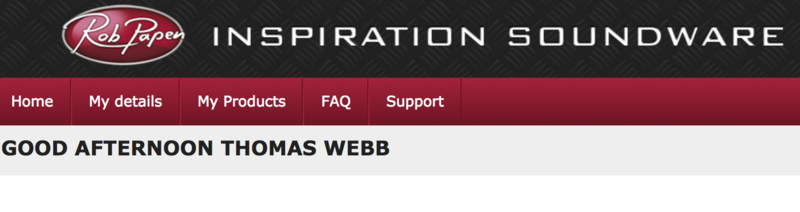
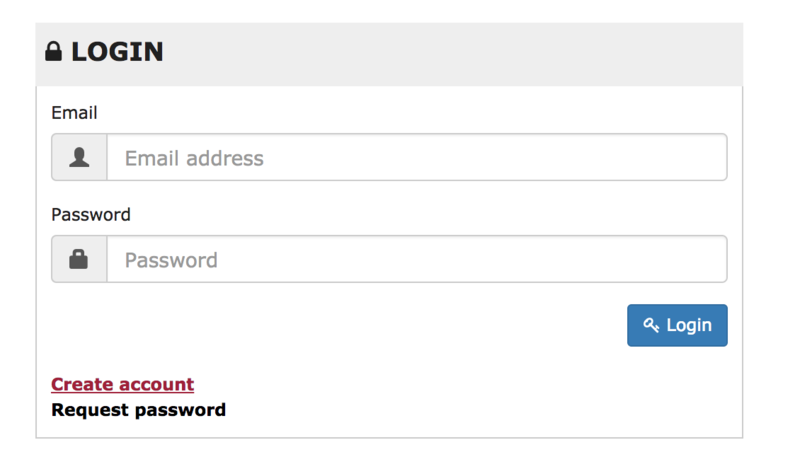
1. Visit Rob Papen and create an account by selecting 'Create Account'.

Note: If you already have an account set up with Ron Papen, 'Login' to your account and skip to step 4. of the installation process.

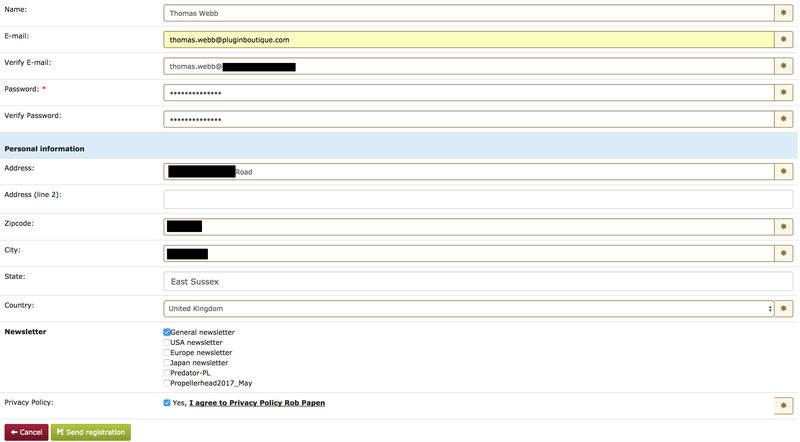
2. Enter your personal details, and once completed check the tick box that reads 'Yes, I agree to Privacy Policy Rob Papen' before clicking 'Send Registration'.

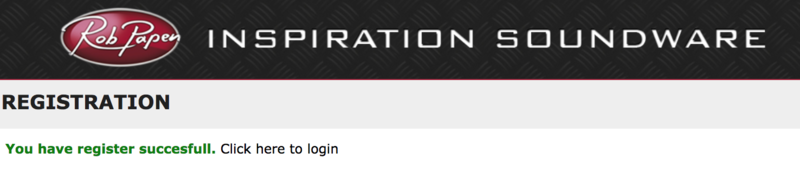
3. The registration of your account has successfully been completed > select 'click here to login' to access your account area.

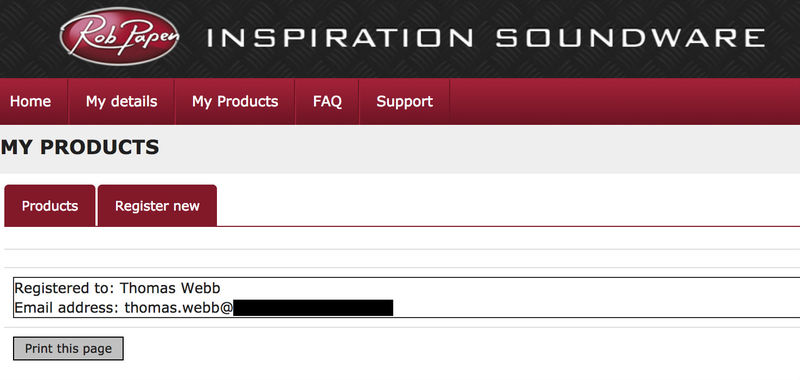
4. Select the 'My Products' tab, which is located at the top-left corner of your account area.

5. Click the 'Register New' option.

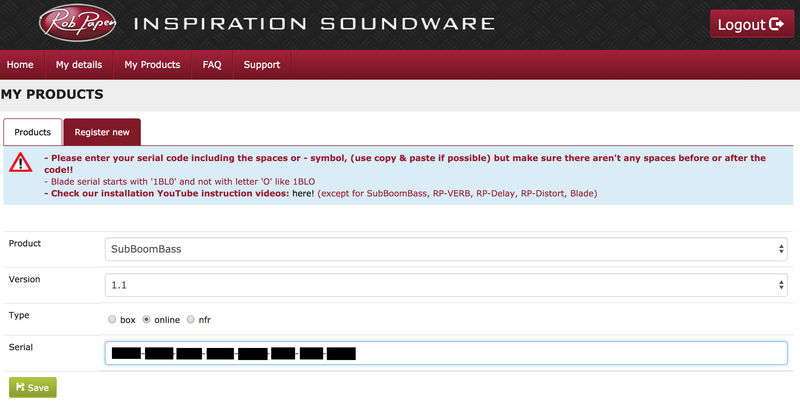
6. Select the product that you have purchased, as well as the most recent version number (which in this instance is 'Online'), before manually entering/copying and pasting the 32-digit Serial Number that is provided within your User Account > once completed, click the 'Save' tab to register your software.

Note: Ensure that you select the correct 'Product' and 'Type', as well as checking that there are no spaces/mistakes when entering your Serial Number > if you receive a code error message of any kind, refresh the web page and manually enter the digits (including the '-' hyphens) before re-clicking the 'Save' option.

7. The registration of your software has successfully completed > select the 'Download latest version: SubBoomBass' hyperlink to navigate to the software download area.

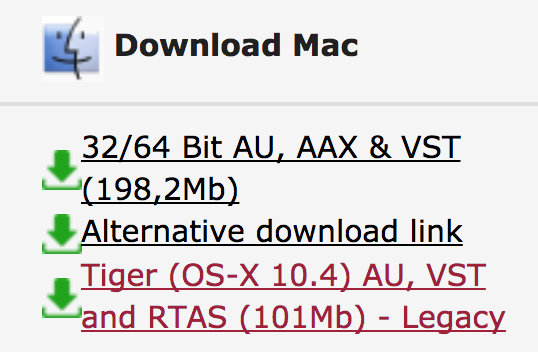
8. Select the relevant format installer download (s) in accordance with your DAW's compability specifications, to inititiate the downloading of your purchased software.

Note: The product user manual is also obtainable from this location.

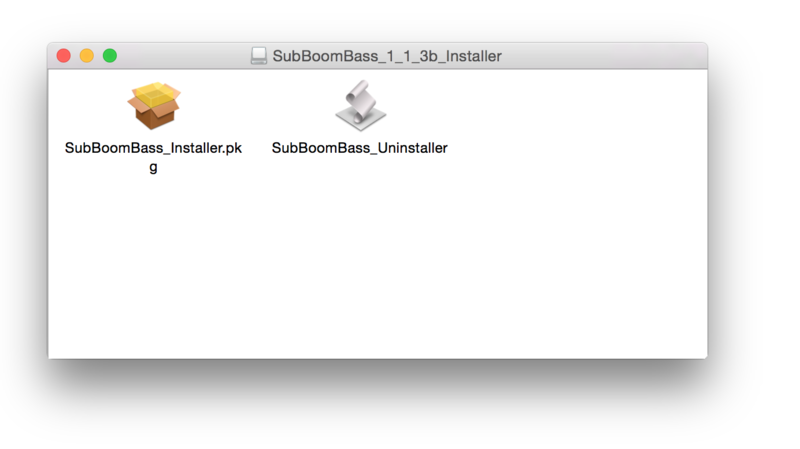
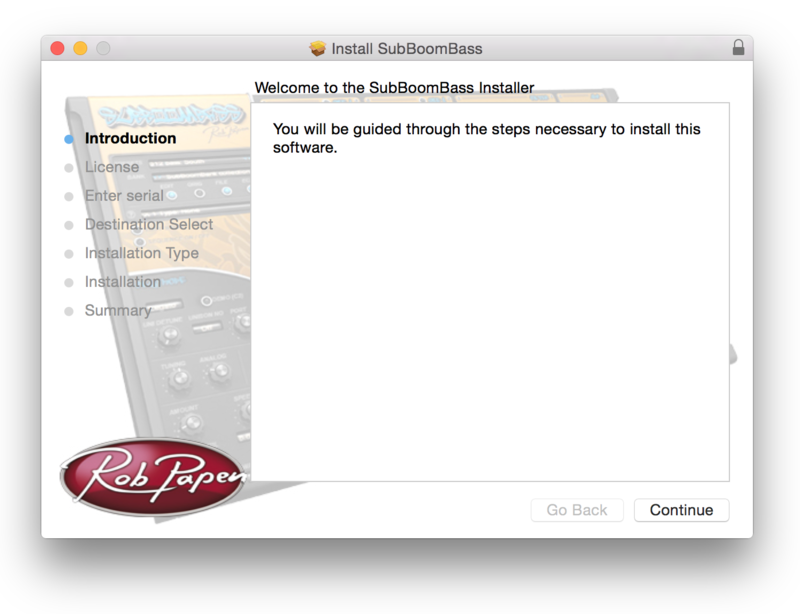
9. Once the software installer file has finished downloading, click the file entitled 'SubBoomBass_Installer.dmg' to launch the application installer application.

10. Double-click the 'SubBoomBass_Installer.pkg' application icon begin the installation process.

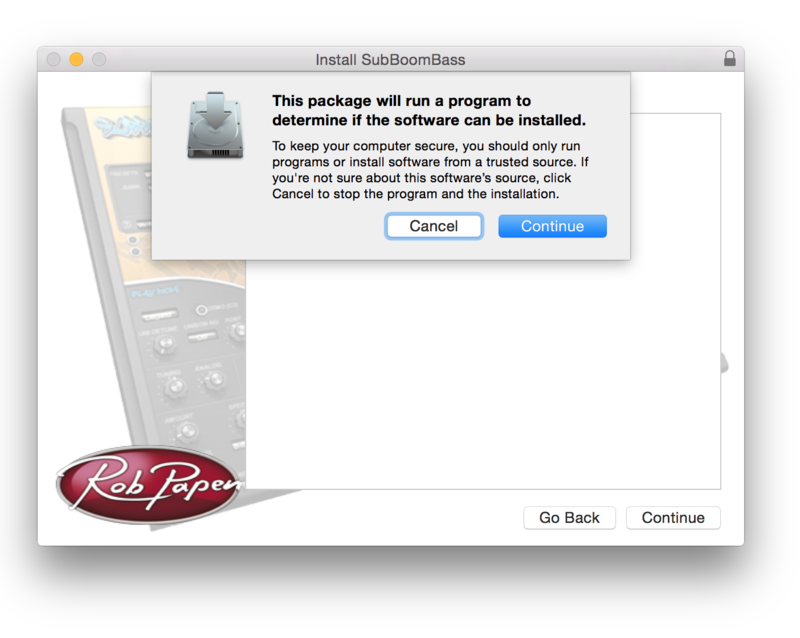
11. Click 'Continue' to verify the installation, if prompted to do so.

12. Click 'Continue' once again.

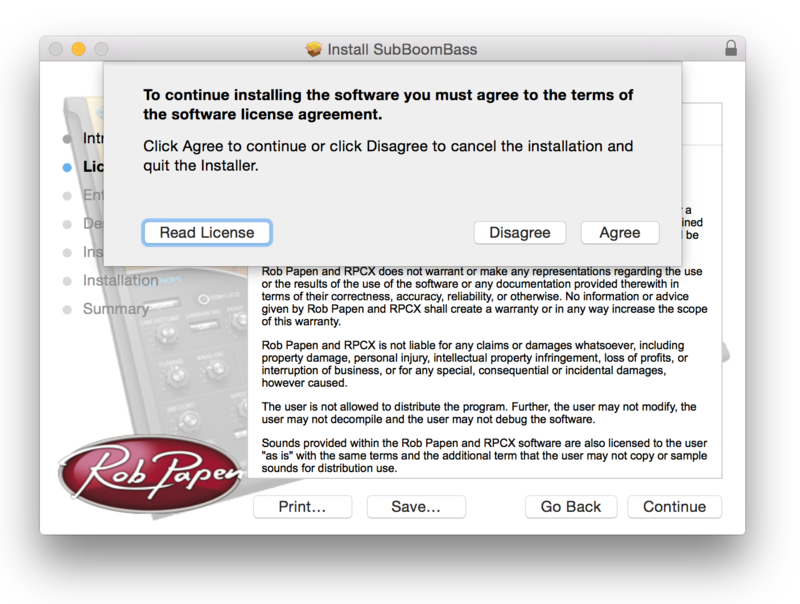
13. Read through the Licence Agreement > click 'Continue' then 'Agree'.

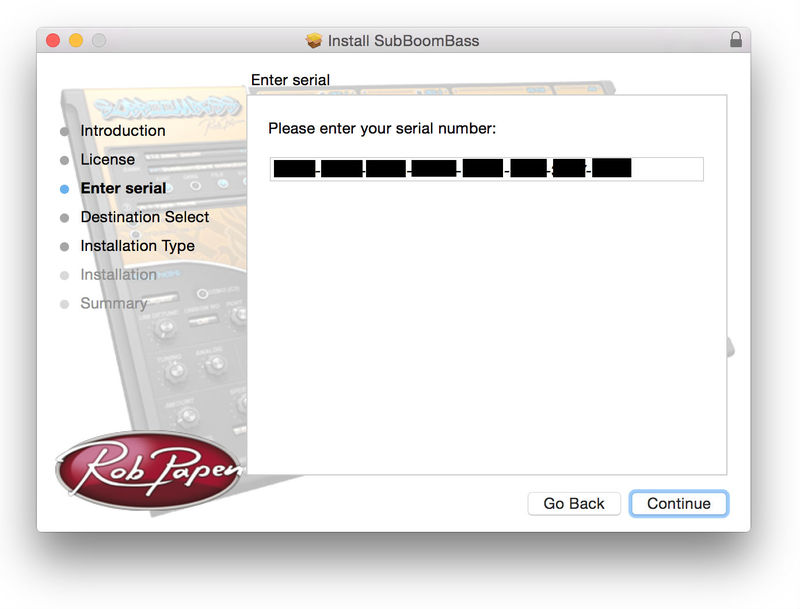
14. Manually enter/copy and paste the original 32-digit Serial Number that you were provided with, before clicking 'Continue' (the Serial Number is located in both your Plugin Boutique and Rob Papen User Accounts).

Note: Ensure that you select the correct 'Product' and 'Type', as well as checkingt that there are no spaces/mistakes when entering your Serial Number > if you receive a code error message of any kind, manually enter the digits (including the '-' hyphens) before re-clicking the 'Continue' option.

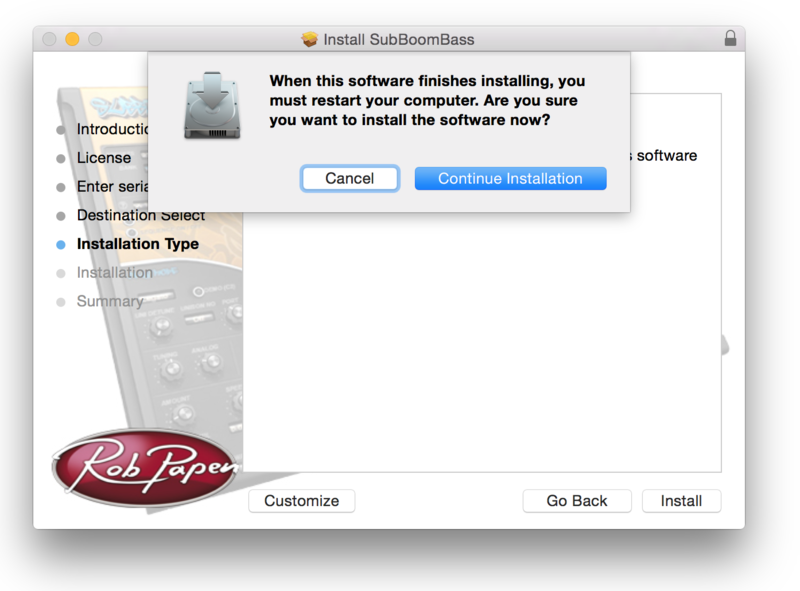
15. Review the installation before clicking 'Install', and then 'Continue Installation'.

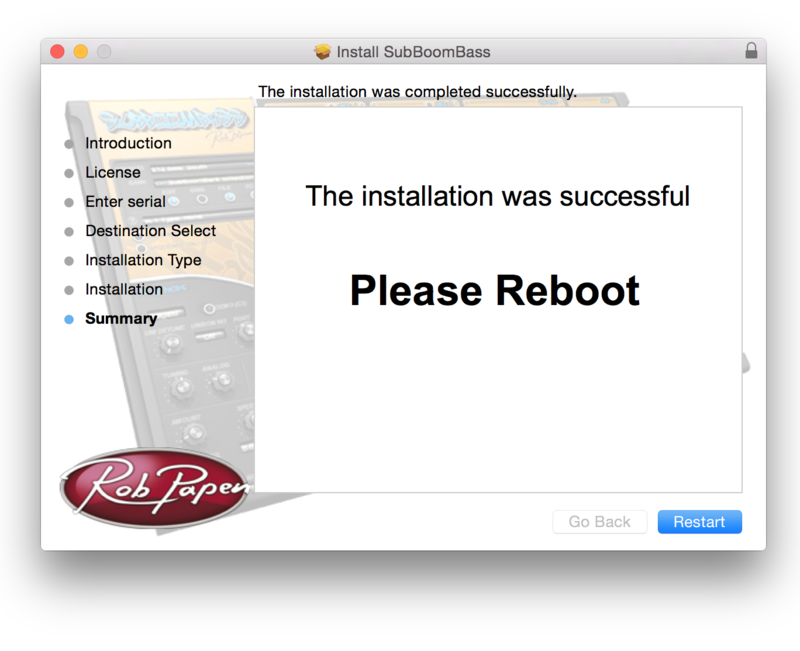
16. The installation of your software has successfully completed > click 'Restart' to reboot your computer.

Note: Ensure that you have saved any important work that may be open within the applications you currently have open, before selecting the 'Restart' option.

17. After your computer has successfully restarted, open your DAW and locate/open your newly installed/activated software VST.

Note: If the software fails to appear, rescan your DAW's Plug-in selection.

The Software is now Activated and Ready for Use Within Your DAW!

Windows

1. Visit Rob Papen and create an account by selecting 'Create Account'.

Note: If you already have an account set up with Ron Papen, 'Login' to your account and skip to step 4. of the installation process.

2. Enter your personal details, and once completed check the tick box that reads 'Yes, I agree to Privacy Policy Rob Papen' before clicking 'Send Registration'.

3. The registration of your account has successfully been completed > select 'click here to login' to access your account area.

4. Select the 'My Products' tab, which is located at the top-left corner of your account area.

5. Click the 'Register New' option.

6. Select the product that you have purchased, as well as the most recent version number (which in this instance is 'Online'), before manually entering/copying and pasting the 32-digit Serial Number that is provided within your User Account > once completed, click the 'Save' tab to register your software.

Note: Ensure that you select the correct 'Product' and 'Type', as well as checking that there are no spaces/mistakes when entering your Serial Number > if you receive a code error message of any kind, refresh the web page and manually enter the digits (including the '-' hyphens) before re-clicking the 'Save' option.

7. The registration of your software has successfully completed > select the 'Download latest version: SubBoomBass' hyperlink to navigate to the software download area.

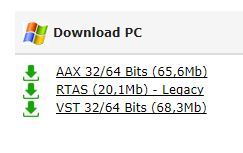
8. Select the relevant format installer download (s) in accordance with your DAW's compability specifications, to inititiate the downloading of your purchased software.

Note: The product user manual is also obtainable from this location.

9. After the software installer file has finished downloading, double-click the file entitled 'SubBoomBass_Installer' .zip folder to extract the .exe installer file.

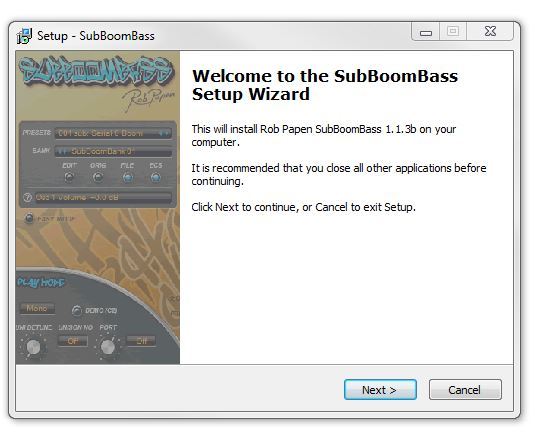
10. Once extracted, double-click the .exe installer file to begin the installation process > click 'Next'.

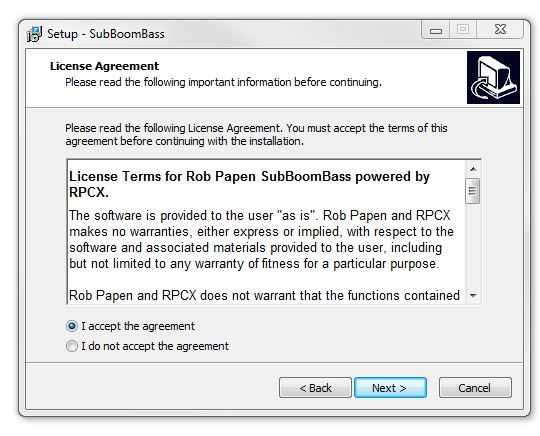
11. Read through the Licence Agreement and select 'I accept the agreement' > click 'Next'.

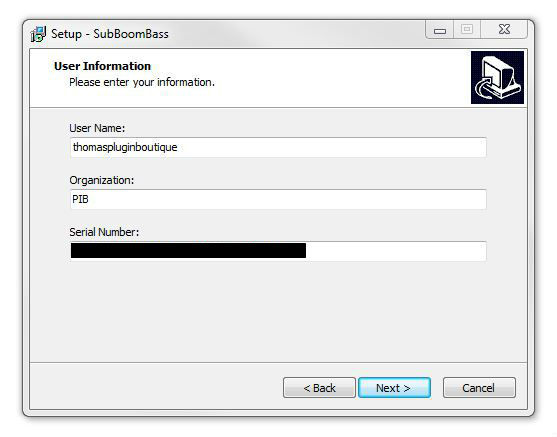
12. Type in your preferred User Name, Organization and manually enter/copy and paste the original Serial Number that you were provided with, before clicking 'Continue' (the Serial Number is located in both your Plugin Boutique and Rob Papen User Accounts).

Note: Ensure that you select the correct 'Product' and 'Type', as well as checking that there are no spaces/mistakes when entering your Serial Number > if you receive a code error message of any kind, manually enter the digits (including the '-' hyphens) before re-clicking the 'Next' option.

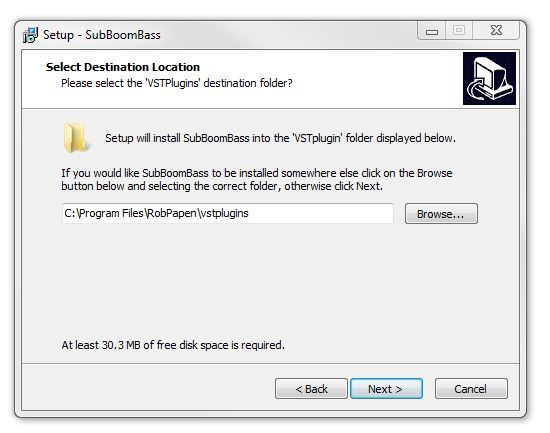
13. Select a computer VST Plug-ins folder destination in which to install/save your software to > click 'Next'.

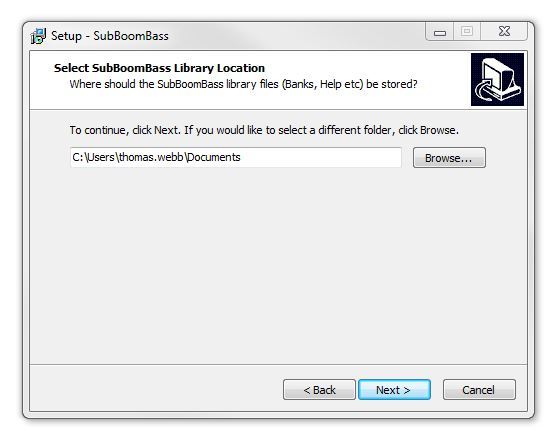
14. Select a computer Library location in which to install/save your software to > click 'Next'.

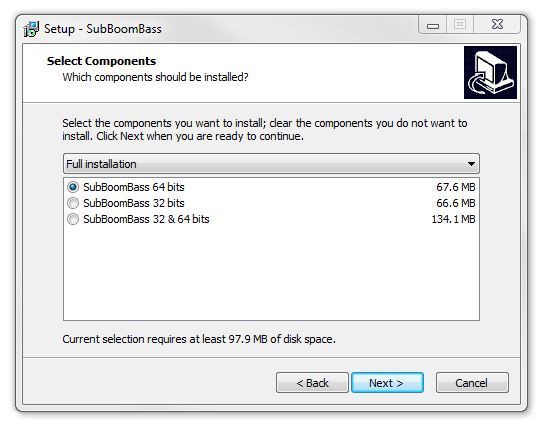
15. Select the software format (s) that you wish to install > click 'Next'.

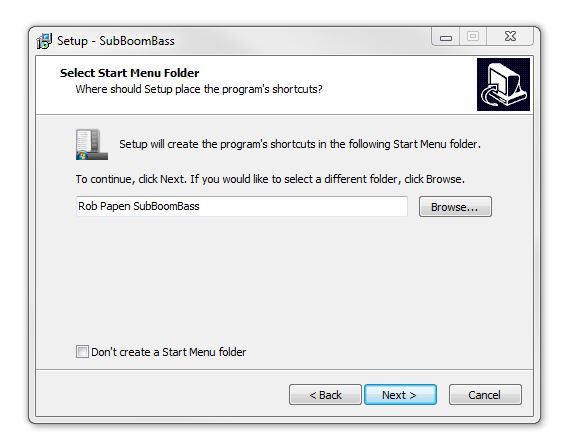
16. Select a Start Menu Folder to create a shortcut to your new software installation > click 'Next'.

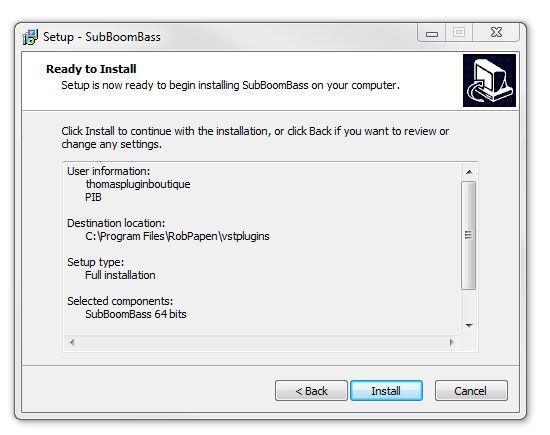
17. Review the installation and click 'Install'.

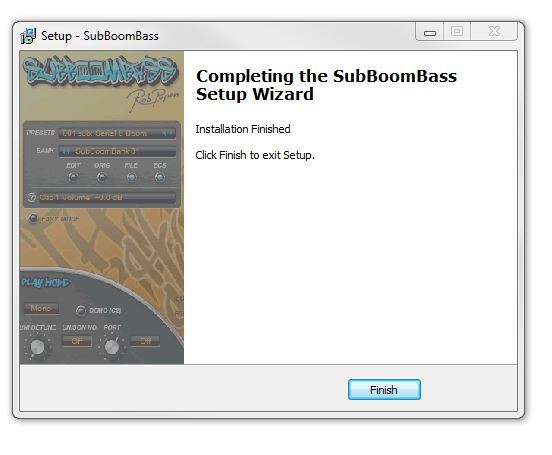
18. The installation of your software has successfully completed > click 'Finish'.

19. After your computer has successfully restarted, open your DAW and locate/open your newly installed/activated software VST.

Note: If the software fails to appear, rescan your DAW's Plug-in selection.

The Software is now Activated and Ready for Use Within Your DAW!

Plugin Boutique Rewards

Discover the most rewarding loyalty programme among all plugin retailers.

  • Free Loopmasters Samplepacks
  • Discounts on products and courses
  • Extra Virtual Cash claimed immediately at checkout
Find out more

Follow us:

X (Twitter) Facebook YouTube Instagram
Logo Logo

Plugin Boutique Limited, Part of the Beatport Group LLC.

Copyright © 2011-2025 Plugin Boutique. All rights reserved