Log In
Free gifts available with your purchase
Aethereal Arsenal
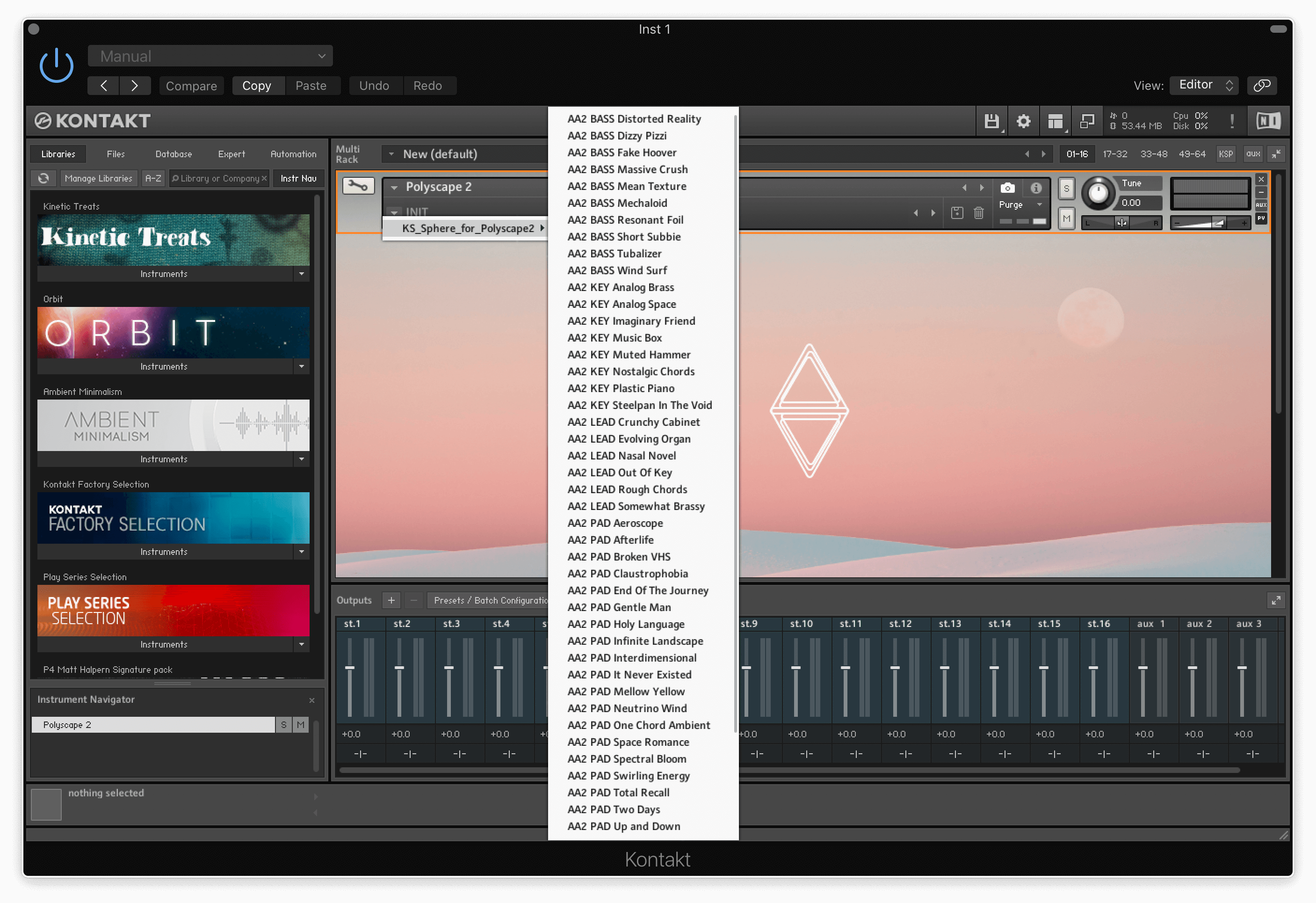
Sphere for Polyscape 2 is a special artist preset pack by Aeron Aether and showcases his signature sound: Lush, dreamy sounds with rich atmospheres. The sound bank is perfect for chill/ambient-infused, cinematic and soundscape-heavy music of any kind. The library features 50 presets: 19 pads, 10 basses, 14 keys and leads and 7 special fx sounds. Extend the potential of Polyscape 2 and explore the sonic varieties the pro version can offer.
Behind the Sphere: Aeron Aether
Meet the man behind the exceptional sound of Sphere expansion: Aeron Aether! Aeron is a Hungarian composer, producer, audio engineer, sound designer, and experimentalist of electronic sound. He has produced chart-topping tracks in various sub-genres of electronic music, including atmospheric breakbeat, progressive house, chill-out, and electronica. Aeron is currently running his own studio (Aetheron Audio), providing mixing, mastering, music production, and sound design services. He is also the chief mastering engineer of Monstercat Silk, a worldwide known and admired record label.
Features
- 50 Signature artist presets by Aeron Aether
- Containing 19 pads, 10 basses, 14 keys and leads, 7 SFX sounds.
- Focusing on huge, cinematic, ambient sound design
- Studio-grade audio content of high-quality string instruments
- Heavily processed by eurorack modular effects
System Requirements
- Sphere requires Polyscape 2 to run
- Mac OS X 10.11 or higher is recommended
- Windows 7 or higher
- 4 GB of RAM, 8 GB is recommended
- 2 GHz CPU with at least 4 cores
- Kontakt 6.7.1 or higher (Free Kontakt Player is NOT supported)
- 64 bit DAW is recommended for optimized performance
Please Note: This product requires the FULL version of Kontakt and is NOT compatible with the free Kontakt Player.