Note: Beat Machine 2 and Expansion Pack 02: Live Elements are used as the examples.
Mac
Audio Units (AU) Installation Instructions
[MAC AU] How to Install DopeSONIX Software & Expansion Packs - Tutorial Video
1. Download the .zip folder from your User Account and double-click it to reveal the sub-folders containing the patch files > save the main folder to a computer location of choice, e.g documents or your external hard drive.
2. Select the relevant ‘DopeSONIX - [BM02] Live Elements’ folder.
Note: Do not select the ‘DopeSONIX - Beat Machine 2 [BM02] Live Elements’ folder, as this is designed for Beat Machine 1!
3. Copy all of the available .mse patches
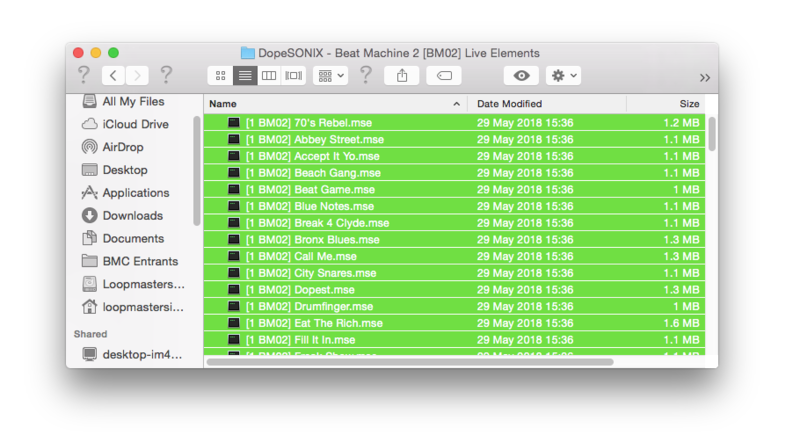
4. Locate the component file and right-click it to reveal 'Show Package Contents' > select this option then click 'Contents' and 'Resources'.
Note: The component folder can be located via the folder path Macintosh/Library/Audio/Plug-Ins/Components
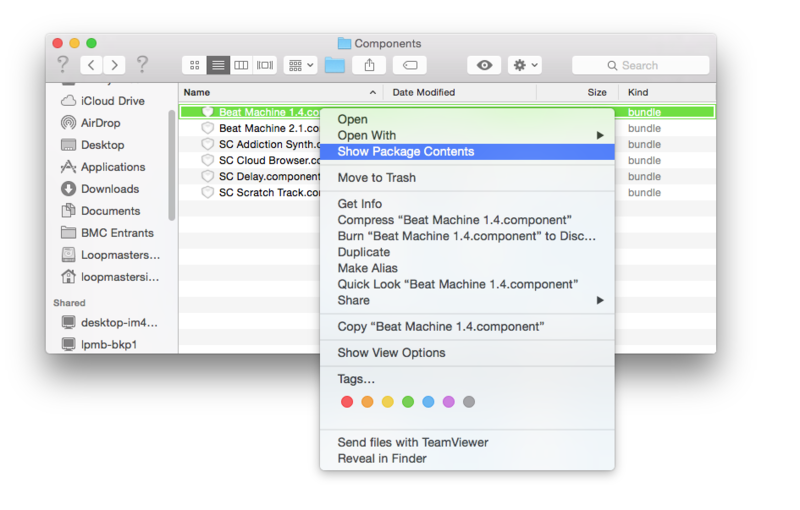
5. Paste the .mse files into the 'Resources' folder and open a new instance of Beat Machine 2 on a software instrument track.
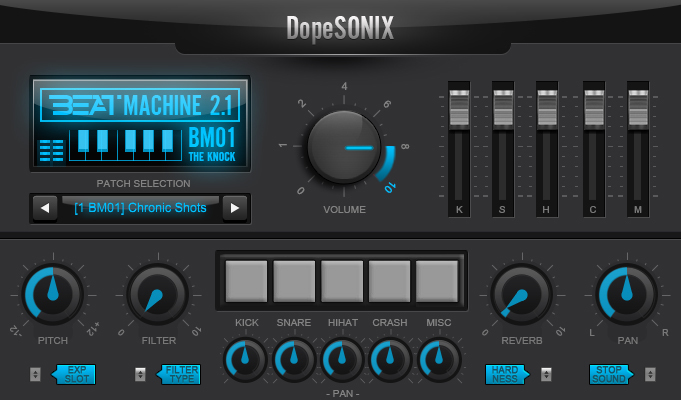
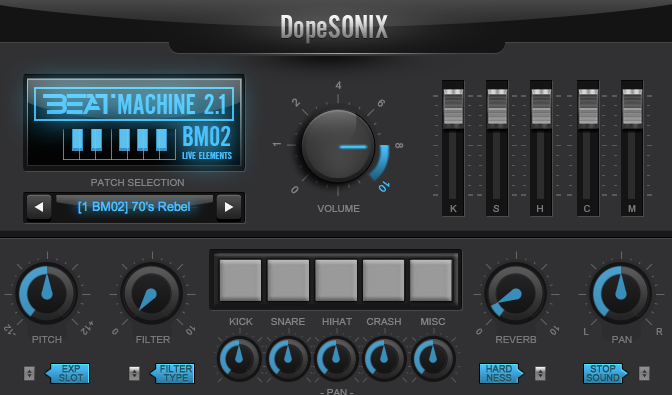
6. Select the 'Patch Selection' option to reveal the drop-down list.

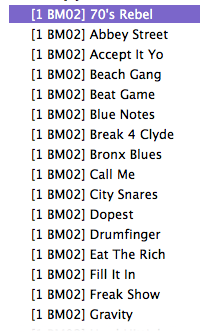
7. The expansion pack presets will now be available for selection > choose the preset you wish to use by clicking on the name.
8. On the first instance of loading a newly installed preset, you will be prompted to copy and paste the serial number provided within your User Account > once entered, click ‘OK’.
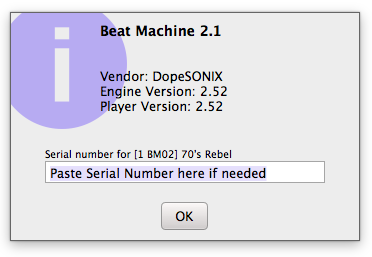
The Expansion Pack is now Activated and Ready for Use!
VST Installation Instructions
[MAC VST] How to Install DopeSONIX Software & Expansion Packs - Tutorial Video
1. Download the .zip folder from your User Account and double-click it to reveal the sub-folders containing the patch files > save the main folder to a computer location of choice, e.g documents or your external hard drive.
2. Select the relevant ‘DopeSONIX - [BM02] Live Elements’ folder.
Note: Do not select the ‘DopeSONIX - Beat Machine 2 [BM02] Live Elements’ folder, as this is designed for Beat Machine 1!
3. Copy all of the available .mse patches
4. Locate the component file and right-click it to reveal 'Show Package Contents' > select this option then click 'Contents' and 'Resources'.
Note: The VST folder can be located via the folder path Macintosh/Library/Audio/Plug-Ins/VST
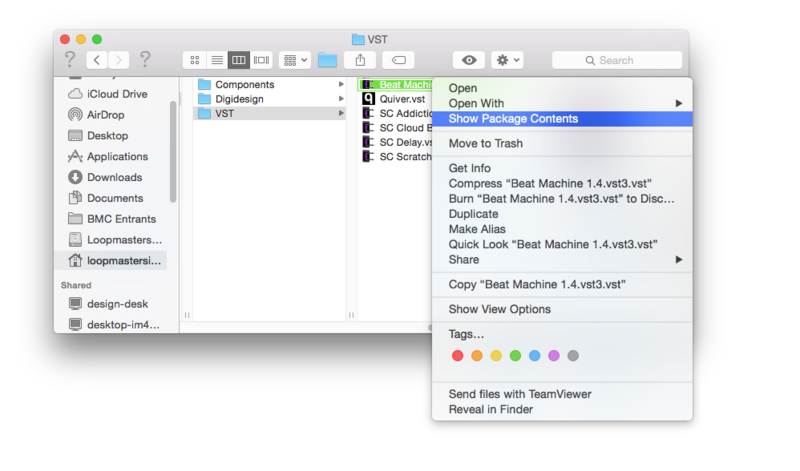
5. Paste the .mse files into the 'Resources' folder and open a new instance of Beat Machine 2 on a software instrument track.
6. Select the 'Patch Selection' option to reveal the drop-down list.
7. The expansion pack presets will now be available for selection > choose the preset you wish to use by clicking on the name.
8. On the first instance of loading a newly installed preset, you will be prompted to copy and paste the serial number provided within your User Account > once entered, click ‘OK’.
The Expansion Pack is now Activated and Ready for Use!
Windows
1. Download the .zip folder from your User Account and double-click it to reveal the sub-folders containing the patch files > save the main folder to a computer location of choice, e.g documents or your external hard drive.
2. Select the relevant ‘DopeSONIX - [BM02] Live Elements’ folder.
Note: Do not select the ‘DopeSONIX - Beat Machine 2 [BM02] Live Elements’ folder, as this is designed for Beat Machine 1!
3. Drag and drop/copy the available .mse patches to your ‘Beat Machine 2 instruments’ directory below, which is located in the folder path shown below:
-
C:\Program Files\VstPlugins\Beat Machine 2.0.instruments (select yes if asked for an administrator's permission)
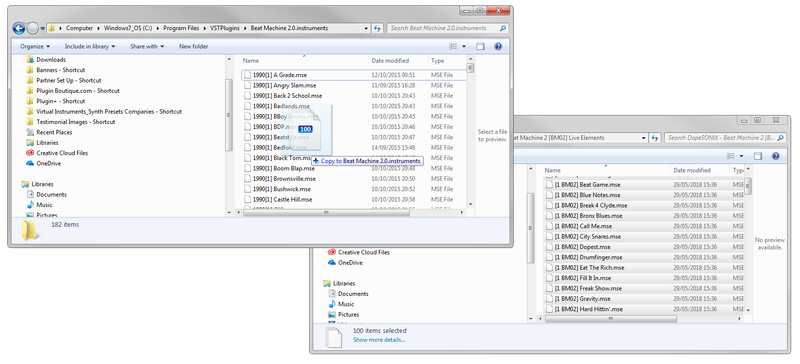
4. Once the files have been copied into their relevant Beat Machine 2 instruments (VST) folder, open a new instance of Beat Machine 2 on a software instrument track.
5. Select the 'Patch Selection' option to reveal the drop-down list.
6. The expansion pack presets will now be available for selection > choose the preset you wish to use by clicking on the name.
7. On the first instance of loading a newly installed preset, you will be prompted to copy and paste the serial number provided within your User Account > once entered, click ‘OK’.
The Expansion Pack is now Activated and Ready for Use!


 Log In
![[MAC AU] How to Install DopeSONIX Software & Expansion Packs gallery thumbnail](https://www.pluginboutique.com/rails/active_storage/blobs/redirect/eyJfcmFpbHMiOnsibWVzc2FnZSI6IkJBaHBBMXFOQnc9PSIsImV4cCI6bnVsbCwicHVyIjoiYmxvYl9pZCJ9fQ==--06c00764cd6a88881bd1bce0182d95e2a6faa615/PLB_The_KnockTOUSE.png)


