Registration
1. Go to https://profile.inmusicbrands.com/customer/account/login/ > Enter your email address and password > Click 'Create Account'.

2. Enter your details > Click 'NEXT STEP'.
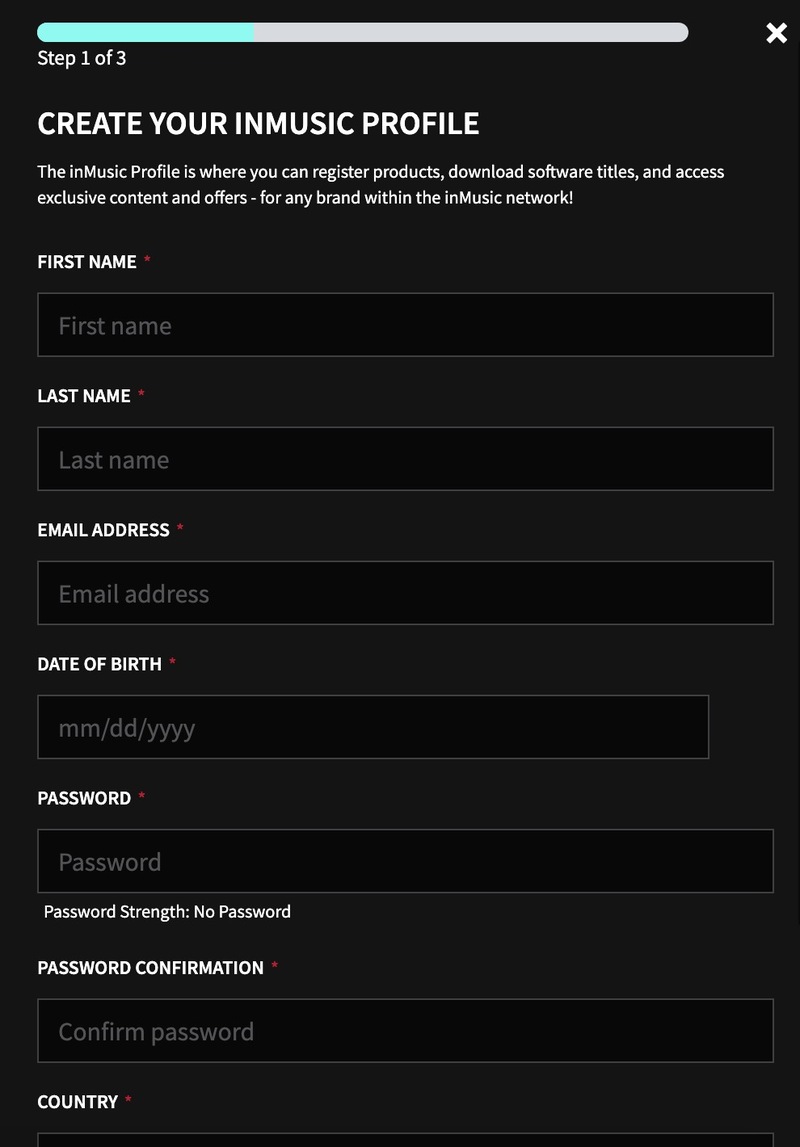
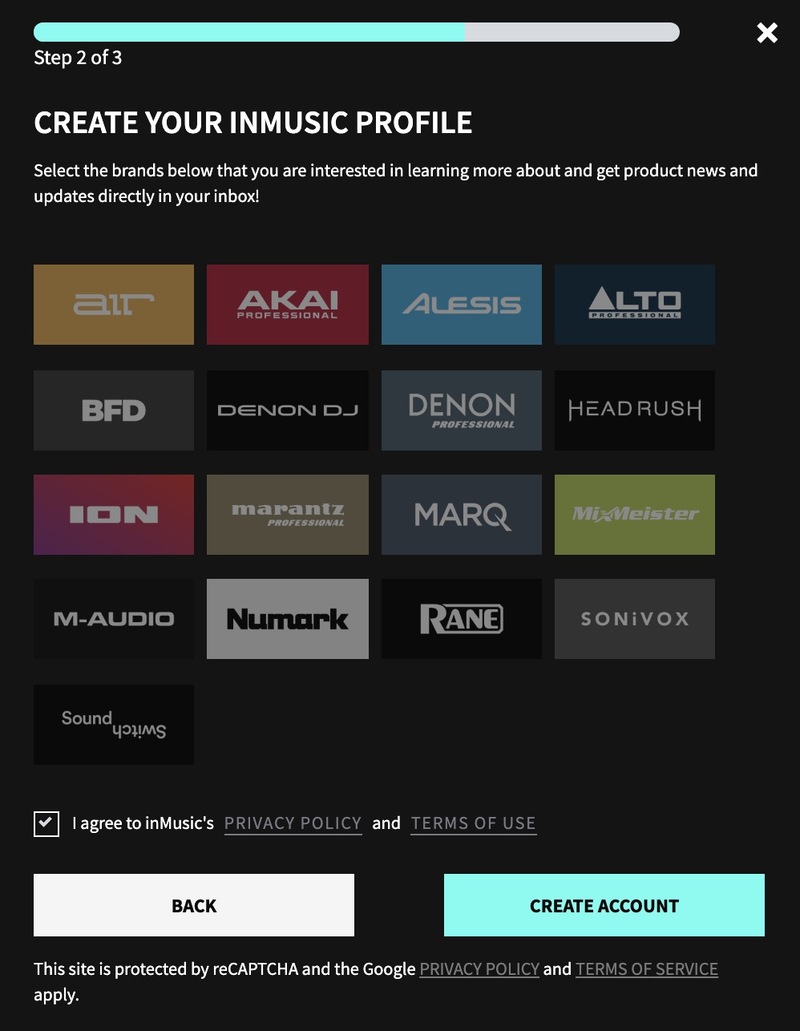
3. Select brands you're interested in > Click 'I agree to inMusic's PRIVACY POLICY and TERMS OF USE' > Click 'CREATE ACCOUNT'./
4. You have just created an inMusic account. You will now be sent a confirmation email.

5. Locate the account confirmation email > Click 'CONFIRM ACCOUNT'.

Your account is now confirmed!

Mac Installation
1. Download the BFD License Manager from your Plugin Boutique account.
2. Run the BFD License Manager installer > Drag the BFD License Manager icon over to your Applications folder.
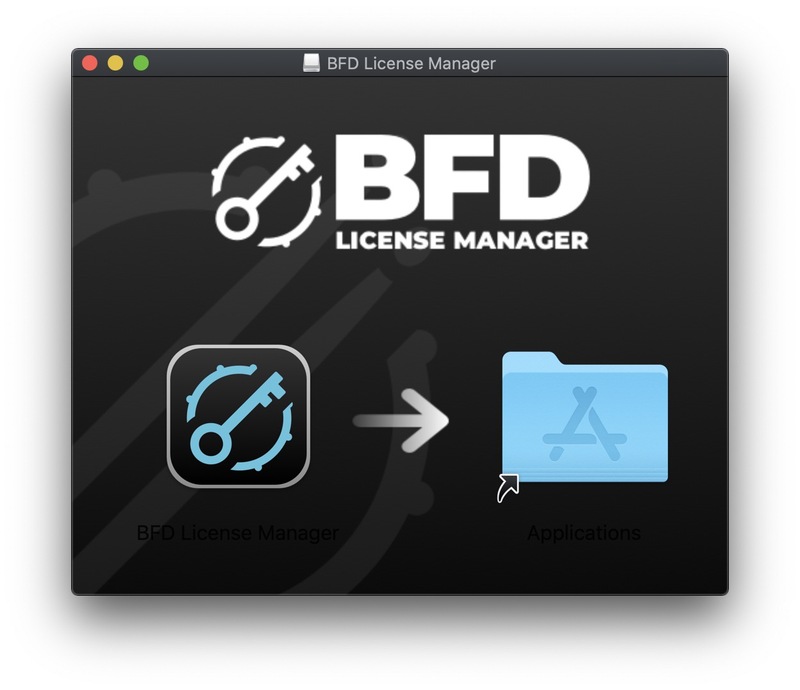
3. Open the BFD License Manager when it has installed > Click 'Login via browser'.

4. Enter your details and log into your account.

5. Go back to the BFD License Manager > Click 'Products' on the toolbar > Select 'Register Product Serial'.

6. Enter the serial number found in your Plugin Boutique account > Click 'Register'.

7. Your serial is now registered > Click 'OK'.

8. Click 'Authorize'.

9. Your product is now authorised > Click 'OK'.

Core Library Installation
1. Go back to the BFD License Manager > Click on BFD3 > Click the download button by 'BFD Content Installer'. You will now download the BFD3 Core Library (this is a large download and may take a while).

2. Click the 'play' button when the download has finished to install the core library > Click 'Next'.

3. Read the License Agreement > Click 'I agree with the terms and conditions detailed above' > Click 'Next'.
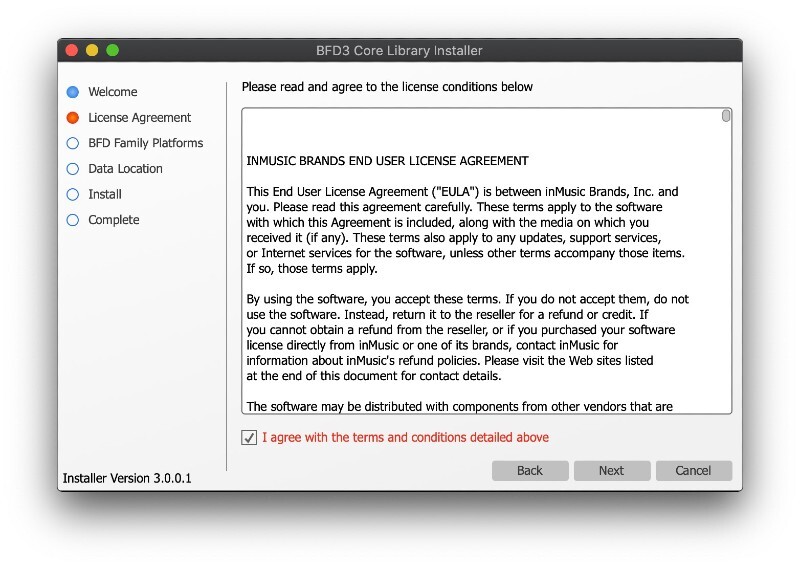
4. Click 'BFD3 ONLY' > Click 'Next'.

5. Choose where you want to install the library (if you have enough space, leave this as the default and install it on your main drive) > Select the installation size > Click 'Install'.
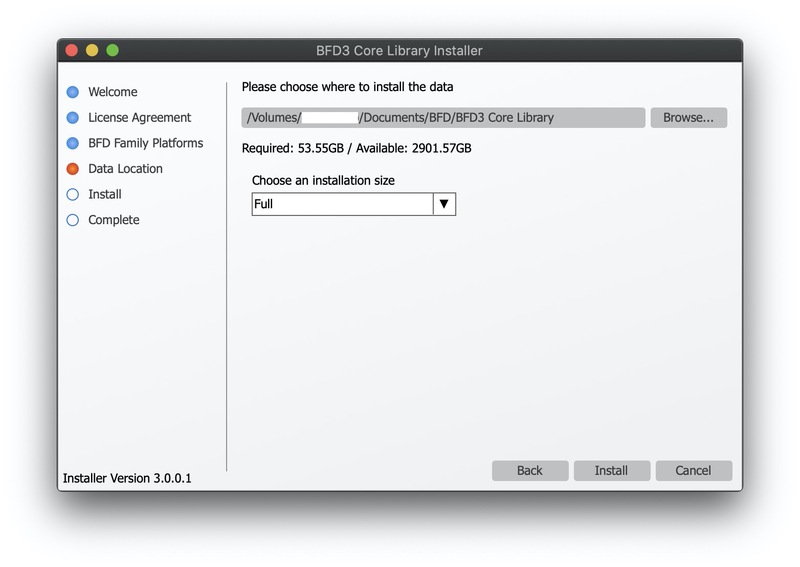
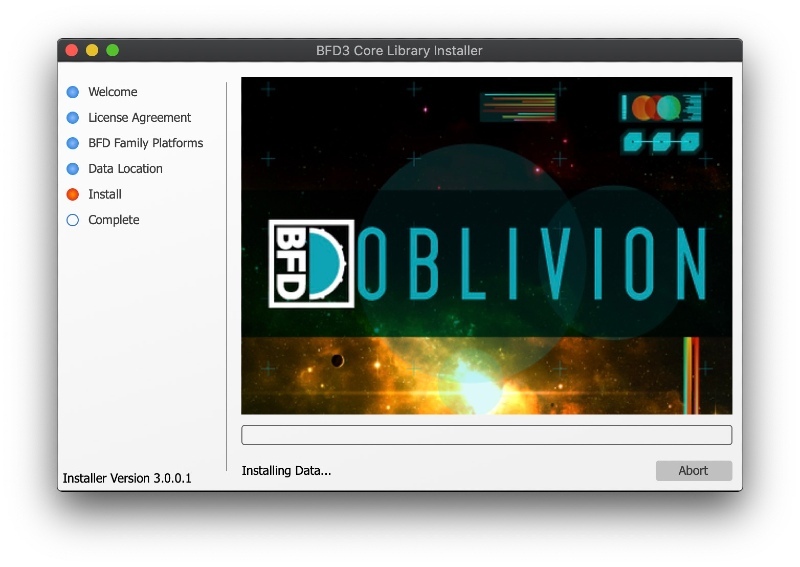
6. Please wait for the Core Library to install.
7. The BFD3 Core Library is now installed > Click 'Done'.

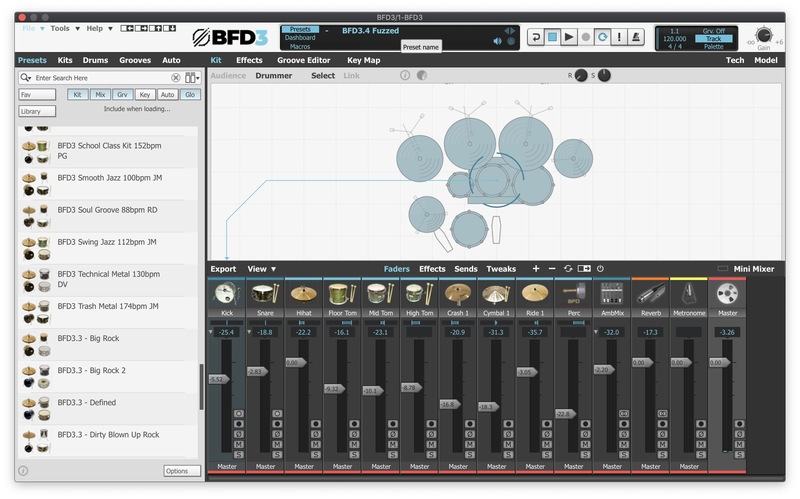
8. Open BFD3 in your DAW > Choose your preferences > Click 'Do It!'.

BFD3 is now installed, activated and ready to use in your DAW!
Windows Installation
1. Download the BFD License Manager from your Plugin Boutique account.
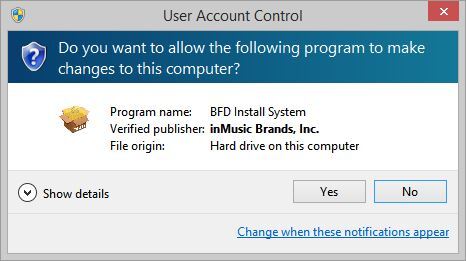
2. Run the BFD License Manager installer (you may need to find it in your download folder in Windows Explorer and open it from there) > click 'Yes'.
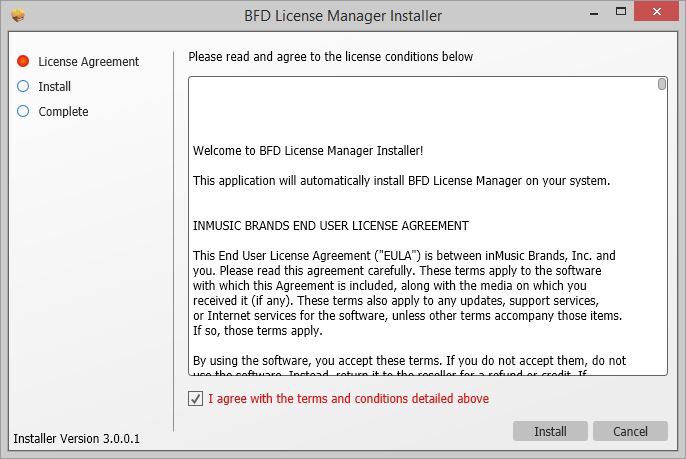
3. Read the License Agreement > Click 'I agree with the terms and conditions detailed above' > Click 'Install'.
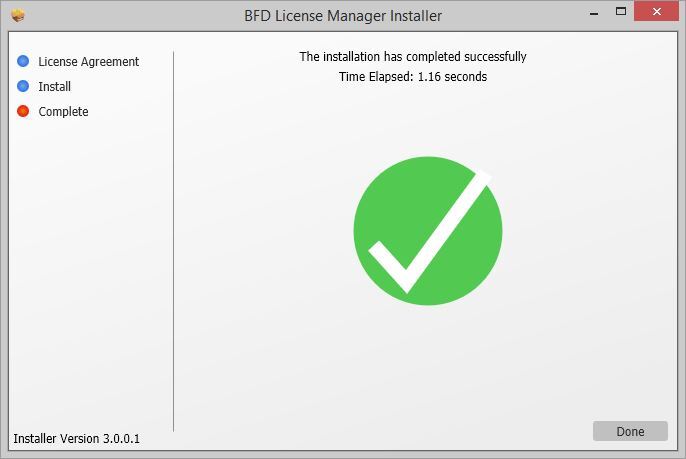
4. The BFD License Manager is now installed > Click 'Done'.
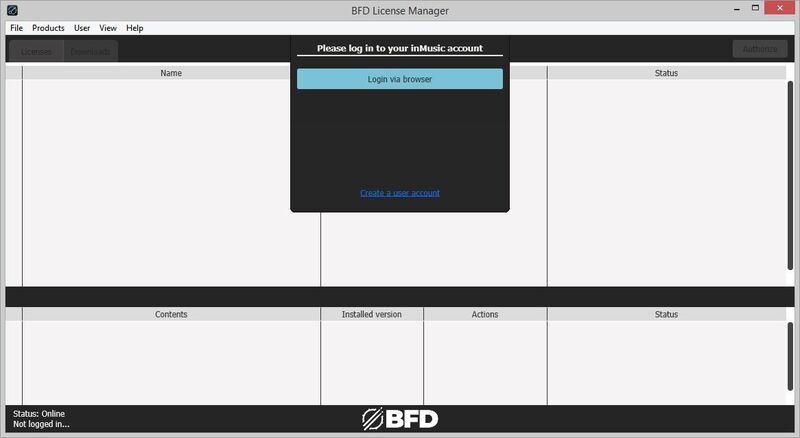
5. Open the BFD License Manager > Click 'Login via Browser'.
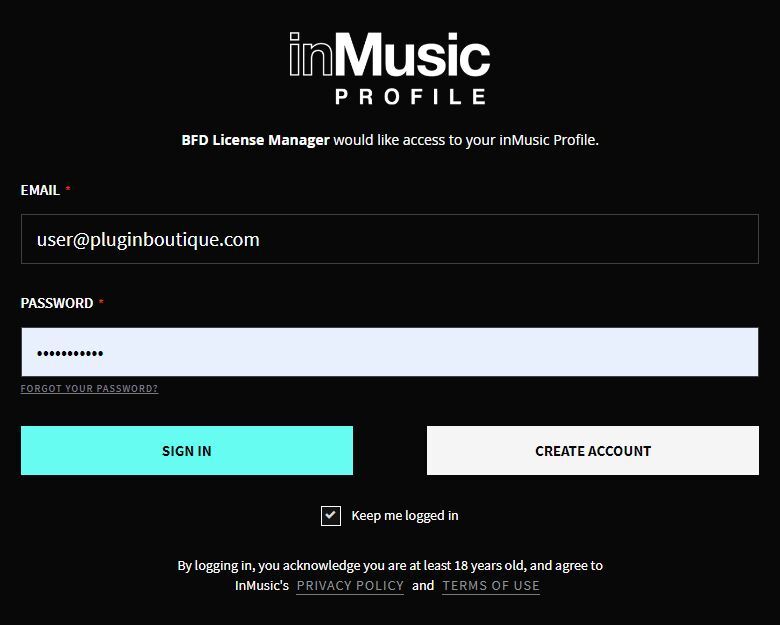
6. Your browser will now open a new tab > Log in with your details.
7. Go back to the BFD License Manager > Click 'Products' in the toolbar > Select 'Register Product Serial...'.

8. Enter the serial number found in your Plugin Boutique account > Click 'Register'.
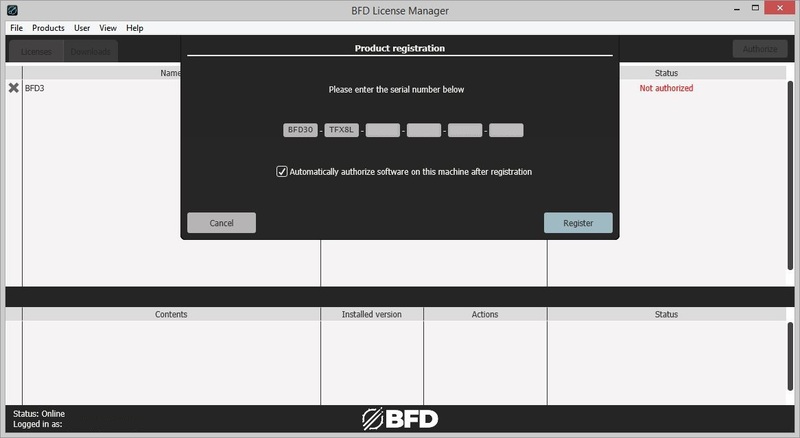
9. Click on your license > Click 'Authorize'.

10. Click 'Authorize' again.

11. Click the download button next to 'BFD3 Software Installer' to download the BFD3 installer.

12. Wait for the download to finish > Click the 'play' button.
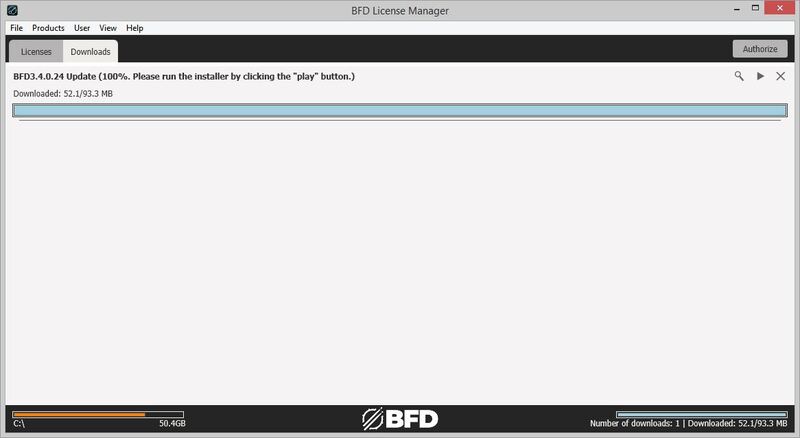
13. Extract the contents of the ZIP folder.
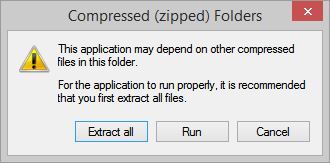
14. Click 'Next'.
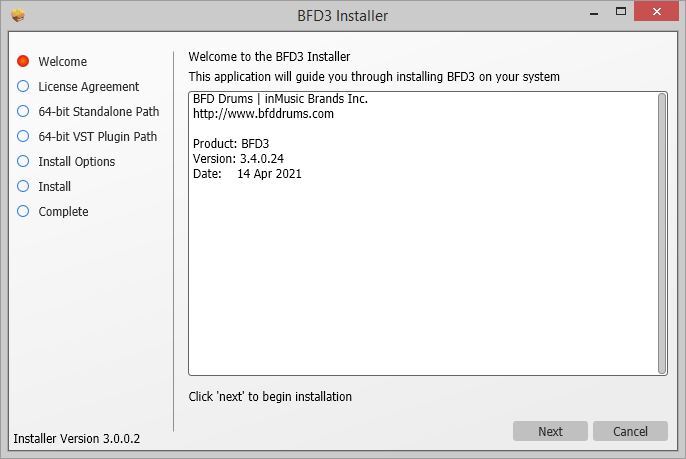
15. Read the License Agreement > Click 'I agree with the terms and conditions detailed above' > Click 'Next'.
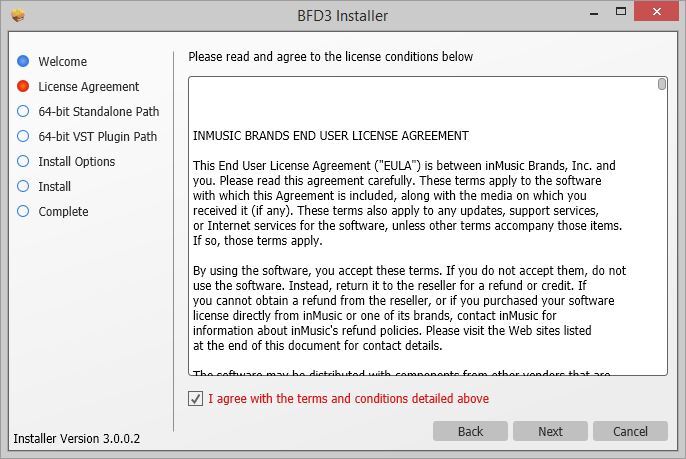
16. Click 'Next'.
17. Click 'Browse...' > Select the VST folder that your DAW uses > Click 'Next'.
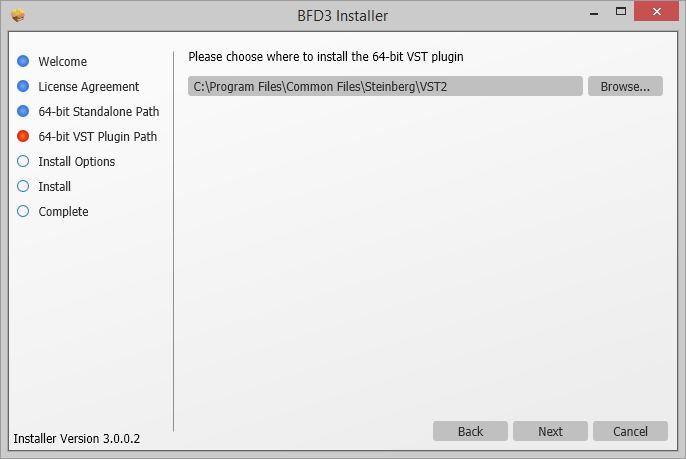
18. Click 'Install'.
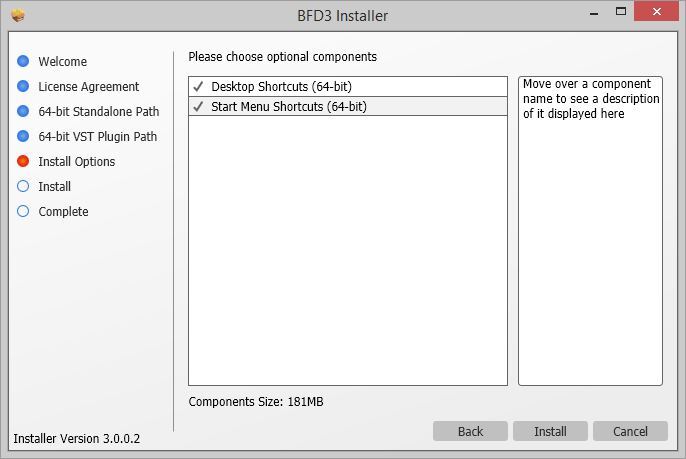
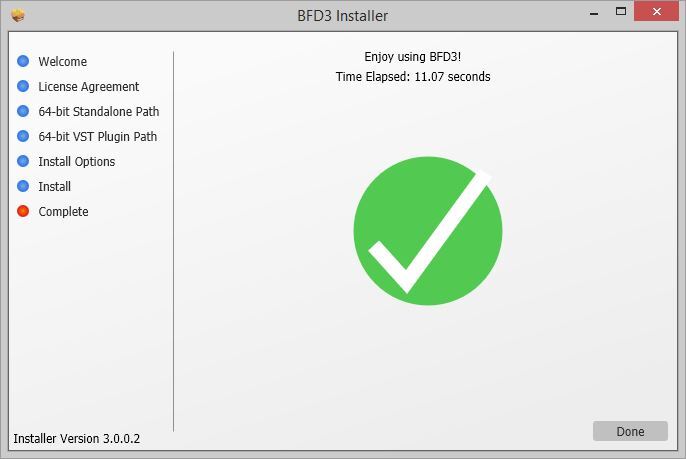
BFD3 is now installed on your system.
Factory Content Installation
1. Click the download button next to 'BFD3 Content Installer'
2. Wait for the download to finish > Click the 'play' button for the 'BFD3 Core Library'.
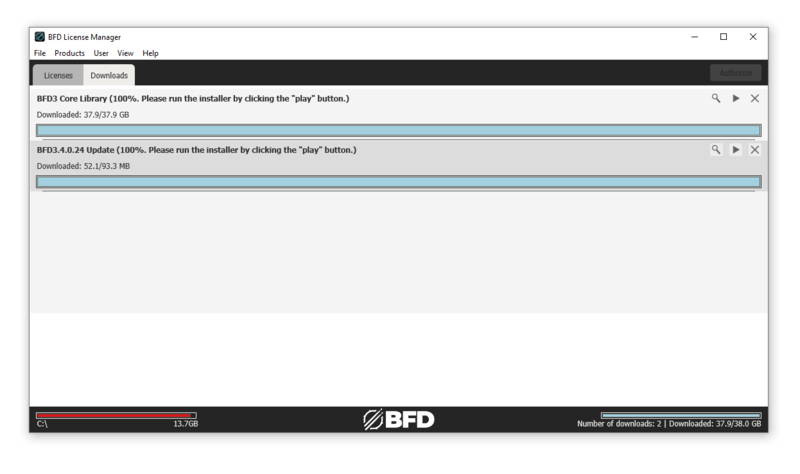
3. Click 'Next'.
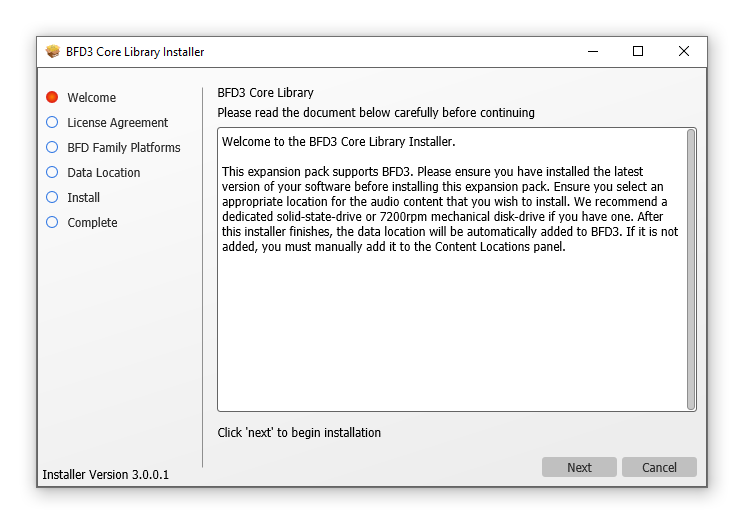
4. Select 'I agree with the terms and conditions detailed above' > Click 'Next'.
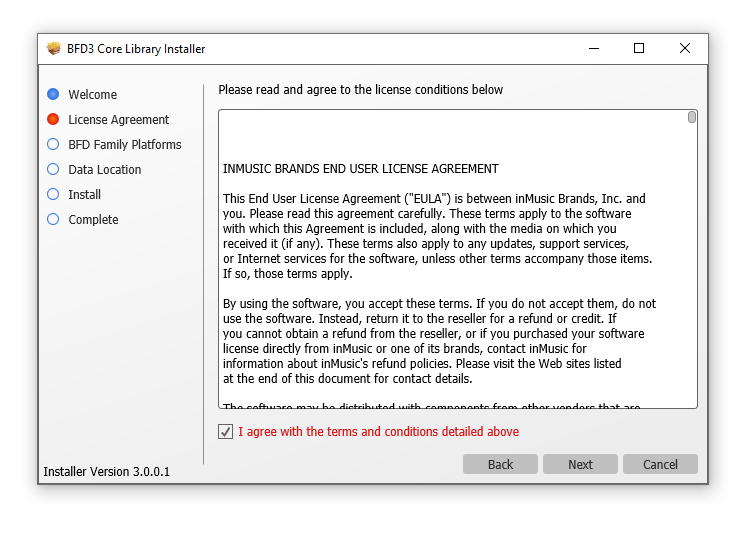
5. Select 'BFD3 ONLY' > Click 'Next'.
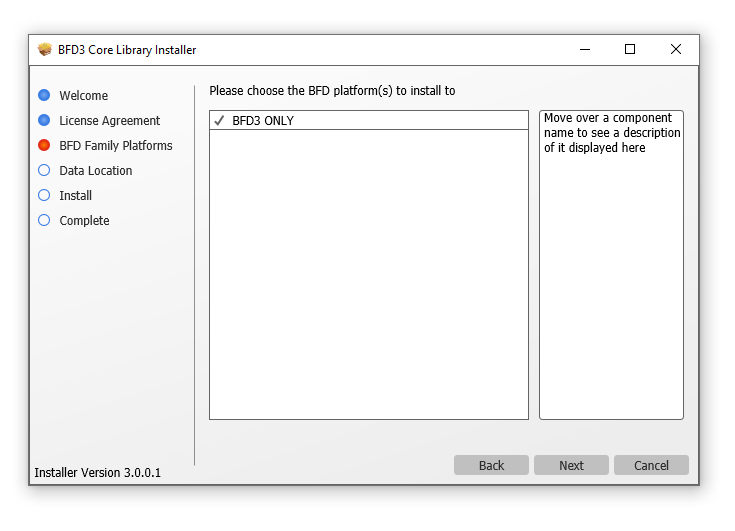
6. Click 'Install'.
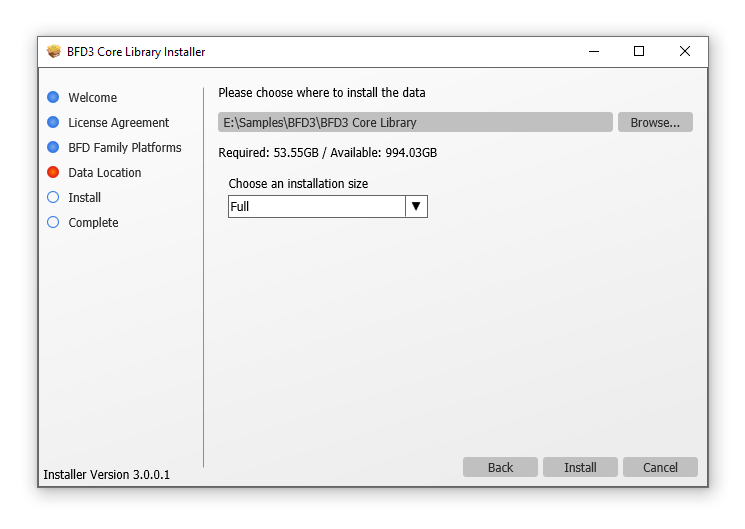
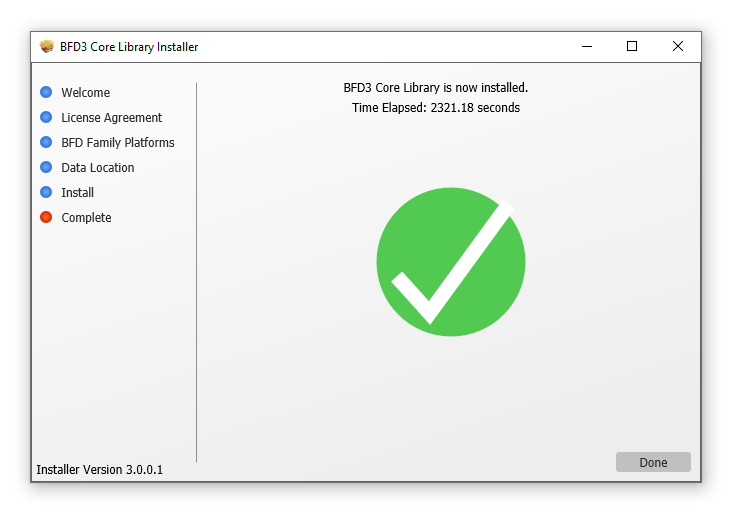
7. Wait for the Core Libary to install > Click 'Done'.
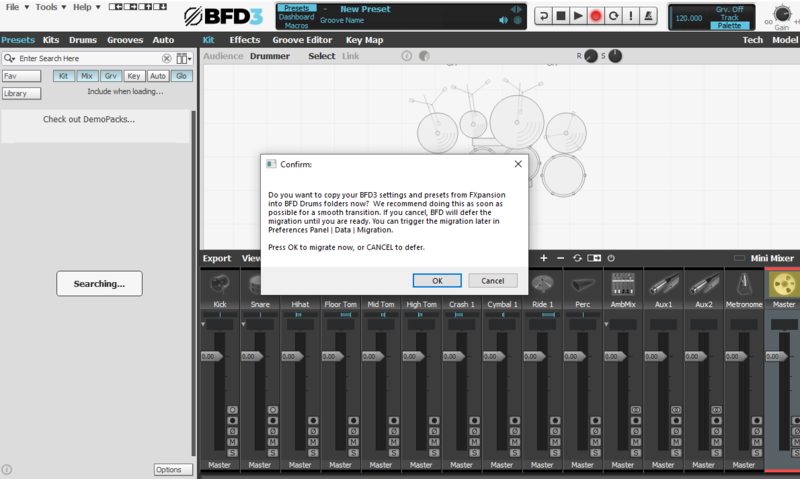
8. Open BFD3 in your DAW > Choose your preferences > Click 'OK'.
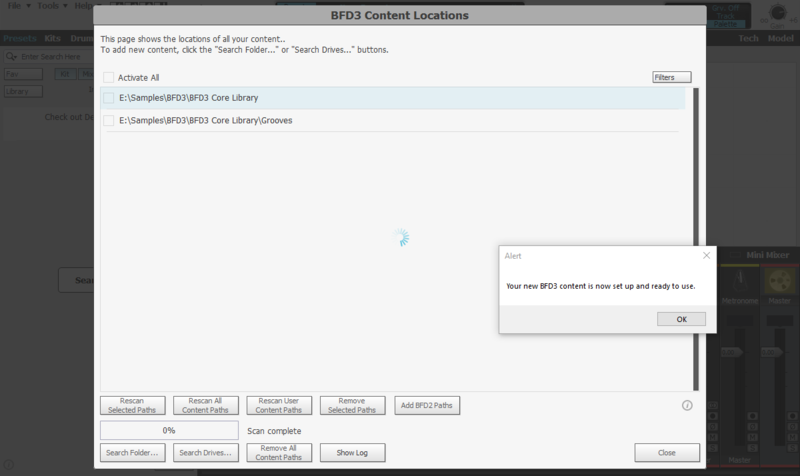
9. Click 'OK'
10. Select your preferences > Click 'Do It!'
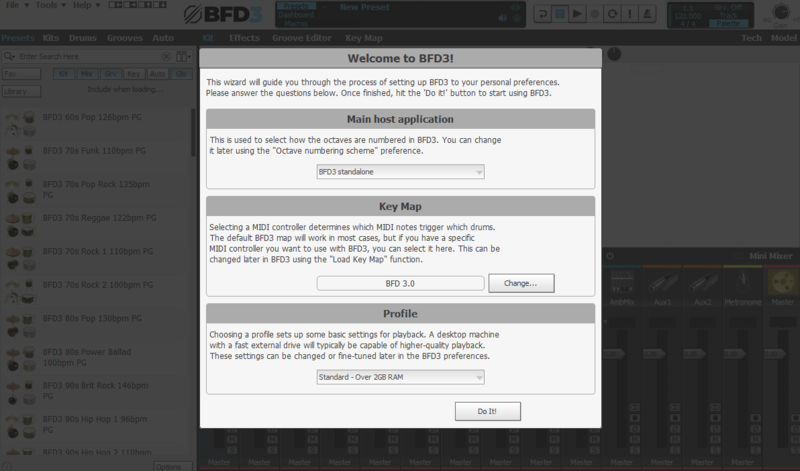
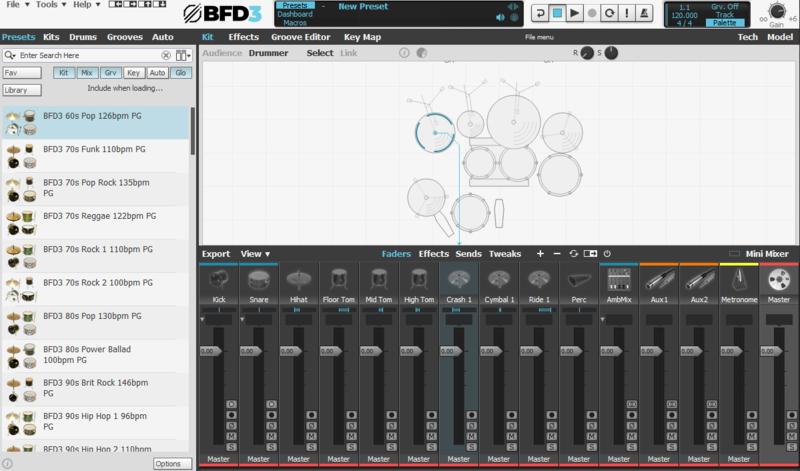
BFD3 is now installed, activated and ready to use in your DAW!


 Log In


