


Buy Pop Rocks Strum GS-2 Sound Bank, get a free gift with purchase:
Resident sound designer Christian Laffitte submits Pop Rocks for Strum GS-2. A fun sound pack that rocks out pop-infused acoustic and electric guitar goodness. Full of groove, punch, and excitement, it's a set of power tools to add to your writing arsenal. Pop Rocks packs 12 pop styles, 68 presets, and 84 strumming patterns playable with your own chord progressions. By combining Strum GS-2's Guitar, Keyboard, and Loop modes along with preset variations, all your guitar parts are covered. Whether it's a lead sound or doubling takes, the core elements are at your disposal to add character or give a more organic sound to your song arrangement. Strums GS-2 becomes your ultimate session guitarist in the studio at the service of your creative mind. Let us hit the charts with you!
This is the first of a line of sound packs for Strum GS-2.
Who’s Christian Laffitte?
Christian Laffitte is a French musician and sound designer based in the south of France. He has been developing sounds for Dream, Arturia, Zoom, Applied Acoustics Systems, M-Audio, Avid to name a few. He also composed music for Sony video games trailers and music for French TV channels and radio stations. As a keyboard player with a great interest in synthesis and new technologies, Christian Laffitte has put all his passion for music and sounds in creating Wejaam: a free music sequencer for smartphones and tablets.
What's included with my purchase?
- Preset bank for Strum GS-2
- AAS Player plug-in (VST, AU, AAX, RTAS)
- Serial number
- Installation instructions
System Requirements
This preset collection can be used with the free AAS Player plug-in as well as the Strum GS-2 session guitarist plugin.
After you have installed the sound bank, there are two options to use it:
- A. Strum GS-2 - Pop Rocks will automatically be added to Strum GS-2 if it is installed on your computer.
- B. AAS Player - If you don't own Strum GS-2, you will be able to play Pop Rocks from the AAS Player plug-in or standalone application.
Please note: Objeq Delay is used as an example as the installation process is the same for all Applied Acoustics Systems products.
Registration
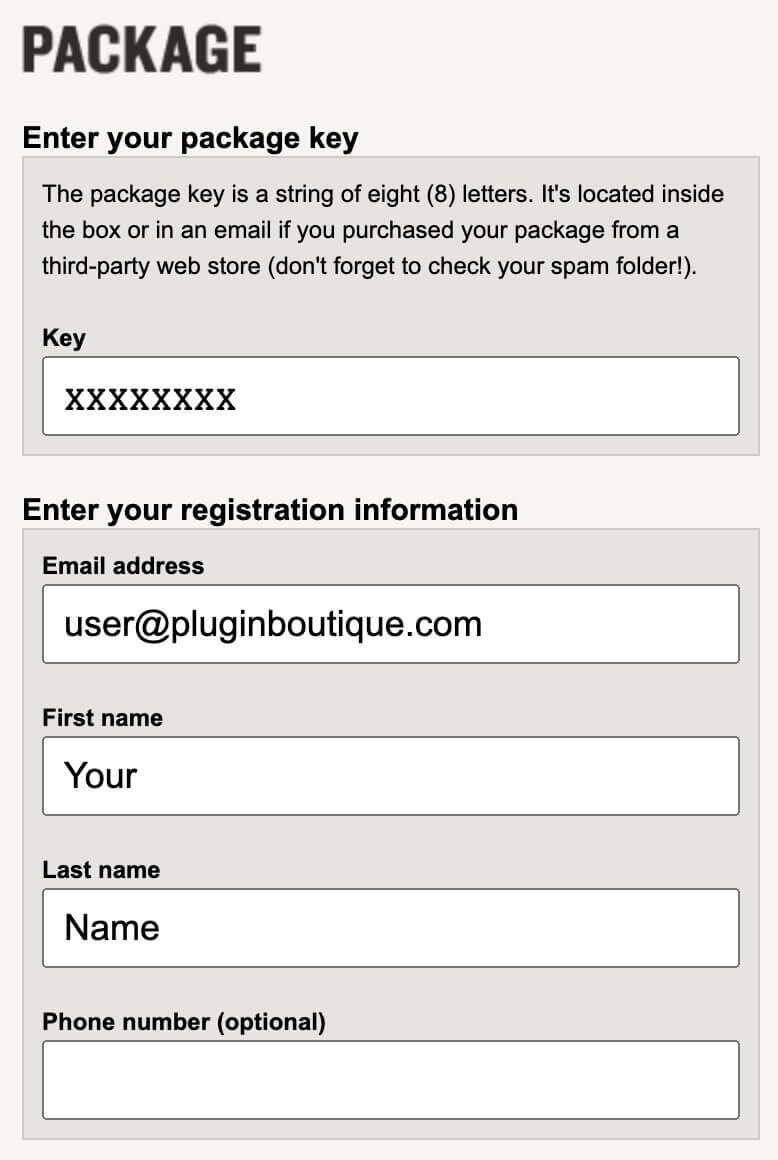
1. Copy and paste the URL which is listed as the ‘Serial Number’ in your account into your browser search bar and click enter.

2. Enter your email address and name (the key will have been automatically entered).
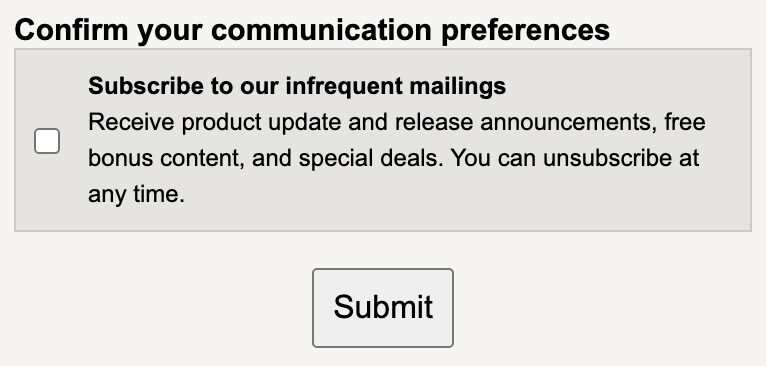
3. Choose your communication preferences > Click 'Submit'.
Mac Installation
1. Download the Mac Installer.

2. Open the ZIP folder you’ve just downloaded > Double click the PKG installer file.
3. You may see this message - if so, please click 'Open'.

4. Click 'Continue'.

5. Read the Software License Agreement > Click 'Continue'.

6. Click 'Agree'.

7. Click 'Install'.

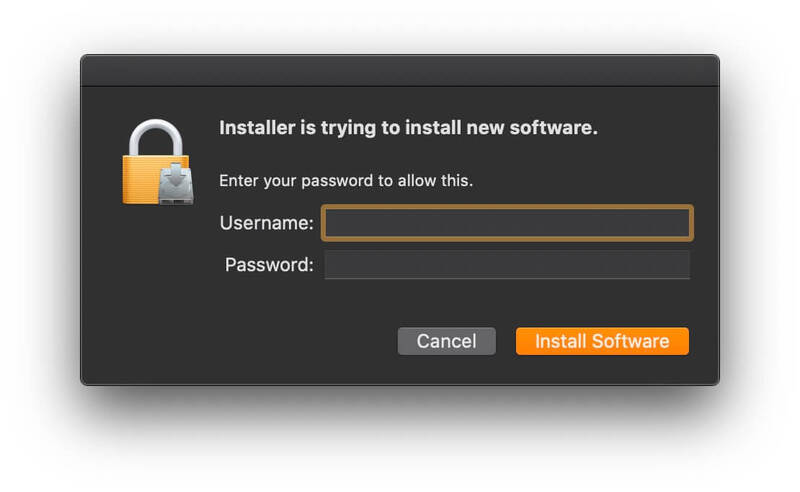
8. Tap your fingerprint or enter your password.
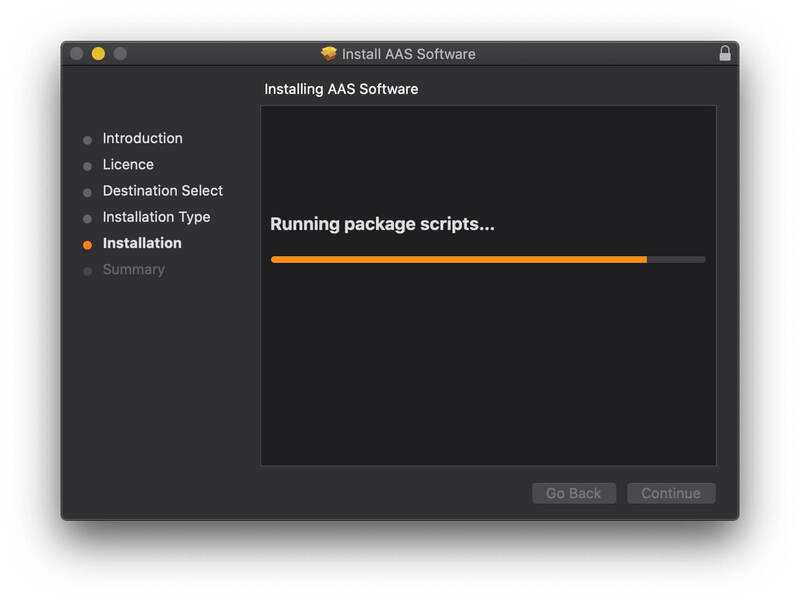
9. Your software will now install.
10. Open your new software in your DAW (you may need to restart your Mac and/or rescan your plugins).

Your software is now ready to use within your DAW!
Windows Installation
1. Download the Windows Installer.
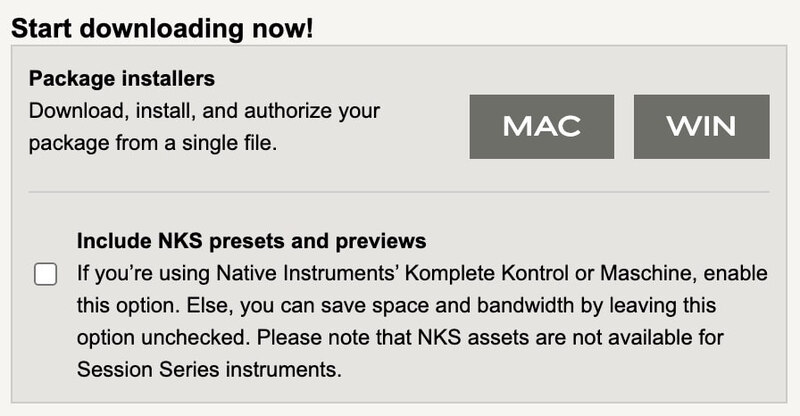
2. Open the ZIP file you’ve just downloaded > Double click the Setup file.
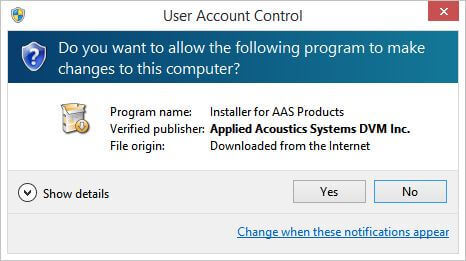
3. Click 'Yes' to allow the installation to run.
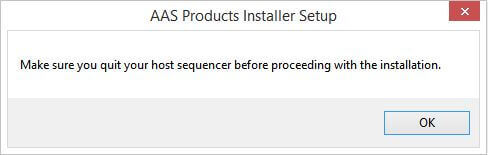
4. Close your DAW if it’s open > Click 'OK'.
5. Read the License Agreement > Click ‘I Agree’.

6. Choose the install location (we recommend leaving it as the default).

7. Your software will now install.
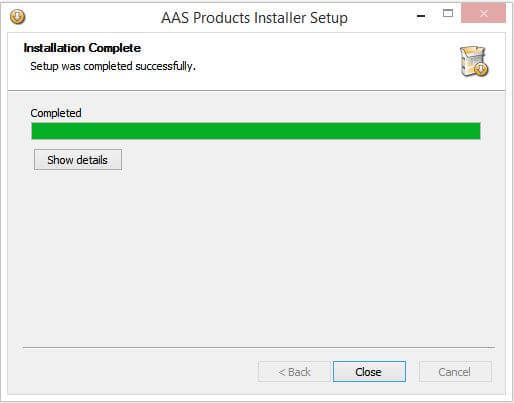
8. The installation is now complete > Click 'Close'.
9. Open your new software in your DAW (you may need to restart your Mac and/or rescan your plugins).
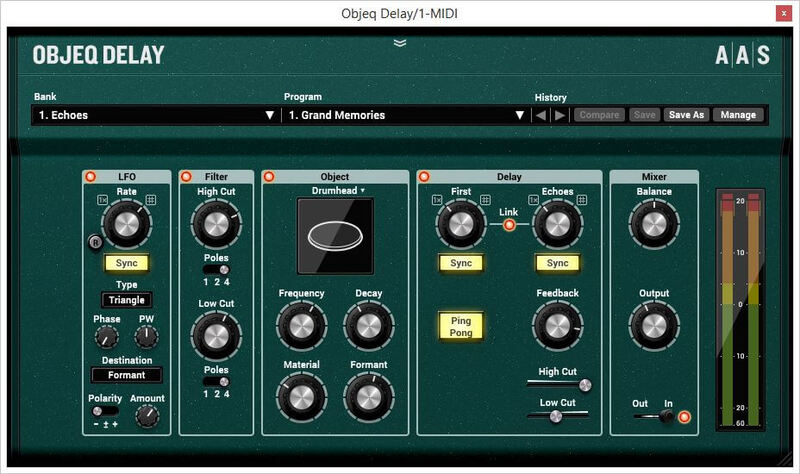
Your software is now ready to use within your DAW!


