/ Expansion Packs / Blue Rhythms Strum GS-2 Sound Bank
Applied Acoustics Systems

Blue Rhythms Strum GS-2 Sound Bank

4.8 (80 Reviews)
$19.00 $39.00

51% off until Jan 19

Blue Rhythms Strum GS-2 Sound Bank
AAS Blue Rhythms—Yves Fulla sound pack for Strum GS-2 and AAS Player gallery thumbnail
Buy Now
Product information

Seasoned Canadian musician Yves Frulla returns with Blue Rhythms paying tribute to the soulful sounds of the ’70s and capturing the grooves defined by legendary artists of that musical era with 12 playing styles, 87 guitar presets, and 84 strumming patterns playable with your own chord progressions. From Motown to Muscle Shoals, Blue Rhythms brings that expressive guitar vibe you need to instill groove and swagger to your next production.

Who’s Yves Frulla?

Canadian musician Yves Frulla is an internationally acclaimed songwriter, producer, and keyboardist. Mostly known worldwide as Celine Dion’s keyboard player. He runs his own project studio in Sin City. Between world tours and countless sold out shows, he recorded three live albums with Celine Dion and appeared with her on many television shows, including David Letterman, Jay Leno, Arsenio Hall, and Oprah Winfrey. Yves Frulla has done work for television and movies as well. He also played alongside and toured extensively and with renowned Canadian artists such as Corey Hart, Bobby Bazini, Michael Breen, Dan Bigras, Sass Jordan, Julie Masse, and Sylvain Cossette.

What's included with my purchase?

  • Preset bank for Strum GS-2
  • AAS Player plug-in (VST, AU, AAX, RTAS)
  • Serial number
  • Installation instructions

System Requirements

This preset collection can be used with the free AAS Player plug-in as well as the Strum GS-2 session guitarist plugin.

After you have installed the sound bank, there are two options to use it:

  • A. Strum GS-2 - Pop Rocks will automatically be added to Strum GS-2 if it is installed on your computer.
  • B. AAS Player - If you don't own Strum GS-2, you will be able to play Pop Rocks from the AAS Player plug-in or standalone application.
Installation Instructions

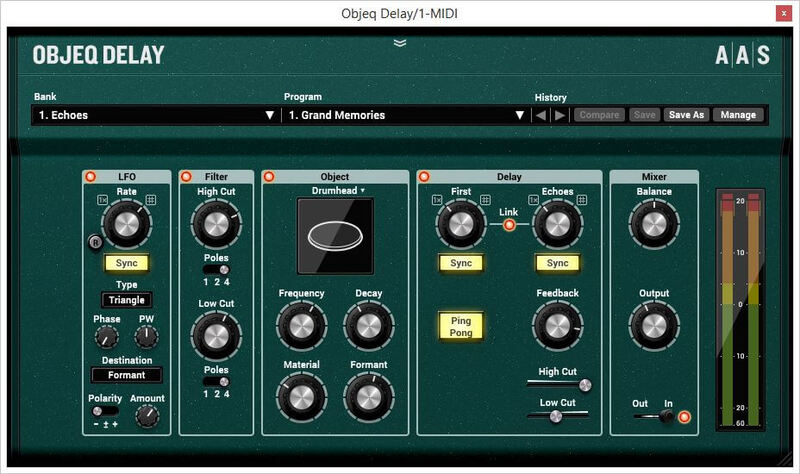
Please note: Objeq Delay is used as an example as the installation process is the same for all Applied Acoustics Systems products.

Registration

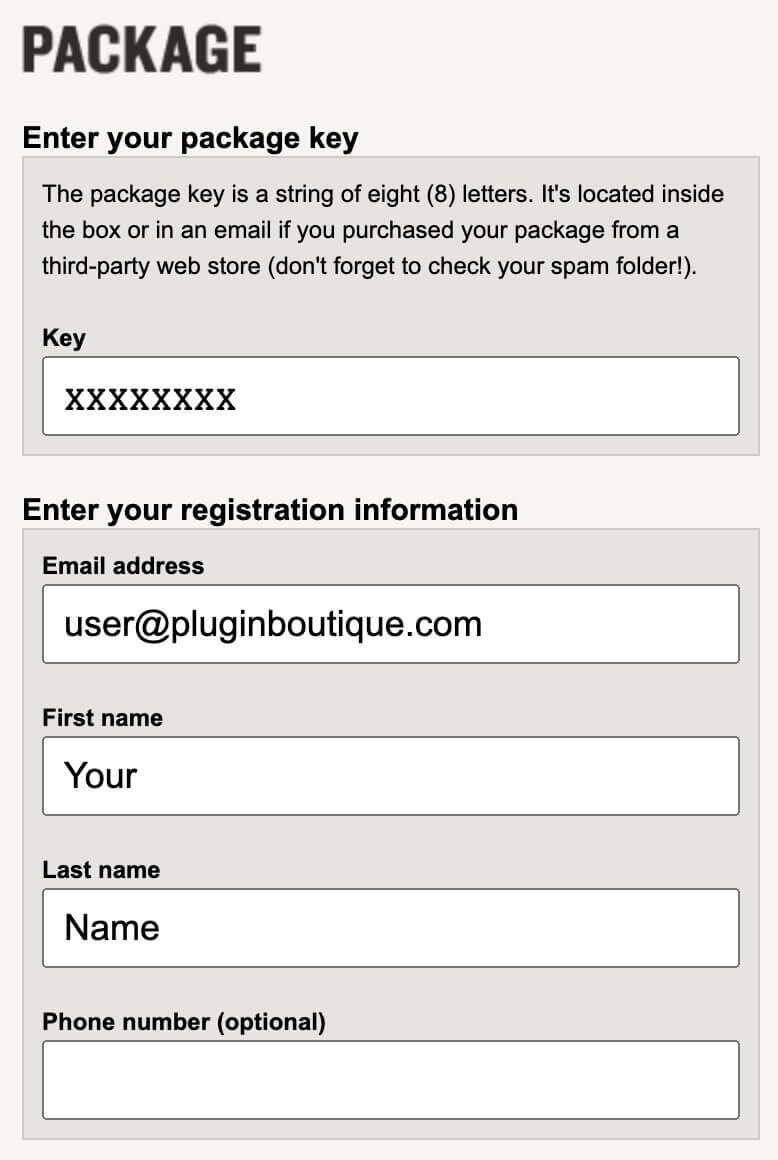
1. Copy and paste the URL which is listed as the ‘Serial Number’ in your account into your browser search bar and press enter.

Registration Process - Step 1

2. Enter your email address and name (the key will have been automatically entered).

Registration Process - Step 2

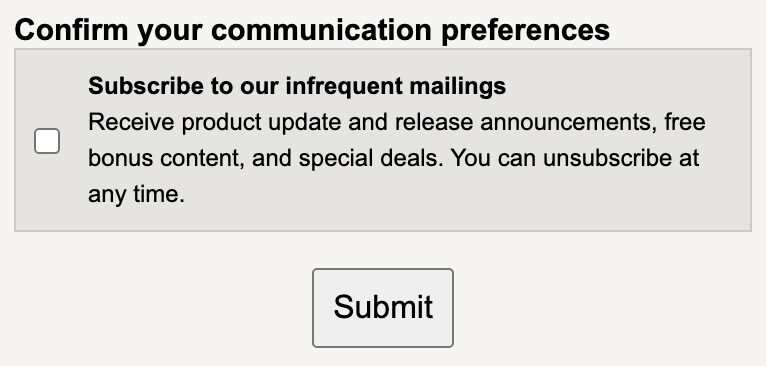
3. Choose your communication preferences > Click 'Submit'.

Registration Process - Step 3

Mac Installation

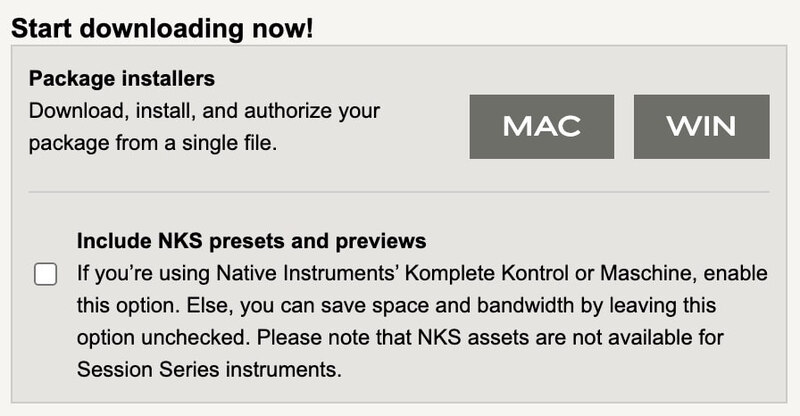
1. Download the Mac Installer.

2. Open the ZIP folder you’ve just downloaded > Double click the PKG installer file. 

3. You may see this message - if so, please click 'Open'.

Mac software installation process

4. Click 'Continue'. 

Mac AAS software installation process

5. Read the Software License Agreement > Click 'Continue'.

Mac AAS Software Installation Process

6. Click 'Agree'.

Mac AAS Software Installation Process

7. Click 'Install'.

Mac AAS Installation Process

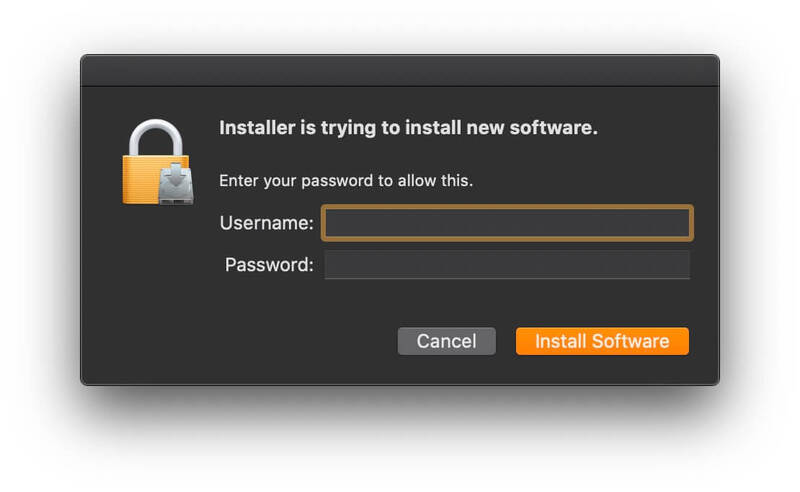
8. Tap your fingerprint or enter your password. 

Mac AAS Software Installation Process

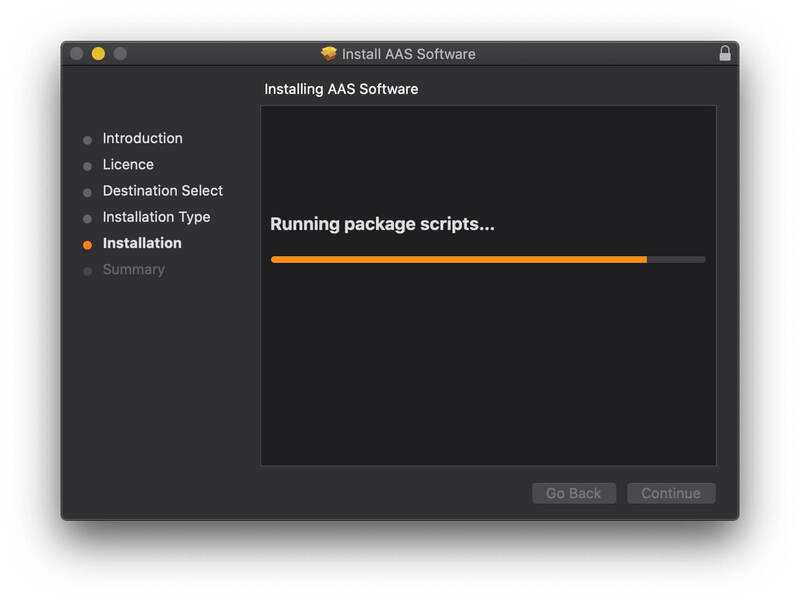
9. Your software will now install.

Mac AAS Software Installation Process

10. Open your new software in your DAW (you may need to restart your Mac and/or rescan your plugins).

Mac AAS Software Installation Process

Your software is now ready to use within your DAW! 

Windows Installation

1. Download the Windows Installer.

2. Open the ZIP file you’ve just downloaded > Double click the Setup file.

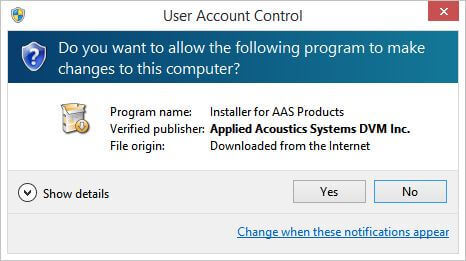
3. Click 'Yes' to allow the installation to run.

Windows AAS Software Installation Process

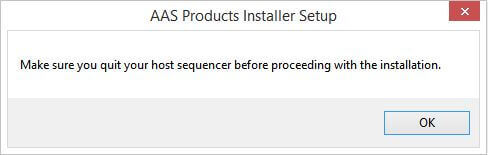
4. Close your DAW if it’s open > Click 'OK'.

Windows AAS Software Installation Process

5. Read the License Agreement > Click ‘I Agree’.

Windows AAS Software Installation Process

6. Choose the install location (we recommend leaving it as the default). 

Windows AAS Software Installation Process

7. Your software will now install.

Windows AAS Software Installation Process

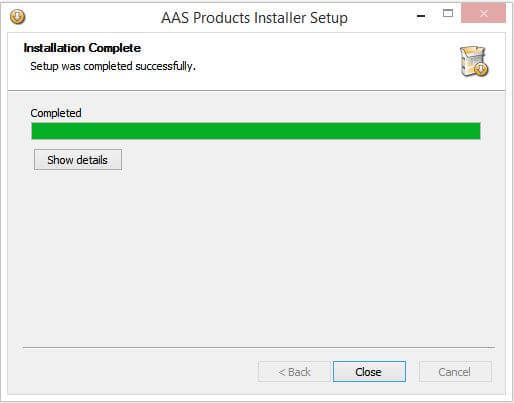
8. The installation is now complete > Click 'Close'.

9. Open your new software in your DAW (you may need to restart your Mac and/or rescan your plugins).

Windows AAS Software Installation Process

Your software is now ready to use within your DAW! 

Plugin Boutique Rewards

Discover the most rewarding loyalty programme among all plugin retailers.

  • Free Loopmasters Samplepacks
  • Discounts on products and courses
  • Extra Virtual Cash claimed immediately at checkout
Find out more

Follow us:

X (Twitter) Facebook YouTube Instagram
Logo Logo

Plugin Boutique Limited, Part of the Beatport Group LLC.

Copyright © 2011-2025 Plugin Boutique. All rights reserved