


 Log In

Free gifts available with your purchase
Product information
Strum is an intuitive multiband delay.
Designed to make spectral delays easier to use, Strum splits your signal evenly and cleanly into a bunch of different bands, and then allows you to control the delay time & feedback of each band.
Strum can work either in “free” or “sync” mode, where in “sync” mode each individual band’s delay time is synchronized to the tempo & time signature of your DAW, allowing for rhythmically-aware strumming.
Additionally, Strum provides a modulation panel for a bit more control of the delay times, allowing you to switch between “flutter” and “random” modes.
Features
- Modulation Skew: Strum allows you to "skew" (or bias) the modulation based on frequency. Enabling the skew link & then adjusting the skew knob can increase / decrease the frequency / depth of your modulation as the frequency changes.
- Factor Band Control: Similar to Sweep and Recurse, Strum features a "Factor Band" control system where points are adjusted similarly to how an EQ would be adjusted, giving you comprehensive control over the frequency range.
- Dynamic Crossover: Strum's multi-crossover system makes use of a proprietary filter bank which has both a flat frequency and phase response. Rest easy knowing that Strum isn't coloring your sound at all when it doesn't need to be.
- Overlay Adjustment: Just in case the overlay that changes as the delay time & feedback are changed seems a bit too much to look at, you can go into the menu (by clicking the Lese logo) and disable it. We'll still show you where the bands are split at, though.
System Requirements
- Windows: VST3, AAX
- OSX (Intel / ARM): VST3, AU, AAX
- Should run fine on any recent operating system
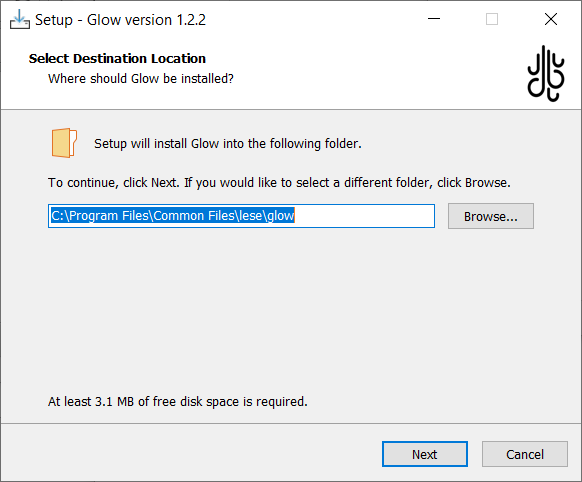
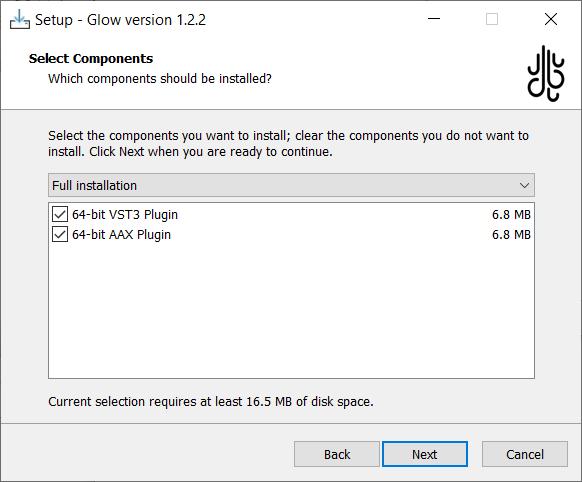
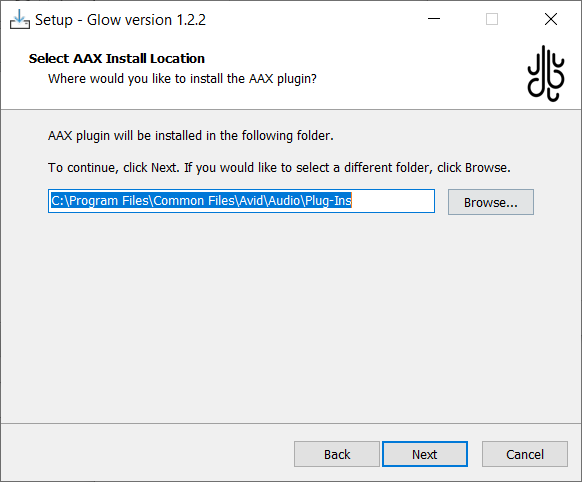
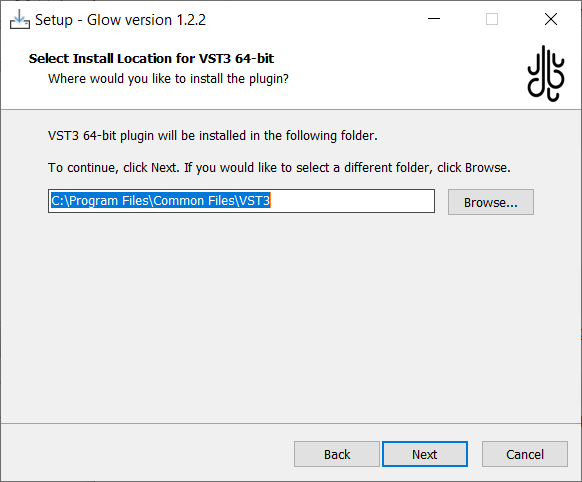
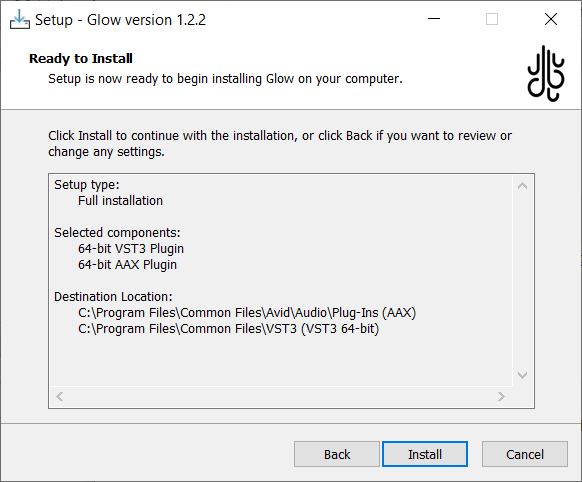
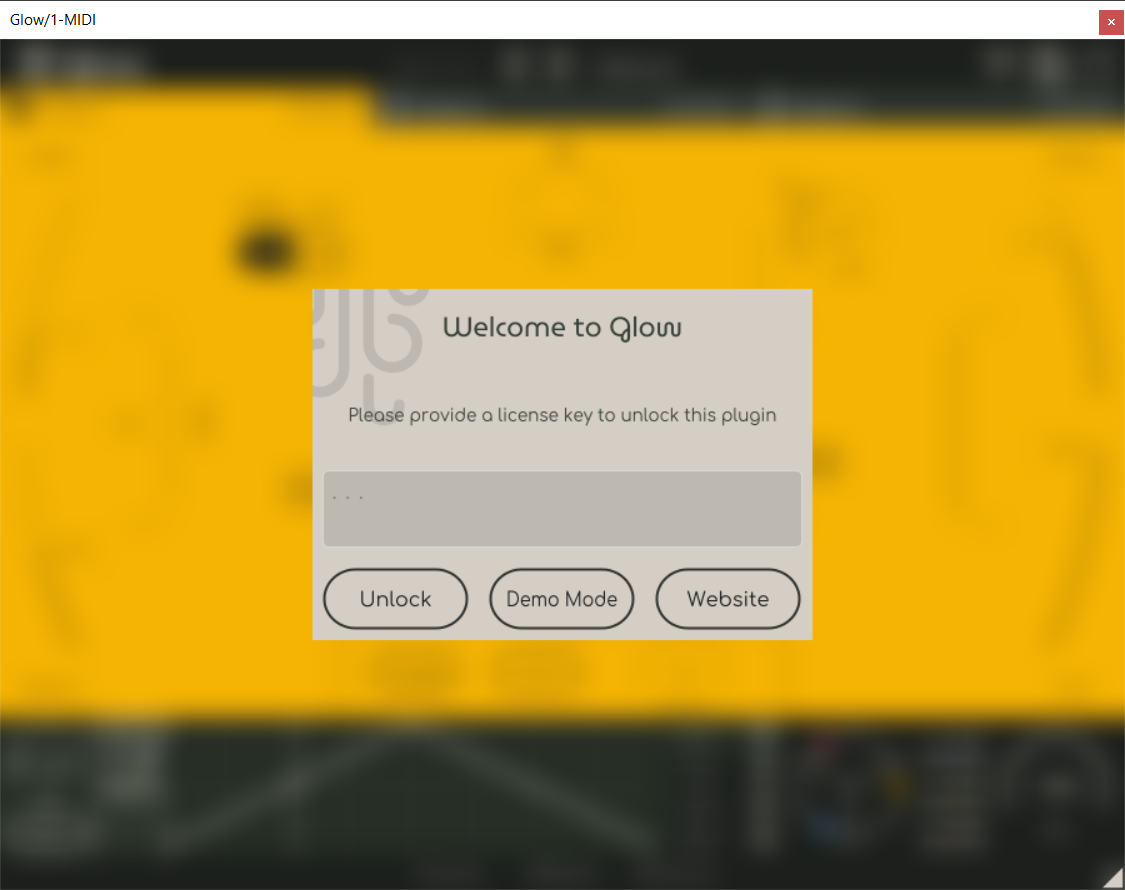
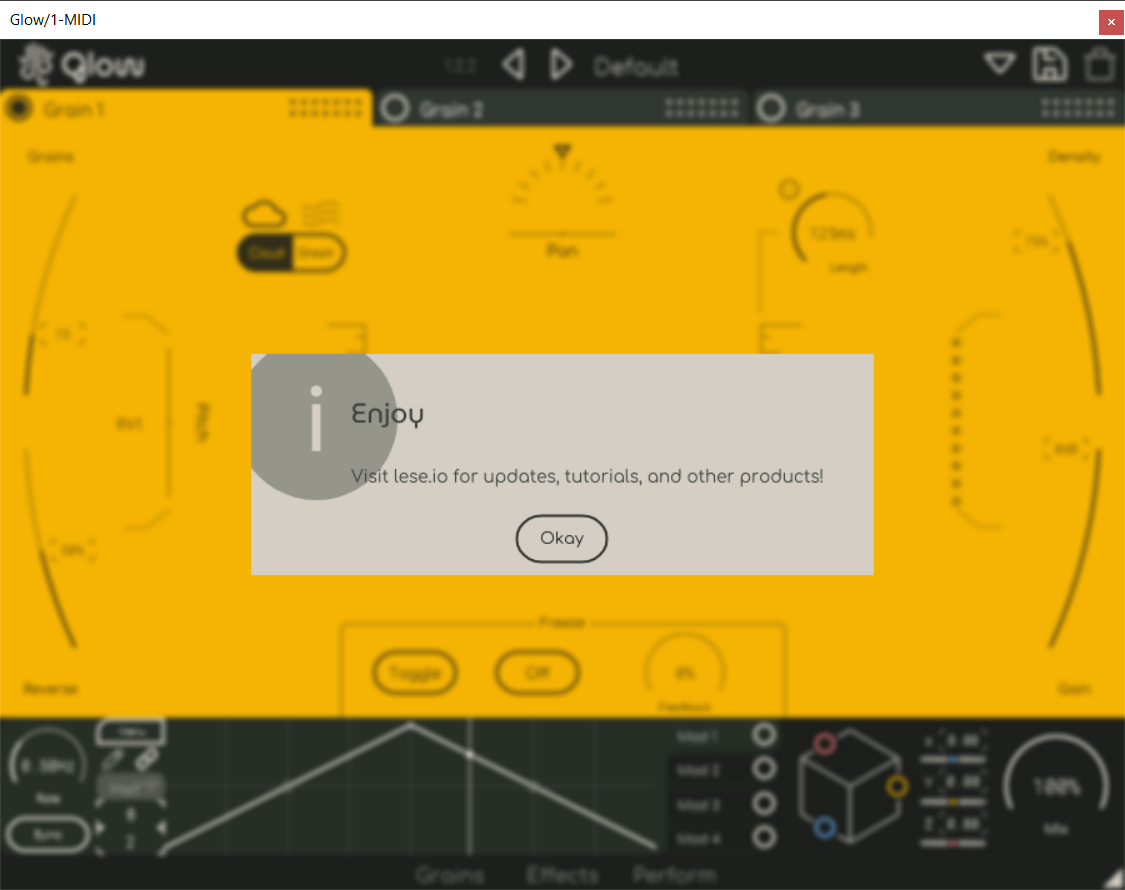
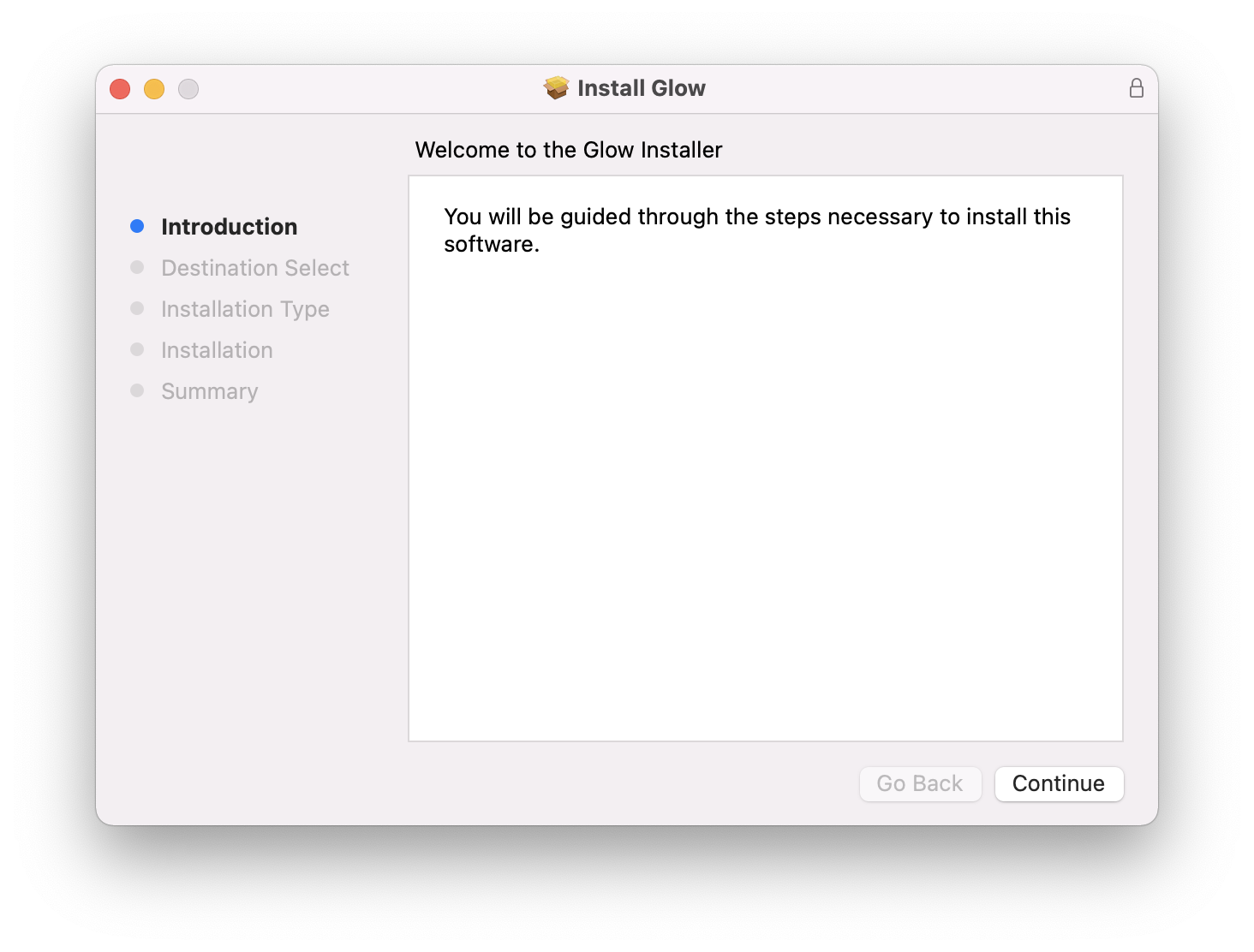
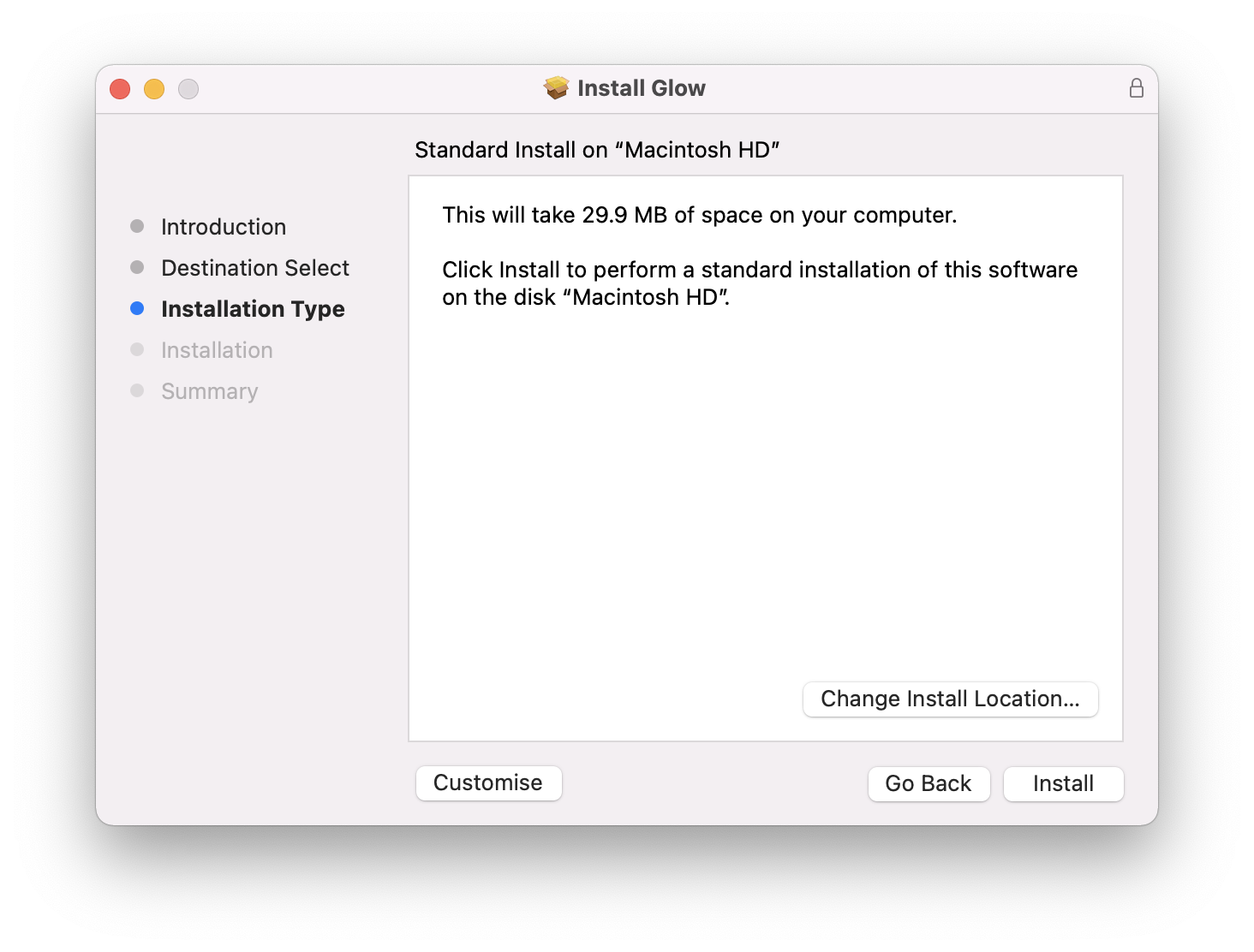
Installation Instructions
Customer Reviews
(3)


