


 Log In

Free gifts available with your purchase
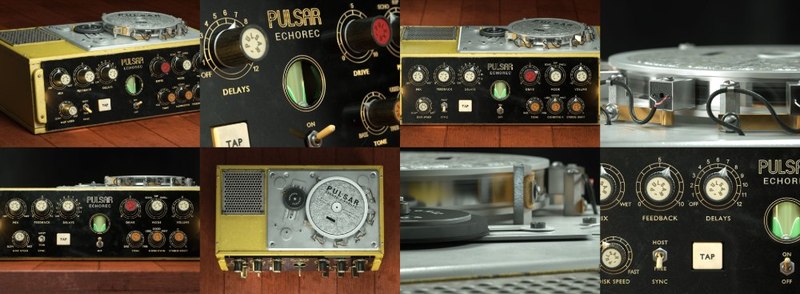
The Pulsar Echorec is a software emulation of the iconic echo/delay unit of the same name produced by the Italian brand Binson in the 1960s.
The sound of this magnetic disk delay differs from the tape delays used at the time and has largely contributed to the audio signature of many 70s bands: Pink Floyd, The Shadows, Jimmy Page etc.
The Best Software Emulation of the Binson Echorec 2
Vintage Echorec devices are known for their saturation, self-oscillation, and over-sound, all shaping the music produced in the 70s. They are also, however, known to be fragile and difficult to maintain.
The Pulsar Echorec plugin gives you a faithful emulation of this legendary echo unit; furthermore, many workflow improvements have been added to the original, such as the ability to change the motor speed (and so the delay time) in real-time or to sync it to any tempo, including a tapped tempo.
Three different units, in different conditions, have also been precisely modelled, to have all sounds from the cleanest magnetic delay, to the most grunge.
These additions and the signature sound of the Binson Echorec 2 make this echo a must-have tool for any mixer who wants to add the subtle analogue life, which is sorely lacking in digital delay plugins.
Main Features
Authentic Tube Sound
The exact sound of the all-tube input section of the Binson Echorec has been precisely replicated. Special attention was paid to the modelling of pre-emphasis filters.
Magnetic Field Recreation
Any sound going through a magnetic device is modified in a particular way. Complex processes in the Echorec disk involving magnetic saturation and hysteresis have been precisely modelled.
Stereo Drift
As an improvement to the original hardware design, Pulsar added the possibility of slightly detuning the left and right channels. The result is a large stereo echo with precisely placed repetitions.
Creative Modulations
Sound engineers always have their tricks. One of the coolest with the Echorec is the ability to slow the disk down with a finger, resulting in creative pitch modulation or wow and flutter effects on the delayed signal.
Three States of Wear
Any Binson unit found nowadays has travelled 50 years through time. Some are in mint condition, and some are used. During their measurements, Pulsar found that each unit had a special colour, and some are really nice independently from the unit condition. So they selected the three units they liked the most.
Off Mode
Some effects just sound incredibly good, even when they’re not supposed to affect the sound at all. The Binson Echorec is one of these. So they carefully designed an Off mode that reproduces the colour and grit of the delayed signal, without any delay.
Windows
- Windows 7 with SP1 / Windows 8.1 / Windows 10 (all 64-bit only)
- CPU: Intel Core i3 / i5 / i7 / i9 / Xeon or AMD Quad-Core minimum
- Memory: 4 GB RAM & 1 GB free disk space
- GPU: OpengGL 2.0 compatible GPU
- Monitor: Minimum 1024×768 Resolution (recommended 1920×1080) & 60 Hz Refresh rate
Compatible Plugin Formats (32 & 64-bit):
- AAX Native
- VST 2.4
- VST 3
Mac
- macOS10.9 and higher (M1 Apple Silicon supported) (64-bit only)
- CPU: Intel Core i3 / i5 / i7 / Xeon / Apple Silicon (M1)
- Memory: 4 GB RAM & 1 GB free disk space
- GPU: OpengGL 2.0 compatible GPU
- Monitor: Minimum 1024×768 Resolution (recommended 1920×1080) & 60 Hz Refresh rate
Compatible Plugin Formats (64-bit only):
- AAX Native
- Audio Unit
- VST 2.4
- VST 3
Activation:
- You need to have an account at ilok.com to be able to use Pulsar software.
- The Mac version of this software is 64-bit only and will not function on 32-bit systems.
Reviews Summary
While it aims to provide a helpful overview, it may not capture every perspective or detail. We encourage you to read individual reviews to make an informed decision.
Users widely praise this vintage tape delay plugin for its rich analog character, smooth performance, and inspiring sound design capabilities, noting it excels on guitars, dub swells, and lo-fi textures. While highly regarded as a top-tier tape emulation, minor criticisms include the inability to adjust the delay EQ, unavoidable hiss on certain presets, limited flexibility, and non-interactive graphics.


