Log In

Discover the Intensity of Ruby Red
Experience New Sounds, Take Control of Time, and Define Your Style
Delay
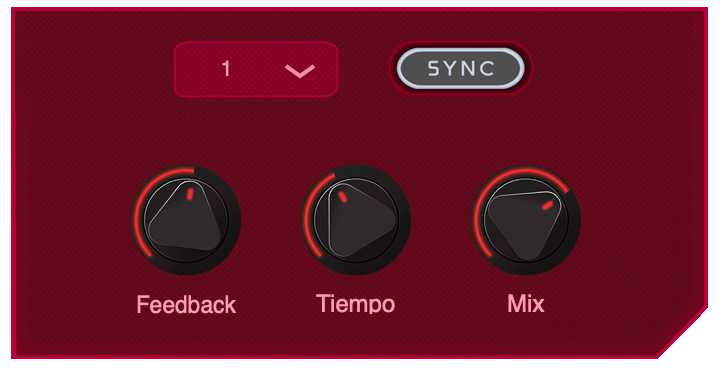
With Ruby's delay, you will have the freedom to modify the time as you want, however you can also sync it to the BPM of your session for greater precision.
Sequencer

The sequencer allows you to have control over 16 repetitions of the delay with the possibility of modifying by semitones.
Tremolo
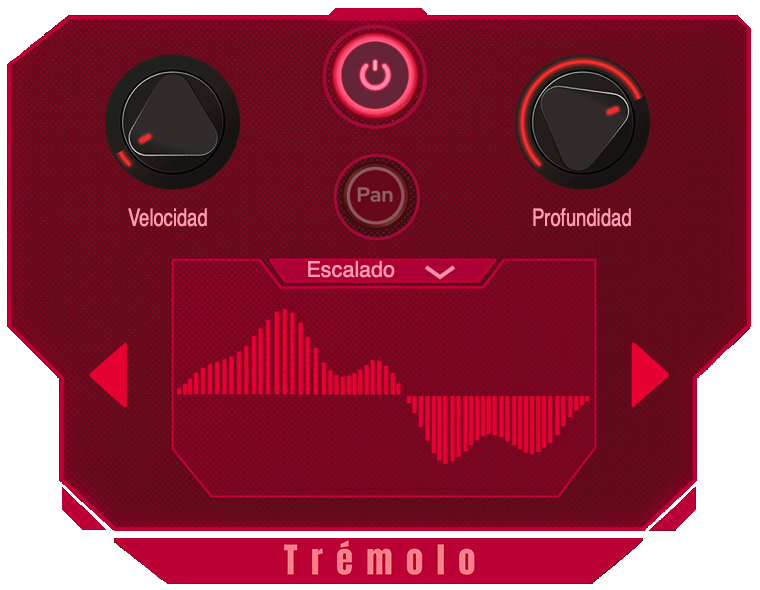
It suggests a comfortable and adjustable pan, modifying the parameters and waveforms allowing you to vary both the amplitude and the speed. Explore different sounds with 6 different waveforms from the Ear Candy Technologies team.
System Requirements
Mac
- macOS 10.10 or later (Intel / M1 Apple Silicon supported) (64-bit only)
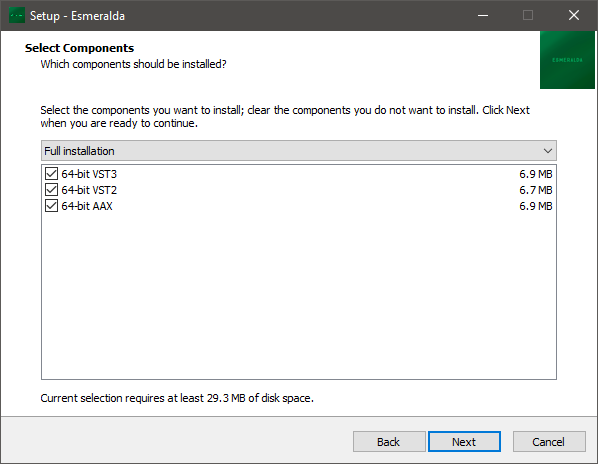
- AU / VST3 / VST / AAX
- 4 GB RAM required (8 GB recommended)
- 2.5 GHz CPU (Intel, AMD or M1 Apple Silicon)
- 30 MB Free Disk Space
Windows
- Windows 7 or later (64-bit only)
- VST3 / VST / AAX
- 4 GB RAM required (8 GB recommended)
- 2.5 GHz CPU (Intel or AMD)
- 30 MB Free Disk Space
Please Note: Ruby is not supported on 32-bit platforms.
Nicolás Mariñelarena
Audio Engineer, Music Producer, Educator & Software Engineer
"Ruby is a delay for those who are adventurous and do not settle for the conventional."
Hector Montiel (KILLV)
Musical Artist
"Ruby is a one-of-a-kind delay... I have never found a delay that will let you do all of these things that Ruby offers."