Log In

Free Trial
Free gifts available with your purchase
Product information
Chorus FX Engine
From Classic to Vast Spectrum Chorusing Effect
Note: Also available in the EFEKTOR Modulation Bundle
Recognisable from its doubling effect, this type of effect is known as a standard built-in effect from gears such as the Roland Jazz Chorus amp and also the Roland Juno synthesiser.
Choose your favourite chorus sound from these three types:
Dimension Chorus:
- Add thickness, 3-dimensional depth, and width from true analog circuit modelling.
Ensemble Chorus:
- A true classic chorusing effect with great tone. soft, deep, and rich.
Tribunal Chorus:
- Big spectrum creates rich soundscapes in stereo. The sounds of multiple modulations combined together.
Features
- Three Models of Modulation in Every Unit.
- A/B Compare Buttons.
- BPM Sync.
- Mono or Stereo Mode.
System Requirements
Mac
- Mac OS X 10.7 or later (Intel / M1 Apple Silicon supported) (64-bit only)
- Core2 Duo, or better (latest Intel i3 recommended)
- 4 GB minimum RAM
- VST, VST3, or Audio Unit compatible host / DAW
Windows
- Windows Vista or Later (64-bit only)
- Core2 Duo, or AMD Phenom ii X4 or better (latest Intel i3, AMD A4, or better is recommended)
- 4 GB minimum RAM
- VST or VST3 compatible host / DAW
Important Notes:
- Pro Tools 11 or later is required for AAX format
- Reason 7.1 or later is required for Rack Extension format
- A VST, VST3, AU, or AAX compatible host / sequencer is required to run this software.
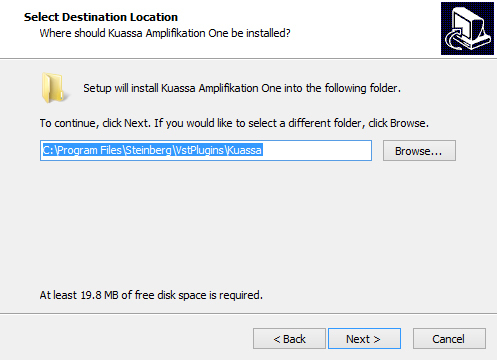
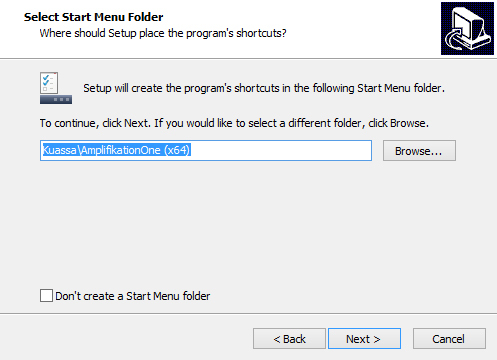
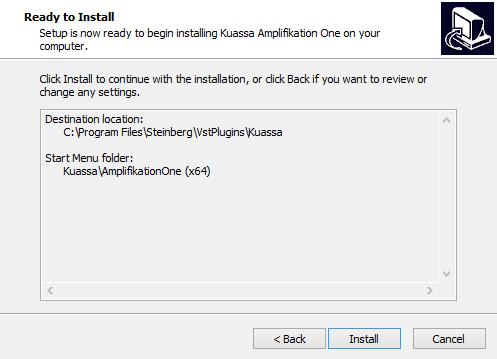
Installation Instructions