Buy +10db Equaliser V2 Upgrade from V1, get a free gift with purchase:

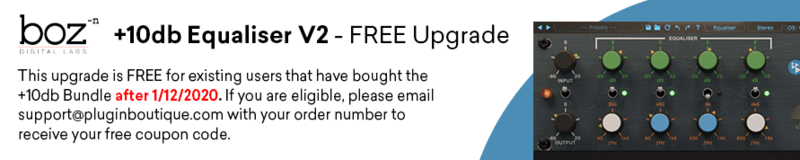
+10db Equaliser is meticulously modeled after the EQ section of a very highly sought after hardware channel strip. The parallel nature and design of this EQ gives you a completely new approach to applying EQ.
+10db Equaliser takes the EQ section from Boz Digital Labs' +10db Channel strip plugin and puts it in a dedicated plugin. This plugin faithfully recreates the curves and subtleties of this hardware equaliser unit.
What Is So Special About This EQ?
This EQ takes a different approach to equalization than your standard digital EQ. Instead of the standard series configuration, this EQ uses a parallel configuration, which makes for some very interesting effects, especially for bands that are close together. You will notice that you can use more extreme boost and cut settings without going into that harsh realm.
And of course, in order to preserve the spectral integrity of analog filters, they do not do any of the digital pre-warping tricks. Instead, each filter has a nice symmetric frequency response all the way up to Nyquist frequency, giving it a much more natural and musical response in the high frequencies.
The layout of this EQ makes you work with a different part of your brain than the standard parametric EQ. Don’t get them wrong, they love parametric EQs too, but working with this EQ definitely opens up the creative side of their brain, which can open up entirely new creative possibilities.
+10db Equaliser V2 is also available along with +10db Compressor V2 and the +10db Channel Strip V2 in the +10db Bundle V2.
System Requirements
Mac
- MacOS 10.13 or greater (Intel or M1)
- VST2, VST3, AU, AAX
PC
- Windows 7 or greater (64-bit only)
- VST2, VST3, AAX Native
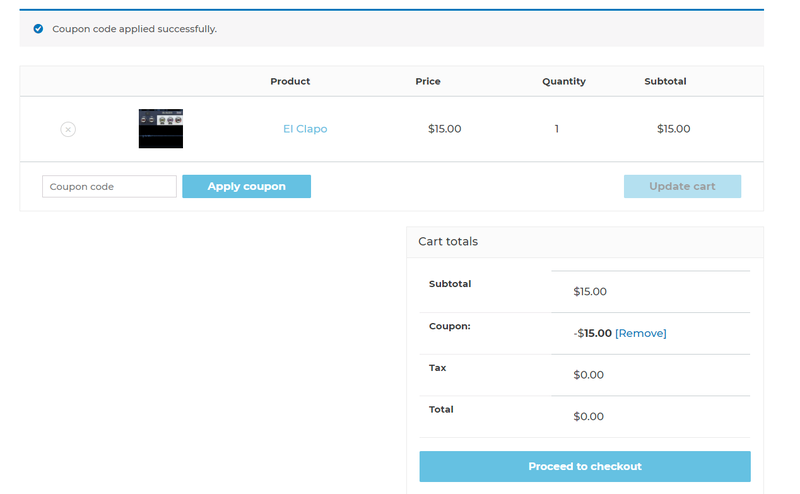
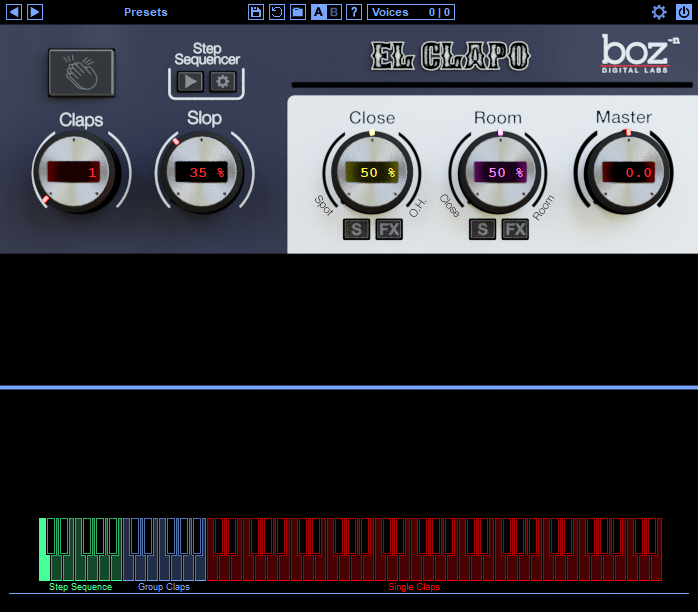
Note: El Clapo is used as an example.
Mac
Redemption
1. Click Download in your Plugin Boutique account or go to https://www.bozdigitallabs.com/plugin-boutique-retrieve/.
2. Copy and paste the code from your Plugin Boutique account > Click 'Retrieve Plugin'.

3. Review the order > Click 'Proceed to Checkout'.

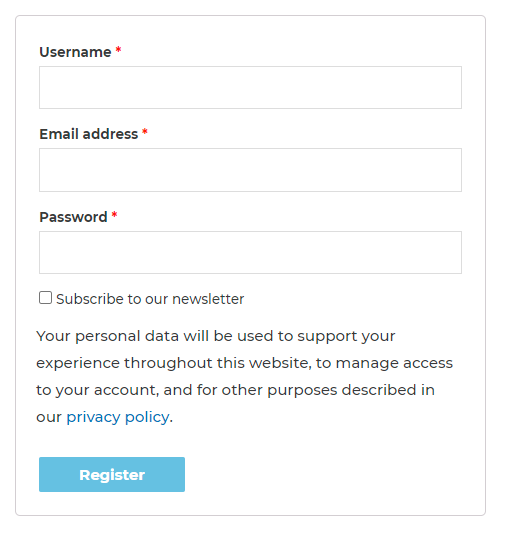
4. Enter your email address, username and password > Click 'Register'.
Note: If you already have Boz Digital Labs account, select 'Click Here to Login' after entering your email address/username and password > Click 'Login'.

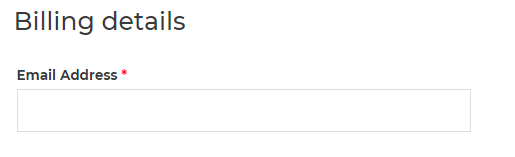
5. Check that your email is correct > Click 'Next'.

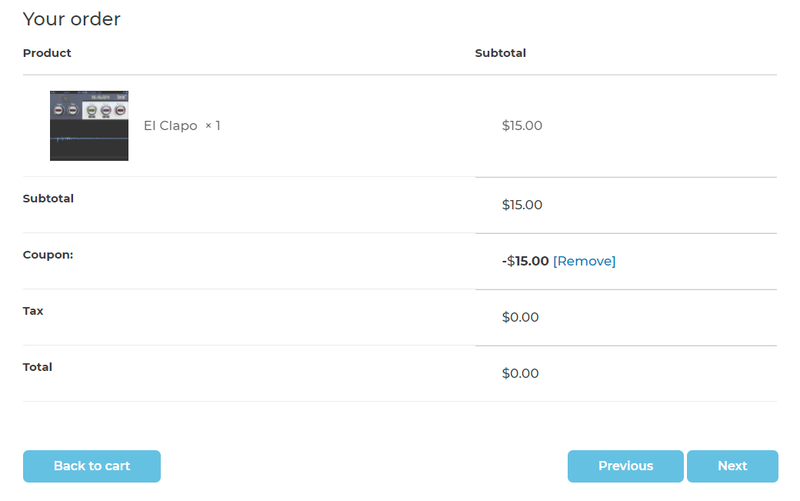
6. Review your order > Click 'Next'.

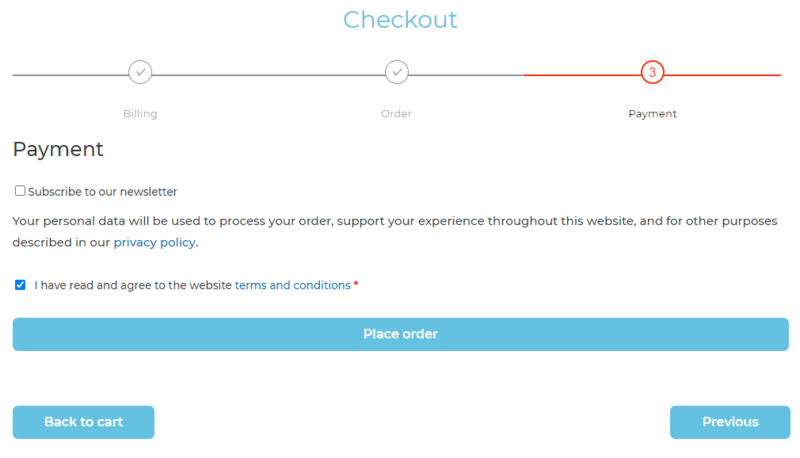
7. Click 'I have read and agree to the website terms and conditions' > Click 'Place order'.

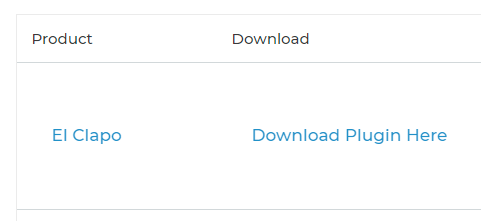
8. Click 'Download Plugin Here'.

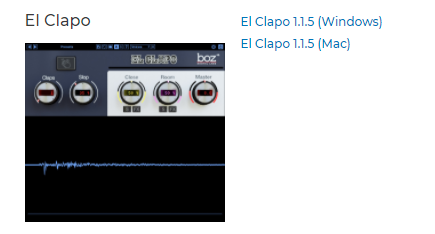
9. Click the Mac link to download the installer.

Installation
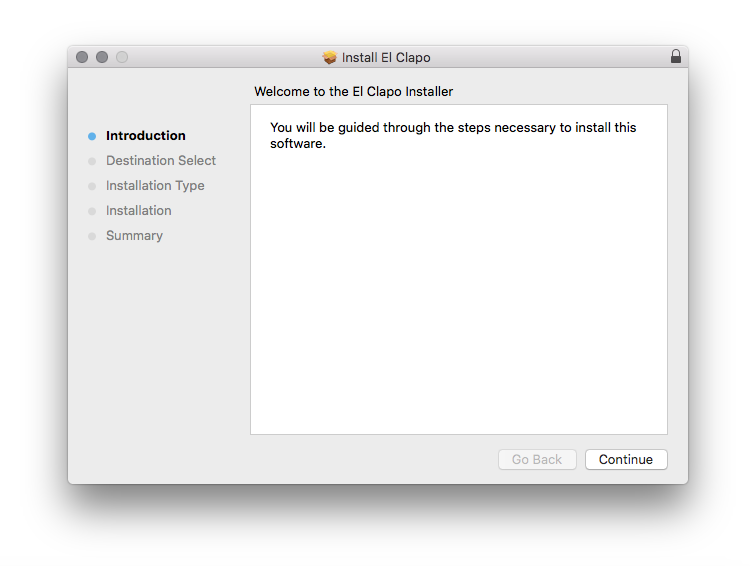
1. Run the .pkg installer > Click 'Continue'.

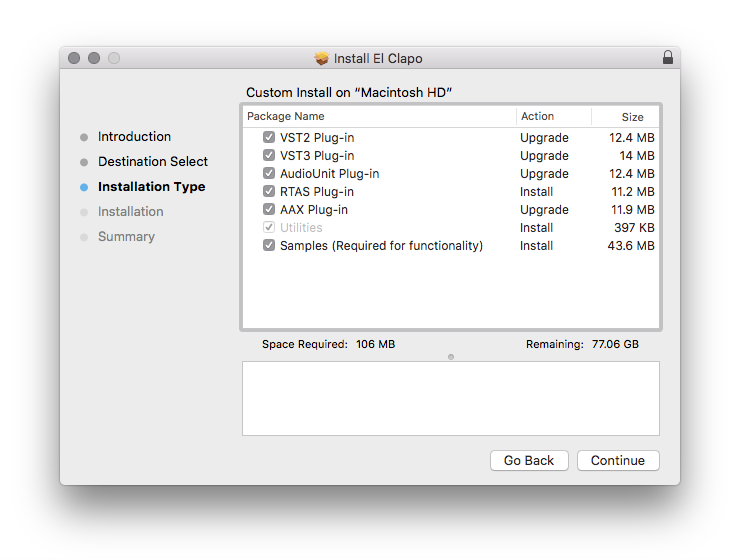
2. Select the formats you wish to install > Click 'Continue'.
Note: If you're unsure about which format to use, leave all options selected and proceed. Check out this article for more information.

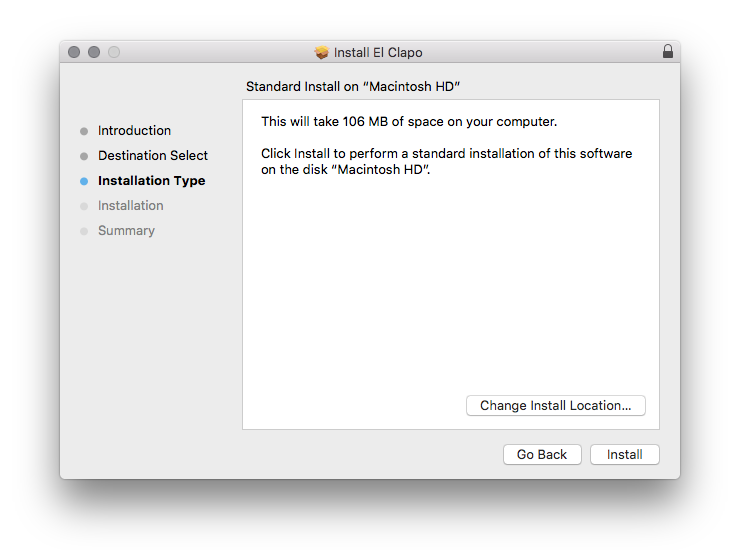
3. Click 'Install'.

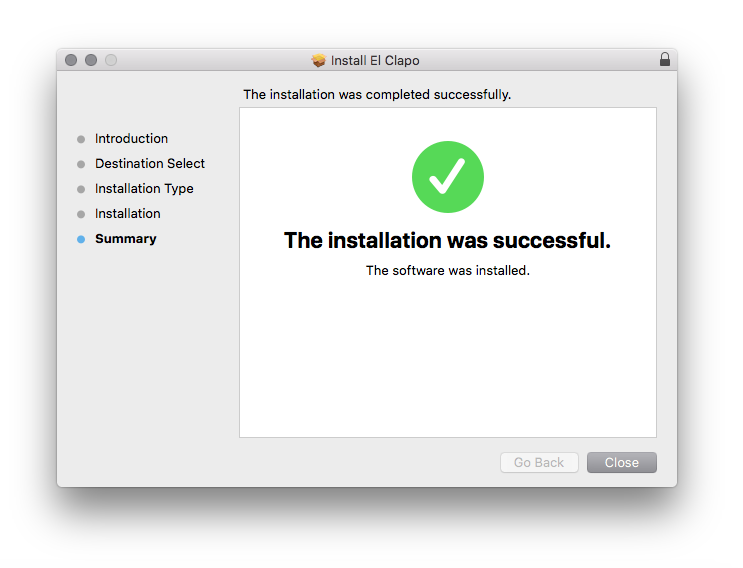
4. Click 'Close'.

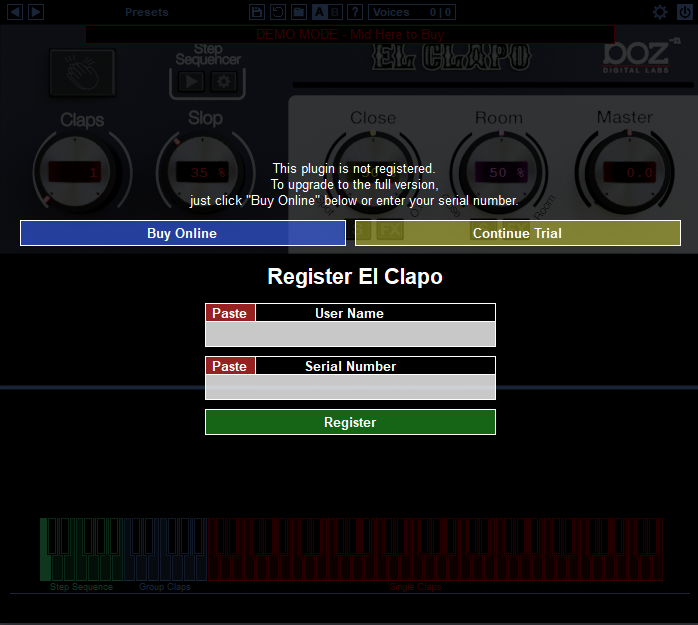
5. Open your DAW and open the plugin > Enter your Boz Digital Labs username and the serial code that you received in your Boz Digital Labs Account > Click 'Register'.

Your software is now authorised and ready for use!

Windows
Redemption
1. Click Download in your Plugin Boutique account or go to https://www.bozdigitallabs.com/plugin-boutique-retrieve/.
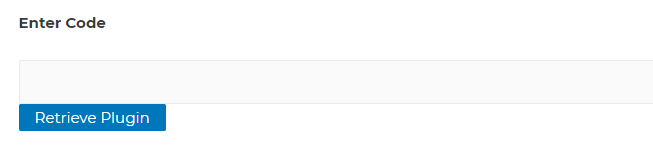
2. Copy and paste the code from your Plugin Boutique account > Click 'Retrieve Plugin'.

3. Review the order > Click 'Proceed to Checkout'.

4. Enter your email address, username and password > Click 'Register'.
Note: If you already have Boz Digital Labs account, select 'Click Here to Login' after entering your email address/username and password > Click 'Login'.

5. Check that your email is correct > Click 'Next'.

6. Review your order > Click 'Next'.

7. Click 'I have read and agree to the website terms and conditions' > Click 'Place order'.

8. Click 'Download Plugin Here'.

9. Click the Windows link to download the installer.

Installation
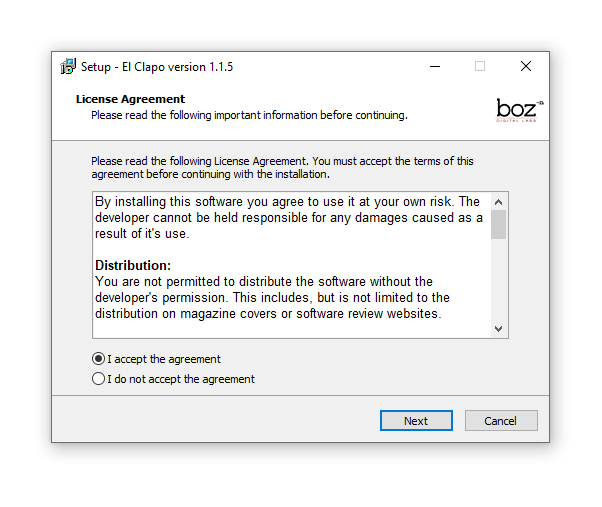
1. Double-click the .exe installer > Click 'I accept the agreement' then click 'Next'.

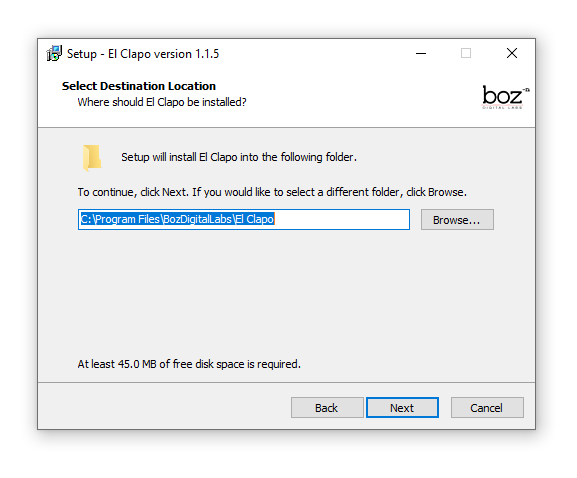
2. Click 'Next'.

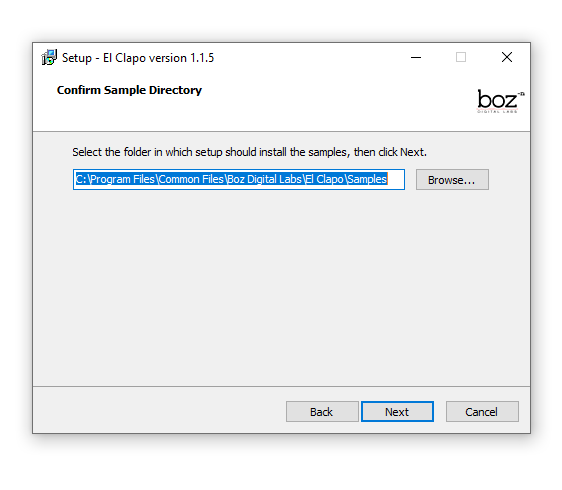
3. Click 'Next'.

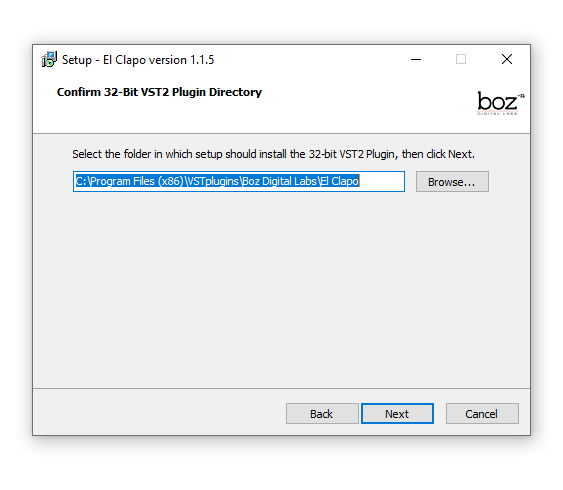
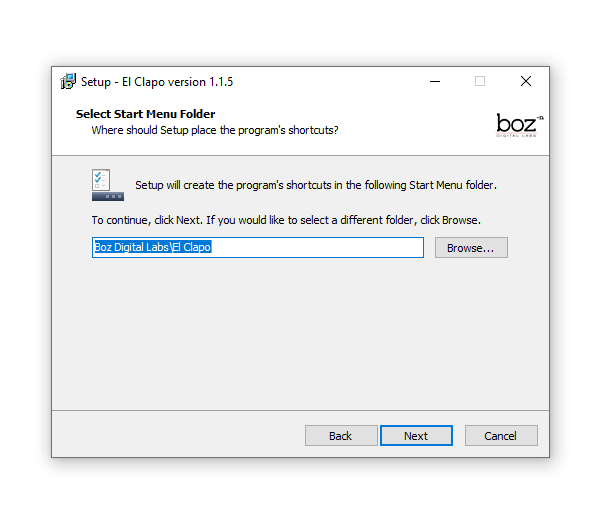
4. Select a VST folder in which to install the 32-bit software format > Click 'Next'.

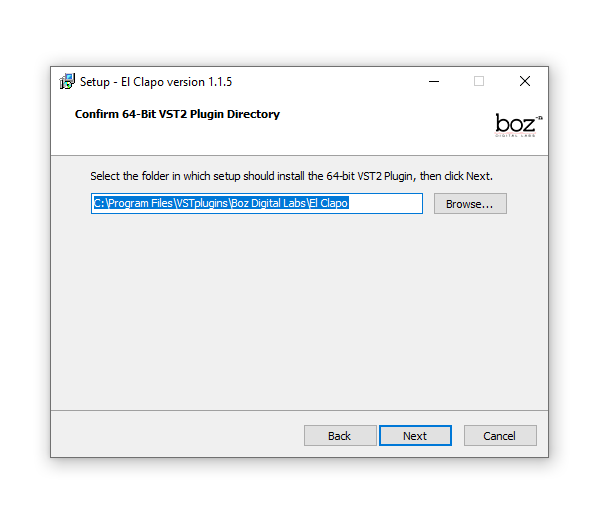
5. Select a VST folder in which to install the 64-bit software format > Click 'Next'.

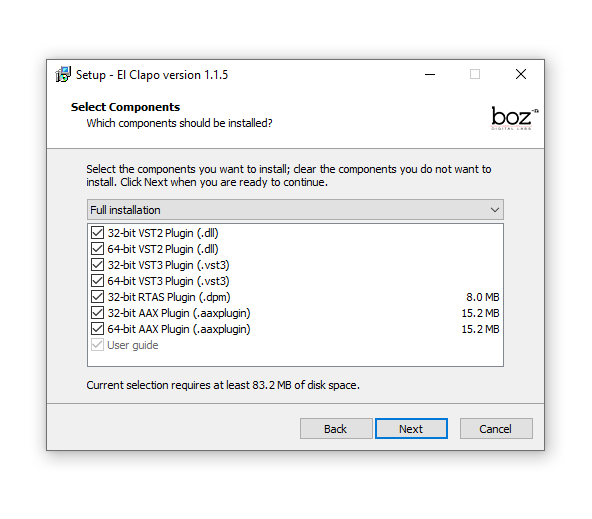
6. Select the components you wish to install > Click 'Next'.

7. Click 'Next'.

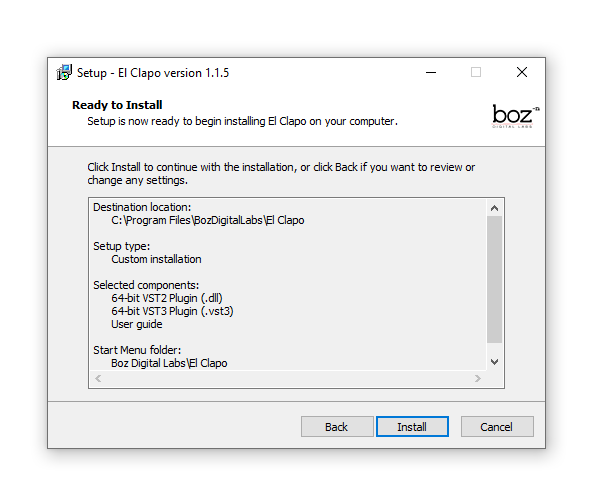
8. Click 'Install'.

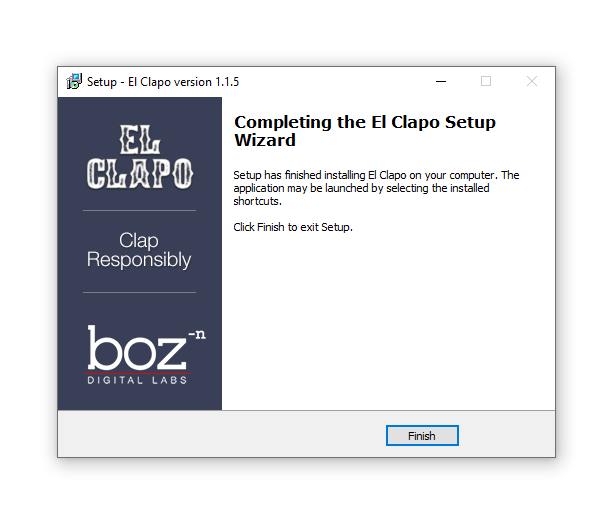
9. Click 'Finish'.

10. Open your DAW and open the plugin > Enter your Boz Digital Labs username and the serial code that you received in your Boz Digital Labs Account > Click 'Register'.

Your software is now authorised and ready for use!