


 Log In

Free gifts available with your purchase
EQ45
Urei 545 Parametric EQ
The EQ45 is a lightweight, four-band parametric equalizer plug-in that allows you to gracefully shape the contours of an audio signal by boosting or attenuating its frequency components. Based on the circuit model of the analog Urei 545 parametric EQ, the plug-in features high and low-cut filters along with an elegant and easy-to-use interface. The classic Urei 545 was the ‘go to’ EQ for a generation of engineers favored for its tone and color. The high resolution and flexibility of its filters and the wide number of parameters offered by the user interface enable you to perform subtle or drastic changes to audio material without unpleasant artifacts.
Features
- Emulation of the analog Urei 545 EQ
- 4-band parametric EQ with Gain and Width controls
- 24 dB/ octave High Cut and Low Cut Butterworth filter sections
- EQ In/Out toggle. Disable to use only the High Cut and Low Cut filters
- Overload protection mechanism that responds when a signal’s transient extends above -0.1 dB
- Instrument-specific presets to help you carve your tone and mix your tracks
System Requirements
Windows
- Windows 10 and later (Windows 11 supported) (64-bit only)
- AAX, VST2, VST3
Mac
- macOS 10.14 and later (Intel / Apple Silicon supported) (64-bit only)
- AAX, AU, VST2, VST3
Important Notes:
- Eventide tests their desktop plugins in Ableton Live, Cubase, FL Studio, Logic Pro, Pro Tools, and Studio One (However, their plugins should work with any compatible host.)
- No iLok dongle is required to run this software - only a FREE iLok account/Manager is required for authorisation.
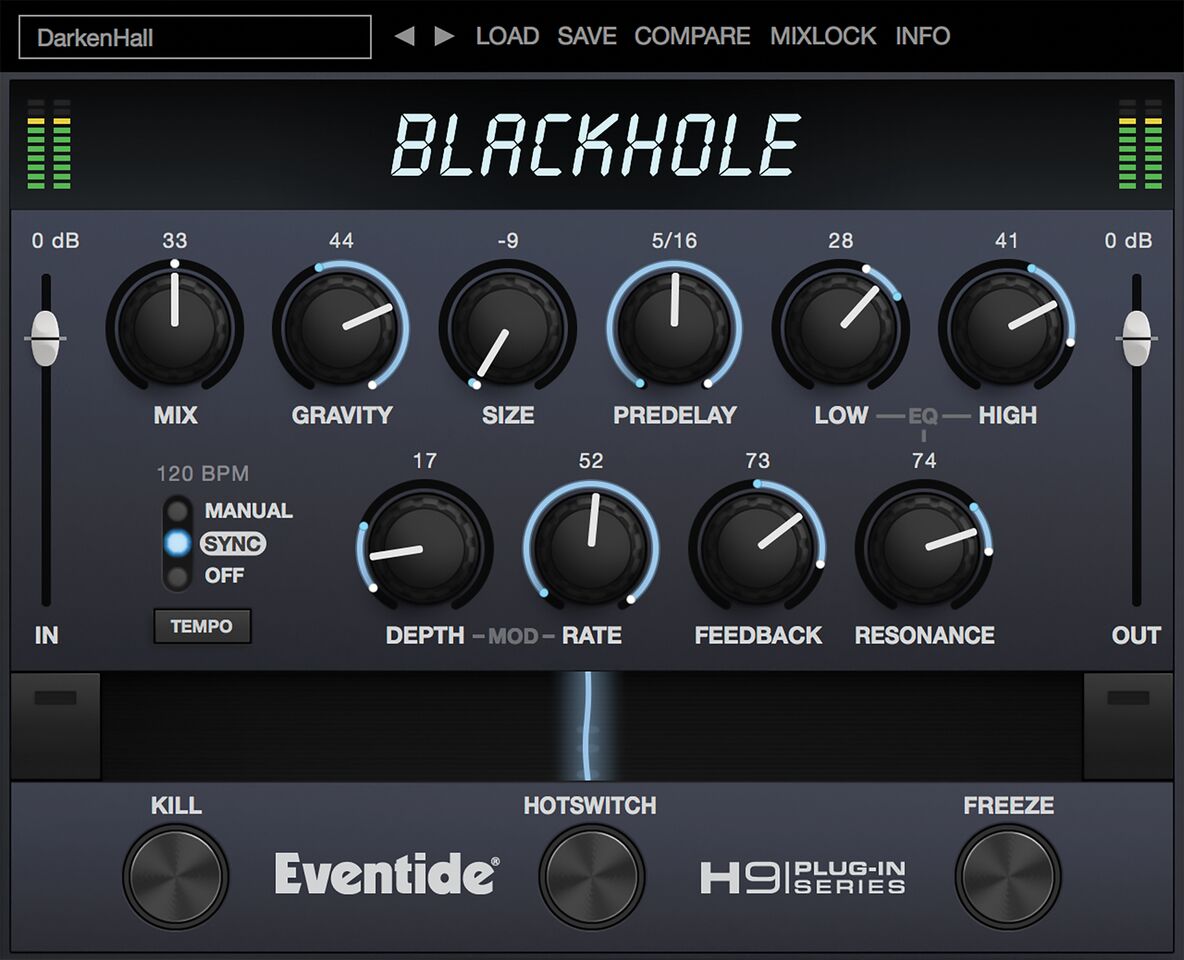
Please note: Blackhole is used as an example.
Registration
1. Create an iLok account by following the steps from our help centre article - Getting Started with the iLok License Manager. If you already have an iLok account, skip this step.
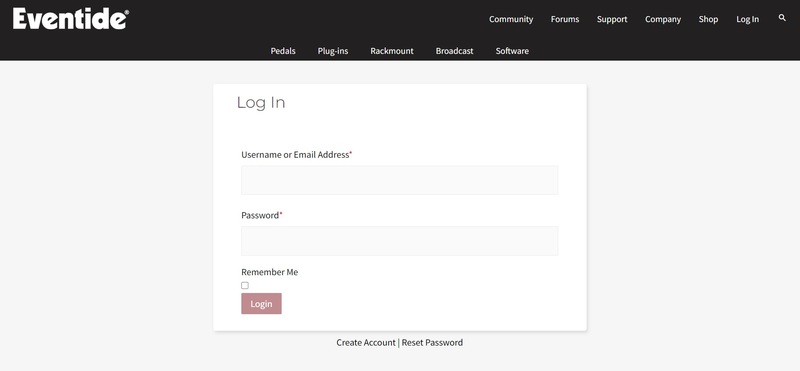
2. Go to https://www.eventideaudio.com/login > Click 'Create Account' at the bottom of the page.
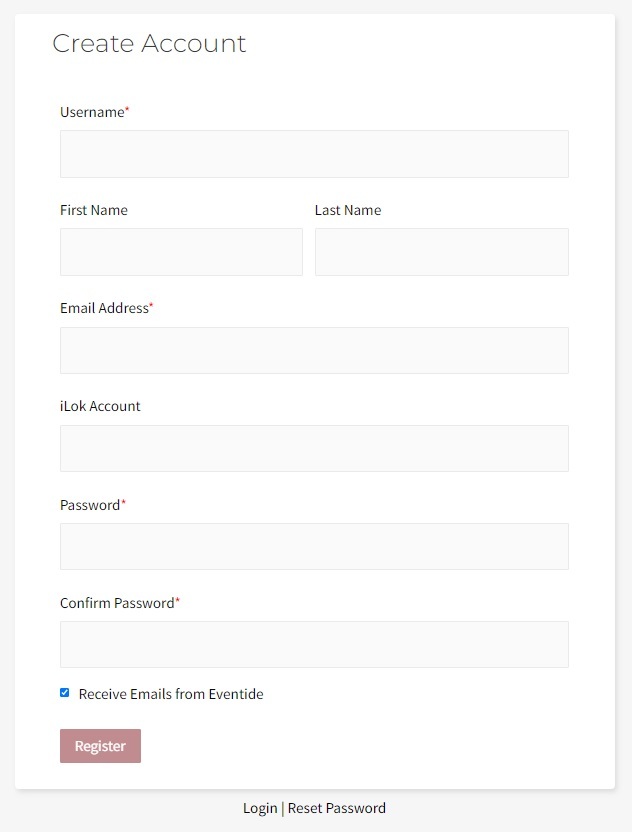
3. Enter your details (including your iLok Account User ID) > Click 'Register'.
4. You will now be redirected to your My Account page.
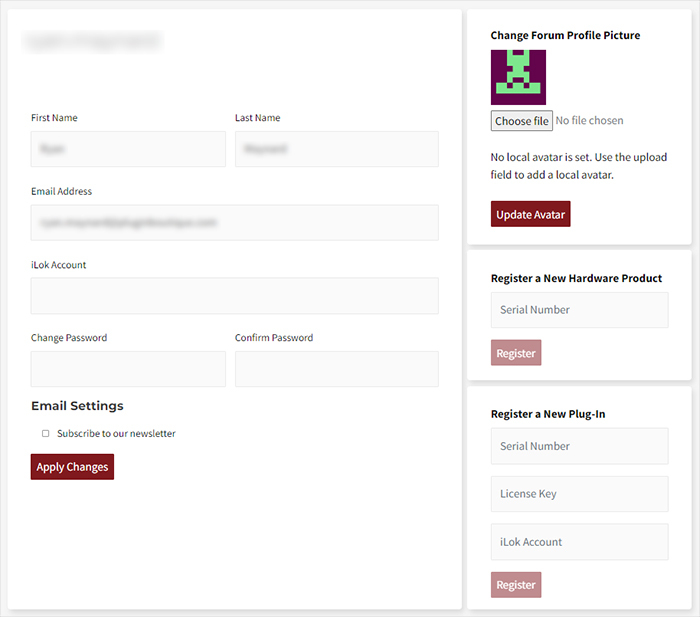
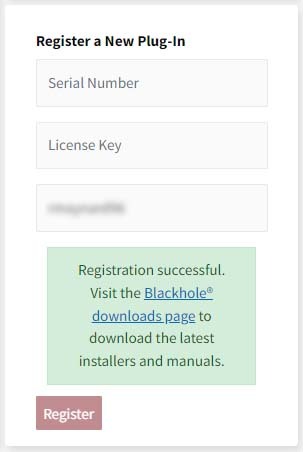
5. In the bottom right corner of the page, enter the license key (format 1234-1234-1234) found in your Plugin Boutique account, as well as your iLok Account User ID > Click 'Register'. Please note: a Serial Number is now not required
Please note: Make sure there are no spaces at the beginning or after your license key.
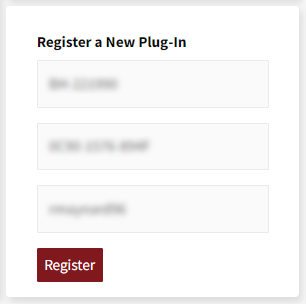
6. Your software is now registered.
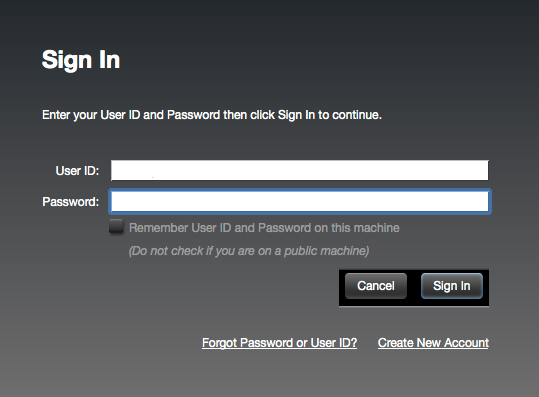
7. Launch the iLok License Manager application > Sign into your account.

8. Enter your iLok user ID and password > Click 'Sign in'.
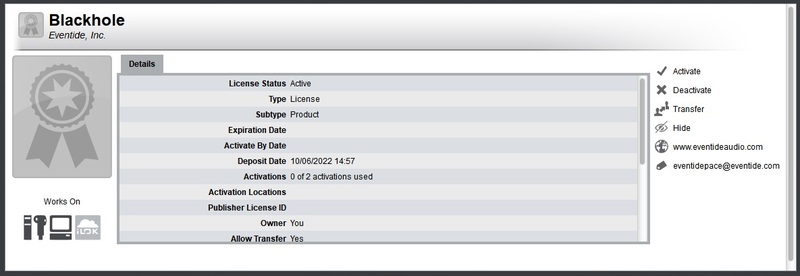
9. Your license should now be listed within your iLok account.

10. Double-click on the license to bring up additional options > Click 'Activate' (located on the right of the screen).
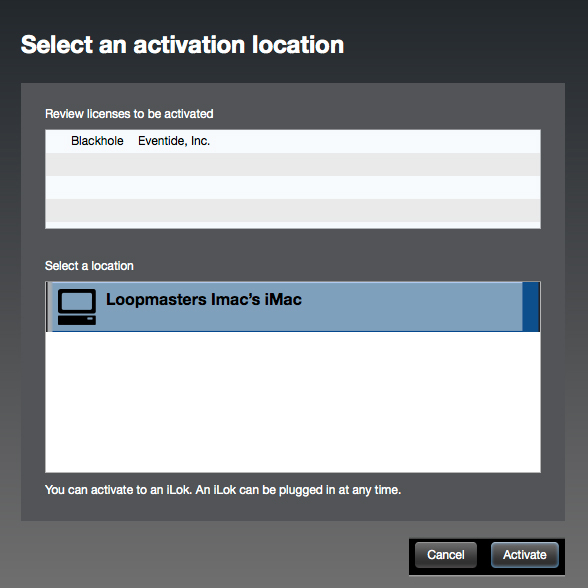
11. Select where you wish the license to be activated > Click 'Activate'.
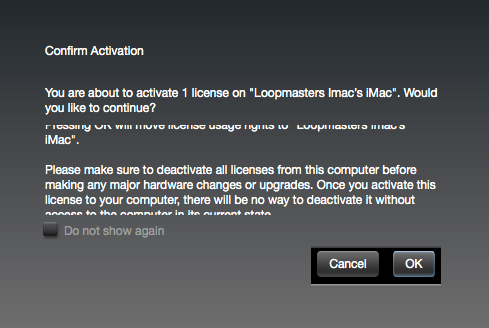
12. Click 'OK'.
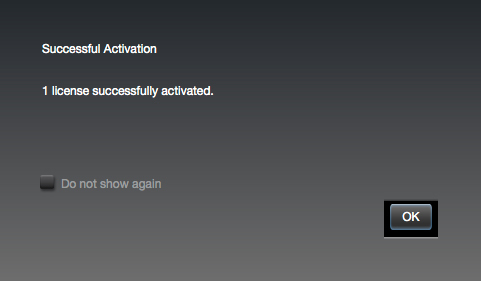
13. Click 'OK'.
Mac Installation
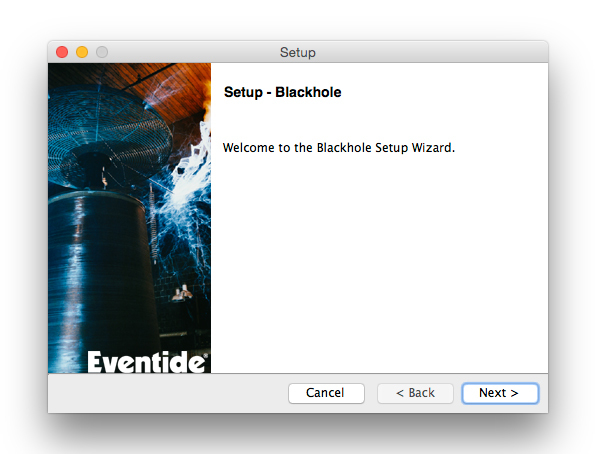
1. Download the Mac installer from https://www.eventideaudio.com/downloads/ > Run the installation > Click 'Next'.
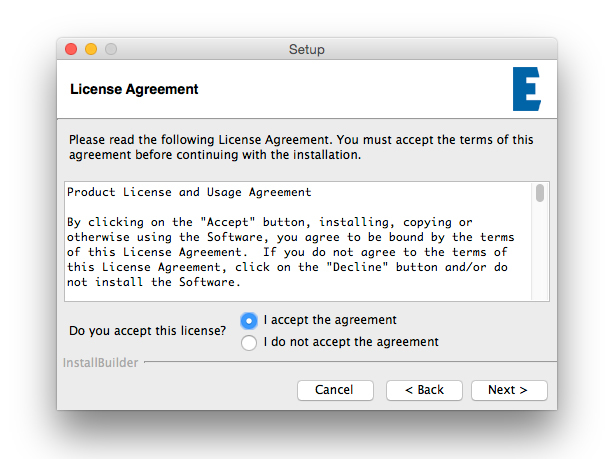
2. Click to accept the license agreement > Click 'Next'.
3. Choose which plugin formats you'd like to install > Click 'Next'.
Please note: If you're unsure, leave all options selected or check out our help centre article Plugin Formats Explained for more information.
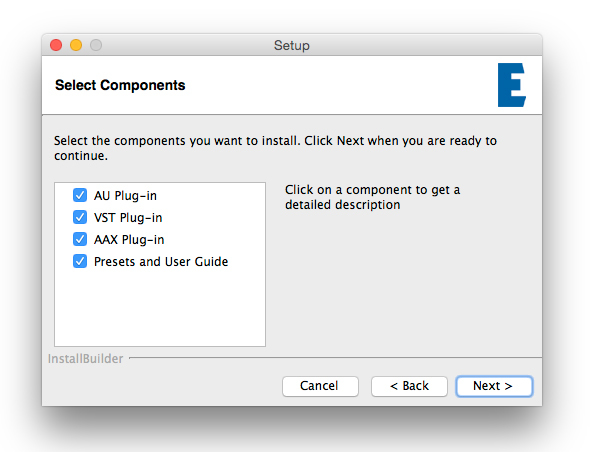
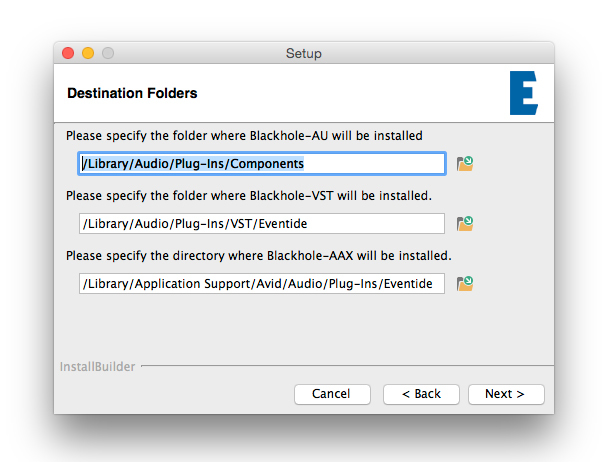
4. Select the destination folders (or leave them as the defaults) > Click 'Next'.
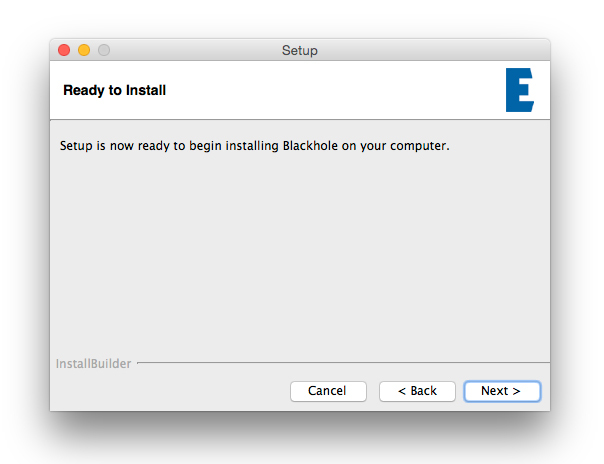
5. Click 'Next'.
6. Click 'Finish'.
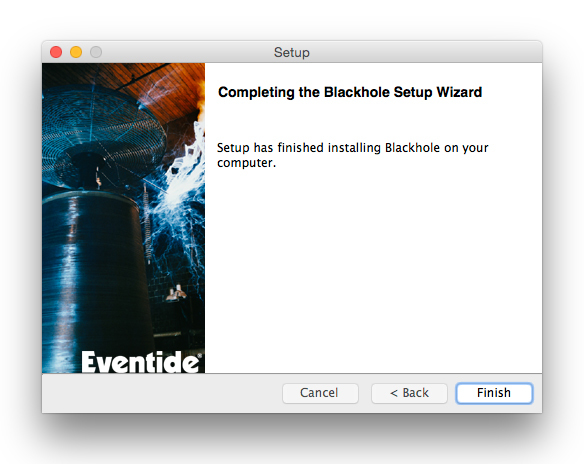
Your new software is now fully activated and ready to use within your DAW!
Windows Installation
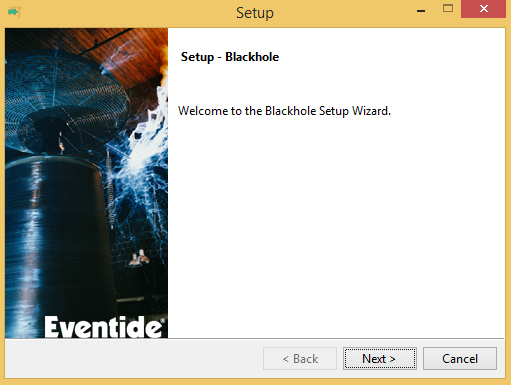
1. Download the Windows installer from https://www.eventideaudio.com/downloads/ > Run the installation > Click 'Next'.
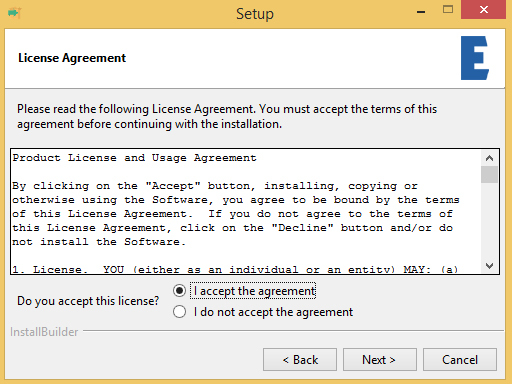
2. Read the License Agreement > Select 'I accept the agreement > Click 'Next'.
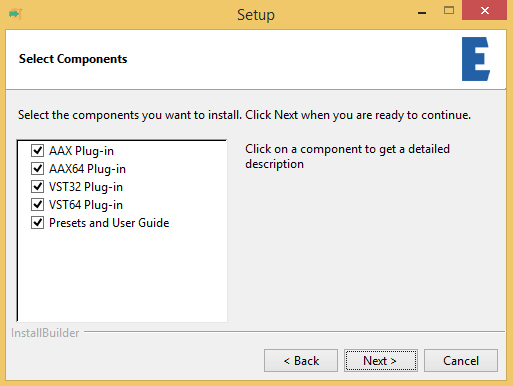
3. Choose which plugin formats you'd like to install > Click 'Next'. If you're unsure, leave all options selected or check out our help centre article Plugin Formats Explained for more information.
4. Select the destination folders (or leave them as the defaults) > Click 'Next'.
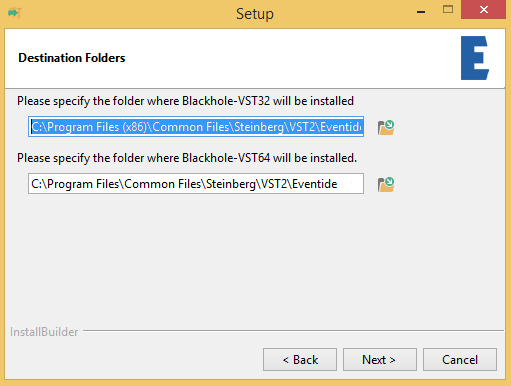
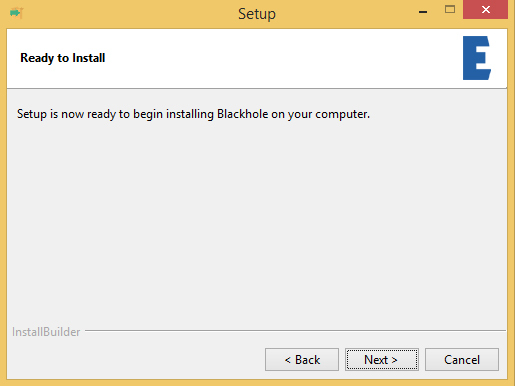
5. Click 'Next'.
6. Click 'Finish'.
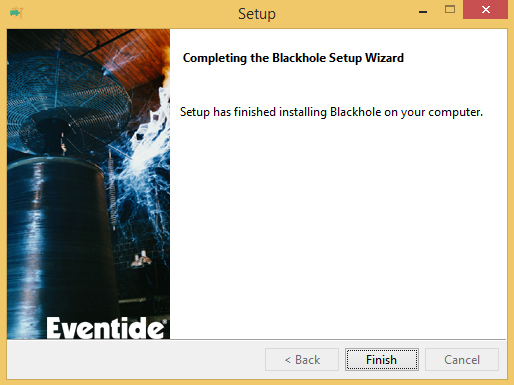
Your new software is now fully activated and ready to use within your DAW!


