Log In
Free gifts available with your purchase
PSP ConsoleQ is a British console-style equalizer, designed to provide an analog EQ experience in both sound and operation. It’s perfect for whenever an engineer wants to fix or shape audio, or make tracks stand out in a mix, regardless of the source.
PSP ConsoleQ version 2 now takes the experience even further, with smoothly adjustable frequency control for all bands. To go with this, the user interface has added numerical value displays for precise settings.
In addition, there's now a new way to look at and interact with PSP ConsoleQ. The PSP Spector PSPEC-31 pop-up module offers a 31-band realtime analyzer with multiple display options, and has a graphical user interface to control multiple EQ settings at once on any band with just one click.
PSP ConsoleQ is CPU efficient enough to be used at every stage of the creative process, from composition through tracking to final production/mixing/mastering. Whenever you want quick musical results, we are confident this equalizer will do the job with musical style and grace – and now it's more precise, more informative, and easier to use than ever.
Features
- Four bands of equalization: shelving Low and High Pass Filters and peaking Low Mid and High Mid filter bands with adjustable gain-following Q values.
- Equalization can be applied to either or both input channels.
- LF and HF can be set to act as peaking filters rather than shelves.
- FAT double sampling: In PSP ConsoleQ, FAT is automatically switched on for low (below 50 kHz) sample rates, and off for higher sample rates. This ensures accurate processing independent of the sample rate.
- 64-bit double precision floating point math for ultra-low cumulative errors in the filters – no more worrying about piling up noise as you engage more filters!
- An optional second-generation SAT (for SATuration) option in the output of each plug-in. This not only protects against digital clipping in software or hardware that comes after the plug-in, but it also adds a smooth overdriven sound to hard-driven signals. The SAT algorithm is located after the output level control in the plug-in’s internal chain, and its ceiling reference level is set to a fraction of dB below 0 dBFS.
- All actual parameter values like gain, frequency, or Q may differ from displayed values. This is a typical feature of analog equalizers.
- A 30-band bar analyzer with optional spectrum curve display mode.
System Requirements:
PC:
VST:
- Windows 7 – Windows 11
- 64 bit VST compatible application
VST3:
- Windows 7 – Windows 11
- 64 bit VST compatible application
AAX:
- Windows 7 – Windows 11
- Pro Tools 64-bit
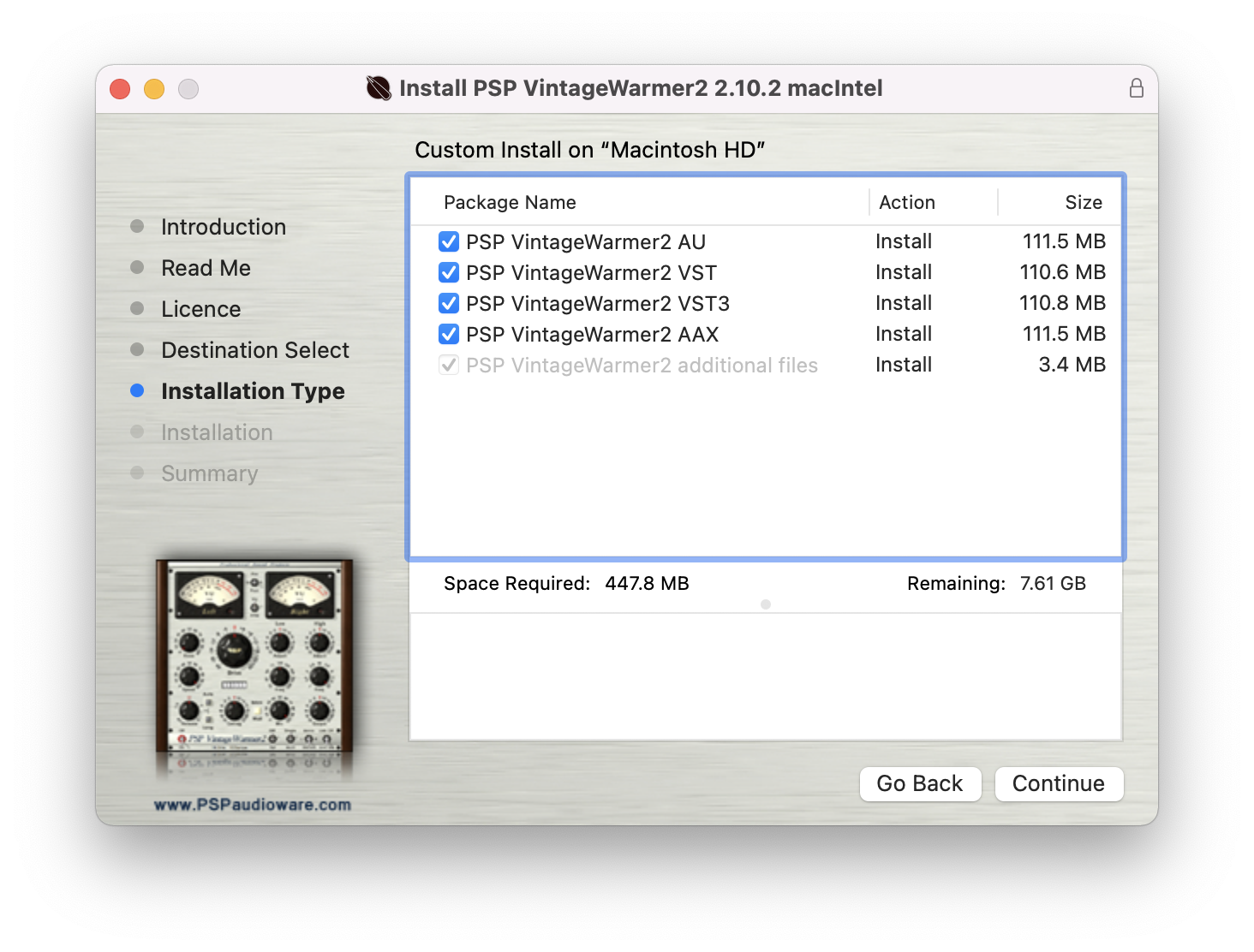
macOS Intel or macOS Silicon
AudioUnit
- macOS 10.12 – macOS 13 Ventura
- 64-bit AudioUnit compatible host application
VST
- macOS 10.12 – macOS 13 Ventura
- 64-bit VST compatible application
VST3
- macOS 10.12 – macOS 13 Ventura
- 64-bit VST3 compatible host application
AAX
- macOS 10.12 – macOS 13 Ventura
- Pro Tools 64-bit