


 Log In

Free gifts available with your purchase
Product information
Abbey Road RS56 Passive EQ
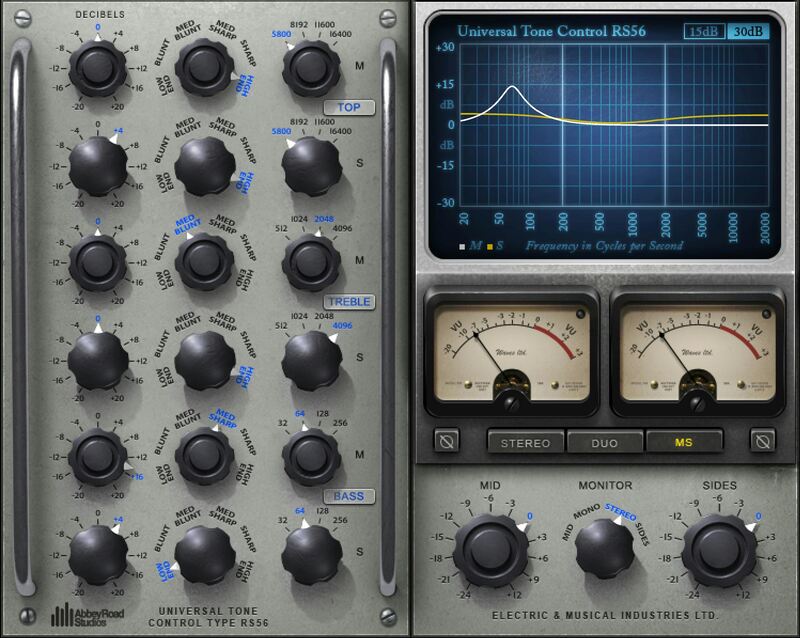
The Abbey Road EQ that Guides You to Musical Decisions
Even the most modern productions revere the classic sounds of the 50s and 60s—like those from the RS56, the very first parametric EQ. A silky smooth, powerful and musical stereo EQ, RS56 is perfect for loops, drums and synths, or the entire mix bus.
Created in the early 50s for mastering, the RS56 was used extensively in the vinyl cutting rooms. But before long, Abbey Road’s recording engineers realized it was superior to the basic tone controls found in that era’s consoles—and it quickly became a go-to option, famously heard on the Beatles’ recordings.
Features
- Developed in close collaboration with Abbey Road Studios
- Precise modeling of the rare gear used on classic recordings
- 3 bands, 4 frequencies per band, 6 filter types per band
- Stereo, dual mono, or mid-side processing
- Models the velvety, transparent sound of passive equalization
- EQ graph provides visual frequency response confirmation
- 37 presets showcase the RS56’s classic qualities
- Includes helpful, modern enhancements to the original
System Requirements
Mac
- macOS Monterey 12, Ventura 13, Sonoma 14, Sequoia 15
- VST / AU / AAX
PC
- Windows 10+
- VST / AAX
Installation Instructions














