Buy DeeQ, get a free gift with purchase:
Dynamic EQ
DeeQ is a single-band dynamic EQ filter that automatically adjusts the parameters of the EQ based on the incoming envelope or an external sidechain.
With DeeQ you can do everything from small adjustments like making room in the mix, to creative wah type effects.
Features
Dynamic EQ
DeeQ lets you adjust the frequency, gain, and Q value of the filter dynamically, either from the incoming audio or from an external sidechain. You can apply a pre-filter EQ to the detector to only respond to specific frequencies, letting you truly have control of the sound.
Sidechain Detection
Using sidechain detection you can dynamically sculpt your audio using another audio channel as the source. For example, you can automatically remove mid-range frequencies when the vocal is playing, or remove the sub-bass when the kick hits.
Mid/Side
With the addition of mid/side modes, you can dynamically adjust the stereo spread of your audio. Make the bass mono when a kick plays, or widen the treble over a vocal take.
In Detail
DeeQ is a single-band dynamic EQ filter that automatically adjusts the parameters of the EQ based on the incoming envelope or an external sidechain. With DeeQ you can do everything from small adjustments like making room in the mix, to creative wah type effects.
System Requirements
Windows
- Windows 10 and later (64-bit only)
- VST / VST3 / AAX compatible DAW
Mac
- macOS 10.13 and later (M1 Apple Silicon supported) (64-bit only)
- VST2, VST3, AU & AAX compatible DAW
Ubuntu
- Ubuntu 18.04 and later (64-bit only)
- VST2 & VST3 Compatible DAW
Important note: When accessing this software via a Rent to Own plan or the Beatport Studio membership, it's installed and run through the Beatport Access portal. An internet connection is required every 30 days to validate your license.

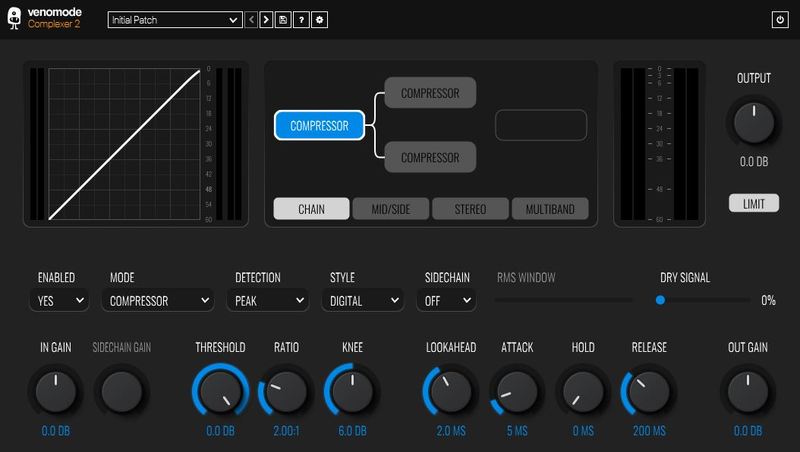
Note: Complexer 2 is used as the example.
Mac
Registration
1. Go to https://venomode.com/redeem
2. Enter your Full Name, Email Address, Voucher (found in the 'Serial' section within your Plugin Boutique User Account) and Password > Click 'Register'.

Installation
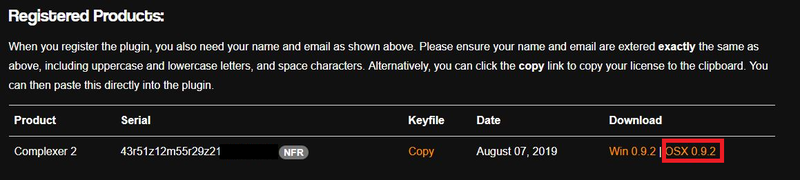
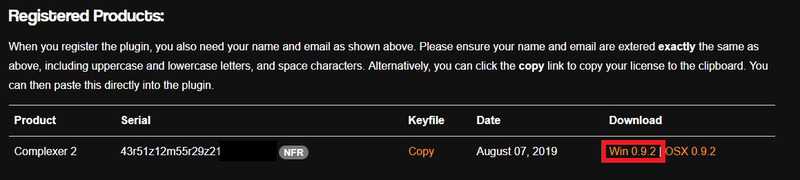
1. Within the section titled 'Registered Products', select the Mac OS X installer to download the installer file.

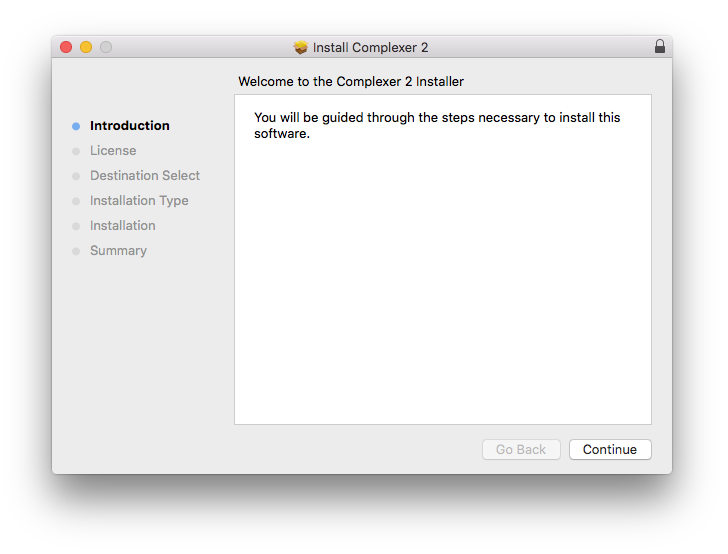
2. Open the .pkg file to begin the installation > Click 'Continue'.

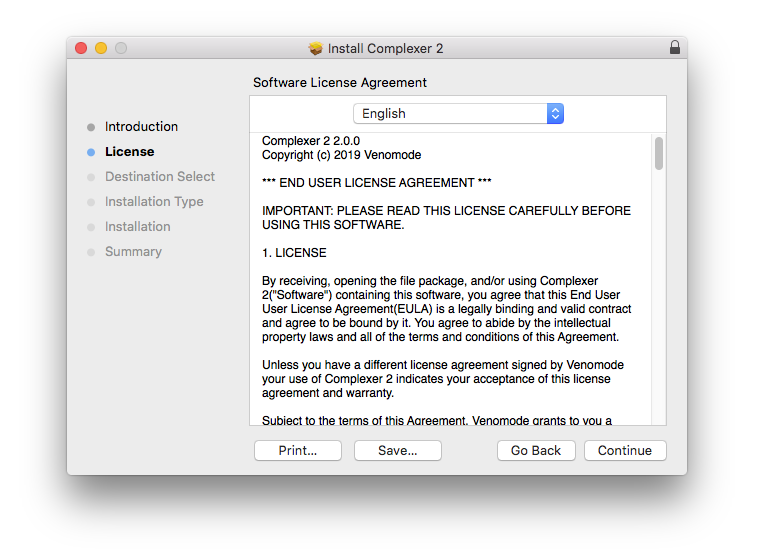
3. Click 'Continue'.

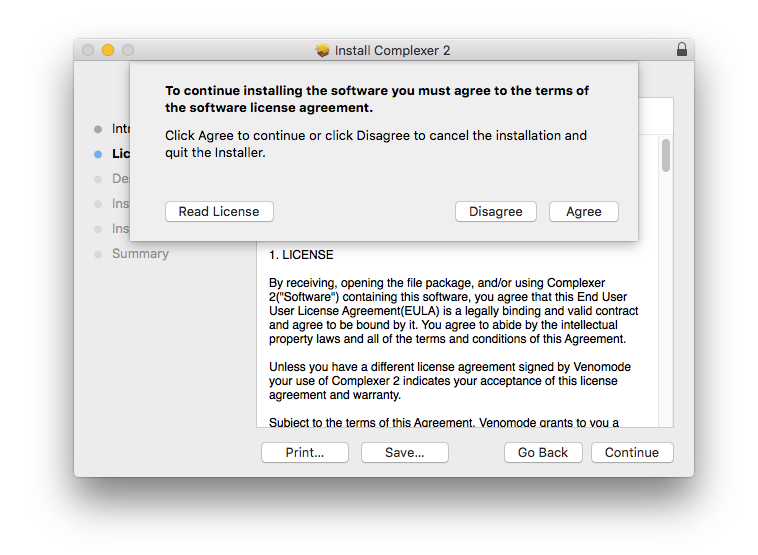
4. Click 'Agree'.

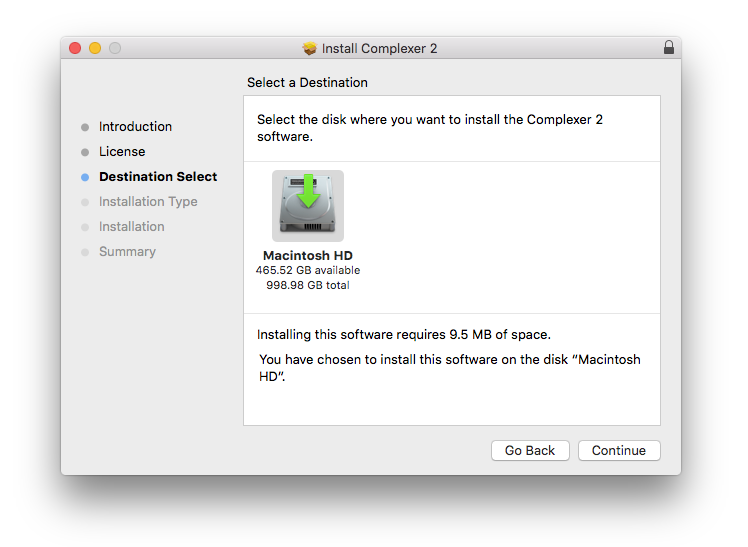
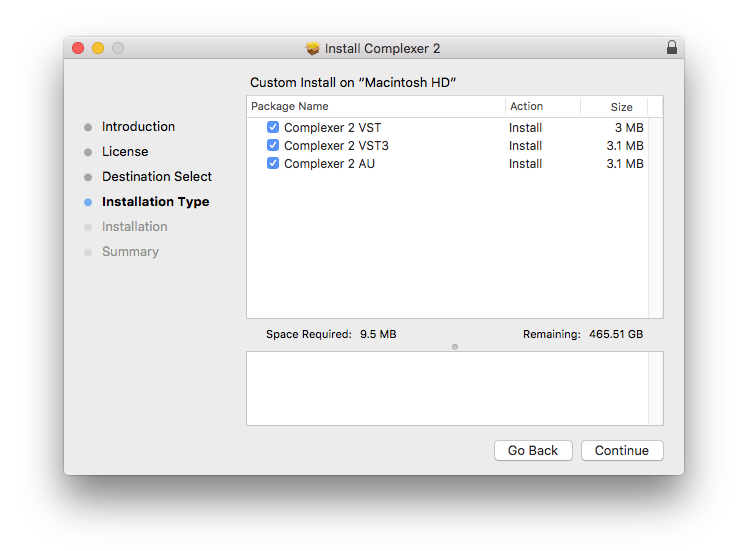
5. Click 'Continue'.

6. Click 'Continue'.

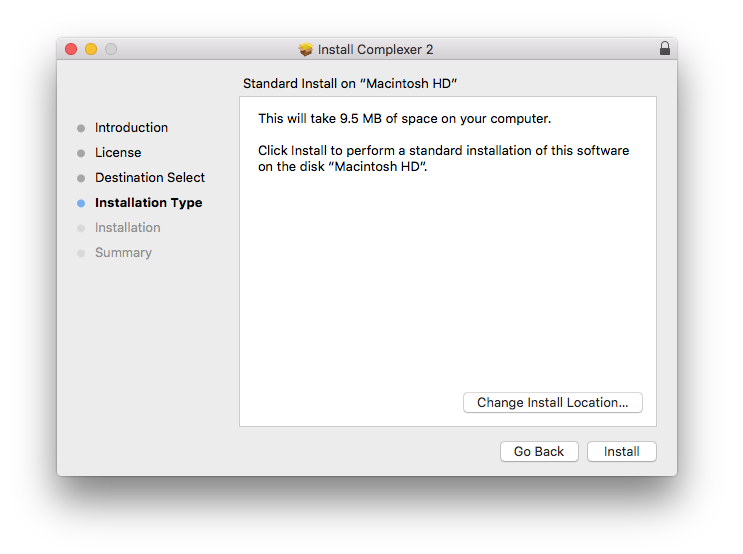
7. Click 'Install'.

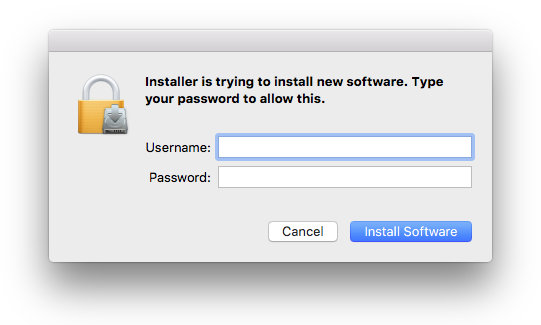
8. Enter your computer Username and Password > Click 'Install Software'.

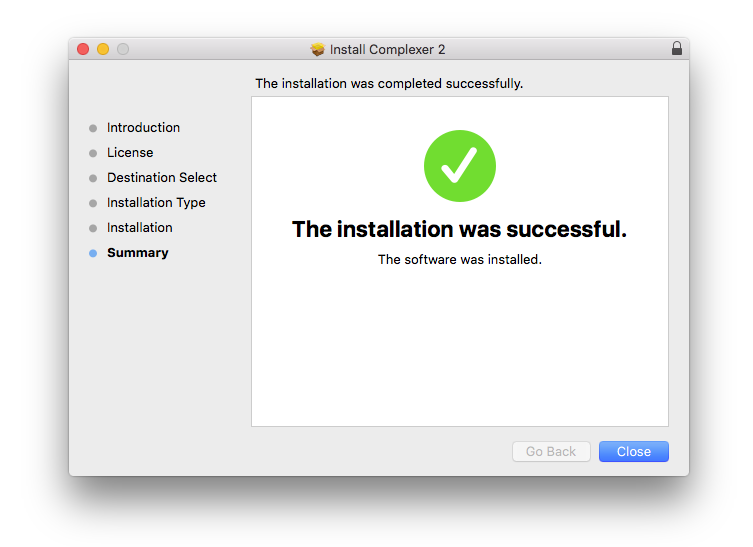
9. The installation is complete > Click 'Close'.

Activation Type 1
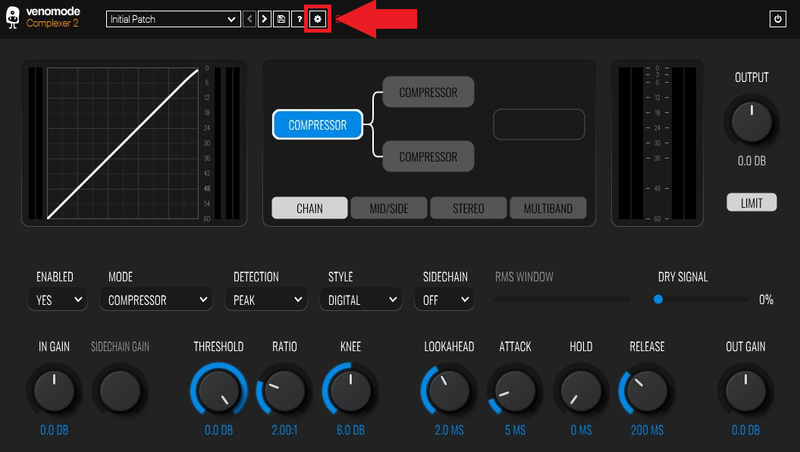
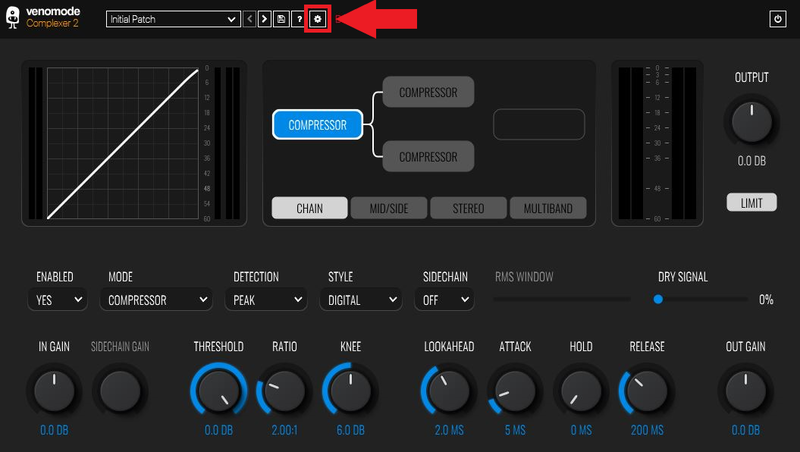
1. Open your newly-installed plugin in your DAW > Click the Gear icon at the top of the plugin window.

2. Enter your Name, Email Address and Serial Number found in your Venomode user account > Click 'Register'.

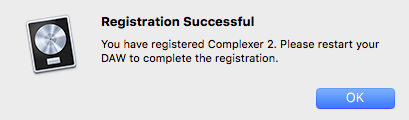
3. Click 'Ok' > Restart your DAW.

Activation Type 2
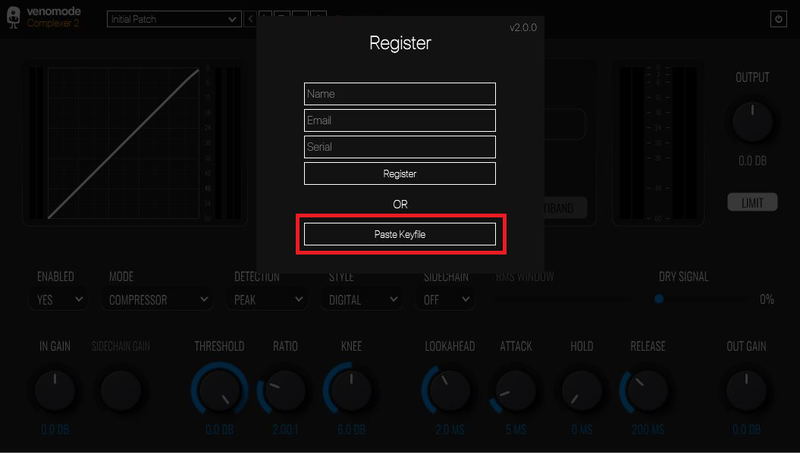
1. Open your newly-installed plugin in your DAW > Click the Gear icon at the top of the plugin window.

2. Go to your Venomode User Account > Click 'Copy' to copy your Keyfile to the clipboard.

3. Go back to the plugin in your DAW > Click 'Paste Keyfile'.

4. Click 'Ok' > Restart your DAW.

Your software is now activated and ready to use within your DAW.

Windows
Registration
1. Go to https://venomode.com/redeem
2. Enter your Full Name, Email Address, Voucher (found in the 'Serial' section within your Plugin Boutique User Account) and Password > Click 'Register'.

Installation
1. Within the section titled 'Registered Products', select the Windows installer to download the installer file.

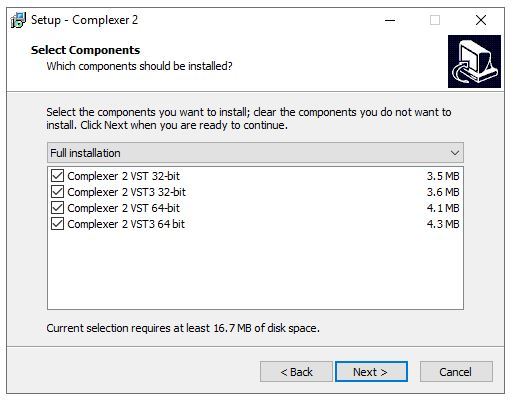
2. Open the .exe file to begin the installation > Select 'I Accept the Agreement' and click 'Next'.

3. Click 'Next'.

4. Click 'Next'.

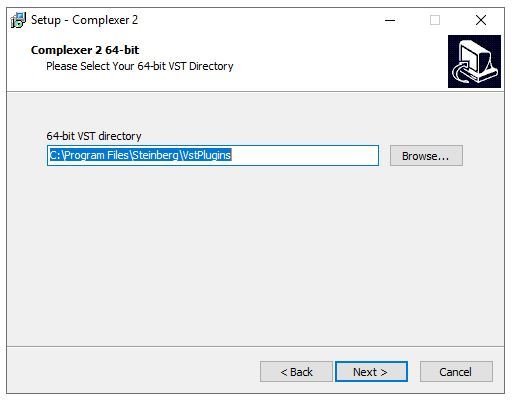
5. Click 'Next'.

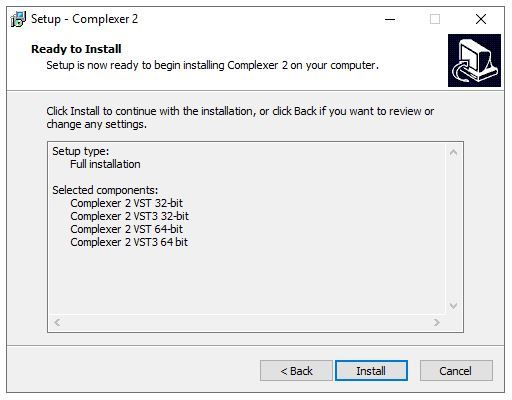
6. Click 'Install'.

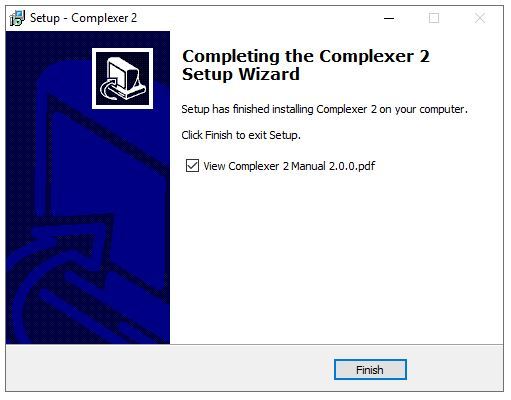
7. Click 'Finish'.

Activation Type 1
1. Open your newly-installed plugin in your DAW > Click the Gear icon at the top of the plugin window.

2. Enter your Name, Email Address and Serial Number found in your Venomode User Account > Click 'Register'.

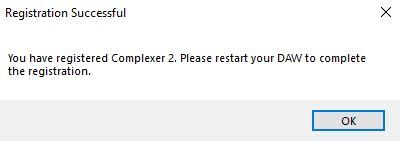
3. Click 'Ok' > Restart your DAW.

Activation Type 2
1. Open your newly-installed plugin in your DAW > Click the Gear icon at the top of the plugin window.

2. Go to your Venomode User Account > Click 'Copy' to copy your Keyfile to the clipboard.

3. Go back to the plugin in your DAW > Click 'Paste Keyfile'.

4. Click 'Ok' > Restart your DAW.

Your software is now activated and ready to use within your DAW.