


 Log In

Free gifts available with your purchase
Mastering EQ
What is the Mastering EQ?
The Mastering EQ is explicitly designed for the task of mastering your mixes. When 2 adjacent bands of the ME are adjusted, the resultant curve is “flat” across the band edges, rather than discrete humps and valleys. The resulting curves are perfectly suited for the broad, musical changes needed for final tone-control while retaining the harmonic balance between the elements of your mix. Managing a powerful full-range EQ has never been so fast and easy. The results are quintessentially “Harrison”: effortless, smooth and transparent.
Controls
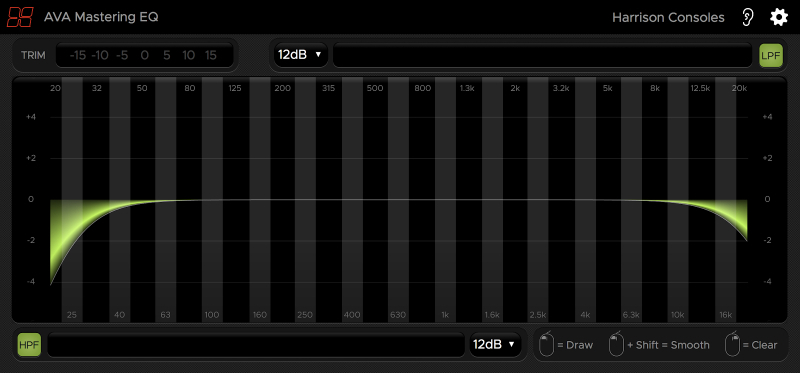
The ME has 31 control bands ranging from 20hz to 20kHz and increasing by ⅓ octave increments. By default, the scale shows +/-4dB, but if you increase a band beyond 4dB, the scale will increase to show the changes up to +/-14 dB.
Effortless Mouse Control
The ME is most easily controlled by clicking and dragging the mouse across the frequency spectrum. You can also point your mouse at a control band or the output trim and increase the gain by dragging up/down or by using the scroll function on your mouse or touchpad. You can right-click and drag to reset bands to zero and hold shift while dragging the mouse to smooth any unwanted bumps between adjacent curves. (These options are indicated in the bottom-right corner of the plugin window). All controls have a “fine” mode which can be accessed by holding Control or Command while adjusting the control.
Zoom: Auto or Manual
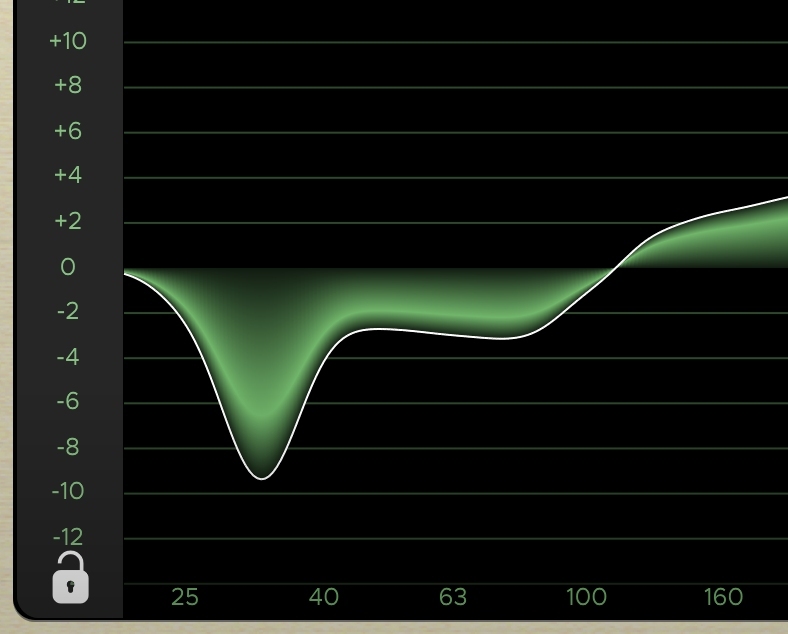
By default, ME shows a +/-4dB scale. If you increase a band beyond this value, the scaling will automatically increase to accommodate your moves.
You can also click and drag the left or right dB scale to manually adjust the displayed scale.
If you manually set the scale, then a “lock” icon will appear at the lower-left corner of the EQ display. Click the “lock” icon to disengage the manual lock, and allow the ME to automatically set the scaling for you.
Output Trim - The “Trim” control adjusts the output level. Double-click the control to reset it to 0dB.
Filters
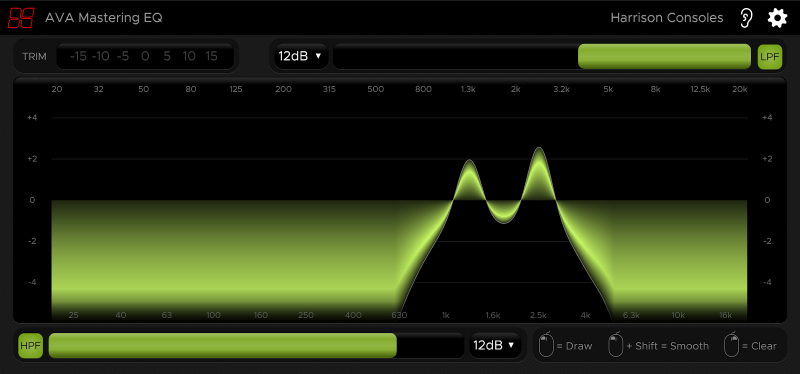
The ME has high-pass and low-pass filters with a gentle slope. The slope is selectable between 6dB/Oct and 12dB/Oct, and the frequency can be adjusted using the sliders above and below the curve.
Additional Features
- The “Ear” icon engages the momentary-bypass function, which allows you to audition the un-affected signal while you hold the mouse button; then restores the settings when you release the button.
- The “Gear” icon launches a menu with additional features including resizing, theme selection, and plugin version number.
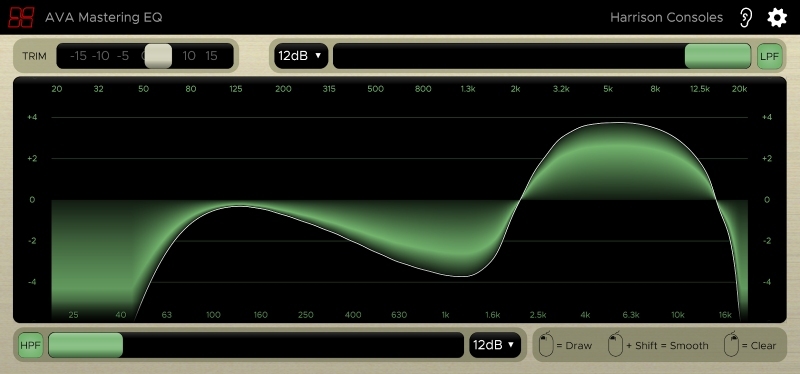
- The alternative “Vintage” theme uses the colour scheme of Harrison’s large-format console software.
System Requirements
- MacOS: 10.9 or newer required
- Windows: Win7 or newer required
- Linux: Please try the demo
Host DAW support:
- ProTools: 10.3.5 or newer required for Windows, 11 or higher required for Mac. Enable the AAX format during installation
- Logic: Enable the AU format during installation
- Cubase: Enable the VST and/or VST3 format during installation
- Most other workstations: Enable the VST format during installation







Reviews Summary
While it aims to provide a helpful overview, it may not capture every perspective or detail. We encourage you to read individual reviews to make an informed decision.
The Harrison Mastering EQ is highly praised for its clean, musical, and transparent sound, delivering a smooth analog character that is excellent for mastering. Users particularly appreciate its unique workflow that allows them to draw EQ curves, finding it both creative and efficient. While most reviewers find it straightforward and beneficial to their workflow, some note a learning curve due to its unconventional controls, and a few reported technical issues.


