/ EQ / Stereoplacer Elements
NUGEN Audio

Stereoplacer Elements

$25.00 $49.00

48% off until Dec 05

Nugen Stereoplacer Elements - GUI
Nugen Stereoplacer Elements
Buy Now
Product information

Effortless & essential

Stereoplacer Elements is a simplified version of our Stereoplacer plug-in, allowing the same frequency-specific panoramic placement, in a lightweight package.

Features

  • Reconstruct a stereo image from mono
  • Fix poor stereo microphone placement
  • Restore archive recordings
  • Tidy up samples from old records

The rest of the stereo image will remain intact, and the balance of original sounds will be preserved.

Stereo Spectrum Analysis

The graphical display in Stereoplacer Elements can be used as a Stereo differential spectrum analyser. Leaving controls in their default positions will set up the plugin in analysis mode. The incoming sound is not affected, but is analysed for stereo content, which is then displayed visually.

‘Panning’ Bass.

Panning bass sounds is usually something best avoided as off-centre high energy in the low frequencies can present more problems than it resolves. However, using Stereoplacer Elements, the low frequencies present in say a bass guitar track, can be left centre while the higher frequencies (i.e. much of the attack component) can be moved in the stereo field with a shelving band, without the usual problems of the attending lows, giving the impression that the bass part has been panned, when really it is only the high, directional information carrying frequencies that have been moved.

System Requirements

Mac

  • Mac OSX 10.7 and above
  • 512 MB RAM
  • 64-bit only
  • Available in 64-bit AAX, VST3, AU & AudioSuite Formats

Windows

  • Windows XP and above
  • 512 MB RAM
  • 64-bit only
  • Available in 64-bit AAX, VST3 & AudioSuite Formats
Installation Instructions

NUGEN Audio Installation

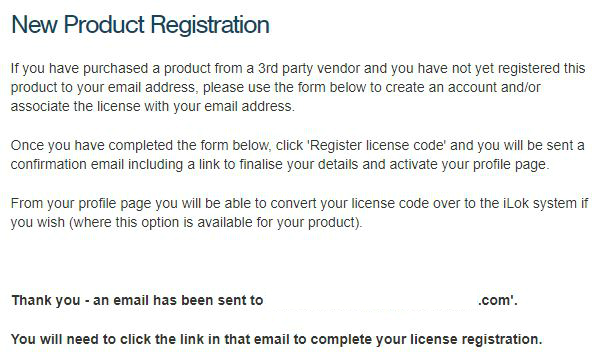
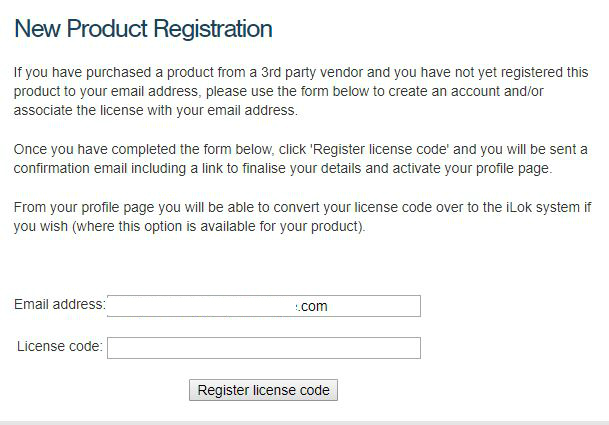
1. Visit https://www.nugenaudio.com/register.php and create a new account > enter your email address and License Code (found in your Plugin Boutique User Account).

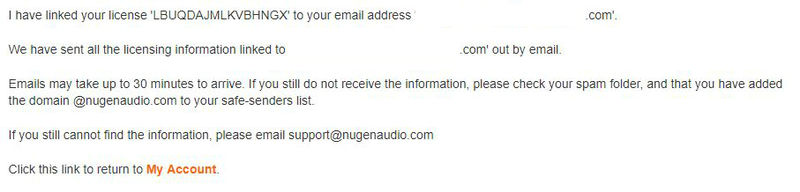
2. Check your email > Click the link that reads ‘Complete license registration’.

3. Read the following information and click ‘My Account’.

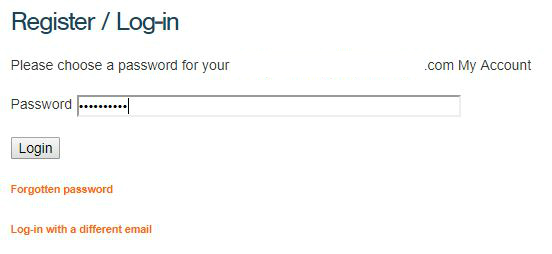
4. Create a password > Click ‘Login’.

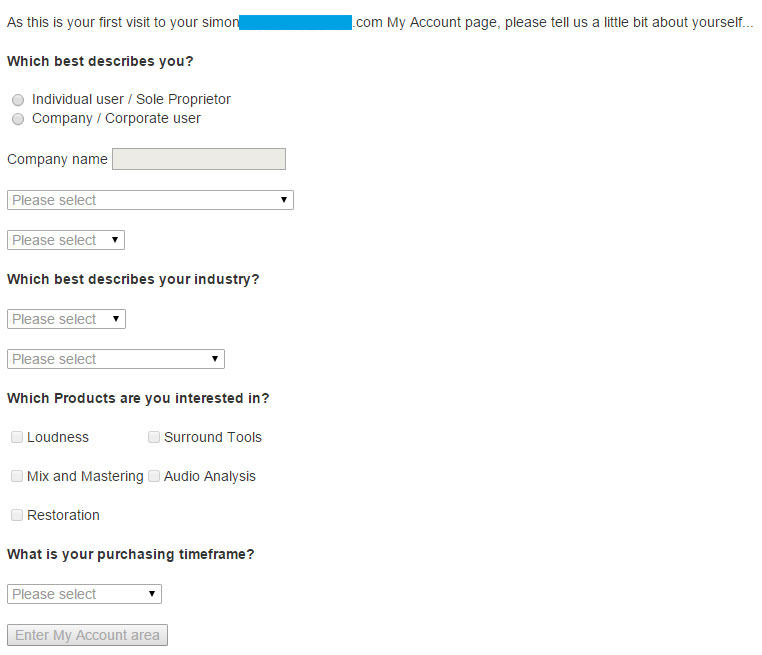
5. Once you have confirmed your account, fill in the form which greets you.

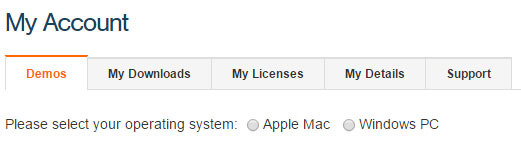
6. Select your operating system.

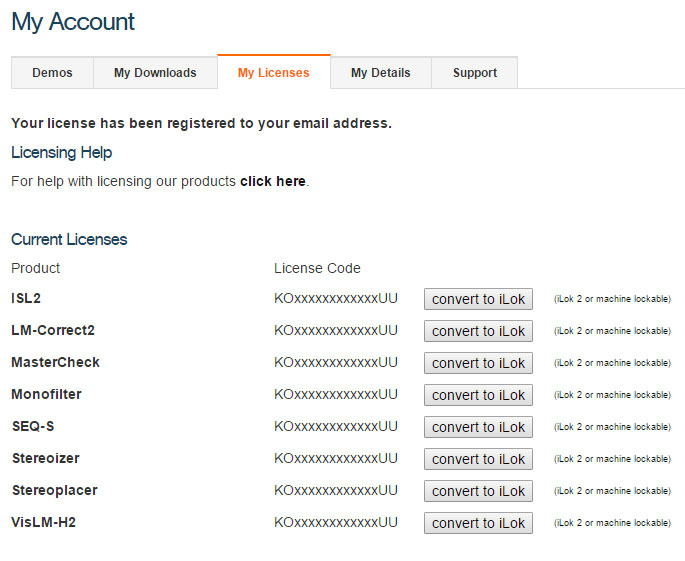
7. Your licence can be viewed under the ‘My Licenses’ Tab.

Note: If you wish to activate your Plugin using an iLok, click ‘Convert To iLok’.

8. Click on the MY DOWNLOADS tab and download the full version of your plugin.

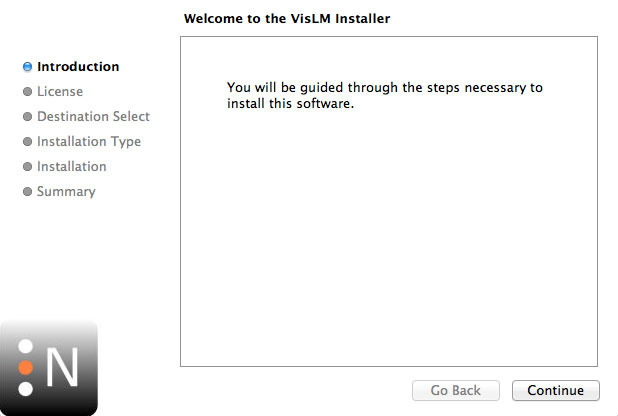
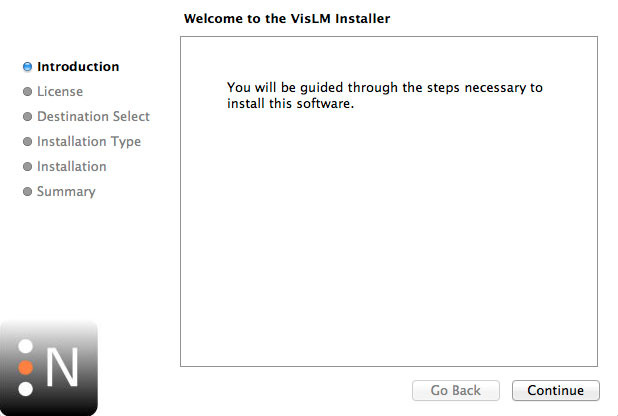
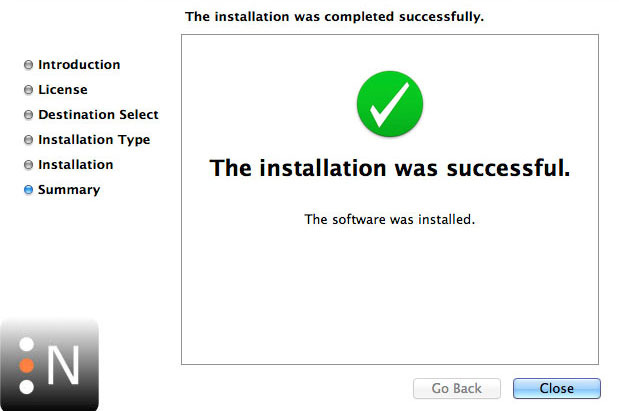
9. After the file has downloaded, run the installer.

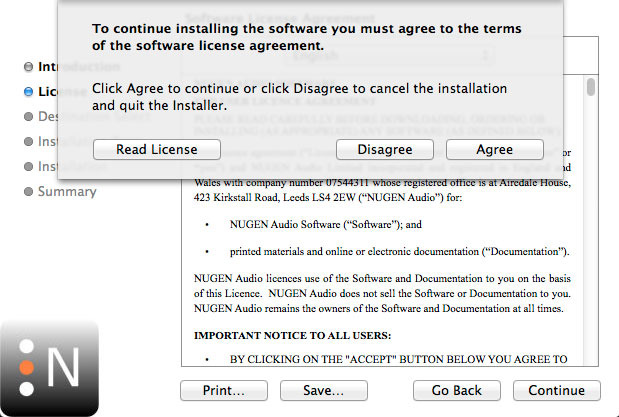
10. Read the software licence agreement and if happy, click AGREE.

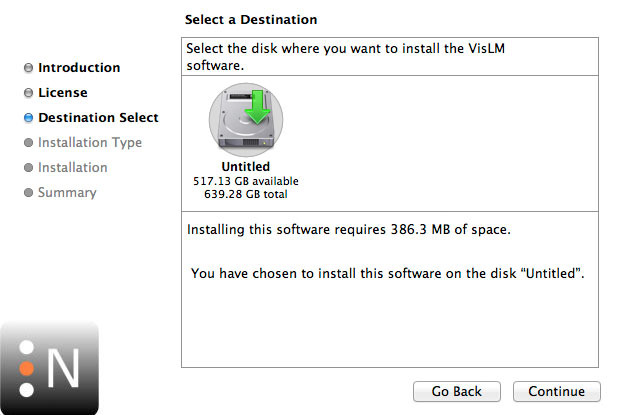
11. Select where you wish to install the plugin and click CONTINUE.

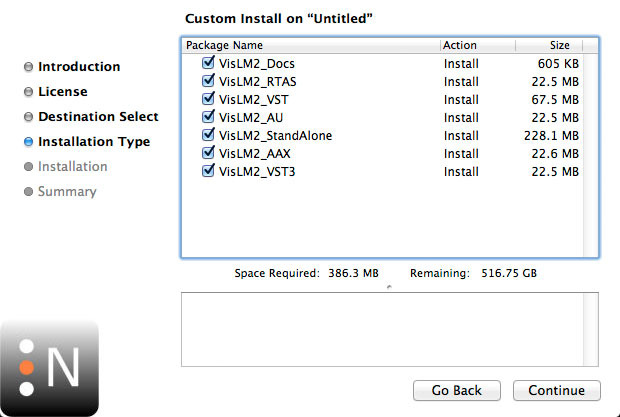
12. Select which component you wish to be installed and click CONTINUE.

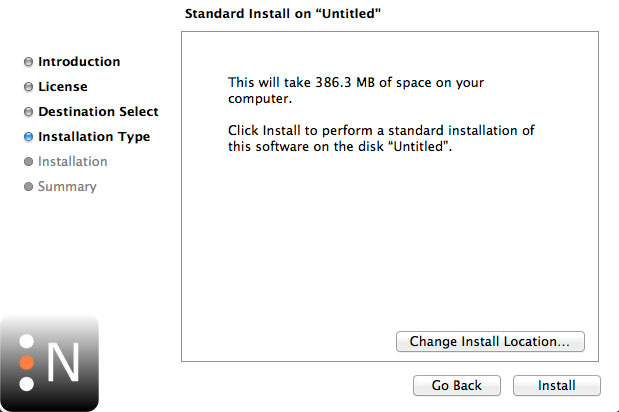
13. Check you have enough space on your computer to install and if so, click INSTALL.

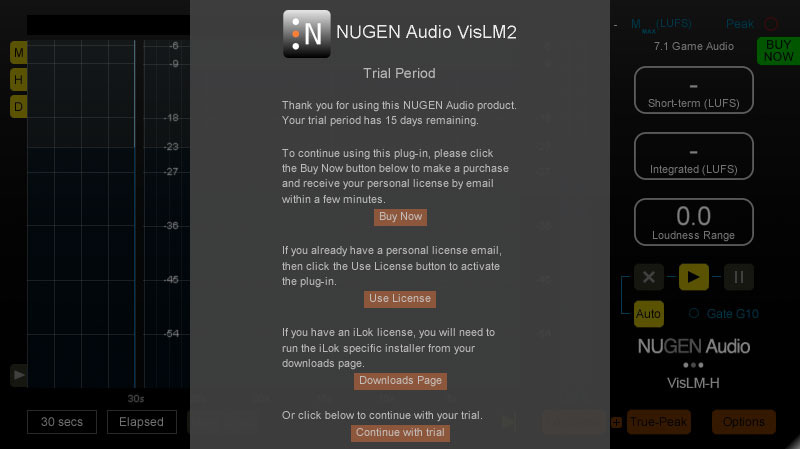
14. Once the installation concludes, open the plugin within your DAW.

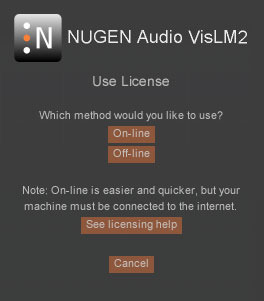
15. Once the plugin is open within your DAW, click USE LICENCE.

16. Click ON-LINE

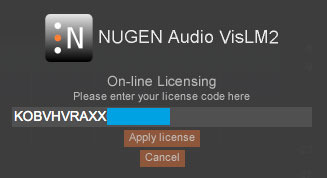
17. Enter your licence code and click APPLY LICENCE.

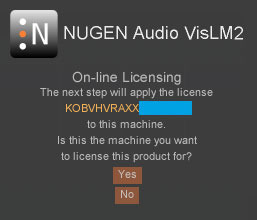
18. Once your licence has been entered, click YES to confirm you wish to licence to your machine.

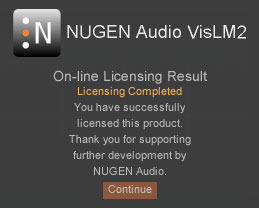
19. You have now successfully licenced your plugin!

PLEASE NOTE: If you wish to activate your licence onto your iLok dongle and not your machine, please click CONVERT TO ILOK at stage 7.

Plugin Boutique Rewards

Discover the most rewarding loyalty programme among all plugin retailers.

  • Free Loopmasters Samplepacks
  • Discounts on products and courses
  • Extra Virtual Cash claimed immediately at checkout
Find out more

Follow us:

X (Twitter) Facebook YouTube Instagram
Logo Logo

Plugin Boutique Limited, Part of the Beatport Group LLC.

Copyright © 2011-2025 Plugin Boutique. All rights reserved