


 Log In
Free gifts available with your purchase
Product information

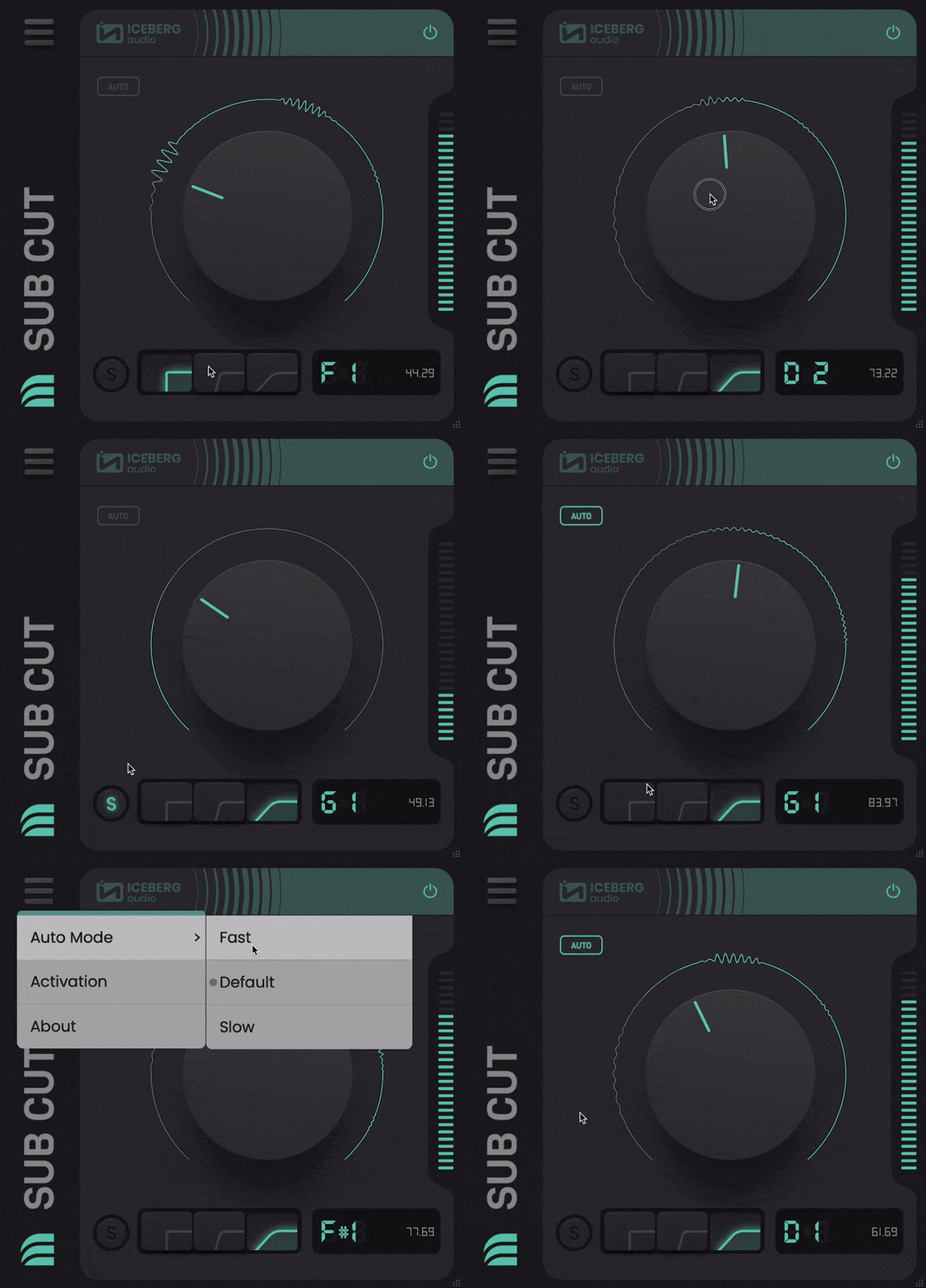
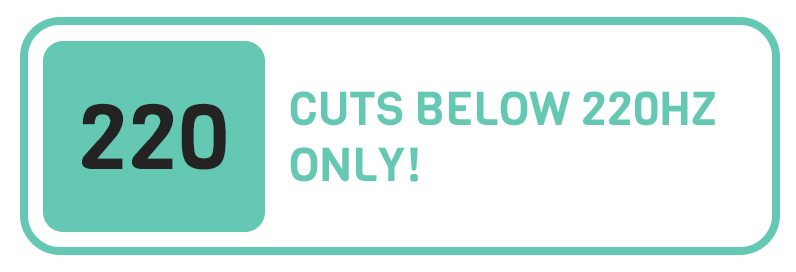
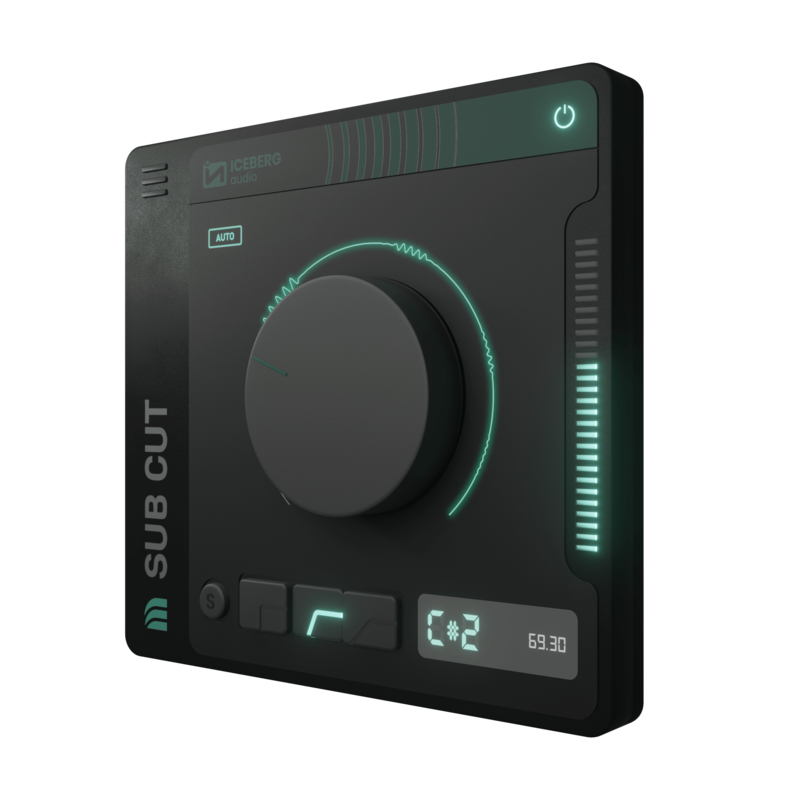
Sub Cut lets you apply precise low cuts under 220Hz.
Remove unwanted sub-bass or make room when layering bass sounds.
AUTO mode analyses audio in real-time and continually adjusts the cut by following the notes of your source material.
Isolate problematic frequencies in your mix or in your studio. Click on the waveform to quickly flip between your audio and test tones while adjusting your cut.
Automated Cuts
Automatically Adjust your Cut
- In AUTO mode Sub Cut will analyse the incoming audio and follow the notes of your source material.
- Auto mode adjusts the cutoff automatically to maximise the amount of low-frequency energy removed.
- Choose from Fast, Default and Slow modes to suit your material.
Sub Bass Filters
Low Frequency Only
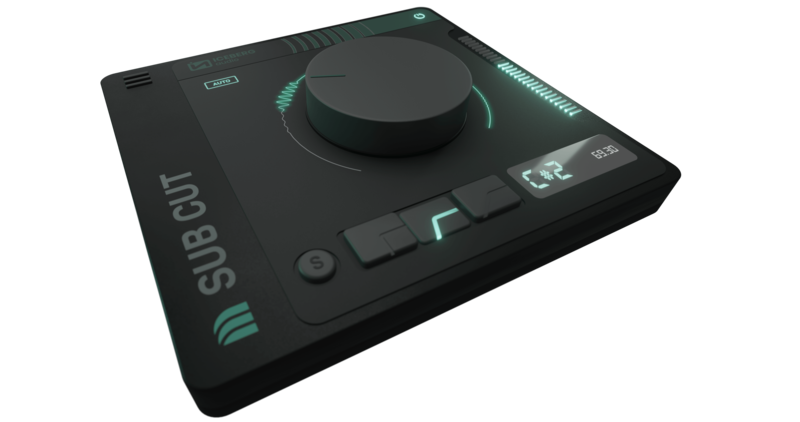
- Sub Cut is different to general purpose EQs. The filters have been fine-tuned for 220Hz and below to provide accurate cuts that feel right to musical ears.
- Choose from 3 roll-off frequencies. Each has been calibrated to produce a roll-off that is both pleasing and leaves the remaining material clean and uncoloured.
- Match the key of your source material. Choose cutoffs by note (e.g. G2) and Sub Cut will only start rolling off below that note.
System Requirements
Mac
- macOS 10.10 and higher (64-bit only)
- VST3, AU, AAX
Windows
- Windows 10 and higher (64-bit only)
- VST3, AAX
Supported DAWs
- Ableton Live, FL Studio, Logic, Cubase, Studio One and more
Important Notes:
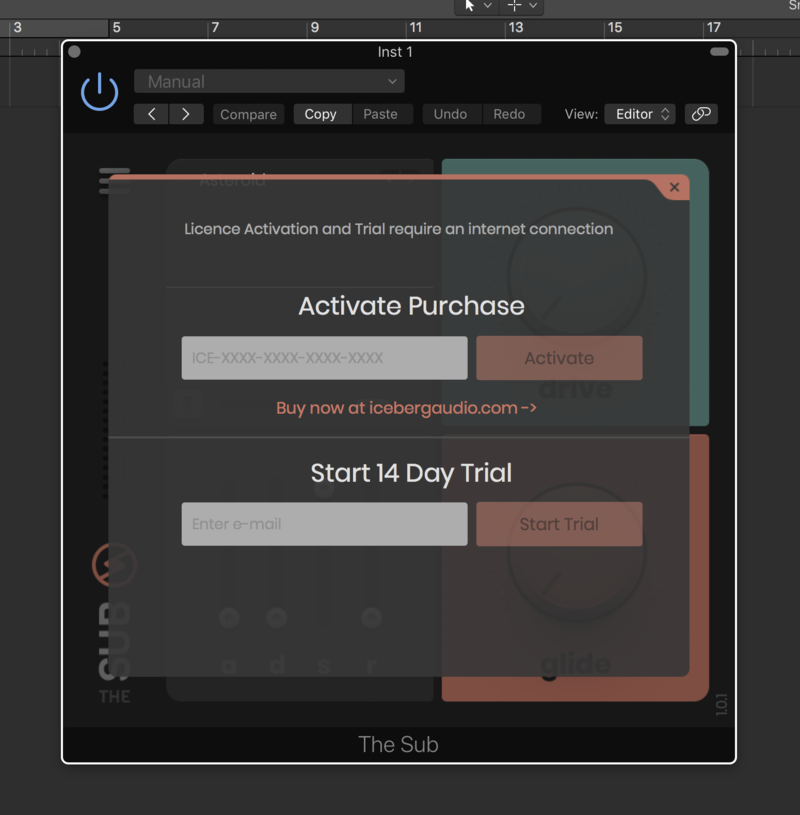
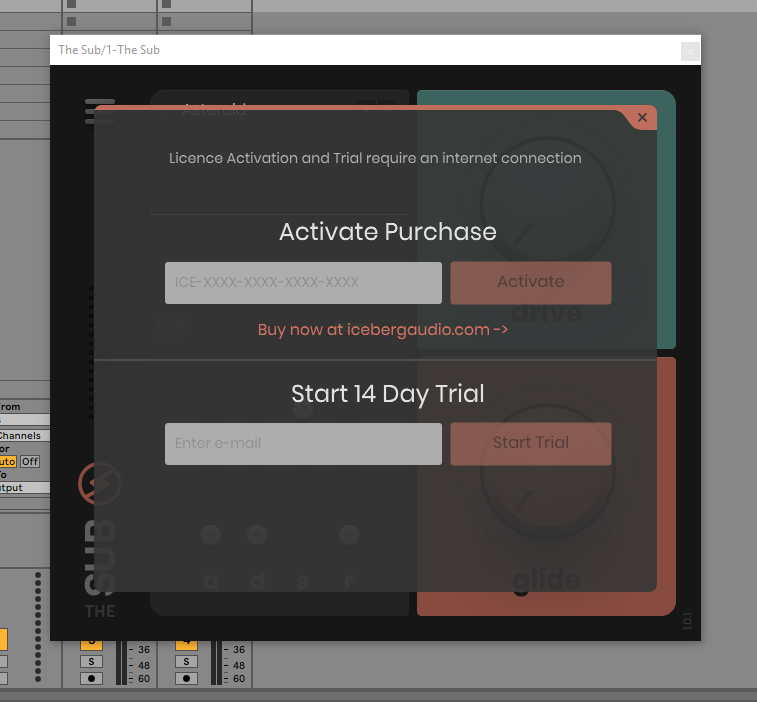
- An internet connection is required for activation
- One licence/purchase covers all your computers
- VST2 formats are NOT available.
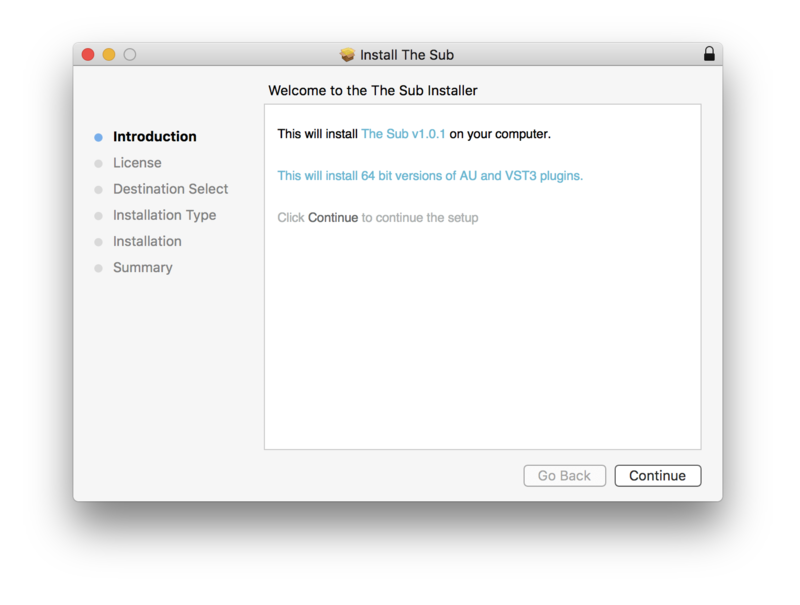
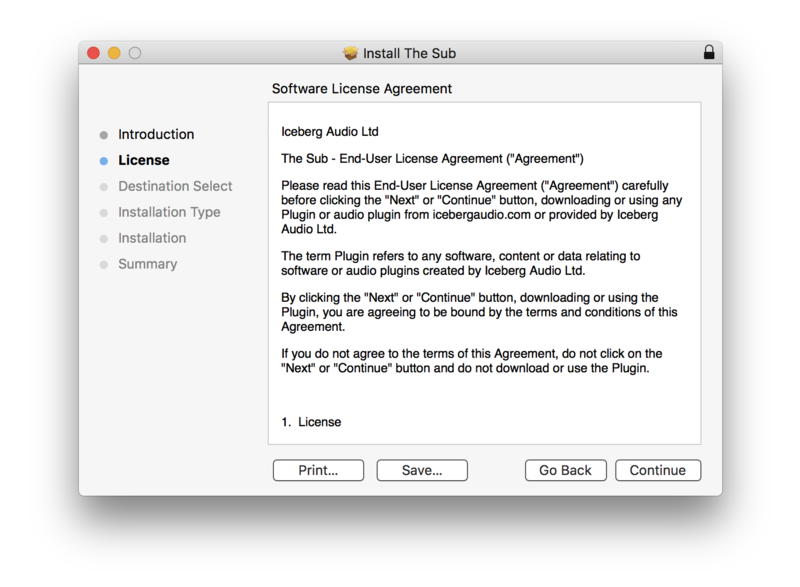
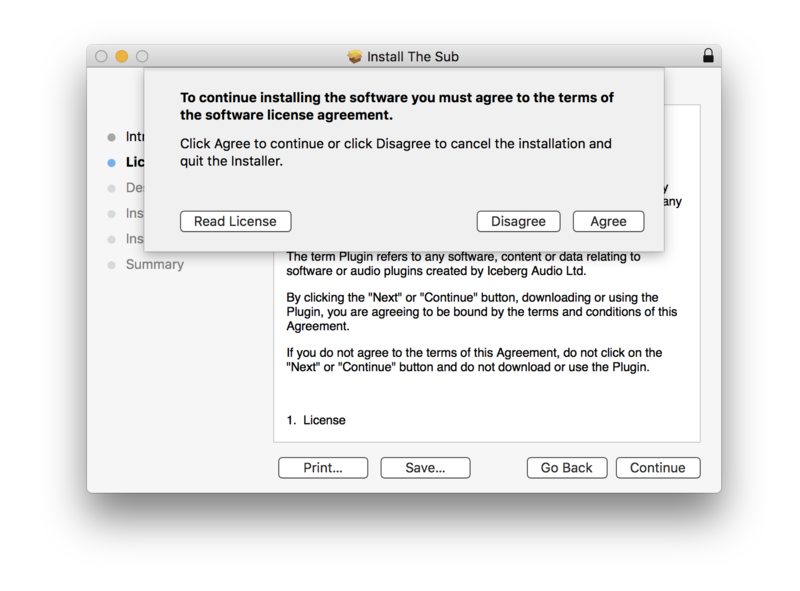
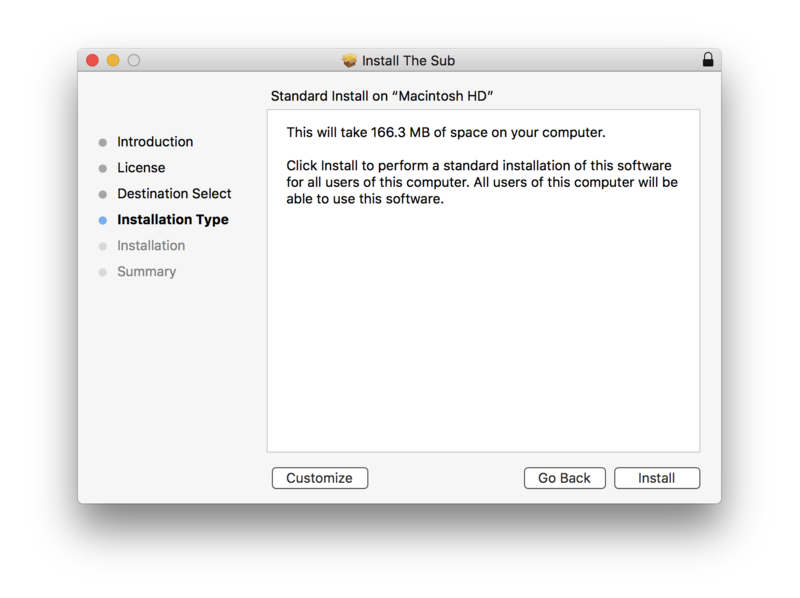
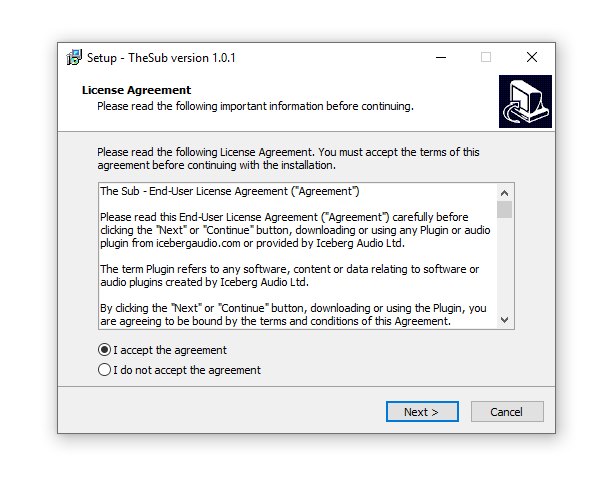
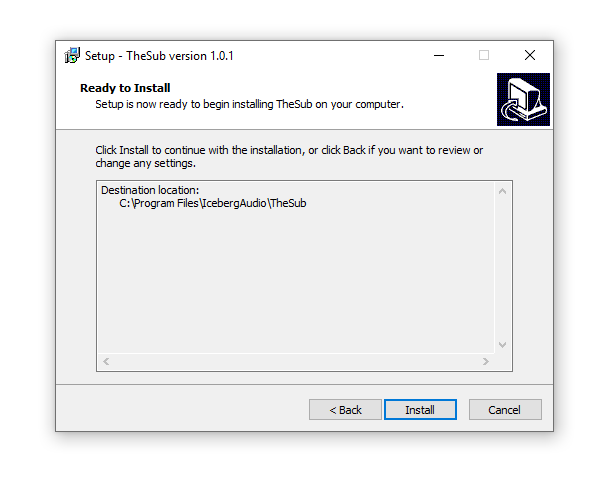
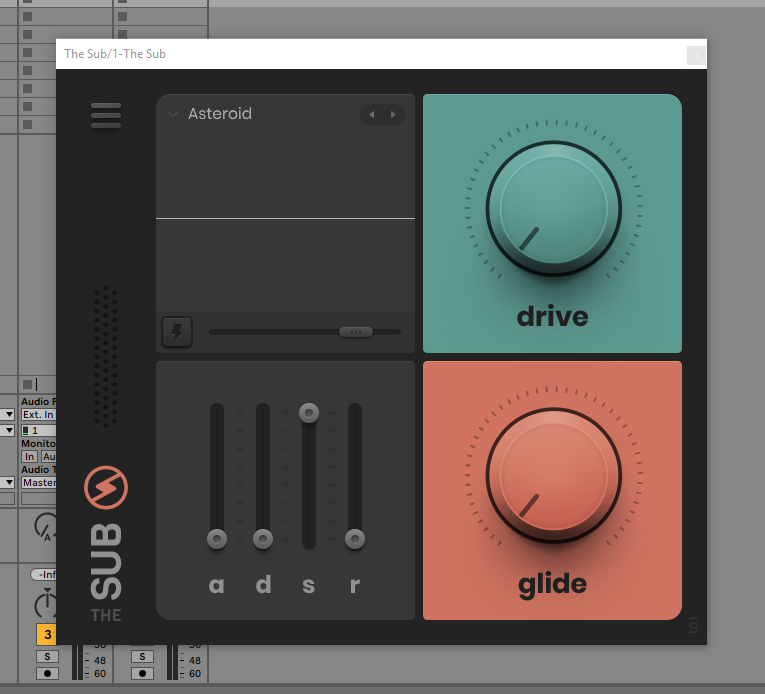
Installation Instructions


Bundle & Save
Iceberg Audio Everything Bundle
$217.00


