Buy miniVerb, get a free gift with purchase:
8-BIT / Chiptune Echo Reverb Effect
miniVerb is an 8-bit/chiptune and lofi reverb effect inspired by the sound of 80s game consoles and retro computers.
Early consoles didn’t have much power for DSP effects, so the video game composers at that time had to improvise. The most common way to add a sense of space/reverb to the sound was to sacrifice one of the internal tracks to play a delayed version of the original sound, essentially using a slapback echo to add depth.
The technique evolved and eventually, consoles started to take advantage of more power for real internal effects.
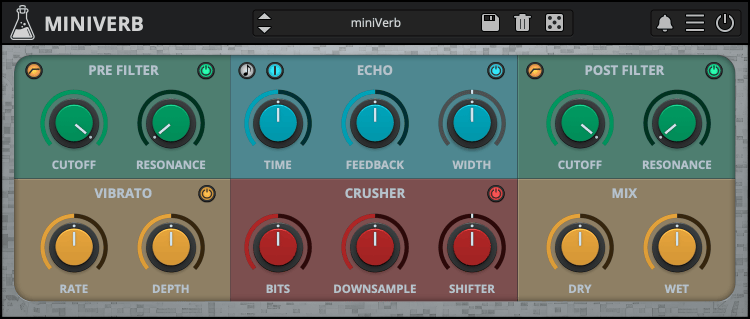
miniVerb recreates that classic digital echo/reverb sound, made famous by iconic consoles such as the NES and SNES, topping it with two flters (post/pre), vibrato, and crusher (bit crusher, downsampler, pitch shifter).
Echo Section and Tips
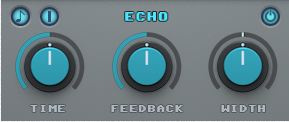
The Echo Section can be used to simulate the tricks used in early video game consoles to add a sense of space/reverb to the sounds.
The most common way was to sacrifice one of the internal tracks of the sound chip to play a delayed version of the original track, essentially creating a slapback echo effect.
To achieve this NES-like reverb sound, you can use a single delay line, very short time, no feedback, and width set to mono.
To simulate a 90s fake reverb/echo (like the SNES) instead, you can play with longer times and add some feedback to simulate a reverb tail.
For a more modern approach, you can switch the Echo to Double Delay Line by clicking on the blue button (in the top-left corner) and increase the width to a wider setting.
Classic Consoles
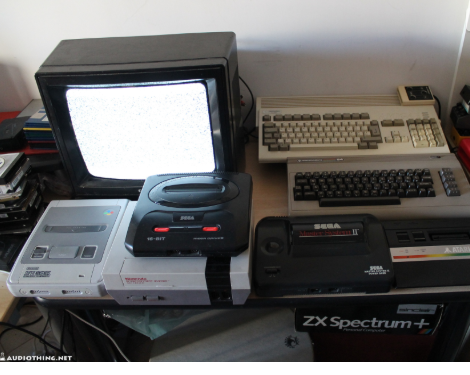
miniVerb was inspired by the sound of classic game consoles and retro computers of the 80s and 90s.
For even more 8-bit/chiptune sounds, check out our synthesizer plugin miniBit.
Features
- Pre/Post Filter (LP/HP)
- Echo (single/double mode)
- Vibrato
- Crusher (bit-crusher, downsampler, pitch shifter)
- 45 Presets
- Preset randomizer
System Requirements
Windows
- Windows 7-11
- 2GHz CPU, 4 GB RAM
- VST2, VST3, AAX, CLAP (64-bit)
Mac
- OS X 10.9 – macOS 14
- Apple Silicon (M chips) Native (Universal 2 Binary)
- 2GHz CPU, 4 GB RAM
- VST2, VST3, AU, AAX, CLAP (64-bit)
- Universal 2 Binary
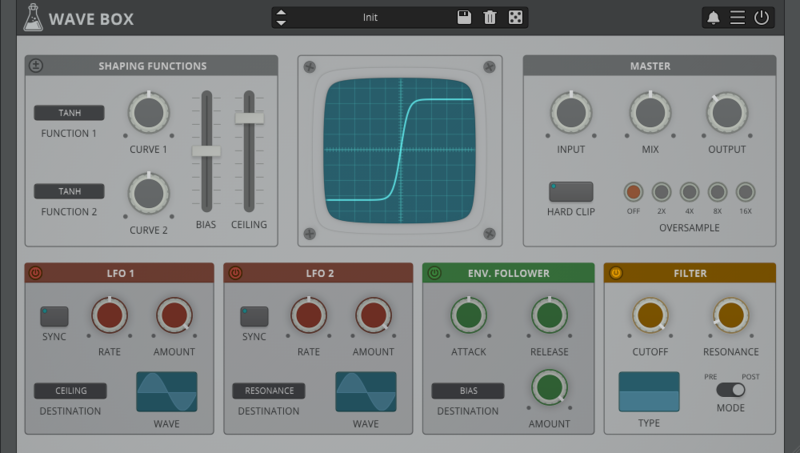
Note: Wave Box is used as the example.
Windows
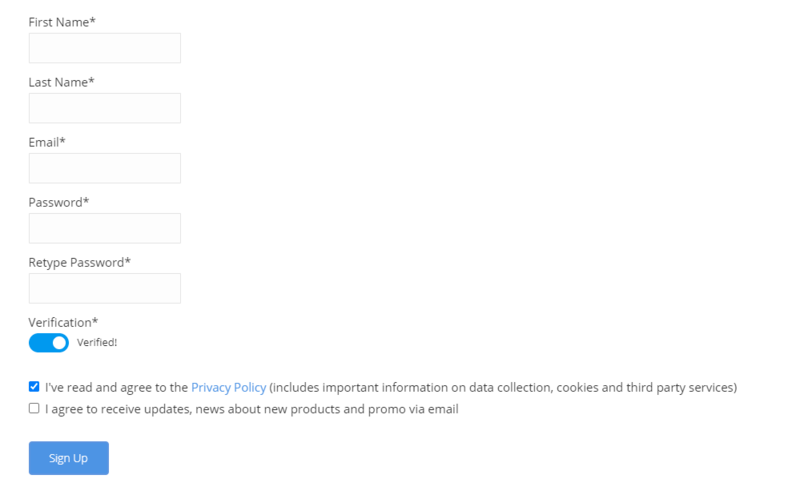
1. Visit the AudioThing Account Signup Page and enter your personal details to set up an account. Click the Verification and "I've read and agree to the Privacy Policy" > Click Sign Up.
Note: If you already have an existing AudioThing account, Login here and skip to step 3 of the installation process.

2. A confirmation email will now be sent to your registered email > click the link within the email to activate your account and Login here.
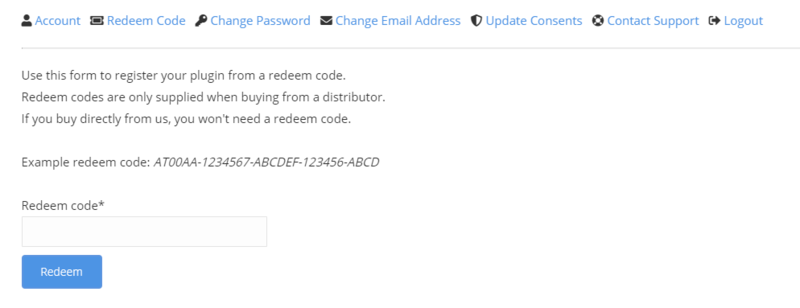
3. Once logged into your account, visit the Redeem Page and enter Redeem Code from your Plugin Boutique User Account into the box > Click 'Redeem'.

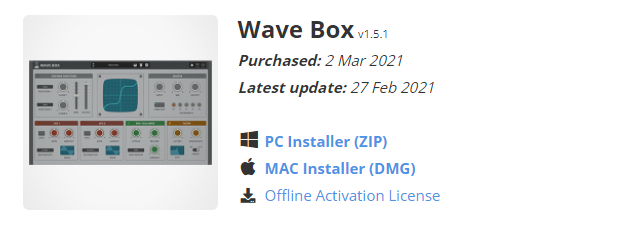
4. Download the PC installer and the Offline Activation License.
Note: Save the Offline Activation License to a memorable location on your computer for activating the software.

5. Double-click the downloaded .zip folder to extract its contents.
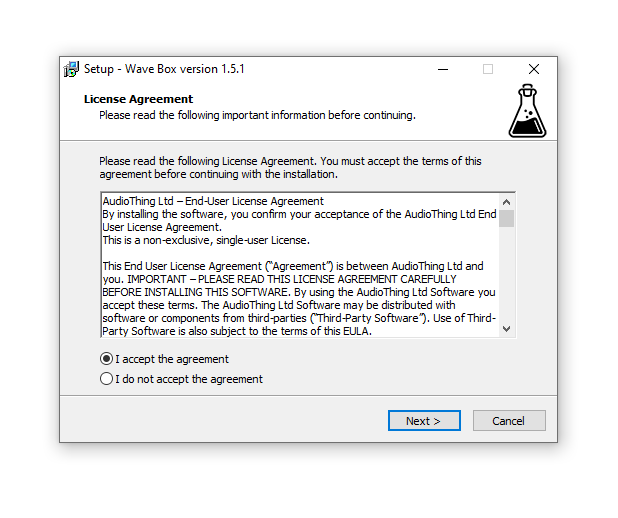
6. Double-click the extracted .exe file > click 'I accept the agreement and click 'Next'.

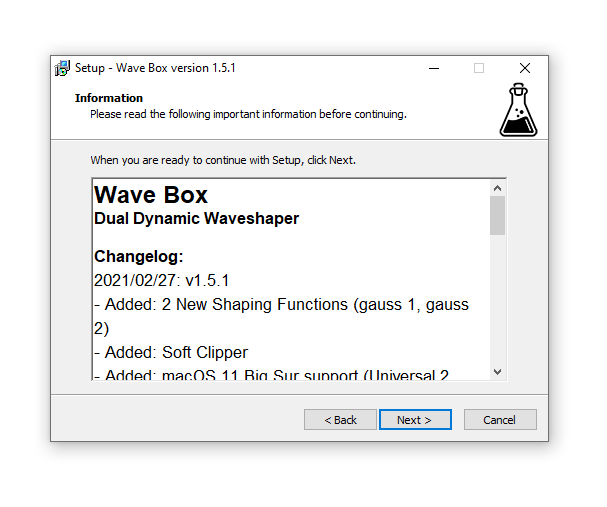
7. Click 'Next'.

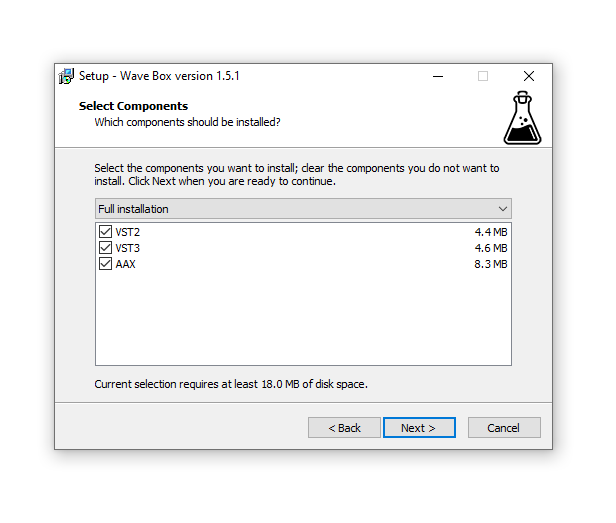
8. Select the components that you wish to install > Click ‘Next’.

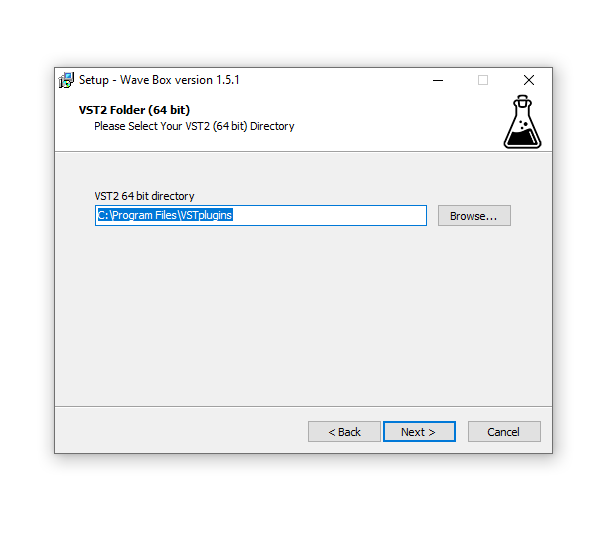
9. Click ‘Next’.

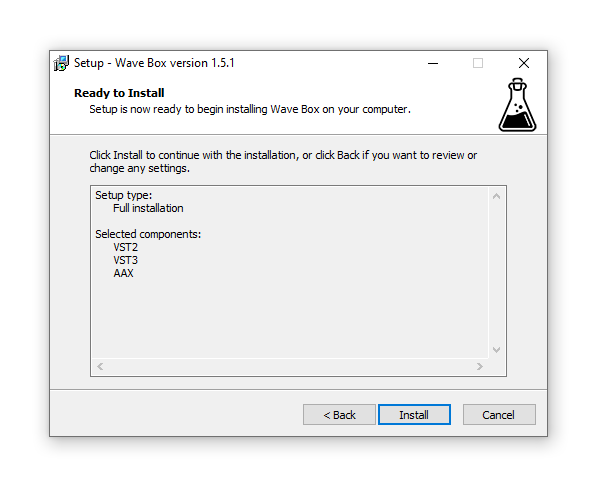
10. Click 'Install'.

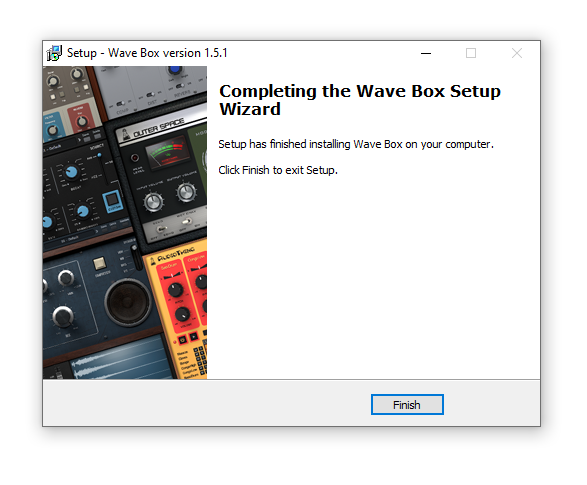
11. Click ‘Finish’.

Offline Activation
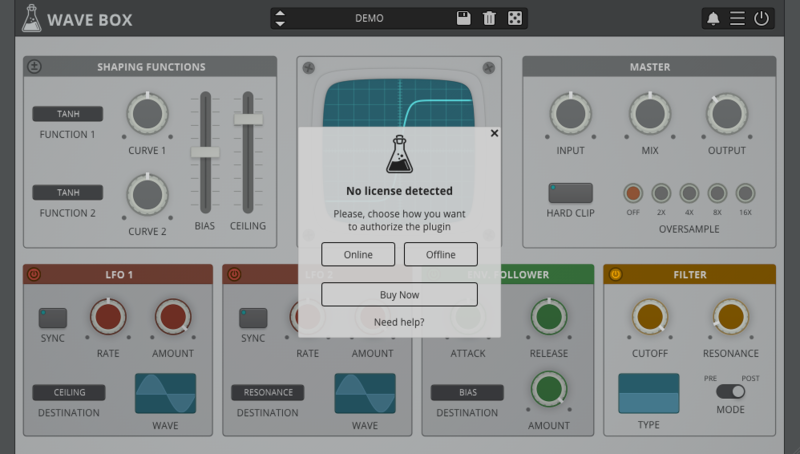
1. Open Wave Box inside of your DAW > Click 'Offline'.

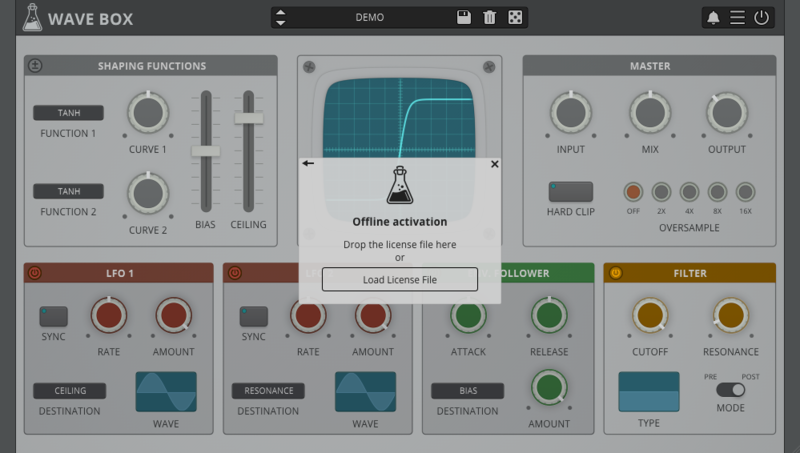
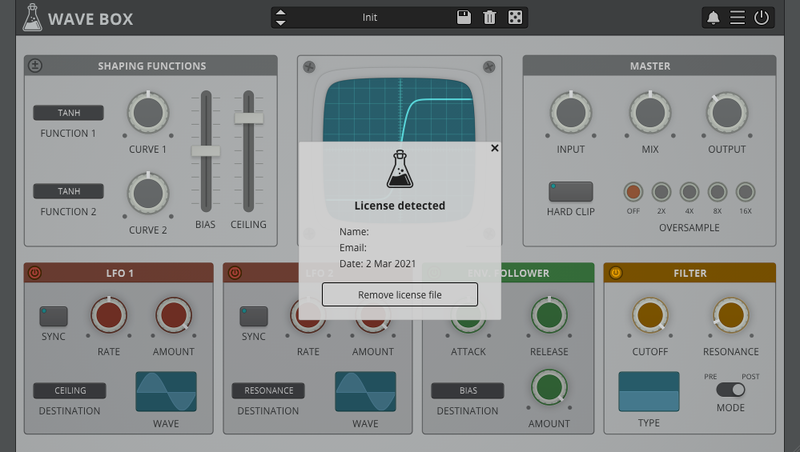
2. Click 'Load Licence File' and navigate to your Offline Activation License.

3. Click the X to close the box.

The software is now activated and ready to use inside your DAW!

Online Activation
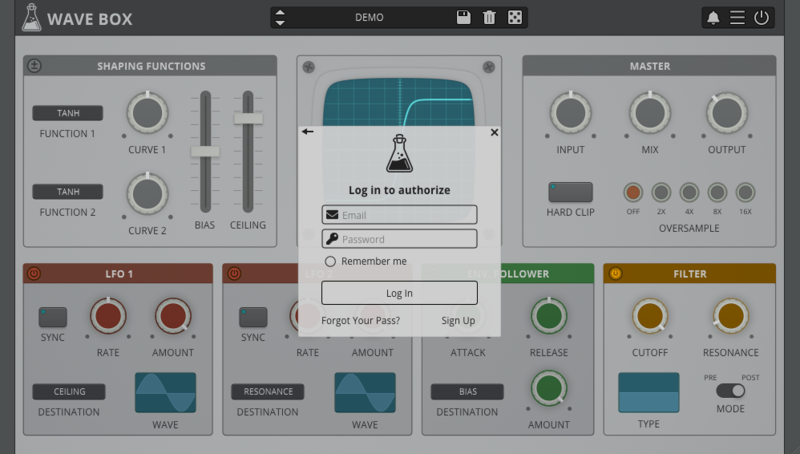
1. Open Wave Box inside of your DAW > Click 'Online'.

2. Enter your AudioThing email and password > Click 'Log In'.

3. Click the X to close the box.

The software is now activated and ready to use inside your DAW!

Mac
1. Visit the AudioThing Account Signup Page and enter your personal details to set up an account. Click the Verification and "I've read and agree to the Privacy Policy" > Click Sign Up.
Note: If you already have an existing AudioThing account, Login here and skip to step 3 of the installation process.

2. A confirmation email will now be sent to your registered email > click the link within the email to activate your account and Login here.
3. Once logged into your account, visit the Redeem Page and enter Redeem Code from your Plugin Boutique User Account into the box > Click 'Redeem'.

4. Download the MAC installer and the Offline Activation License.
Note: Save the Offline Activation License to a memorable location on your computer for activating the software.

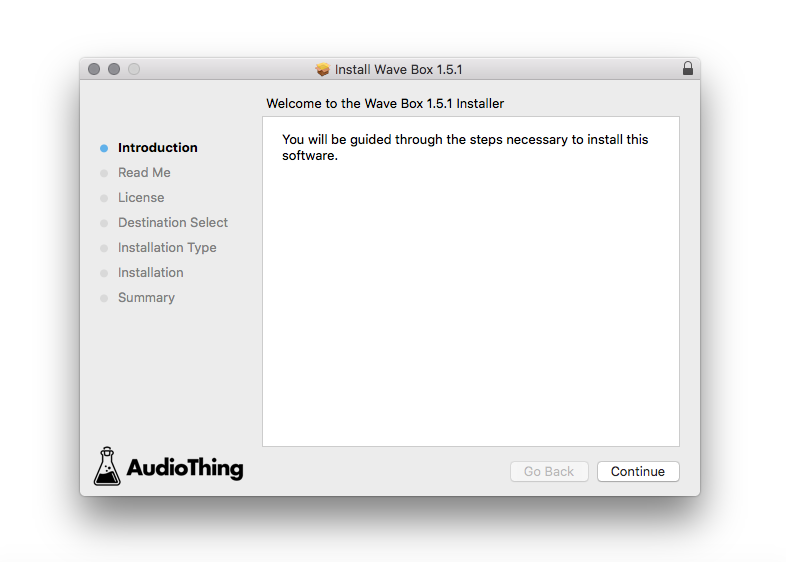
5. Double-click the downloaded .dmg folder to extract its contents > Double-click the .pkg file to run the installer
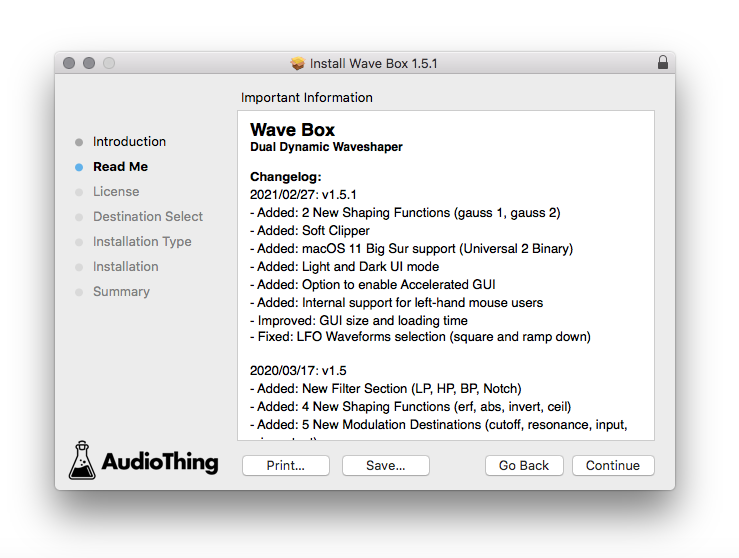
6. Click 'Continue'.

7. Click ‘Continue’.

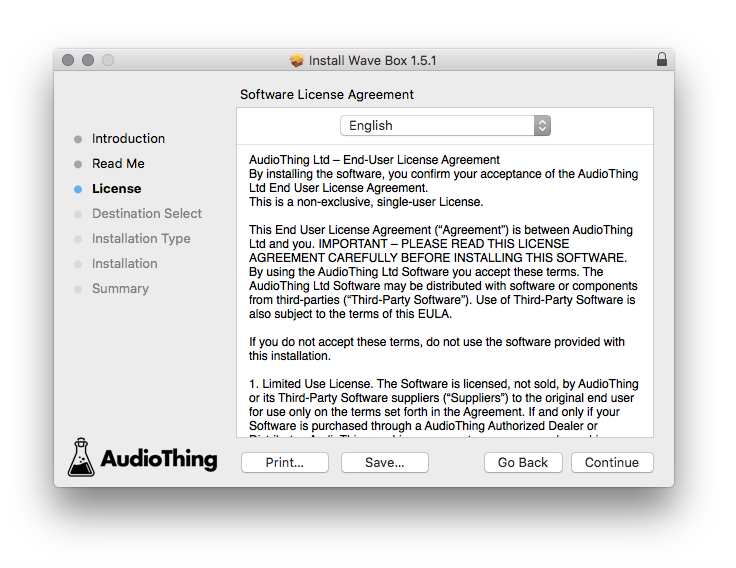
8. Click 'Continue'.

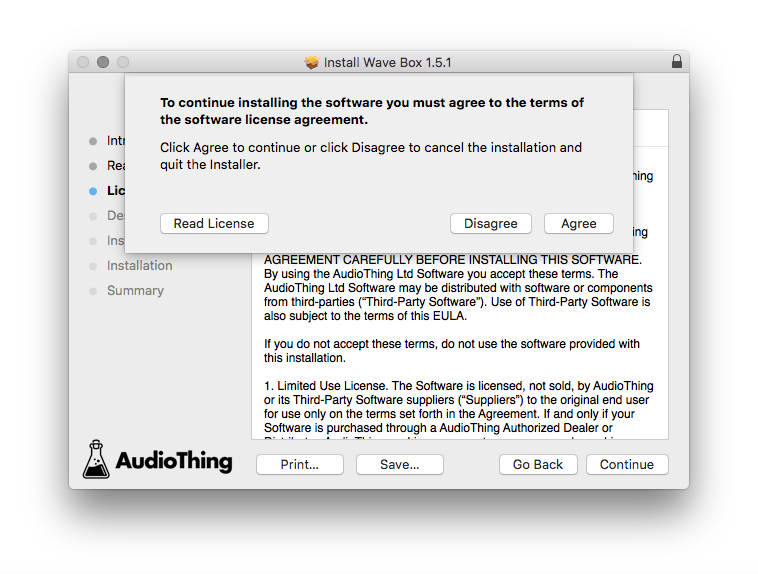
9. Click ‘Agree’.

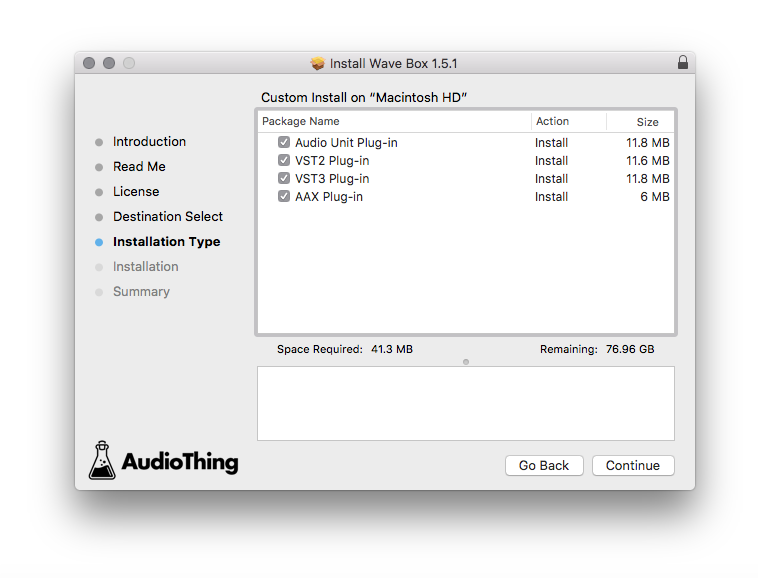
10. Select the components you would like to install > Click 'Continue'.

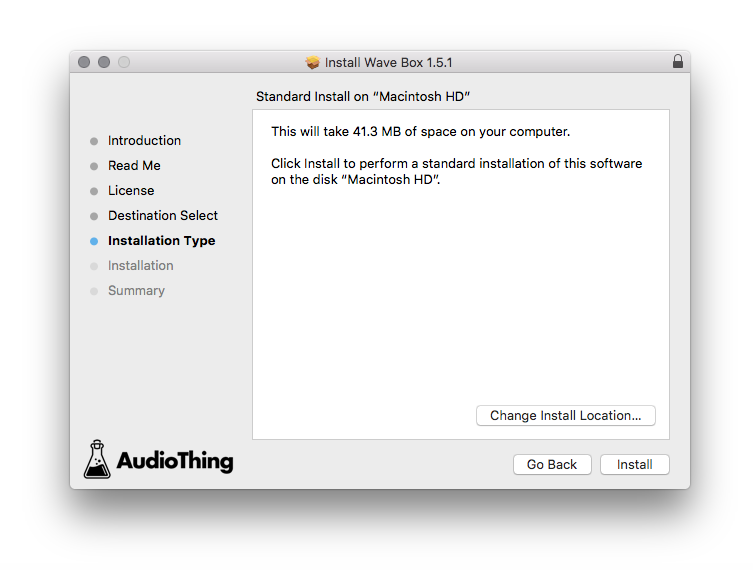
11. Click ‘Install’.

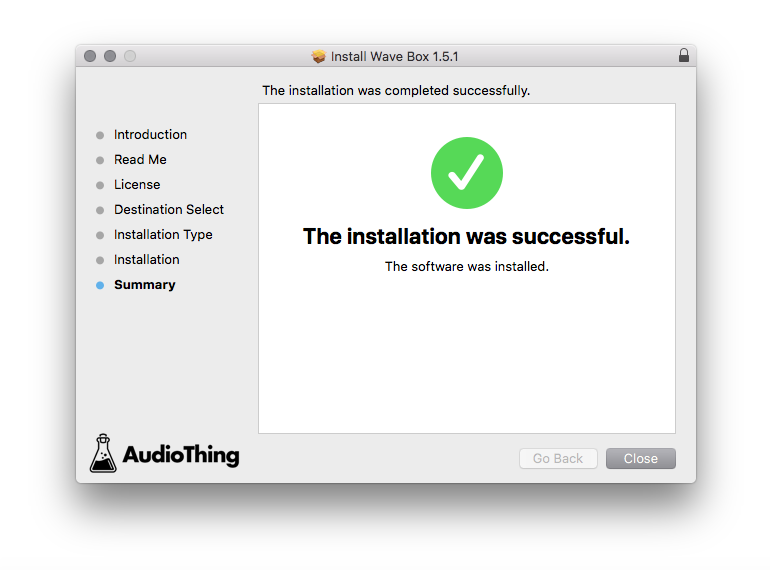
12. Click 'Close'.

Offline Activation
1. Open Wave Box inside of your DAW > Click 'Offline'.

2. Click 'Load Licence File' and navigate to your Offline Activation License.

3. Click the X to close the box.

The software is now activated and ready to use inside your DAW!

Online Activation
1. Open Wave Box inside of your DAW > Click 'Online'.

2. Enter your AudioThing email and password > Click 'Log In'.

3. Click the X to close the box.

The software is now activated and ready to use inside your DAW!