Buy Sonsig Rev-A, get a free gift with purchase:
Classic Algorithmic Reverb - Revitalized
Sonsig Rev-A combines traditional true-stereo algorithmic reverb with advanced modern filter and modulation controls in a great-sounding, easy to use, affordable plug-in.
- 10 distinctly different reverb sizes provides a broad range of reverbs, from vintage warmth to pure and clear modern spaces
- “First of its kind” output render modes to instantly change the reverb’s overall character.
- Unprecedented in-reverb modulation with the world’s first true in-reverb ensemble chorus.
With Sonsig Rev-A, you’re sure to get the perfect reverb, fast and easy - every time.
Create The Space You Need, When You Need It
Sonsig Rev-A provides a broad range of reverbs, from vintage warmth and deep, lush, larger-than-life spaces with moving reverb tails like you’ve never heard before, to the pure and clear sounds of natural, realistic modern spaces.
- Choose from 10 distinctly different reverb sizes each with adjustable decay time for precise control of your virtual listening space.
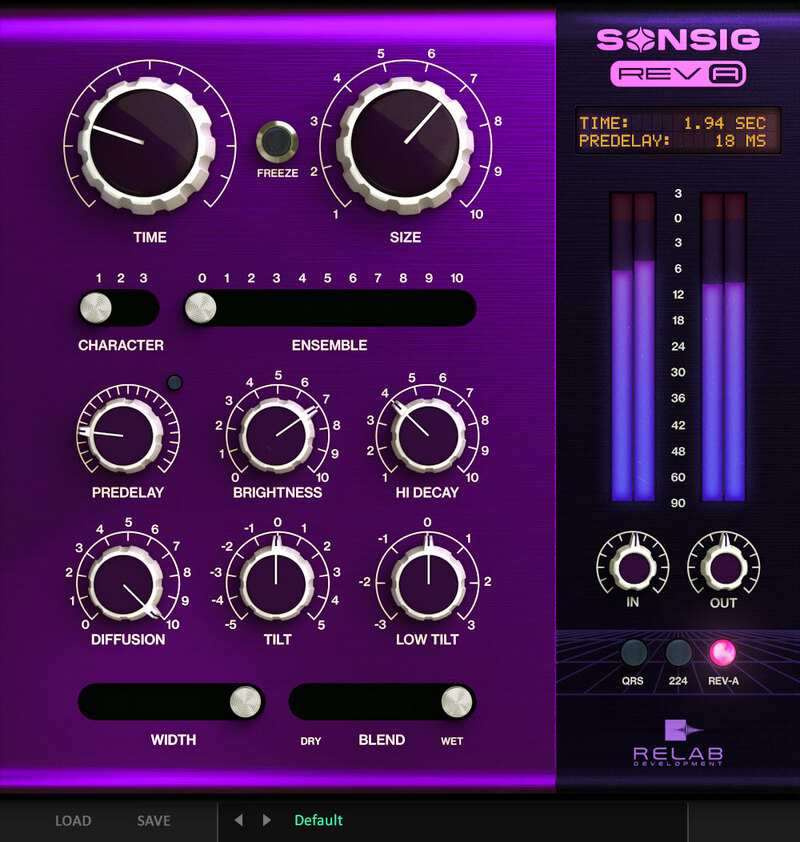
- Shape your sound quickly and easily with menu-free controls for Tempo-Lockable PreDelay, Size, Decay, Width and Diffusion.
- Get infinite sustain with the innovative Freeze function and create abstract spatial effects and drones.
Regardless of instruments, regardless of settings, the rich, luscious sound of Sonsig Rev-A is a significant step up from the established, traditional and stock reverbs - at a fraction of the price.
Distinctive Character and Exponential Tonal Possibilities
The sound of Sonsig Rev-A ranges from classic 80s hardware to realistic and unrealistic modern spaces.
With the “first of its kind” Output Render Modes, choose from three uniquely different output models to instantly change the reverb’s overall character.
Choose from the much sought-after low-fi, vintage character of the QRS, the instantly recognizable character and texture of the 224, and the pristine modern spaciousness of the Rev-A.
Whether you’re mixing pop, rock, hip hop, electronic, or orchestral music, you can bring extraordinary dimension and detail to your productions with ease, using Sonsig Rev-A.
The World’s First “In-Reverb” True Ensemble Chorus
Rev-A takes a unique approach to modulation never before found in a reverb by using three simultaneous modulation algorithms, for unparalleled, dynamic sound quality.
With Ensemble, you get lush reverb tails that sound elegant and classy even on the longest decay settings.
Sonsig Rev-A Is Unlike Any Reverb You’ve Heard Before
The magic behind the sound of Sonsig Rev-A is a proprietary new breakthrough algorithm technology - Psychoacoustic Spatial Alignment (PSA).
This unprecedented “next-generation” algorithmic process uses psychoacoustics-based multiplex component alignment to create distinctive, smooth, rich reverb effects never before possible in a reverb effect.
The phasing, filtering, diffusion and compound modulation of each and every echo fragment in every reverb tail is continuously and dynamically aligned according to a strict and complex psychoacoustic model.
The result is a revolutionary reverb that behaves like an instrument that changes its behavior and feel over time. You not only get the beautiful decay of lush reverb tails, but you also reap the benefits of having classic and modern algorithmic reverb parameters for fine-tuning in ways never before possible.
With Sonsig Rev-A, your reverbs will always sound alive and vibrant, with sweet-sounding spaciousness.
Features
- Outstanding Audio Quality - Dial in small rooms, lushes halls and realistic ambiences with uncompromising and unparalleled sound quality.
- Fast Workflow - Quickly tweak and sculpt your own sound in seconds with ease.
- High-Quality Presets - Mix with over 200 of the best collection of golden ears presets.
System Requirements
- Mac 10.15 + above VST/VST3/AU/AAX (64-bit) (M1 Native)
- Win 10 + above VST/VST3/AAX (64-bit)
- 2GB of RAM
Important Note: This plugin is available in 64-bit only
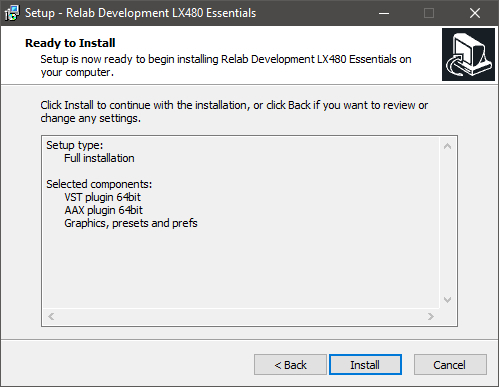
Note: LX480 Complete is used as an example.
Mac
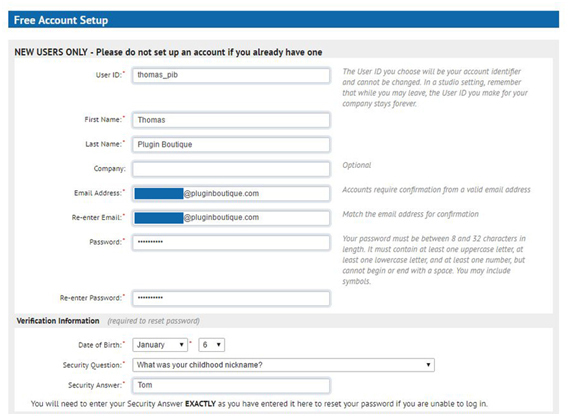
1. Visit https://www.ilok.com/#!registration to create a free iLok account.
2. Enter the information that is denoted with an asterisk (*).
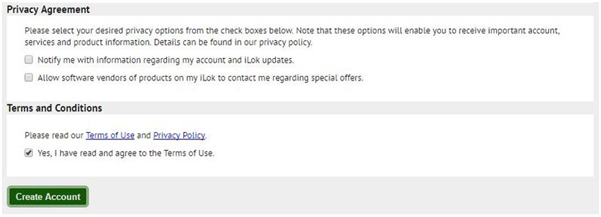
3. Select your privacy options > read and agree to the Terms of Use and click ‘Create Account'.
4. A message will be sent to your registered email address > click 'Continue'.
Note: Check the Spam/Junk folder of your registered email if the message is not visible within your inbox.
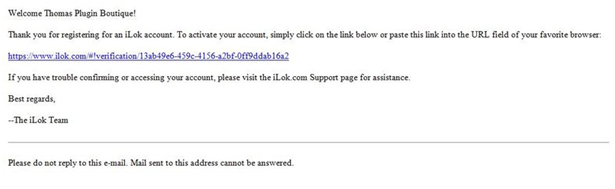
5. Open the email within your inbox (also check your Spam/Junk folder) and click the link provided.
Note: Check the Spam/Junk folder of your registered email if the message is not visible within your inbox.
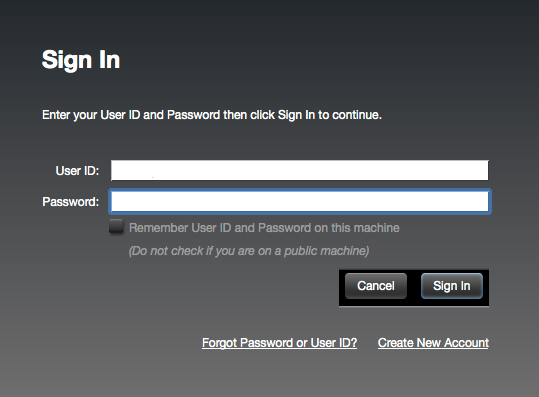
6. You will then be directed to log into your account with your chosen User ID and password > enter your registered details and click ‘Sign In'.
7. You will then receive a message stating that your User ID has been activated. > click ‘Continue'.
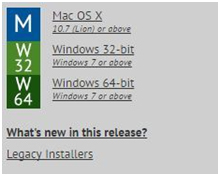
8. Download your preferred Mac compatible iLok Licence Manager - https://www.ilok.com/#!home.
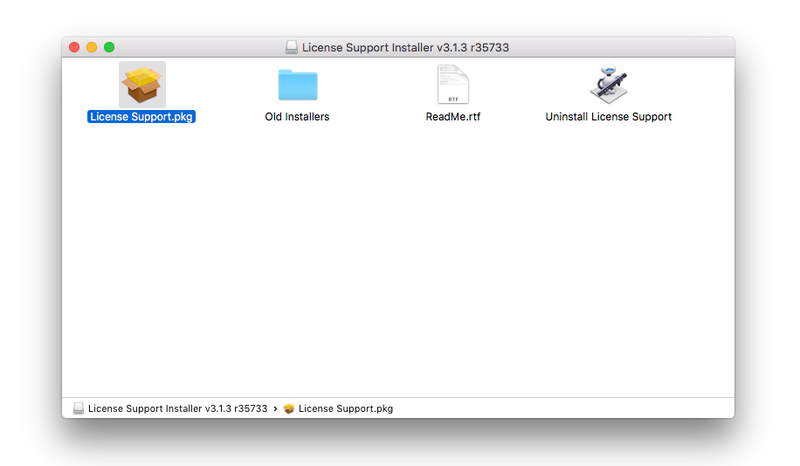
9. Double-click/open the .zip folder to extract and reveal its contents > select the .dmg file to launch the installer.
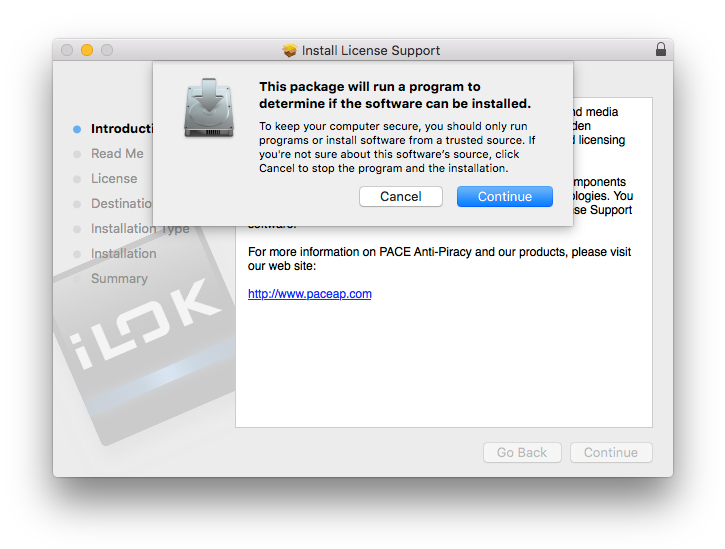
10. Double-click the 'Licence Support.pkg' file to begin the installation process.
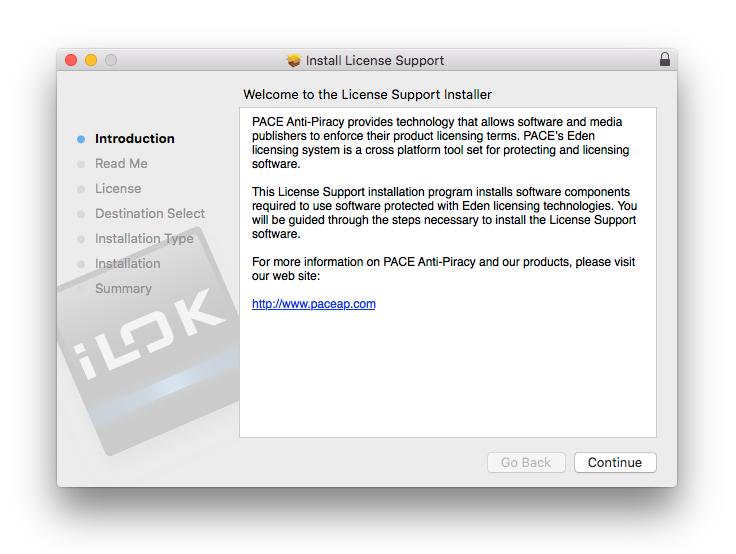
11. Once the installer has opened, click 'Continue'.
12. Click 'Continue'.
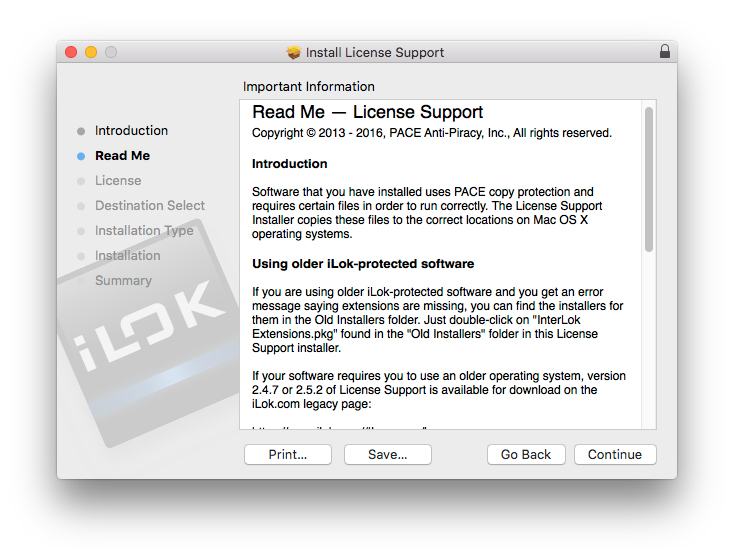
13. Read through the important information and click 'Continue'.
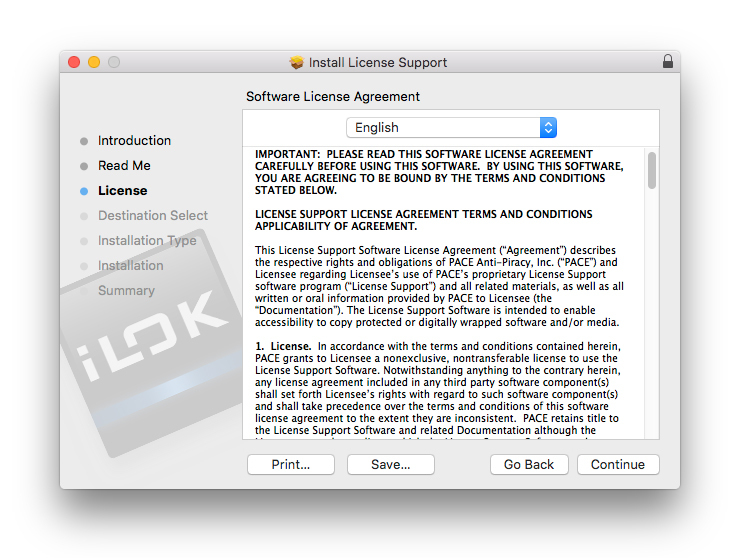
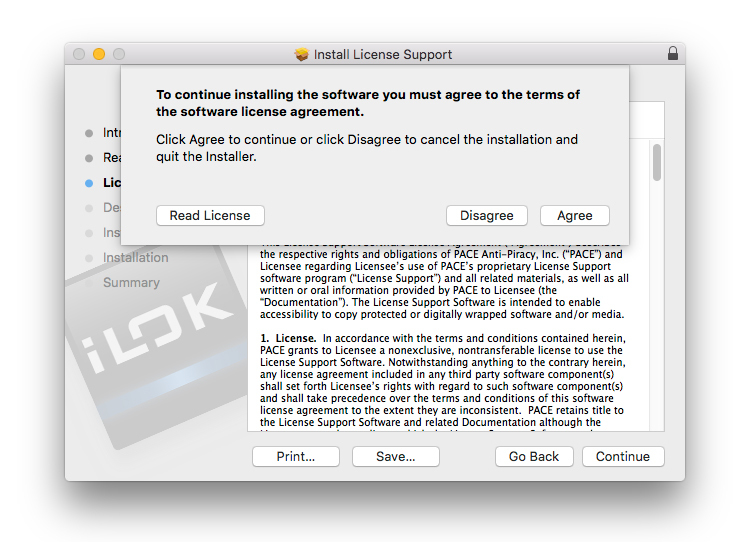
14. Read through the Software Licence Agreement and click 'Continue'.
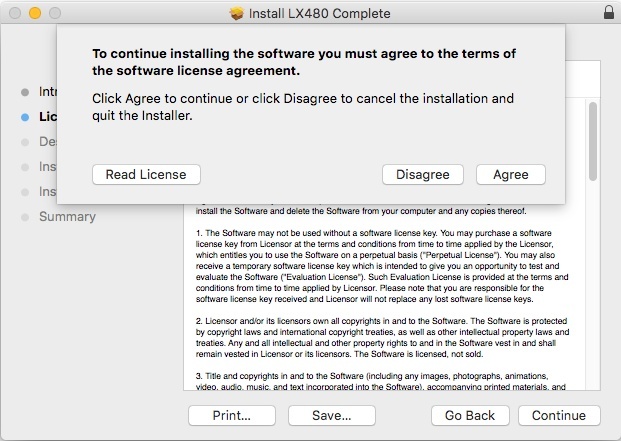
15. Click 'Agree'.
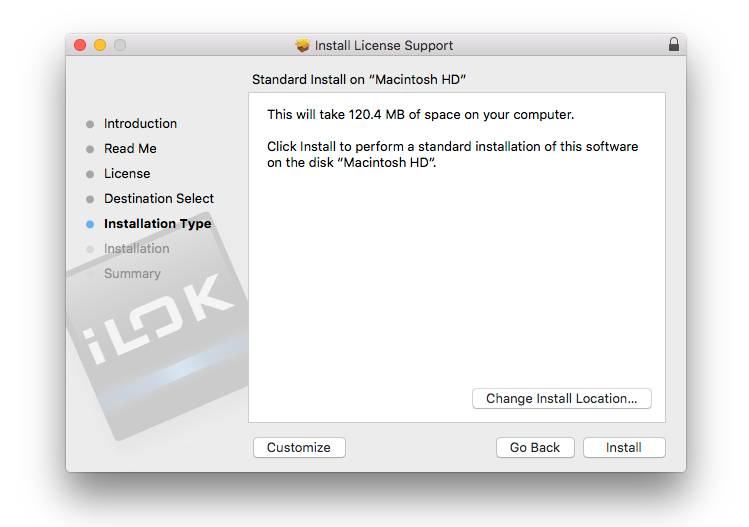
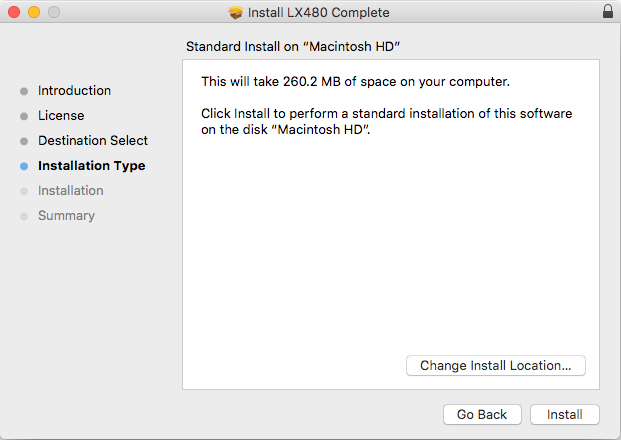
16. Review the installation and click 'Install'.
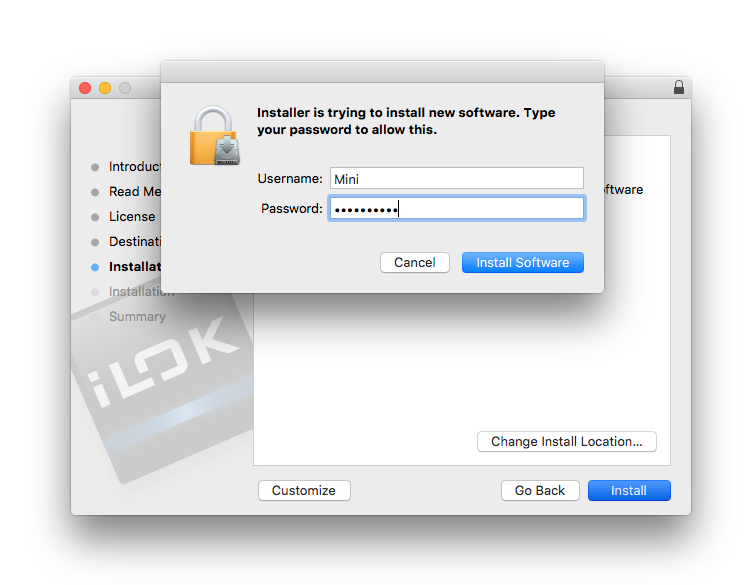
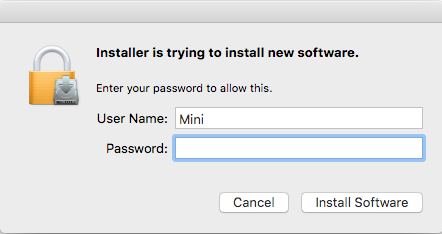
17. If required, enter your computer's unique user name and password > click 'Install Software'.
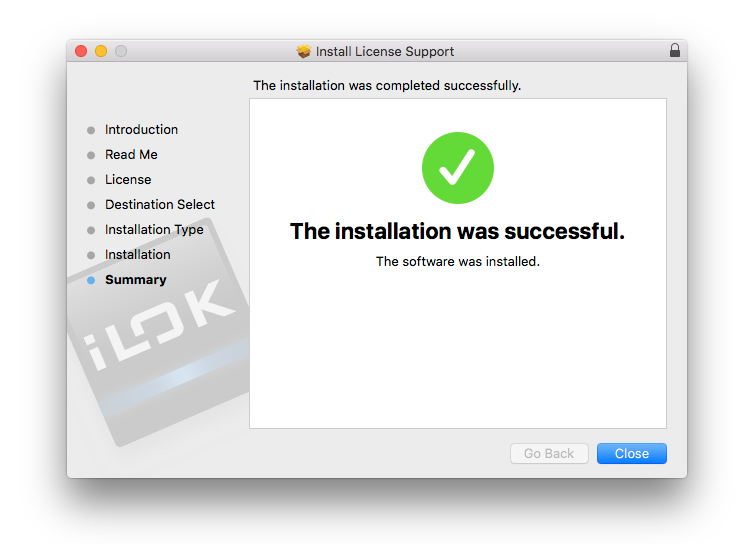
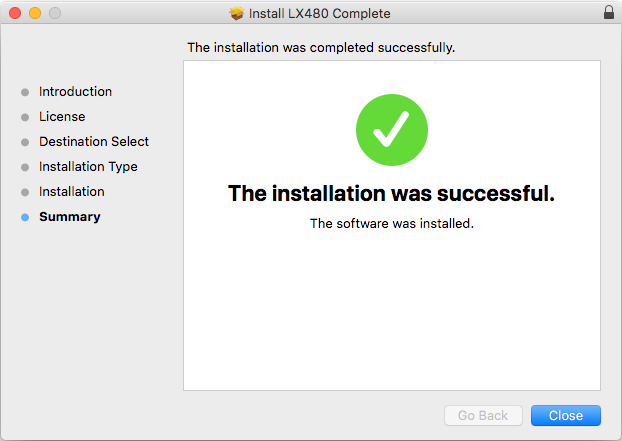
18. The installation of your software has successfully completed > click 'Close'.

16. Launch the iLok License Manager and click 'Sign in'.
17. Enter your iLok user ID and password. Click 'Sign in'.
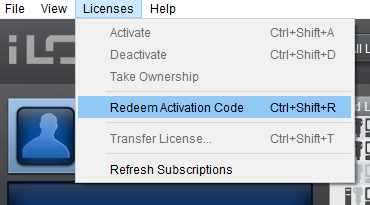
18. Navigate to 'Licenses'. Click 'Redeem Activation Code'
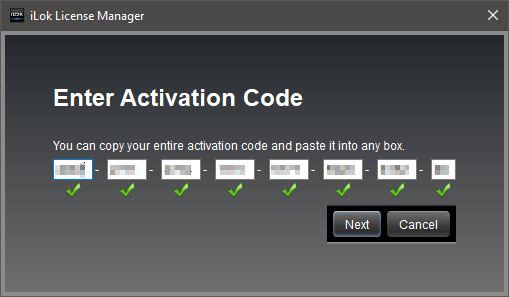
19. Enter your 30 digit activation code. This can be found on your My Account page. Then click 'Next'.

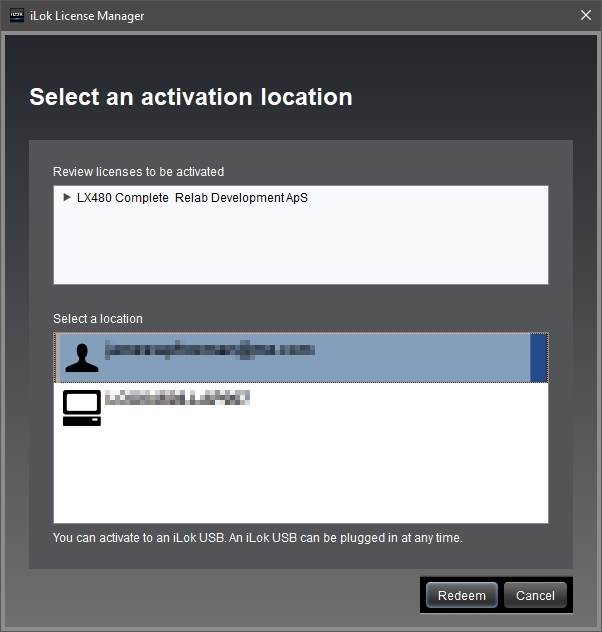
20. Select where you wish the license to be activated and then click 'Activate'.
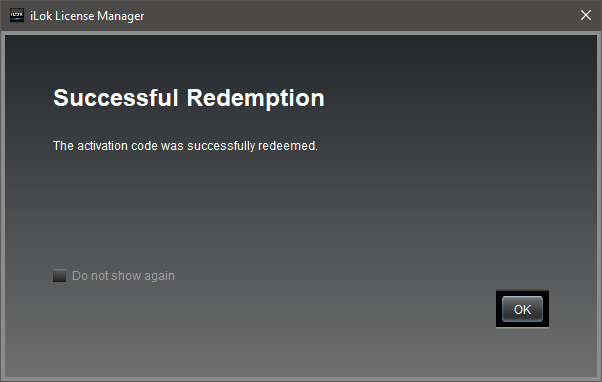
21. Your license will now be activated in your selected location. Click 'OK'.
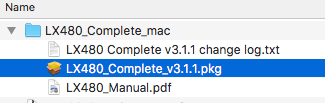
22. Download your installer from your Plugin Boutique user account and run the installation.
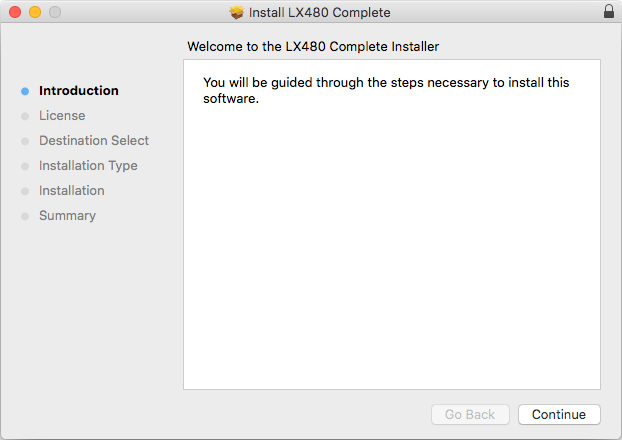
23. Click "Continue".
24. Click 'Continue'
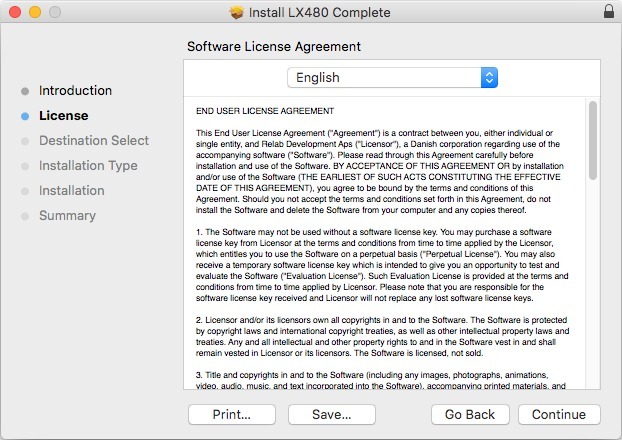
25. Click 'Agree'.
26. Click 'Install'.
27. Type your password. Click 'Install Software'.
28. Click 'Close'.
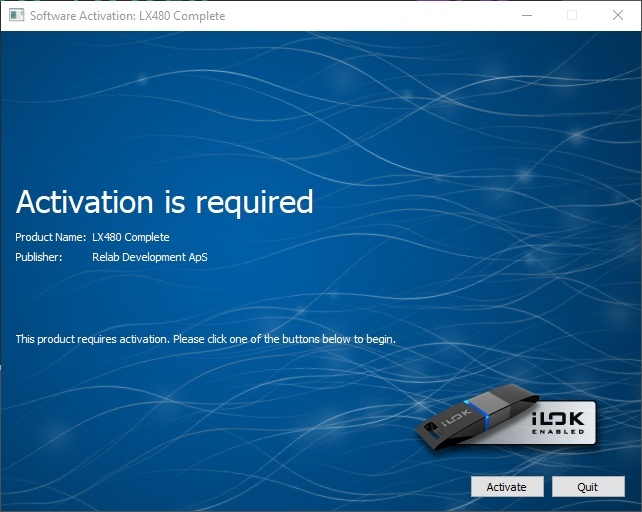
29. Launch your DAW. Click 'Activate'.
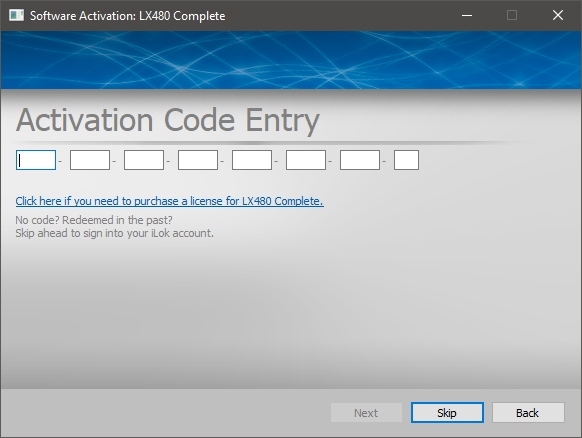
30. Click 'Skip'
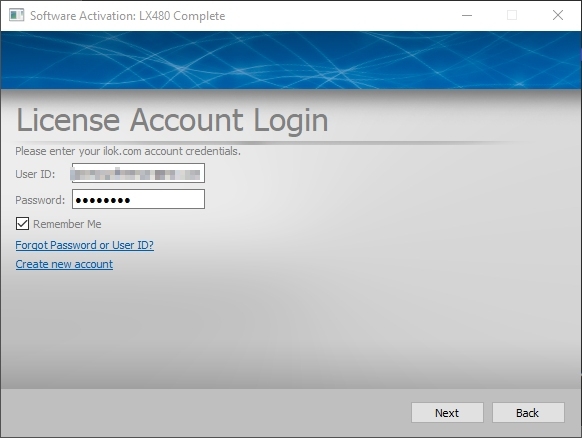
31. Sign in to your iLok Account. Click 'Next'.
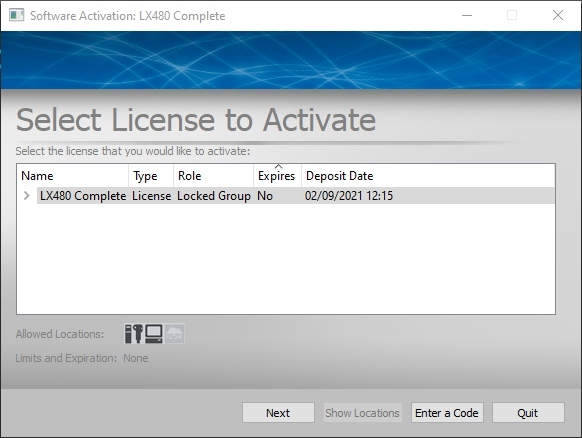
32. Select the license. Click 'Next'.
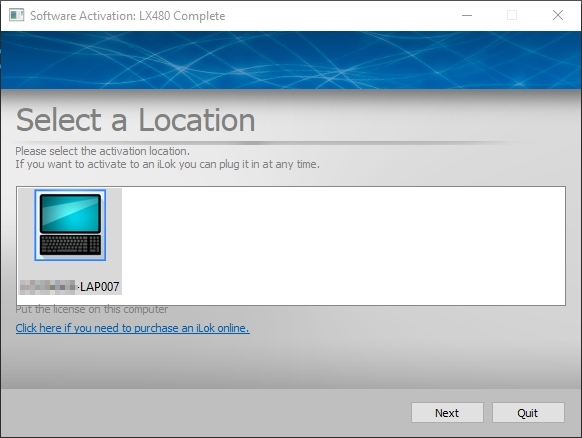
33. Select which location to activate the software on. Click 'Next'
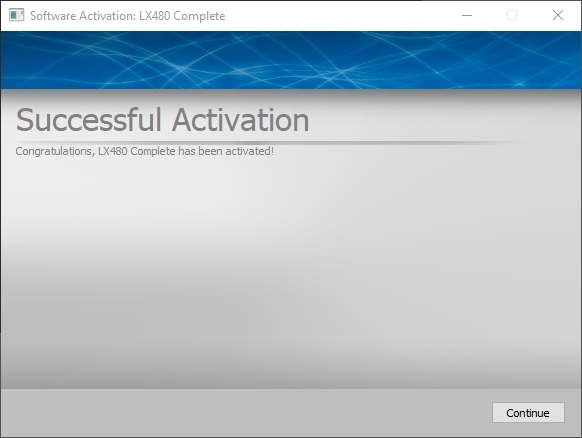
34. Click 'Continue'.
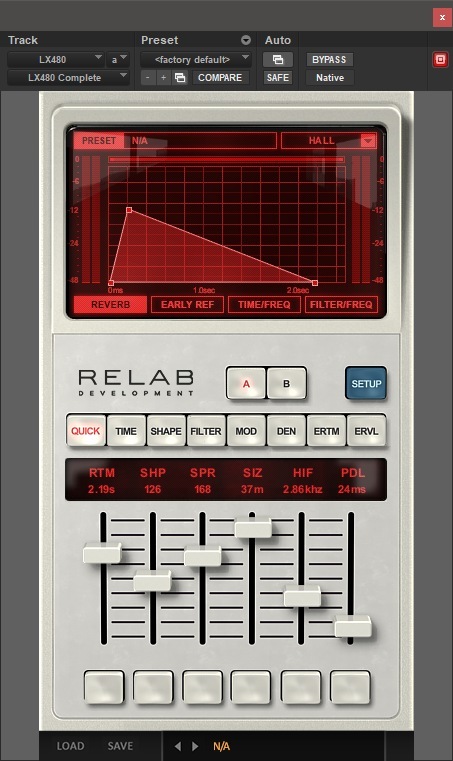
35. Create a new track and open the plugin.
Your software is now installed and ready to use.
Windows
1. Visit https://www.ilok.com/#!registration to create a free iLok account.
2. Enter the information that is denoted with an asterisk (*).
3. Select your privacy options > read and agree to the Terms of Use and click ‘Create Account'.
4. A message will be sent to your registered email address > click 'Continue'.
Note: Check the Spam/Junk folder of your registered email if the message is not visible within your inbox.
5. Open the email within your inbox and click the link provided.
Note: Check the Spam/Junk folder of your registered email if the message is not visible within your inbox.
6. You will then be directed to log into your account with your chosen User ID and password > enter your registered details and click ‘Sign In'.
7. You will then receive a message stating that your User ID has been activated. > click ‘Continue'.
8. Download your preferred PC compatible iLok Licence Manager (32/64-bit) from - https://www.ilok.com/#!home.
9. Once downloaded, double-click and open the .zip folder to reveal its contents > select the .exe installer file to begin the installation process.
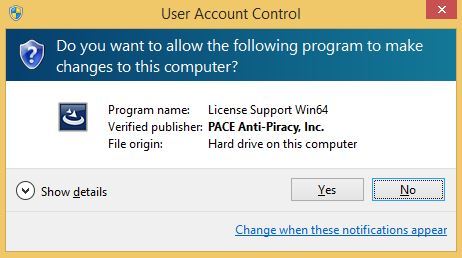
10. If you receive the message below, click ‘Yes'.
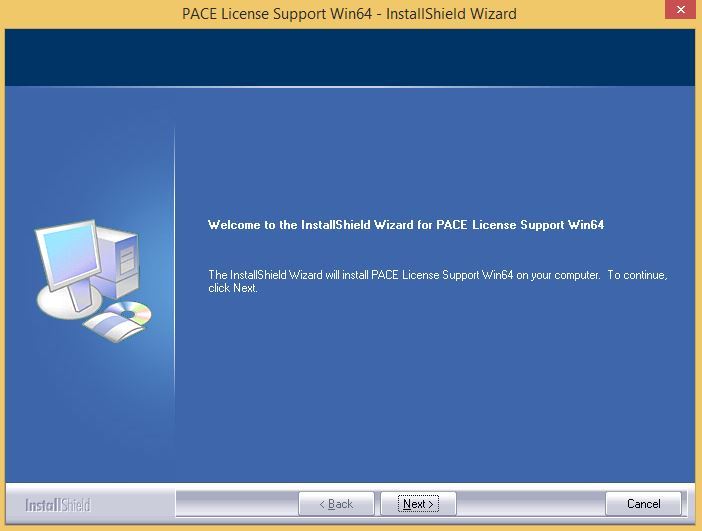
11. Click ‘Next'.
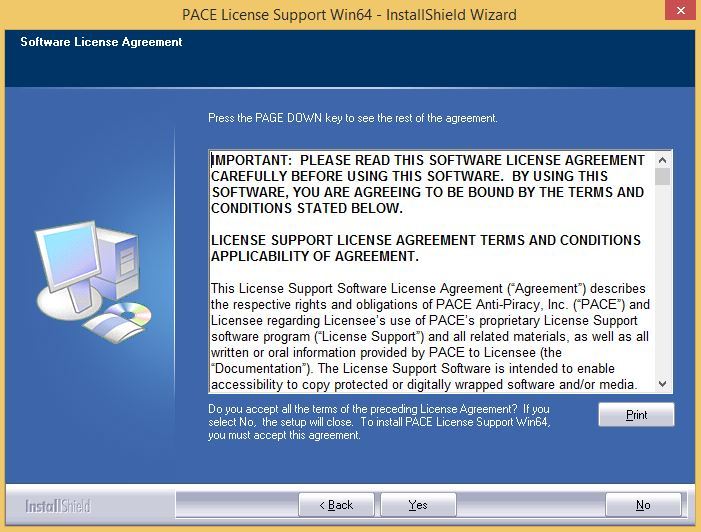
12. Read through the Software Licence Agreement and click ‘Yes'.
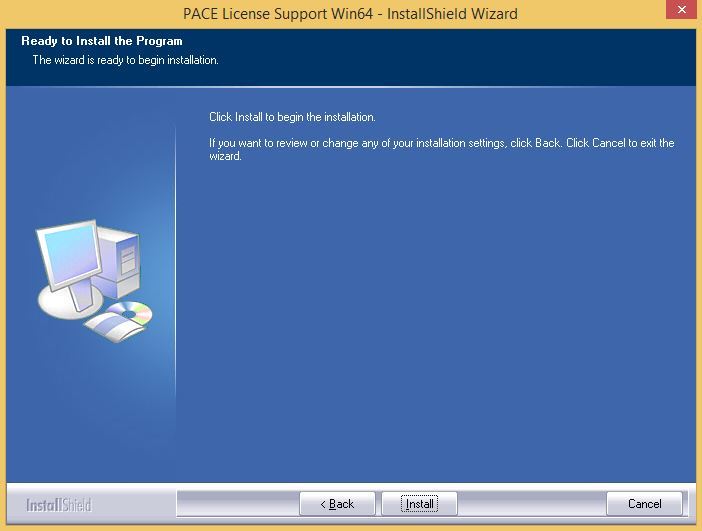
13. Review the installation and click ‘Install'.
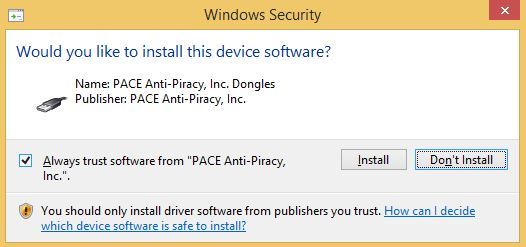
14. Click ‘Install'.
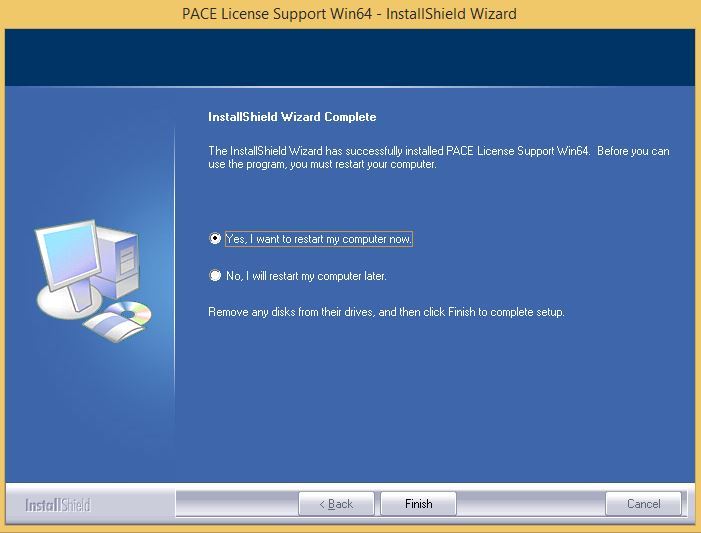
15. Once the installation has successfully completed, click ‘Finish’ to restart your computer.
16. Launch the iLok License Manager and click 'Sign in'.
17. Enter your iLok user ID and password. Click 'Sign in'.
18. Navigate to 'Licenses'. Click 'Redeem Activation Code'
19. Enter your 30 digit activation code. This can be found on your My Account page. Then click 'Next'.
20. Select where you wish the license to be activated and then click 'Activate'.
21. Your license will now be activated in your selected location. Click 'OK'.
22. Download your installer from your Plugin Boutique user account and run the installation.
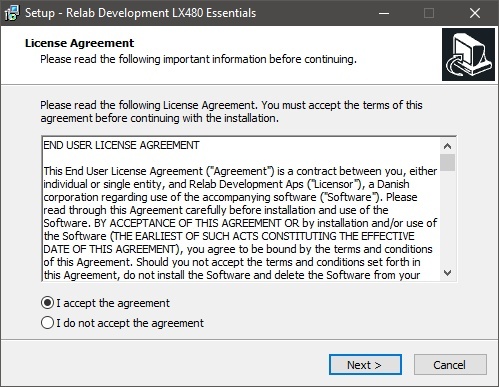
23. Click "I accept the agreement".
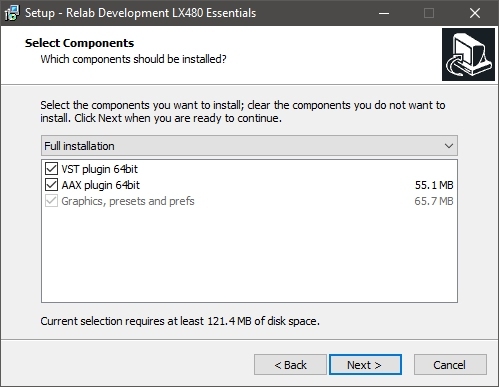
24. Make sure all components are selected and click 'Next'.
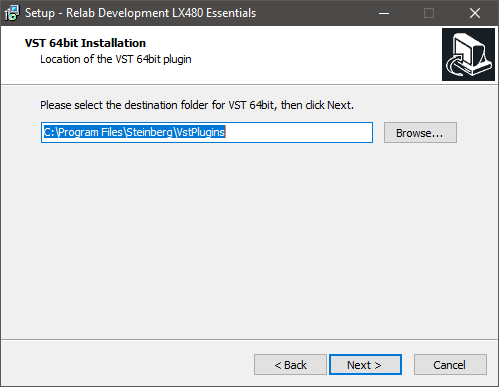
25. Click 'Next'.
26. Click 'Install'.
27. Click 'Finish'
28. Launch your DAW. Click 'Activate'.
29. Click 'Skip'
30. Sign in to your iLok Account. Click 'Next'.
31. Select the license. Click 'Next'.
32. Select which location to activate the software on. Click 'Next'
33. Click 'Continue'.
34. Create a new track and open the plugin.
Your software is now installed and ready to use.