Log In
Free gifts available with your purchase
Say hello to your new favourite reverb
Boundless reverb in stereo
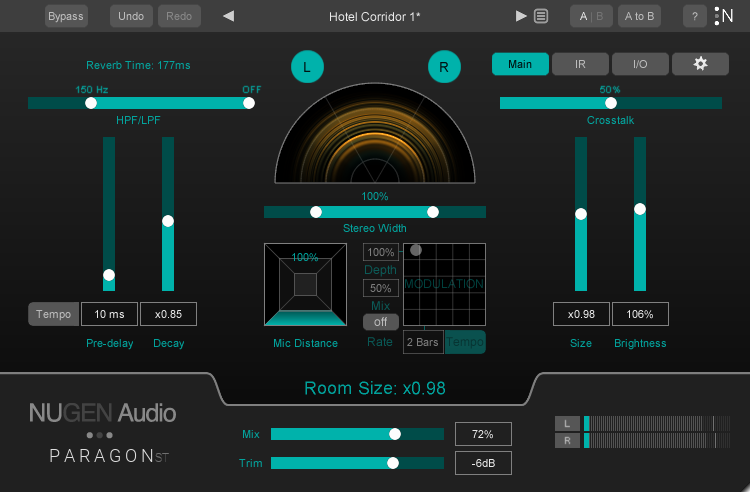
Paragon ST is a true convolution reverb with the flexibility and control of a classic algorithmic reverb. Nugen Audio have used the same reverb technology as the original Paragon and packed it full of new controls for music producers, including modulation, stereo width and more.
Via re-synthesis, Paragon ST offers full control of the decay, room size and brightness of reverbs modelled on recordings of real spaces. There’s no time-stretching, which means no artefacts.
Richness of Sound
- Paragon reverb in a music-friendly package.
- Unique technology for re-synthesis of authentic IRs.
- Stereo width control.
- Tempo-locked pre-delay and modulation.
- Mic distance control.
- Spectral analysis.
Real Spaces Reimagined
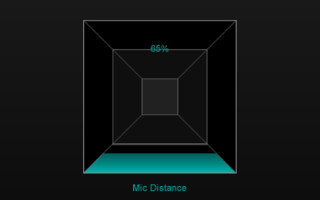
Unlike a traditional convolution reverb, Paragon ST does not use a static Impulse Response. The reverb decay and room size can be set significantly longer, larger, shorter and smaller than that of the original IR space, without introducing ugly artefacts as a result of stretching or removing samples. Furthermore, the mic distance control allows you to adjust early reverb reflections in order to give an impression that the sound source is closer to or further away from the listener.
Seamless Tweakability
The IR library isn’t too big, and it isn’t too small, it’s just right. Gone are the days of keeping an Impulse Response saved for every possible configuration of every possible space - with Paragon ST, all you need is a select few, which can be tweaked to create almost limitless combinations of spaces.
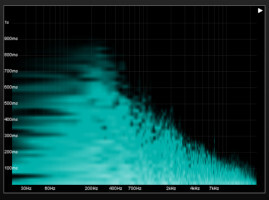
Paragon ST’s IR panel allows you to seamlessly tweak the frequency response of real spaces, by EQing the reverb model itself and altering the frequency-dependent decay rate.
For Music Production
Whether you’re giving natural ambience to drums or vocals recorded in a dead room, or pushing guitars and synths far beyond realistic reverb into something fantastical, Paragon ST’s authentic IRs are perfect for adding depth to a mix.
Add excitement and musicality with the new modulation control and tempo-locked pre-delay, and fine-tune the placement of individual elements using the new mic distance and stereo width controls. The stereo width control is based on NUGEN's iconic Stereoizer plug-in.
Typical Applications
- Adding a sense of atmosphere to dry recordings
- Using channel crosstalk to create stereo reverb from a mono source
- Manipulating IRs whilst maintaining true convolution characteristics
- Authentic sounds of real spaces
Features
- Controls for stereo width (using the same technology as Stereoizer)
- Modulation
- Mic distance (with in-depth control of early reflections)
- Pre-delay tempo lock
System Requirements
Mac
- Mac OS X 10.9 or later (64-bit only)
- 512 MB RAM
- AAX, VST3, AU and AudioSuite
PC
- Windows Vista or later (64-bit only)
- 512 MB RAM
- AAX, VST3, AU and AudioSuite
Awards