


 Log In

Free gifts available with your purchase
Formant Filter
The Orb is a formant filter plugin which simulates the characteristics of the human voice. Featuring a set of three band pass filters, The Orb can transform any sound into a vowel-like formant-filtered sound. With the three LFOs you can modulate the Vowel, the Emphasis/Resonance of the formants, and the Drift, which can shift up or down the frequencies of each formant. You can also create your own set of vowels by changing name and frequency for each vowel/formant.
The Orb
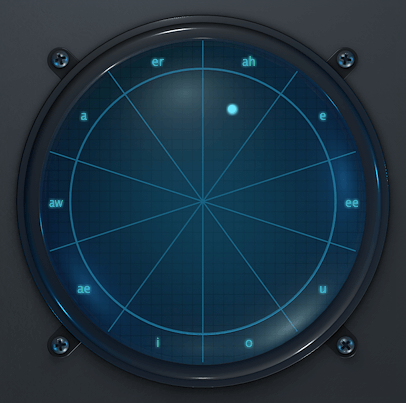
Each sector of the orb represents a Vowel. It’s possible to change the vowel for each sector by clicking on the vowel name.
The distance from the center of the orb to the dot represent the amount of Emphasis (resonance) for each formant filter.
The angle inside each sector represent the amount of Drift, which is a value in Hz that will be added or subtracted from each vowel formant.
Custom Vowels
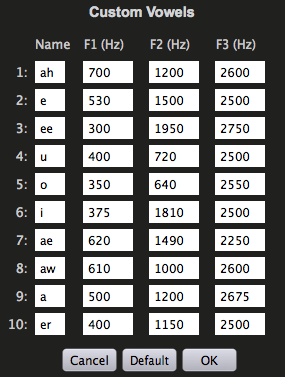
Clicking on the Edit button in the Vowels section, you can access the Custom Vowels window.
It’s possible to change each vowel name and frequency for the three formants.
Each custom vowels set will be saved in a preset (or DAW session), so you can create as many as you want by saving to a new preset.
The default set is the same as the Male genre settings.
Features
- Three Band Pass Filters (ZDF design)
- Vowel Sets: Male, Female, Child and Custom
- 3 LFOs (destinations: Vowel, Emphasis and Drift)
- Lightweight on CPU
- Preset system with randomizer
- Formats: VST, AU, and AAX (64-bit only)
- Platforms: OSX, Windows
System Requirements
Windows
- Windows 7-11
- 2GHz CPU, 4 GB RAM
- VST2, VST3, AAX, CLAP (64-bit)
Mac
- OS X 10.9 – macOS 14
- Apple Silicon (M chips) Native (Universal 2 Binary)
- 2GHz CPU, 4 GB RAM
- VST2, VST3, AU, AAX, CLAP (64-bit)
- Universal 2 Binary
Awards


Reviews Summary
While it aims to provide a helpful overview, it may not capture every perspective or detail. We encourage you to read individual reviews to make an informed decision.
Most users highly praise this formant filter plugin as a unique, affordable, and creative tool for sound design, noting its ability to add vocal character and rhythmic movement to tracks. They appreciate its intuitive UI, visual feedback, and responsive developer support. While a few reviewers mentioned a slight learning curve or wished for additional sequencing features, the overall reception is overwhelmingly positive for music experimentation.


