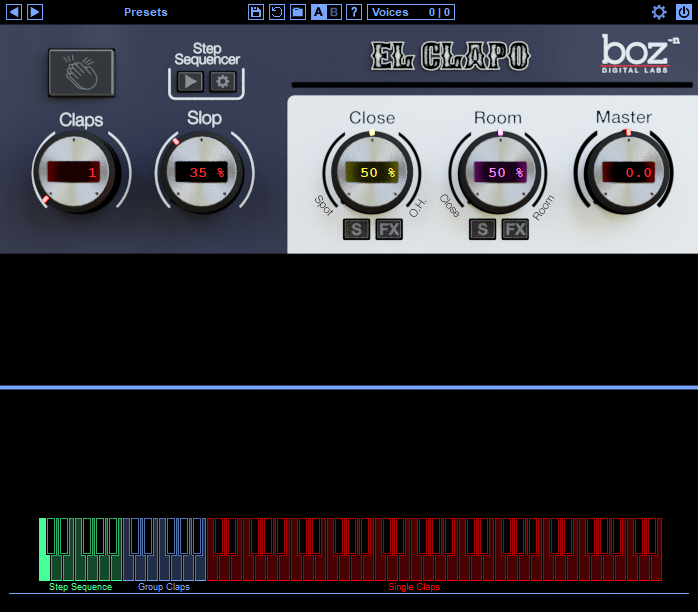
Buy Gatey Watey, get a free gift with purchase:
Gatey Watey is a lightweight but clever gate plugin. Unlike traditional gates, Gatey Watey lets you choose which frequencies get attenuated when the level drops below the threshold, making for a much more natural sounding gate. It works great for getting rid of drum bleed without cutting off your drums, or de-noising electric guitars without cutting off the sustain. Basically, it’s how all gates should work, but for some reason, they don’t.
Really? A gate plugin?
Let’s just be honest here for a minute. It’s really hard to get excited about a gate plugin. Part of the reason I have a hard time getting excited about gates is because they all pretty much seem to do the same thing, with some minor differences between different gates. But that’s why we made Gatey Watey. It stems from the idea that gates, even as a utility, can be much better.
What Sets Gatey Watey Apart from the Zillions of Gates Out There?
Gatey Watey has one feature that we believe every gate should have; frequency selective attenuation. What this means, is that you can tell Gatey Watey to only attenuate the high frequencies (or the low frequencies, if you’re into that sort of thing) when the input drops below the threshold. This turns out to be super powerful when it comes to gating drums, electric guitars, or pretty much anything that requires a gate. For example, if you want to cut the high hat bleed out of a snare without killing the ring of the snare, Gatey Watey is your man. Do you want your distorted guitars to ring out without without your neighbor’s fluorescent light collection blaring through your pickups? Gatey Watey to the rescue.
Even in normal gating situations, Gatey Watey excels. You just tell it what to turn down, and how much to turn it down.
Simple to Use
We packaged Gatey Watey in a way that makes it dead simple to use. It does its thing, and it does it well. Anybody of any skill level will be able to open up Gatey Watey for the first time and immediately see what’s going on.
Features
- Frequency selective gating
- Lookahead
- Simple Interface
- No Learning Curve
System Requirements
Mac
Note for M1 Mac Users: This plugin is not yet compiled to work natively on M1 Macs. Boz Digital Labs are currently in the process of rewriting it so that it will, but it will take some time. In the meantime, it should work under Rosetta on M1 Macs.
Formats:
- AAX
- AU (Audio Units)
- RTAS
- VST
- VST3
Windows
Formats:
- AAX
- RTAS
- VST
- VST3
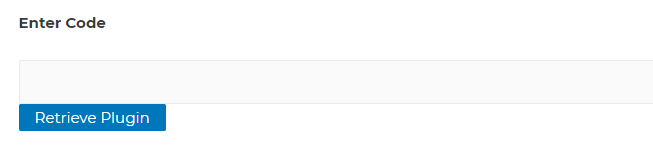
Note: El Clapo is used as an example.
Mac
Redemption
1. Click Download in your Plugin Boutique account or go to https://www.bozdigitallabs.com/plugin-boutique-retrieve/.
2. Copy and paste the code from your Plugin Boutique account > Click 'Retrieve Plugin'.

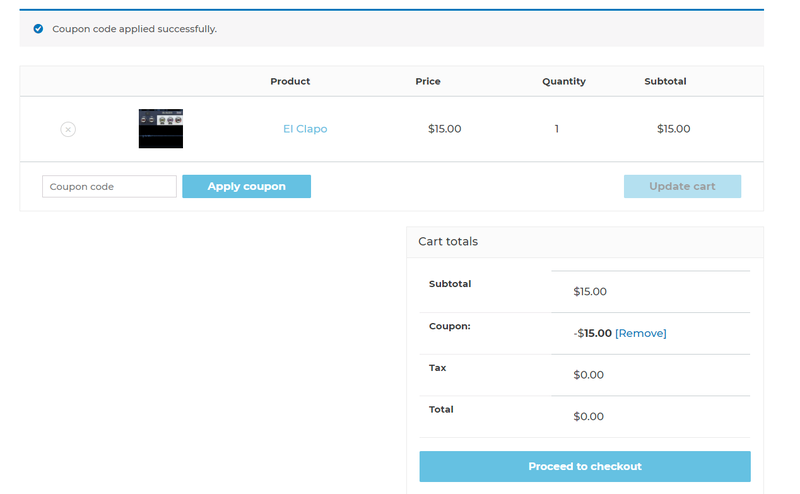
3. Review the order > Click 'Proceed to Checkout'.

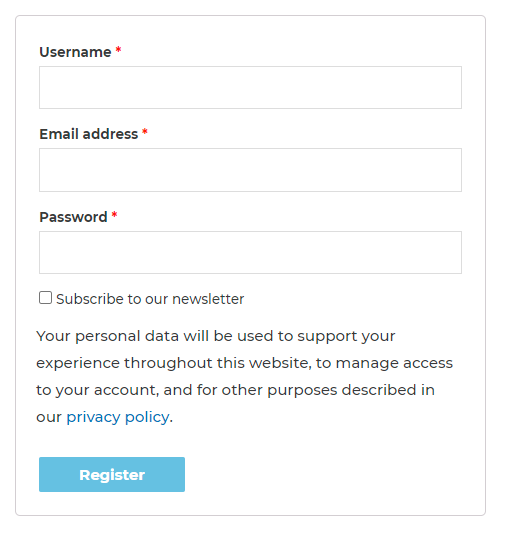
4. Enter your email address, username and password > Click 'Register'.
Note: If you already have Boz Digital Labs account, select 'Click Here to Login' after entering your email address/username and password > Click 'Login'.

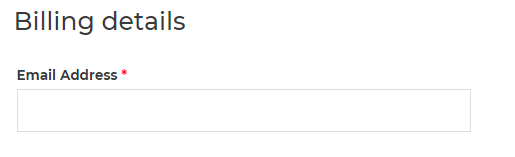
5. Check that your email is correct > Click 'Next'.

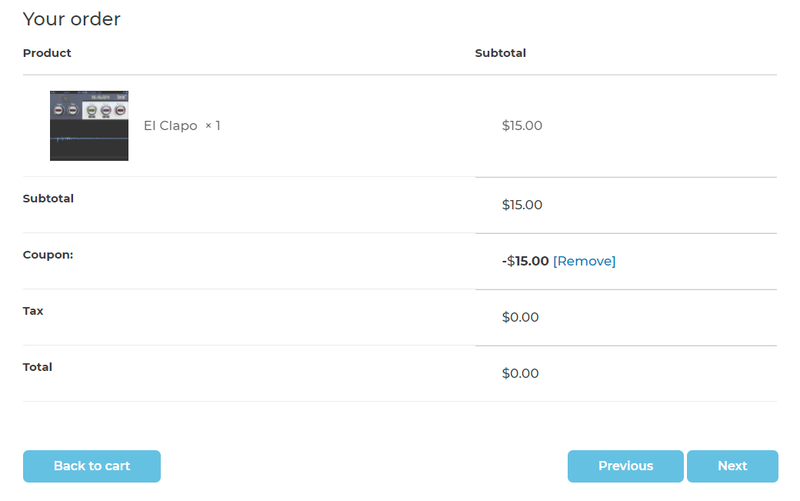
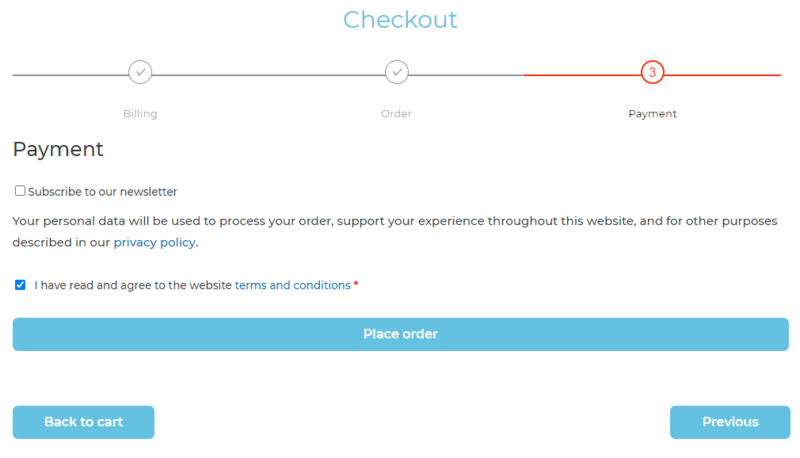
6. Review your order > Click 'Next'.

7. Click 'I have read and agree to the website terms and conditions' > Click 'Place order'.

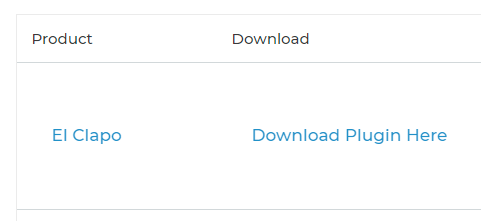
8. Click 'Download Plugin Here'.

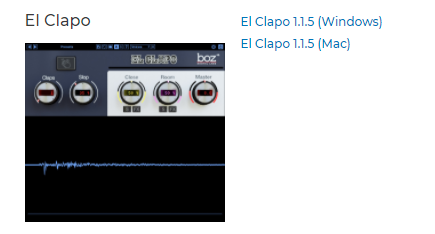
9. Click the Mac link to download the installer.

Installation
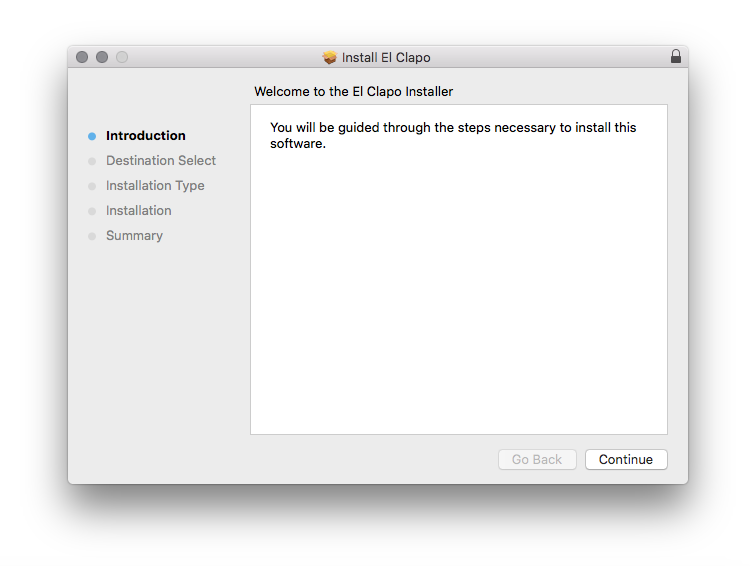
1. Run the .pkg installer > Click 'Continue'.

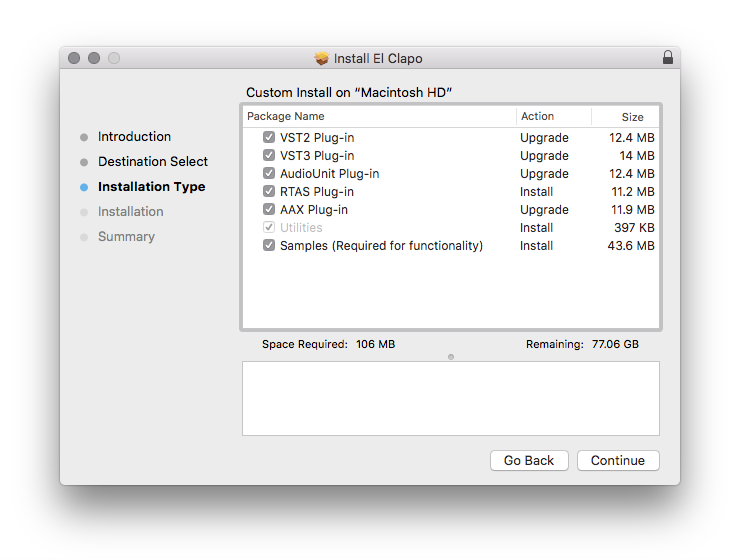
2. Select the formats you wish to install > Click 'Continue'.
Note: If you're unsure about which format to use, leave all options selected and proceed. Check out this article for more information.

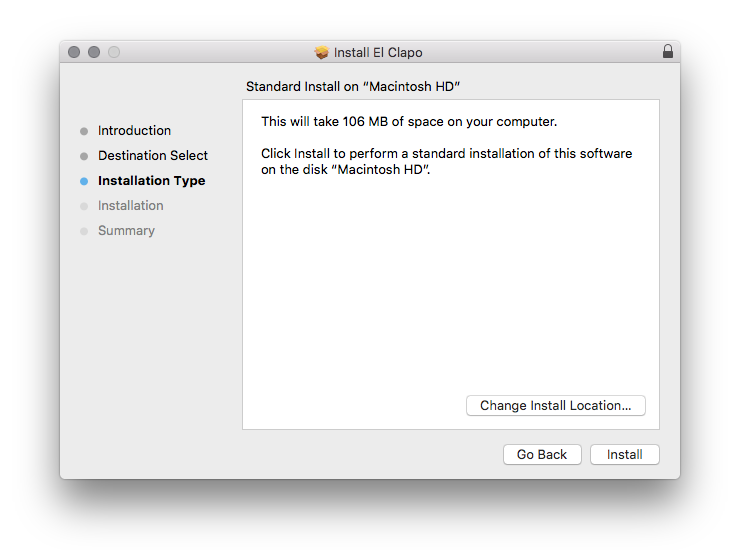
3. Click 'Install'.

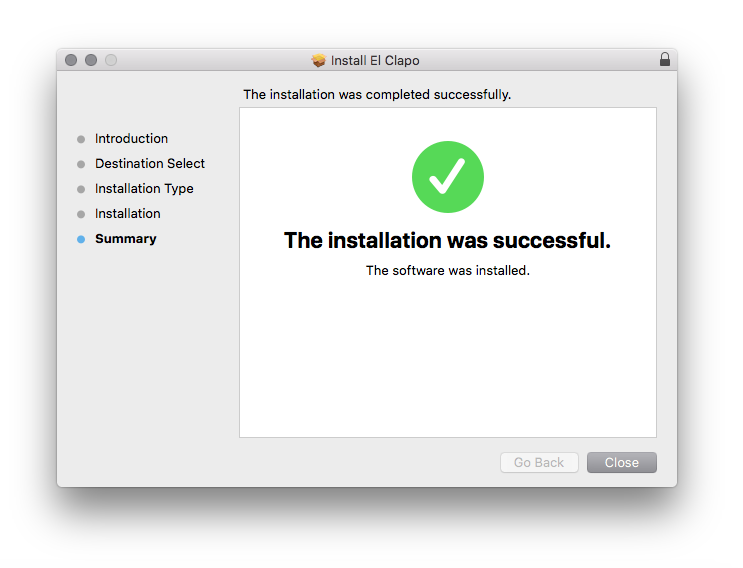
4. Click 'Close'.

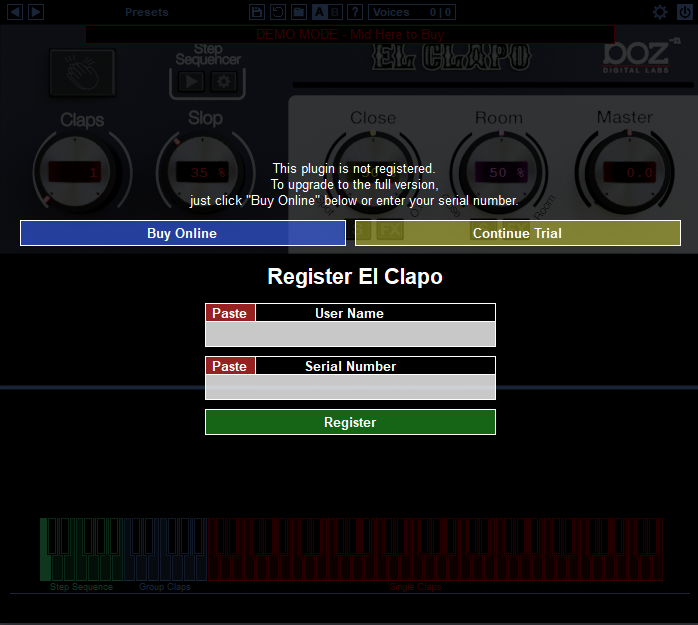
5. Open your DAW and open the plugin > Enter your Boz Digital Labs username and the serial code that you received in your Boz Digital Labs Account > Click 'Register'.

Your software is now authorised and ready for use!

Windows
Redemption
1. Click Download in your Plugin Boutique account or go to https://www.bozdigitallabs.com/plugin-boutique-retrieve/.
2. Copy and paste the code from your Plugin Boutique account > Click 'Retrieve Plugin'.

3. Review the order > Click 'Proceed to Checkout'.

4. Enter your email address, username and password > Click 'Register'.
Note: If you already have Boz Digital Labs account, select 'Click Here to Login' after entering your email address/username and password > Click 'Login'.

5. Check that your email is correct > Click 'Next'.

6. Review your order > Click 'Next'.

7. Click 'I have read and agree to the website terms and conditions' > Click 'Place order'.

8. Click 'Download Plugin Here'.

9. Click the Windows link to download the installer.

Installation
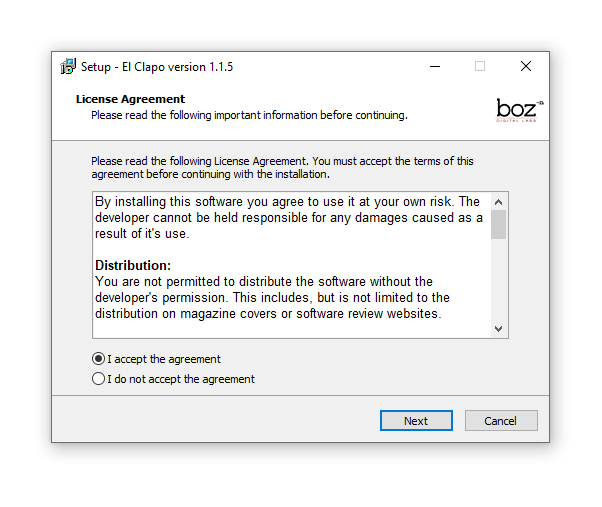
1. Double-click the .exe installer > Click 'I accept the agreement' then click 'Next'.

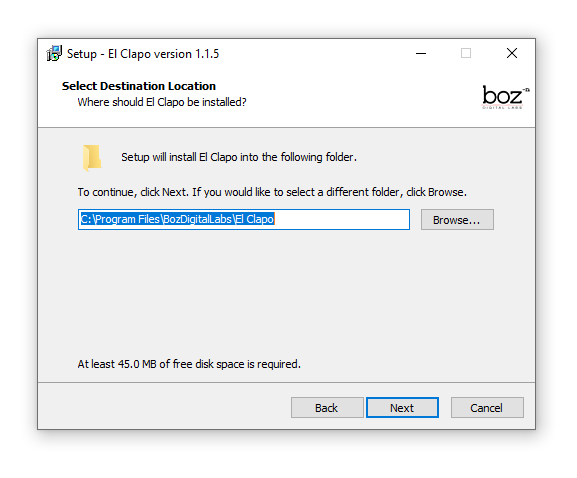
2. Click 'Next'.

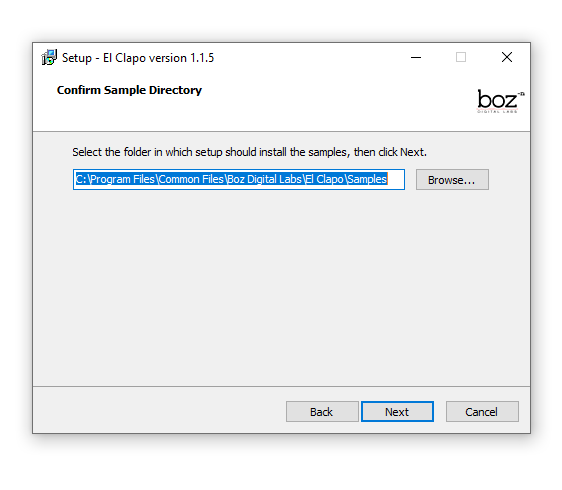
3. Click 'Next'.

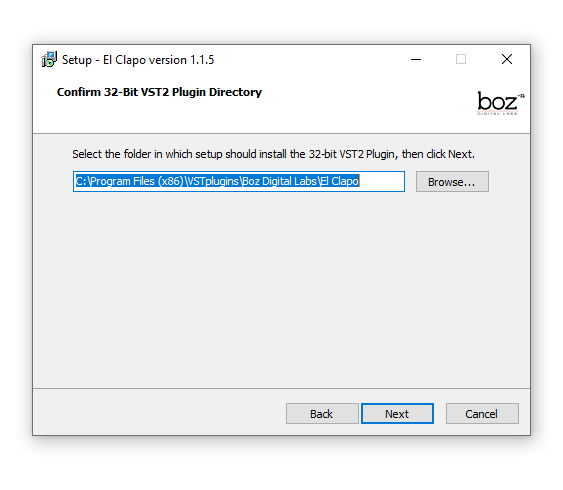
4. Select a VST folder in which to install the 32-bit software format > Click 'Next'.

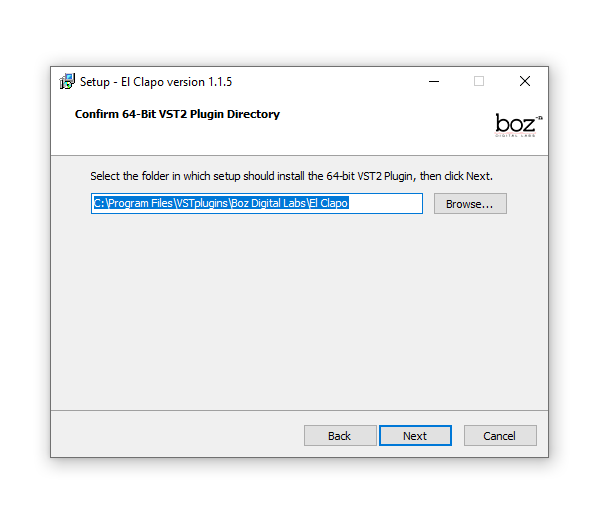
5. Select a VST folder in which to install the 64-bit software format > Click 'Next'.

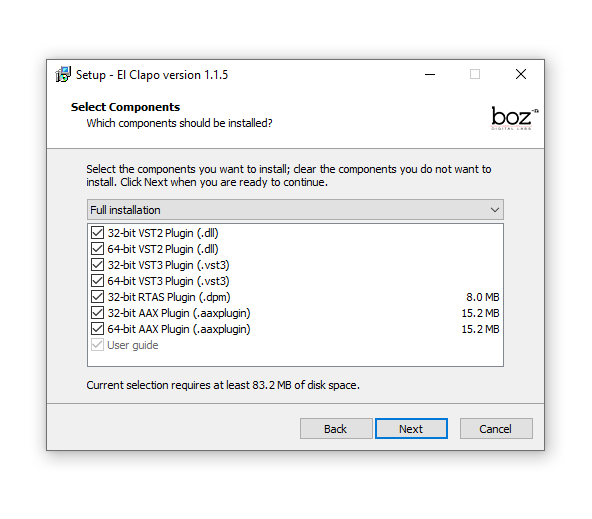
6. Select the components you wish to install > Click 'Next'.

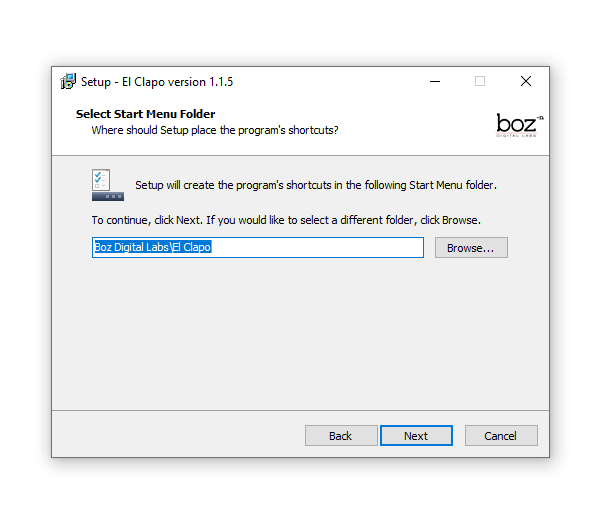
7. Click 'Next'.

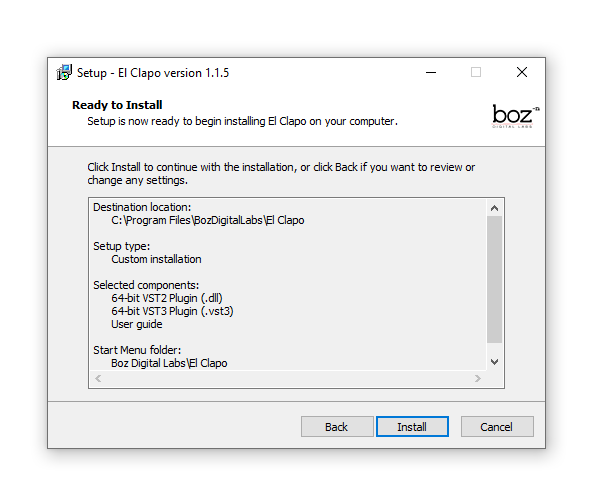
8. Click 'Install'.

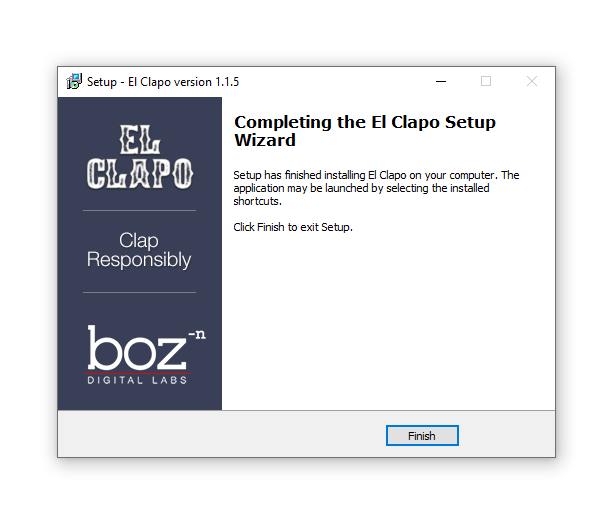
9. Click 'Finish'.

10. Open your DAW and open the plugin > Enter your Boz Digital Labs username and the serial code that you received in your Boz Digital Labs Account > Click 'Register'.

Your software is now authorised and ready for use!