/ Channel Strip / SSL E-Channel
Waves

SSL E-Channel

4.9 (8 Reviews)
$29.99 $149.00

79% off until Dec 07

Waves SSL E-Channel
Waves SSL E-Channel
Waves SSL E-Channel
Waves SSL E-Channel gallery thumbnail
Buy Now
Product information

SSL E-Channel

The SSL That Modernized Recording

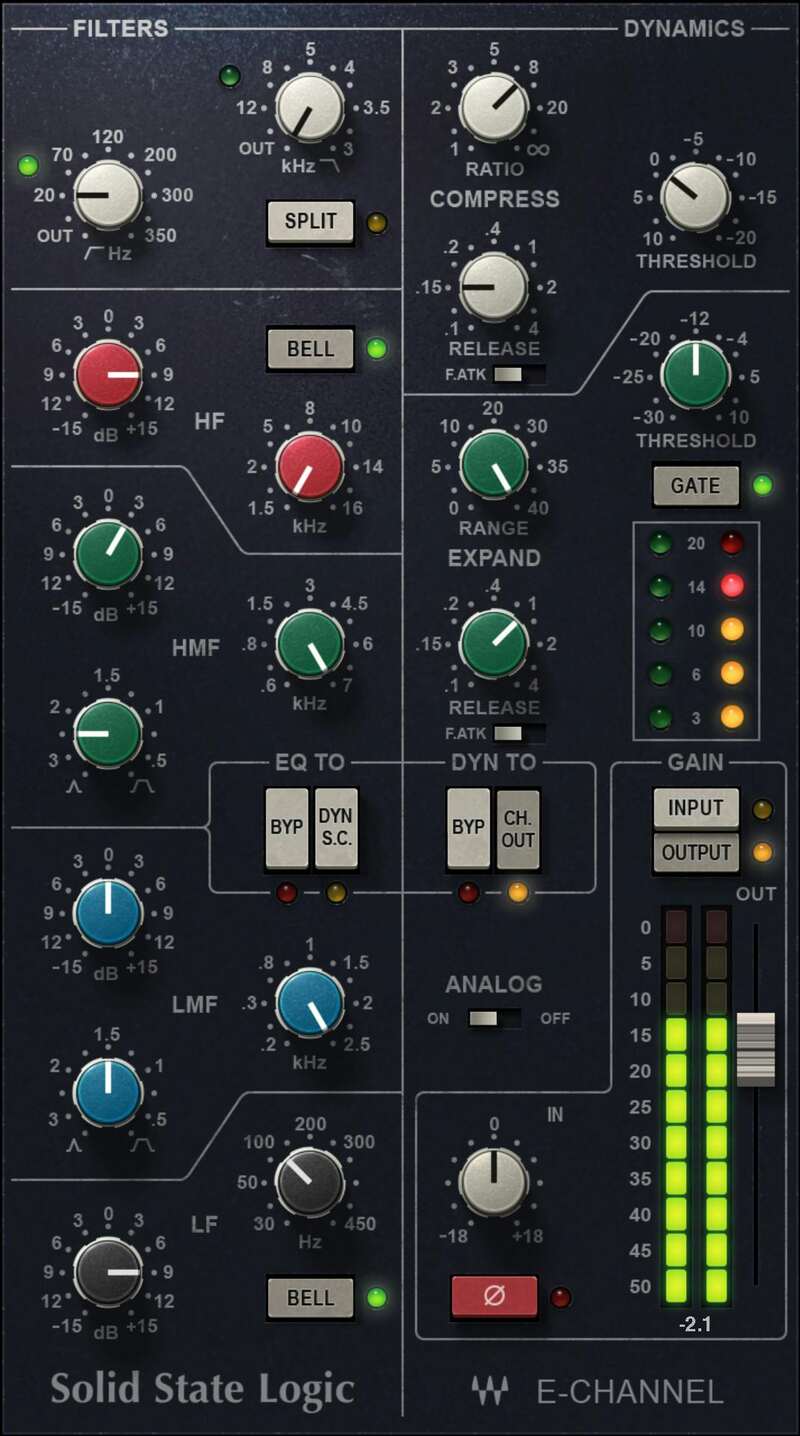
Solid State Logic’s SL 4000 series of consoles was the first to incorporate not just EQ, but dynamics processing in every channel. This “channel strip” concept revolutionized workflow, because the crucial elements needed to optimize a channel’s sound were in one place, right at your fingertips.

Decades later, the E-series’ classic status has been reborn in hip hop and pop genres—thanks to the smooth yet punchy dynamics, and the bright, clear sound of the famed “black knob” EQ.

Features

  • Developed under license and in close collaboration with SSL
  • Incorporates the “black knob” EQ developed with George Martin
  • 4-band EQ (2 shelf and 2 parametric stages), dual filters
  • Internal dynamics sidechaining, with switchable source
  • Smooth, soft-knee compressor/limiter
  • CPU-efficient for use with large, demanding multitrack projects

System Requirements

Mac

  • macOS Monterey 12, Ventura 13, Sonoma 14, Sequoia 15
  • VST / AU / AAX

PC

  • Windows 10+
  • VST / AAX
Installation Instructions

1. Head to https://www.waves.com/create-account

2. Enter your email and choose a password to create an account (if you already have a Waves account, choose Log in, enter your details and head to Step 5) > click 'Submit'

3. Open your email inbox > click the activation link in the email from Waves

4. Click 'Log in here' > Log in to your Waves account

5. Click 'Register New Products'

6. Enter the Serial Number found in your Plugin Boutique user account > click 'Submit'

7. Click download in your Plugin Boutique user account or head to https://www.waves.com/downloads/central > download the Waves Central app for your operating system

8. Install Waves Central > Open Waves Central

9. Click 'Log in' > enter your log in details

10. Click the 'Install Products' tab

11. Tick the blue dot on all products you wish to install or click the top dot to install all products > click 'Install & Activate'

12. Click 'OK'

13. Open your DAW > open the Waves plugin

Your Waves plugins are installed and ready to use, enjoy!

Plugin Boutique Rewards

Discover the most rewarding loyalty programme among all plugin retailers.

  • Free Loopmasters Samplepacks
  • Discounts on products and courses
  • Extra Virtual Cash claimed immediately at checkout
Find out more

Follow us:

X (Twitter) Facebook YouTube Instagram
Logo Logo

Plugin Boutique Limited, Part of the Beatport Group LLC.

Copyright © 2011-2025 Plugin Boutique. All rights reserved