


 Log In

Free gifts available with your purchase
Product information
CLA MixHub
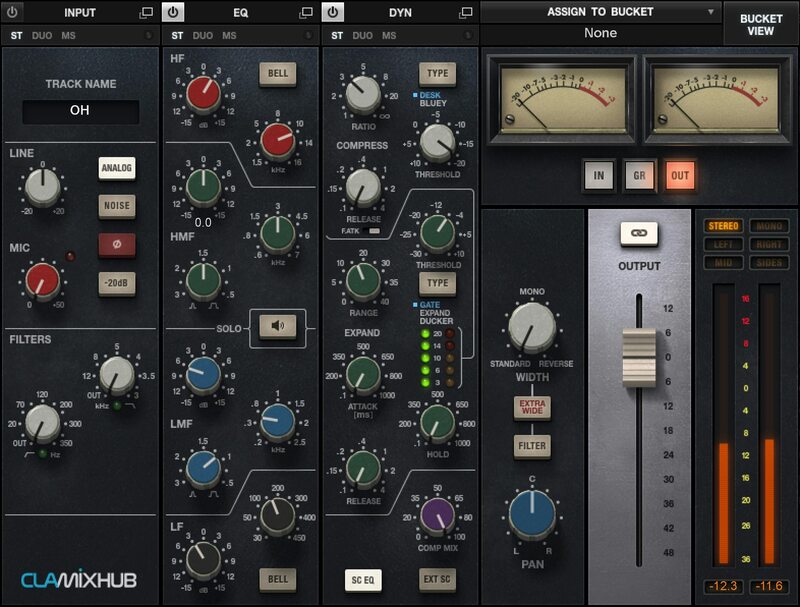
Mix on Chris Lord-Alge’s Console—in Your DAW
Mixing on a big analog console is magical. Now, CLA MixHub brings the rich sound of mix legend Chris Lord-Alge’s (Foo Fighters, Bruce Springsteen, Green Day) custom 4400-series console channel strips—into your DAW.
You get not just CLA’s console sound, you also get his console workflow: Now you can mix groups of 8 channels—all in the same plugin window, like on a physical console. You can tweak the EQ and dynamics of multiple tracks in your session, quickly, in full musical context of each other: that’s the power of CLA MixHub.
Features
- Models every nuance of CLA’s personal console channels strips
- Mix 64 channels from a single plugin interface, in 8 ‘buckets’ of 8
- Expandable Input, Dynamics, EQ, Output modules per channel
- Flip anytime between bucket view and single-channel view
- Freely switch the chain order in each channel
- Input section models the line amp in Chris’s console
- Extra insert per channel: Add any Waves plugin to each channel’s chain
- Dynamics includes sidechaining, plus CLA’s ‘super-gate’ and 1176 Bluey
- Includes CLA MixHub Lite for light CPU consumption
- Over 240 presets by CLA plus Dave Pensado, Greg Wells, more
System Requirements
Mac
- macOS Monterey 12, Ventura 13, Sonoma 14, Sequoia 15
- VST / AU / AAX
PC
- Windows 10+
- VST / AAX
Installation Instructions














